4 Ways to Convert M4A to MP3 on Windows 7/8/10/11
Summary
TopVox All Music Converter is the best option for converting multiple M4A files locally. VLC is a useful free alternative for occasional conversions, while iTunes can help users who already manage an iPhone library. The legacy Windows Media Player route works, but its CD-based method is far more cumbersome.
If you have an M4A (AAC) file from Voice Memos or iTunes, Windows can play it. However, you may encounter playback compatibility issues when moving it to an older car stereo or another legacy device. If your player demands a universal audio format, then converting M4A to MP3 is the best option. In this post, we will show you 4 proven methods to convert M4A to MP3 on Windows. This way, you can make your audio playable on any device. But please take note of this: never simply rename .m4a to .mp3. Changing only the extension name does not convert the actual codec or container. It only changes the filename, which can cause players to misidentify the file and fail to open it.
Method 1. TopVox All Music Converter
TopVox All Music Converter is, by default, a music streaming downloader and converter. Beyond downloading and converting music streaming to digital formats, you can also use it to convert M4A to MP3 on Windows/Mac. When you dig deeper, you will find the Format Converter sitting in the Tool section. It can convert M4A to lossy and lossless formats, including MP3, WAV, FLAC, and AIFF. It also lets you convert multiple files in batches at 35× faster speed.
FEATURES:
- Batch‑convert more than one M4A without lag or crashes.
- Adopts advanced hardware acceleration to achieve 35× speed.
- Convert M4A (AAC) or M4A (ALAC) to lossy/lossless audio formats.
- Keeps the full ID3 tags/metadata, including album artwork, song title, and artist name.
Step 1. Download the TopVox All Music Converter and complete the installation.
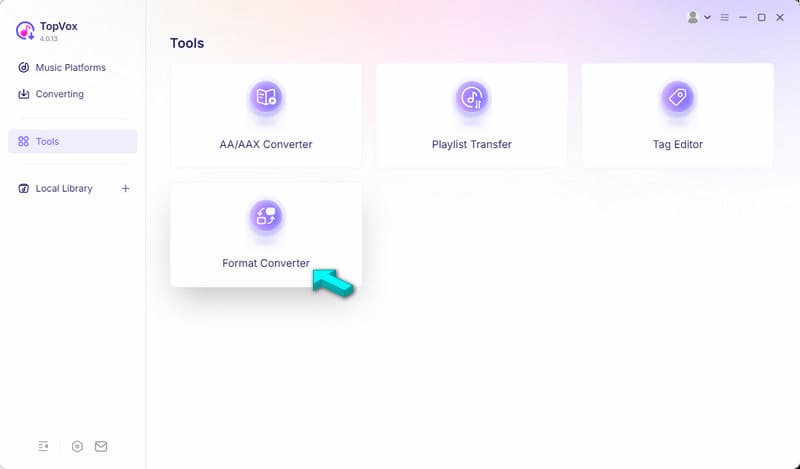
After setting up TopVox, go to the Tools tab and select Format Converter.
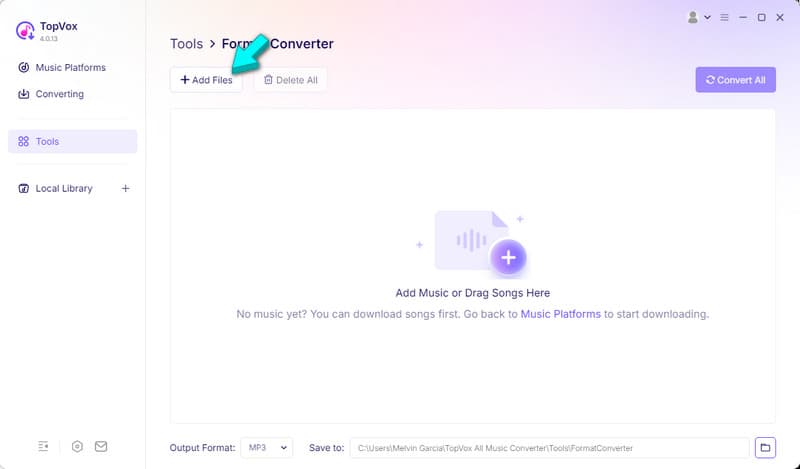
Step 2. Click +Add Files or drag the M4As to import them from your computer. Please note that TopVox does not limit the number of files you can upload, so you can upload multiple files.
Step 3. Go to the Output Format picker and select MP3 as your target format. Set the destination folder, then click Convert All to start the conversion.
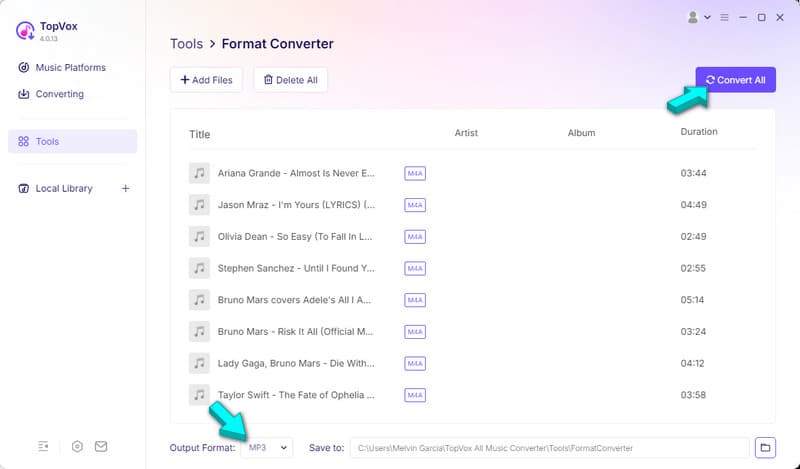
We put TopVox to the test using 100 M4As files totaling 1.8GB with varying bitrates. In our test, the batch conversion took only 1 minute and 38 seconds to complete. There were 0 failed conversions, and every converted file played perfectly. You can also use the same steps when you convert M4B to MP3.
Method 2. VLC Media Player
VLC Media Player isn’t just for playing music and video files. Since we know that it is just a media player, we won't explore it further. Many users don't know that the Media tab includes a hidden Convert/Save tool for converting media.
Here’s how to convert M4A to MP3 on Windows with VLC Media Player:
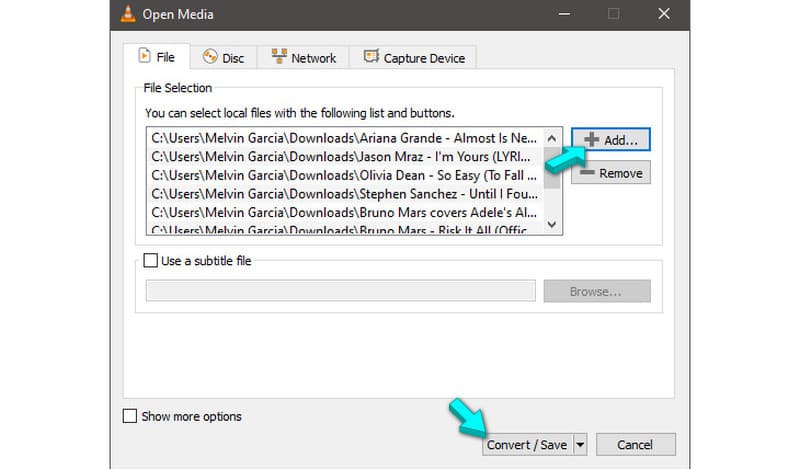
Step 1. Launch VLC and press Ctrl+R to bring up the Open Media window. Click + Add to load the M4A files, then click Convert/Save to proceed.
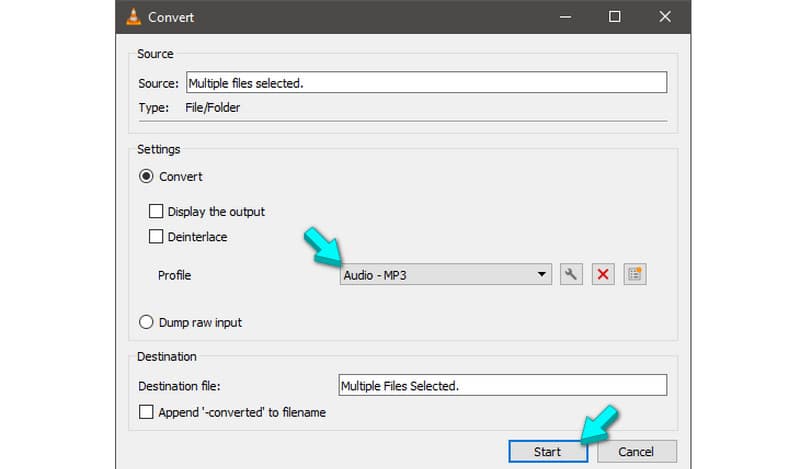
Step 2. In the Convert window, click the Profile picker and select Audio - MP3. After setting your new profile, click Start to begin transcoding M4A to MP3.
VLC Media Player is a good free option for converting M4A to MP3 or M4A to WAV. However, when talking about a large music library conversion, it is not recommended to use. During our testing, VLC crashed suddenly when we were on the 8th queue.
Method 3. Windows Media Player
The new Windows 11 Media Player lacks native file format conversion tools. Meanwhile, the legacy Windows Media Player does not feature direct encoding or Export As conversion for audio files. The only workaround you have is to burn M4A to an Audio CD and rip it back to MP3.
Here’s how to change M4A to MP3 on Windows Media Player:
Step 1. Beforehand, insert a blank CD-R or CD-RW into your disc drive. Open Windows Media Player, go to the Burn tab, and drop the M4A files in the Burn list.
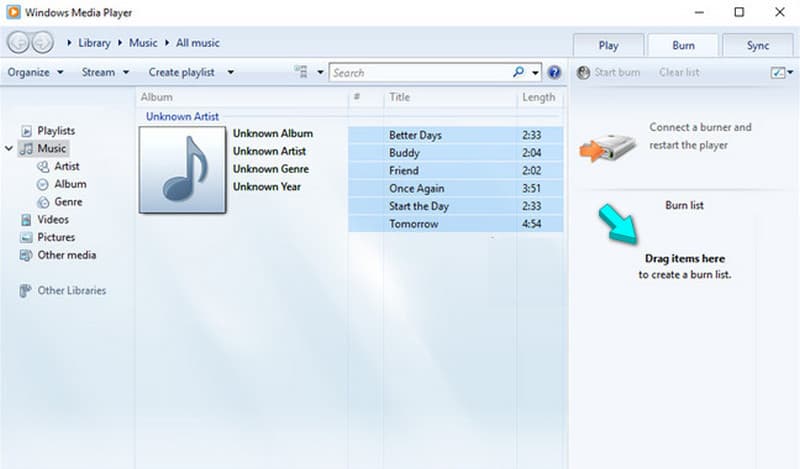
Step 2. Click the Burn options menu and select Audio CD or Data CD or DVD. After setting your burning option, click Start burn to copy your source onto the CD.
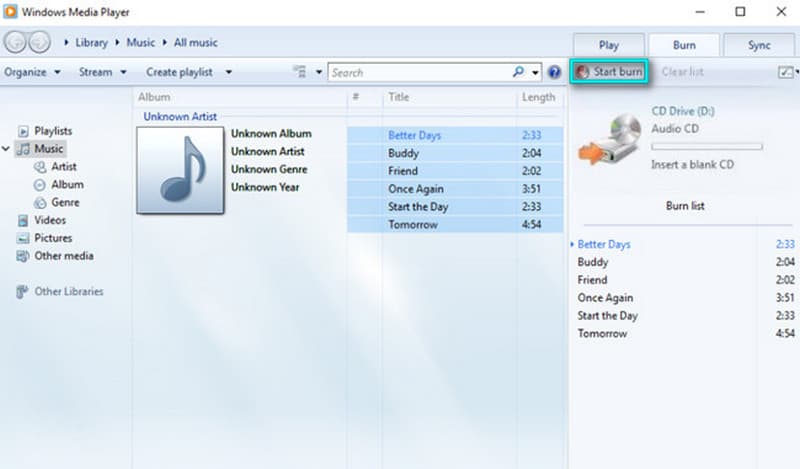
Step 3. Eject the CD and re-insert it into your disc drive. Click Rip CD and choose MP3 in the Format picker. Right after, click Rip CD and wait until the MP3s land in the Music folder.
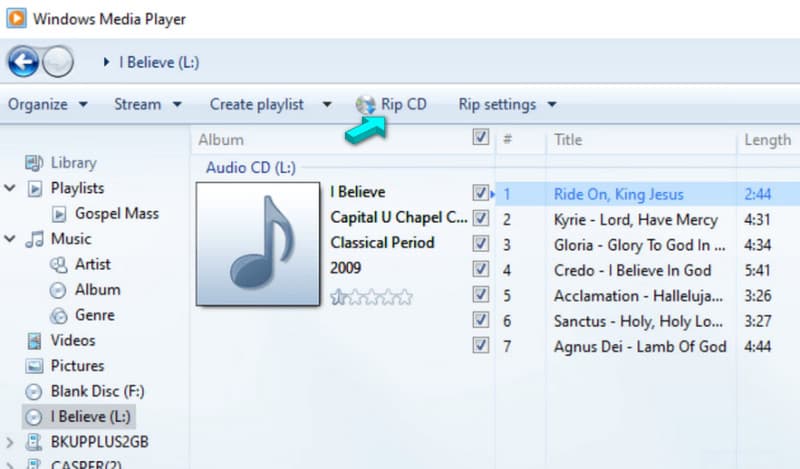
Windows Media Player works differently when you need to convert audio files. You need a working disc drive, a blank CD, sufficient disc capacity, and more time than a dedicated converter requires. If you want a faster solution, this method is definitely not recommended.
Method 4. iTunes
iTunes includes a built-in MP3 encoder and conversion function to manage the Apple Music library. If your M4As are in iTunes, you can convert them without additional software. See the quick guide below to learn how to turn M4A into MP3 on Windows:
Step 1. Run iTunes on your Windows PC, click Edit, and select Preferences. Click Import Settings and select MP3 Encoder in the Import Using picker to change the import encoder.
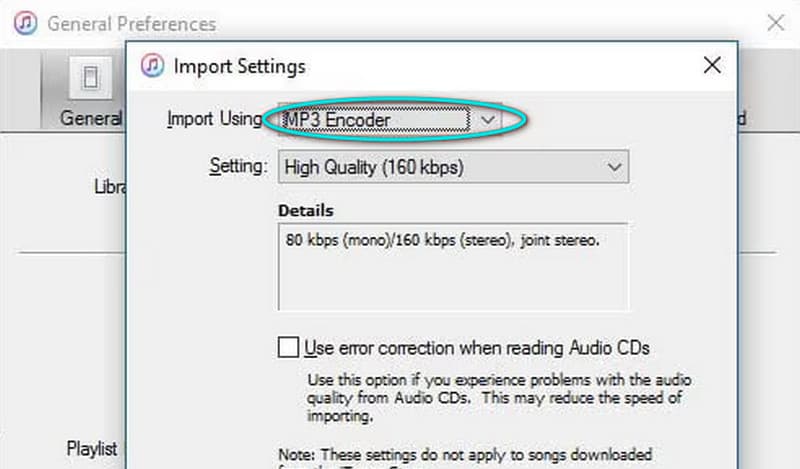
Step 2. After changing the encoder to MP3 Encoder, click OK. Highlight the M4As from your library to select them. Click Convert and select Create MP3 Version.
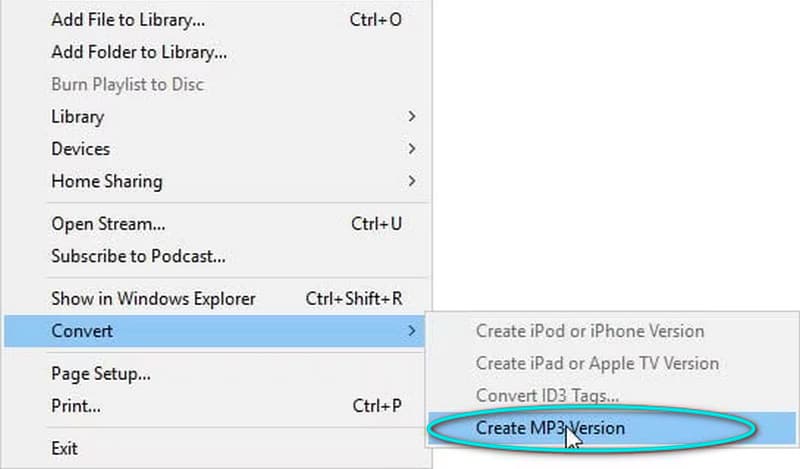
When you convert files in iTunes, it creates a new copy next to the original file in the library. This can be annoying when you convert too many files, and they appear in the iTunes library. Also, you should be aware that iTunes cannot convert DRM-protected M4A files. (Learn the DRM meaning here.)
Online Converter Vs. Local Desktop Tools
Free online converters seems convenient to use. However, they require uploading audio to a server. It is an important consideration when converting corporate voice memos and private interviews. Think of it like uploading sensitive audio by dropping the file into infrastructure you don’t directly own.
The most effective way to convert sensitive audio in an emergency situation is to use a local desktop tool. TopVox All Music Converter is an offline tool, so there is no need to upload files to online services. You always own the original recordings and converted files. Please be aware that local processing carries far less privacy risk than uploading private audio to external services.
FAQs about M4A to MP3 Conversion on Windows
Does converting M4A to MP3 lose quality?
Yes. When you convert M4A to MP3, it reduces the sound quality. It is because M4A files are usually encoded with AAC, which is a lossy compression. MP3 is also a lossy format, meaning lossy-to-lossy conversion discards a fresh layer of audio data.
Are M4A files safe?
Yes, M4A file is safe because it can only contain audio data. It cannot run viruses or execute harmful code. To prevent file extension risk, be sure your file name extension is correct. If the file is named sample.m4a.exe, it is an app, not music.
Is M4A supported on Windows?
Yes, M4A is fully supported on Windows. However, the playback depends on the media player you use. Modern Windows Media Player and the default Windows Media apps support M4A file playback. If you’re using another media player, it is best to convert them to M4A to ensure an error-free playback.
Conclusion
When you need to convert M4A to MP3 on Windows, there are various tools available. VLC and iTunes are recommended to use for occasional conversions. If you don’t want to install software, Windows Media Player can get the job done. However, the process requires a burn-and-rip workaround. For a reliable way to convert M4A files in batches, TopVox All Music Converter is what you need. Whichever method you choose, never rename .m4a to .mp3 to prevent file corruption or playback error.
Owen Bannett
Owen Bannett is a music enthusiasm as well as a senior writer. He has paid close attention on the pros & cons of various audio formats, bitrate, sample rate and encoding methods. Always seeking the best listening experience, Owen has deep insights about lossless music and diverse music converters on the markets.



 by
by