6 Feasible Methods to Convert FLAC to MP3 Format [2026]
When it comes to music, listeners often encounter a certain problem. When using FLAC files, you can ensure a lossless and flawless audio quality. However, it consumes storage space and remains unsupported by many older devices and car stereos. So, if you want better compatibility with satisfying audio playback, the best way is to use TopVox All Music Converter to convert FLAC to MP3 format. This program was designed to bridge the gap between high-resolution and everyday portability. With that, if you want a better conversion process, start checking everything in this tutorial.
Part 1. Best Way to Convert FLAC to MP3
If you are looking for the best tool that can successfully convert your FLAC files to MP3 format, it would be better to use TopVox All Music Converter. This program is helpful since it can give you all the necessary features. You can instantly convert FLAC to MP3 since it has a 35× faster conversion speed. Plus, it can offer its batch conversion feature, allowing you to transcode multiple FLACs in just a single click. Plus, the user interface of the converter is simple, making it suitable for all users. What's more, the software can support more formats. You can convert your audio to M4A, AAC, AC3, FLAC, OGG, and more. You can even save them with the best quality for up to 3200 kbps. Thus, if you want a powerful audio converter, TopVox All Music Converter can be your best choice.
Best for: Ideal for fast batch FLAC to MP3 conversion with high output quality.
Features
- The music converter has a fast conversion speed, up to 35 times faster.
- The batch conversion feature is available, allowing you to convert and download multiple videos at once.
- It can retain the ID3 tags for easier organization.
- The program can also offer its web-player feature for smooth audio playback.
To start converting a FLAC audio file to MP3 using this converter, follow the procedure below.
Step 1. Download TopVox All Music Converter on your Mac or Windows to start the FLAC to MP3 conversion process.
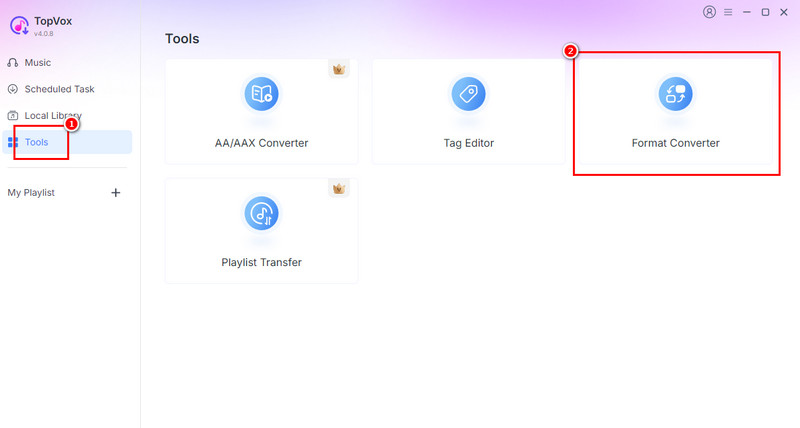
Step 2. From the interface, navigate to the Tools section and tap the Format Converter feature.
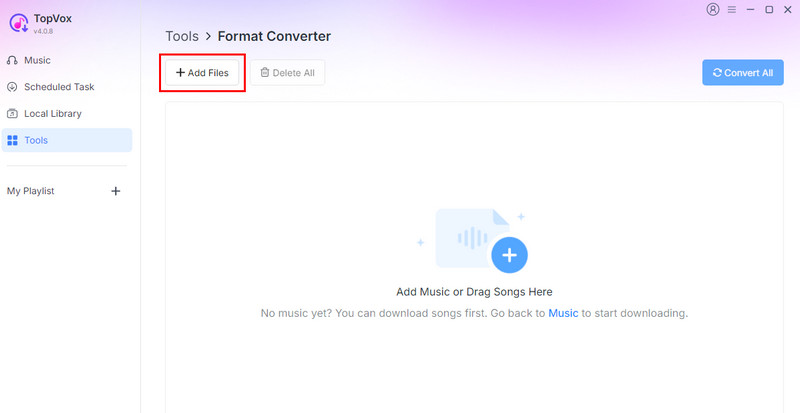
Step 3. To start adding the FLAC files, hit the Add Files option. Note that you can insert/add multiple files if you want to.
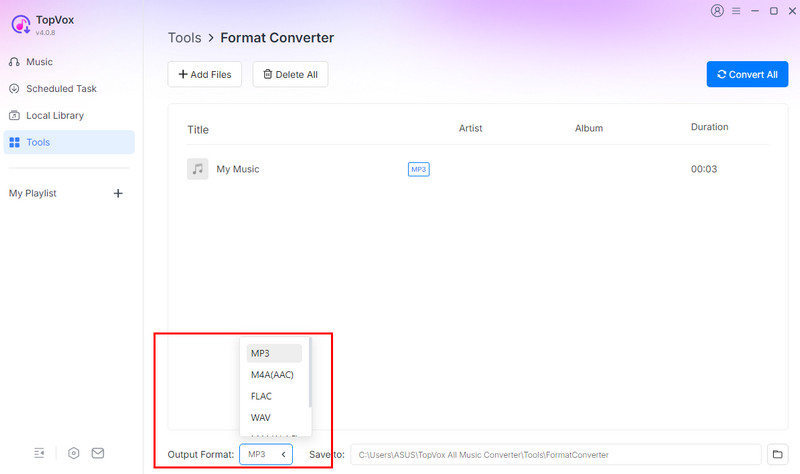
Step 4. You can now start selecting the MP3 format from the Output Format option below.
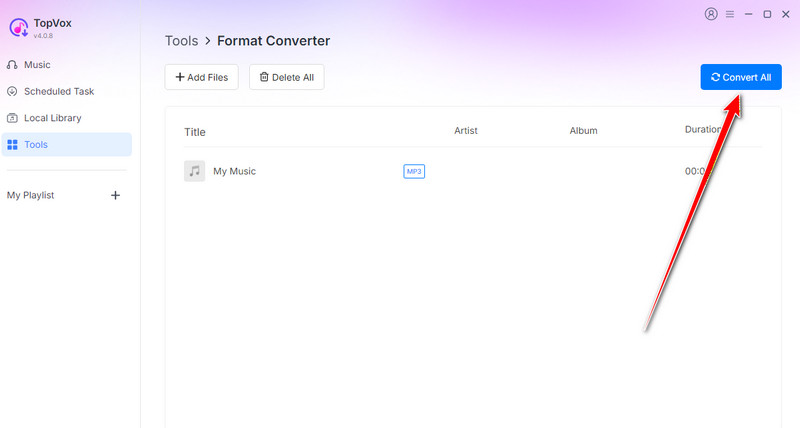
Step 5. For the last process, hit the Convert Now button above to start the conversion and saving process.
Part 2. Convert FLAC to MP3 on Windows
For Windows users, there are various programs you can use to effectively convert FLAC to MP3. To explore the best methods, check everything in this section.
Method 1. Change FLAC to MP3 Using Windows Media Player
Windows Media Player is not just an excellent video and audio player. You can also use this software to turn your FLAC files into MP3s. To learn the process, you can check the instructions below.
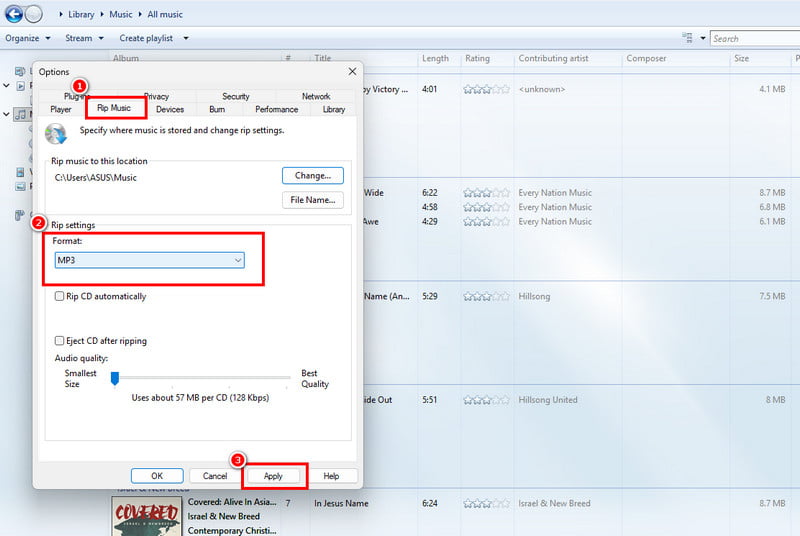
Step 1. Run the Windows Media Player to begin the process. After that, proceed to the Organize section from the top-left interface and click Options.
Step 2. For the next process, navigate to the Rip Music section and select MP3 as your output format.
Step 3. You can now hit the Apply button. Once done, the FLAC file will be saved as an MP3.
Limitations
- It lacks some necessary editing tools to improve the audio file.
- It is incapable of adjusting the audio bitrate.
Method 2. Turn FLAC to MP3 Using VLC Media Player
To convert FLAC format to MP3, you can also rely on VLC Media Player. With its converter feature, you can convert and save your FLAC files to MP3 format easily and effectively. The best part here is that you can get the best quality for better audio playback. You can even use this software to convert more files. You can turn WAV to MP3, MP3 to AAC, AAC to MP3, and more.
Step 1. After downloading VLC, launch it and click the Convert / Save button under the Media section.
Step 2. Then, hit the Add button to insert the FLAC file you want to convert. Once done, go to the bottom interface and click the Convert / Save option.
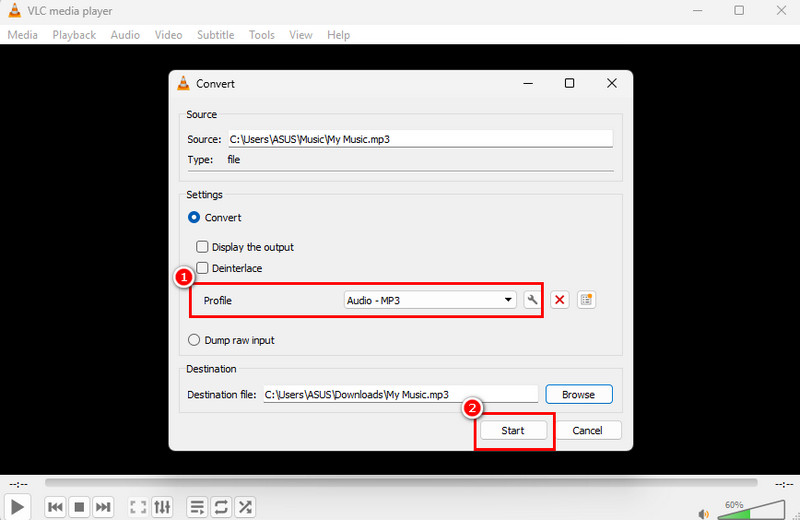
Step 3. From the Profile section, choose the MP3 format. Then, tap Start below to begin the FLAC to MP3 conversion process.
Limitations
- The software lacks audio editing tools to enhance the final output.
- It has a satisfying interface.
Recommendation:
Both of the programs above help convert FLAC to MP3. However, we can't hide the fact that they are incapable of giving all the features you need in terms of converting files. With that, it would be better to use a dedicated converter that can offer all the features you need for better playback. Thus, always use a reliable converter, like TopVox All Music Converter, for an effective conversion process.
Part 3. Convert FLAC to MP3 on Mac
You can use the Apple Music app to change FLAC to MP3 format on a Mac. What we like here is that you can have a smooth conversion process, thanks to its simplicity. It even ensures that the quality won't be affected, so you can still enjoy the original quality. See the process below and learn how to change FLAC to MP3.
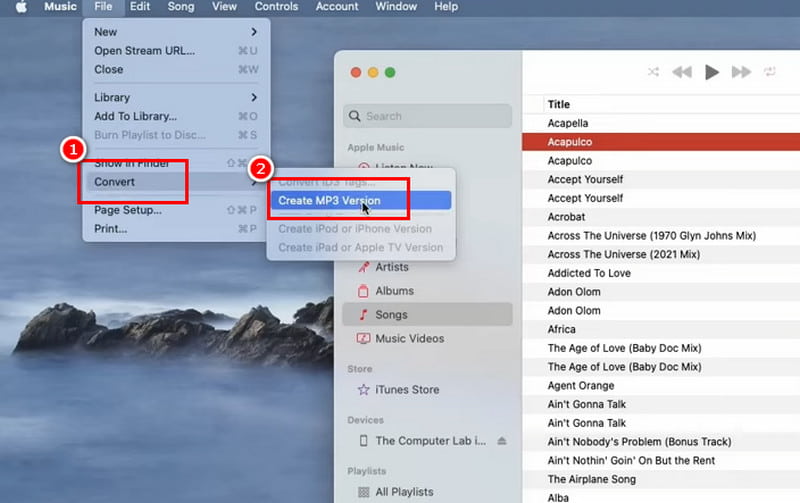
Step 1. Open Apple Music on your Mac. Then, go to the Music > Preferences section. Once done, go to the Files tab and click Import Settings.
Step 2. You can start selecting the MP3 Encoder as the import format. After that, start adding the FLAC file you want to convert.
Step 3. Click the File > Convert options and tap Create MP3 version to start turning FLAC to MP3.
Limitations
- The converter lacks customization settings.
- It is only ideal for Mac users.
Part 4. Transcode FLAC to MP3 Online
Want an online way to convert FLAC to MP3? In that case, read here and get more ideas on how to convert your audio online.
Method 1. Convert FLAC to MP3 Using FreeConvert
FreeConvert is among the free-to-use converters you can access on your browser. With its smooth conversation process, there is no doubt that you can obtain the result you need after the procedure. You can also convert more files, such as AAC to MP3, FLAC to M4A, OGG to MP3, etc. The best part here is that you can also adjust various parameters, including audio codec and volume. You can even trim the audio based on your preferences.
Best for: Perfect for users who want to convert and edit audio files online.
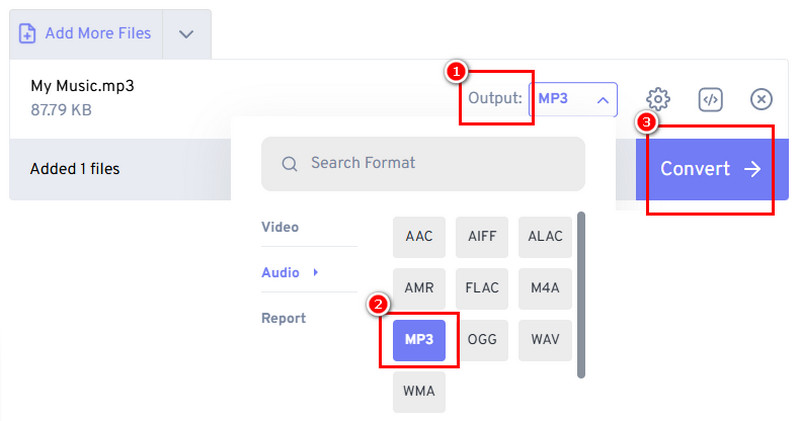
Step 1. After accessing the FreeConvert tool, upload the FLAC file by clicking the Choose Files option.
Step 2. Then, go to the Output section to choose/pick the MP3 format.
Step 3. To start the FLAC to MP3 conversion process, hit the Convert button. After that, tap Download to keep and save the MP3 file on your device.
Method 2. Transcode FLAC to MP3 Using Zamzar
Another online-based converter you can rely on is Zamzar. This tool ensures that you can change FLAC to MP3 format so you can play your file on any platform. What we like about the tool is that you can insert your file from various platforms, such as Dropbox, Google Drive, OneDrive, and more. It even allows batch convert FLAC to MP3, making it more powerful.
Best for: Ideal for cloud-sourced FLAC file conversion without software installation.
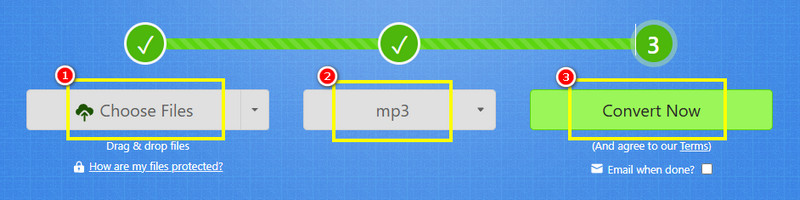
Step 1. Access Zamzar on your browser. Then, hit Choose Files to upload your FLAC files.
Step 2. Click the Dropdown button to select MP3 as your output format. Then, tick Convert to start the FLAC to MP3 conversion process.
Step 3. Lastly, click the Download function to start saving the file on your computer.
Limitations of using Online Converters
- Since the tools are web-based, you must have a stable internet connection.
- There are times when the tool gives you a larger file size.
Part 5. FLAC vs. MP3
What is FLAC Format?
FLAC is a lossless compression format. It means that it can reduce file size without affecting the audio data. The format can preserve the original audio quality, making it an ideal format for audiophiles, archiving, and professional use.
What is the MP3 Format?
MP3 is a lossy compression format. It is designed to shrink audio files by eliminating frequencies deemed less audible to human ears. The good part about this format is that you can use it on any platform, allowing you to prevent any compatibility issues.
For more details about the two formats, check the table below.
| VS | MP3 |
| Perfect, bit‑for‑bit identical to source | Audio Quality | Good to excellent (depends on bitrate, max ~320 kbps) |
| Lossless | Compression | Lossy |
| 25–35 MB | File Size | 9–10 MB |
| Supported on modern players, limited in older stereos/car systems | Device Support | Universal compatibility across virtually all devices |
| Archival, Critical listening, Professional audio work | Best Use Case | Everyday listening, Portable devices, Car stereos |
Part 6. Comparison of the Best FLAC to MP3 Converters
If you want to learn more about the best FLAC to MP3 converters, you can view all the information from the comparison table below.
| Conversion Speed | Supported Formats | Ease of Use | Offers Batch Conversion |
| TopVox All Music Converter | Up to 35 times faster | FLAC, MP3, AAC, OGG, WAV, etc. | Simple | Yes |
| Windows Media Player | Standard | MP3, WMA, limited | Simple | No |
| VLC Media Player | Standard | FLAC, MP3, AAC, OGG, WAV | Simple | Yes |
| Apple Music | Standard | MP3, AAC, ALAC | A little bit confusing | Yes, but limited |
| FreeConvert | Depends on the internet | FLAC, MP3, AAC, OGG, WAV | Simple | Yes |
| Zamzar | Depends on the internet | FLAC, MP3, AAC, OGG, WAV | Simple | Yes |
Part 7. FAQs about Converting FLAC to MP3
Q: Why do I need to convert FLAC to MP3?
A: Converting FLAC to MP3 can let you play your music on various platforms since MP3 is the most popular format. Plus, you can get a smaller file size, ideal for collecting audio content on your device.
Q: What are the best tools for converting FLAC to MP3?
A: There are numerous tools you can use. Some of them are TopVox All Music Converter, FreeConvert, Zamzar, Convertio, and more.
Q: Is it safe to convert FLAC to MP3?
A: Definitely, yes. If you are using a safe and reliable tool, you can safely convert your FLAC to MP3 smoothly. For a better conversion, you can use TopVox All Music Converter since it ensures that all your information will be safe.
Conclusion
Thanks to this tutorial, you have explored the best FLAC to MP3 conversion process you can use on your Windows, Mac, and browser. Thus, always read this tutorial for an effective method to transcode your files. Also, if you need a powerful and sophisticated audio converter, we suggest using TopVox All Music Converter. This converter can offer all the features you need, such as smooth and fast conversion, comprehensive UI, and a batch conversion feature, making it an ideal converter for all users.
Luna Harper
Luna Harper is a passionate music lover and an inspiring content sharer. She has explored most of the music converters available on the market, acquiring thorough knowledge of their features, usability, and differences. Luna enjoys using her professionalism to help fellow music lovers get superior audio quality.




 by
by