TopVox All Music Converter offers fast batch conversion from M4B to MP3, with chapter preservation and DRM removal. Windows tools like VLC and Windows Media Player are free but limited. Mac uses iTunes but has DRM restrictions. Audacity allows manual editing, while online tools like Zamzar and CloudConvert are quick but lack chapter support and speed.
You've got a great M4B audiobook, but your car stereo or old MP3 player won't recognize the format. That's a common problem when trying to play audiobooks on non-Apple devices. The bigger issue is that most basic conversion tools strip away chapter data. It leaves you with one long 10-hour MP3 file that's hard to navigate. In this 2026 guide, you'll learn different ways to convert M4B to MP3 on various devices. We'll also introduce TopVox All Music Converter, a powerful tool that keeps chapters organized, preserves audio quality, and makes audiobook conversion faster, cleaner, and easier for everyday listening.
Part 1. M4B vs MP3: Why Make the Switch
Before diving into methods, it helps to understand the formats. M4B is an audiobook format based on MPEG-4. It supports bookmarks and chapters, making it ideal for long listening sessions. However, compatibility is limited. Meanwhile, MP3 is universally supported. Nearly every device can handle MP3 files without issues.
Switching to MP3 ensures broader playback compatibility, but it comes with trade-offs. File size may increase slightly, and some tools may strip metadata such as author, title, and chapters. That's why choosing the right conversion method matters.
Part 2. Best Choice: TopVox All Music Converter
Best For: Batch conversion and chapter preservation.
Two things matter most when converting M4B to MP3: speed and chapter control. That's exactly where the TopVox All Music Converter is built. Instead of dealing with slow processing or losing structure, it handles M4B files while maintaining clean, organized outputs. TopVox All Music Converter is a full-featured tool that combines downloading, format conversion, and audiobook management in one place. It includes a Format Converter that can transcode M4B files to DRM-free formats. Not to mention, it also supports chapter management, allowing you to keep them intact or split automatically/manually.
What to Look Forward to with the TopVox All Music Converter:
Up to 35× faster batch conversion for large audiobook libraries.
Automatic DRM removal for unrestricted playback on any device.
Chapter management options: keep intact, auto-split, or manually divide by time.
High-quality output with adjustable bitrate up to 320kbps and sample rate up to 48kHz.
Here's how to convert M4B to MP3 in batch:
Step 1. Beforehand, secure a free download of TopVox All Music Converter. Install the M4B converter, then allow the installation to finish. After completing the setup, run the software to access the main dashboard.
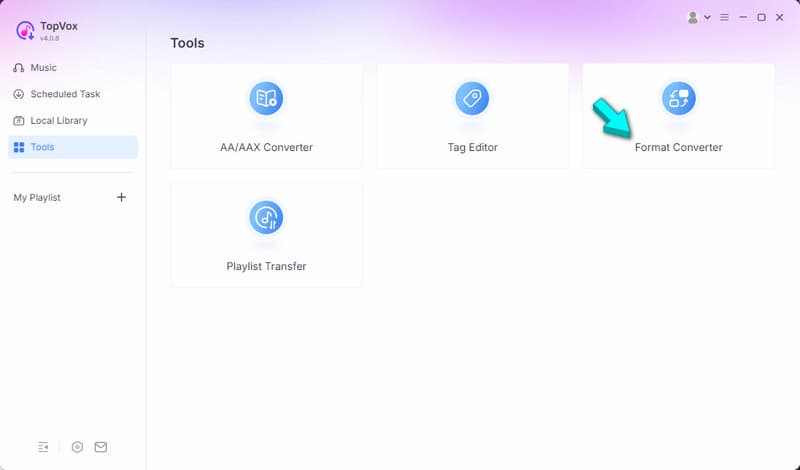
Step 2. As soon as it opens, TopVox defaults to the Music tab. From there, switch to the Tools tab to access additional tools. Select the Format Converter option to open the dedicated conversion tool. Be sure to select the Format Converter, not the AA/AAX Converter.
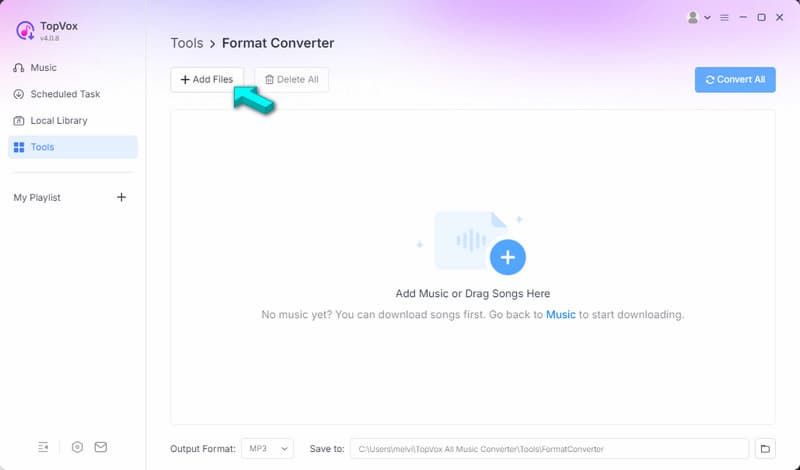
Step 3. Click + Add Files to import your M4B files. You can also drag and drop audiobooks directly into the interface, which is more convenient if you have multiple M4B files ready. Click Settings to configure chapter handling: keep chapters or split automatically/manually.
Important Note: If an unprotected M4B file fails to import, rename it to .m4a. However, be aware that changing the extension may turn off chapter and bookmark functionality.
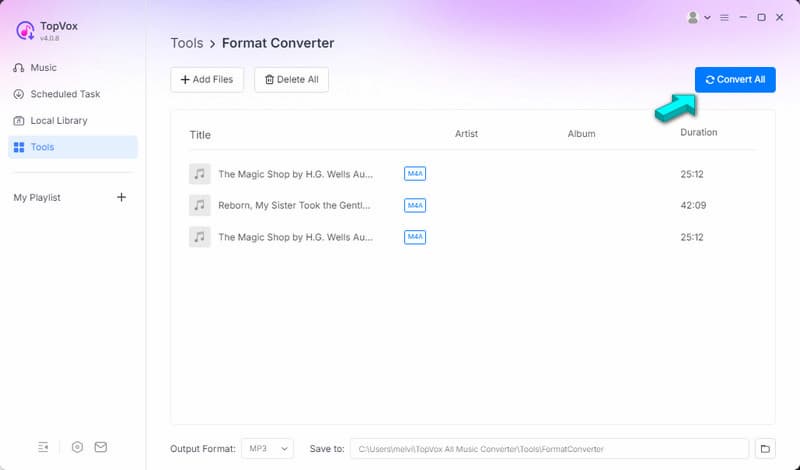
Step 4. By default, it outputs M4B files as MP3s with the original bitrate. Click Convert All to begin converting your M4B files to MP3. After the process finishes, your files will be ready as high-quality MP3s, playable on any device.
Editor's Note: If your M4B audiobooks come from Apple Books (iTunes), you can also use the Apple Music Converter inside the Music tab. This tool offers a more direct way to convert purchased audiobooks into MP3s with minimal setup. (Check here how to convert Apple Books or Apple Music to MP3 for a simpler, more direct workflow.)
Part 3. How to Convert M4B to MP3 on Windows
Windows Media Player
Best For: Basic free conversion on Windows.
Windows Media Player is a built-in tool for Windows systems that handles media playback and basic audio conversion. It can convert M4B to MP3, WAV, and M4A formats. However, it restricts chapter preservation and batch conversion because it focuses on general audio.
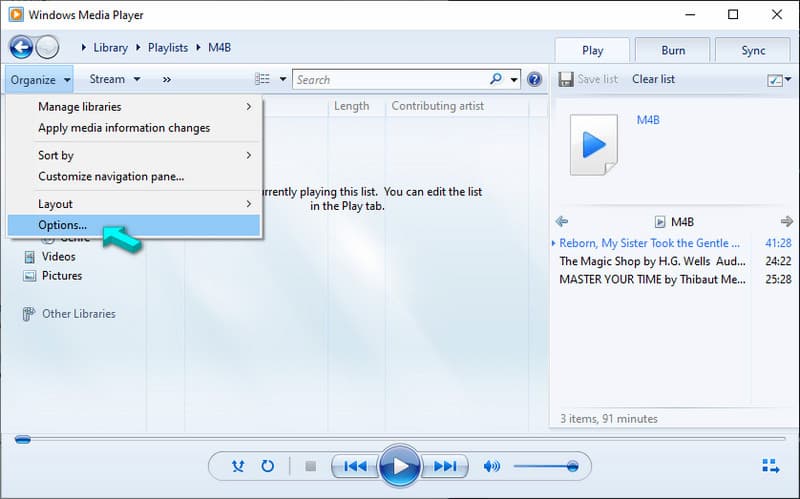
Step 1. On Windows Media Player, import or locate the M4B file you want to convert. Click the Organize option in the top menu, then select Options.
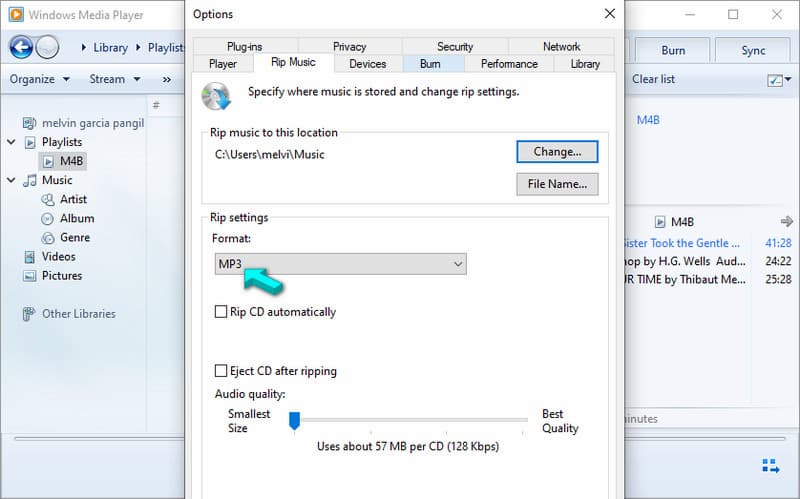
Step 2. From there, navigate to the Rip Music tab. Under the Rip settings, select MP3 as your output format. You can also click Change to choose a destination folder for the converted files.
Editor's Note: Since Windows Media Player doesn't directly convert M4B, you'll need to use the burn-and-rip method. First, burn the M4B file to a blank CD, then rip the CD back into your system as an MP3 file. While it is a convenient free option, the process is far from straightforward.
VLC Media Player
Best For: Free basic conversion (no chapters).
VLC Media Player is an open-source media playback software that works across multiple platforms, including Windows. Beyond playback, it also includes a built-in conversion tool that converts M4B format to MP3. However, the process can be technical.
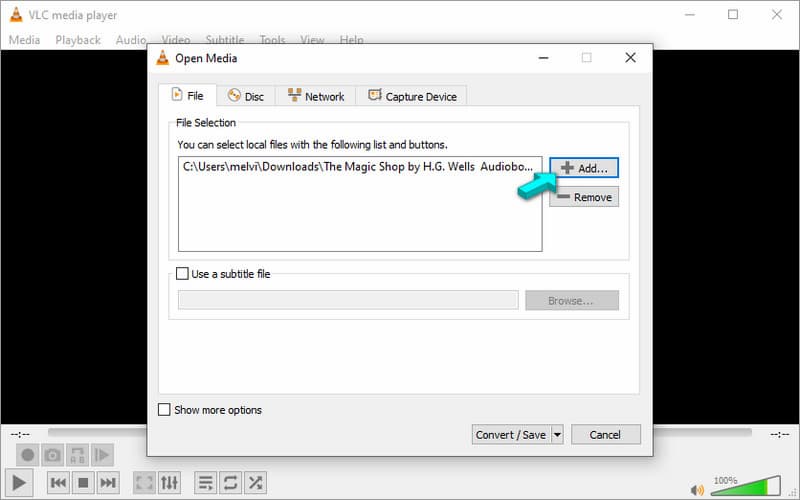
Step 1. In VLC, click Media, then select Convert/Save to open the conversion interface. Then, click +Add to import the M4B file in the Open Media window.
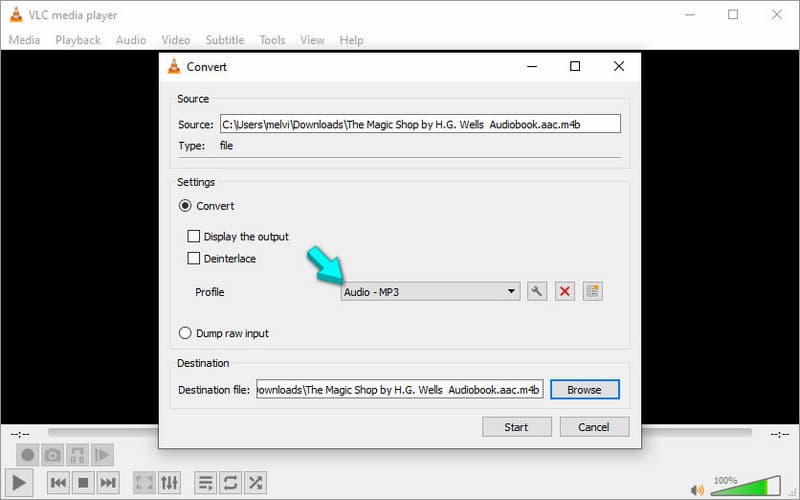
Step 2. Under Settings, select the Profile selector, then choose the Audio - MP3 option. Then, specify the output directory in the Browse selector and click Start to begin the conversion.
Editor's Note: VLC is a solid free option for basic conversions, but it has clear limitations. It does not support batch splitting, meaning you'll need to convert files one at a time. More importantly, it lacks chapter retention, so the conversion process turns the M4B audiobook into a single long MP3 file.
Part 4. How to Change M4B to MP3 on Mac
Best For: Mac ecosystem conversion (limited DRM support).
Apple builds iTunes as a media management tool for macOS and now integrates it into Apple Music. It allows you to organize, play, and convert audio files into different formats, including MP3. If you already have your audiobook in your library, iTunes can turn M4B into MP3 easily.
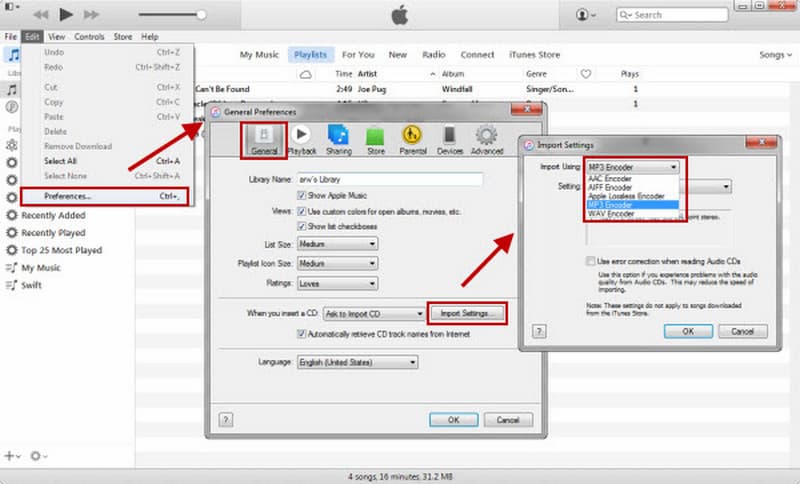
Step 1. On iTunes, navigate to Edit and select Preferences from the pulldown menu. In the General tab, click Import Settings, and set Import Using to MP3 Encoder.
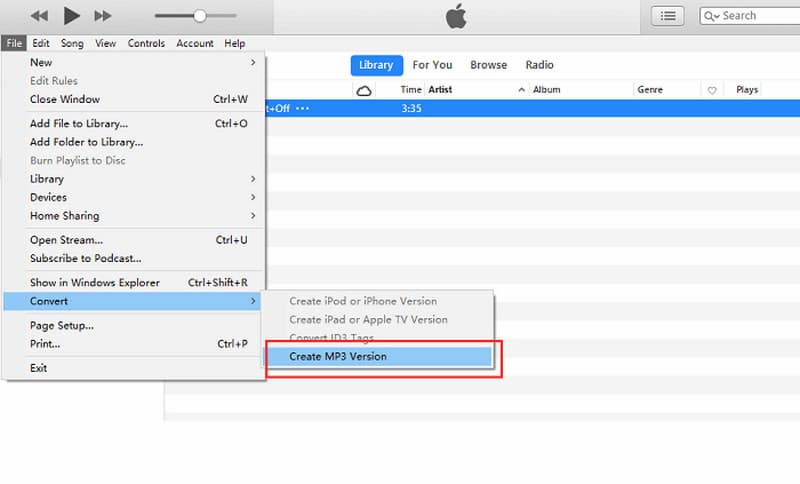
Step 2. Go to your library and select the M4B file. Then, proceed to File, click Create New Version, and select Create MP3 Version. iTunes will start converting your file to MP3 format.
Editor's Note: iTunes provides a convenient and free way to convert M4B files on Mac. However, Apple's DRM protection prevents the conversion of many purchased M4B files. Even when conversion works, exporting files for use on non-Apple devices can feel restrictive and less intuitive.
Audacity is an open-source audio editor for recording and editing sound. While it doesn't natively support M4B formats, you can unlock that capability by installing the FFmpeg library. After setting it up, Audacity becomes a flexible tool for converting audiobooks to MP3 format.
Here's how to convert M4B to MP3 in Audacity:
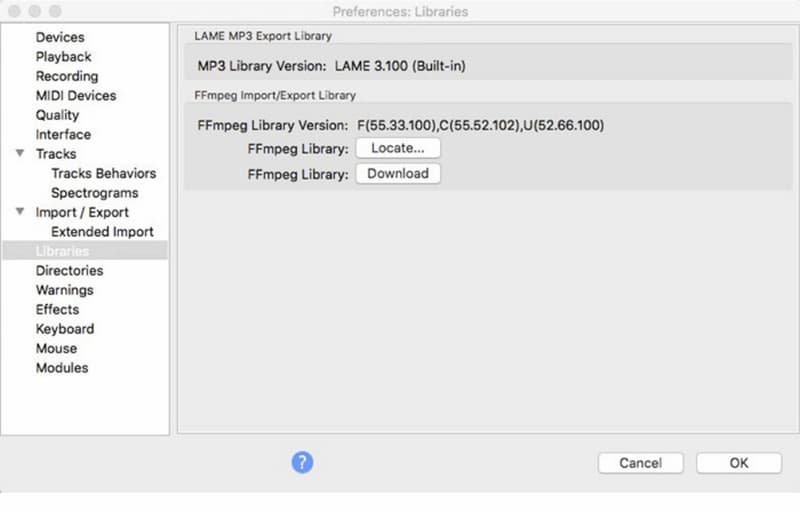
Step 1. Download and install the appropriate FFmpeg package for your system. Upon opening, navigate to Audacity, select Preferences, and click Libraries to locate the FFmpeg library.
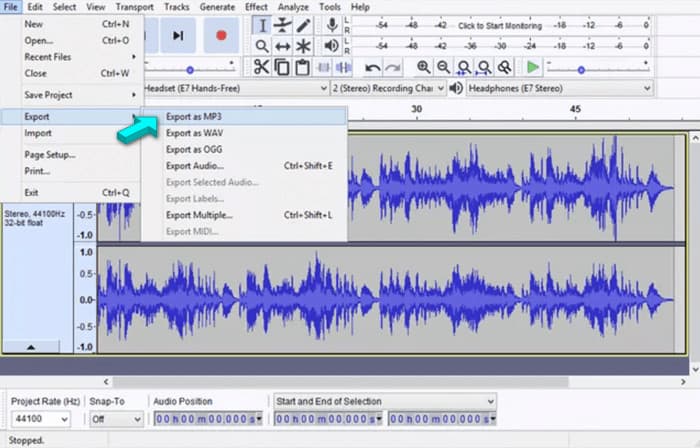
Step 2. Add it to enable extended format support, return to the main interface, and drag your M4B file. Proceed to File, click Export, and select Export as MP3.
Editor's Note: Audacity lets you freely edit or fine-tune your M4B files before exporting them as MP3s. However, it's not efficient for large audiobook collections. There's no batch conversion, and it exports files as a single stereo track, so it doesn't preserve chapters.
Part 6. How to Convert M4B to MP3 Online
Zamzar
Best For: Lightweight conversion.
Zamzar is a web-based file conversion tool that lets you convert audio files directly in your browser. It claims to support thousands of formats, including M4B to MP3, making it a convenient option for quick conversions.
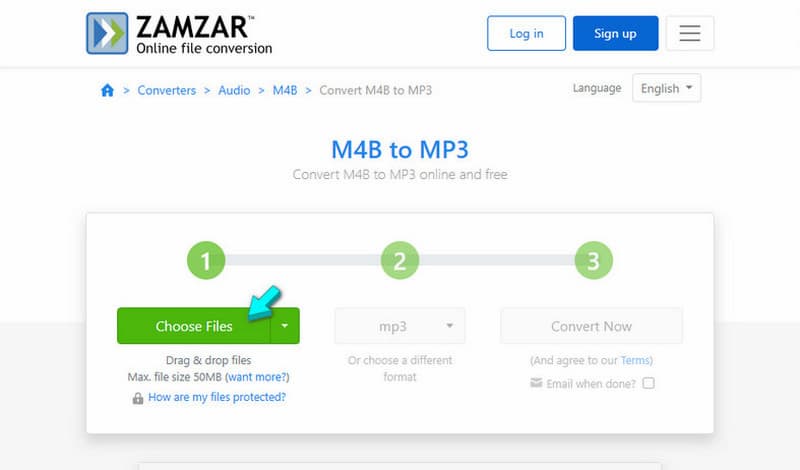
Step 1. On Zamzar's homepage, click Choose Files, then select your M4B from your local device or cloud storage. In the number 2 section, be sure MP3 is the target format.
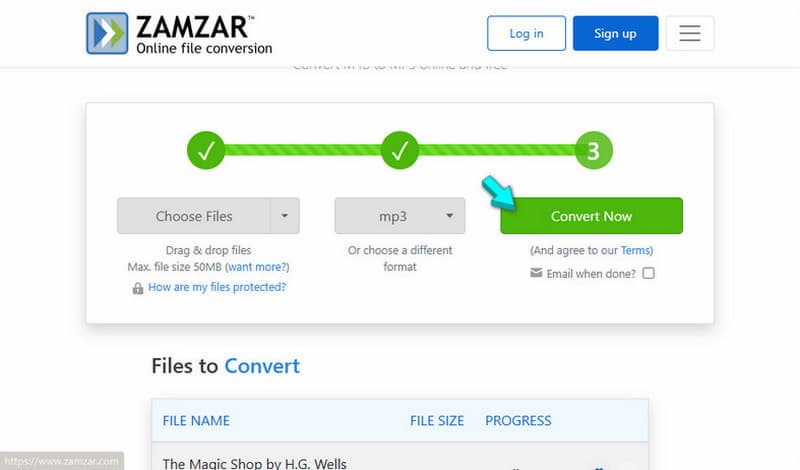
Step 2. Click Convert Now to begin the conversion process. You can also enter your email if you want the tool to notify you when the conversion is complete.
Editor's Note: Zamzar is one of the easiest ways to convert M4B files online, especially for beginners. However, free users face a 50MB file size limit, meaning most audiobooks will require a paid plan. Additionally, it does not preserve chapters and metadata after the conversion.
CloudConvert
Best For: quick conversion.
CloudConvert is a web-based converter that supports hundreds of file formats, including M4B and MP3. It does not require installation, so you can change M4B to MP3 directly in your browser. It works best for those who want a quick, flexible, and browser-based solution.
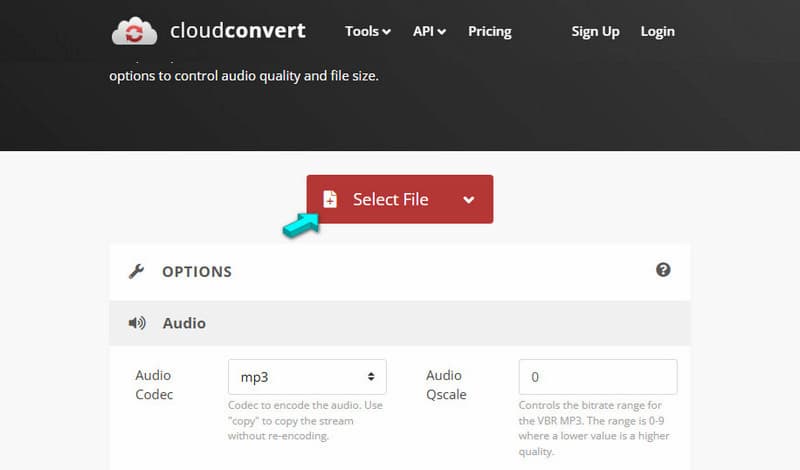
Step 1. On the CloudConvert page, click Select File to load the M4B file. You can import from your computer's local files, Google Drive, Dropbox, or via URL.
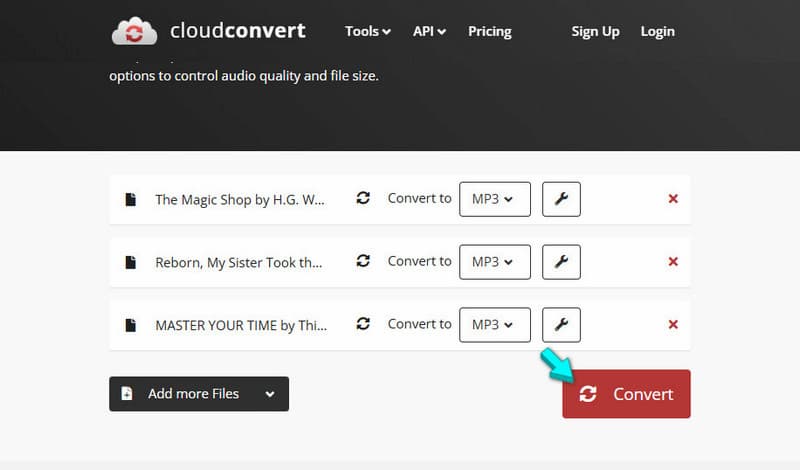
Step 2. CloudConvert selects MP3 automatically if you're on the correct page. Click Convert to initiate the conversion, and download afterward.
Editor's Note: CloudConvert is a convenient and flexible online tool with strong format support. However, large audiobook files may take a long time to upload, and conversion limits limit free use. More importantly, it doesn't preserve chapters, resulting in a single MP3 file that's harder to navigate.
Note: You can paste an audiobook URL to download Audible books directly. Just be sure the link is authenticated and comes from a legitimate source for smooth and secure access.
Part 7. FAQs about M4B to MP3 Conversion
Q: How do I split M4B into MP3 chapters for free?
A: You can split M4B into MP3 chapters for free using Audacity or VLC Media Player. However, free tools don't reliably preserve original chapter markers. If you want automatic chapter splitting with minimal effort, TopVox is a much more efficient option.
Q: Can I play M4B on a car stereo via USB?
A: In most cases, no. Many car stereos only support MP3 and WAV, not M4B. Even if the file plays, chapters and bookmarks usually won't work properly. To ensure smooth playback and compatibility, converting your M4B audiobook to MP3 is the safest approach.
Q: Can I convert M4B to MP3 with chapters?
A: Yes, but only with the right tool. Most free converters remove chapter data, turning your audiobook into one long file. To keep chapters intact, you'll need a dedicated converter like TopVox. You can preserve, auto-split, or custom-divide chapters with this tool.
Conclusion
Converting M4B to MP3 improves compatibility but often loses chapters and organization with basic tools. TopVox All Music Converter solves this with fast batch conversion, DRM removal, and full chapter preservation. For a smoother audiobook experience, download TopVox today and convert M4B to MP3 at higher speeds, with better quality and control.
Luna Harper is a passionate music lover and an inspiring content sharer. She has explored most of the music converters available on the market, acquiring thorough knowledge of their features, usability, and differences. Luna enjoys using her professionalism to help fellow music lovers get superior audio quality.
Please fill in the details below. Fields marked * are required.
First Name *
First Name cannot be empty.
Last Name *
First Name cannot be empty.
Email Address *
Email Address cannot be empty.
Invalid Email Address . Please try again.
Country *
Country cannot be empty.
Phone(optional)
Please enter a valid phone number.
ZIP Code(optional)
Please enter a valid ZIP code.
📌Subscribe now and take an extra 20% off on top—double the savings, plus early access to future product updates.
CancelSubmit
Congratulations! - Exclusive Bonus🎁
Thank you for subscribing! You have successfully joined our newsletter. Expect updates, offers, and insights delivered straight to your inbox. Plus, we offer you an extra $30 off on TopVox Lifetime Membership!


 by
by