5 Best Ways to Convert M4A to WAV on Desktop & Online
Summary
This guide explains how to convert M4A to WAV using paid software, free tools, built-in apps, and online converters. For most users, TopVox is the best choice because of its fast batch conversion and high-quality audio output. Meanwhile, Audacity and VLC suit users seeking free solution, Apple Music/iTunes is ideal for Apple users, and FreeConvert is best for small file conversions.
When preparing music for editing ot need to burn it to audio CDs, your source audio should be in WAV format. It is because WAV is uncompressed and lossless, retaining raw audio data. Fortunately, converting M4A to WAV is easy, and there are several methods you can follow. You can use a dedicated converter, open-source tools, built-in apps, or an online converter. In this post, we’ll compare each method and explain when it makes sense to convert M4A to WAV. Most importantly, we will provide 5 instructional guides on converting files for each tool.
How We Picked
- • We tested each tool using the same set of 100 M4A files with varying bitrates.
- • We use Windows 10 Pro (64-bit), powered by AMD Athlon 3000G with Radeon Vega Graphics processor, 12 GB RAM, and an AMD Radeon(™) Vega 3 Graphics.
- • We assess each tool’s quality, speed, batch conversion, metadata preservation, and privacy.
| OS | Price | Batch Convert | Speed | Preserves Metadata | Rating | Best For |
| TopVox All Music Converter | Windows and Mac | Freemium | ✅ | Up to 35× | ✅ | 4.8/5 | Fast batch M4A conversion with high-quality output |
| Audacity | Windows, Mac, and Linux | Free | Limited (via Macros) | Normal speed | ❌ | 4.3/5 | Editing M4A before converting to WAV |
| VLC Media Player | Windows, Mac, and Linux | Free | Limited (10 concurrent conversions) | Normal speed | Partially | 4/5 | Free conversions |
| Apple Music/iTunes | Mac (Apple Music) and Windows (iTunes) | Free | ❌ | Normal speed | ✅ | 4.5/5 | Converting unprotected M4As |
| FreeConvert | Web | Freemium | Limited (25 conversions per minute per day) | Depends on the server/internet | Partially | 3.8/5 | Below 1 GB file conversion |
Part 1. What You Need to Know Before Converting M4A to WAV?
Check M4A Encoding
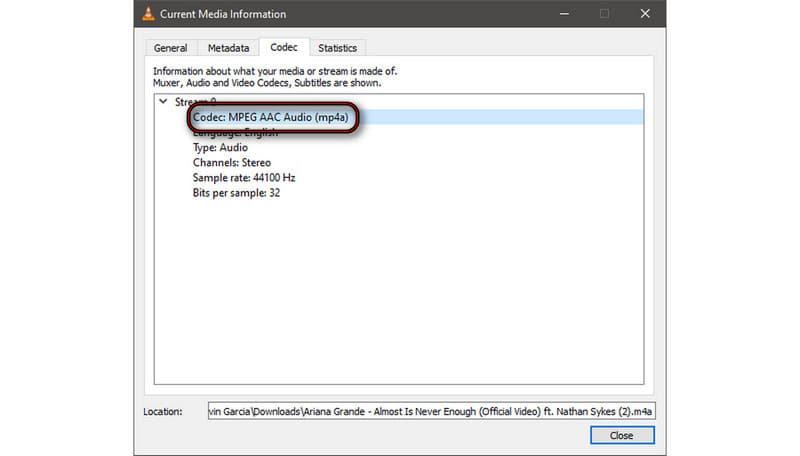
Many people think M4A is an audio format, but it's actually a container. Before you convert M4A to WAV, you must first know what type of audio your M4A contains. To explain briefly, AAC is smaller and lossy, and ALAC is larger and lossless. Since both use the same .m4a extension, you can’t tell which codec is inside just by looking at the file name.
Way 1. Use VLC: Open the M4A file in VLC, then go to the Tools menu. Select the Codec Information or press Ctrl+J to open the Current Media Information. Click the Codec tab to see which codec your M4A uses.
Way 2. Use MediaInfo: Navigate to Media, click Open, and select File to import the M4A file. MediaInfo will automatically display the file information.
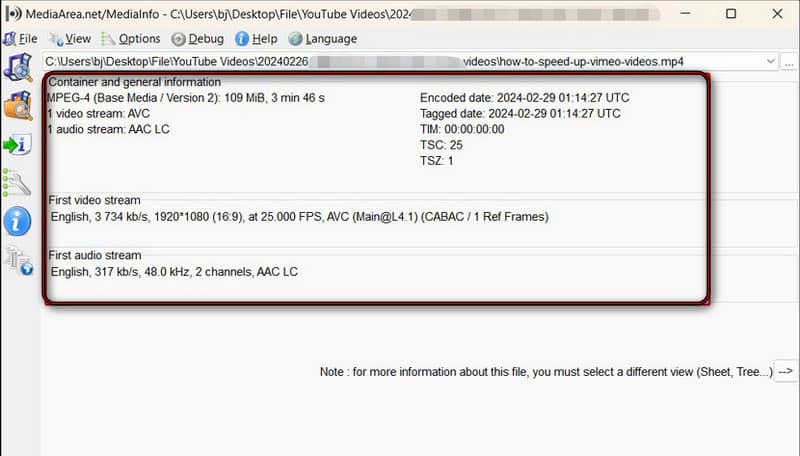
The codec determines whether converting to WAV can preserve the original audio quality. If your M4A uses AAC, converting it to WAV does not improve the sound quality. If your M4A uses ALAC, converting it to WAV is a true lossless conversion.
File Size Change: What to Expect
Another important thing to know is that WAV is an uncompressed audio format. It stores raw PCM audio data without compression, which results in much larger files. As a general rule, a standard CD-quality WAV file requires about 10 MB of storage per minute of audio.
Say you have a 3-minute M4A that is 4 MB. Converting it to WAV will increase the size to about 30 MB, which is normal. But remember, a larger WAV file does not automatically mean better sound quality. It just stores the audio without compression.
Part 2. Using TopVox All Music Converter
TopVox All Music Converter is, by purpose, an all‑music streaming downloader and converter. It includes a Format Converter in the Tool section that lets you format M4A to WAV. You can also export M4A (AAC) and M4A (ALAC) to MP3, FLAC, and AIFF. It supports simultaneous conversion of more than one file at 35× faster speed.
Features
- Batch‑convert hundreds of WAVs without lag or crashes.
- Convert M4A encoded in AAC or ALAC to lossless audio formats.
- Uses advanced hardware acceleration to achieve 35× conversion speed.
- Keeps full metadata/ID3 tags, including album artwork, song title, and artist name.
Pros
- No file size or number limit for conversion.
- All format conversions are processed locally.
- Does not lag or crash during large‑batch conversion.
Cons
- Audio output settings are fixed.
- Free trial converts only the track’s first 3 minutes.
Step 1. Download the M4A‑to‑WAV converter and complete the installation.
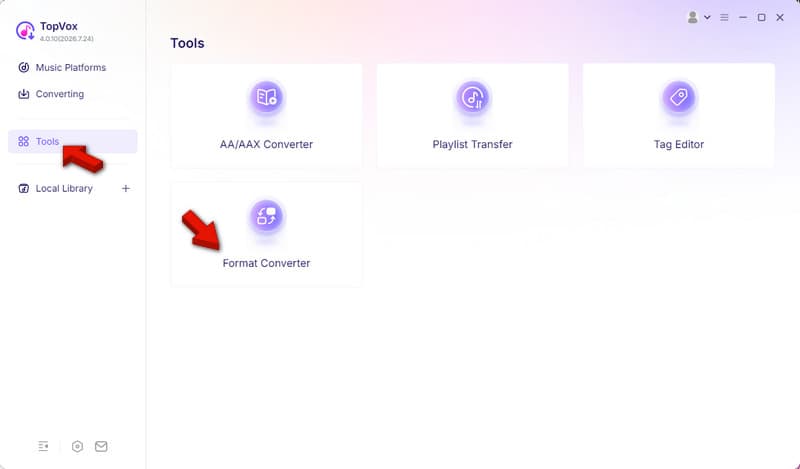
After setting up TopVox, go to the Tools tab and select Format Converter.
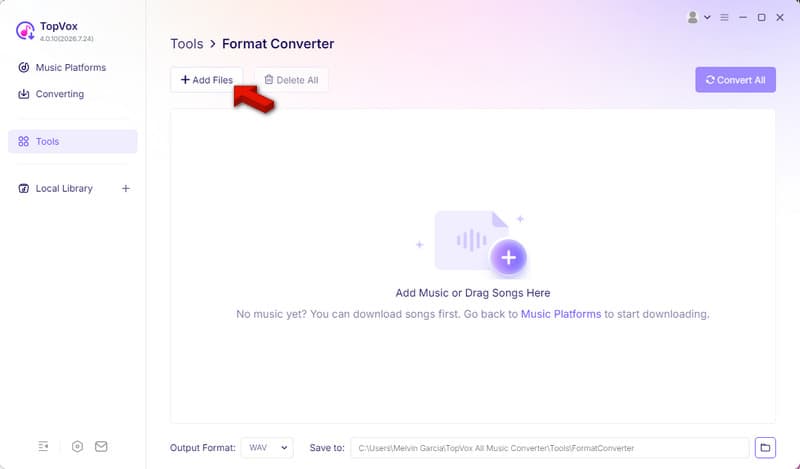
Step 2. Drag the M4As, or click +Add Files to upload them from your computer. Please note that TopVox does not limit the number of files you can import, so you can upload multiple files.
Step 3. Head to the Output Format picker and select WAV as your target output format. Specify the path destination, then click Convert All to start the conversion.
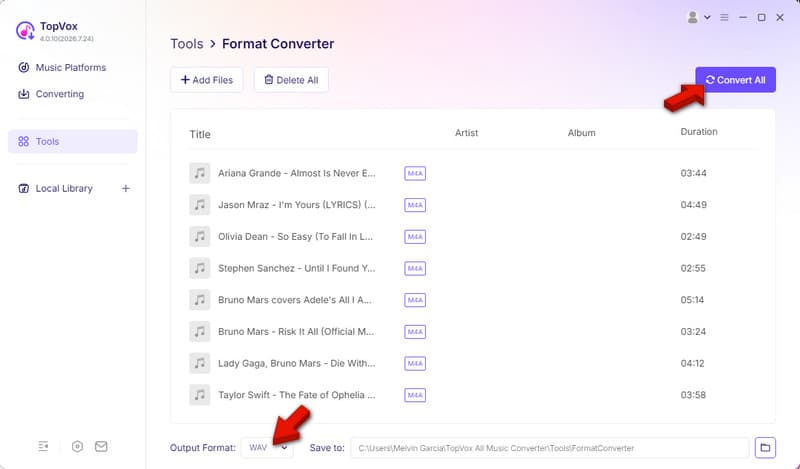
In our testing, TopVox converted exactly 100 M4As, totaling 1.7 GB, with varying bitrates in just 1 minute and 37 seconds. There were 0 failed conversions, and each converted WAV played perfectly. In addition to WAV, we also convert M4A to MP3, and the test results are good.
Part 3. Using Audacity
Audacity is known to many as audio-only software for audio recording and editing. But many didn’t know it could be used as a converter-like tool, allowing you to change M4A to WAV. The process? You only need to import an M4A file and export it as a WAV file. However, you need to install the FFmpeg library first to convert the WAV from M4A.
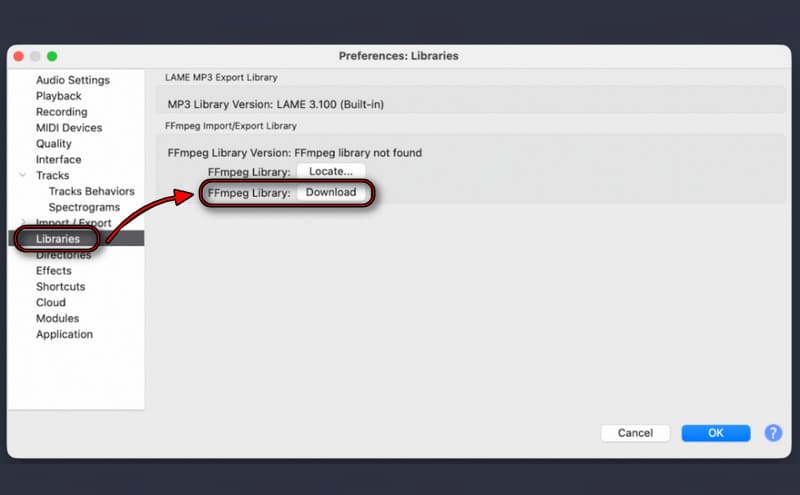
Step 1. In Audacity, go to Edit, click Preferences, and select Libraries and download FFmpeg Library. Restart the software to detect and load the new plugin.
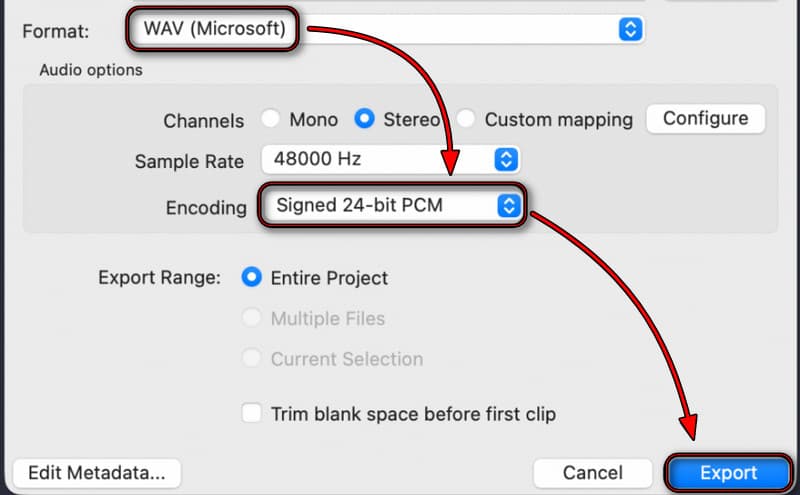
Step 2. Drag the M4A file into the workspace to import it. Navigate to File and click Export Audio. Select WAV (Microsoft) as output, set the encoding format, and Export.
Audacity is a worthwhile tool, especially if you want a completely free conversion method. However, Audacity cannot open M4A files on its own and requires an additional plug-in (the FFmpeg Library). Also, you cannot process files in batches without macros.
Part 4. Using VLC Media Player
VLC Media Player is not only a free multimedia player for listening to music and playing videos. When you explore it, you’ll find that VLC isn’t limited to this. It has a hidden Convert/Save tool that you can use as an M4A-to-WAV audio file converter. You can also convert AAC to MP3 here.
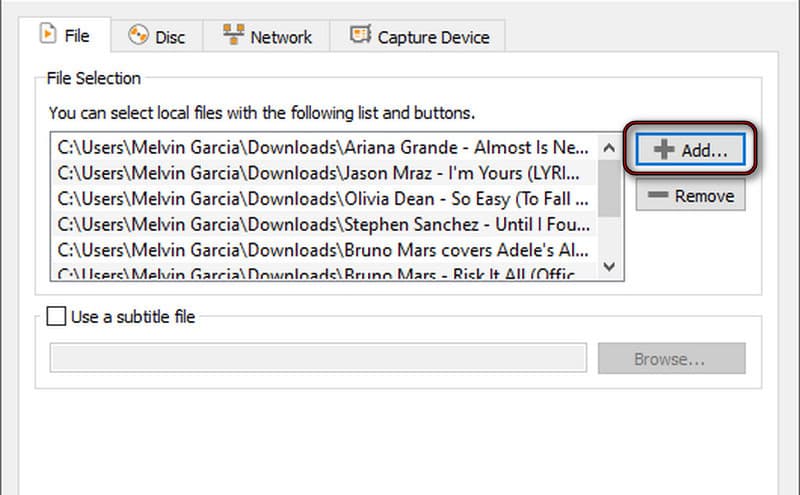
Step 1. Open VLC and press Ctrl+R to bring up the Open Media window. Click + Add to import the M4A sources, then click Convert/Save to proceed.
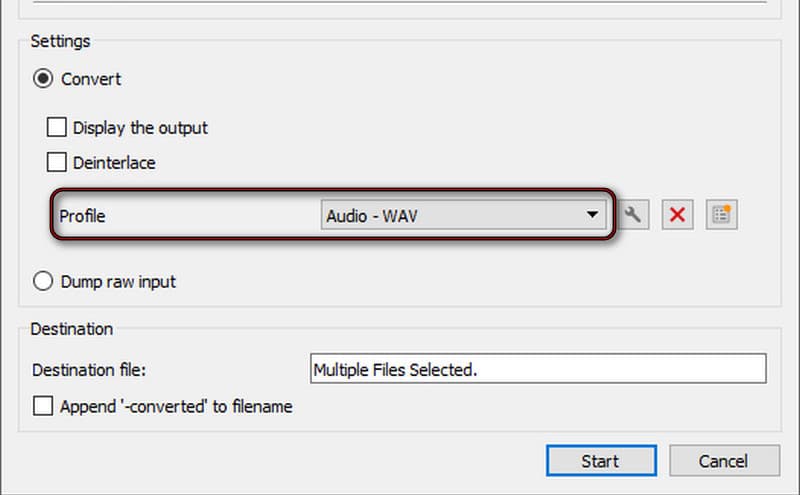
Step 2. In the Convert window, go to the Profile picker and select Audio - WAV. After selecting the new profile, click Start to initiate the M4A transcoding.
By default, VLC does not offer WAV as an output format, so you need to create a new profile. Also, it offers only basic conversion settings and cannot preserve metadata. In our testing, VLC crashed suddenly when we were on the 12th queue.
Part 5. Using Apple Music/iTunes
The Apple Music app/iTunes includes a secret feature that can transfer M4A to WAV. Most people, especially Mac users, don’t realize it because they think about the main function of the app. If your M4As are in Apple Music/iTunes, you can convert them without an additional app.
Pros
- Natively support M4A files.
- Converted WAVs stay in the same library.
- Pre-installed on Mac; no need to install anything.
Cons
- No true batch M4A conversion.
- Cannot convert Apple Music with DRM protection. (Learn the DRM meaning here)
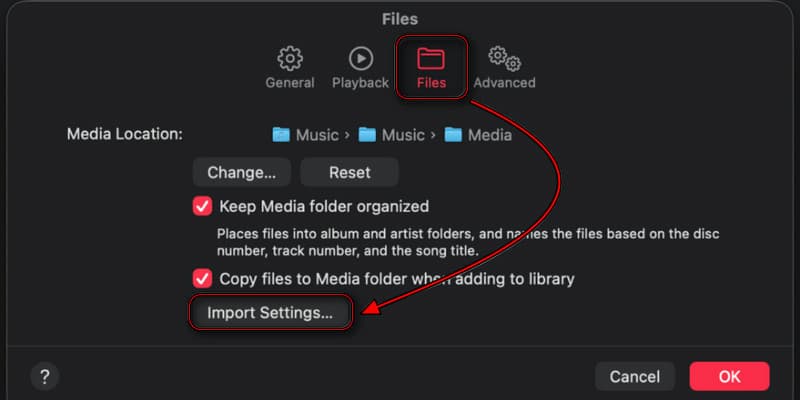
Step 1. Run Apple Music (Mac) or iTunes (Windows), click Music and select Settings. Navigate to Files and click the Import Settings.
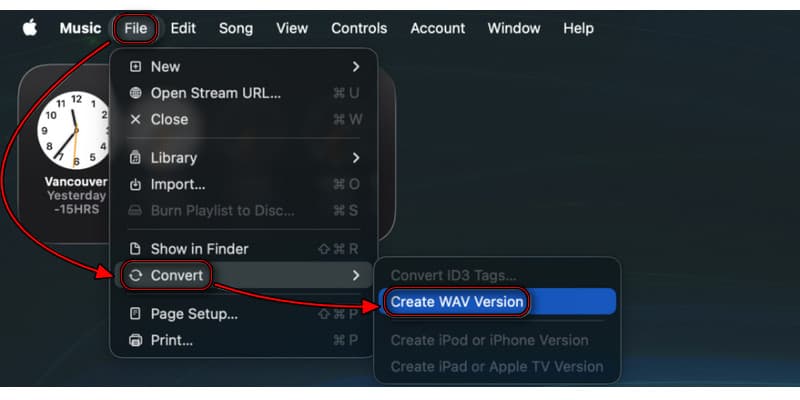
Step 2. Change the default format of Import Using to WAV Encoder, then click OK. Highlight the M4As from your library, go to File, click Convert, and select Create WAV version.
We include Apple Music/iTunes because many iDevice owners already have it installed. In our testing, we encountered no issues converting M4A encoded with AAC and ALAC to WAV. However, the conversion is slower than dedicated converters with hardware acceleration support.
Part 6. Turn M4A to WAV Via Online Tool
FreeConvert is, as the name implies, a free online M4A-to-WAV audio converter. It runs entirely online, so you can convert without installing software. Such a tool is convenient to use when you only need to convert one or two files.
Pros
- Quick conversion with an easy interface.
- Can convert M4A/M4B to MP3, WAV, FLAC, etc.
- With audio trimmer, fade effect, and audio reversal.
Cons
- Upload size is limited to 1 GB.
- Requires uploading personal audio online.
To convert: Go to the FreeConvert site, click Choose Files to add the M4A source. Make sure the output format is set to WAV. Click Convert to process the M4As, then download each converted WAV file to your computer.
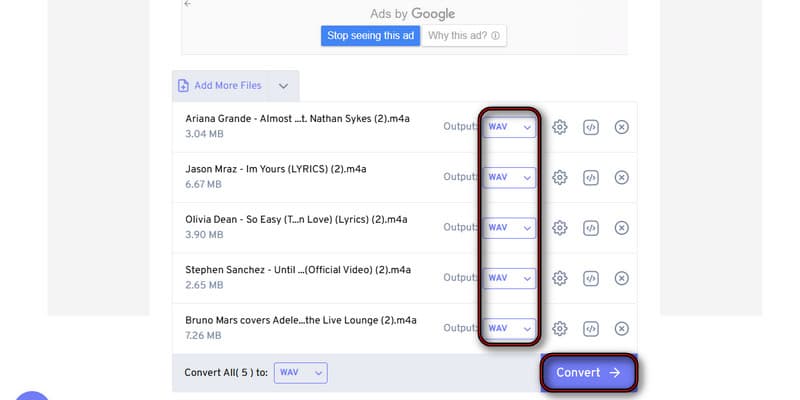
FreeConvert is a handy tool for one-off conversions, and if you don’t mind uploading personal files online. However, the processing speed depends on the server, meaning slow internet is slow processing. Also, there is a 25-conversion cap per minute per day.
FAQs about M4A to WAV Conversion
Does converting M4A to WAV lose quality?
It depends. If your M4A uses AAC, converting it to WAV does not lose quality. Also, it does not improve the quality because it cannot restore the lost data. If your M4A is encoded with ALAC, it's completely lossless, meaning the audio quality remains the same.
Which is better quality, M4A or WAV?
In terms of raw audio quality, M4A is no better than WAV. However, if your priority is storage and flexibility, M4A is better for saving space and listening.
What is the best format for audio quality?
The best format for audio quality is WAV. This file retains all the source data to achieve maximum sound quality. This makes it the preferred format for editing, recording, and more.
Conclusion
Converting M4A to WAV is quick and easy, provided you use the right tool. Before converting, don’t forget to check which codec your M4A file uses: AAC or ALAC. Remember, converting an M4A (AAC) to WAV does not improve audio quality. Meanwhile, converting an M4A (ALAC) preserves the original lossless quality. For a fast, secure, and safe conversion, TopVox All Music Converter is the best overall choice. It delivers fast batch conversion, retained metadata, and high-quality outputs.
Ethan Carter
Ethan Carter creates in-depth content, timely news, and practical guides on AI audio, helping readers understand AI audio tools, making them accessible to non-experts. He specializes in reviewing top AI tools, explaining the ethics of AI music, and covering regulations. He uses data-driven insights and analysis, making his work trusted.



 by
by