4 Effective Ways on How to Convert WAV to MP3 Format [2026]
WAV files deliver better audio quality but require massive storage, averaging about 10 MB per minute. This sheer size often makes them impractical for portable devices and email platforms, which struggle to handle raw WAV data. The solution lies in converting WAV to MP3, a format that dramatically reduces file size while maintaining impressive audio quality. Why sacrifice quality for space? In 2026, converting WAV to MP3 doesn't have to mean losing the soul of your music. Come here and learn more about the best WAV-to-MP3 conversion process.
What is the WAV format?
WAV, which IBM and Microsoft created, stores audio in uncompressed PCM (Pulse Code Modulation). It is very adaptable for professional audio processing, supporting a broad range of sample rates (22.05-192 kHz) and bit depths (8–32 bits). WAV files are large, roughly 10–15 MB per minute at CD quality (44.1 kHz, 16-bit). It is because they preserve every sample.
What is the MP3 format?
Compared to WAV, MP3, developed by the Fraunhofer Institute, uses psychoacoustic lossy compression to lessen file sizes by up to 90%. Sample rates range from 16 kHz to 48 kHz, while bit rates range from 32 kbps to 320 kbps. Higher bit rates (256–320 kbps) provide nearly transparent sound for most listeners, even when some audio data is removed.
For more insights into the two audio formats, see the table below.
| VS | MP3 |
| Uncompressed, lossless (PCM). | Compression | Lossy compression (psychoacoustic model). |
| 8–32 bits (commonly 16 or 24). | Bit Depth | Not fixed; depends on bitrate, typically equivalent to 16-bit perception. |
| 22.05–192 kHz (CD standard: 44.1 kHz). | Sample Rate | 16–48 kHz (optimized for human hearing range). |
| ~10–15 MB per minute at 44.1 kHz/16-bit. | File Size | ~1 MB per minute at 128 kbps; ~2.5 MB at 320 kbps. |
| Replica of original recording; studio-grade fidelity. | Audio Quality | Slightly reduced quality; near-transparent at 256–320 kbps. |
| Supported by professional DAWs, editing tools, and Windows systems. | Compatibility | Universally supported across portable devices and streaming platforms. |
Part 1. Convert WAV to MP3 Using TopVox All Music Converter
Are you looking for an exceptional converter that you can utilize to convert your WAV files to MP3 on Windows and Mac? Then, we recommend using TopVox All Music Converter. With its Format Converter feature, you can ensure that turning your WAV files into an MP3 is a possible task. What we like here is that the file conversion process is fast and simple. You can even convert multiple files since its batch conversion feature is available. In addition, the converter lets you save the file at the highest audio quality up to 320 kbps, making it a reliable audio converter.
Features
- The program can convert files 50× faster.
- It can also support various output formats, including FLAC, ALAC, AIFF, AAC, etc.
- The software can offer its built-in web player.
- It can also convert music from various platforms, such as Spotify, YouTube Music, Deezer, Apple Music, and more.
To change a WAV file to MP3, you can follow the provided instructions below.
Step 1. Download TopVox All Music Converter on your Windows or Mac. Then, start launching it to begin the WAV to MP3 conversion procedure.
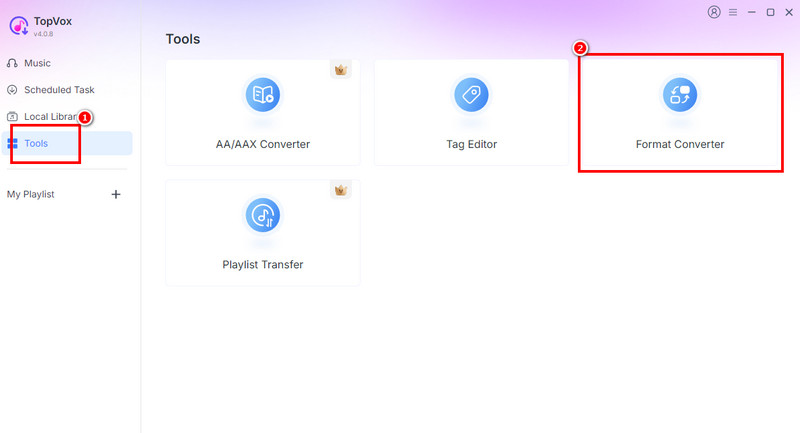
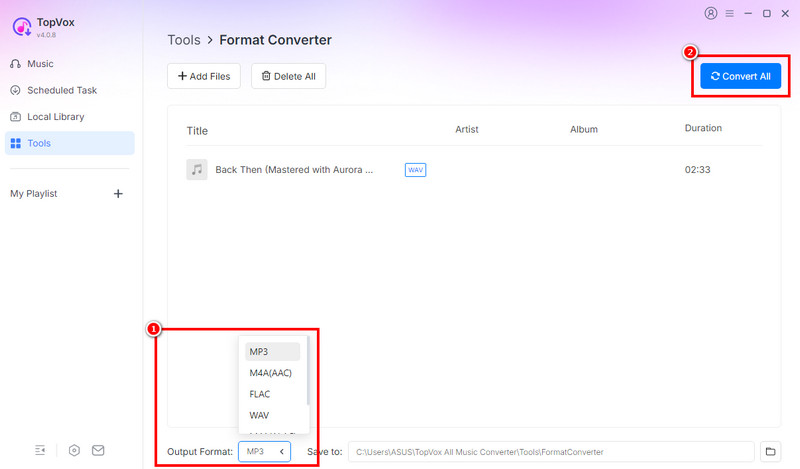
Step 2. From the interface, navigate to the Tools section and click the Format Converter feature.
Step 3. After that, click the Add Files or Plus sign to start adding the WAV file that you want to convert.
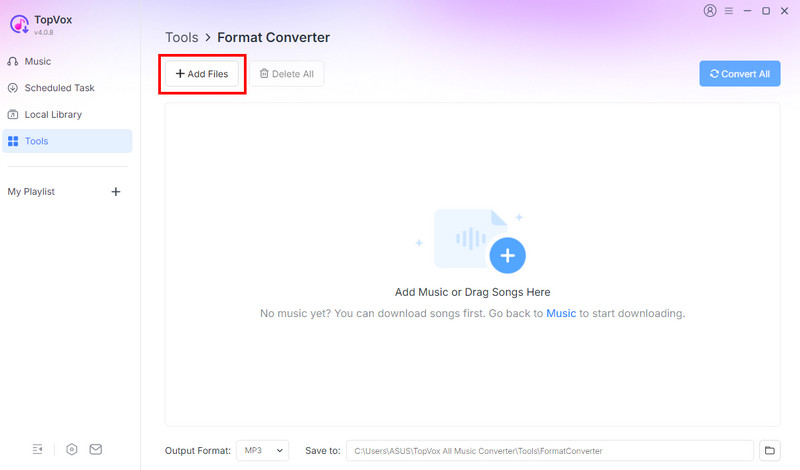
Step 4. Go to the Output Format section below and select the MP3 format. Then, hit the Convert All button above to start turning WAV to MP3.
Part 2. How to Convert WAV to MP3 on Windows
Check this section and learn how to convert a WAV sound file to MP3 on Windows.
Method 1. Convert WAV to MP3 on Windows Media Player
Windows Media Player is not only capable of playing your media files. You can also rely on this software if you want to convert a WAV file to an MP3.
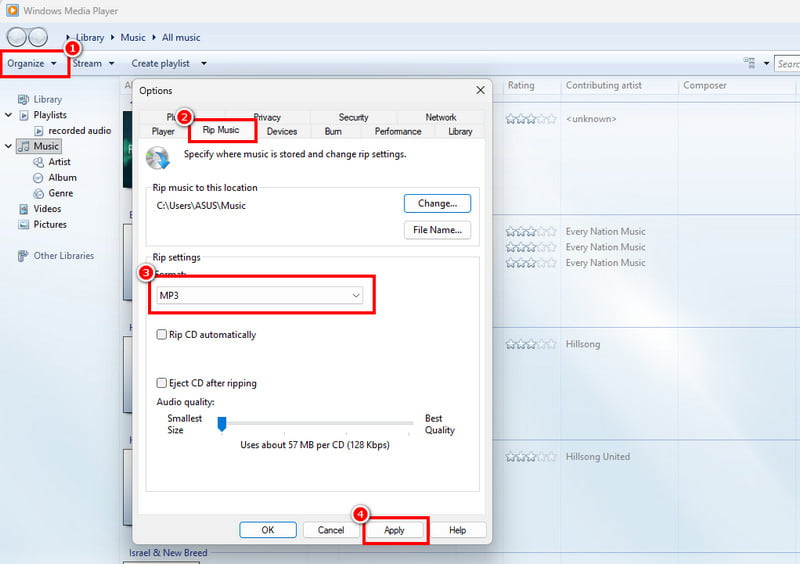
Step 1. Launch the Windows Media Player software to start the process. In the top-left interface, select the Organize section, then click Options.
Step 2. Next, go to the Rip Music section and tap MP3 as your output format.
Step 3. Tap the Apply button. Once done, the WAV file will be saved as an MP3.
Limitations
- It needs some editing tools to improve the audio file.
- It cannot adjust the audio bitrate.
Method 2. Change WAV to MP3 Using VLC
You can also change WAV to MP3 on VLC Media Player. With its built-in converter, you can ensure that transcoding your audio files is simple and fast. It also offers a smooth conversion speed, allowing you to get results in just a few seconds. You can also convert more files if you want to. You can convert FLAC to MP3, AAC to MP3, MP3 to OGG, and more. Thus, if you need a reliable converter, consider using this program.
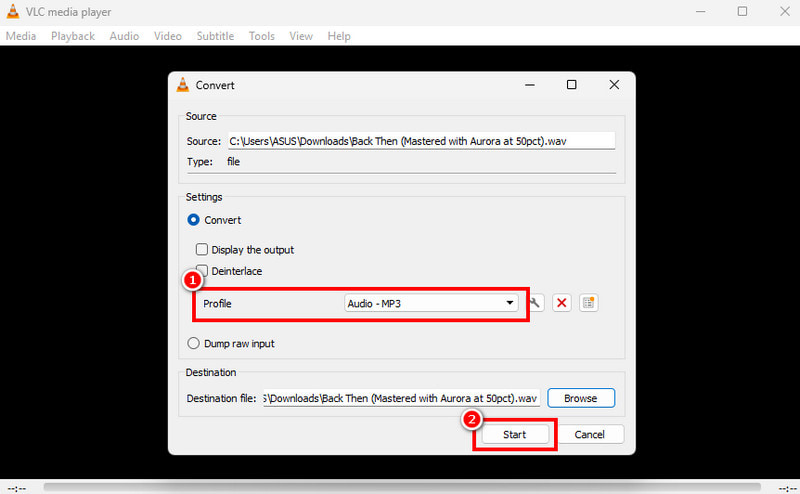
Step 1. Download VLC on your Windows. After that, proceed to the Media > Convert / Save section.
Step 2. Tap Add to start adding the WAV file from your desktop. You can also insert multiple files for batch conversion. Then, hit the Convert / Save button below.
Step 3. Select MP3 from the Profile section and tap Start to begin the WAV to MP3 conversion process.
Limitations
- It doesn’t have audio editing features to enhance the file.
- There are times when the converter produces a low-quality output.
Part 3. How to Change WAV to MP3 on Mac
Are you a Mac user who wants to convert WAV to MP3? Then, you can rely on your Apple Music app. The app is not only ideal for listening to your favorite music. With its converter feature, you can transcode any audio files to MP3 effectively and smoothly. Use the steps below to transfer WAV to MP3 on Mac.
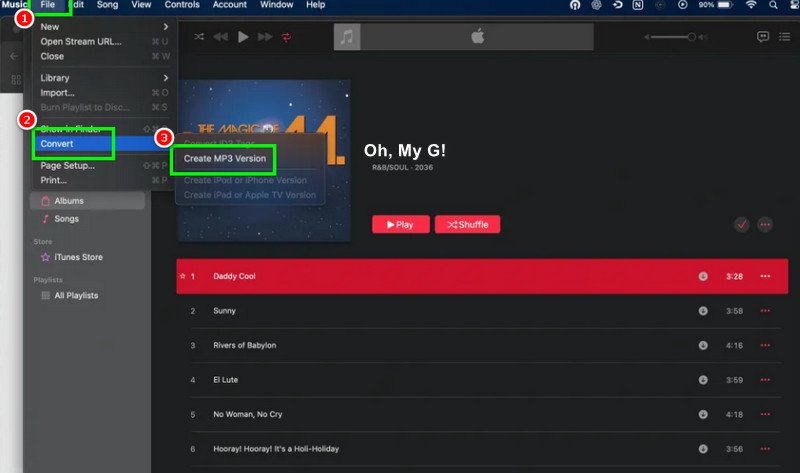
Step 1. Launch the Apple Music app and go to the Music > Settings section.
Step 2. Then, in the Files section, click Import Settings, then select the MP3 Encoder option. It's OK to save the changes.
Step 3. You can now select the WAV file and go to the File > Convert section. Then tap Create MP3 Version to convert your WAV file to an MP3.
Limitations
- The process of converting audio might be confusing to some non-professional users.
Part 4. Online Ways to Convert WAV to MP3
Want to use online tools to convert your WAV files to MP3? Then, read all the information in this section.
Method 1: Convert WAV to MP3 Using Convertio
Convertio is a flexible web converter that makes converting WAV files to MP3s simple and fast. It is very versatile, allowing drag-and-drop uploads, cloud imports from Dropbox or Google Drive, and even URL-based conversions. You can also convert more formats when using the tool. You can transcode AIFF to MP3, FLAC to AAC, AC3 to FLAC, etc. Follow the instructions below to learn how to transfer WAV to MP3.
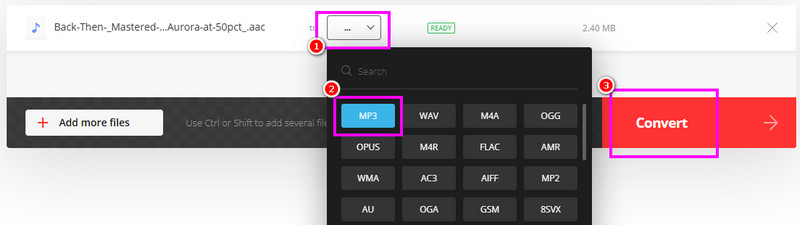
Step 1. After you access Convertio, click the Choose Files button to upload the WAV file.
Step 2. From the Format section, choose MP3 and start the conversion procedure by ticking the Convert button.
Step 3. Finally, tap Download to save the MP3 file on your device.
Method 2: Turn WAV to MP3 Using CloudConvert
With support for more than 200 formats, including WAV-to-MP3 conversion, CloudConvert is a powerful cloud-based tool you can rely on. It lets customers adjust audio characteristics such as bitrate, codec, and volume, ensuring excellent results tailored to specific requirements.
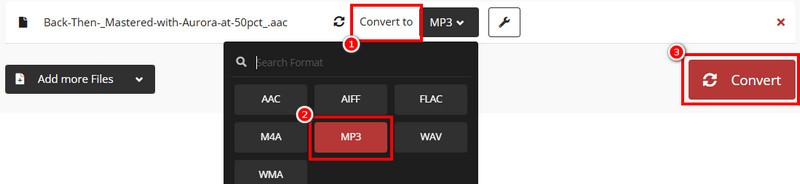
Step 1. Go to the CloudConvert website and click Choose File to upload the WAV file.
Step 2. In the Convert to section, select MP3. Then, click Convert to start transcoding the file.
Step 3. Click Download to start saving the MP3 file on your computer.
Part 5. Comparison of the best WAV to MP3 Converters
Want to learn more about the best WAV to MP3 converters? Then, you can check all the information from the table below.
| Platform | Ease of Use | Quality | Customization Options |
| Vidmore Video Converter | Windows and Mac | User-Friendly | Up to 320 kbps | Bitrate, sample rate, format presets |
| Windows Media Player | Windows | User-Friendly | Up to 192 kbps | Basic MP3 export settings |
| VLC | Windows and Mac | User-Friendly | Up to 320 kbps | Codec, bitrate, and sample rate adjustments |
| Apple Music | Mac | Seamless for Mac users | Up to 320 kbps | Limited customization |
| Convertio | Browser | User-Friendly | Up to 320 kbps | Bitrate, sample rate, and advanced settings |
| CloudConvert | Browser | User-Friendly | Up to 320 kbps | Bitrate, advanced parameters, codec, and volume. |
Part 6. FAQs about Converting WAV to MP3
Q: Which platforms benefit most from MP3 conversion?
A: MP3 formats are more compatible with email platforms, streaming services, and portable devices. WAV is ideally suited for archival and professional audio work.
Q: Can I easily convert WAV to MP3?
A: Definitely, yes. Converting your audio files is not that hard. All you need is a simple converter that can give you the result you need. If you want a better converter, you can use Vidmore Video Converter, Convertio, and CloudConvert.
Q: Are WAV files more ideal for editing than MP3s?
A: The answer is yes. WAV is ideal for recording, mixing, and mastering because it preserves all original samples. Repeated editing and saving can degrade quality, as MP3 discards some data.
Conclusion
Converting WAV to MP3 is the best choice if you want a smaller file size while maintaining audio quality. Thanks to the methods from this post, you have learned how to convert your files easily. Plus, if you want a powerful audio converter that delivers the best quality and fast conversion, you can use Vidmore Video Converter. It ensures to produce a professional-grade audio after the conversion process.
Luna Harper
Luna Harper is a passionate music lover and an inspiring content sharer. She has explored most of the music converters available on the market, acquiring thorough knowledge of their features, usability, and differences. Luna enjoys using her professionalism to help fellow music lovers get superior audio quality.




 by
by