Convert AIFF to MP3 Format Using Online and Offline Ways
AIFF files are excellent for studio recording and thrive in macOS environments like Logic Pro. However, the drawback here is that their uncompressed nature makes them unwieldy on car stereos, Windows PCs, and smart TVs. The challenge is that compressing these studio files often results in muddy or tinny MP3s when you rely on cheap converters. In this 2026 guide, we'll show you how to shrink your AIFF files by up to 90% while preserving crisp, professional sound quality by converting AIFF to MP3 using TopVox All Music Converter. This way, you can enjoy studio-grade audio across all your devices without compromise. You will also learn additional methods for converting your files. Read here to learn more about the best conversion process.

Part 1. Convert AIFF to MP3 Using TopVox
If you want to convert AIFF to MP3 on Windows or Mac, you can try TopVox All Music Converter. When it comes to converting your audio for compatibility, there is no doubt that this program's Format Converter feature is helpful. It can provide a smooth conversion process thanks to its user-friendly interface. It can also offer a 35× faster conversion speed. The best part here is that you can access its batch conversion feature, which is ideal for converting multiple AIFFs to MP3s without taking up much time. Thus, if you want an exceptional audio converter that can give you the result you need, look no further than TopVox All Music Converter.
Features
- Studio-grade resampling: the program uses advanced algorithms to transcode uncompressed PCM audio to 320 kbps MP3 without losing dynamic range.
- 35× faster batch conversion - It can manage large libraries with exceptional speed, making bulk conversions efficient and seamless.
- Flawless ID3 tag mapping - Unlike WAV, AIFF carries metadata. This program ensures your cover art, BPM, and artist tags transfer perfectly to the MP3.
To convert AIFF audio to MP3, you can start by following the simple instructions below.
Step 1. Download TopVox All Music Converter on your desktop to start the AIFF to MP3 conversion process.
Step 2. After that, go to the Tools section and tap the Format Converter feature. Then, proceed to the next step.

Step 3. You can now add the AIFF file by clicking the Add Files option. You can also tap the Plus symbol from the center interface.

Step 4. Go to the Output Format section below and select the MP3 format. Then tap the Convert All button above to convert your AIFF file to MP3.

Part 2. Convert AIFF to Mac on Mac
You can convert an AIFF file to MP3 on the Apple Music app if you are using a Mac. With this native method, you don't need to download any third-party converter. However, there is a hidden drawback to this method. It adds duplicate files to your Apple Music library and necessitates laborious manual drag-and-drop operations to export them to a USB drive. TopVox, on the other hand, produces high-quality MP3s while neatly processing files in a dedicated folder, protecting your carefully curated Apple Music library. But still, to learn the conversion method on this platform, you can check the steps below.

Step 1. Launch the Apple Music app on your Mac. Then, proceed to the File > Preferences > Import Settings.
Step 2. Then select the MP3 Encoder option. After that, click OK. Then, you can now open the AIFF file that you want to convert.
Step 3. Go to the File > Convert section and choose the Create MP3 Version to turn your AIFF into MP3.
Part 3. Change AIFF to MP3 on Windows
Windows Media Player is also among the platforms you can use to convert audio files. However, we can't ignore that it handles AIFF files clumsily. Thus, if you want a better tool to convert AIFF to MP3, you can try VLC as an alternative. With this program, you can access its converter feature for transcoding files. The good thing about VLC is that it maintains audio quality. It can even convert more formats, such as WAV to MP3, OGG to MP3, MP3 to WAV, FLAC to MP3, and more.

Step 1. Download and install VLC on your Windows. After that, run it to begin converting your AIFF files to MP3 format.
Step 2. Then, navigate to the Media section and tick the Convert / Save option. A mini window will pop up on your screen.
Step 3. You can now add the AIFF file by clicking the Add button. Once done, hit the Convert / Save button below.
Step 4. Select MP3 in the Profile section. Lastly, click Start to begin converting your AIFF to MP3.
VLC is an excellent tool for converting your AIFF file to MP3. The only drawback here is that its user interface is confusing for batch processing. With this disadvantage, TopVox is far better for Windows, especially when dealing with Mac-originated files.
Part 4. Online Ways to Convert AIFF to MP3
Do you want to transfer AIFF to MP3 online? Then, you can go to this section and learn more about the best conversion process you can use on a browser.
Method 1. Convert AIFF to MP3 Using Zamzar
One of the most helpful online converters is Zamzar. With this web-based converter, you can easily and instantly convert AIFF to MP3. The tool has a neat user interface and delivers the best audio quality, resulting in a satisfying listening experience. Plus, this tool lets you upload your file from various platforms, including Google Drive, URLs, Dropbox, OneDrive, and more. It also supports various output formats, including M4A, M4R, FLAC, WMA, WAV, etc.

Step 1. Access Zamzar on your browser. After that, click the Choose Files option to upload the AIFF file.
Step 2. For the next process, click the dropdown button and choose the MP3 format.
Step 3. Once done, start with the conversion process by clicking the Convert Now button. After the process, you can start saving the file on your device.
Method 2. Convert AIFF to MP3 Using Clideo
To transfer AIFF to MP3 online, you can also try using Clideo. Well, this tool is not only ideal for editing your video files. With its conversion capabilities, you can create MP3 files from your AIFF files. What we like here is that the file conversion process is easy, thanks to its comprehensive layout. It can also convert other formats, like FLAC to MP3, OGG to M4A, MP3 to FLAC, and more.
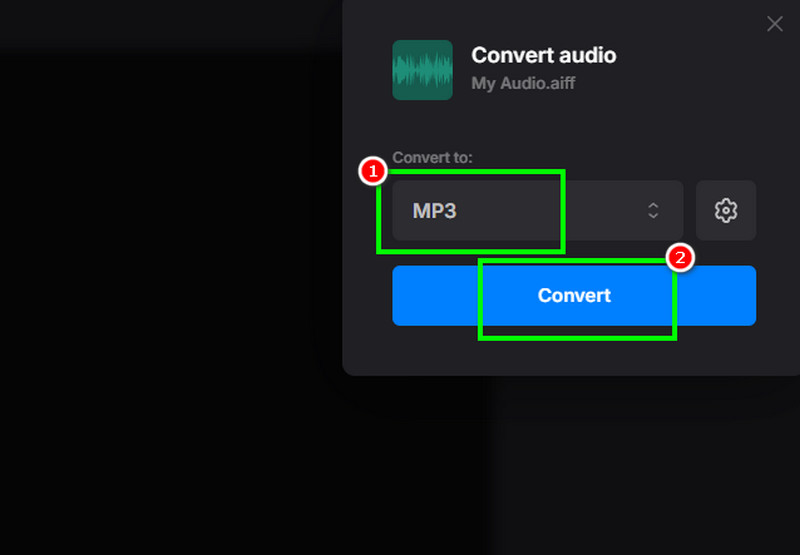
Step 1. Access Clideo on your browser. Then click Choose File to upload the AIFF file.
Step 2. From the Convert to section, start selecting the MP3 format.
Step 3. Tap Convert to begin the AIFF to MP3 conversion process.
Part 5. Comparison of the Best AFF to Converters
Want to learn more about the best AIFF to MP3 converters? Then, view all the information from the table below.
| Platform Support | Conversion Speed | Ease of Use | Audio Quality |
| TopVox All Music Converter | Windows and Mac | Up to 35 times faster. | Simple | Up to 320 kbps |
| VLC | Windows and Mac | Standard | Technical | It depends on the settings. |
| Apple Music | Mac | Standard | Technical | Up to 320 kbps |
| Zamzar | Browser | Depends on the internet | Simple | Up to 256 kbps |
| Clideo | Browser | Depends on the internet | Simple | Up to 256 kbps |
After viewing the table, TopVox All Music Converter is the best option. It offers a simple user interface, supports various formats, and provides fast conversion speeds. It also ensures you get the best audio quality for a better listening experience, making it the best and most powerful AIFF-to-MP3 converter.
Part 6. Technical Insights: AIFF to MP3
Apple created the uncompressed AIFF (Audio Interchange File Format). This audio format is designed for professional recording and editing. It uses PCM (Pulse Code Modulation) to store audio, producing high bit depth and sample rates with flawless sound quality. AIFF files are large and ideal for studio environments, like Logic Pro.
On the other hand, MPS is a compressed audio format that uses lossy compression algorithm to reduce file size dramatically. It discards inaudible frequencies based on psychoacoustic models, making it suitable for streaming and portable devices. While smaller and universally compatible, MP3 sacrifices some fidelity compared to uncompressed formats.
For more details on the two formats, see the table below.
| VS | AIFF |
| Lossy Compression | Compression | Uncompressed |
| Slightly reduced quality | Audio Quality | Studio-grade fidelity |
| Universally supported on PCs, smartphones, car stereos, and smart TVs | Compatibility | Best for macOS and professional DAWs |
| Supports ID3 tags, widely used across devices | Metadata Support | Carries metadata |
| Small (1–3 MB per minute, depending on bitrate) | File Size | Very large (10–15 MB per minute at CD quality) |
Part 7. FAQs about AIFF to MP3
Q: What's the fastest way to convert AIFF to MP3?
A: If you want the fastest way to transcode your audio files, the best thing to do is to use TopVox All Music Converter. This converter offers 35 times faster conversion speed, allowing you to get results in just a second, making it the best converter.
Q: Is the Apple Music app a good converter to convert AIFF to MP3?
A: Apple Music might help convert your files. However, it will clutter your library with duplicates and require manual export steps.
Q: Are online converters like Clideo and Zamzar reliable?
A: Definitely, yes. These tools can provide a smooth conversion process, helping you achieve the results you need. It is also safe to use, so you don't have to worry about your privacy and music.
Conclusion
If you want to convert AIFF to MP3, you can use all the methods provided in this section. With that, you can play your music on any platform, including TVs, mobile devices, media players, car stereos, and more. Plus, if you want the most reliable and powerful AIFF-to-MP3 converter, we suggest using TopVox All Music Converter. This program ensures you get the best audio quality so that you can enjoy your music during playback.
Luna Harper
Luna Harper is a passionate music lover and an inspiring content sharer. She has explored most of the music converters available on the market, acquiring thorough knowledge of their features, usability, and differences. Luna enjoys using her professionalism to help fellow music lovers get superior audio quality.



 by
by