Audiobooks are more popular than ever in 2026, as listeners shift toward true media portability by owning their files and playing them anywhere. More users are reclaiming control over their digital libraries instead of remaining locked into proprietary platforms. The problem? Audible's AAX format remains a walled garden, making it difficult to play audiobooks on high-resolution DAPs or standard MP3 players. An AAX-to-MP3 converter is the key that unlocks your library and provides total flexibility. In this post, we'll introduce the top AAX converters available today. We'll break down their features, pros, cons, and real-world performance so you can find the right tool to convert, manage, and enjoy your audiobooks without limits.
What is an AAX File?
Audible developed the proprietary AAX format specifically for its audiobooks. When you download titles from Audible, they typically arrive in this format, which delivers high-quality audio along with integrated features such as chapters, bookmarks, and metadata. While AAX provides superior sound quality and more advanced playback than the older AA format, it also imposes specific usage restrictions.
Most standard media players, such as VLC Media Player and Windows Media Player, can't play AAX files directly. That's because AAX files are protected by DRM, which limits playback to authorized devices and apps. In simple terms, even if you have the file, you can't play it freely unless the player is linked to your Audible account and has permission to access the content. This is why AAX files usually only work with official Audible apps or approved software.
To learn more about DRM meaning, check our full description here.
How We Test: Before recommending a tool, we subject every AAX to MP3 converter to hands-on testing. Our benchmark file is a 12-hour Audible AAX file (approx. 350MB). We measure Time to Complete and CPU Load on a standard i7/16GB RAM environment to ensure our speed ratings are objective.
TopVox All Music Converter
Best For: Fast, high-quality AAX to MP3 conversions.
TopVox All Music Converter is a full-featured software that handles everything from downloading to format conversion. Beyond downloading music from major music services, it also includes a dedicated AAX-to-MP3 converter. This tool can convert AAX files to standard formats such as MP3, FLAC, M4A (ALAC/AAC), WAV, or AIFF. Additionally, it allows you to adjust the sample rate to 48kHz and the bitrate to 320Kbps for high-quality sound.
For good measure, managing chapters is simple too. You can keep them intact, split automatically, or divide them manually by seconds, minutes, or hours. Notably, its batch conversion runs at speeds up to 35× faster, saving you time on large libraries. Another standout feature is the DRM removal. With automatic DRM removal, your converted AAX files are playable on any device without restrictions.
What to Look Forward to with the TopVox All Music Converter:
Batch conversion at up to 35× faster speed for multiple files at once.
Dedicated AAX converter for Audible audiobooks and other audio content.
Chapter management: keep chapters intact, split automatically, or manually.
Automatic DRM removal from AAX files for unrestricted playback on any device.
Step 1. Get started by securing a free download of TopVox All Music Converter. Install the AAX converter, then wait for the installation to finish. After completing the setup process, launch the software to access the main dashboard.
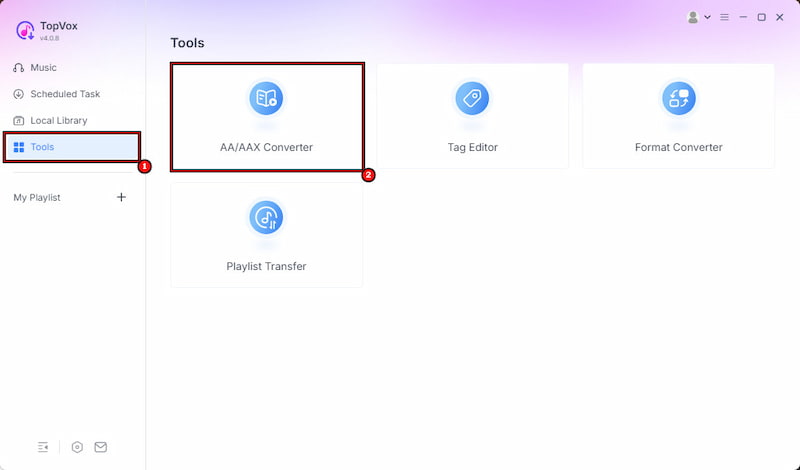
Step 2. Upon launching the software, it defaults to the Music tab. From there, switch to the Tools tab to access additional features. Click the AA/AAX Converter to open the dedicated conversion tool. Be sure to select the AAX Converter, not the standard Format Converter.
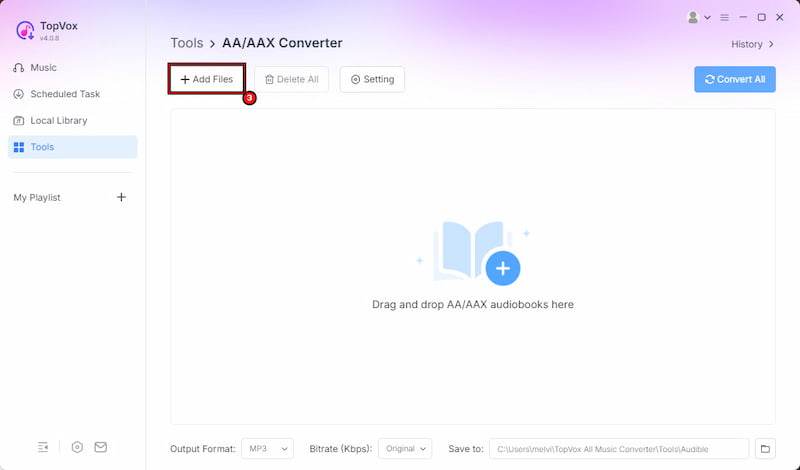
Step 3. Click + Add Files to upload your AAX files. You can also drag and drop audiobooks directly into the interface, which is quicker if you have multiple files ready. Optionally, click Settings to manage chapters.
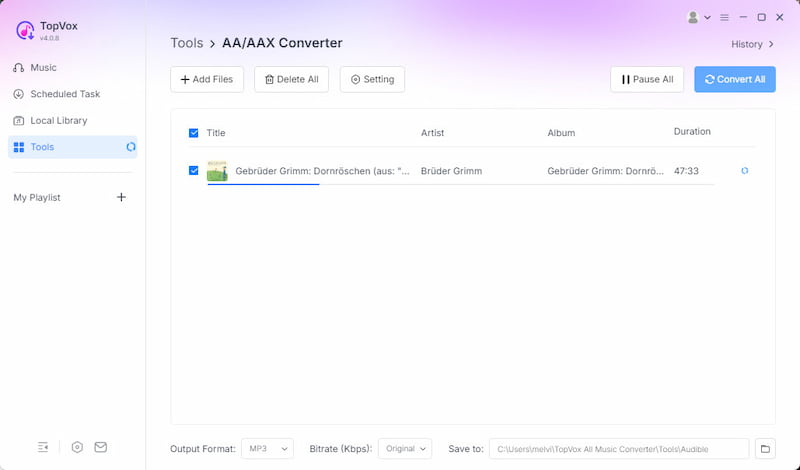
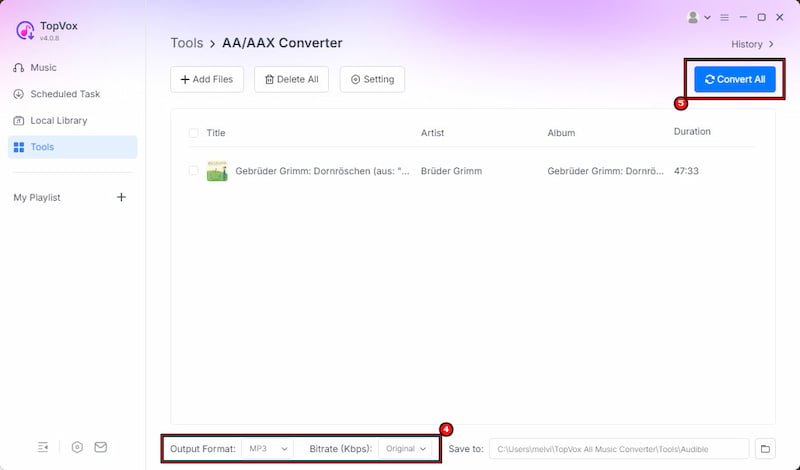
Step 4. The default output format is MP3 with the original bitrate, but you can tweak the settings if needed. Click Convert All to begin converting your AAX files to MP3. After the process finishes, your audiobooks will be ready in MP3 format, free to play on any device.
Editor's Note:
TopVox All Music Converter delivers a smooth, reliable experience for converting AAX files to MP3. Its flexible format options, precise quality controls, and smart chapter handling make it a comprehensive audio solution. Furthermore, the automatic DRM removal ensures your files are truly yours to use on any device.
AAX Audio Converter
Best For: Free desktop conversions of AAX files to MP3.
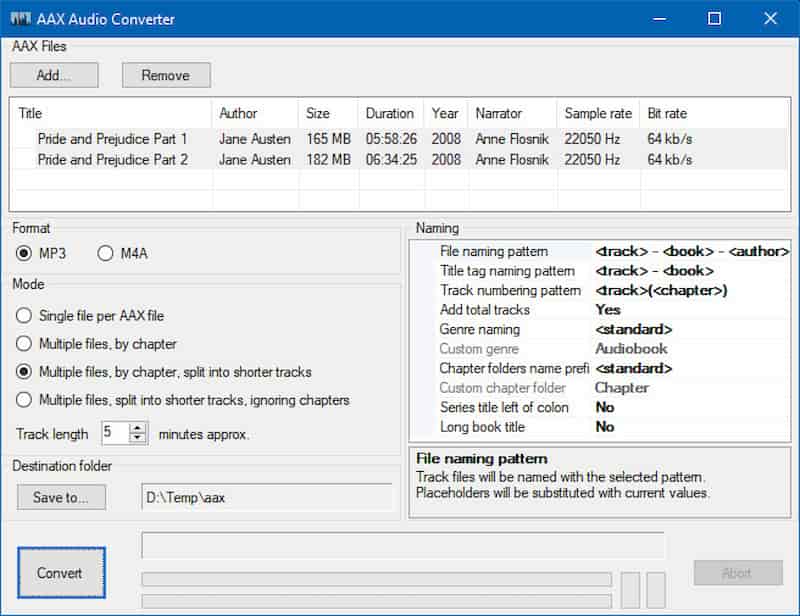
AAX Audio Converter is a free AAX-to-MP3 converter for Windows users. It can convert Audible's proprietary .aax audiobook files into MP3, M4A, and M4B formats. It requires the .NET Framework 4.8 and uses FFmpeg for audio processing, preserving metadata and tags during conversion. It can handle simple one‑file conversions, split audiobooks into multiple tracks based on chapters, or even divide them into shorter segments.
Pros
It is completely free and open-source.
It supports batch conversion for handling multiple files.
It allows splitting audiobooks into chapters or smaller segments.
Cons
It supports only a limited set of audio output formats.
It requires using FFmpeg to process audio at high quality.
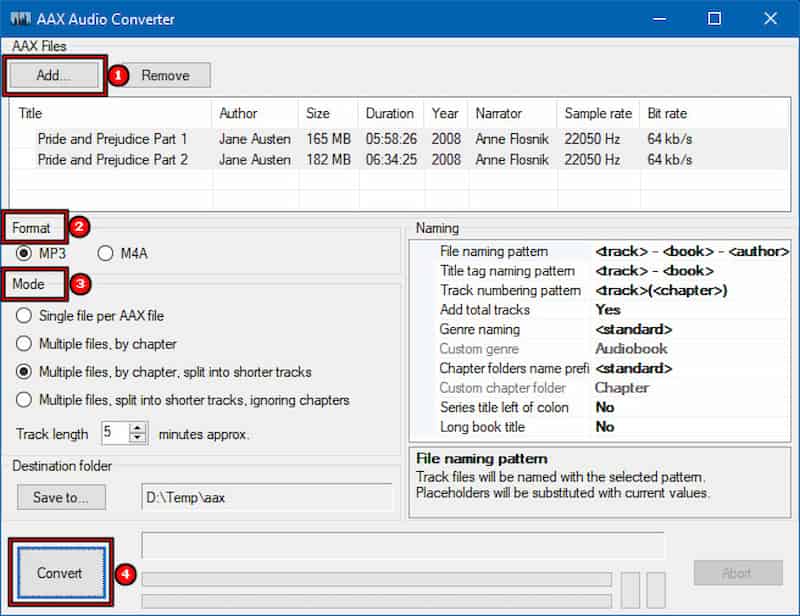
Step 1. Open AAX Audio Converter and click Add to import your Audible files. Proceed to the Format section and choose your preferred output format, such as MP3 or M4A/M4B.
Step 2. Optionally, you can convert the audiobook to a single file or split it into separate chapters. Specify the destination folder and click Convert to begin the conversion.
Editor's Note:
AAX Audio Converter earns points for being completely free, but it's not the easiest tool to use. Additionally, there's no Mac version available, so it's exclusively a Windows-only solution.
OpenAudible
Best For: Managing and converting Audible libraries into MP3.
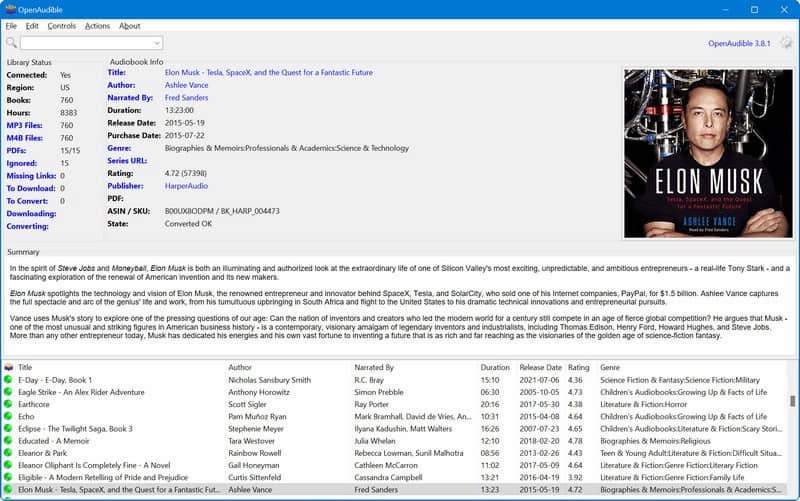
OpenAudible is a cross-platform audiobook manager that lets you download, view, manage, and convert Audible audiobooks. It provides a dashboard where you can access your entire collection, back it up, and keep everything organized. This AAX converter to MP3 supports fast conversion speeds, chapter splitting, and file merging. Beyond conversion, it can sync your Audible account, download new purchases, and organize files.
Pros
It provides options for splitting and merging audiobook files.
It allows direct audiobook downloads from the Audible account.
It includes built-in tools for audiobook management and organization.
Cons
It requires a paid license to access all features.
It takes time to download large audiobook libraries.
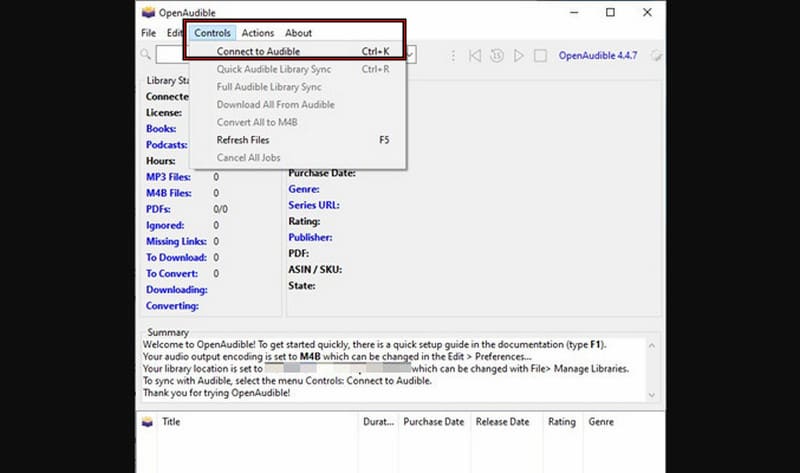
Step 1. Open OpenAudible, click Controls from the top menu, and select Connect to Audible. Log in to your Audible account to access your audiobook library.
Step 2. Select the audiobook from your library and right-click it. Choose Convert to MP3 or Convert to M4B to save the file and prepare it for playback on any device.
Editor's Note:
OpenAudible comes with a solid set of features, but the overall experience may not justify the cost for everyone. You're required to pay before you can fully test what it offers.
aconvert.com
Best For: Quick, one-off online conversions of small files.
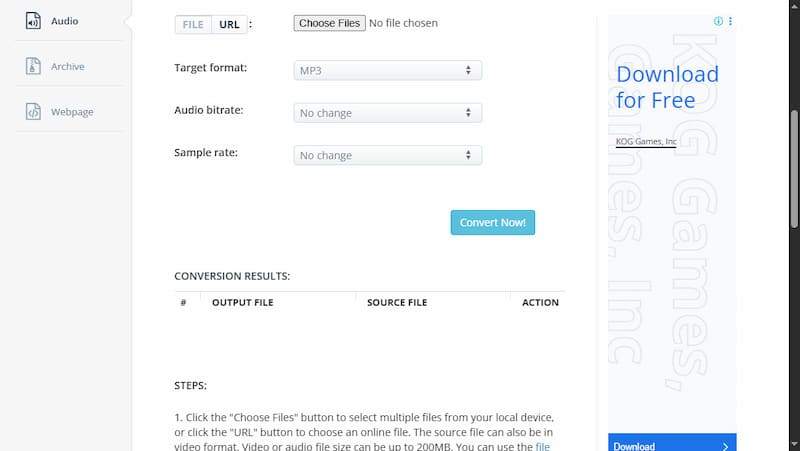
aconvert.com is an AAX to MP3 converter online designed to handle almost any file type. It supports multiple formats, including documents, e-books, images, videos, audio, and archive files. It also supports simultaneous conversion, allowing you to process multiple files at once. Another notable feature is its multi-server system, which automatically retries conversions on different servers if one fails. This feature helps ensure a higher success rate.
Pros
It processes files quickly for small to medium-sized tasks.
It uses multiple servers to improve conversion success rates.
It automatically deletes uploaded files after a short period for privacy.
Cons
It does not support direct Audible integration.
It does not always maintain the highest output quality.
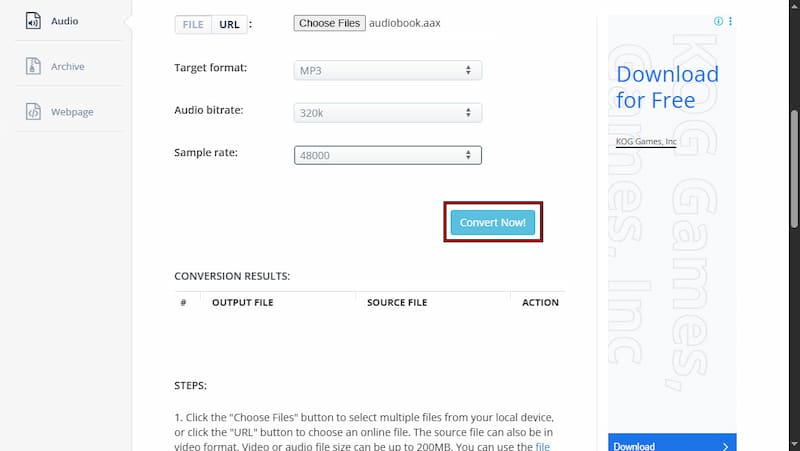
Step 1. On the aconvert homepage, navigate to the Audio tab. Click the Choose File button to upload the AAX file from your computer.
Step 2. Select MP3 as the target format and configure bitrate and sample rate if needed. Then, click Convert Now to process the file and display a download link once conversion is complete.
Editor's Note:
AConvert is a convenient, free, web-based tool for quick file conversions. However, to speed up downloads and save storage space, it compresses output files. It means that converted MP3s and other media are often of lower quality.
Online Audio Converter
Best For: Fast browser-based audio conversions.
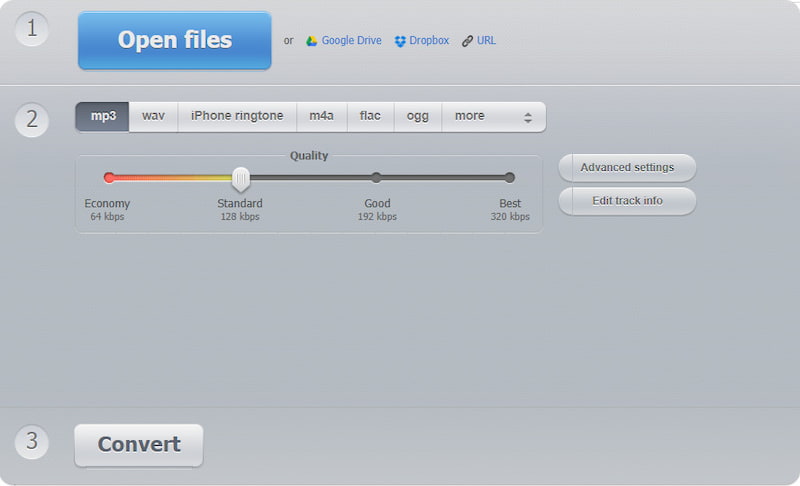
Online Audio Converter is a browser-based AAX-to-MP3 converter. It supports MP3, WAV, M4A, FLAC, OGG, AMR, MP2, and iPhone ringtone formats. It lets you tweak settings like quality, bitrate, frequency, and channels to achieve the best results. It also includes options for batch conversion, tag editing, and even audio extraction from video files. Since it works entirely online, the tool is accessible from nearly all device with a web browser.
Pros
It can extract audio directly from video files.
It is free to use for all standard audio conversions.
It allows adjusting quality, bitrate, frequency, and channels.
Cons
It may compress files, resulting in some loss of audio quality.
It does not support DRM-protected files like Audible AAX directly.
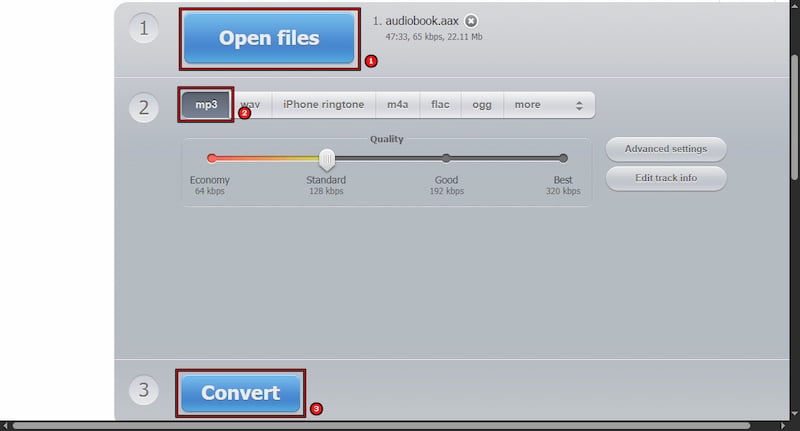
Step 1. On the Online Audio Converter page, click Open Files to add the Audible AAX file. You can also import AAX files from Google Drive, Dropbox, or a URL. You can also paste an Apple Music link here to download Apple Music to a PC.
Step 2. Select MP3 as the output format and adjust the Quality slider to control audio quality. Click Convert to process the file directly in your browser.
Editor's Note:
Online Audio Converter is perfect for quick, small-to-medium-sized audio conversions. However, it cannot split audiobooks by chapters or segments, which makes managing long files less practical.
FreeConvert
Best For: Web-based conversions with advanced settings.
FreeConvert is a versatile, web‑based AAX converter to MP3 platform. It supports over 1,500 different conversions, allowing you to convert e‑books and more all from the same online interface. It lets you upload AAX files from your computer, cloud storage, or even via URL. It also offers advanced settings to adjust quality, codec, sample rate, and other parameters.
Pros
It allows uploading files from various sources.
It uses 256-bit SSL encryption to secure uploaded files.
It supports thousands of file conversion types, including e-books.
Cons
It cannot split audiobooks into chapters or segments.
It has daily usage limits that restrict high-volume conversions.
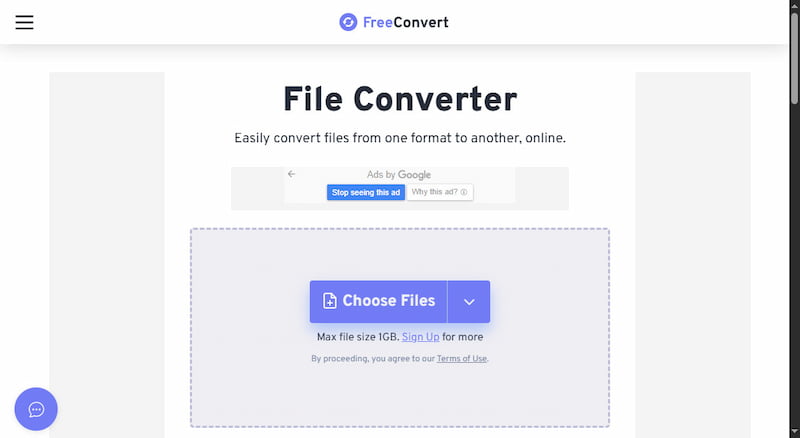
Step 1. On the FreeConvert site, click Choose Files and select From Device to upload the AAX file. You can also add AAX files from Google Drive, Dropbox, OneDrive, or enter a URL.
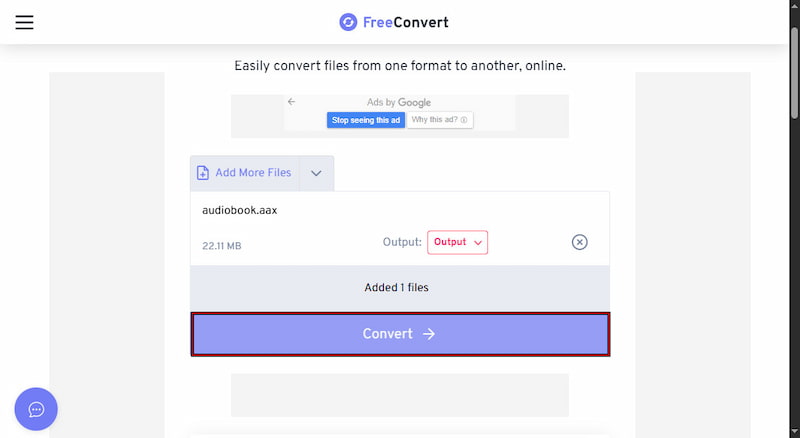
Step 2. In the Output selector, choose MP3 as your output format. Next, click Convert to start the conversion. Once the conversion is finish, click Download to save the file.
Editor's Note:
FreeConvert is ideal for quick, flexible conversions across many file types. Also, if you rip music from YouTube, you can use this tool to convert it to different formats. However, free users face daily usage limits that can limit high-volume conversions and slow down larger projects.
Apowersoft Free Online Audio Recorder
Best For: Recording real-time playback from Audible and saving as MP3.
Apowersoft Free Online Audio Recorder is primarily a browser-based audio recording tool. You can use it as a free AAX-to-MP3 converter by capturing the audiobook directly from your computer. It records system audio and saves recordings as MP3 files by default. This makes it a quick way to convert any audio source to MP3.
Pros
It saves recordings automatically in MP3 format.
It captures system audio directly from your computer.
It allows real-time recording while streaming audiobooks.
Cons
It does not support batch conversion of multiple audio files.
It cannot convert AAX files directly; you must play them first.
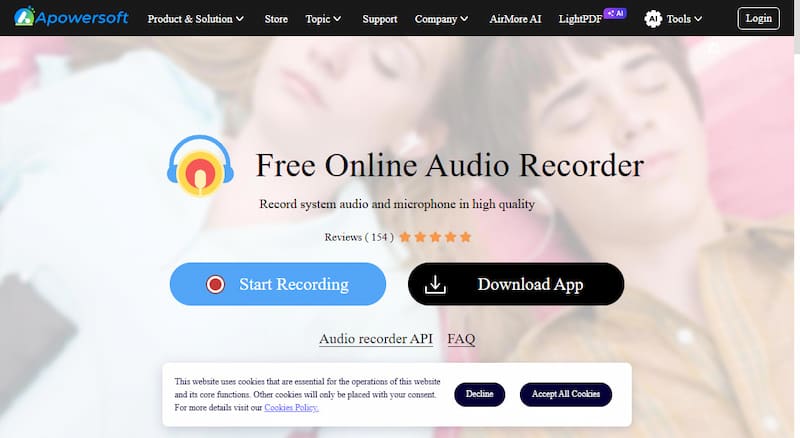
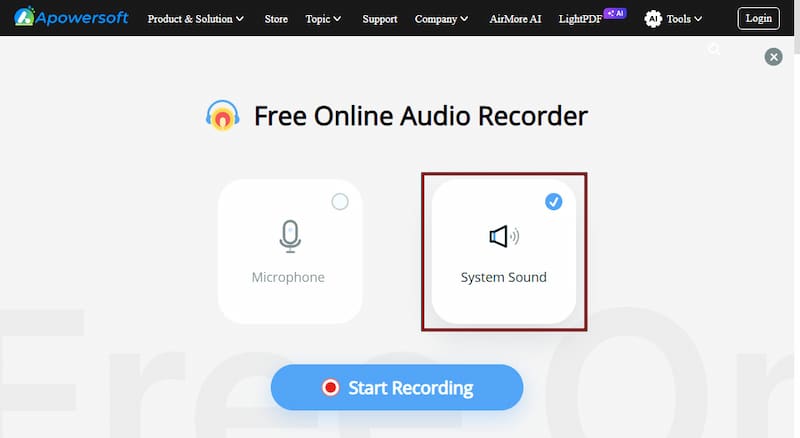
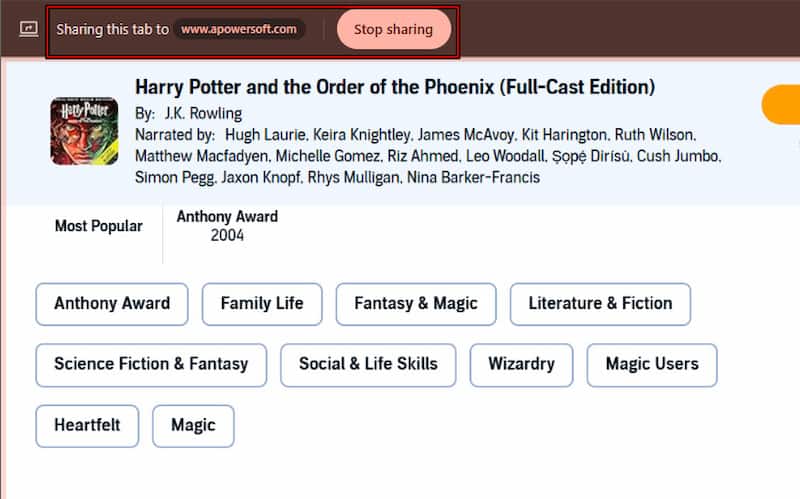
Step 1. Using a browser, navigate to the Apowersoft Free Online Audio Recorder site. Click Start Recording and select System Sound as the audio source to capture the audiobook.
Step 2. Open your Audible audiobook in your browser and get it ready to play. Switch back to Apowersoft and click Start Recording to capture the audio in real time.
Editor's Note:
Apowersoft Free Online Audio Recorder is a convenient, free solution for capturing Audible audiobooks and saving them as MP3 files. You can also use this online recording tool to record YouTube to MP3. However, the process records in real time, so a 10-hour audiobook will take roughly 10 hours to capture, consuming significant storage space.
Common Pitfalls of Free
Converting Audible's AAX audiobooks for offline use can be tempting. However, relying on free converters comes with hidden challenges. Understanding common pitfalls can help you make safer, more efficient choices when managing your audiobooks.
File Size Limits: Most online converters struggle with large files, and audiobooks often exceed 100 MB, which can cause uploads or conversions to fail. This makes many free tools unreliable for full-length content
Security Risks: Be cautious of cracked or unofficial converter software. These downloads may contain malware, spyware, or unwanted adware, putting your computer and personal data at risk.
Lack of Updates: Audible frequently updates its platform and DRM system. Many free converters are not regularly maintained, so older versions may stop working, fail to remove DRM, or produce corrupted files.
FAQs about AAX to MP3 Converter
Q: Is it legal to convert Audible to MP3?
A: Yes, it can violate the terms and conditions set by Audible because it involves bypassing DRM protection. However, some users convert files for personal use, like listening on unsupported devices. Tools like TopVox All Music Converter can perform this task, but you should use it responsibly.
Q: How to download AAX files from Audible?
A: To download AAX files, go to the Audible website on your computer and sign in to your account. Navigate to your Library, find the audiobook you want, and click the Download button. It will save the file to your device in AAX format, which is the default format used by Audible.
Q: What format does Audible use?
A: Audible primarily uses the AAX format, which is essentially an encrypted version of the M4B audiobook format. These files are encoded using AAC with variable quality. Most audiobooks are encoded at around 64 kbps, 22.05 kHz, stereo, though some older or smaller files may be as low as 32 kbps in mono.
Conclusion
Choosing the right AAX-to-MP3 converter ultimately depends on how you prefer to enjoy your audiobooks. While free tools suffice for basic needs, they often suffer from slow performance, file restrictions, and limited technical support. For a smoother, more reliable experience, a dedicated solution makes a significant difference. TopVox All Music Converter combines speed and flexibility with features such as batch conversion and built-in DRM removal. If you are serious about unlocking your Audible library and listening without limits, TopVox is well worth the investment.
Owen Bannett is a music enthusiasm as well as a senior writer. He has paid close attention on the pros & cons of various audio formats, bitrate, sample rate and encoding methods. Always seeking the best listening experience, Owen has deep insights about lossless music and diverse music converters on the markets.
Please fill in the details below. Fields marked * are required.
First Name *
First Name cannot be empty.
Last Name *
First Name cannot be empty.
Email Address *
Email Address cannot be empty.
Invalid Email Address . Please try again.
Country *
Country cannot be empty.
Phone(optional)
Please enter a valid phone number.
ZIP Code(optional)
Please enter a valid ZIP code.
📌Subscribe now and take an extra 20% off on top—double the savings, plus early access to future product updates.
CancelSubmit
Congratulations! - Exclusive Bonus🎁
Thank you for subscribing! You have successfully joined our newsletter. Expect updates, offers, and insights delivered straight to your inbox. Plus, we offer you an extra $30 off on TopVox Lifetime Membership!



 by
by