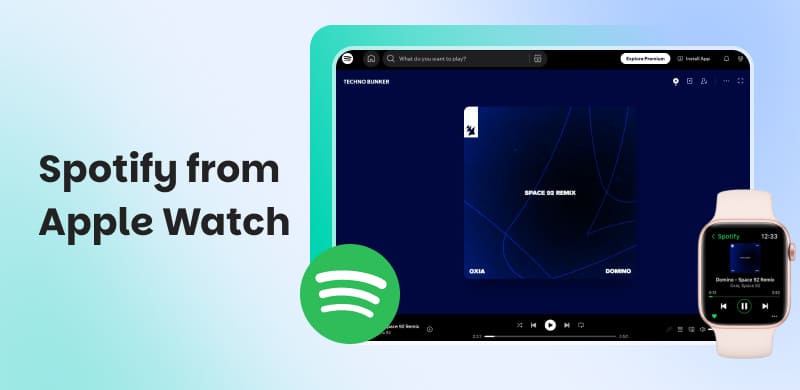
Play Spotify from Apple Watch With & Without Premium
Summary
The official Spotify watch app requires a paid Premium subscription for streaming and offline downloads. However, transferring Spotify playlists via TopVox All Music Converter enables free, permanent, local playback on Apple Watch without an iPhone or a Premium account.
I want to play my curated Spotify playlist on my Apple Watch, but I don’t want to carry my iPhone every time I go for a run. Is there a way to listen directly from the Watch?
This is a common problem for users who want to use Spotify from Apple Watch without constant troubleshooting. Spotify’s official Apple Watch app supports direct playback and offline downloads. However, there are limitations when listening directly without the iPhone. This post covers the official setup, playlist transfer options, and a local music approach. These methods help you choose the options that match your listening habits.
Quick Comparison: Methods to Get & Play Spotify on Apple Watch
| Spotify Premium Requirement | Phone-Free Offline Playback | Playback Stability & Loading Speed | Playlist Download & Track Limits | Audio Quality Preservation | Permanent Local File Ownership | Overall Rating |
| TopVox All Music Converter | ✅ | ❌ | Stable playback and no loading speed | No limits | Multiple output formats and configurable audio settings, up to 320 kbps/48 kHz | ✅ | 4.8 out of 5 stars |
| Official App | ❌ | ✅ | Depends on the size and matching | One-at-a-time transfers | Same as source | ❌ | 4.5 out of 5 stars |
| SongShift | ✅ | ✅ as long as subscribed to Premium | Depends on the connection | Up to 10,000 tracks | Same as source | ❌ | 4.3 out of 5 stars |
Method 1. Best Choice: Transfer Spotify to Apple Music (No Premium)
TopVox All Music Converter is an all-music converter and downloader. It supports Spotify and other major music streaming services, such as Apple Music, Amazon Music, YouTube Music, Deezer, Pandora, SoundCloud, Line Music, and Audible. With it, you can transfer Spotify music to Apple Watch, including playlists, albums, artists, or individual tracks. It lets you download and save them as MP3, AIFF, WAV, M4A (ALAC/AAC), or FLAC at up to 320 kbps/48 kHz.
Features
- Download playlists, albums, artists, and individual tracks in batches.
- Convert Spotify music to Apple Watch-supported formats for offline listening.
- Removes DRM protections to download any music.
- No need to deal with regional catalog differences, as you can save and play any music.
- Keeps playlist structure, track order, and full metadata/ID3 tags.
Step 1. Download TopVox All Music Converter, install it, and complete the setup.
After setup, it opens to the Music Platform tab by default; select Spotify as your music source.
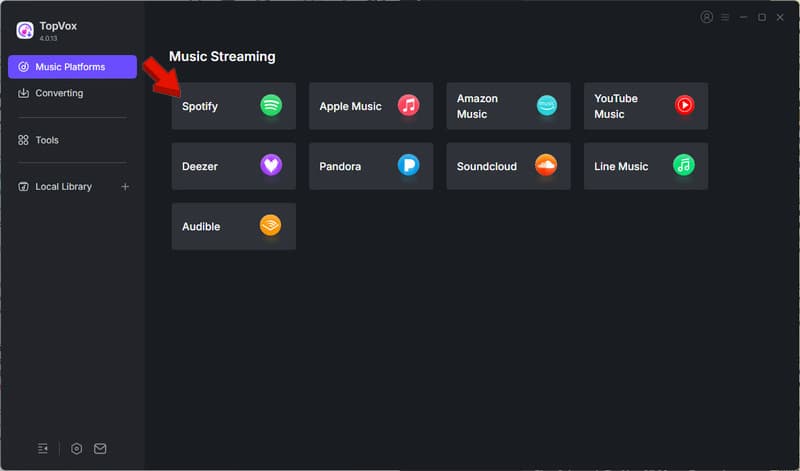
Note: This is a pre-processing step before you move music from Spotify on Apple Watch.
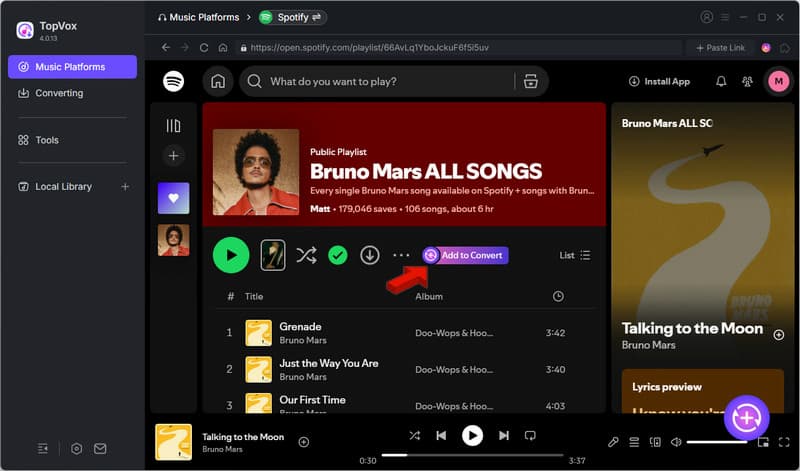
Step 2. Open a playlist, album, or artist and click + Add to Convert to grab the music. For individual tracks or selected music from a playlist, album, or artist, click +Add instead.
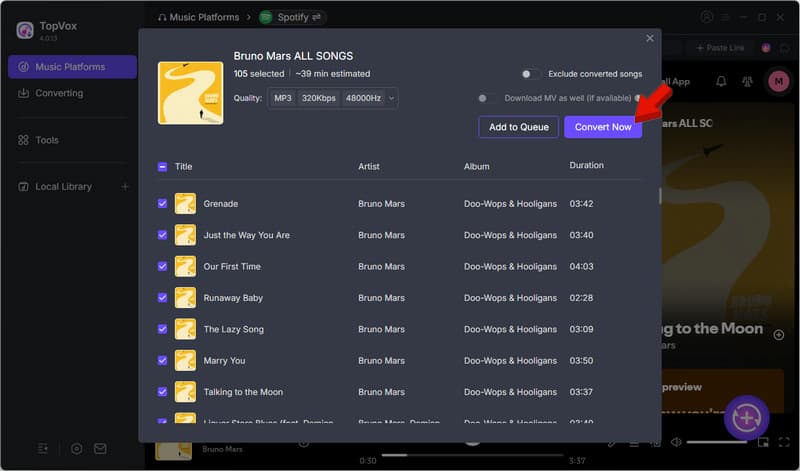
Step 3. TopVox exports in MP3 format with the original bitrate and sample rate, but you can change them to your preference. Click Convert Now to start downloading selected music.
When you rebuild a Spotify playlist manually in Apple Music, it can take hours, even days. TopVox All Music Converter reduces this repetitive work by allowing you to download an entire Spotify playlist at once. This allows you to use your Watch to function more like a standalone music player.
Method 2. Get Spotify on Apple Watch Via Official App
This method works for both free and premium Spotify users (offline mode). To get Spotify from Apple Watch, you can download it from the Watch’s App Store or the iPhone’s Watch app. For direct music playback or offline downloads, just be sure you’re subscribed to premium.
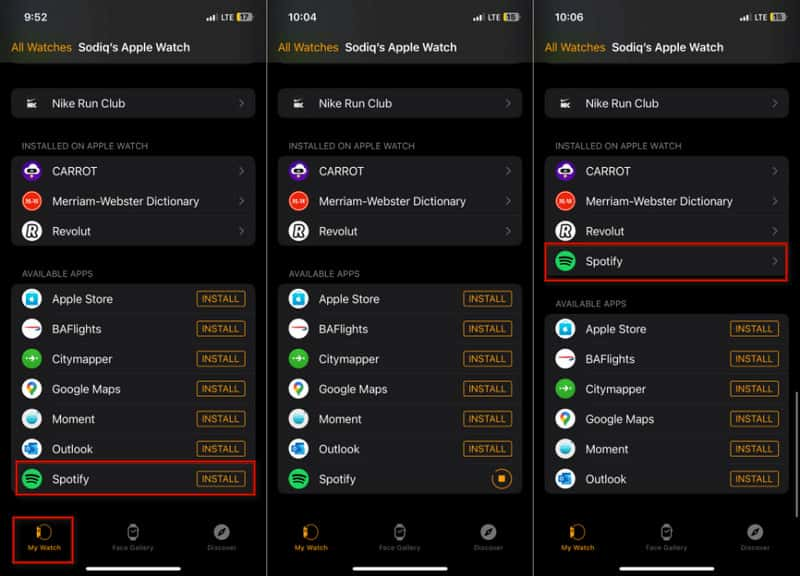
Step 1. Open the Watch app on your iPhone, select My Watch, and go to AVAILABLE APPS.
Step 2. Tap Install next to Spotify to download the Spotify app to your Apple Watch.
You can also directly download the Spotify app on your Watch. Just go to the Home screen, open the App Store, search for Spotify, and tap Get. Double-click the side button to download and install the Spotify app.
Method 3. Transfer Spotify Playlist for Watch Playback
SongShift is an online service that can move Spotify playlists for Watch playback. It can also transfer Spotify to Amazon Music, Audiomack, Deezer, and other music streaming services. It ensures your original Spotify library and playlists remain even after the transfer.
Here’s how to get Spotify on Apple Watch:
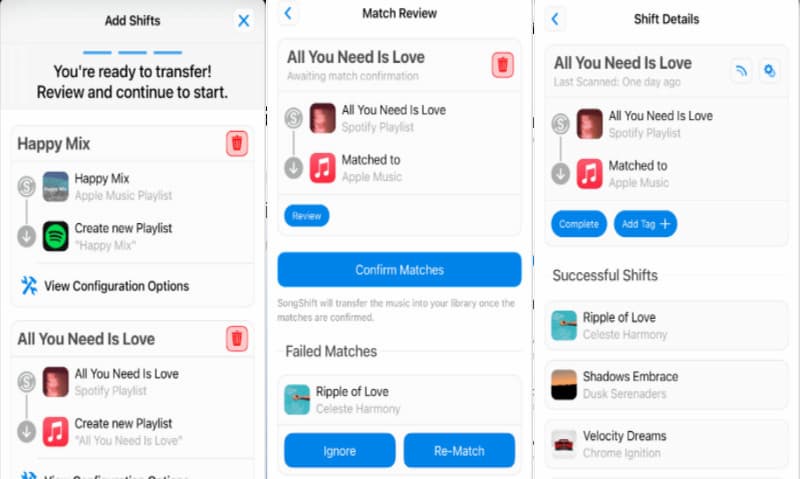
Step 1. Open the SongShift app and connect both Spotify and Apple Music accounts. Select Spotify as your source, then tap the playlist, album, artist, or track you want to move.
Step 2. The app will find each Spotify song on Apple Music. Confirm the transfer, and once the playlists appear in the Apple Music library, sync them to all your devices via the cloud.
Tips
- Review and fix any mismatches before initiating the transfer.
SongShift only matches playlist metadata, meaning it does not create a separate local library of your music. In the free trial version, there are certain limitations for the number of songs or playlists you can move. To truly migrate an entire playlist, it is better to use local tools like TopVox All Music Converter.
FAQs about Playing Spotify on an Apple Watch
Can you listen to Spotify through your Apple Watch without your phone?
Yes, you can use Spotify on an Apple Watch without your phone, provided you have a Spotify Premium subscription. Alternatively, download the tracks using TopVox All Music Converter for offline listening without your phone.
Why isn’t Spotify working on my Apple Watch?
Spotify might not work on the Apple Watch because of missing Premium requirements for offline streaming. Check your account type, as you need a Spotify Premium for standalone playback.
How to unsync Spotify from Apple Watch?
You can delete the Spotify app directly from the Apple Watch. Press the Digital Crowb to view the lists of apps. Touch and hold the Spotify app, select Delete, then tap Delete App.
CONCLUSION
The way to get Spotify from Apple Watch is not restricted to just one option. The Spotify app can directly connect and stream to the Apple Watch, provided you’re a Premium subscriber. SongShift offers another route by moving your Spotify playlists to Apple Music, but it relies on online playlist matching. If you want to make your music available for offline listening without a Premium subscription, use TopVox All Music Converter. This software lets you download any playlists, albums, artists, or individual tracks to different formats at 320 kbps/48 kHz.
Ethan Carter
Ethan Carter creates in-depth content, timely news, and practical guides on AI audio, helping readers understand AI audio tools, making them accessible to non-experts. He specializes in reviewing top AI tools, explaining the ethics of AI music, and covering regulations. He uses data-driven insights and analysis, making his work trusted.



 by