How to Convert Spotify Songs to an MP3 File [Detailed]
 by Ethan Carter | April 16, 2026 | Spotify
How to effectively download songs from Spotify to an MP3 player? Well, Spotify is among the most reliable audio streaming platforms you can access on your browser and device. It can offer numerous music genres with excellent audio quality. However, since it is an online-based platform, you must have an internet connection for smooth playback. Thus, if you want to listen offline, the best thing to do is to download the music on your device, like an MP3 player. Thankfully, this post will offer various methods you can use to successfully download Spotify music to an MP3 player. Thus, read this tutorial and learn more about the topic.
Part 1. Why You Can't Copy Spotify Songs to an MP3 Player Directly?
Well, do you wonder why you can't copy any music from Spotify to an MP3 player directly? There are various reasons behind it. Some of them are:
Spotify's OGG Vorbis Format and Encryption
Unlike standard MP3 files, the Spotify platform uses the OGG Vorbis format for streaming music and offline downloads. These kinds of files are encrypted with DRM, known as Digital Rights Management. It is to prevent unauthorized sharing and copying. Plus, even if you locate the downloaded files on your device, they are locked and cannot be played outside the Spotify platform.
Compatibility Issues with Generic Device
Almost all MP3 players and generic audio devices are created to recognize popular formats, such as WAV, MP3, and AAC. Since Spotify's offline tracks are encrypted OGG Vorbis files, these devices cannot decode or play them. It only means that without Spotify's app and license verification, the music remains unusable on standard MP3 players.
So, how can I listen to Spotify songs on my MP3 player? Is there any other way? Don’t be worried. You can first download Spotify songs locally, and then transfer them to your MP3 player and other devices smoothly. How to do that? Please follow me and take a look in detail.
Part 2. Excellent Method to Download Spotify Songs to an MP3 Player
In that case, we recommend using TopVox All Music Converter to download Spotify songs as MP3 files, which can then be played offline on any MP3 player without errors.
TopVox has a comprehensive user interface for beginners and a fast conversion process up to 35× faster. The best part here is that it supports various output formats, such as M4A, MP3, AAC, FLAC, WAV, and more. With that, you don't have to worry about the compatibility issue. With this program, you can ensure to get all the songs from the Spotify platform and transfer them to your MP3 player for effective and satisfying audio playback. Thus, to achieve your preferred result, it would be better to utilize this Spotify downloader.
Key Features
- The program helps remove DRM protection and download Spotify music with the best MP3 quality for up to 320 kbps.
- It supports the batch conversion feature, perfect for downloading and converting multiple songs in just a single process.
- It can convert music to various DRM-free formats, such as MP3, M4A, FLAC, WAV, AAC, AC3, and more.
- The music downloader can manage and retain ID3 tags to make organization easier.
- It can offer a pre-built web player for effective audio playback.
- The program can also download music from various platforms, including Apple Music, YouTube Music, Deezer, Pandora, Amazon Music, and more.
Pros
- The program has a simple-to-operate user interface, allowing you to access all the functions easily and smoothly.
- With the tool's fast downloading and conversion process, you can get all the music you want without consuming much time.
- It lets you download any specific playlist from Spotify without encountering any trouble.
- You can also select your preferred sample rate and bitrate for better audio playback.
- The music downloader is free to download on both Mac and Windows computers.
Cons
- If you want to access the full features of the program, it is recommended to use its premium version.
To learn how to download music to an MP3 player from Spotify using this program, you can use and follow the steps we have provided below.
Step 1. First, download TopVox All Music Converter on your Mac or Windows. You can tap the buttons below to instantly access the program.
100% Secure. No virus.
100% Secure. No virus.
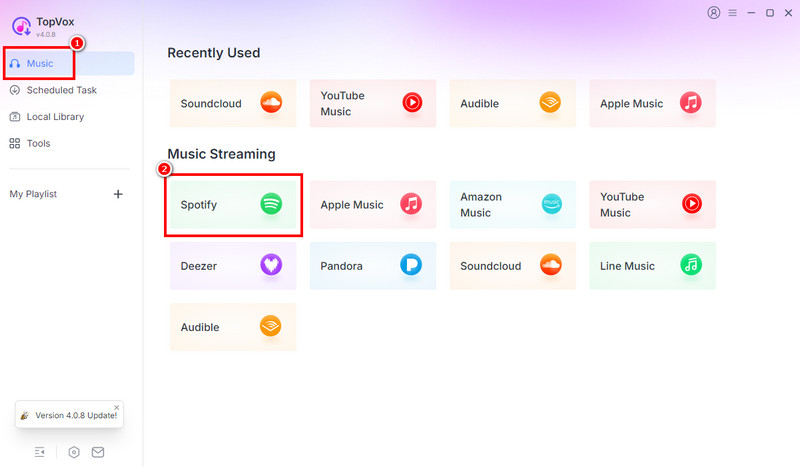
Step 2. Once the primary interface shows up, you can click the Spotify platform and insert your Spotify account.
Step 3. Go to the Search section and start browsing the Spotify music you want to download. After that, hit the Add button to transfer the music to the Conversion section.
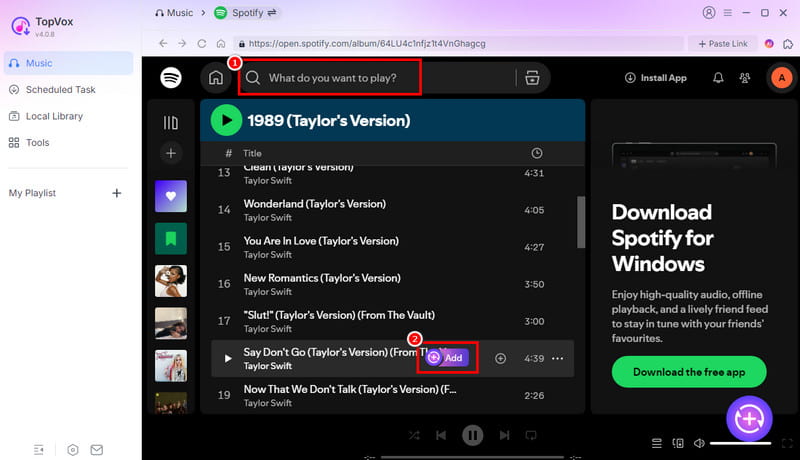
You can add as many songs as you want since the program supports batch conversion.
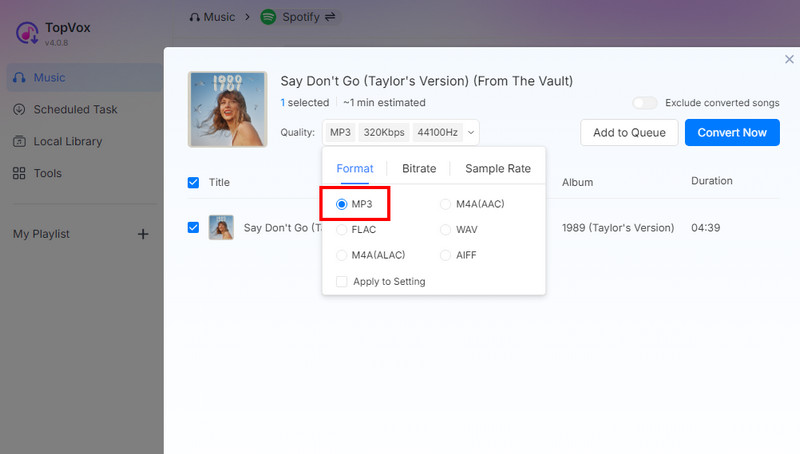
Step 4. From the Conversion section, you can start choosing MP3 as your output format. You can also select your preferred quality, bitrate, and sample rate.
Step 5. Finally, you can tap the Convert Now button above to start the Spotify to MP3 conversion process. Once done, you can check the downloaded music on your desktop.
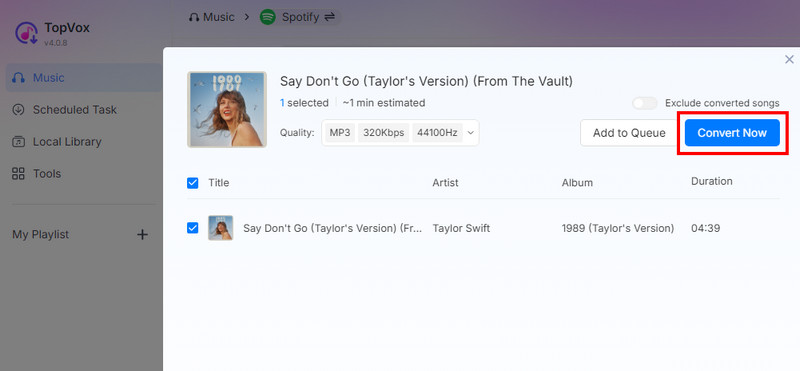
Now, you’ve successfully downloaded Spotify songs locally on your computer. Then, you can transfer them to your MP3 player via a USB cable and enjoy them offline anywhere. Refer to Part 3 for detailed steps.
TopVox All Music Converter vs. Free Online Converters
Besides TopVox All Music Converter, there are also some free online Spotify downloaders you can access on your browser. They can help you get the music you want after the process. However, we can't ignore the fact that almost all online tools have various disadvantages. Some of the drawbacks are:
- Don’t support the batch conversion process.
- Don’t support the batch conversion process.
- Various ads are showing up on the screen.
- Since the tools are web-based, a fast internet connection is necessary.
- Some tools are not safe to use.
To get more insights about TopVox All Music Converter and online converters, you can check the table below.
| TopVox All Music Converter | vs. | Free Online Converters |
|---|---|---|
| High – consistently converts Spotify tracks without errors. | Success Rate | Moderate – may fail with long playlists or protected files. |
| Excellent (up to 320 kbps) – preserves original sound quality, supports high bitrate. | Audio Quality | Variable (up to 256 kbps) – often compressed, lower bitrate, quality loss common. |
| Safer – proprietary software, ad-free, less risk of malware. | Safety | Riskier – many sites show ads, pop-ups, or may contain malicious scripts. |
| It can offer batch download to convert and download multiple songs at once. | Batch Download | Limited – some tools don’t support the batch download feature. |
| It can convert and download Spotify songs up to 35× faster. | Speed | Depends on the internet connection. |
| It can support MP3, AAC, FLAC, AC3, OGG, M4A, WAV, and more. | Formats Supported | Most tools can only support MP3, FLAC, and AAC. |
Part 3. How to Transfer Converted Spotify Music to an MP3 Player
After converting Spotify music to MP3, you can now proceed with transferring it to your MP3 player. To learn the process, read and use all the methods below.
Transfer Converter Spotify on Windows
For Windows users, all you need to do is:
Step 1. Connect your MP3 player to your desktop by using a USB cable.
Step 2. After that, launch the File Explorer and locate the MP3 player under the ‘Devices’ or ‘This PC’ section.
Step 3. Access the converted Spotify song to drag-and-drop it from your computer to the Music folder of your MP3 player.
Step 4. You can now eject the device before disconnecting to prevent music file corruption.
Transfer Converter Spotify on Mac
To transfer a converted Spotify song on a Mac, you must:
Step 1. Connect the MP3 player to the Mac via USB cable. Then run Finder and look for your device in the sidebar.
Step 2. Then, start to drag-and-drop the converted music into the device’s music folder.
Step 3. If you are using an iPod or Sony Walkman device, you must have specialized transfer tools, such as Apple Music or iTunes for iPod and Sony Music Center for Walkman. This way, you can sync the files properly.
Troubleshooting Tips
There are times when you might encounter some problems on your device. To solve the problem, you can read all the possible troubleshooting tips below.
- Device is not recognized – to solve this issue, you must try to reconnect the USB cable to a different port. You can also restart your computer.
- Driver updates – You must check the Device Manager for driver issues and update them if necessary.
- Format compatibility – Ensure that your MP3 player supports the file format. It’s safe to use the MP3 format for better and smoother audio playback.
- Storage space – Ensure that your MP3 player has enough space before transferring files. An insufficient storage space can only give you trouble and problems.
Part 4. Best Compatible MP3 Player
Don't you want to convert a Spotify song? Then, we can recommend some Spotify-compatible MP3 players you can choose to access and transfer your favorite music.
For Audiophile
Sony Walkman NW-A306
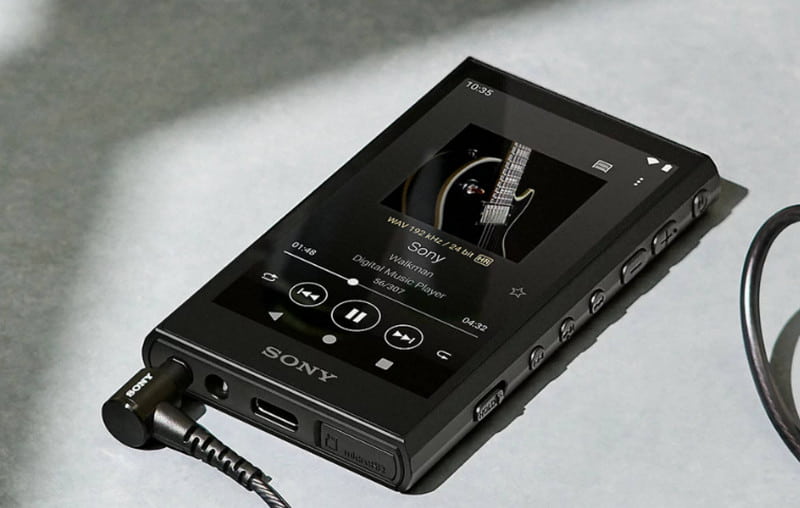
This MP3 player can offer a high-quality audio format like FLAC and WAV, making it ideal for audiophiles. It can even offer Wi-Fi connectivity. This way, you can install Spotify directly and stream without converting.
Fitness Choice
Mighty Vibe 3
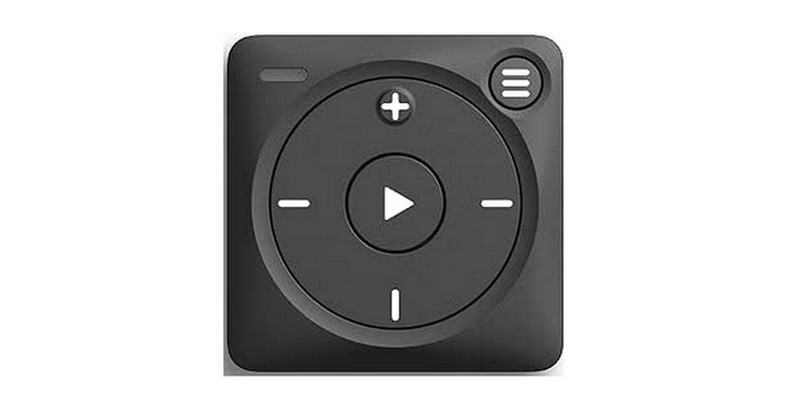
It is a small, screenless device designed for workouts. It syncs playlists from Spotify for offline playback.
SanDisk Clip Sport
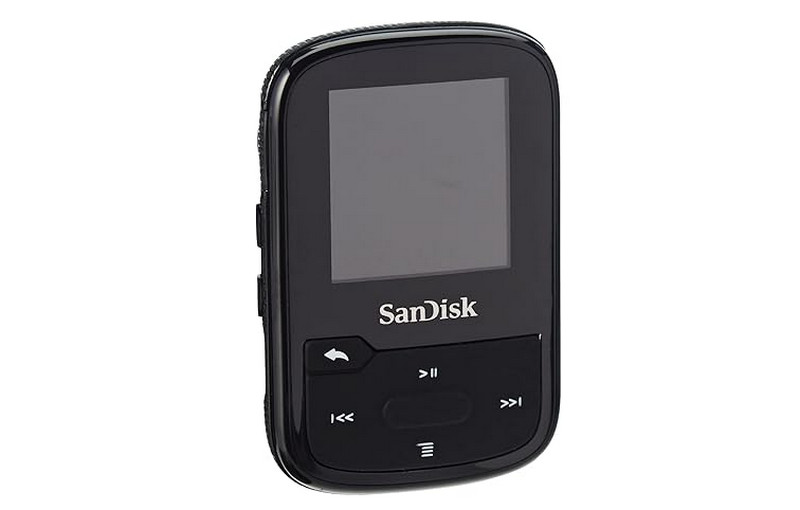
Another better MP3 player that is Spotify-compatible is the SanDisk Clip Sport. It is a compact, durable, and lightweight device with a physical button, ideal for gym sessions.
Budget Choice
AGPTEK A02
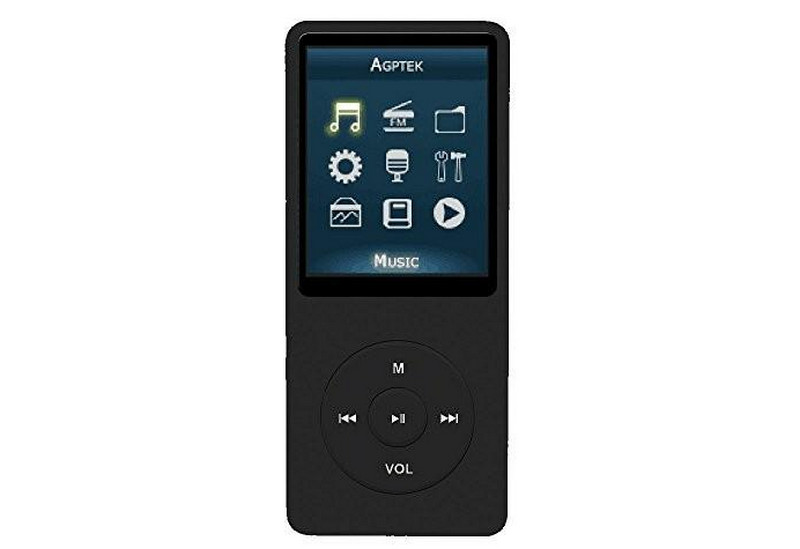
It is an affordable MP3 player with microSD expansion and long battery life. This device is best for students who want to listen to various music from Spotify.
Innioasis G5
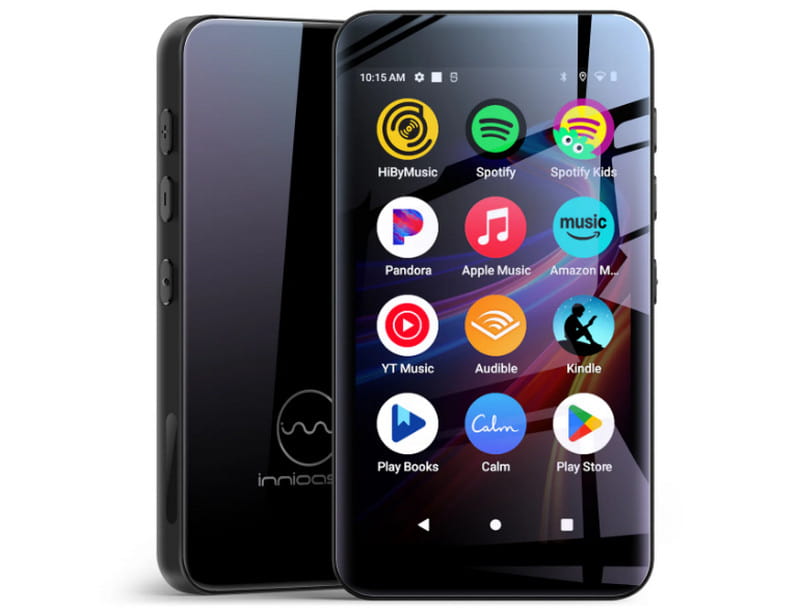
An affordable MP3 player you can use is Inniooasis G5. It supports Wi-Fi and apps, including Spotify. With this device, you can listen to any Spotify music.
Pro Tips
Do you want to transfer/migrate your favorite playlist to your device? Then, you can use TopVox All Music Converter. You can use the instructions below to start downloading and converting your playlist.
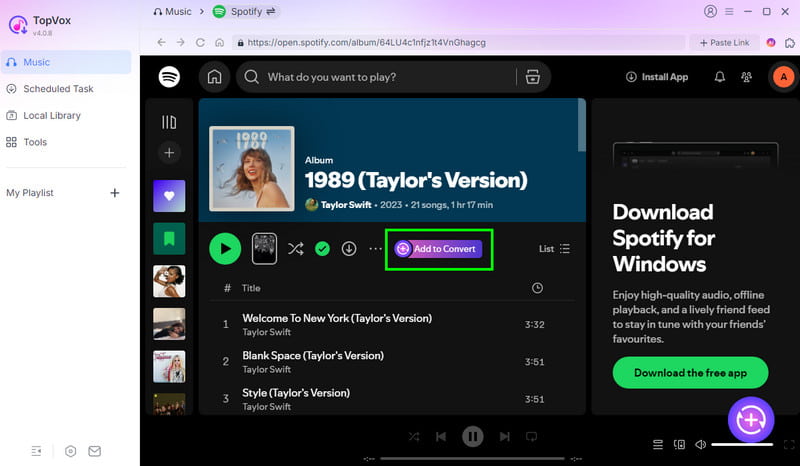
Step 1. After you launch TopVox All Music Converter, click the Spotify platform.
Step 2. Then, proceed to the playlist you want to download. After that, click the Add to Convert button. This way, all the music from the playlist will transfer to the Conversion section.
Step 3. You can start selecting your preferred format. For the final process, tap the Convert Now button to begin downloading and converting your Spotify playlist.
Part 5. FAQs about Spotify to MP3 Player
Q: What is the safest way to convert Spotify to MP3?
A: The safest method is to use TopVox All Music Converter. This software ensures that you can achieve your goal without worrying about your security and files.
Q: Do I need the owner's permission to convert their music from Spotify?
A: It depends. If you just want to listen, you can download it without any consent. However, if you are going to use the music in your content, asking for permission is necessary.
Q: What if my computer can't read my MP3 player?
A: You can try reconnecting the device using another USB cable. You can also restart your computer to refresh it. Another solution you can use is to update your drivers.
Conclusion
If you want to download and convert Spotify to an MP3 player, you can use all the methods we have provided in this tutorial. You even discovered that when it comes to downloading Spotify music, TopVox All Music Converter is the best program you can use. It can even give you the best audio quality for satisfying audio playback. Therefore, consider using this program for a better conversion and downloading procedure.
Ethan Carter creates in-depth content, timely news, and practical guides on AI audio, helping readers understand AI audio tools, making them accessible to non-experts. He specializes in reviewing top AI tools, explaining the ethics of AI music, and covering regulations. He uses data-driven insights and analysis, making his work trusted.