5 Best Ways to Convert AAC to MP3 for Better Compatibility
AAC is among the best audio formats when compared to MP3. It can offer a better compression efficiency and audio quality. However, we can't ignore the reality that AAc is not that widely supported compared with MP3, which is considered the universal language of digital audio. Plus, some car stereos and legacy MP3 players reject AAC files and show an 'unsupported format' error. Thus, if you want to learn how to convert AAC to MP3, we are here to help you. Read everything here as we introduce various methods you can use to transcode your AAc files successfully.

Part 1. Convert AAC To MP3 Using TopVox All Music Converter
Do you want to convert AAC to MP3 on your Mac or Windows? In that case, we would like to recommend TopVox All Music Converter. This program can offer its Format Converter feature that lets you convert your AAC and other audio to MP3 effectively. The best part here is that the conversion process is fast and smooth, making it an ideal converter for all users. What's more, the software can also offer you its batch conversion feature. This feature is ideal if you want to convert multiple AACs at once. Therefore, if you are looking for a better and more powerful converter, always consider using TopVox as your first choice.
More Features
- The program can offer a fast conversion process up to 35× faster.
- Its batch conversion feature allows you to change/convert more than one file in just a single click.
- It can retain the IDS tags to make the organisation easier.
- The program supports a pre-built web player for smooth audio playback.
To transfer AAC to MP3 format, check the provided instructions below.
Step 1. You can click the buttons below to start downloading and installing TopVox All Music Converter on your Mac and Windows.
Step 2. After you launch the interface, proceed to the Tools section and click the Format Converter feature.
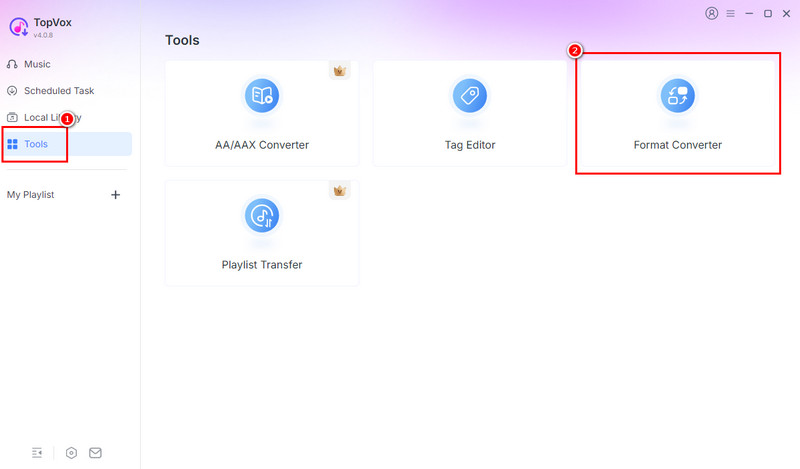
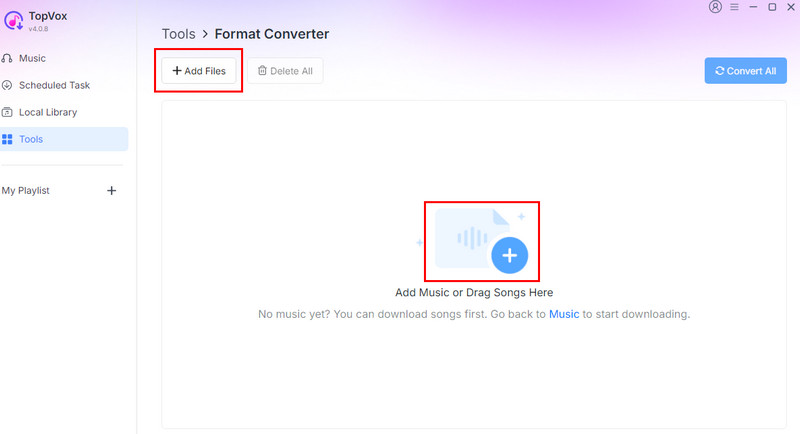
Step 3. Then, tap the Add Files or Plus button to start adding the AAC file from your desktop. You can add as many files as you want since it supports the batch conversion feature.
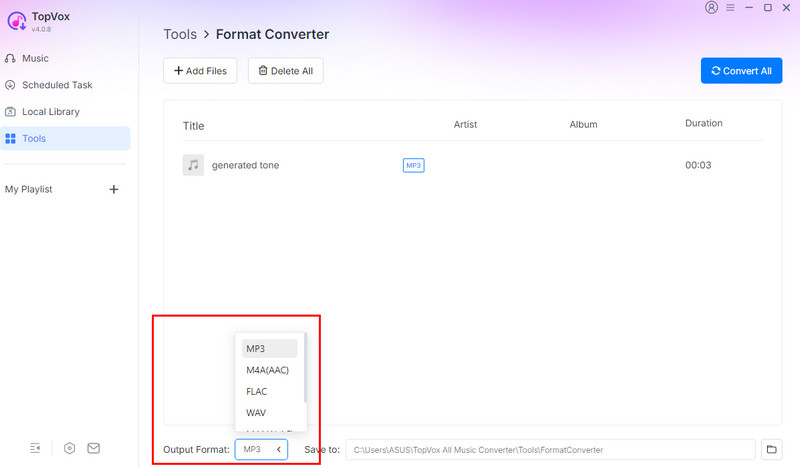
Step 4. Go to the Output Format section below and choose the MP3 format.
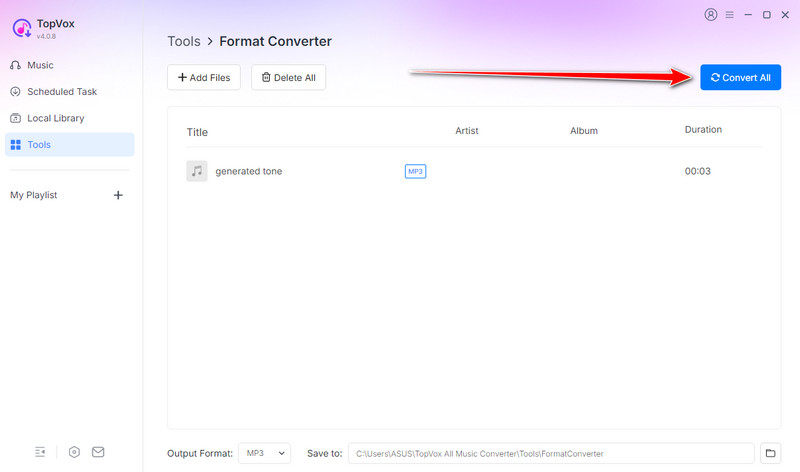
Step 5. For the last process, click the Convert All button from the top-right interface. Once done, you can now play your MP3 on your audio player.
Part 2. Convert AAC to MP3 on Windows
If you want to transcode AAC audio to MP3 on Windows, you can also use the Windows Media Player. This software is not just an excellent media player. You can use its converter feature to get the result you need after the process. What we like here is that the software's UI is simple to operate, making it an ideal tool for all users. Plus, since it is a built-in program, there is no need for you to install any third-party converter. To start the process of transcoding your AAC to MP3 format, you can use the instructions below.
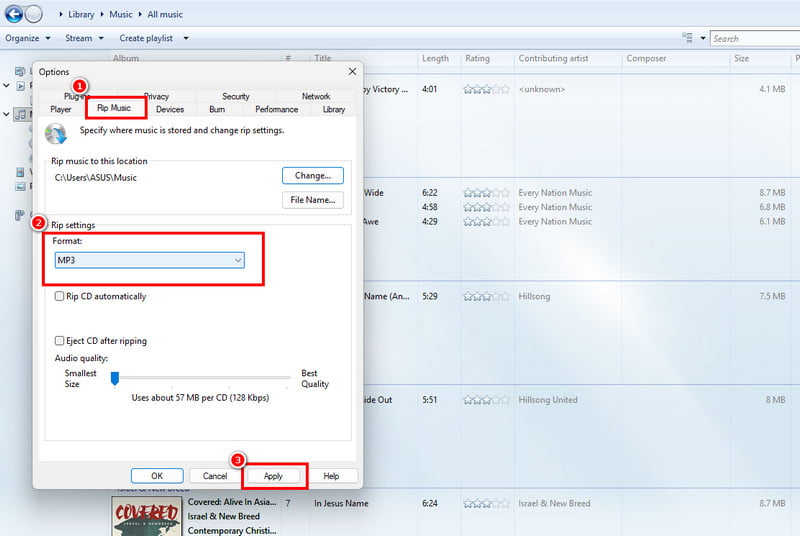
Step 1. On your computer, launch the Windows Media Player. After that, go to the 'Organize' section and tap the Options button.
Step 2. Then, go to the Rip Music section and select MP3 as your output format.
Step 3. Click the Apply function to save all the changes. After that, the AAC file on the software will be saved as MP3.
Limitations
- Even with codecs, conversion options are restricted compared to other converters.
- There are no options for bitrate and compression settings.
Part 3. Change AAC to MP3 on Mac
Want to convert an AAC audio file to MP3 on Mac? If that is the case, you can read this section as we offer the best methods you can use to achieve your preferred outcome.
Method 1. Convert AAC to MP3 Using iTunes
If you are utilizing iTunes, you can just change the AAC file to MP3 in a simple way. With that, you can play the file without encountering any issues. To start the process, you can check the steps below.
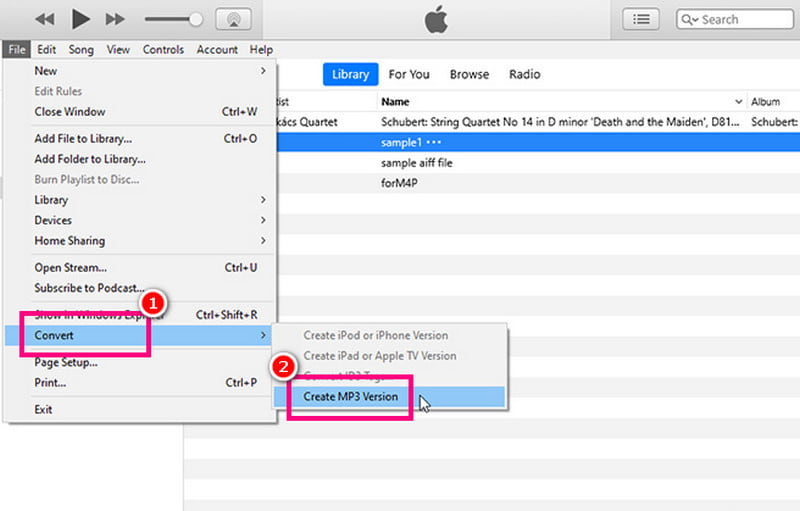
Step 1. Launch the iTunes software on your Mac and add the AAC you want to convert.
Step 2. Then, proceed to the File section and select Convert > Create MP3 Version.
Step 3. Once done, you can now have the MP3 file that you can play on any platform.
Limitations
- Conversion always required re-encoding.
- It has limited customisation settings.
Method 2. Change AAC to MP3 Using Apple Music
You can also use the Apple Music app to convert AAC to MP3. This is better if you are using the newer version of Mac. You can follow/check the steps below to start learning how to convert your AAC files to MP3 format.
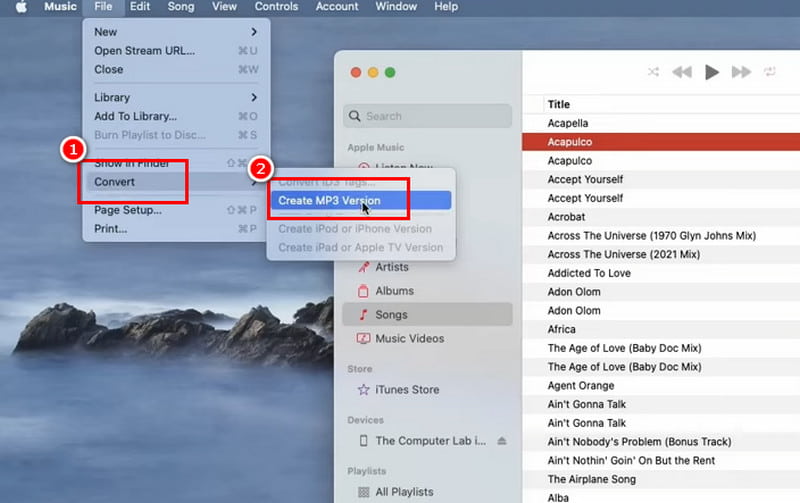
Step 1. Launch the Apple Music app and proceed to the Music > Preferences section. Then, go to the Files tab and tap Import Settings.
Step 2. After that, select the MP3 Encoder as the import format. With that, you can start importing the AAC file that you want to convert.
Step 3. Navigate to the File > Convert options and hit the 'Create MP3 Version.' With that, the files will be saved on your device.
Limitations
- Since it is dependent on the Library, you must add the file to the library before the conversion process.
- It supports a few formats compared with other converters.
Part 4. Transfer AAC to MP3 Online
If you need an online AAC to MP3 converter, we suggest using Zamzar. It is an ideal tool if you want to convert an audio file on your browser. What we like here is that you can also change the sample rate, bitrate, and other parameters. You can also convert more than one file since it supports a batch conversion feature. The best part here is that you can also convert more files, such as AIFF to MP3, AAC to FLAC, OGG to MP3, and more.
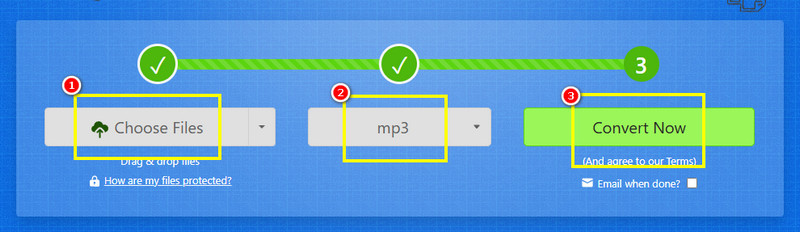
Step 1. Access Zamzar on your browser and click the Choose Files button to upload an AAC file.
Step 2. Go to the Format section and choose the MP3 format. Once done, tap the Convert button.
Step 3. For the final process, tap the Convert button to start the AAC to MP3 conversion process.
Limitations
- It needs a stable internet connection to perform well.
- The conversion process is not that fast.
Part 5. AAC vs. MP3: Technical Insights
What is AAC?
AAC is a contemporary audio format that was designed to replace the MP3 format. It also offers superior audio quality and compression efficiency. The format is perfect for streaming services, mobile devices, and digital broadcasting since it offers more advanced encoding techniques. Because AAC strikes a balance between file size and quality, it is frequently utilized in services like Apple Music, YouTube, and Spotify.
What is MP3?
MP3 is among the universal formats you can use to play your audio file anywhere and anytime. It is known for its broad compatibility, allowing you to play your favourite music without any issues. It is also known as a universal language of digital audio. The best part here is that it can offer a better quality and smaller file size, making it the best format out there.
To get more ideas about the two formats, check the table below.
| MP3 | vs. | AAC |
| Good, but less efficient at the same bitrate | Audio Quality | Superior at the same bitrate; clearer highs and lows |
| Larger file size for similar quality | Compression Efficiency | Smaller file size with better quality |
| Supported on modern devices and streaming platforms | Device Compatibility | Supported on modern devices and streaming platforms |
| Rarely used in modern streaming | Streaming Use | Standard for YouTube, Apple Music, Spotify |
| Easy to edit and widely supported by converters | Editing / Conversion | Requires re-encoding for MP3 compatibility |
• Older format.
• Globally recognized and dominant. | Adoption History | • Newer format.
• Designed as MP3’s successor. |
Part 6. Comparison of the Best AAC to MP3 Converters
If you want to get more insights about the best AAC to MP3 converters, you can read everything in the table below.
| Conversion Speed | Ease of Use | Platform | Supported Format |
| TopVox All Music Converter | Up to 35× faster. | Straightforward | Windows and Mac | AAC, MP3, FLAC, WAV, M4A, AC3, and more. |
| Windows Media Player | Standard | Straightforward | Windows | MP3, WMA, AAC, and WAV. |
| iTunes | Standard | Straightforward | Mac | AAC, AIFF, MP3, WAV, and ALAC. |
| Apple Music | Standard | A little bit confusing | Mac | AAC, MP3, WAV, AIFF, and ALAC. |
| Zamzar | Depends on the internet. | Straightforward | Browser | AAC, OGG, MP3, WAV, FLAC, WMA, and more. |
Part 7. FAQs about AAC to MP3
Q: Does converting AAC to MP3 reduce the quality?
A: It depends on the converter you use. If you want to convert your files without quality loss, you can try using TopVox All Music Converter. This ensures that you can still get the same quality after the conversion process.
Q: What are the best tools I can use to convert my AAC to MP3?
A: There are various tools you can access. Some of them are TopVox All Music Converter, VLC, Convertio, Zamzar, FreeConvert, and more.
Q: Is AAC always smaller than MP3?
A: Definitely, yes. AAC is more efficient, letting it achieve an equal sound at lower bitrates, resulting in a smaller file size compared with the MP3 format.
Conclusion
Converting AAC to MP3 is the best solution if you want to play your music without encountering any compatibility issues. Thankfully, this tutorial provided all the methods you can use to effectively convert your AAC to MP3. Plus, if you want a better converter that can let you achieve the result you need, always use TopVox All Music Converter. With this software, you can ensure that you get a better MP3 file after the conversion process.
Luna Harper
Luna Harper is a passionate music lover and an inspiring content sharer. She has explored most of the music converters available on the market, acquiring thorough knowledge of their features, usability, and differences. Luna enjoys using her professionalism to help fellow music lovers get superior audio quality.




 by
by