5 Comprehensive Ways to Convert M4A to MP3 Format [2026]
M4A format is Apple's standard audio format. It can offer excellent quality and effective compression. However, the format still has issues with some editing tools, non-Apple smart TVs, and outdated car stereos. Many people are hesitant to convert an M4A file to MP3 because they think it will degrade sound quality. In actuality, genuine 1:1 parity conversion can be accomplished by 2026 while maintaining the same sharp fidelity at 320 kbps. So, want to convert M4A to MP3? Worry no more. We'll demonstrate the quickest method for batch-converting your library while maintaining professional-grade quality in this article. Read here to learn more about the topic.
Why Convert M4A to MP3?
Do you want to learn all the reasons you must convert M4A to MP3? You can check all the information below.
- • Compatibility – If you want to play your music, you can use MP3s, as almost all platforms support them.
- • Smaller File Size – MP3s are smaller, making them ideal for collecting numerous files without consuming much storage space.
- • Editing Flexibility – For a smooth editing process, MP3 is preferred since it is easy to handle.
- • Future-proofing – MP3 is ideal since it remains the most supported format, ensuring long-term access.
For more details, see the simple table below.
| VS | M4A |
| Psychoacoustic lossy compression | Compression Methods | Advanced Audio Codec (AAC) and more efficient at retaining detail |
| Up to 320 kbps | Audio Quality | Up to 128 kbps |
| Larger | File Size | Smaller |
| Universally supported across all platforms, car stereos, smart TVs, and players | Compatibility | Best within the Apple ecosystem |
| Supports ID3 tags, widely recognized | Metadata Support | Supports rich metadata (artist, album, cover art, BPM) |
| Commonly used at 128–320kbps | Bitrange Range | Supports up to 512kbps |
Part 1. Professional Way to Convert M4A to MP3
If you want to change M4A to MP3 professionally, try using TopVox All Music Converter. With this converter, you can ensure your audio file is converted to the best quality, up to 320 kbps. Plus, the program is easy to navigate thanks to its straightforward user interface, making it perfect for non-professional users. Additionally, the software can support batch conversion. With this feature, you can convert multiple M4A files without wasting too much time. Thus, if you want the most reliable converter, try using TopVox All Music Converter.
Best for: Ideal for smooth and instant conversion.
Features
- The program's conversion process is 35× faster.
- It supports various audio output formats, including FLAC, WAV, M4A, AIFF, OGG, and more.
- The program can offer its built-in web player for an effective listening experience.
- It can retain the ID3 tags for better organization.
To convert an M4A file to MP3, you can check the provided steps below.
Step 1. First, install TopVox All Music Converter on your Windows or Mac computer to begin converting M4A to MP3.
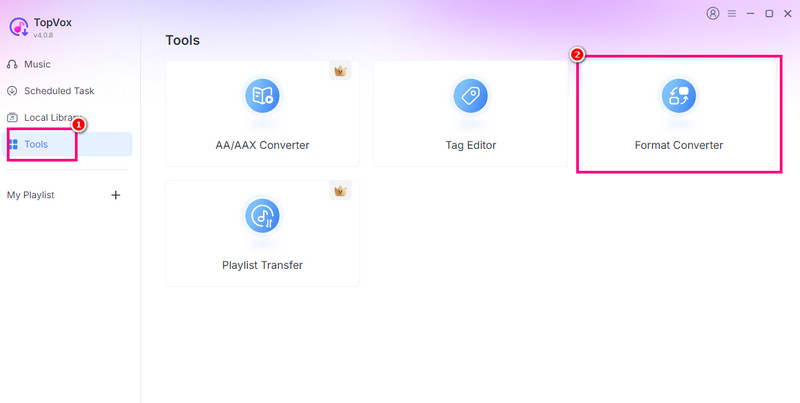
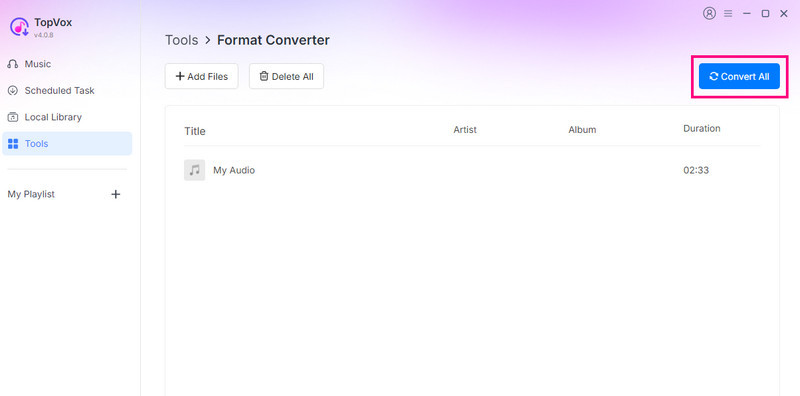
Step 2. After launching the interface, go to the Tools section and select the Format Converter feature.
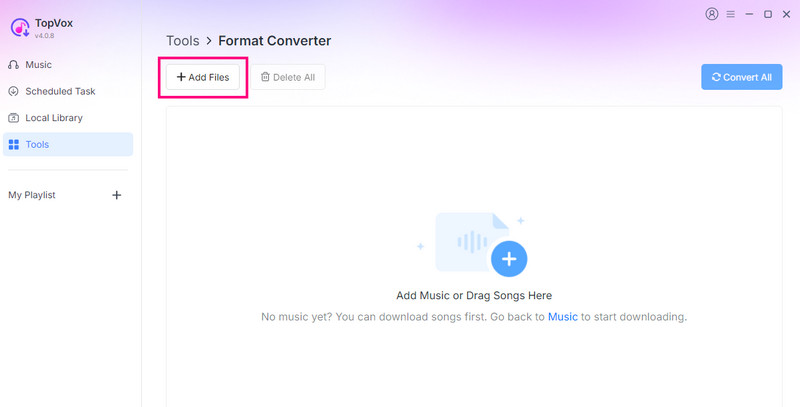
Step 3. Then, start adding the M4A file by hitting the Add Files button.
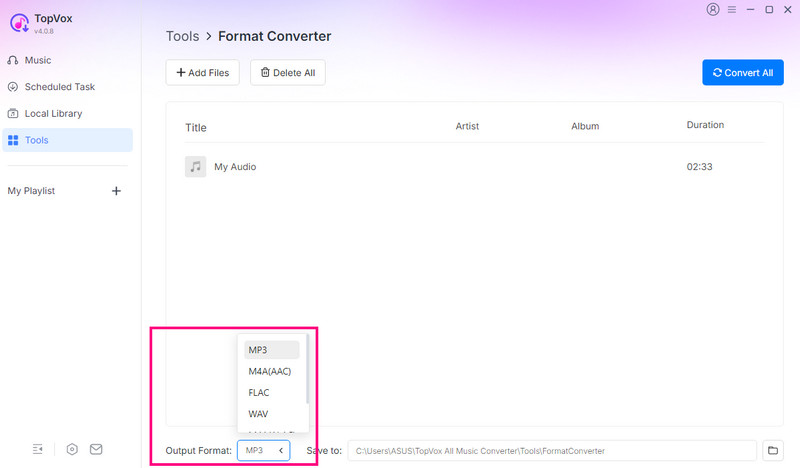
Step 4. You can now start choosing the MP3 format from the Output Format section.
Step 5. Finally, tap the Convert Now button above to start transcoding the M4A file to MP3.
Part 2. Convert M4A to MP3 Using VLC
VLC Media Player is among the best M4A-to-MP3 converters for Windows. With its converter feature, turning your audio files into various formats is simple. What we like about this software is that you can easily navigate all the necessary features thanks to its user-friendly interface. It can also deliver high-quality audio so that you can enjoy your favorite music during playback. Lastly, this program is 100% free, making it more accessible to all users.
Best for: Users who want a simple conversion process.
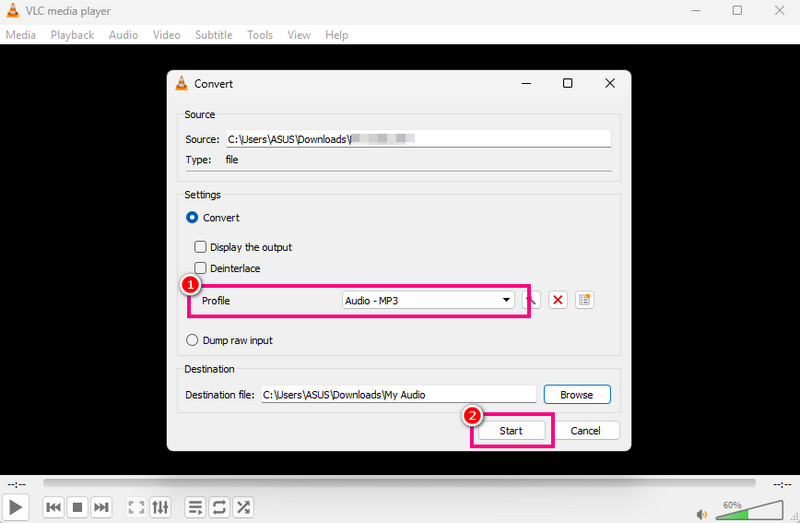
Step 1. Download VLC Media Player on your Windows. Then, launch it to start the conversion procedure.
Step 2. From the interface, go to the Media section above. Hit the Convert / Save option, and you will see another mini window on your screen.
Step 3. Click Add to start adding the M4A files from your computer. Proceed to the bottom interface and tap the Convert / Save option.
Step 4. Select MP3 from the Profile section. To start the M4A-to-MP3 conversion, click the Start button below.
Limitations
- The converter’s user interface is not appealing.
- Sometimes, the program crashes.
Part 3. Transcode M4A to MP3 Using Apple Music App
Want to learn how to convert M4A to MP3 on Mac? In that case, we recommend using the Apple Music app. This app is not just an excellent audio player for Apple. It can also offer a converter feature that converts your M4A files to MP3s smoothly and effectively. The good part about this app is that it ensures your converted file retains its original quality.
Best for: Good for Mac users who want to convert a file without any installation.
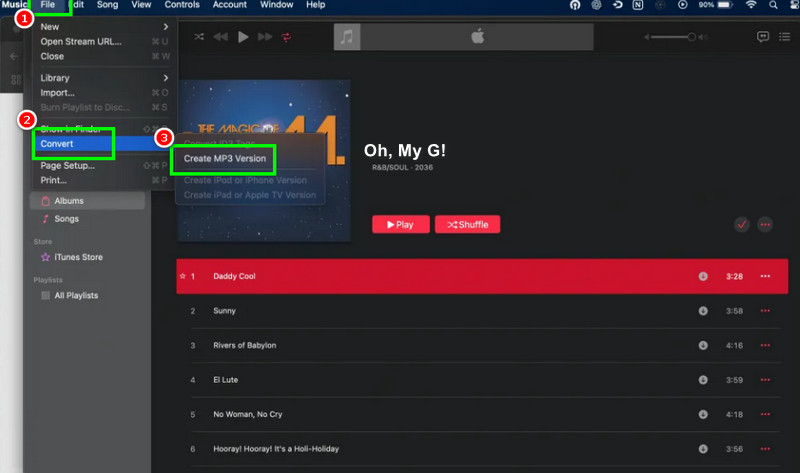
Step 1. Run the Apple Music app on your Mac. Then navigate to the File section above and select Preferences > Import Settings.
Step 2. For the next process, you must select the MP3 Encoder option from the Format section. Then, open or add the M4A file you want to convert.
Step 3. You can now go to the File section and click the Convert > Create MP3 Version option to start converting the M4A to MP3.
Limitations
- The software is only available on the Apple ecosystem.
- The process may be challenging to some non-professional users.
Part 4. Online Ways to Convert M4A to MP3
Want to learn how to convert an audio file from M4A to MP3 online? Then, you can visit this section, where we provide the best converters for an effective conversion process.
Method 1. Convert M4A to MP3 Using CloudConvert
If you are looking for a safe and reliable online converter, we suggest using CloudConvert. This tool is ideal because it provides a smooth conversion process. It can even let you convert multiple files, so you can handle your files while saving time. You can even convert more formats, including AAC to MP3, FLAC to M4A, OGG to AIFF, and more. You can even access this tool on all web platforms, making it easier to access.
Best for: Ideal for good conversion without any installation.
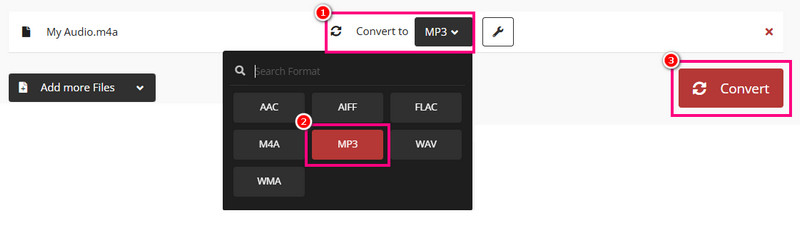
Step 1. You can access the CloudConvert tool on your main browser. Then, select the file to start uploading the M4A file.
Step 2. Navigate to the Format section and click the Audio > MP3 options. Then, click Convert to convert the M4A file to MP3.
Step 3. Finally, tap Download to start saving the MP3 file on your device.
Method 2. Convert M4A to MP3 Using FreeConvert
Another tool you can use on your browser is FreeConvert. This online-based converter is the right choice if you want an effective conversion process. It ensures your audio remains clear while minimizing file size by supporting high-quality conversions up to 320 kbps. It can even offer a simple, basic editing tool. Lastly, FreeConvert is a useful option for fast, accessible conversions right from your browser, as it doesn't require any software installation. See the steps below and learn how to turn M4A to MP3.
Best for: Perfect for users who want to convert and edit videos.
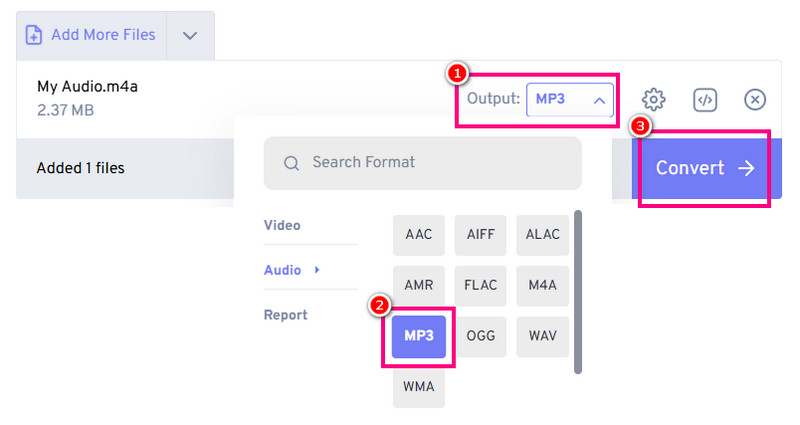
Step 1. Open FreeConvert in your browser, then tap Choose Files to select the M4A file on your device.
Step 2. Select the MP3 format from the Output section. Then click Convert to begin converting the M4A to MP3.
Step 3. You can start downloading the file after the conversion process and check it on your computer.
Limitations of Online Converters
- Some online tools might be risky to use.
- The audio conversion speed depends on the internet connection.
- There are times when the tools’ performance is unstable.
Part 5. Comparison of the Best M4A to MP3 Converters
Check the table here and learn more about the best M4A to MP3 converters.
| Speed | Offer Batch Conversion | Privacy Handling | ID3 Tag Support | Ease of Use | Output Management |
| TopVox All Music Converter | Up to 35 times faster. | Yes | Local processing, no uploads required | Flawless ID3 mapping (cover art, BPM, artist) | Simple | Clean output folder, no library clutter |
| VLC | Fast | Yes | Local, safe | Basic metadata support | Technical | Manual folder management |
| Apple Music | Fast | Yes, but limited. | Local, but duplicates files | Transfers metadata, but duplicates | Simple for Apple users | Clutters Apple Music library, manual export |
| CloudConvert | Depends on the internet | Yes, but limited. | Requires file upload to servers | Partial metadata support | Simple | Cloud-based, requires download |
| FreeConvert | Depends on the internet | Yes, but limited. | Requires file upload to servers | Good metadata handling | Simple | Cloud-based, requires download |
Part 6. Technical Insight: M4A vs. MP3 - What Bitrate to Choose
Many people are concerned about audio quality loss during transcoding. Every conversion requires re-encoding because both MP3 and M4A (AAC) are lossy formats. You need a professional converter like TopVox All Music Converter, which preserves the original frequency response using sophisticated algorithms, to make sure your voice memos or music are clear. This preserves the reliability of your audio by making the loss barely noticeable to the human ear.
Bitrate Comparison
- • 128kbps MP3: Noticeable compression artifacts. It is best reserved for speech or low-storage scenarios.
- • 256kbps MP3: Balanced quality and file size, suitable for casual listening.
- • 320kbps MP3: Delivers near-CD quality, excellent for music libraries and professional use.
Do you want a better result? In that case, we recommend always aiming for 320 kbps when outputting MP3, especially if you want to convert your M4A files.
Sample Rate and Metadata Preservation
Removing the sample rate (often 44.1 kHz or 48 kHz) is a common mistake in free converters that can somewhat impair playback fidelity. Metadata preservation is equally vital; artist tags, BPM, and cover art should all move smoothly. TopVox guarantees perfect ID3 tag mapping and sample-rate integrity, so your converted MP3s retain the polished appearance of the originals.
Part 7. FAQs about Converting M4A to MP3
Q: What bitrate should I choose when converting audio?
A: The best bitrate to choose is 320 kbps. This ensures you can enjoy your music without any quality issues.
Q: Is Apple Music a good choice for conversion?
A: It can be a good converter for Mac users. However, if you want a better converter that delivers the best results, it's best to use TopVox All Music Converter. This program can offer a smoother conversion process, making it more reliable.
Q: Can I batch convert my library?
A: Definitely, yes. If you are using a converter that supports batch conversion, you can transcode multiple files at once. Some converters you can use include TopVox All Music Converter, CloudConvert, VLC, and Free Convert.
Conclusion
If you want to convert M4A to MP3 for better compatibility with outdated car stereos and non-Apple Smart TVs, you can use all the methods we have provided in this section. With that, you can convert your files on Windows, Mac, and browsers. Plus, if you need the best audio converter, always use TopVox All Music Converter. With its ability to convert audio files smoothly and instantly, you can ensure you achieve the result you want after the conversion.
Luna Harper
Luna Harper is a passionate music lover and an inspiring content sharer. She has explored most of the music converters available on the market, acquiring thorough knowledge of their features, usability, and differences. Luna enjoys using her professionalism to help fellow music lovers get superior audio quality.




 by
by