Top 3 Methods to Export Playlist from Apple Music to Spotify
Summary:
The official method gives you control but requires manual rebuilding, while web-based playlist transfer services offer quick, metadata-only transfers. But if you want a direct way to transfer your Apple Music playlist to Spotify or turn them into local audio files, use TopVox All Music Converter.
Switching from Apple Music to Spotify is easy until you realize how much of your music library is left on one platform. Recreating years’ worth of playlists, favorite songs, albums, and carefully organized tracks is much more difficult than switching apps. Spotify integrates Tune My Music, which can copy playlists from other services straight into Spotify. Apple Music, on the other hand, lets you export playlists directly from the Apple Music app as XML. This post explains why users switch between music streaming services and covers three ways to transfer Apple Music playlists to Spotify.
Why Switch from Apple Music to Spotify
There are several reasons someone might decide to convert Apple Music playlist to Spotify. But before you decide to switch, here are the three biggest reasons users are choosing Spotify and what to consider before moving your playlists.
Music Discovery and Recommendations
Spotify is known for its algorithmic curation discovery through Discover Weekly, Release Radar, and Daily Mixes. These recommendations make it easier to find new artists and songs based on your listening habits. Spotify Wrapped also gives a year-end summary of listening activity.
More Social and Collaborative Features
Spotify has collaborative playlists and Spotify Wrapped every year which makes the music more social. You can work on playlists with friends and share listening activity, recommendations, and yearly statistics.
Broader Compatibility
Most users want to transfer Apple Music to Spotify because of Spotify’s greater platform compatibility. A user who often changes devices will find Spotify’s compatibility better than Apple’s.
The Technical Barrier to Switching
Apple Music streaming tracks are protected by DRM and a licensing system. Apple uses its proprietary encryption technology, FairPlay Streaming, to protect audio files from being copied, shared, or played outside the official app. (Check the DRM meaning here)
The Risk of a Basic Migration
A playlist-transfer service can leave missing songs, incorrect versions, duplicates, or changes to your playlist organization. Songs that are exclusive to Apple Music or unavailable in your region may have no matching tracks on Spotify at all. Before you use an Apple Music-to-Spotify playlist converter, be sure to consider what you actually want to preserve.
Comparison of Transfer Methods
| Conversion/Matching Success Rate | Audio Quality and Original Bitrate | DRM Protection Handling and Exclusive Tracks | Transfer Limits | Use Privacy and Account Security | Offline Backup |
| TopVox All Music Converter | Up to 35× speed and 99% matching rate sucess | Original or configurable bitrate (up to 320 kbps) and sample rate (up to 48 kHz) | ✅ | No limit | Safe and secure | ✅ |
| Official Platform | Depends on manual searching and regional exclusives | Same as source | ❌ | No limit | Requires authorization to access Apple Music and Spotify data | ✅ |
| TuneMyMusic | Depends on the server and 85% matching rate success | Same as source | ❌ | 10,000 tracks | Requires third-party account/API access | ❌ |
Method 1. TopVox All Music Converter (Most Reliable)
TopVox All Music Converter is, by default, an all-music converter and downloader tool. Later, it expanded its services by adding a Playlist Transfer tool that instantly export Apple Music playlists to Spotify instantly. It can move playlists, albums, artists, and singles from Apple Music to 8 major streaming services, including Spotify. It can batch transfer playlists, albums, artists, and individual tracks at 35× speed. Notably, it retains full metadata (ID3 tags) and song order.
Features
- Integrated with the web player for accessing Apple Music playlists, albums, artists, and singles.
- Transfer Apple Music playlist to Spotify, Amazon Music, YouTube Music, Deezer, SoundCloud, LINE Music, Pandora, or Audible.
- Batch-migrate playlists, albums, artists, and individual tracks without limits.
- Uses the most advanced hardware-accelerating media processing to achieve 35× speed.
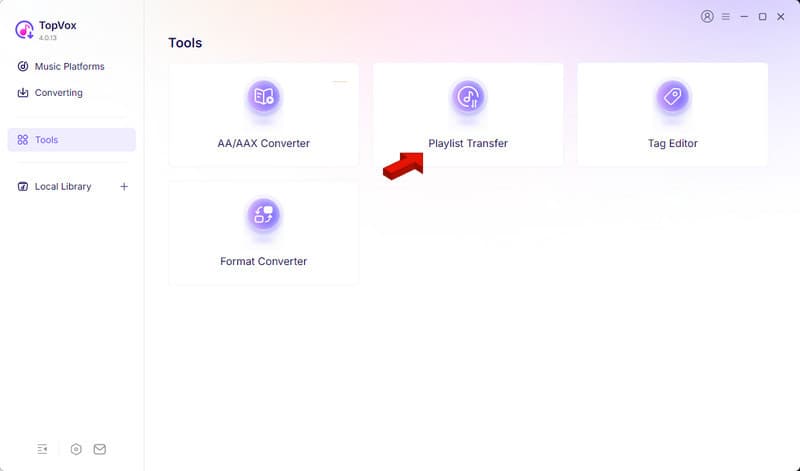
Step 1. Download TopVox All Music Converter and complete the setup. After installation, it opens to the Music Platform tab. Go to Tools and select Playlist Transfer.
Step 2. Click Apple Music as your source for selecting playlists. Then, choose Spotify as your destination for the playlists you want to transfer.
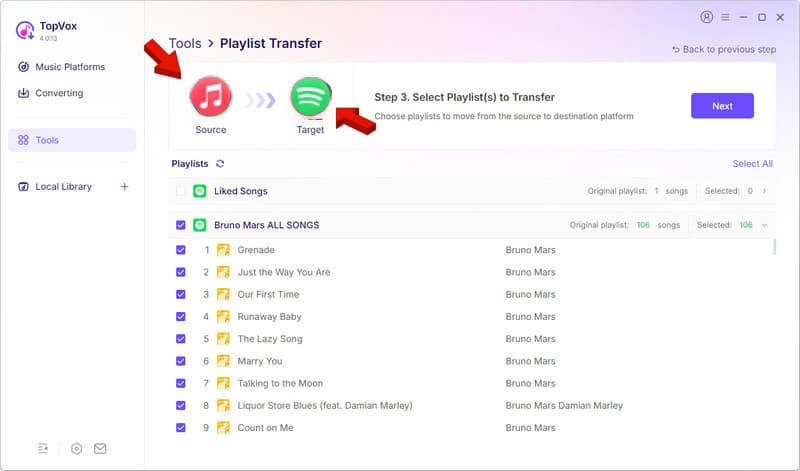
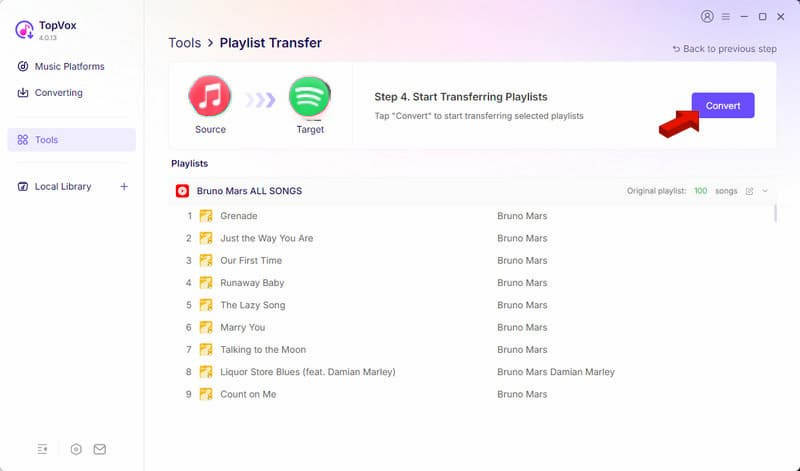
Step 3. Choose the playlists you want to transfer, then click Next. In the final window, click the Convert button to move Apple playlist to Spotify.
TopVox All Music Converter isn’t just for transferring playlists between music streaming services. Since Spotify supports playback of legally stored audio files, you can use the Music Platform tool to convert Apple Music to MP3 and import it directly to Spotify as a local audio file.
Method 2. Using the Official Platform Transfer Feature
You can take the manual route to export your playlist information from Apple Music. Then, use it to recreate your playlists in Spotify. This method is slower than an automated transfer, but it lets you review each playlist and decide which songs to keep.
Export Apple Music Library from Apple Music App
Open the Apple Music app and select the playlist you want to keep. Go to File, click Library, and select Export Library. Choose XML as the export format, then set a destination path.
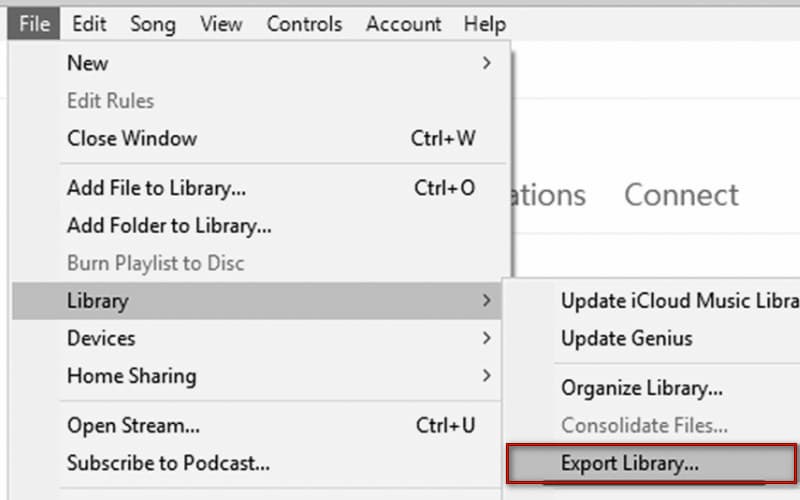
Note: Apple Music can export playlist information as XML, but the export contains metadata and playlist information, not the actual music files. Please note that exporting a playlist does not remove DRM protection or turn streaming tracks into transferable audio files.
Rebuild Library in Spotify
Open Spotify desktop app, go to Your Library, and create a new playlist. Search each song listed in the exported file, then add the matched songs to your new playlist.
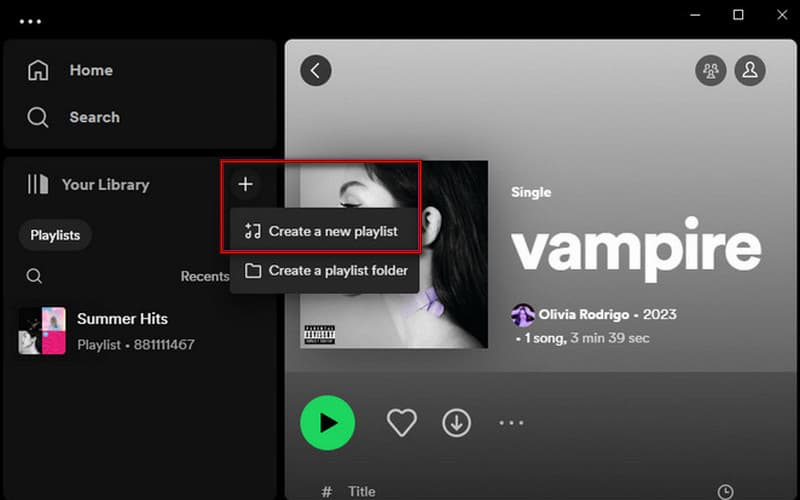
Note: For songs that you legally own as ordinary local audio files, Spotify also supports Local Files. Enable Local Files in Spotify’s settings and add the folder containing your audio files. Spotify can index those files for playback.
Method 3. Using Web-Based Playlist Transfer Services
If you want to convert Apple Music to Spotify without manually creating playlist, TuneMyMusic can handle the matching for you. This service can connect your Apple Music and Spotify accounts, read your playlists, find matching tracks, and recreate playlists on Spotify.
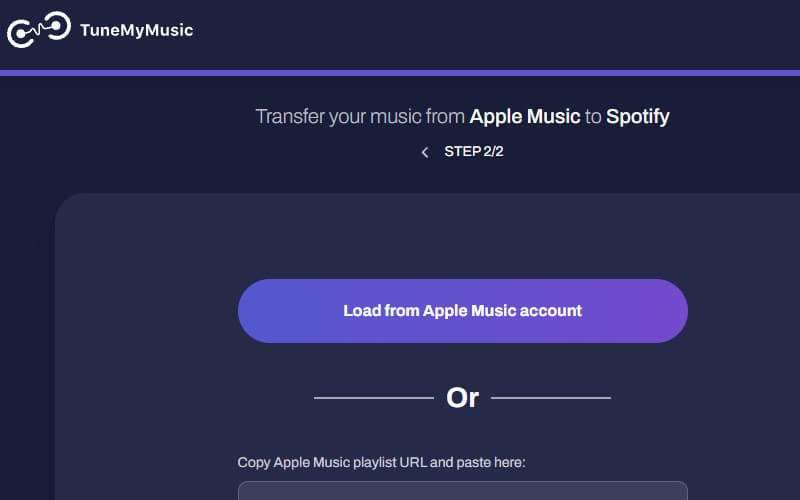
Step 1. Open the TuneMyMusic page and select Apple Music as your playlist’s source. Connect your Apple Music account and authorize TuneMyMusic to access it.
Step 2. Select the playlists, albums, artists, or singles you want to transfer. Choose Spotify as the destination. Connect your Spotify account, then begin the transfer.
TuneMyMusic can transfer more than individual playlists. It can also handle large libraries, although Spotify’s playlist and favorite-track limits apply. However, TuneMyMusic automatically splits playlists exceeding 10,000 tracks into multiple parts.
FAQs about Apple Music to Spotify Migration
Can I transfer Apple Music to Spotify for free?
Yes, you can transfer Apple Music to Spotify for free using online tools, but with limitations. Also, please be aware not to provide confidential information when using online tools to avoid privacy risks.
Why do some songs fail to transfer when moving from Apple Music to Spotify?
Songs may not be transferable as a result of the different license agreements that the two platforms have. This is why some songs can be found on one platform but not the other.
Can I listen to Topvox-converted Apple Music tracks on Spotify offline?
Yes, you can listen to the converted Apple Music tracks from TopVox on Spotify offline. After you convert the Apple Music tracks, import them into Spotify as local audio files. Go to Your Library, click Create a new playlist, then import the converted Apple Music tracks.
Conclusion
Switching from Apple Music to Spotify does not necessarily mean re-importing all your songs one by one. The official/manual way to do this lets you export your playlists from Apple Music and recreate them on Spotify. TuneMyMusic takes care of much of this work for you through automatic matching and playlist recreation. However, missing songs and catalog differences can still leave gaps. But if you need something more, there is another way to do it. TopVox All Music Converter lets you directly transfer Apple Music playlists to Spotify or convert them to local files and upload them to Spotify as a new playlist.
Ethan Carter
Ethan Carter creates in-depth content, timely news, and practical guides on AI audio, helping readers understand AI audio tools, making them accessible to non-experts. He specializes in reviewing top AI tools, explaining the ethics of AI music, and covering regulations. He uses data-driven insights and analysis, making his work trusted.



 by