Top 5 Leading AIFF-to-MP3 Converters With Quick Guides
Summary
An AIFF-to-MP3 converter reduces large AIFF files to smaller MP3s. For file privacy and quality output, TopVox All Music Converter is a must-have tool. It supports batch processing, fast conversion, and preserves audio structure. For occasional conversions, you can consider VLC and CloudConvert as go-to tools.
AIFF files store uncompressed PCM audio, delivering excellent sound quality. However, its large file sizes make it inconvenient for smartphones, portable players, and online sharing. Meanwhile, MP3 uses a lossy compression to create smaller files with broader compatibility. In this post, we will introduce the best AIFF-to-MP3 converters available. These tools can help you properly decode AIFF audio and re-encode it to MP3. The best way to convert AIFF to MP3 is to use a dedicated offline audio converter.
How We Tested:
- We tested each AIFF-to-MP3 converter on Windows 10 Pro.
- We used actual AIFF audio files in our testing.
- We evaluate each tool’s speed, batch conversion, and output quality.
| OS | File Size Limit | Max Audio Quality | Batch Download/Convert | Processing Speed | Supported Formats | Type of Conversion |
| TopVox All Music Converter | Windows and Mac | ❌ No file size limit | Up to 320 kbps | ✅ Unlimited | Up to 35× | MP3, FLAC, M4A (AAC), etc. | Local |
| Audacity | Windows, Mac, and Linux | ❌ No file size limit | Up to 320 kbps | ✅ Through Macros | Normal speed | MP3, WAV, AIFF, etc. | Local |
| VLC Media Player | Windows, Mac, and Linux | ❌ No file size limit | Up to 320 kbps | ✅ | Normal speed | MP3, OGG, FLAC, etc. | Local |
| CloudConvert | Web | ✅ 1 GB | Same as source | ✅ 5 concurrent conversions | Depends on the server | MP4, WAV, M4A, etc. | Cloud |
| iTunes | Windows | ❌ No file size limit | Same as source | ✅ | Normal speed | MP3, AAC, ALAC, etc. | Local |
Part 1. TopVox All Music Converter
TopVox All Music Converter is primarily for downloading and converting soundtracks from music streaming services. Due to high usage, it expanded and upgraded its service by adding a Format Converter. With it, you can decode lossless AIFF to MP3, FLAC, WAV, M4A (AAC), and M4A (ALAC). It can process hundreds of files simultaneously without experiencing lag or sudden crashes. It adopts the most advanced hardware-accelerating media processing to achieve 35× speed.
FEATURES:
- High-quality output with minimal to zero quality loss.
- Convert AIFF to lossless/lossy formats, including MP3.
- Process hundreds of files simultaneously without lag or sudden crashes.
- Uses advanced hardware acceleration to achieve 35× conversion speed.
Pros
- Safe and secure file conversion.
- Converts files to high-quality bitrate.
- Batch converts multiple files without lag.
Cons
- Subscription-based software.
- Cannot restore lost data during conversion.
Step 1. Download the TopVox All Music Converter and complete the installation.
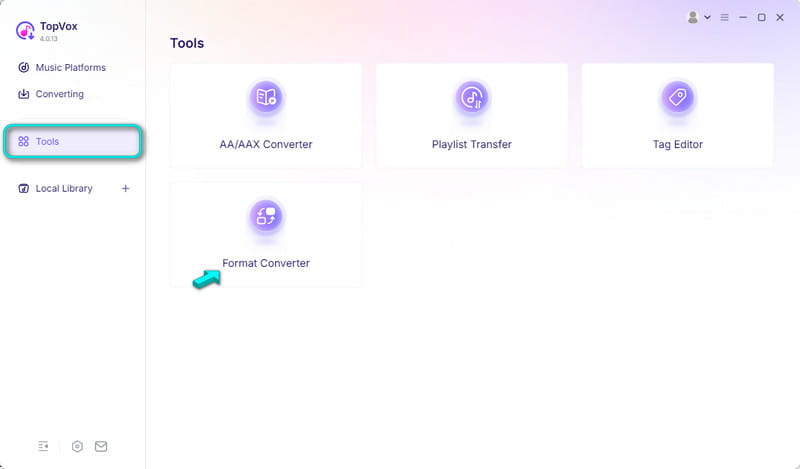
After setting up TopVox, go to the Tools tab and select the Format Converter.
Step 2. Drop the AIFF sources or click +Add Files to load them. This AIFF-to-MP3 converter does not limit the number of files or the sizes you can convert, so you can import multiple files.
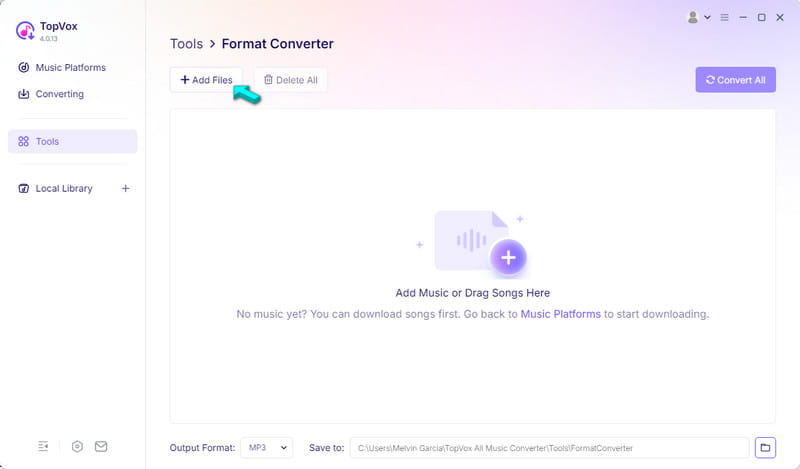
Step 3. Head to the Output Format picker of the Format Converter and select MP3. Specify the output folder, then click Convert All to start the conversion.
We evaluate TopVox capabilities in terms of batch conversion support, processing speed, and output quality. We use 100 AIFFs, totaling 1.1 GB, as source files for conversion. In our test, the AIFF-to-MP3 conversion was completed in just 1 minute and 14 seconds.
Part 2. Audacity
Audacity is a time-tested open-source audio-only recording and editing software. Aside from recording and editing, you can use it to convert AIFF to MP3 for free. What’s surprising is that the process is quick and easy; all you need to do is import and export.
Pros
- Offers waveform editing.
- Adjustable audio settings.
- Completely free and open-source.
Cons
- Strips metadata after conversion.
- Overwrites the data of the original file.
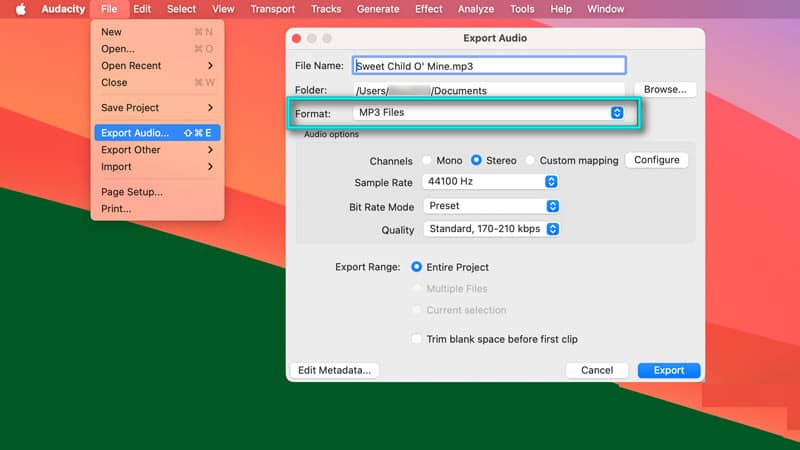
To convert: Import the AIFF files to Audacity, then click File, and select Export Audio. Choose where you would like to export: Share to audio.com or Export to computer. In the Export Audio window, go to Format, select MP3 Files, and click Export to save.
Part 3. VLC Media Player
VLC Media Player is an established media player that has been around for years. Without exploring it, you would expect it to be only for playing media files. Many didn’t know that there’s a hidden Convert/Save tool in the Media tab that can transfer AIFF to MP3 container.
Pros
- No hidden subscription fees.
- Supports lossless and lossy formats.
- Can be used on Windows, Mac, and Linux.
Cons
- The conversion option is hidden.
- Crashes when processing multiple large files.
To convert: Go to Media and click Convert/Save to open the Open Media window. Click +Add to import the AIFF files, then click Convert/Save to proceed. In the Convert window, go to Profile and select Audio - MP3, then click Start to convert.
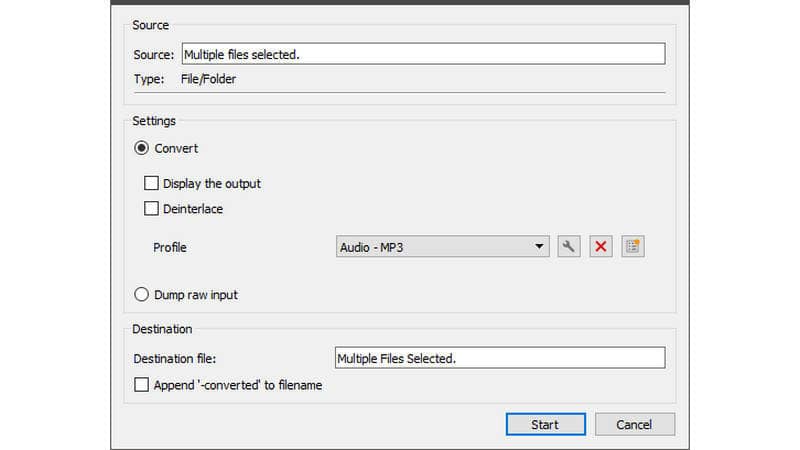
Limitations: VLC can convert files, but only a few. Although it supports batch processing, it lags and eventually crashes midway when processing multiple large files.
Part 4. CloudConvert
CloudConvert is a long-running online media and file conversion service that supports hundreds of formats. As an online tool, it can convert AIFF to MP3 on Mac, Windows, and even on mobile phones. It can also convert other lossless audio formats, including WAV to MP3.
Pros
- Supports 200+ media and file formats.
- Convenient for occasional conversions.
- Works on any device with a modern browser.
Cons
- Limits the upload file size to 1 GB.
- Can only process 5 concurrent conversions.
To convert: Using a browser, go to CloudConvert and click Select File to add AIFF sources. Select MP3 as your output, click Convert, and download each right after.
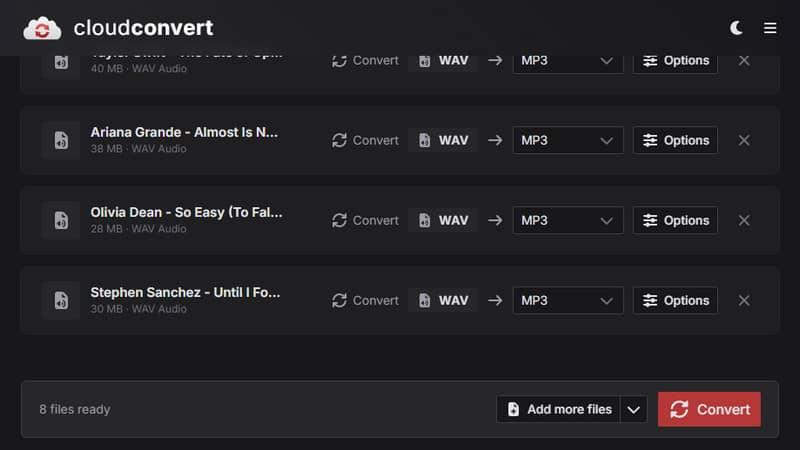
Limitations: CloudConvert is only recommended for processing a few non-sensitive files. Using this software requires uploading the file to a remote server, over which you have no control.
Part 5. iTunes
iTunes is a well-known media player, media library, and mobile device management platform. It is used to buy, play, and organize DRM-protected audio (see here for the meaning of DRM). You can also use it to move AIFF to MP3, and the process is uncomplicated.
Pros
- Can convert multiple songs.
- Integrates with music libraries.
- Supports MP3 encoding settings.
Cons
- Limited conversion settings.
- It was already replaced by the Apple Music app.
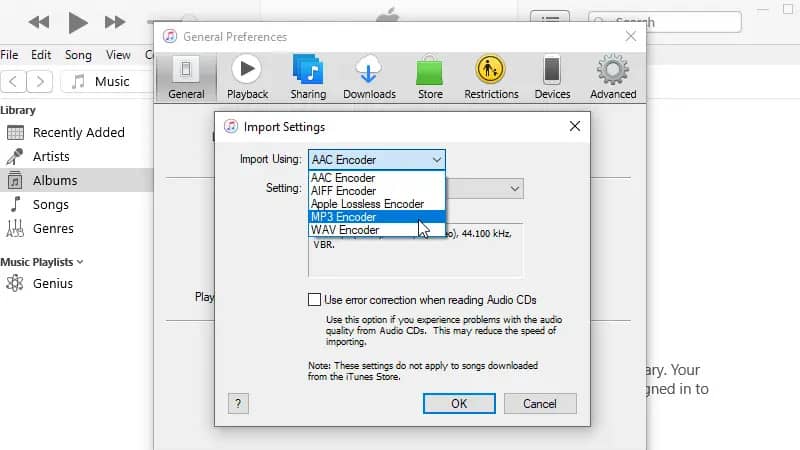
Step 1. Open iTunes on your Windows computer, click Edit, and select Preferences. In the General Preferences, click the Import Settings option.
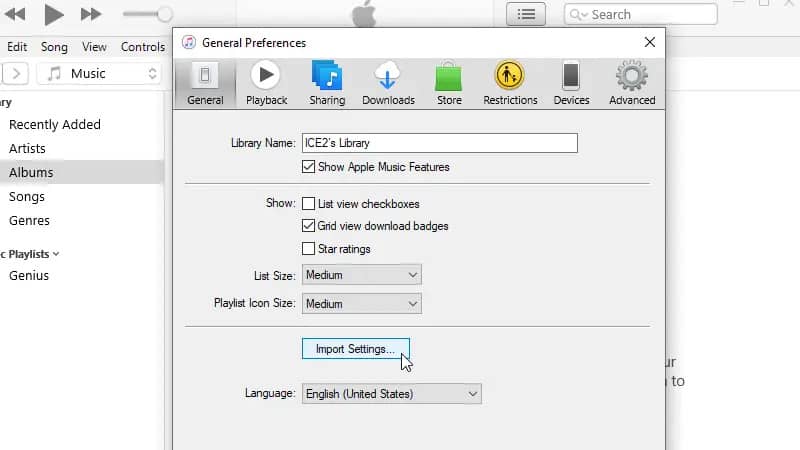
Step 2. In the Import Settings window, set the import encoder to MP3 Encoder, then click OK. Highlight the AIFF files from your library, click Convert, and select Create MP3 Version.
Limitations: iTunes always creates a new copy of the original file after conversion. Also, it cannot encode files protected by DRM to the MP3 format.
Guide: How to Choose the Right AIFF-to-MP3 Converter
Choosing a converter depends less on the number of supported formats and more on how you plan to use it. Below is a quick checklist on how to choose the right AIFF-to-MP3 converter:
1. Consider your Privacy: When you have highly private or sensitive files, choose an offline converter so your files remain on your computer.
2. File/Library Size: for 1-5 AIFF files, an online converter should be sufficient. If you’re handling 50+ files, choose software with batch processing and queue management.
3. Audio Bitrate Threshold: MP3 bitrate depends on how much quality you want to retain:
- Choose 128 kbps when your priority is to minimize the file size.
- Use 256 kbps for reasonable sound quality and storage efficiency.
- Set the bitrate to 320 kbps to minimize the compression when converting it from AIFF.
FAQs about AIFF-to-MP3 Converters
Which is better: AIFF or MP3?
AIFF is better if your priority is to save the original audio. Meanwhile, MP3 is considered better when you need smaller files and universal playback compatibility.
| Versus | MP3 |
| Lossless | Compression Type | Lossy |
| 1,411 to 12,288 kbps | Bitrate Range | 128 to 320 kbps |
| 30 to 32 MB | File Size (3-minute audio) | 2 to 8.4 MB |
| Archiving and editing | Best Use | Sharing and streaming |
Will switching from AIFF to MP3 degrade my listening experience?
Yes, it can degarde your listening experience because MP3 is a lossy format. We suggest you convert AIFF to higher bitrate (320 kbps) to minimize the quality loss.
Why do some free converters erase my album covers and song names?
Album covers, song names, and other information are stored as metadata, and not as part of the raw audio. Free converters fail to preserve these data because they strip it for compression.
Conclusion
An AIFF-to-MP3 converter is useful when you need to convert uncompressed AIFF files into smaller MP3 files. VLC Media Player and CloudConvert are sufficient tools for occasional conversion. When audio editing is required before conversion, use Audacity. However, if you need to process private files, we recommend TopVox All Music Converter. It is an offline converter with batch processing, fast conversion speed, and high-bitrate output.
Ethan Carter
Ethan Carter creates in-depth content, timely news, and practical guides on AI audio, helping readers understand AI audio tools, making them accessible to non-experts. He specializes in reviewing top AI tools, explaining the ethics of AI music, and covering regulations. He uses data-driven insights and analysis, making his work trusted.



 by
by