How to Convert M4A to MP3 on Mac in the Best Possible Ways
Most Mac users out there know the feeling of being stuck with M4A or ALAC files with their audio. That is because M4A is Apple's default audio file format. It comes in two types. The protected M4A file usually comes with DRM from Apple Music or iTunes. Then we have the unprotected one, which can basically be converted into a new audio format.
Indeed, M4A is efficient for our MacBook or even iPhone and iPad. Yet, this format is not universal and cannot be played with other external players. That is why some users might want to convert M4A to MP3 on Mac. With that, this article will guide you through all of these processes with ease.

Method 1: TopVox All Music Converter
We shall now introduce you to the leading tool that can help you convert your M4A files into MP3. TopVox All Music Converter is known for its versatile, effective, fast, and non-limiting features when it comes to handling and managing your audio files. Thus, this tool beats the native method of converting your M4A because of its unlimited tracks to convert and no hidden annoyances. That is right, TopVox can allow you to convert a full playlist in a few minutes because it is 30 times faster than other tools. Take a look at how simple it is to use below.
Step 1. Download and install TopVox All Music Converter on your computer.
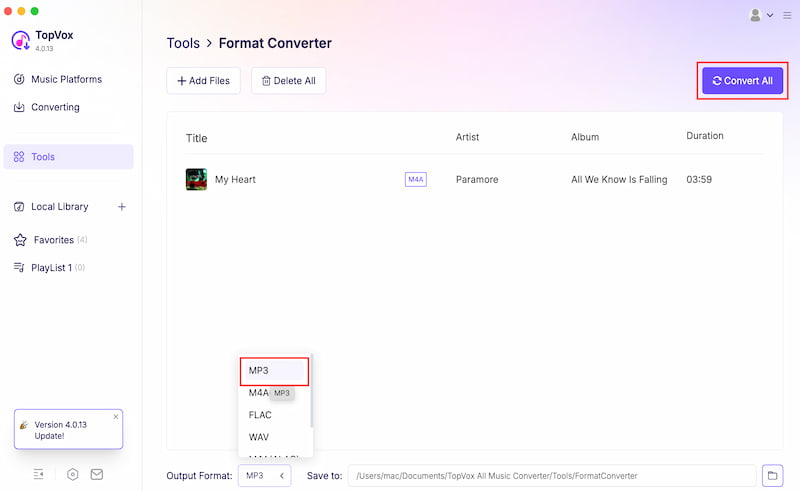
Step 2. Open the tool on your computer and access its main interface. Now, go to the Tools tab and click Format Converter.
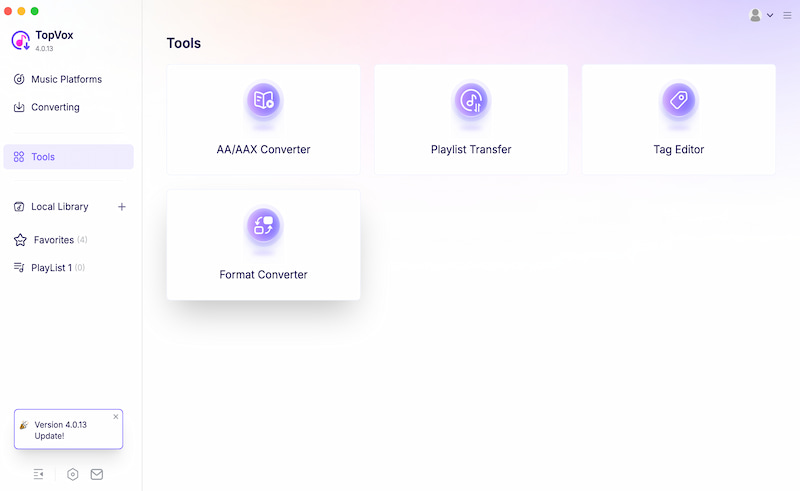
Step 3. On the new tab, please click the Add Files button and choose the M4A or ALAC audio files you want to convert. After that, please click the MP3 as the format for the output.
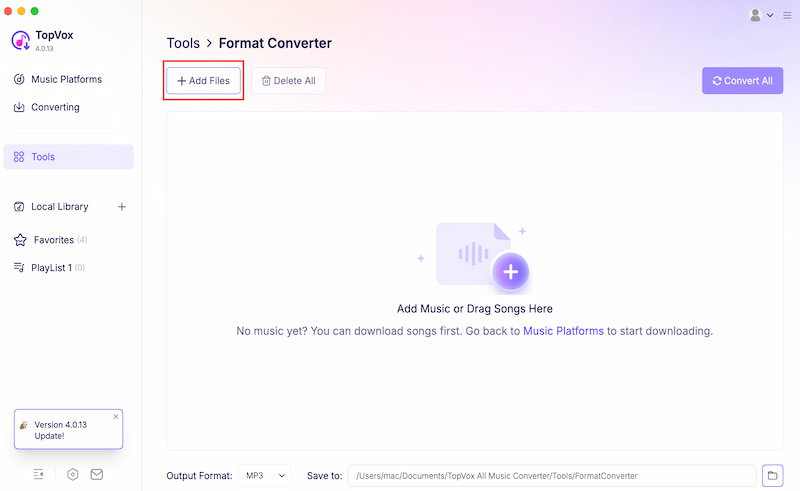
Step 4. Finally, click the Convert All button to proceed. After a few seconds, your MP3 file will now be available to play even with other external players you have.
Verdict
TopVox All Music Converter stands as the best tool that can help you convert M4A files to MP3 with ease and without limitation. All of these come with a very fast conversion process.
Method 2: Native Way via Apple Music App: Free for Single Files
Now, we will also share with you the native way of converting M4A to MP3. This is possible via the built-in Apple Music app on macOS, which requires no extra software installations.
Steps to Use the Native Way via Apple Music
Step 1. On your Mac, please open Apple Music. If the file is not yet ready on your library, you can drag-and-drop the file on it.
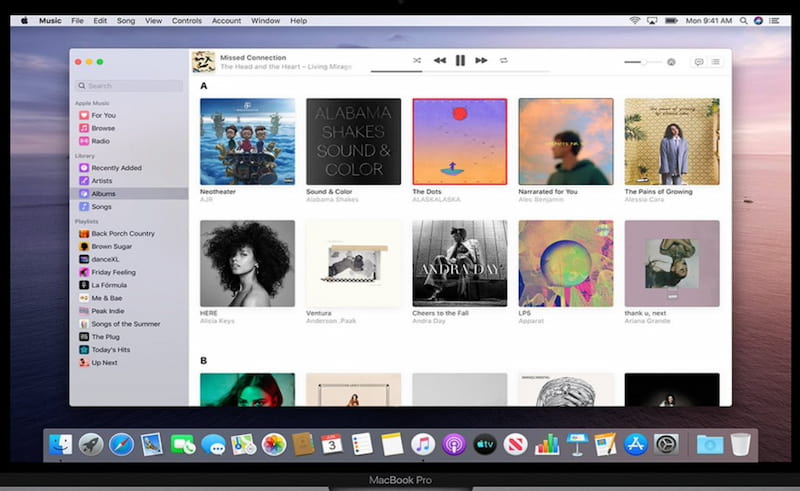
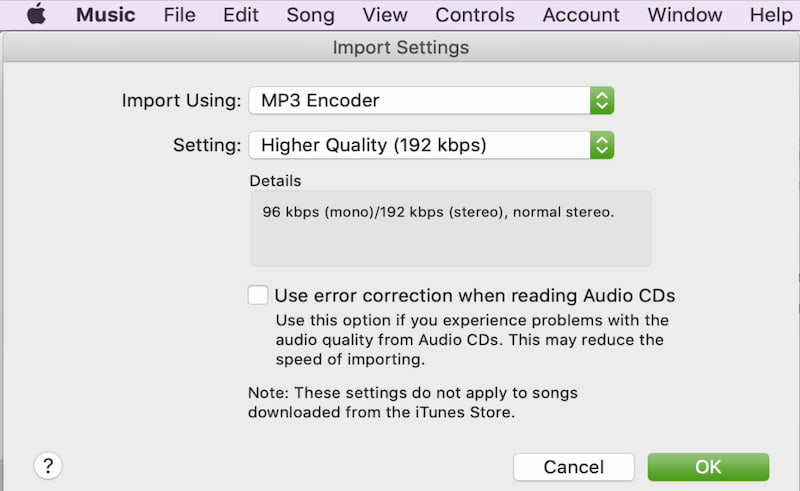
Step 2. Now, you need to go to the Music as you click on the Preferences.
Then continue to Files and see the Import Settings. From there, you will have to modify the Import Using to MP3 Encoder.
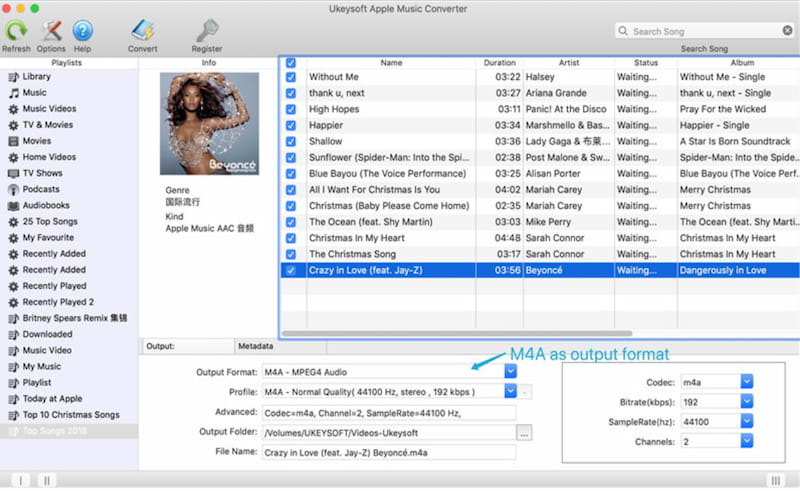
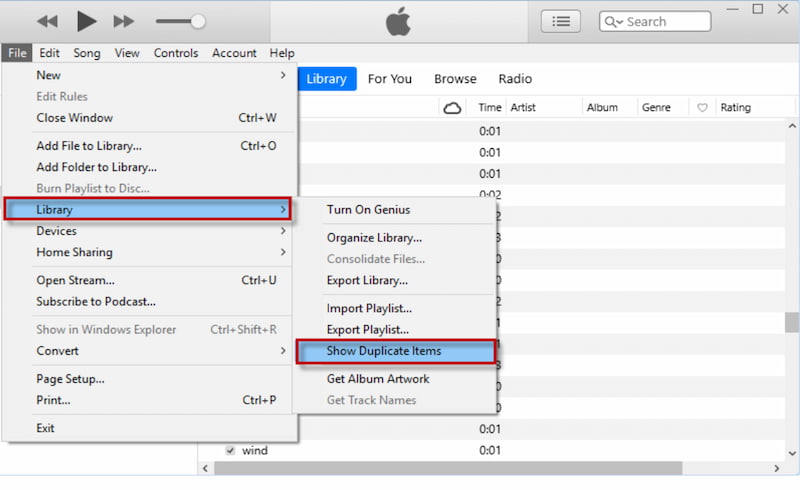
Step 3. The next thing you need to do is select the M4A track you have. Go to File and click Convert to Create MP3 Version.
Step 4. At this moment, you need to handle the duplicate files. Delete the existing M4A and keep the MP3 files.
Verdict
There is always a hidden annoyance in this method. You can expect that this method leaves both the original M4A and the new MP3 side-by-side in their library, forcing you to manually delete the originals.
Method 3: Finder Quick Actions: Automator Trick
Let us now see the third method and this is by learning how to use the macOS built-in automator app to create a right-click quick action shortcut in finder to convert M4A to MP3.
Steps to Use the Automator Trick
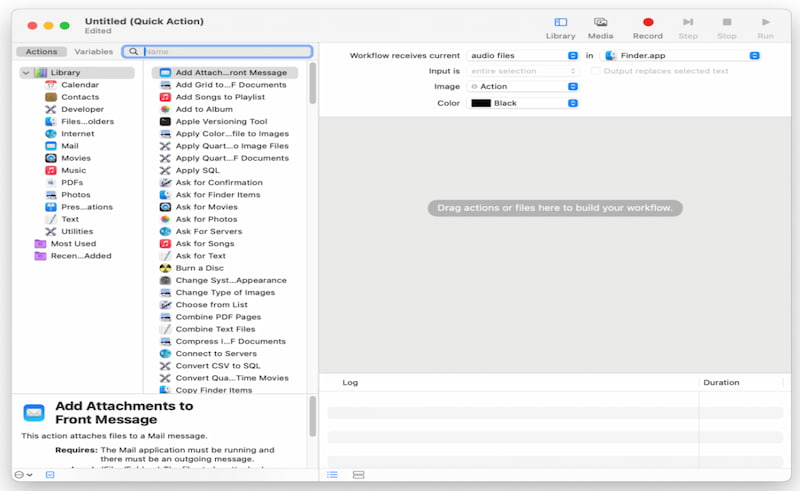
Step 1. Create a new quick action.
Step 2. Set it to receive Audio Files in Finder.
Step 3. Add the Encode to MP3 Audio script and save it.
Verdict
This method comes with limitations. It works natively from the desktop, but offers zero control over audio bitrates or metadata customization.
Technical Deep Dive: M4A to MP3 Quality Loss Explained
Transcoding Reality
Whenever you convert lossy formats such as M4A or AAC into MP3, expect that the result will have a minor data drop. MP3 is universal and it cannot support some elements that a lossy format has. Yet, the changes might not be obvious if you are a casual listener, but it is noticeable for audiophiles out there.
The Solution
In that kind of limitation, it is advisable to always choose 320kbps on TopVox All Music Converter or the native encoder to minimize any audible generation loss. Yet, many users say that TopVox All Music Converter’s output is top-tier and something that you should not miss.
FAQs about Converting M4A to MP3 on Mac
Q: Can I convert a full M4A playlist to MP3?
A: Yes. Converting a full playlist of M4A to MP3 is possible with TopVox All Music Converter. The native method can only handle one track at a time, making the process more difficult and time-consuming.
Q: Does the native process support 320kbps?
A: Yes. You can set the MP3 encoder to 320kbps using the native method. It is actually recommendable to set it that way. Lower bitrated on your audio files can save space, yet the changes and artifacts can be noticeable.
Q: Why cannot I convert my M4A to MP3?
A: The common reason why you cannot convert your M4A to MP3 is that you have the protected version of M4A. This usually comes with DRM and will not let you convert it to any other file format. Ensure that you get the unprotected version before doing a conversion process.
Conclusion
Therefore, we conclude that converting M4A to MP3 is possible. We have different methods on it, offering different levels of effectiveness and features. Yet, many users are saying TopVox All Music Converter is the tool you have to choose. It has versatile features, and there are no limitations in using it. Whether you want to convert a full playlist to an album, you will get it in a few moments. You need to use it now and experience its full potential.
Owen Bannett
Owen Bannett is a music enthusiasm as well as a senior writer. He has paid close attention on the pros & cons of various audio formats, bitrate, sample rate and encoding methods. Always seeking the best listening experience, Owen has deep insights about lossless music and diverse music converters on the markets.




 by
by