4 Top-Rated AAC to MP3 Converters for Audio Conversion
Summary
Converting AAC to MP3 improves compatibility on various devices, players, and software. This guide compares four reliable AAC to MP3 converters:
Best for unlimited conversion, no file size limit, and high-quality output is TopVox All Music Converter.
Best for processing files under 1 GB is CloudConvert.
Best for fast online conversion is FreeConvert.
Best for simple browser-based file conversion is Zamza.
AAC and MP3 are two of the most used compressed audio formats. AAC delivers efficient compression and high audio quality, yet MP3 remains popular due to its broad compatibility across devices and players. If you have an AAC file that your device or player cannot open, converting it to MP3 is the solution. In this post, we will introduce four AAC-to-MP3 converters and show how to use each. Whether you’re looking for a free online or a premium offline tool, you’ll find a suitable method below.
Part 1. TopVox All Music Converter
TopVox All Music Converter is primarily created for downloading and converting soundtracks from music streaming services. Eventually, due to high usage demand, it upgraded and expanded its service by adding a Format Converter. You can use it as an AAC-to-MP3 converter and process hundreds of files simultaneously without crashes. It uses advanced hardware-accelerated media processing to increase conversion speed by up to 35×. Aside from MP3, it can also output FLAC, WAV, M4A (ALAC), and AIFF.
FEATURES:
- Simultaneously convert more than one file without lag or crashes.
- Uses advanced hardware acceleration to achieve 35× conversion speed.
- Convert AAC encoded in an M4A container to MP3, FLAC, WAV, ALAC, and AIFF.
- Retains entire ID3 tags/metadata, including album artwork, song title, and artist name.
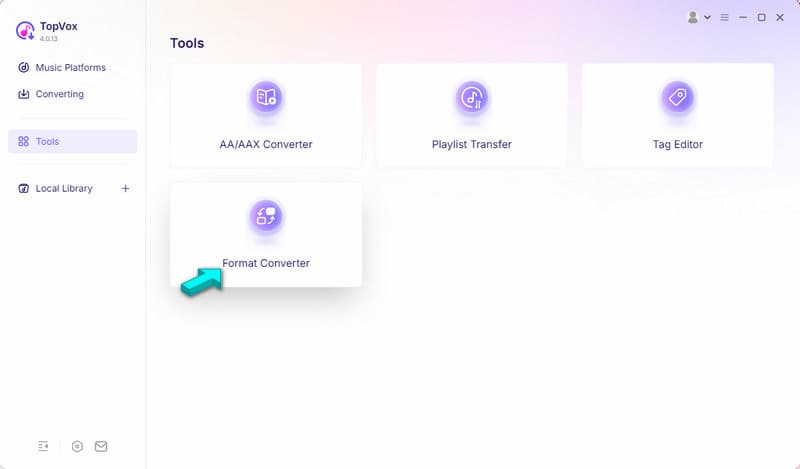
Step 1. Download the TopVox All Music Converter and complete the installation.
After setting up TopVox, head to the Tools tab and select the Format Converter.
Step 2. Drop the AAC files encoded in an M4A container or click +Add Files to import them. TopVox does not limit the number of files you can process, so you can import multiple files.
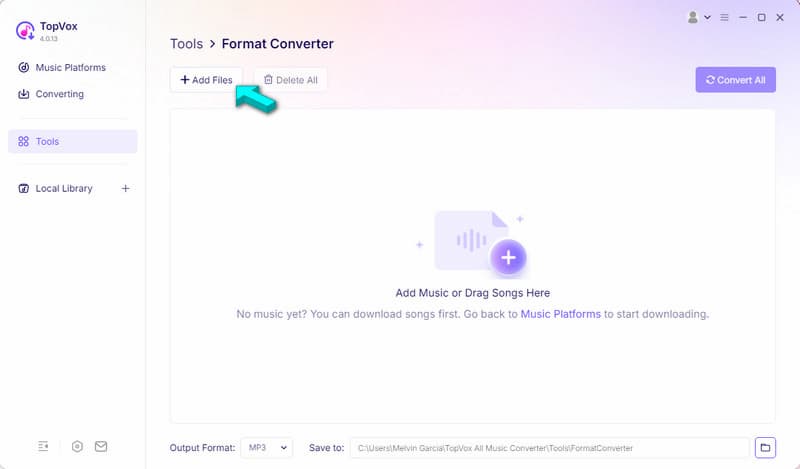
Step 3. Navigate to the Output Format picker and select MP3 as your target output. Set the destination path, then click Convert All to start the conversion.
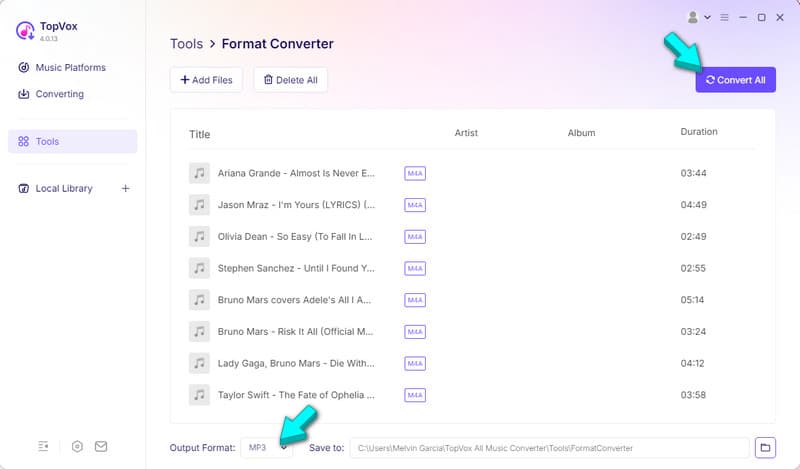
We evaluate TopVox’s performance in terms of speed, batch processing, and output quality. In our test, we use 100 AAC audio files encoded in the M4A container, totaling 1.9 GB. The batch conversion took only 1 minute and 26 seconds to complete. You can also use the same instructional guide when you convert M4B to MP3.
Part 2. CloudConvert
CloudConvert is a cloud-based file conversion service that includes an AAC audio file to MP3 converter. It is accessible on any modern web browser and works on any device, be it a phone or a desktop. Since the conversions are done remotely, you don’t need to install software.
To convert: Go to CloudConvert, then click Select File to add AAC sources. Set the output to MP3, then hit Convert to start the conversion. After converting them to MP3, download each to export locally.
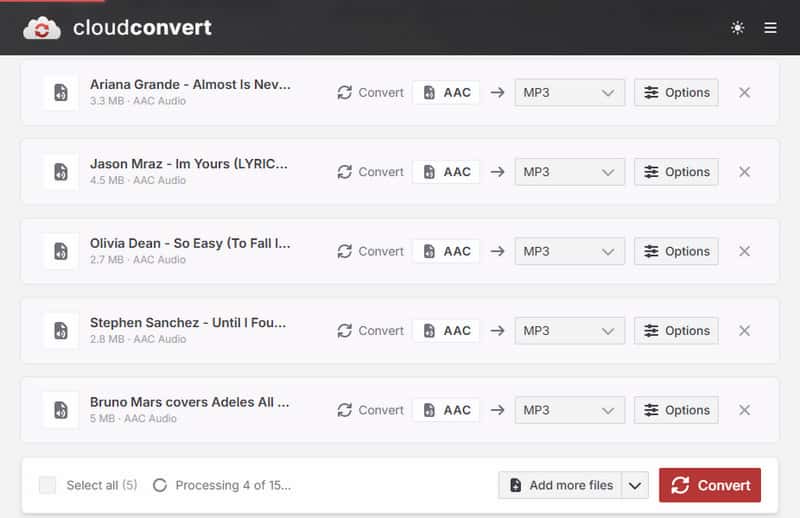
We tested CloudConvert using the same source files we used in TopVox. However, we found that free users have only a daily conversion credit limit of 10. If you need to convert more than 10 files, we recommend using TopVox for unlimited conversion.
Part 3. FreeConvert
FreeConvert’s audio AAC to MP3 converter, as the name implies, lets you convert files for free. It supports more than 1000 media and file-type conversions from various categories, including audio. It also includes tools for adding fade effects, reversing audio, and trimming audio.
To convert On the FreeConvert homepage, click Choose Files to add the AAC source. Click the Output picker and select MP3 in the Audio category. Click Convert to begin the conversion, and then download each right after.
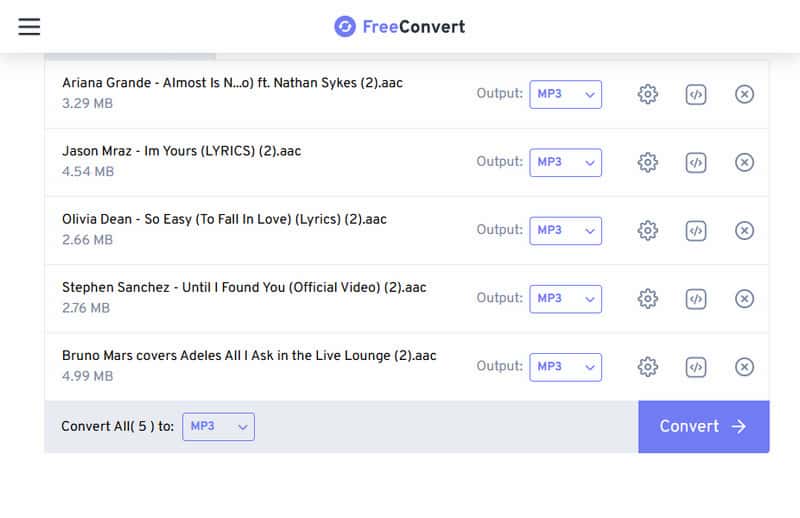
Nothing comes completely free of limits. FreeConvert, though you can convert for free, limits free users to 20 minutes of conversions per day and a 1 GB file size. Also, its batch conversion only supports 5 concurrent conversions.
Part 4. Zamzar
Zamzar is a long-running online media and file converter that has been around for 2 decades. This AAC audio to MP3 converter can import files locally, from the cloud, or via URL. Better yet, its interface is numerically guided, so you won’t get confused with the conversion process.
To convert: Navigate to the Zamzar site and click Choose Files to upload the AAC audio. Click the Convert To picker and select MP3 under the Audio Formats category. After that, click Convert Now to upload and process the file, and then download each.
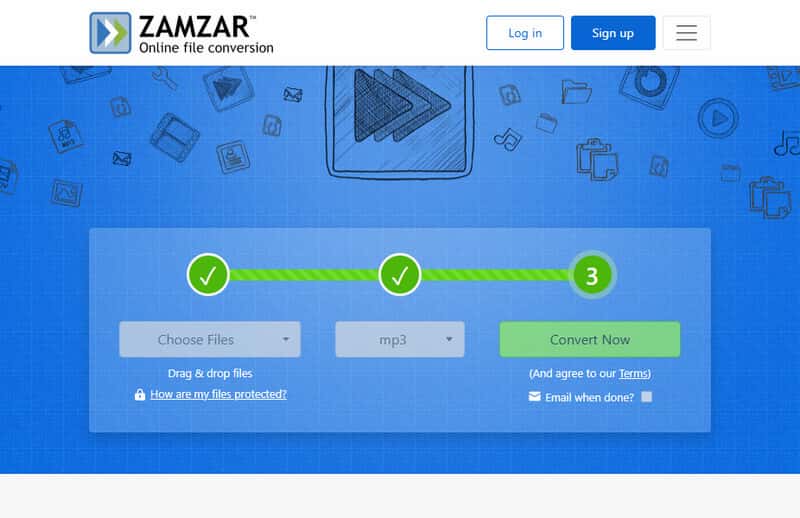
You can also use Zamzar as an MP3-to-WAV converter. However, Zamzar only allows importing files up to 50 MB (max size per file). Also, the free version limits batch processing to two concurrent conversions.
| Processing Type | Speed | Batch | Metadata Kept | Privacy | Max File Size | Ease of Use |
| CloudConvert | Cloud | Depends on the server | ✅ 5 concurrent conversions | ❌ | ❌ Files need to be uploaded online | 1 GB | 4/5 |
| FreeConvert | Cloud | Depends on the server | ✅ 5 concurrent conversions | ❌ | ❌ Files need to be uploaded online | 1 GB | 4/5 |
| Zamzar | Cloud | Depends on the server | ✅ 2 concurrent conversions | ❌ | ❌ Files need to be uploaded online | 50 MB | 4.2/5 |
FAQs about AAC to MP3 Converters
Is AAC format the same as MP3?
No, AAC is not the same as MP3. AAC uses more advanced algorithms to compress audio and handle high-frequency sounds. To let you know, AAC was created as the technical successor to MP3.
Does MP3 sound better than AAC?
No, AAC sounds better than MP3. An AAC file at 128 kbps sounds much better than an MP3 file at the same 128 kbps bitrate. It gives cleaner, clearer sound and has a smaller file size than MP3. In actuality, it is the standard format for Apple Music and other streaming services.
How to convert AAC to MP3 for free?
You can convert AAC to MP3 for free using online converters. Most online converters offer a free version, but be cautious when using one. To be real with you, most online converters require you to upload files remotely, which you don’t have control over.
Conclusion
An AAC-to-MP3 converter is a lifesaver when you need broader audio compatibility. If you convert files occasionally, online tools like CloudConvert, FreeConvert, and Zamzar are good options. However, you should be aware that these tools, though they’re free, have limitations. It includes upload file size limits (50 MB to 1 GB), unreliable batch conversion, and a slow audio conversion process. If you want to bypass these limitations, a premium offline software is what you need. TopVox All Music Converter is a safe and secure conversion software that supports fast, unlimited conversion with no file size limit.
Luna Harper
Luna Harper is a passionate music lover and an inspiring content sharer. She has explored most of the music converters available on the market, acquiring thorough knowledge of their features, usability, and differences. Luna enjoys using her professionalism to help fellow music lovers get superior audio quality.



 by
by