Text to Speech on iPhone: Read Aloud Details on Screen
 by Ethan Carter | April 10, 2026 | Text to Speech
iPhone devices are now helping a lot of users to be more productive with anything they are doing. Text to Speech on iPhone is now a rising feature that can be used by everyone for different purposes, and this post exists to help you dig deeper on its details. Read this article as we review important features, usage, and ways to enable the feature on your iPhone. In addition we also peasant you with an amazing five applications you can use for text-to-speech endeavors. Are you ready to discover these details? We shall now start reading for it.
Part 1. What is Text to Speech on an iPhone?
Text-to-Speech on an iPhone Device
In general, the text-to-speech feature or TTS allows your device to read everything on yout screen. This helps people to listen with the content rather than reading a lot of text. In terms of the text-to-speech on iPhone, it is known to be a built-in accessibility feature that converts written text into spoken words just like any other features. However, what is amazing about it is that Apple offers several tools under this umbrella, giving users different options and a more productive process of using the feature. These tools are the following:
• Select to Speak or Speak Screen: This feature reads aloud the text you highlighted or entire screens.
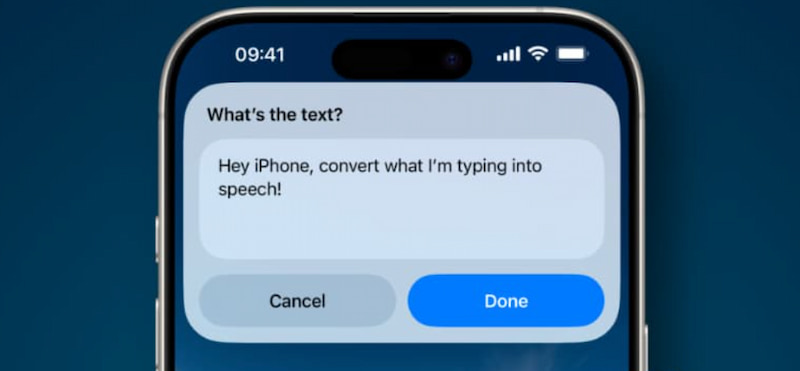
• Live Speech: Here, you have to type messages on iPhone and it will vocalize it in real time.
• Personal Voice: This feature is capable of creating a synthetic voice that sounds like you. It is designed for those at risk of losing their ability to speak.
4 Benefits of Text-to-Speech on an iPhone
• Gives Accessibility. This feature is very useful for users with visual impairments. Indeed, helps individuals with speech disabilities communicate using Live Speech or Personal Voice.
• Productivity Tool. Allowing you to multitask such as, listening to emails or articles while commuting or cooking. Basically, using it can help you save time by turning long texts into audio.
• Tool for Communication. Since it provides a voice for nonspeaking users, this now allows them to type and have their words spoken aloud.
• Medium for Learning. This tool can assist with language learning by converting text to audio using multiple languages. In addition, it supports easy comprehension and retention by mixing visual reading with auditory reinforcement.
Part 2. How to Enable and Use Text to Speech on iPhone
Method 1. Enable Using System Settings
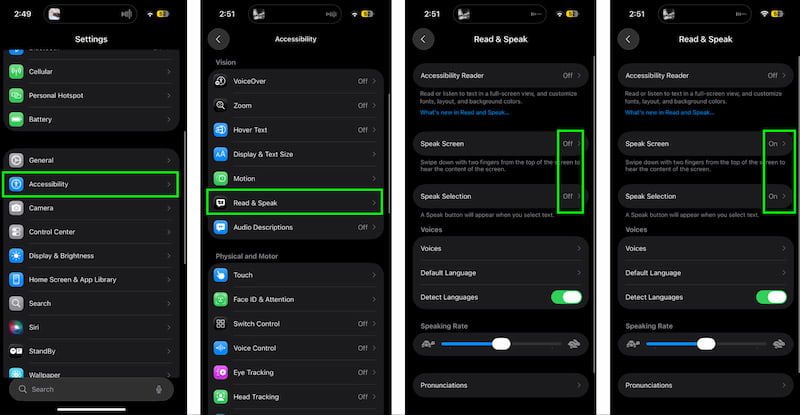
Step 1. Please open your iPhone’s Settings and find Accessibility among the options.
Step 2. From there, please tap Read and Speak By that, you can now enable the following:
• Speak Selection which can help you with highlighting text, then tap Speak in the pop-up menu.
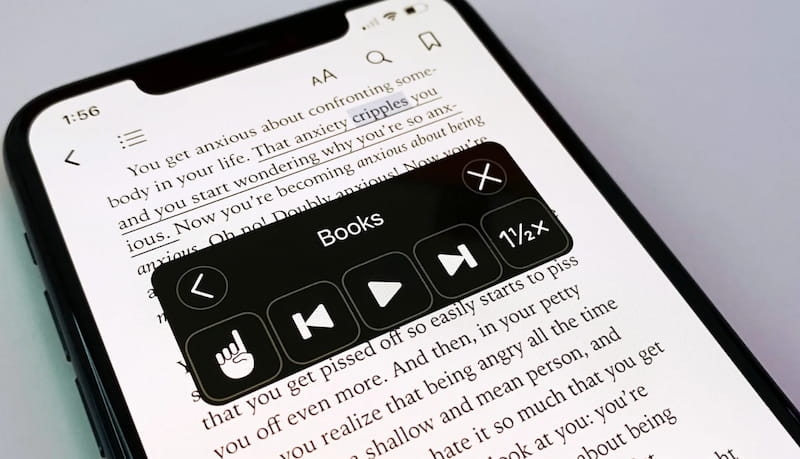
• Speak Screen. Please swipe down using your two fingers from the top of the screen and you will hear the entire screen read aloud.
Step 3. You can also customize the feature. You can choose Voices that will allow you to choose a language or accent. Tap, Speaking Rate which makes you adjust the speed. Go to Highlight Content for giving you a visual aid while text is read.
Method 2: Ask Siri: Fastest Way
Step 1. Please enable the Speak Screen feature. You can follow method 1 for it.
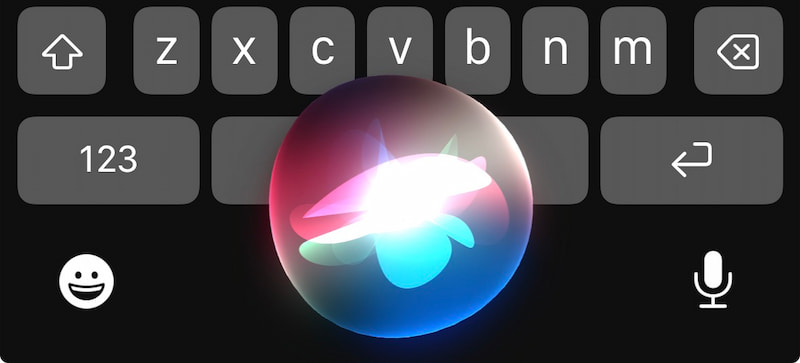
Step 2. Then, after doing the process, you can now say Hey Siri, Speak Screen.
Step 3. Then you will notice Siri immediately reading everything visible on the screen aloud.
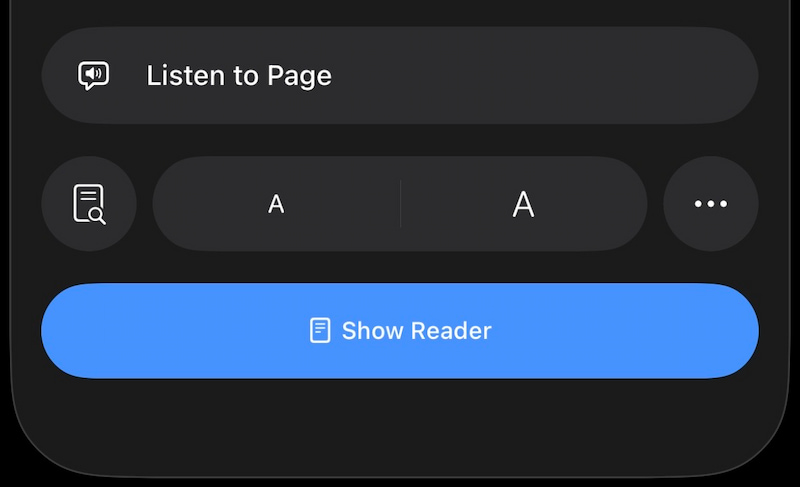
Method 3: Safari: Listen to Page
To give you context, our iPhone’s Safari integrates text-to-speech directly. Therefore, you can follow these to use TTS on your browser by following these steps:
Step 1. We can open a webpage in Safari. Then, please tap the AA (Reader) icon in the address bar.
Step 2. From there, please select Listen to Page.
Step 3. Now, listen because your iPhone will narrate the entire article or webpage content.
Part 3. How to Use Speak Selection and Speak Screen
Method 1: For Speak Selection
The purpose of this feature is to read aloud only the text you highlighted on your screen. See how to use it below:
Step 1. Ensure you enabled the feature using the process on part 2.
Step 2. Please open any app with text such as Notes, Mail, or Safari.
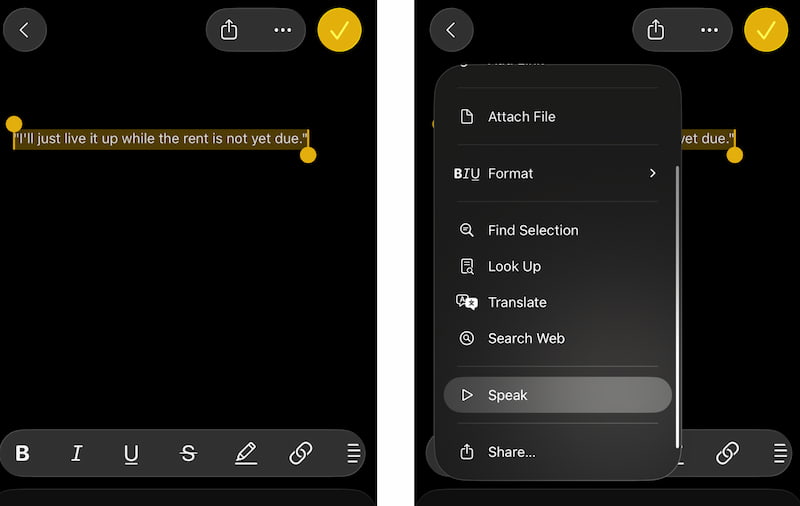
Step 3. Now, you shall highlight the text that you want your iPhone to read aloud.
Step 4. Then, tap Speak in the pop-up menu and you will hear the iPhone will read just that portion aloud.
Method 2: For Speak Screen
The purpose of this feature is to read aloud the entire screen’s content. That means, you do not have any control on what you read. This is how you can use it:
Step 1. You need to enable the Speak Screen feature first. You can follow the process in part 2.
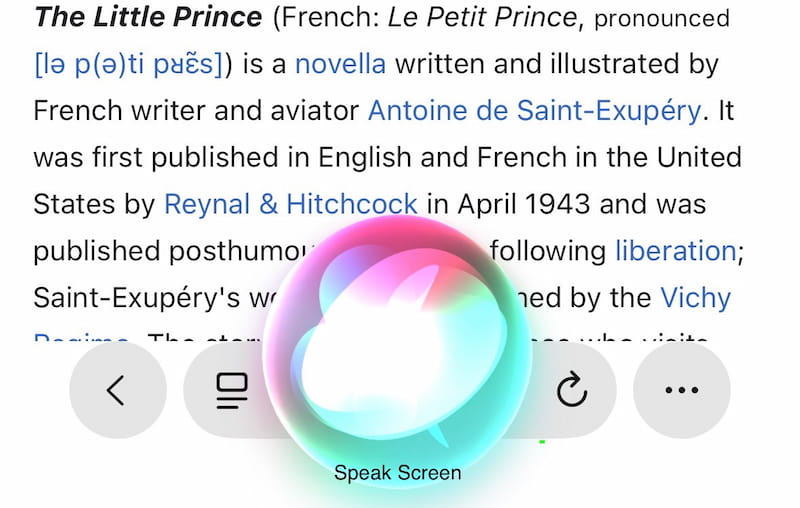
Step 2. Now, please swipe down with two fingers from the top of the screen.
Step 3. Your iPhone will now begin reading everything visible aloud. Alternatively, say Hey Siri, Speak Screen for the fastest activation.
Part 4. Limits of Text to Speech on iPhone
Formatting Issues
The text to speech is kind and gives complex layouts because tables, charts, or multi-column text may not be read in logical order. Also, Embedded Media such as images, videos, or infographics are skipped entirely. In addition, Web ads or pop-ups can interrupt or confuse the reading flow.
Pronunciation Errors
Using text to speech features can be difficult with uncommon names, acronyms, or technical terms may be mispronounced. Also, Homographs which are words spelled the same but pronounced differently can cause errors. More than that, foreign words may be read incorrectly unless the correct language voice is installed and selected.
App Restrictions
Sadly, not all apps on your iPhone support text-to-speech, because some third-party apps block or limit accessibility features. In addition, your PDFs or scanned documents may not be read aloud if text is not selectable. This is an issue for an image-based text.
Part 5. 5 Best Text-to-Speech Apps for iPhone
Speechify
Best For: Students, professionals, and people with dyslexia.
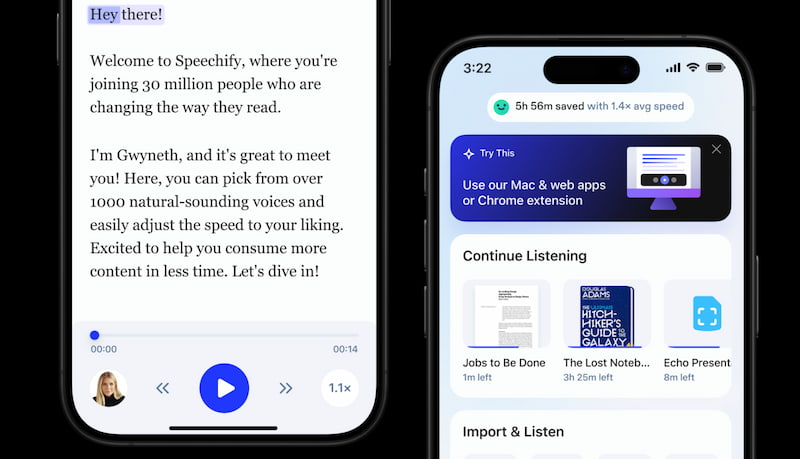
First of the most popular text-to-speech apps you can install on your iPhone is Speechify. It has over 50M users and an Apple Design Award.
Features
- Read aloud documents, articles, PDFs, and emails.
- Integrates across platforms.
- It offers natural-sounding voices in multiple languages.
- Adjustable speed and highlighting for better comprehension.
Text to Speech: Generic App
Best For: Quick, simple conversions of text into audio.
This text-to-speech generic app is a straightforward app designed for users who want basic TTS without complex features.
Features
- It converts typed or pasted text into speech.
- It has support for multiple languages.
- Customizable voice pitch and speed.
- Lightweight and easy to use.
Speech Central
Best For: Serious readers and accessibility users.
Speech Central is known to be a powerful text-to-speech reader with no subscription model. This tool is optimized for PDFs and web content.
Features
- Reads PDFs, ePub, web pages, and RSS feeds.
- Has an advanced AI detects.
- It supports multiple voices including Apple, and Google.
- One-time purchase with free access for blind users.
Murf.AI
Best For: Content creators, educators, and businesses needing professional voiceovers.
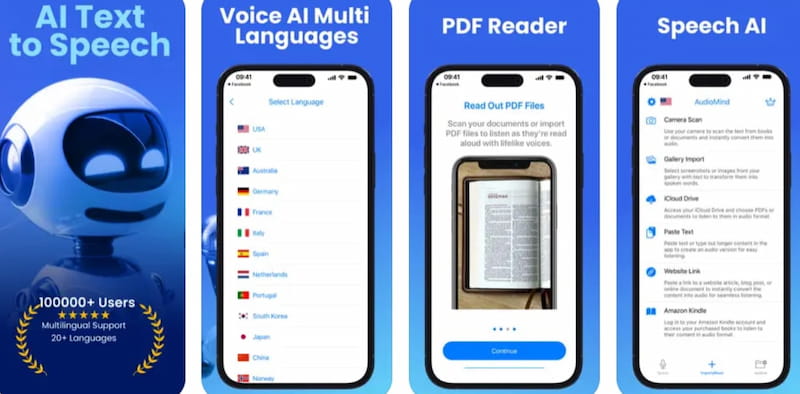
Fourth on the list is Murf.AI which is a great voice generator that goes beyond TTS for iPhone. This tool is designed for polished audio production.
Features
- Over 200+ realistic voices in 20 plus languages.
- Customizable pitch, speed, and style.
- Drag-and-drop interface for creating voiceovers.
- Ideal for e-learning, podcasts, ads, and presentations.
Voice Dream Reader
Best For: Education, accessibility, and users with dyslexia.
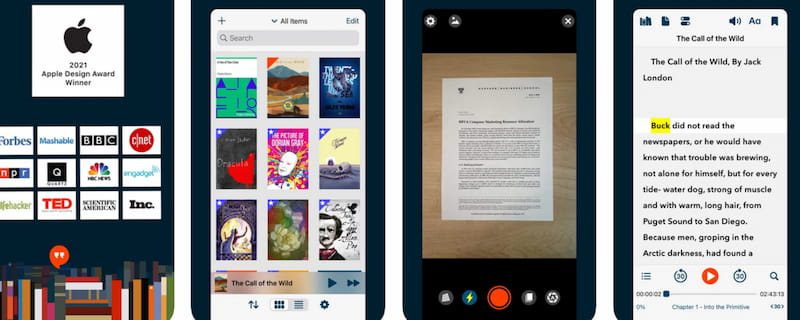
Voice Dream Reader is an award-winning app recognized by Apple. Many users praised it for its educational impact.
Features
- Read PDFs, web pages, and books aloud.
- This includes one premium Acapela voice with purchase.
- It supports 36 built-in iOS voices plus.
- This tool syncs libraries across devices.
- Highly customizable reading experience.
FAQs on iPhone Text to Speech
Can I use Siri to activate Text to Speech quickly?
Yes, you can use Siri to activate your text-to-speech. After you enable Speak Screen, you can simply say Hey Siri, Speak Screen and Siri will read the entire screen aloud.
Does Safari support Text to Speech?
Yes, Safari has integrated text-to-speech features with a Listen to Page option under the AA Reader menu. This allows full webpage narration with natural voices.
Which apps improve Text to Speech on iPhone?
Speechify, Text to Speech, Speech Central, Murf.ai, and Voice Dream Reader offer advanced voices, productivity tools, and accessibility features.
Conclusion
We can now say that text-to-speech on the iPhone is very useful and easy to activate. Indeed, this feature helps many users for productivity and makes life easier for people with disabilities. In addition, we learned that the feature is very easy to enable and use. In fact, there are more applications that you can download to give you more features under the text-to-speech field.
Ethan Carter creates in-depth content, timely news, and practical guides on AI audio, helping readers understand AI audio tools, making them accessible to non-experts. He specializes in reviewing top AI tools, explaining the ethics of AI music, and covering regulations. He uses data-driven insights and analysis, making his work trusted.