Text to Speech on Android Review: Features and 5 Best Tools
 by Ethan Carter | April 10, 2026 | Text to Speech
There are people who are struggling with reading the text on the screen of their mobile phones. Thus, text-to-speech on Android technology is a great help for these people. In line with that, we will review and comprehend all of the important details about this feature. We will let you understand its definition, a guide you can follow to turn it on, and five amazing applications we can use as TTS. All you need to do now is read this review to learn.

Part 1. Understanding Text to Speech on Android
What is Text-to-Speech on Android?
Text-to-Speech on Android
Android Text-to-Speech or TTS is a built-in accessibility feature that users can use to convert digital text into spoken audio. This feature enables your Android devices to read aloud whatever written content on your screen. These include your emails, webpages, and books, allowing users to listen to content rather than read it. It is widely used for accessibility, productivity, and hands-free, multilingual audio consumption. Also, people with visual impairment and learning disability find it very useful.
How Does Text-to-Speech Works on Android
• The system uses a speech synthesis engine to process.
• Text on your Android screen is processed into phonetic units.
• Then, these units are then converted into audio output. This made possible using pre-recorded voices or AI-generated speech.
• Users can customize voice type, pitch, and speed.
Key Benefits of Text-to-Speech
• Accessibility for visually impaired users.
• Productivity for people with learning disabilities.
• Hands-free convenience. Allow us to multi-tasks.
• Language learning and pronunciation support.
• It can be integrated with apps like eBooks, navigation, and translation tools.
The AI Revolution for Text-to-Speech on Android
Many users observed that Traditional text-to-speech on Android often sounded robotic with flat intonation. Good thing, Gemini AI is now integrated into Android’s text-to-speech system. Because of this, the speech synthesis feature on your mobile device has become far more natural and more useful than ever. In line with that, here are some key points that Gemini AI improved with text-to-speech on Android:
• Natural Intonation: Gemini AI improved the voice sounds of the feature in a more human-like way. This now includes pauses, emphasis, and rhythm that gives you real conversation.
• Smart Dictation: AI can now interpret context. This development made spoken text clearer and more expressive. You can observe this by reading numbers as dates or currency correctly as an example.
• Adaptive Learning: With Gemini AI, the system is now improving time. Moreover, this feature is now tailoring speech patterns to user preferences and contexts.
Part 2. How to Turn on Text to Speech on Android
After we learned and discussed important key points of text-to-speech feature. Let us now learn the simple steps in turning it on on our Android devices. Below are the three best methods you can follow in making it happen with ease. Check them out now:
Method 1: Enabling the Engine
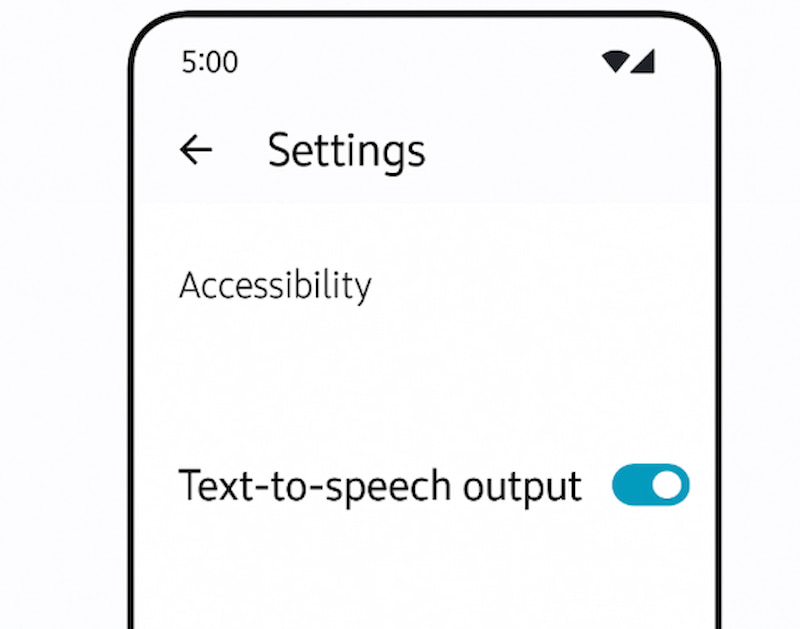
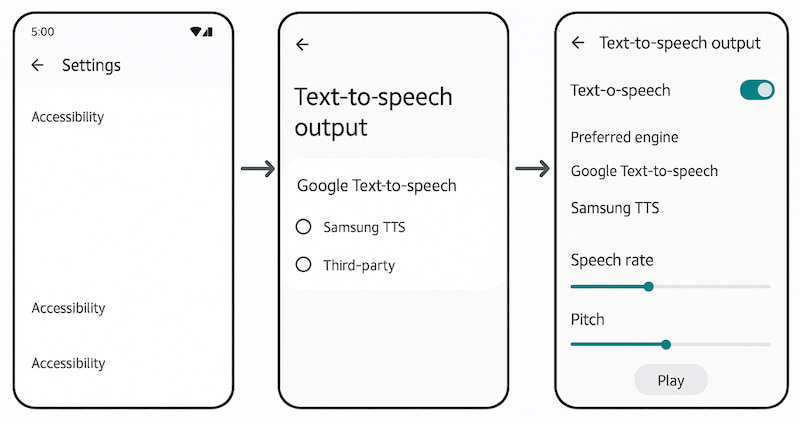
Step 1. Open Settings on your Android device.
Step 2. From there, please scroll down and see the Accessibility among the options.
Step 3. After that, you will have different features. Please select Text‑to‑Speech output and toggle it on.
Method 2: Configuring Preferred Engine
If you prefer customized settings for your text-to-speech on Android. Then, you can easily configure it. Just follow the first method and continue using the following steps:
Step 1. You can follow the first method. Then in the Text‑to‑Speech output menu. From there, you may look for the Preferred engine option.
Step 2. Tap it to see available options. Most likely you will see Google Text‑to‑Speech which is default on most Android devices. The second one is, Samsung TTS which normally available for Samsung phones, and a third‑party engine if installed from the Play Store.
Step 3. After seeing the available options for you, please choose the engine you prefer to use as a text-to-speech feature on Android.
Step 4. As an additional step, if prompted, install or update the engine for best performance.
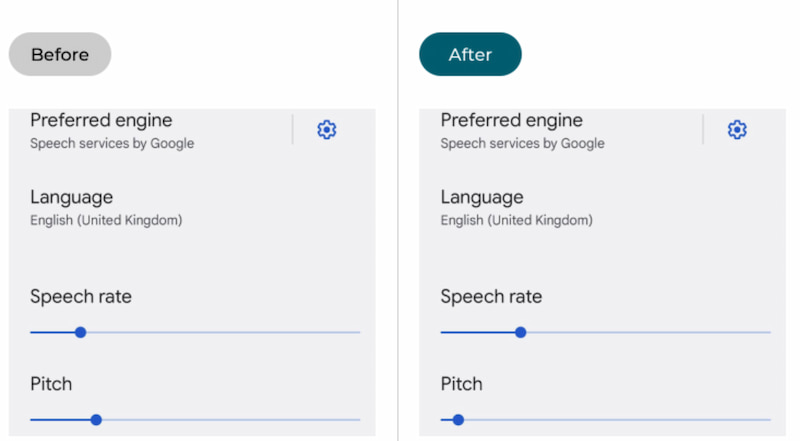
Method 3: Adjusting the Sound
Let us now proceed in adjusting the sound output of your text-to-speech feature.
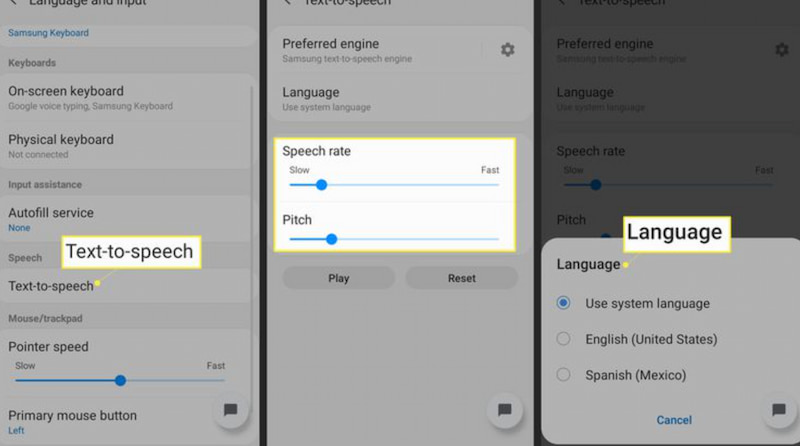
Step 1. Follow the first methods. Then, on the Text‑to‑Speech output tab, we need to locate the sliders for: Speech rate which controls how fast the voice speaks. Also the Pitch which has the ability to adjust how high or low the voice sounds.
Step 2. After that, you can now move the sliders left or right until the voice sounds natural to you.
Step 3. To know if there are changes, please tap the Play button. It can easily give us a preview of the changes before saving.
Part 3. Mastering Select to Speak: Powerful Feature
What is the Select to Speak Feature?
As we review deeper information about text-to-speech features on Android, let us now define another great feature under it, then Select to Speak feature. It is an amazing feature that allows users to only select certain words or pages that the AI will read aloud. This can prevent exposing confidential or unnecessary detail on your screen.
Moreover, as we understand it deeper, the Select to Speak feature needs you to highlight or tap specific text. By then, you can expect that the feature will only read that portion aloud. On the other hand, Screen Reader or TalkBack reads everything on your screen. This includes all the buttons and menus that show.
How to Enable the Shortcut
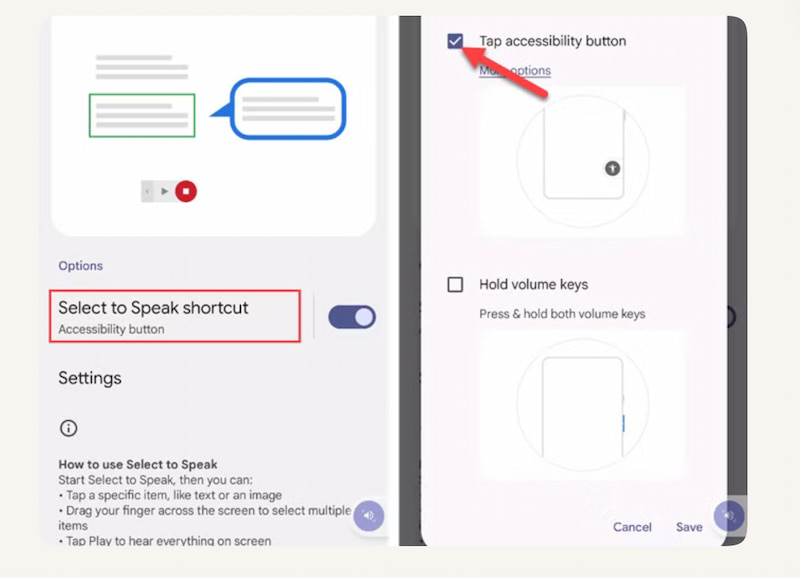
Step 1. You can now open Settings on your Android device and see Accessibility.
Step 2. From there, please choose Select to Speak and toggle it ON.
Step 3. After that, you may now choose your shortcut method. You can choose between the Floating Accessibility Button which is a small on‑screen button that appears. You can tap it to activate Select to Speak. You can also choose, Two‑Finger Swipe Gestures. All you need to do is swipe up with two fingers to trigger the feature.
Using the Optical Character Recognition
Step 1. With Select to Speak active, kindly tap the Camera icon.
Step 2. Now, please point your Android camera at real‑world text such as a sign, menu, or printed page.
Step 3. The OCR tool will now capture the text and read it aloud. This makes it useful for reading printed materials or text outside your device screen.
Part 4. Troubleshooting: Text-to-Speech Issues on Android
Issue 1: Robotic Voices: Download High-quality Voice Data.
Step 1. We need to go to Settings and find Accessibility. From there, select Text-to-Speech Output among the options.
Step 2. Next, kindly tap the gear icon next to your text-to-speech engine. This usually comes as Google Speech Services.
Step 3. Finally, select Install voice data. You only need to choose your language. After the installation process, set the new voice as default.
Issue 2: Language Switching
Step 1. Please open the Settings of your Android. Then see the System as you go to the Languages & input for Text-to-Speech output.
Step 2. Kindly, confirm multiple languages are installed under Install voice data. In apps, check if dynamic language switching is supported; some require manual selection.
Step 3. If TTS fails to recognize a second language you need to force stop Speech Services by Google or reopen and reselect the language.
FAQs on Text to Speech for Android
Q: Why does my text-to-speech voice sound robotic?
A: The robotic voice on your text-to-speech may be caused by low quality downloaded voice data. You may download high-quality voice data in settings; clear cache if voices remain robotic after installation.
Q: Can I add more languages to text-to-speech ?
A: Yes, adding more language on your Android’s text-to-speech is possible. You can easily do it via voice data packs in settings. Please ensure apps support dynamic language switching for proper recognition.
Q: Why doesn’t text-to-speech switch languages automatically?
A: That’s normal, because some apps require manual language selection. However, you can reinstall Speech Services if automatic switching fails consistently.
Q: How can I make TTS louder than music or podcasts?
A: You can make it possible by enabling audio ducking in the Android text-to-speech settings. You can adjust accessibility volume separately from media volume for stronger output.
Q: What if audio ducking isn’t available on my device?
A: You can use a third-party text-to-speech application when the audio ducking is not available on your device, It is important to ensure that the application comes with audio focus controls. Also, ensure that you disable Ignore Audio Focus in media apps of your Android device.
Conclusion
Let us now conclude that Text‑to‑Speech on Android has evolved into a powerful accessibility that helps users to be more productive. It now comes with an enhanced AI for natural voices and smarter context handling. From enabling high‑quality voices to mastering Select to Speak and troubleshooting common issues, users gain clarity, convenience, and inclusivity. With multiple engines and apps available, Android TTS empowers diverse audiences to read less and listen more, making mobile experiences seamless, adaptive, and user‑friendly.
Ethan Carter creates in-depth content, timely news, and practical guides on AI audio, helping readers understand AI audio tools, making them accessible to non-experts. He specializes in reviewing top AI tools, explaining the ethics of AI music, and covering regulations. He uses data-driven insights and analysis, making his work trusted.