3 Ways to Download from Spotify Web Player
 by Luna Harper | April 16, 2026 | Spotify
Quick Verdict:
For high-quality, bulk downloads with full metadata, TopVox All Music Converter is your best set-and-forget option. Use an online downloader if you need a single song quickly, without installing anything. If you want a seamless experience, a browser extension will add a download button directly to the Spotify web player.
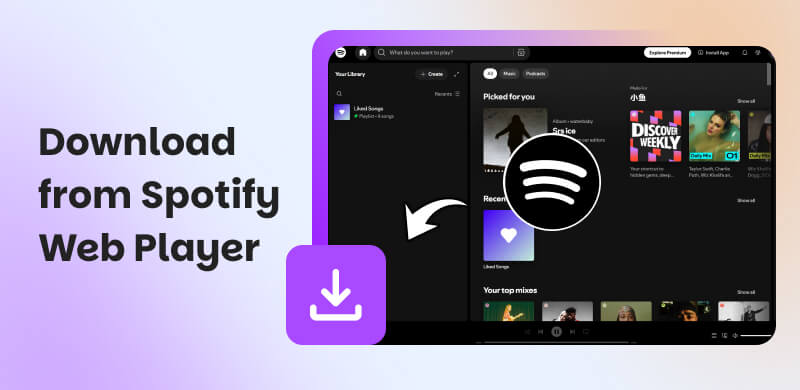
The Spotify web player offers a convenient way to stream music online. However, it lacks the Download toggle found in the desktop and mobile apps. It means you cannot save songs for offline listening directly from your browser. Fortunately, there is a workaround. You can download music using specialized tools or browser extensions designed to capture Spotify content. This post provides three easy methods to download from Spotify web player. But why is direct downloading restricted? The primary reason is Digital Rights Management (DRM). It protects copyrighted material and limits downloads to Spotify's official applications. We'll help you navigate these limitations and show you the most efficient ways to achieve offline access, better portability, and long-term storage for your favorite tracks.
| Price | Audio Quality | Audio Format | Usability | Best for | |
|---|---|---|---|---|---|
| TopVox All Music Converter | Free, or upgrade to Pro for $19.95/month | Customizable bitrates, from original quality up to 320kbps | MP3, FLAC, M4A (ALAC/AAC), WAV, and AIFF | Easy | Direct access to Spotify web player with high-quality power downloading and batch organization |
| Online Downloader | Free | Marketed at 320Kbps, but it’s 128Kbps only | MP3 | Moderate | Converting Spotify playlist into a single compressed ZIP file |
| Browser Extension | Starts at $4.99/month | Audio downloads in its original quality | MP3 | Moderate | Puts a Download button directly inside the Spotify web player interface |
Part 1. The Professional Choice: TopVox All Music Converter
Why We Recommend This: Our team tested TopVox All Music Converter across Windows and macOS. We found it consistently bypassed DRM restrictions while preserving ID3 tags (artist name, album art), unlike many free tools.
TopVox All Music Converter is a comprehensive music downloader bundle fully compatible with Windows and Mac. It lets you download music directly from Spotify's database through its built-in web player. You can download multiple singles, artists, albums, playlists, or even podcasts simultaneously. It gives you full control over output quality. You can save your music in formats like MP3, FLAC, M4A (ALAC/AAC), WAV, or AIFF. For audio customization, you can adjust the bitrate to 320Kbps and the sample rate to 48000Hz. Beyond Spotify, it supports Apple Music, Amazon Music, YouTube Music, Deezer, Pandora, SoundCloud, Line Music, and Audible.
What to Look Forward to with the TopVox All Music Converter:
- Download and keep music without DRM limitations.
- Browse, search, and download music directly within the app.
- Save music in MP3, FLAC, M4A (ALAC/AAC), WAV, or AIFF format.
- Works with not only Spotify but also 9 other leading music streaming platforms.
- Download multiple tracks at once, including artists, albums, playlists, singles, etc.
Here's how to download from the Spotify web player professionally:
Step 1. First, acquire a free download of TopVox All Music Converter. Install the Spotify music downloader, then wait for the installation to finish. After completing the setup, launch the software to access the main dashboard.
100% Secure. No virus.
100% Secure. No virus.
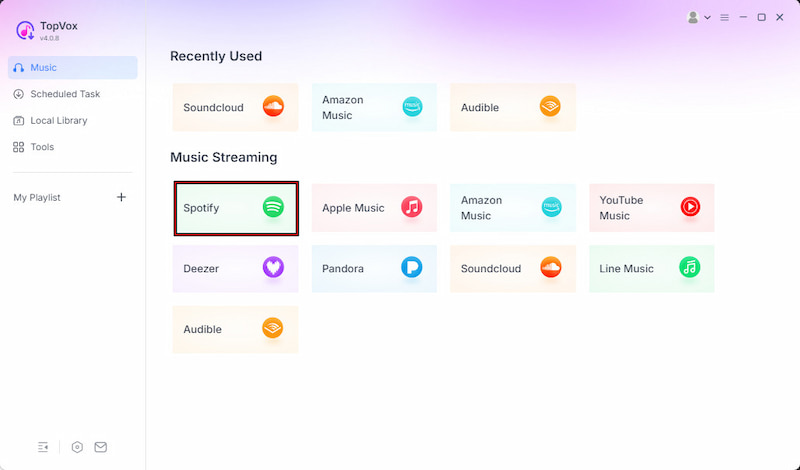
Step 2. On the main interface, you’ll see different supported platforms. Click the Spotify tile to open its built-in web player. Log in to your Spotify account, then browse or search for the songs, albums, or playlists you want to download.
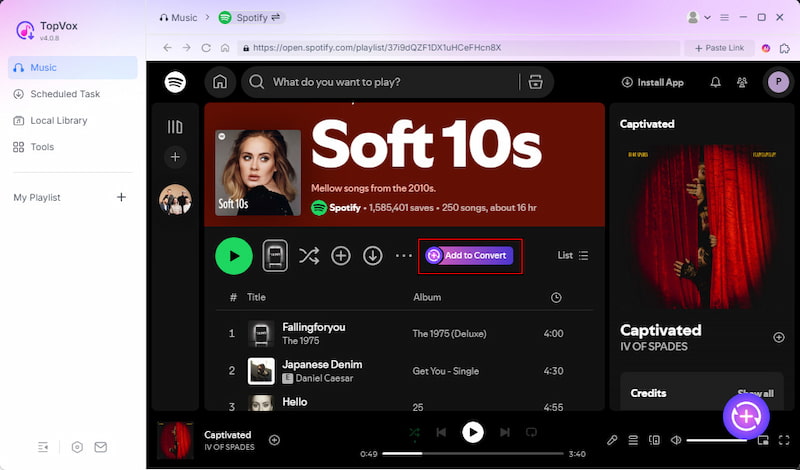
Step 3. After finding your desired tracks, click + Add to select individual songs or choose + Add to Convert to import an entire playlist or album. All selected items will appear in the Scheduled Task window (download queue).
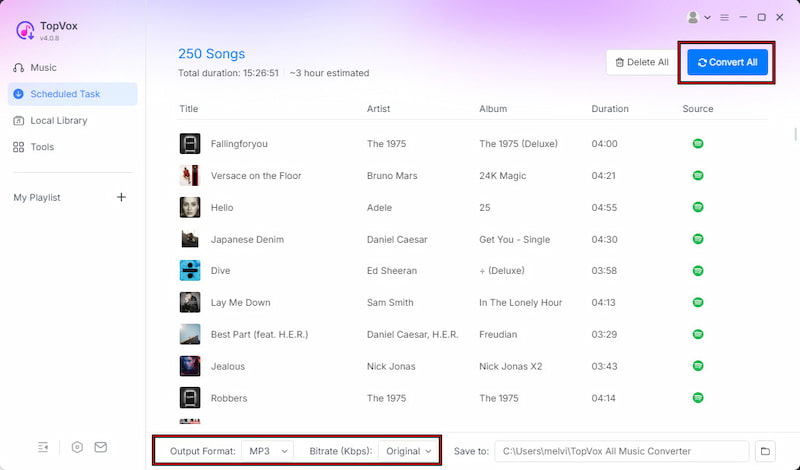
Step 4. By default, TopVox saves files in MP3 format with the original bitrate. Still, you can customize the format, bitrate, and sample rate to your preferences. After you finalize everything, click Convert All to start downloading your music in batches.
TopVox All Music Converter provides a secure way to download music from Spotify without the usual limitations. It simplifies the entire process into just a few clicks. You're not only able to save tracks in high quality, but also customize formats, bitrate, and sample rate.
Part 2. Using an Online Downloader
Spotidown is a free, browser-based Spotify downloader that lets you download tracks into MP3 format. It supports high-quality MP3 downloads with audio bitrates up to 320 kbps and retains metadata. Additionally, you can download playlists or albums as a compressed ZIP archive.
Pros
- It is free to use with no subscription required.
- It offers ZIP downloads for full playlists or albums.
- It does not require you to log in to your Spotify account.
Cons
- It may not always fetch 100% accurate metadata.
- It does not support advanced audio format options.
Here's how to download songs from the Spotify web player online:
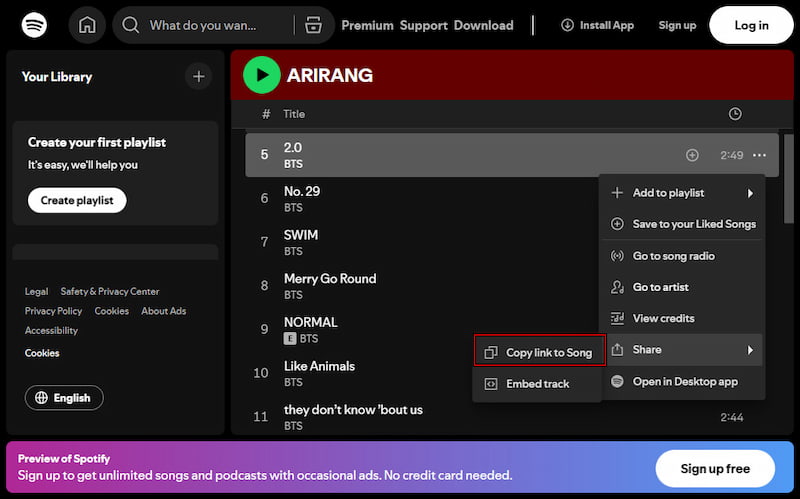
Step 1. Navigate to the Spotify web player and find the songs you want to download. Click the three dots option, click Share, and select the Copy link to Song option.
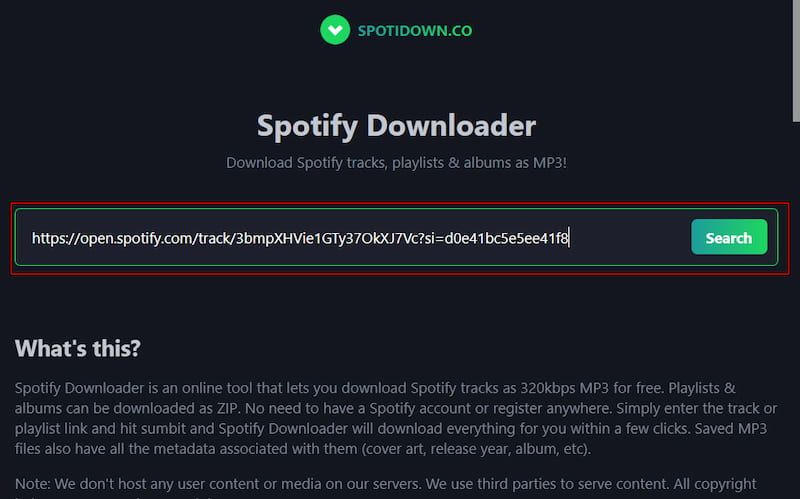
Step 2. Open a new tab and switch to Spotidown. Paste the copied Spotify URL into the input field, then click Search to process your request and prepare the downloadable file.
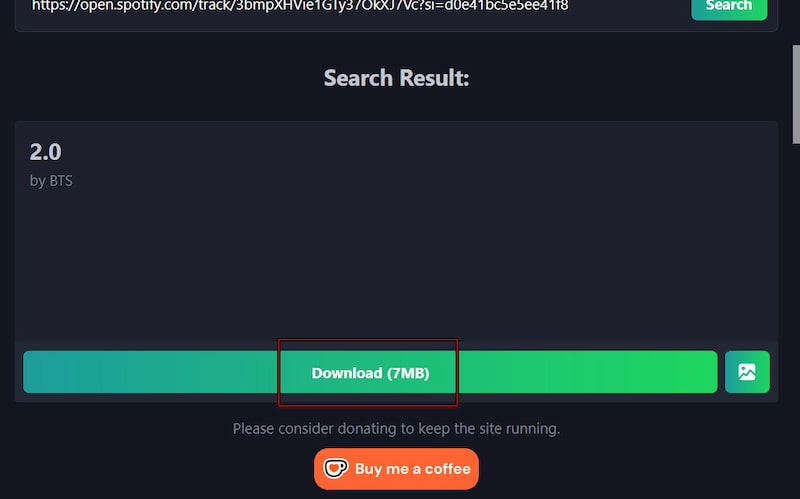
Step 3. Click Download (file size) to download the individual track. To download the entire album/playlist, you must copy the album/playlist link, then click Download ZIP (file size).
Spotidown is a great option for hassle-free downloads, allowing you to listen to Spotify offline. It works entirely in your browser with no setup required; paste a link to get started. However, downloads can be inconsistent at times, and you don't have control over the format or settings.
Part 3. Using a Browser Extension
The Spotify Downloader is a lightweight Chrome add-on that lets you download Spotify music directly from the web player. It integrates with the Spotify interface and adds a download option for tracks. However, all downloads are limited to the MP3 format.
Pros
- It works directly inside the Spotify web player.
- It supports downloading individual Spotify tracks.
- It provides a one-click download option for quick access.
Cons
- It requires a paid subscription for full functionality.
- It does not always preserve high-quality audio output.
Here's how to download music from the Spotify web player using an extension:
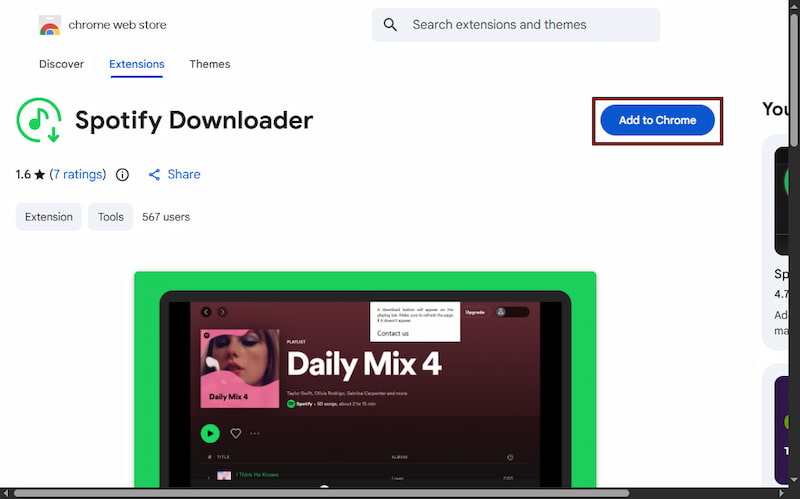
Step 1. Beforehand, install the Spotify Downloader extension in Chrome from the Chrome Web Store. Once added, pin it to your browser toolbar for easy access.
Step 2. Switch to the Spotify web player and log in to your account. Browse/search for the music you want to download, then start playing the song.
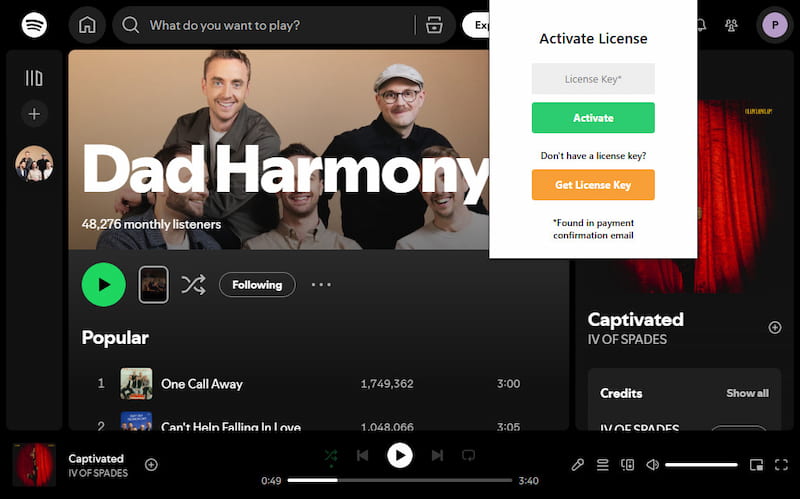
Step 3. Afterward, you’ll see a Download button appear within the extension. Click it to start downloading the currently playing track and save it as an MP3.
The Spotify Downloader lets you download tracks from the Spotify web player at high speed. However, it is not free, meaning you cannot use it without a paid subscription. Besides, you need a Premium subscription to download. If you want to download music from Spotify without Premium, check out these safe and legal tricks.
Security Tip: When using free online tools or extensions, ensure your antivirus is active. Please be informed that these sites often rely on aggressive ad networks. For a 100% ad-free and secure experience, a desktop client like TopVox All Music Converter is preferred.
Part 4. FAQs about Downloading from Spotify Web Player
Q: Can you download songs on Spotify Web Player?
A: Yes, but only with a Spotify Premium account. However, even with Premium, downloaded songs are encrypted. You can only play it inside the Spotify app, not in the web player or other media players. As an alternative solution, use TopVox All Music Converter to download and play the tracks on any device or media player.
Q: Is it legal to download songs from Spotify?
A: Yes, downloading songs for personal, offline listening through Spotify's official Premium feature is legal. However, using downloaded music outside the Spotify app or redistributing it for commercial purposes is not allowed.
Q: Where are Spotify downloads stored?
A: Spotify stores your downloads as encrypted cache files within the app's internal data folder. The app does not save these files in standard audio formats like MP3 or WAV. Furthermore, DRM prevents you from accessing them outside of the Spotify app.
Conclusion
While the Spotify web player is a convenient streaming tool, its DRM restrictions prevent direct downloads. This guide has explored three efficient workarounds to save your favorite tracks for offline use in different ways. Each method offers varying levels of ease, quality, and flexibility depending on your needs. For a more complete and reliable experience, TopVox All Music Converter is a strong option. It provides a simple and efficient way to enhance your download from Spotify web player experience.
Luna Harper is a passionate music lover and an inspiring content sharer. She has explored most of the music converters available on the market, acquiring thorough knowledge of their features, usability, and differences. Luna enjoys using her professionalism to help fellow music lovers get superior audio quality.