Best WAV-to-MP3 Converters for High-Quality Audio Conversion
KEY TAKEAWAYS:
- Converting a WAV to a 320 kbps MP3 can minimize file size and maintain good sound quality.
- TopVox All Music Converter is the best overall converter because of its batch processing, high-speed conversion, and high-quality output.
- VLC is the best free converter with a built-in player, so you don’t need to download an audio conversion app.
- sound&go is the best online tool for occasional conversion when installing software is unnecessary.
WAV files deliver uncompressed, studio-quality audio. However, their large size quickly consumes space, making them inconvenient for sharing and playback. Decoding WAV to a high-bitrate MP3 (320 kbps) optimizes the file size, sound quality, and compatibility. In this post, we will introduce the top 7 WAV-to-MP3 converters we evaluated in detail. We will compare each in terms of their batch conversion support, processing speed, and output quality. We will help you identify the best desktop and online options for your conversion needs.
Part 1. Comparison of 7 WAV to MP3 Converters
How We Tested:
To ensure consistency in this WAV-to-MP3 converter comparison, we tested each tool on the same OS. We use a Windows 10 Pro (64-bit) computer, powered by an AMD Athlon 3000G with Radeon Vega Graphics, 12 GB of RAM, and an AMD Radeon™ Vega 3 Graphics. We evaluated 50 converters, assessing batch processing support, conversion speed, and output quality. After careful testing and review, we narrowed the list down to 7.
| OS | File Size Limit | Max Audio Quality | Batch Download/Convert | Processing Speed | Supported Formats | Type of Conversion |
| TopVox All Music Converter | Windows and Mac | ❌ No file size limit | Up to 320 kbps | ✅ Unlimited | Up to 35× | MP3, FLAC, M4A (AAC), etc. | Local |
| Freemake Audio Converter | Windows | ❌ No file size limit | Up to 320 kbps | ✅ 15 concurrent conversions | Normal speed | MP3, WMA, FLAC, etc. | Local |
| Movavi Video Converter | Windows and Mac | ❌ No file size limit | Up to 320 kbps | ✅ No limit | Super speed | MP3, AAC, AC3, etc. | Local |
| VLC Media Player | Windows, Mac, and Linux | ❌ No file size limit | Up to 320 kbps | ✅ 5 concurrent conversions | Normal speed | MP3, OGG, FLAC, etc. | Local |
| sound&go | Web | ❌ No file size limit | Up to 320 kbps | ✅ 10 concurrent conversions | Normal speed | MP4, Opus, M4A, etc. | Local |
| Rendley | Web | ❌ No file size limit | Same as source | ✅ 10 concurrent conversions | Normal speed | MP3 only | Local |
| CloudConvert | Web | ✅ 1 GB | Up to 256 kbps | ✅ 5 concurrent conversions | Depends on the server | MP3, AAC, AIFF, etc. | Cloud |
Our Top 3 Picks:
1. TopVox All Music Converter: TopVox earns the top spot because of its 100% data privacy and local processing. Also, what we like about it is the unlimited batch processing with no number and file size limit.
2. VLC Media Player: VLC is one of our choices because it is free to use with no hidden fees. It lets you preview the converted file immediately and check if it plays correctly.
3. sound&go: sound&go is absolutely amazing. It does not limit the number of files or the size that you can process. You can also adjust the audio settings before you convert.
Part 2. WAV to MP3 Converters Software [Mac/Windows]
1. TopVox All Music Converter
Rating: 4.8 out of 5 stars
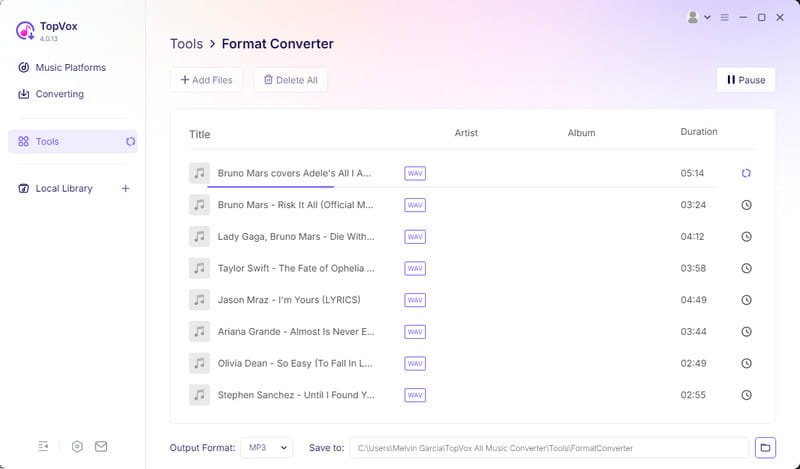
TopVox All Music Converter is an all-music streaming downloader and converter. Later on, it upgraded and expanded its service by adding a Format Converter due to high usage. It can convert WAV to MP3, FLAC, M4A (AAC), M4A (ALAC), and AIFF. It lets you import hundreds of files and process them simultaneously without experiencing lag or crashes. Its best shot is that it uses advanced hardware-accelerated media processing to achieve a 35× conversion speed.
FEATURES:
- Re-encode lossless WAV with minimal to zero quality loss.
- Convert WAV to MP3, FLAC, M4A (AAC), M4A (ALAC), and AIFF.
- Process multiple WAV files simultaneously without experiencing lag or crashes.
- Utilizes the most advanced hardware acceleration to achieve 35× conversion speed.
Step 1. Download the TopVox All Music Converter and complete the installation.
After setting up the WAV to MP3 converter, go to the Tools tab and select Format Converter.
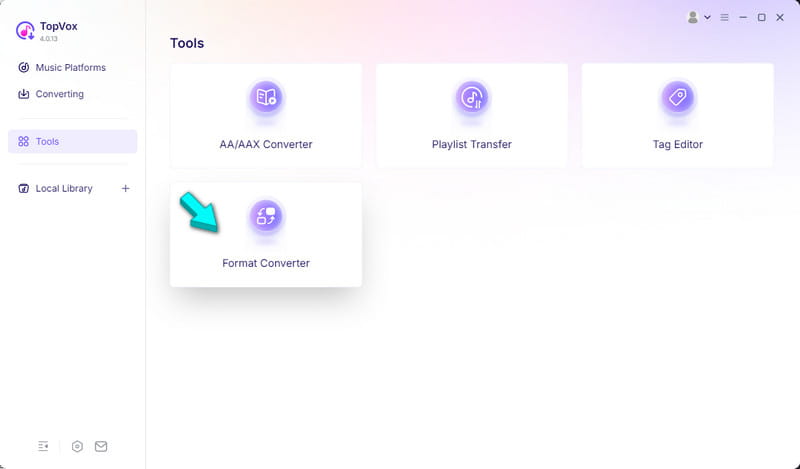
Step 2. Drop all the WAV files or click +Add Files to import them. TopVox supports unlimited batch conversion, meaning there is no limit on the number of files or sizes you can process.

Step 3. Click the Output Format picker and select MP3 as your target format. Set the output folder, then click Convert All to start the conversion.
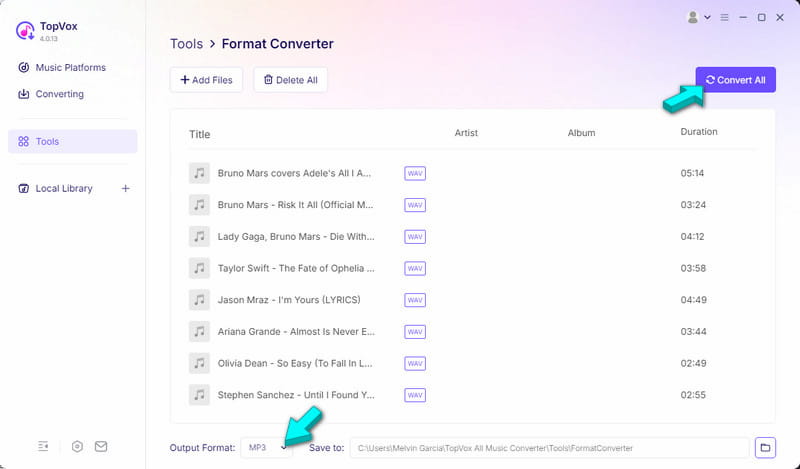
We put TopVox to the test to evaluate its capabilities in terms of processing speed, batch conversion, and output quality. We use 100 lossless WAVs, totaling 2.6 GB, as our source for MP3 conversion. In our test, the batch conversion took only 2 minutes and 50 seconds to complete. During the audit, the output sounds almost identical to the source file.
2. Freemake Audio Converter
Rating: 4 out of 5 stars
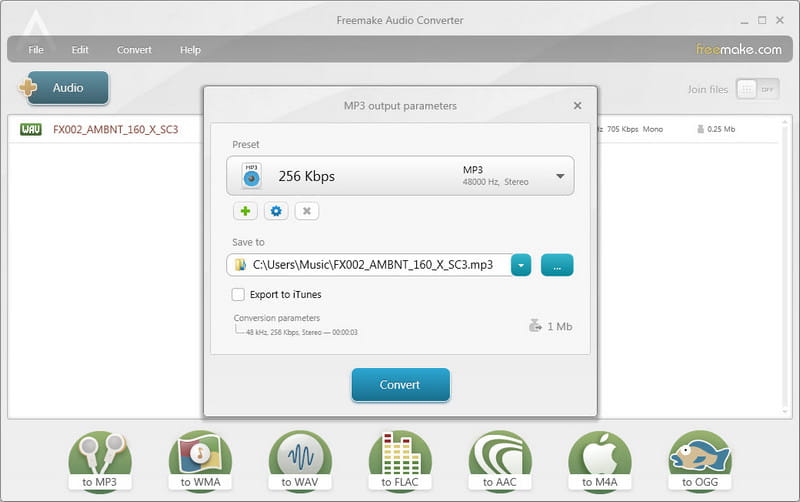
Freemake Audio Converter is a free Windows-based audio conversion software. This free WAV-to-MP3 converter not only re-encodes WAV to MP3 but also to 50+ other formats. Beyond audio-to-audio conversion, it allows direct conversion of WAV to any gadget, including Android and iOS. Better yet, it can extract audio from a video and export it as an MP3 file.
Pros
- Convert WAVs in batches.
- MP3 output can reach up to 320 kbps.
- Export converted MP3 directly to the cloud.
Cons
- Not really a free tool.
- Only available on Windows OS.
Author Note: Freemake Audio Converter is free of charge, but not free of constraints. You can only convert WAVs shorter than 3 minutes in the free version. If you want unrestricted conversion, you need to buy the Infinite Pack to convert longer tracks.
3. Movavi Video Converter
Rating: 4.4 out of 5 stars
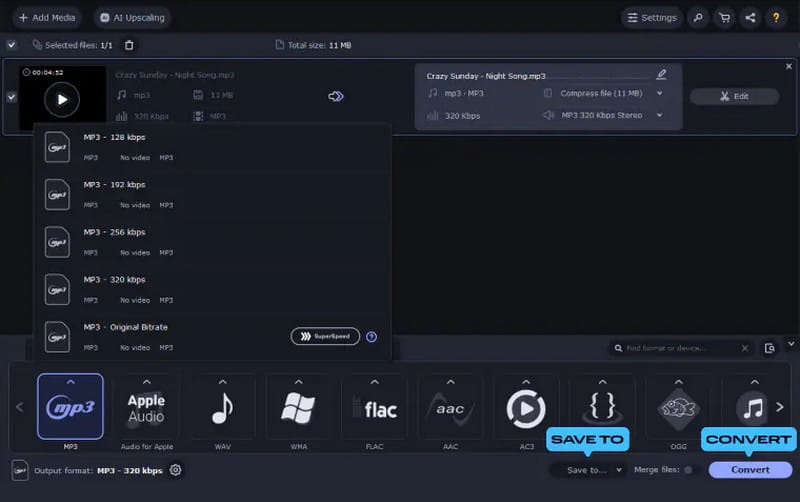
Movavi Video Converter is a premium video-to-video conversion software by default. Although the name suggests otherwise, you can use it to convert WAV to MP3 format. This software supports batch conversion of media files to over 180+ video and audio file formats. It offers various quality presets for MP3s, from 128 kbps to 320 kbps.
Pros
- Can process multiple large WAV files.
- Scale audio bitrate up to 320 kbps.
- Fast conversion speed using hardware acceleration.
Cons
- Subscription-based software.
- Cannot restore discarded audio data.
Limitations: During the trial period, Movavi converts only half the length of the WAV file. It means if your WAV file is about 3 minutes long, only 1 minute and 30 seconds of the audio will be converted.
User Feedback: The free version of Movavi is sorta unusable. I mean, it works fine, yeah, but it has some serious limitations.
-Coco-the-Koala/Reddit
4. VLC Media Player
Rating: 4.2 out of 5 stars
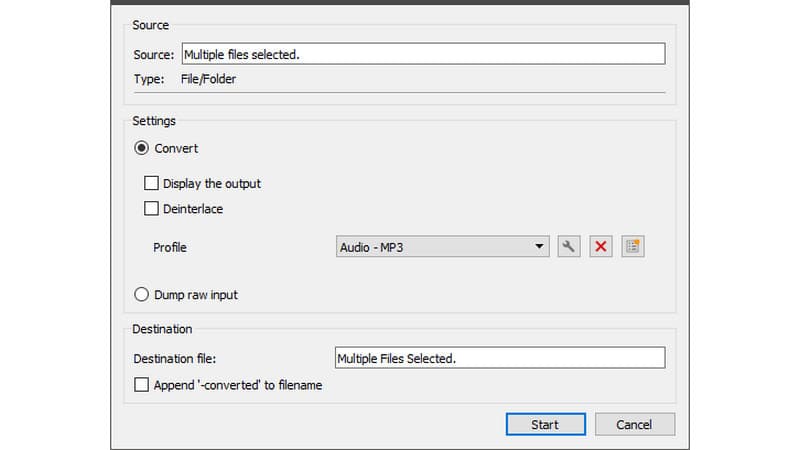
VLC Media Player is a long-running media player for playing audio and video. Without exploring it, you wouldn’t know it has a hidden conversion tool. In the Media tab, you will find a Convert/Save tool that you can use as a WAV sound to MP3 converter. You can also use it to convert your downloaded YouTube playlist to MP3.
Pros
- Can queue up multiple WAV files.
- 100% free to use with no trial limits.
- Preview the file right away after conversion.
Cons
- Crashes when converting large audio files.
- Strips the file's metadata after conversion.
To convert: Go to the Media tab and select Convert/Save to open the Open Media window. Click +Add to import the source files and click Convert/Save to proceed. In the Convert window, select Audio - MP3 as your new profile, then click Start to convert.
During our test, we noticed that VLC starts to lag in the 8th queue. When we were around the 10th queue, it suddenly crashed. For a true batch conversion, we recommend using TopVox. It efficiently handles multiple files and can complete the conversion without lag or crashes.
Part 3. Online WAV to MP3 Converters Software
1. sound&go
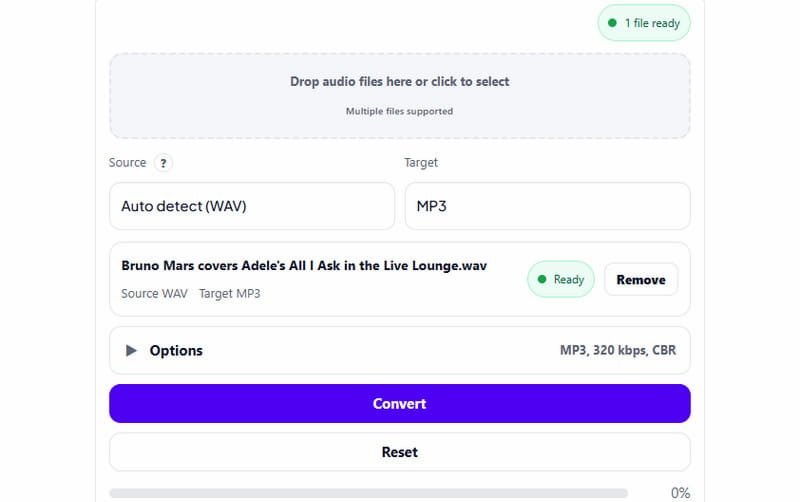
sound&go is an audio services company that provides audio tools and equipment, including an online WAV-to-MP3 converter. This tool claims that, even though it is an online tool, the conversion runs locally in the browser. It means they do not upload the files to external servers.
To convert: Drop the WAVs to the homepage of sound&go to load them. In the Target picker, be sure the selected format is MP3. Click Options to adjust the quality, loudness, and effects. Afterward, click Convert to initiate the conversion.
To convert: Drop the WAVs to the homepage of sound&go to load them. In the Target picker, be sure the selected format is MP3. Click Options to adjust the quality, loudness, and effects. Afterward, click Convert to initiate the conversion.
Limitations:: sound&go does not utilize hardware acceleration. That being said, it affects processing speed, and the time it takes depends on the file size and the source's duration.
2. Rendley
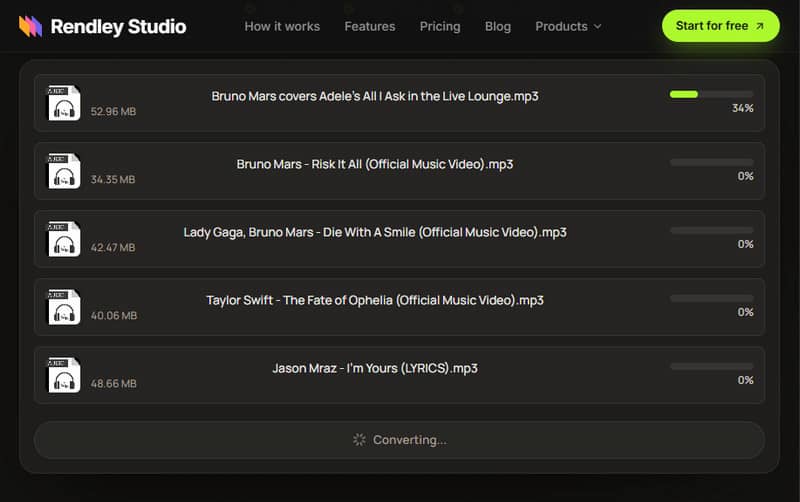
Rendley is an online WAV sound to MP3 converter that converts your files in seconds. It works in a browser, so there’s no need to download and install any software. Rendley works differently; it automates the conversion, eliminating manual format selection and output adjustments.
To convert: Open Rendley on a web browser and click Browse Files to add your WAV files. Once loaded, the tool will automatically convert them to MP3 and then download them.
Limitations: Rendley, since it converts files automatically, you won’t be able to adjust audio settings. In other words, you cannot customize the bitrate, sample rates, and filter settings.
3. CloudConvert
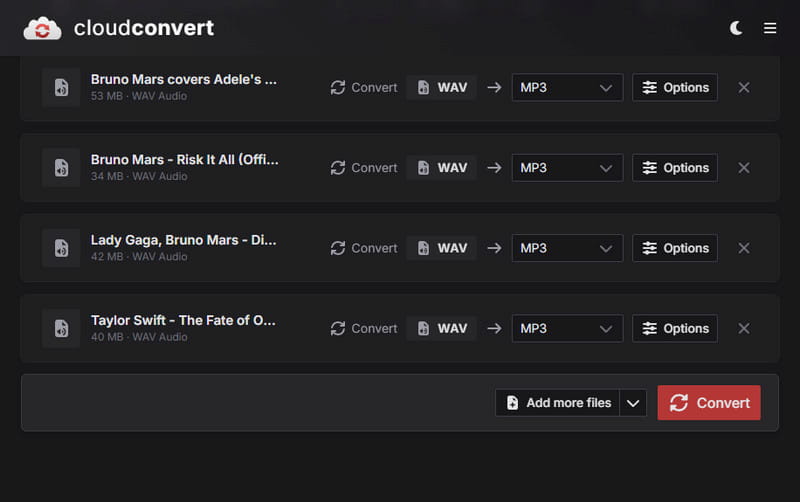
CloudConvert is an online conversion service that supports media and file types from various categories, including audio. With it, you can convert WAV to MP3, FLAC to MP3, AAC to MP3, and more. Before conversion, you can adjust the codec, Qscale, bitrate, channels, and sample rate.
To convert: Click Select File to add WAV sources and choose MP3 as the output. Hit Convert to start the conversion. Right after the conversion, download each to save locally.
Limitations: CloudConvert is intended only for small-file conversions (under 1 GB). In terms of batch processing, it supports up to 5 concurrent conversions.
FAQs about WAV to MP3 Converters
Does converting WAV to MP3 lose quality?
Yes, WAV loses quality when converting it to MP3 because it uses lossy compression. However, you can minimize the quality reduction by selecting the 320 kbps before converting your WAV file.
Is it safe to use online WAV-to-MP3 converters?
Yes, it is safe to use online converters for non-confidential files. If you have personal, sensitive or private recordings in your audio, we recommend using offline tools for security reasons.
Which converter is safest to use?
The safe converter is a trusted, offline tool like TopVox All Music Converter. It processes files locally on your computer, meaning you don’t need to upload them to online servers.
Conclusion
A WAV-to-MP3 converter converts large, uncompressed audio into high-quality MP3s that are easier to store, share, and play. For the best overall software, TopVox All Music Converter earns the top position. This software delivers reliable batch conversion, fast conversion speed, and high-quality MP3 output.
Ethan Carter
Ethan Carter creates in-depth content, timely news, and practical guides on AI audio, helping readers understand AI audio tools, making them accessible to non-experts. He specializes in reviewing top AI tools, explaining the ethics of AI music, and covering regulations. He uses data-driven insights and analysis, making his work trusted.



 by
by