Unbiased Review of the Top 7 MP3 to WAV Converters
Summary
- TopVox All Music Converter: Best for fast batch conversions and metadata preservation.
- VLC Media Player: Best for those who already have it installed for media playback.
- Freemake Audio Converter: Best for beginners looking for a simple interface.
- XLD: Best for: Mac users looking for bit-perfect audio conversion.
- Foobar2000: Best for those wanting deep customization options.
- Zamzar: Best for quick, one-time conversions without installing software.
- Fre:ac: Best for open-source users needing multi-platform support.
With dozens of converters available, choosing the right one can be challenging. Some prioritize fast batch conversion, while others focus on metadata preservation or output quality. In this post, we tested the best MP3-to-WAV converters offline and online. We evaluate each tool based on quality, speed, batch conversion, and metadata preservation. Whether you need a free converter or a powerful solution, you’ll find the best options here.
Quick Picks
Best Overall MP3 to WAV Converter: TopVox is our top pick because of its fast batch conversion, metadata preservation, and lossless output quality.
Best Free & Open-Source:VLC is our recommended tool for those seeking a free solution for converting audio files.
Best for macOS:XLD is our best pick for Mac users because of its accurate lossless audio conversion.
Part 1. How to Choose the Right MP3 to WAV Converter
MP3 vs. WAV: What's the Difference?
Before choosing a converter, it's helpful to understand the difference between MP3 and WAV. MP3 is a lossy compressed format that reduces file size by permanently removing unnecessary audio data. Meanwhile, WAV is an uncompressed audio format that preserves the full audio signal.
What Makes a Good MP3 to WAV Converter?
- • A reliable MP3-to-WAV music file converter should accurately decode the MP3 file without distortion.
- • The best converters use hardware acceleration to reduce waiting time when converting large files.
- • A good converter should support batch conversion, allowing multiple MP3 files to be converted simultaneously.
- • A recommended converter should retain important metadata to help organize your music library after conversion.
How We Tested
- • We tested each converter using the same audio files: 100 MP3s with varying bitrates.
- • We use Windows 10 Pro (64-bit), powered by AMD Athlon 3000G with Radeon Vega Graphics processor, 12 GB RAM, and an AMD Radeon(™) Vega 3 Graphics.
- • We evaluate each converter’s audio quality, speed, batch conversion, and metadata preservation.
Part 2. Full List: 7 MP3-to-WAV Converters
| OS | Price | Batch Convert | Speed | Preserves Metadata | Rating | Best For |
| TopVox All Music Converter | Windows and Mac | Freemium | ✅ | Up to 35× | ✅ | 4.8/5 | Fast batch conversion and metadata preservation |
| VLC Media Player | Windows, Mac, and Linux | Free | Limited | Normal speed | Partially | 4/5 | Limited or individual MP3 to WAV conversion |
| Freemake Audio Converter | Windows | Freemium | ✅ | Fast | Partially | 4.3/5 | Straightforward batch conversion |
| XLD | Mac | Free | ✅ | Fast | ✅ | 4.5/5 | Accurate WAV file conversion from MP3 files |
| foobar2000 | Windows | Free | ✅ | Fast | ✅ | 3.8/5 | Adjustable output settings and metadata management |
| Zamzar | Web | Freemium | Limited | Depends on the server | ❌ | 3.5/5 | Below 50 MB file conversion |
| fre:ac | Windows, Mac, and Linux | Free | ✅ | Fast | ✅ | 4/5 | Multi-threaded processing |
Part 3. Detailed Review of 7 MP3-to-WAV Converters
TopVox All Music Converter
TopVox All Music Converter is, by default, an all-around music streaming downloader and converter. When you explore it, you will find additional tools in the Tool section, including the Format Converter. With it, you can convert MP3 to WAV, MP3, FLAC, M4A (AAC), M4A (ALAC), and AIFF. It supports simultaneous conversion of more than one file at 35× faster speed. It outputs the WAV file without altering the original audio source settings and keeps all metadata.
Features
- Convert MP3 to lossless audio formats, including WAV.
- Utilizes hardware acceleration to achieve 35× conversion speed.
- Simultaneous conversion of not just one, but multiple files without lag.
- Retains full metadata/ID3 tags, including album artwork, song title, and artist name.
Pros
- Processes all conversions locally.
- Does not lag or crash in batch conversion.
- No file number and size limit for conversion.
Cons
- Audio output settings are not adjustable.
- Only converts the first 3 minutes in the free trial.
Step 1. Download the MP3-to-WAV converter and complete the setup.
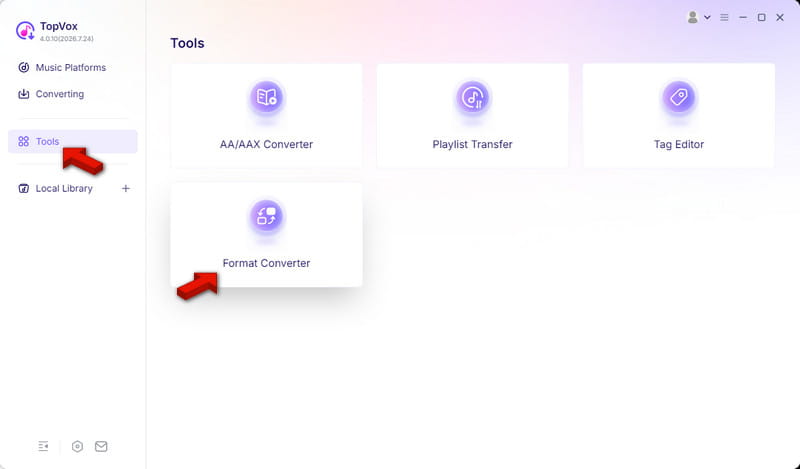
After installing TopVox, head to the Tools tab and select Format Converter.
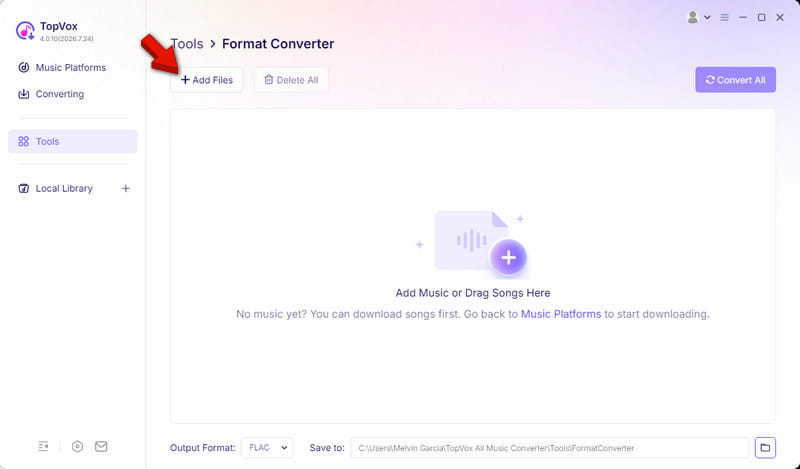
Step 2. Drag the MP3s, or click +Add Files to import them from your computer. TopVox does not limit the number of files you can upload, so you can upload more than one.
Step 3. Navigate to the Output Format picker and select WAV as your target format. Set the output folder, then click Convert All to begin the conversion.
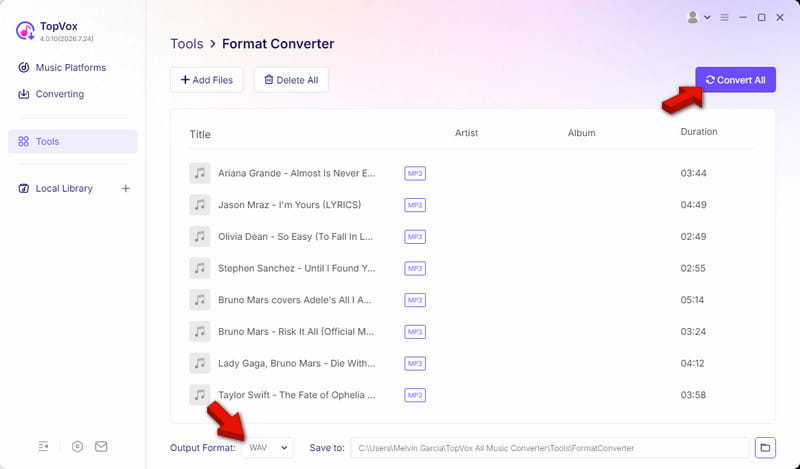
We tested TopVox using 100 MP3 files totaling 1.8GB with varying bitrates. In our test, it completed the batch conversion in just 1 minute and 42 seconds. There were no 0 failed conversions, and every file played perfectly. TopVox also works in reverse, allowing you to convert WAV to MP3 for universal playback.
VLC Media Player
VLC is not just a software for listening to music and playing video files. Well, it is not limited to this; it also includes a hidden MP3-to-WAV converter freeware. The Convert/Save tool allows you to convert MP3s to various formats, including WAV.
Pros
- Adjustable audio output settings.
- Can queue up multiple MP3 files.
- 100% free to use with no trial limits.
Cons
- Strips metadata during conversion.
- Resample audio when the setting is misconfigured.
To convert: Click +Add in Open Media to load the MP3 files, then click Convert/Save to proceed. In the Convert window, select WAV in the Profile picker and click Start to convert.
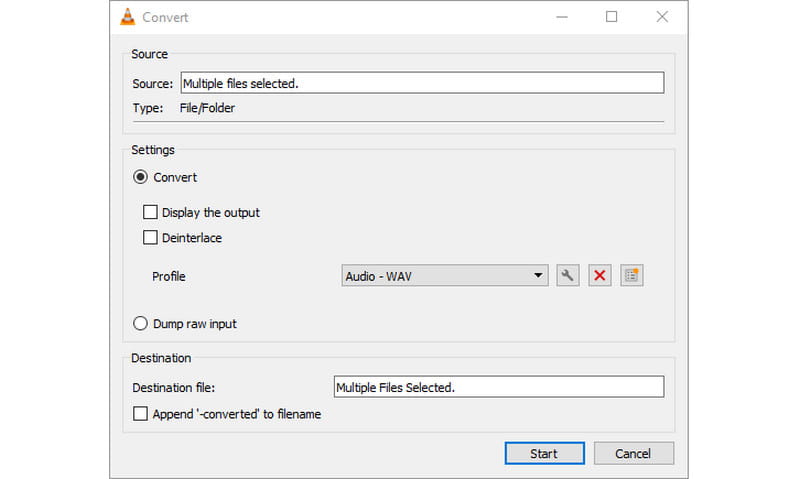
To compare VLC’s conversion capabilities, we use the same 100 MP3 files as the source files. However, when we were around the 15th queue, VLC suddenly crashed.
Freemake Audio Converter
Freemake Audio Converter is a Windows-based MP3-to-WAV music file converter. It can convert unprotected MP3 files to and from 50+ audio formats, including WAV. You can also extract audio from videos and save it to lossless formats.
Pros
- Converts MP3 to over 50+ formats.
- Editable bitrate, sample rate, and channels.
- Can merge multiple MP3s into endless playback.
Cons
- Cannot preserve the audio file’s album artwork.
- Unable to increase the quality of compressed files.
To convert: Open Freemake and click + Audio to select the MP3 files. Select to WAV as your profile, then click Convert to change the format.
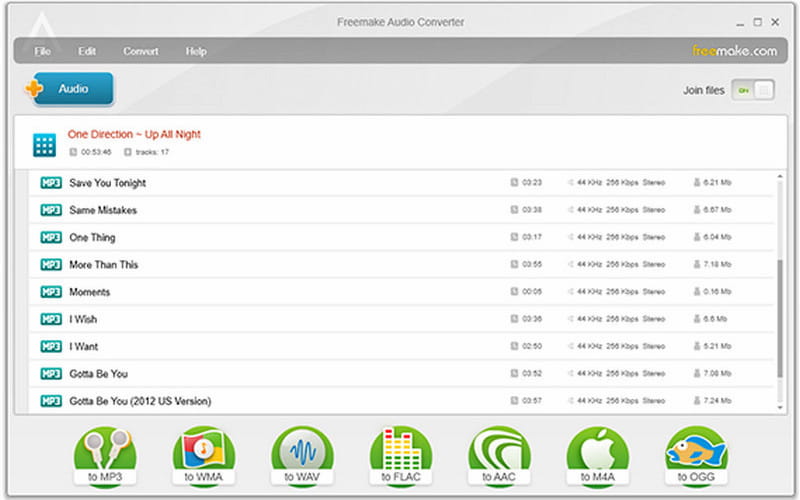
Freemake completed the batch conversion of 100 MP3s in just 4 minutes and 20 seconds. However, there are 36 failed conversions because it cannot convert DRM-protected audio (See DRM meaning here).
XLD
XLD, or X Lossless Decoder, is a Mac OS X tool you can use as a free MP3-to-WAV decoder. It can decode MP3 files and convert them to lossless WAV format. It uses native decoding libraries to deliver fast and bit-accurate conversions.
Pros
- Supports converting multiple MP3s.
- Decodes audio to WAV without temporary files.
- Maintains the original sample rate of the source.
Cons
- No Windows version available.
- Cannot restore removed data during compression.
To convert: In XLD, click General, go to Output Format, and select WAV. Navigate to File and select Open to add the MP3 sources. Then, click Open to decode and convert MP3 to WAV.
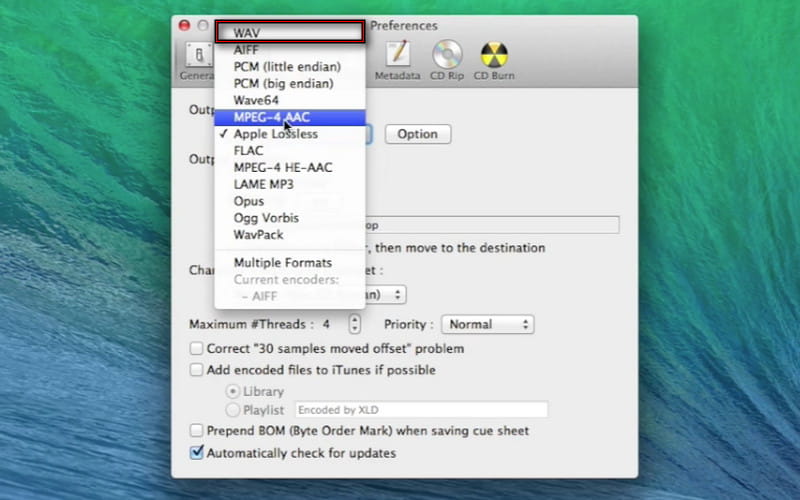
In our test, XLD handles batch conversion (100 MP3 files) without slowdowns. However, it does not allow changing bit depths or arbitrary sampling frequencies in all container types.
Foobar2000
Foobar2000 is a freeware audio player for playing mainstream audio formats. If it’s an audio player, you're probably asking yourself, how do I convert from MP3 to WAV ? Foobar2000 includes a powerful built-in Converter component for converting audio files.
Pros
- Uses low system resources.
- Excellent metadata preservation.
- Advanced ReplayGain and DSP processing.
Cons
- Conversion tools are hidden.
- Requires FFmpeg for complex conversion.
To convert: Drag the MP3 file into the playlist, right-click the selection, and click Convert. Select ... (3dots) and set the output format to WAV, then click Convert to process your files.
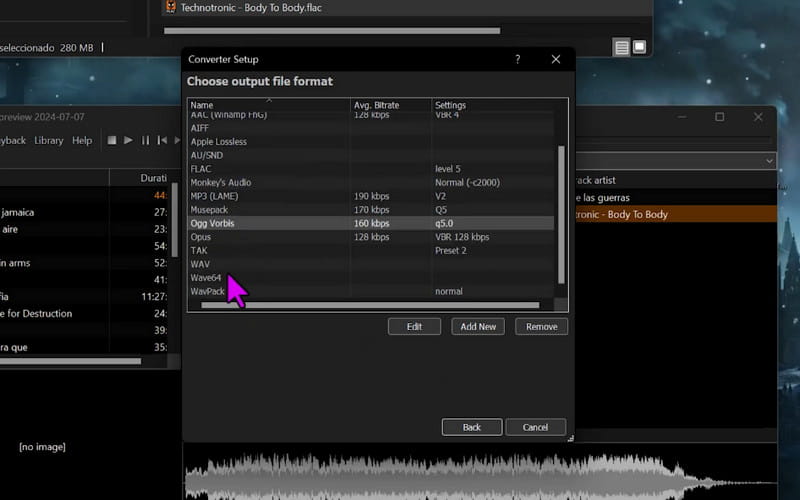
We tested foobar2000 on Windows Pro 10 and completed the conversion in 3 minutes and 10 seconds. However, converting an MP3 here takes way too many clicks.
Zamzar
Zamzar is an online MP3-to-WAV converter that has been around for decades. Since it operates entirely online, you don't need to install anything on your computer. You only need an internet connection and a web browser to convert files. It also supports converting FLAC to MP3.
Pros
- Installing software is not necessary.
- Can import files from the cloud or via URL.
- Supports more than 1,200+ media files and docs.
Cons
- Restricts file uploads to 50MB.
- Need to upload MP3 files to the server.
To convert: Navigate to Zamzar and click Choose Files to add the MP3 from your computer. Select WAV under the Audio category, then click Convert to upload and process the file.
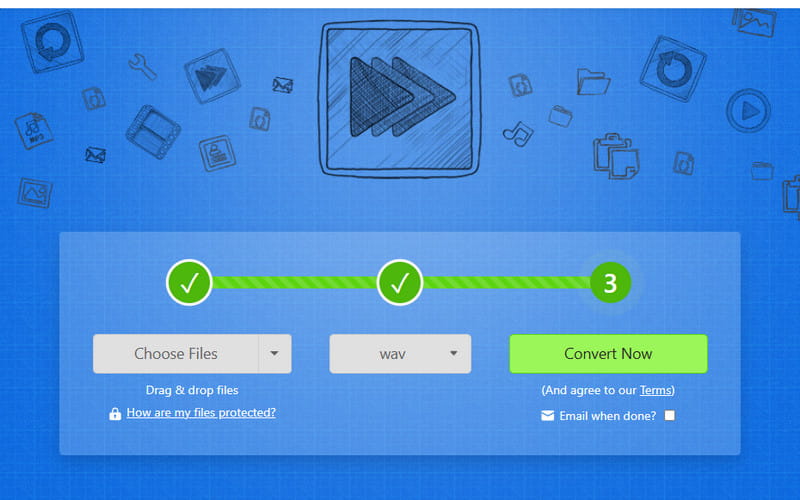
Zamzar is best used for occasional conversion only. Since there is a file size limit in the free version, we can convert only 13 MP3 files, totaling 46 MB.
Fre:ac
Fre:ac uses a multi-threaded conversion engine to process large music libraries efficiently. Beyond WAV, it can convert M4A to MP3, FLAC, AAC, WMA, Opus, and other formats. See the quick instruction guide below to learn how to convert MP3 to WAV:
Pros
- Fast batch conversion with multi-threading.
- Preserves ID3 tags/metadata during conversion.
- Batch conversion maintains the folder structure.
Cons
- Some encoder settings require familiarity.
- Interface is too overwhelming for new users.
To convert: Drag the MP3 files into the main job list window. Navigate to the Green Play button, click SndFile Output Component v1.2.0, and select Microsoft Wave Files (.wav).
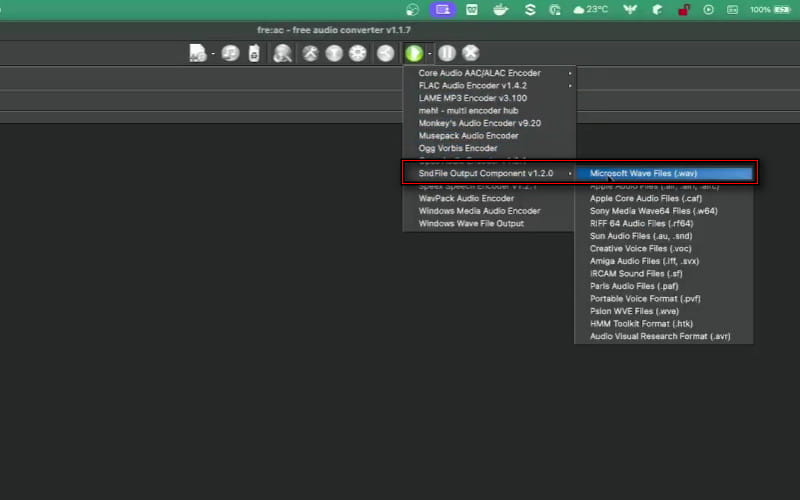
In our test, fre:ac completed the batch conversion (50 MP3s) in 3 minutes and 33 seconds. However, it takes us almost a day to master using it.
Part 4. Common Problems and How to Fix
Even the best MP3-to-WAV converter can run into issues. Below are some common problems you may encounter after converting MP3 files to WAV, along with practical solutions.
- • Converted WAV File Won’t Play: If your converted WAV file won’t play, be sure the output format is standard PCM WAV. Try converting the original MP3 to PCM WAV.
- • Metadata Disappears: Some converters don’t automatically transfer ID3 tags from MP3 files to WAV files. Use a converter that supports metadata preservation, such as TopVox.
- • File Is Too Large; Is That Normal?: Yes. This is completely normal. Unlike MP3, WAV stores audio in an uncompressed format. As a result, WAV files are much larger.
- • Batch Conversion Is Too Slow: Batch conversion speed depends on your computer’s hardware and the number of files being processed. Choose software optimized for batch processing, such as TopVox or fre:ac.
FAQs about MP3-to-WAV Converters
Is it safe to use MP3 converters?
It depends. If you’re using desktop software, then it is safe to use. Offline tools process files locally, meaning there’s no need to import your MP3 to the server.
Which MP3-to-WAV converter is the best?
For fast batch conversion and metadata preservation, TopVox is our best MP3-to-WAV converter. For open-source desktop conversion, fre:ac is recommended.
Is converting to MP3 legal?
Yes, it is legal to convert MP3 files, provided you own them. What’s illegal is when you download copyrighted MP3s, convert them, and distribute them for commercial use.
Conclusion
Choosing the best MP3-to-WAV converter depends on how you plan to use your audio files. Remember, converting MP3 to WAV does not improve the original audio quality. This is because conversion cannot recover the audio data that was removed during MP3 compression. If you want the fastest performance, reliable batch processing, and metadata preservation, TopVox All Music Converter is our top overall recommendation.
Ethan Carter
Ethan Carter creates in-depth content, timely news, and practical guides on AI audio, helping readers understand AI audio tools, making them accessible to non-experts. He specializes in reviewing top AI tools, explaining the ethics of AI music, and covering regulations. He uses data-driven insights and analysis, making his work trusted.



 by
by