Spotify Playlist to YouTube: Transfer on Desktop, Mobile, & Online
 by Owen Bannett | June 11, 2026 | Playlist Transfer
There are a few reasons why users switch from Spotify to YouTube. Two of these common reasons are the wide content libraries and more affordable bundles for premium accounts. Thus, people are asking how we can transfer a Spotify playlist to YouTube with ease. Fortunately, this article exists to guide you in making it possible. Check out these seven tools we prepared for you, along with the guide you shall follow. Read these articles until the end to know everything you need.
Quick Comparison of 6 Tools to Convert Spotify Playlists to YouTube
In this article, we will navigate six of the leading tools that are designed to help you move Spotify playlists to YouTube with ease. Before we present the detailed information on each, here is a quick comparison table for all of them so that you will have an idea of each tool:
| Tool | Platform | Price | Batch Conversion | Transfer Speed | Metadata Retention | Data Security |
|---|---|---|---|---|---|---|
| TopVox All Music Converter | Windows and macOS | Free and Paid license. | Yes, the entire library. | Fast. | Full data such as titles, albums, and covers. | Offline and secure. |
| SongShift | iOS only. | Free and Premium. | Limited. | Moderate. | Good, but manual review needed. | Cloud-based. |
| FreeYourMusic | iOS, Android, Windows, and macOS. | Free and Premium. | Yes. | Fast. | Strong metadata support. | Cloud-based. |
| PlaylistBuddy | Web-only. | Free. | Limited with 250 songs max. | Quick for small lists. | Basic. | Cloud-based. |
| Soundiiz | Web-based. | Free and Premium. | Yes. | Moderate. | Strong, supports syncing. | Cloud-based. |
| TuneMyMusic | Web-based. | Free and Premium. | Yes. | Fast. | Strong metadata retention. | Cloud-based. |
Method 1. Add YouTube Music to Spotify Playlist on Desktop
TopVox All Music Converter
The first method starts with a great desktop tool to transfer a Spotify playlist to YouTube Music. We are talking about TopVox All Music Converter, which can offer everything you need to make the process possible. This tool primarily supports various music streaming platforms, so you can manage your tracks, playlists, and albums with ease whenever you want to switch to another platform. In this case, TopVox can help you move a Spotify playlist to YouTube Music with ease and a quick process. There will be no processing days in this tool, so you can finish it right after following the steps.
Features
- Convert Spotify playlist to YouTube Music.
- Batch conversion for playlist and album.
- Preserved ID3 Tags and Metadata.
- Convert tracks with a universal format like MP3.
How to Use TopVox All Music Converter
Step 1. Install TopVox All Music Converter for free on their official website. Open the Tool, set Spotify as the Source, and let YouTube be the Target.
100% Secure. No virus.
100% Secure. No virus.
Step 2. This is where you will get the playlist you want to move. Select a specific Playlist and click the Next button.
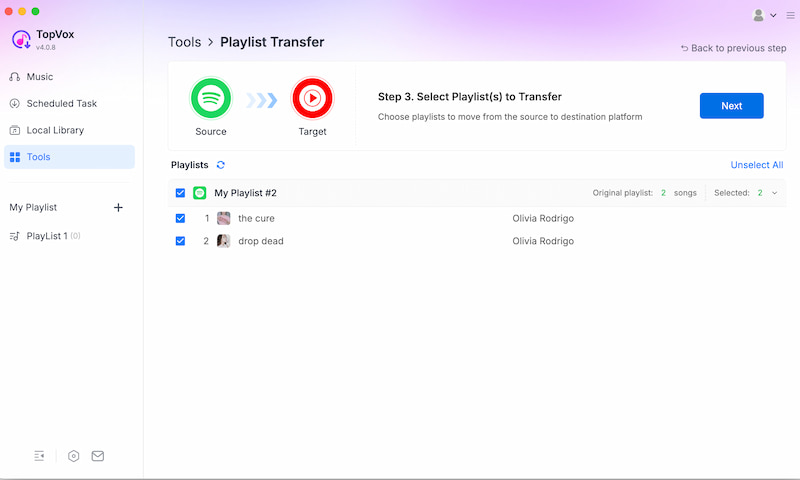
Step 3. After that, proceed to click Convert All.
Method 2. Convert Spotify Playlist to YouTube on Mobile
There are other methods you can use if you do not have a computer for TopVox. You can transfer a Spotify playlist to YouTube Music using your phone. You can check these two amazing mobile apps that can help you:
Tool 1: SongShift
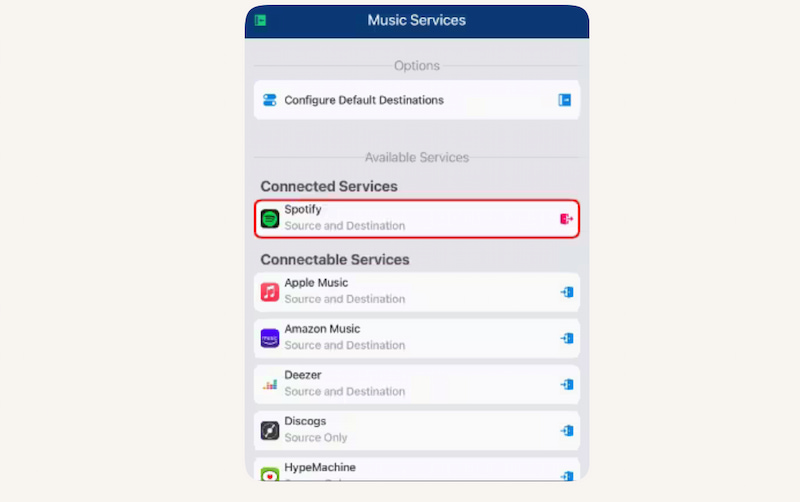
We shall now proceed with the first mobile application that can help you move your Spotify content to YouTube Music, even without a computer. SongShift is an iOS app. This application is mainly designed to transfer playlists between streaming platforms like Spotify and YouTube Music. This is a straightforward app with no extra features.
How to Use SongShift
Step 1. Download SongShift from the App Store. Then, proceed to connect your Spotify and YouTube Music accounts. This is important because both platforms need to be authorized in the process.
Step 2. Now, select the Spotify playlist you want to move. Then select YouTube Music as the playlist's destination.
Step 3. It is important to review the songs and either approve or adjust them if needed. Finally, please confirm the transfer and wait for it to complete.
Pros
- It is a mobile-friendly interface.
- It offers a free basic transfer service.
- Reviewing a mismatched playlist is available.
Cons
- Only iOS users can use it.
- The free version is limited to transfers.
- The premium subscription is expensive.
- Occasional mismatches with unavailable tracks.
Tool 2: FreeYourMusic
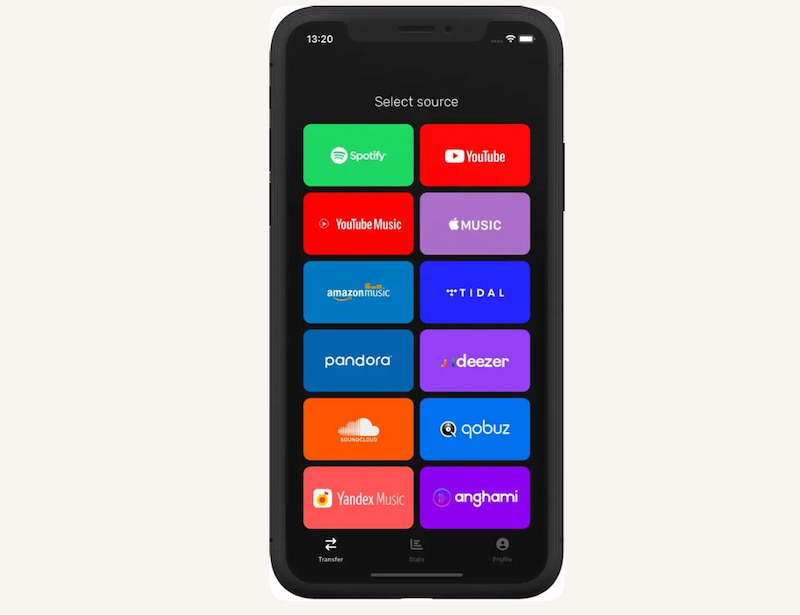
The second option for mobile usage is the amazing FreeYourMusic. This tool is cross-platform and can transfer your Spotify playlist to YouTube Music. Unlike SongShift, this application is available on iOS and Android. Also, with your Windows and macOS. Most importantly, this supports multiple streaming services, including Spotify and YouTube Music.
How to Use FreeYourMusic
Step 1. You need to log in to both your Spotify and YouTube Music accounts.
Step 2. After that, select Spotify as the source and YouTube Music as the destination for your playlist.
Step 3. Pick the playlists you want to transfer. Then, start the transfer and monitor progress immediately.
Pros
- It supports both iOS and Android.
- It has multiple streaming platforms available.
- Retains metadata like playlist names and order.
Cons
- A small number of transfers.
- Transfer speed slows often.
Method 3. Transfer Spotify Playlist to YouTube Music via Web-based Tools
More than the desktop and mobile application tool for transferring, we still have another option for you. You can also do the process by using an online tool. In line with that, we prepared three tools you can use in this category:
Tool 1: PlaylistBuddy
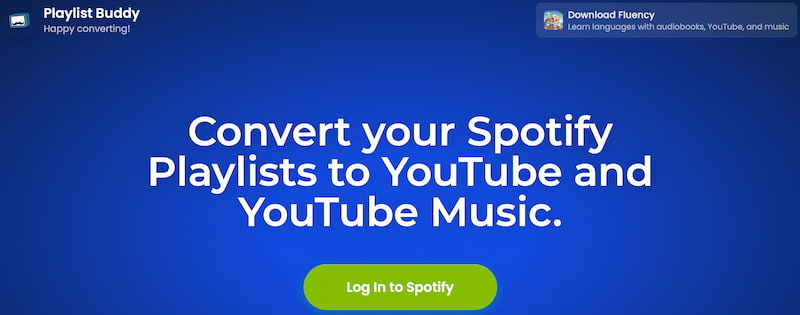
As we navigate more of the tool, here is the first in a web-based category. PlaylistBuddy is known to be a free browser-based solution to give you quick playlist transfers between Spotify and YouTube Music. Many users say that this is suitable for transferring small playlists. One thing you can expect from this tool is a fast export without installation. However, do not expect more, because the tool is limited to 250 songs per transfer.
How to Use PlaylistBuddy
Step 1. You need to visit the PlaylistBuddy website first.
Step 2. From there, you have to log in with your Spotify account.
Step 3. When you open the Spotify interface, you need to select the playlist you want to transfer.
Step 4. After that, proceed to connect your YouTube account. Finally, export the playlist to YouTube Music.
Pros
- Free and simple to process.
- There will be no software or application installation.
- Fast transfers for small-sized playlists.
Cons
- Limited to 250 songs per transfer.
- Basic interface, fewer customization options.
- It may not always correctly match rare tracks.
Tool 2: Soundiiz
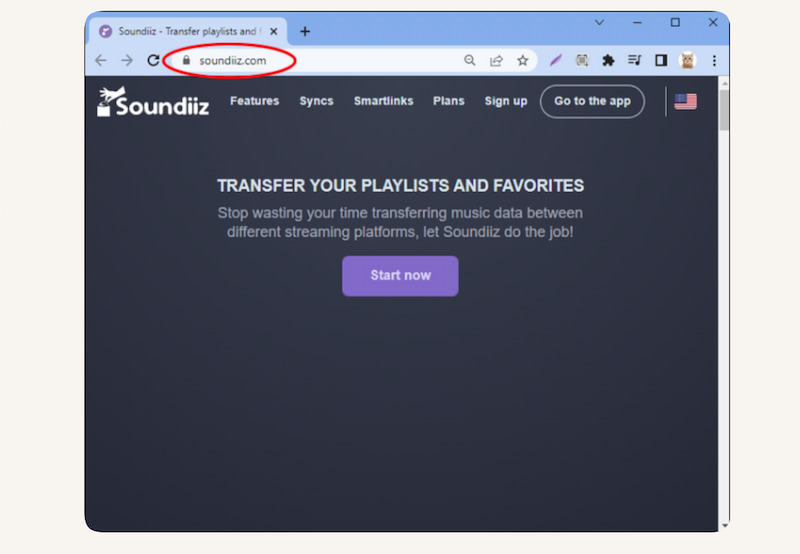
Second on the list, for a web-based tool that can make the process of transferring Spotify to YouTube Music is Soundiiz. In a few hours, you will see dozens of streaming platforms. Its uniqueness lies in advanced playlist syncing, which lets users keep their updates across services. Beyond transfers, it offers management tools, though premium features are required for full functionality.
Usage
Step 1. Go to the Soundiiz website and create your account.
Step 2. Now, proceed to connect your Spotify and YouTube Music accounts. From there, select the playlist you want to transfer.
Step 3. Choose YouTube Music as the destination and start the transfer.
Pros
- Many streaming platforms are available in this tool.
- Offers playlist management tools.
- Flexible syncing options.
Cons
- It will not function without a stable internet connection.
- You need a premium subscription for the full version.
- May slow down with very large playlists.
Tool 3: TuneMyMusic.com
TuneMyMusic.com is another online tool you can use to transfer Spotify to YouTube Music. Its uniqueness lies in its speed and broad compatibility. In this tool, you can now perform quick browser-based transfers with metadata retention. However, just like FreeMyMusic, its free accounts limit the number of playlists that can be moved to.
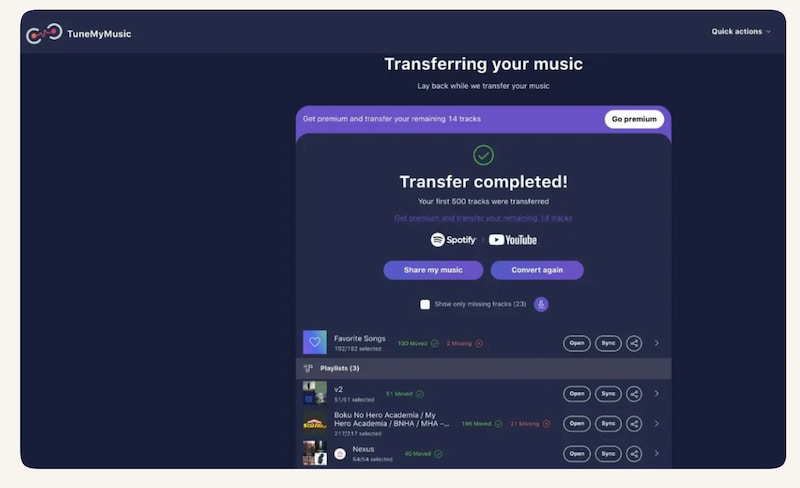
Step 1. Access TuneMyMusic.com in your browser.
Step 2. Choose the Spotify platform as the source. Also, you need to log in to your account when choosing the playlist to transfer.
Step 3. Select can now select the destination of the playlists. In this case, choose YouTube Music. Start the transfer and wait for it to complete.
Pros
- No applications or software needed.
- Fast setup and transfer process.
- Supports multiple music streaming platforms.
Cons
- The free version is very limited.
- It has a strong internet dependency.
- Privacy concerns since accounts must be linked.
FAQs on Spotify to YouTube Playlist
Q: Do Spotify playlists stay after transferring to YouTube Music?
A: Yes. Your playlists will remain intact in Spotify, as if you had not converted them to YouTube Music. That happens because the transfer process only copies them into YouTube Music.
Q: Is it possible to transfer Spotify playlists directly to YouTube Music?
A: No. YouTube Music does not support direct transfers to Spotify. That means you will be needing third-party tools like TopVox, Soundiiz, TuneMyMusic, or PlaylistMover. This conversion tool can connect both accounts and automatically move playlists.
Q: Are all songs guaranteed to transfer correctly from Spotify to YouTube Music?
A: Not always guaranteed. An issue might happen, especially if some tracks from your Spotify playlist are unavailable on YouTube Music. In line with that, tools like Soundiiz will notify you if songs cannot be matched.
Q: How long does the transfer take from Spotify to YouTube Music?
A: It depends on the size of your playlist. Remember that if you have a long list, then expect a transfer in minutes. Yet if you have a large library, it may take several hours to finish.
Q: Can I transfer podcasts from Spotify to YouTube Music?
A: No. There is no way to transfer your podcast playlist to YouTube Music. Because podcast files are exclusive to Spotify, they might not be available on YouTube Music catalogs.
Conclusion
In conclusion, we can see that the process of transferring a playlist from Spotify to YouTube Music can be easily done with the right tool. We have six tools in this post, and you discovered the features they offer. You have various options: a desktop tool, a mobile tool, and an online tool. However, we recommend using a desktop tool such as TopVox All Music Converter because of its ability to offer everything you need from transferring to maintaining ID3 tags. You will not regret using it. Use it now to discover more of its features for you.
Owen Bannett is a music enthusiasm as well as a senior writer. He has paid close attention on the pros & cons of various audio formats, bitrate, sample rate and encoding methods. Always seeking the best listening experience, Owen has deep insights about lossless music and diverse music converters on the markets.