Transferring Spotify Playlist to Apple Music (Complete Guide)
 by Ethan Carter | May 28, 2026 | Playlist Transfer
We understand why you want to use Apple Music now compared to Spotify. Your reason might be because of the sound quality or the cheaper price range of Apple Music. Well whatever reason you have, we shall now help you in making the transfer of the playlist from Spotify to Apple Music. Because we would like to hear our favorite music over and over again whatever platforms we may have. Good thing, we have the best ways for you in this article. Read and you shall discover two great ways to make it and troubleshooting tips whenever problems or issues occur unexpectedly. Continue with the next and start learning, shall we?
Part 1. What You Need to Know: Transfer Spotify Playlist to Apple Music
Why Do You Need a Spotify to Apple Music Playlist Converter?
Disclaimer, changing a music platform to listen is not as simple as logging in. Because, your playlists, favorites, and listening history will not automatically carry over. That is why, needing a converter to do the transferring process for you is definitely useful. Here are more reasons why you will be needing a Spotify to Apple Converter:
- • We all know that manual transfers or copying songs one by one are time‑consuming and prone to errors.
- • Without using a converter, the risk of losing track of songs, metadata, or playlist order is possible to happen.
- • More than that, using a converter will allow you to move entire playlists or libraries at once, instead of rebuilding them manually. A save of time indeed.
- • We all know that Spotify and Apple Music use different formats and APIs. That is why converters exist to help us bridge the gap.
Verdict: We need to use a converting tool because it easily saves time, preserves your playlists with a hundred percent accuracy, and ensures a smooth transition without losing your music details.
How the Transfer Process Works
As we answer this in a general approach, the converter tool we are using will act as a middleman. This tool will allow you to read your Spotify data and rebuild it inside Apple Music with minimal effort. The process of playlist transfer tools follows a simple flow. This flow enables the process to be possible. Here are some key points about it:
- • Account Linking. Signing in to both your Spotify and Apple Music accounts through the transfer service is needed.
- • Playlist Selection. Choose which playlists or your entire library to move to Apple Music.
- • Song Matching: Then the tool is now tasked to search Apple Music’s catalog for each track you have from Spotify.
- • Transfer Execution: The converter will now create your playlists in Apple Music with the same order and structure.
Part 2. How to Transfer Playlist from Spotify to Apple Music: Official Way
Let us now see the steps in making the process possible. Check out this guide and make it easy for you to do it. Please ensure that you still have a subscription account for both Spotify and Apple Music to make it possible.
Step 1. You need to start inside the Apple Music app on your devices such as Mac, iPhone, or iPad. Then, the interface usually shows all of the manageable albums like the Listen Now, Browse, Radio, Library, and Playlists sections.
Step 2. In the second step, this is where you manage or import playlists you have from Spotify.Go to the Apple Music Library as you find the Playlist for Import Playlist or Transfer from Spotify option.
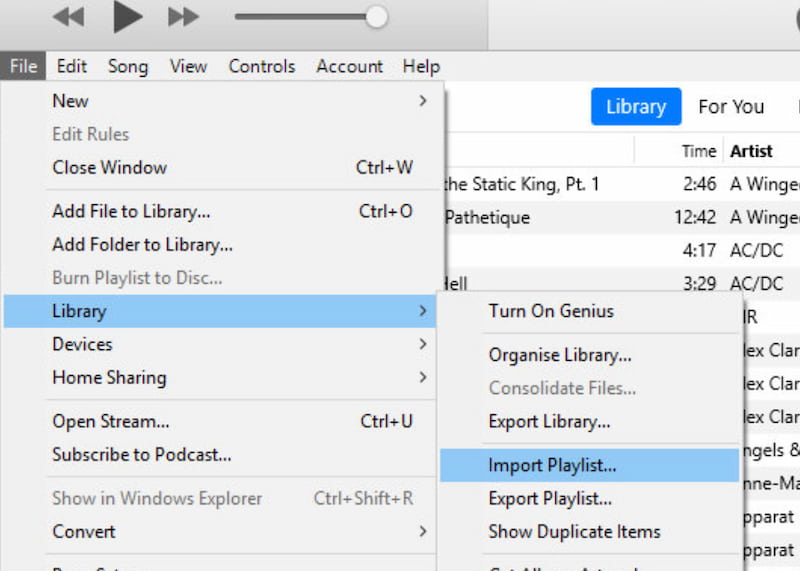
Step 3. After doing it, we need to enter your Spotify credentials when prompted. This will allow Apple Music to access your playlists.
Step 4. From there, you can now choose the playlists you want to transfer. Here, you can select individually or batch import if supported depending on your preference.
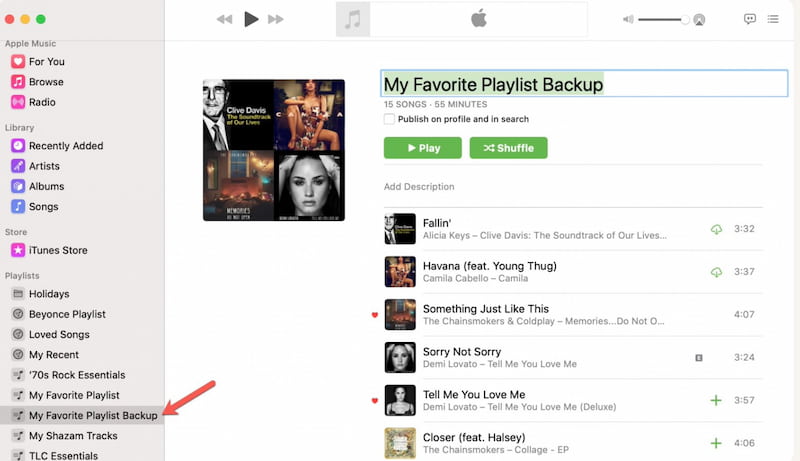
Step 5. At this moment, Apple Music will now match songs from your Spotify’s catalog to its own. You can review the summary of matched and unmatched tracks. Finally, check your library and see the play list you just transferred.
Pros
- This ensures playlists are imported into your account without third‑party risks.
- It can preserve playlist order, song metadata, and reduce mismatches.
- Your login credentials and data remain within the Apple ecosystem.
Cons
- These options cannot support batch processing of very large libraries.
- It can lead to missing songs because some Spotify tracks may not exist in Apple Music’s catalog.
- It requires a subscription from both platforms.
- Works best if you’re already in the Apple ecosystem.
Part 3. How to Import Spotify Playlists to Apple Music using Third-party Tools
TopVox All Music Converter
We shall now give you the best option you can use in transferring your Spotify playlist to Apple Music with ease. TopVox All Music Converter can help you use Spotify and Apple Music. That means, transferring your playlist to Apple Music is now possible without needing to pay expensive subscriptions. In addition, you can actually enjoy Spotify and Apple Music here at the same time. But if you are now sure to move the playlist from your Spotify to Apple Music, then here are the steps you should follow:
Key Features
- Move playlists seamlessly from Spotify to Apple Music with ease.
- You can use Spotify and Apple Music within the same tool to listen to music.
- Download and listen to Spotify music offline.
- It has a simple interface for quick navigation.
- Direct Apple Music integration.
Steps to Use TopVox All Music
Step 1. Get the amazing tool for free on the official website and install it on your computer.
100% Secure. No virus.
100% Secure. No virus.
Step 2. Open the tool and access its main interface. From there, you now see all of the platforms it supports. Since we are transferring from Spotify to Apple Music, choose Apple Music for this process.
Step 3. You will now see the interface of Apple Music. Do the process as if you are using the official one. Go to the File and click Import.
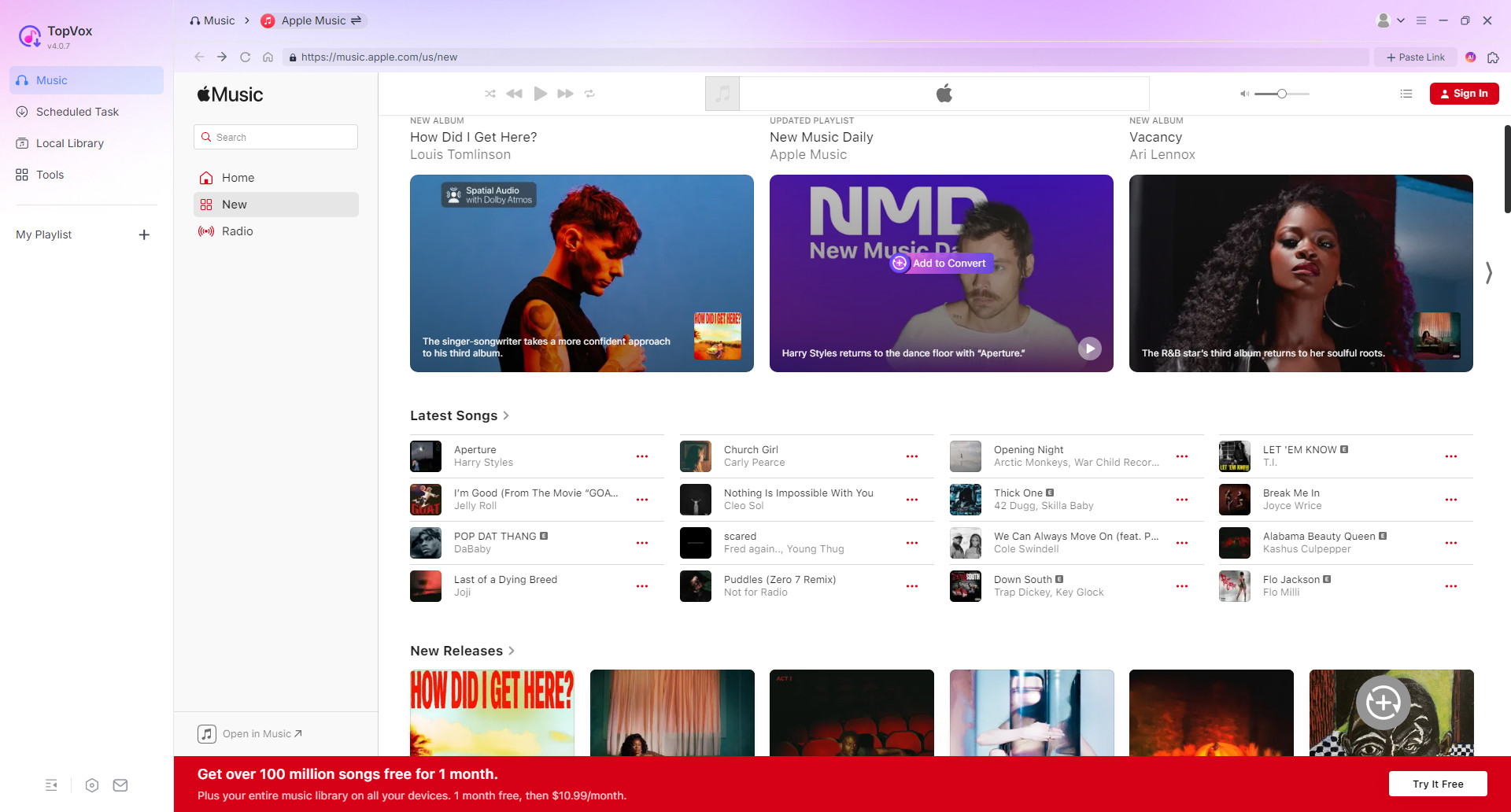
Step 4. Choose the playlist or music you want to transfer. Then wait for a few seconds and you are ready to go.
Note: This process will definitely be good for people who do have a subscription for Spotify and Apple music.
You May Also Like
TuneMyMusic: Web Tool
TuneMyMusic is a converter that works directly in your browser that means no installation to use it. More than that, it also supports batch processing for large playlists you have. Here are some simple steps for you.
Step 1. Go to TuneMyMusic.com. From here, please select Spotify as the source and log in.
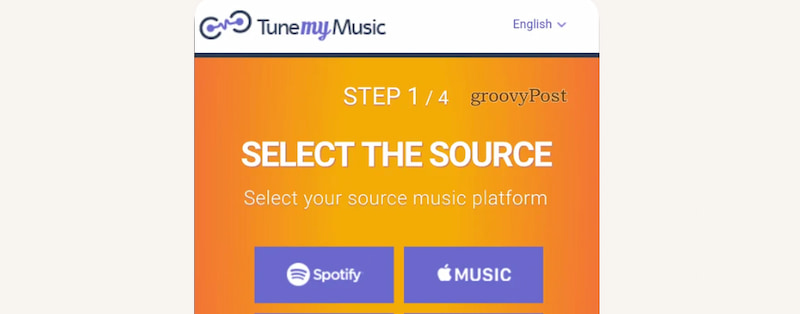
Step 2. Now, choose playlists you want to transfer. Then, select Apple Music as the destination and log in.
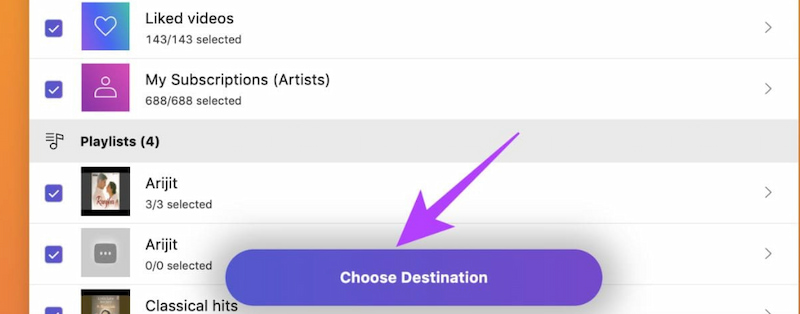
Step 3. Start transfer by clicking the Choose Destination and wait for confirmation.
Soundiiz: Web‑Based
Soundiiz has an advanced playlist management where you can merge, split, and edit tracks. This tool also supports syncing between multiple platforms. More than that, a detailed transfer report where it shows matched or unmatched tracks to manage your playlist with ease. Let us now see how we can use it.
Step 1. We need to visit Soundiiz.com and create an account. Then, connect both Spotify and Apple Music accounts.
Step 2. From there, select playlists from Spotify you want to transfer.
Step 3. Now, choose Apple Music as the destination. Finally, confirm the transfer and review the report.
FreeYourMusic: For Mobile User
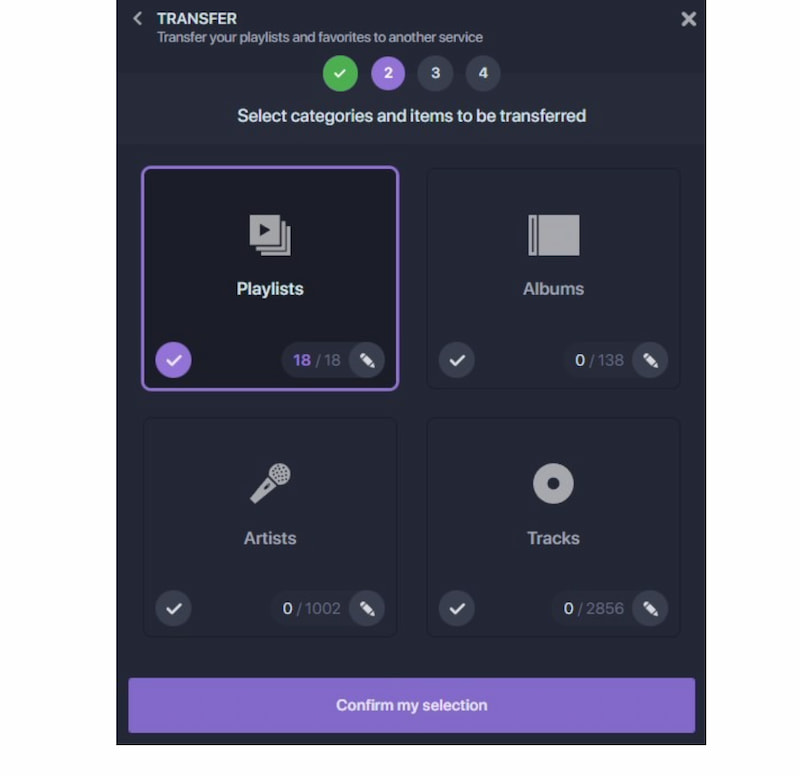
The next tool you can use is FreeYourMusic. This tool is designed for mobile users such as iOS and Android. The tool possesses a more simple interface, optimized for on‑the‑go transfers. More importantly, it also supports ongoing sync between platforms. This tool might have limited features compared with desktop software, but it does the job.
Step 1. First we need to download FreeYourMusic from the App Store or Google Play to your mobile phone.
Step 2. From there, we need to open the app and connect Spotify and Apple Music accounts.
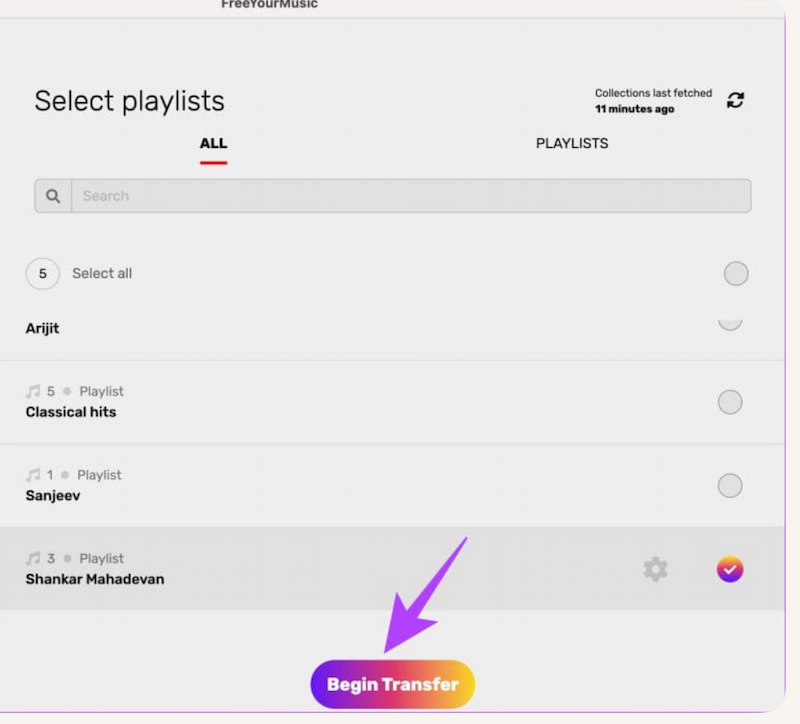
Step 3. After that, please select playlists to transfer. Then, start transfer. The progress is shown in real‑time. Verify playlists in Apple Music once complete.
Comparisons of the Third-party Tools
| Tool | Platform | Best For | Limitations |
|---|---|---|---|
| TopVox Converter | Desktop | Dual use of Spotify & Apple Music. | Requires installation. |
| TuneMyMusic | Web | Quick transfers, batch processing. | Free tier limits songs. |
| Soundiiz | Web | Advanced playlist management. | Batch sync requires premium. |
| FreeYourMusic | Mobile | On‑the‑go transfers, ongoing sync. | Limited features vs desktop. |
Part 4. Troubleshooting and Common Conversion Errors
Issue 1: Missing Tracks
The problem of missing tracks usually happens because Spotify and Apple Music do not really share identical catalogs. That is why some songs may be region‑restricted, licensed differently, or exist only in alternate versions. This is commonly happening for live recordings or remixes.
Common Fix: You can search manually in Apple Music. Then replace with alternate versions, or re‑run the transfer.
Issue 2: Connection Failed / Login Errors
Another issue that can occur on the process is the connection failures. This usually occurs when login sessions expire, permissions are not granted properly, or your internet connection drops mid‑transfer. More than that, if you have outdated apps or browsers can also block access.
Common Fix: You can log out and back in, grant permissions, switch to stable Wi‑Fi, and update your apps.
Issue 3: Metadata Mismatch
The third common issue is having the metadata mismatches. Basically, it was added to the wrong song. This issue can happen because Spotify and Apple Music store track details differently. That means, the transfer tool may match the closest available version. This could lead us into a remix, live cut, or have incorrect album art.
Common Fix: Manually replace mismatched tracks, use “fix match” features if available, and check playlist order.
FAQs about Spotify to Apple Music Playlist Converter
Q: Do I need to pay to transfer playlists?
A: Not really, because most of the converters offer free tiers with limits. But premium unlocks batch transfers, unlimited songs, and ongoing sync features.
Q: Will all my songs transfer successfully?
A: Not always, because some issues may occur even if you choose the official way to do it. The reason might differ such as licensing differences, regional restrictions, or unavailable versions may cause missing tracks during conversion.
Q: Is it safe to use third‑party converters?
A: Yes. As long as you choose a reputable tool. Then you can use secure authorization. They don’t permanently store login credentials, ensuring account safety.
Conclusion
As we get to the conclusion, transferring a Spotify playlist to Apple Music is really possible. This makes an easy and manageable playlist even though we have decided to switch platforms. We can see different ways and tools to use in making it possible. Choose what’s best for you, if you afford the subscription for both platforms, then go for the official way. But if you cannot afford it, then choose TopVox All Music Converter because it offers great features making the process easy and effective.
Ethan Carter creates in-depth content, timely news, and practical guides on AI audio, helping readers understand AI audio tools, making them accessible to non-experts. He specializes in reviewing top AI tools, explaining the ethics of AI music, and covering regulations. He uses data-driven insights and analysis, making his work trusted.