How to Transfer YouTube Music Playlist to Apple Music
Using YouTube Music as your platform to listen to your favorite music and discover various libraries is understandable. Especially if you are after its affordable prices, yet if you come to realize that Apple Music has good compatibility with your iPhone and good sound quality on any device, then transferring from YouTube Music to Apple Music is a good move. With that, this article will help you do the process with ease using four effective tools. Discover them now here.
Method 1: Official Google-to-Apple Data Transfer (Free)
Best for: Secure and free transfer process.
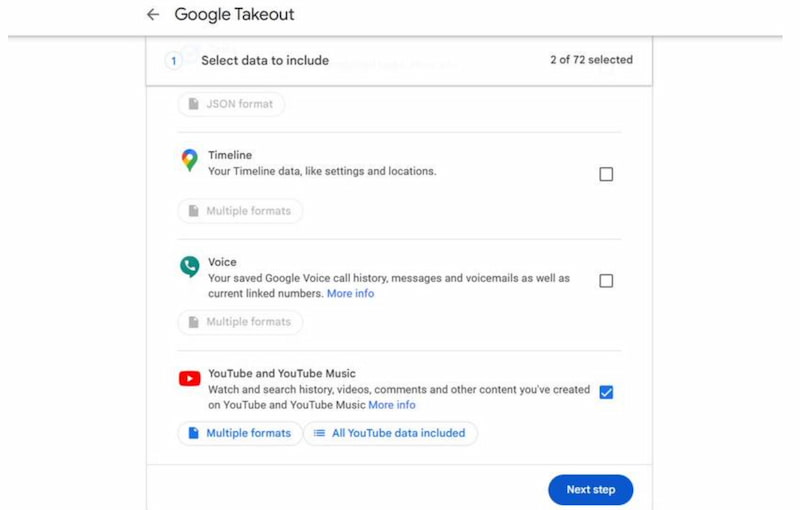
Let us begin with the official method to make the process possible. Google-to-Apple Data Transfer is known to be a free way to move your playlist from YouTube Music to Apple Music. That will be possible using Google Takeout and Apple’s Data and Privacy integration. See the steps to do so below:
Features
- Official integration supported by Google and Apple.
- Full playlist migration.
- Handling metadata for the tracks.
Steps to Use Official Google-to-Apple Data Transfer
Step 1. First thing we need to do is open Google Takeout, then tick YouTube Music among the options.
Step 2. You shall now select the playlist you want to move. Then please export it to a JSON/CSV file.
Step 3. This time, select Apple Music as your destination. Sign in to your Apple ID and give it permission for the process.
Step 4. Continue by clicking Start Transfer and wait for an email that says your process is confirmed.
Note: Even though this is the official way to move the playlist from YouTube Music to Apple Music, it is still not exempt from having unmatched tracks. Thus, the unmatched videos or tracks from YouTube Music will not be transferred successfully. Thus, you need to add them manually on Apple Music itself.
Method 2. TopVox All Music Converter
Best for: All-in-one solutions with fast and high accuracy of transfer.
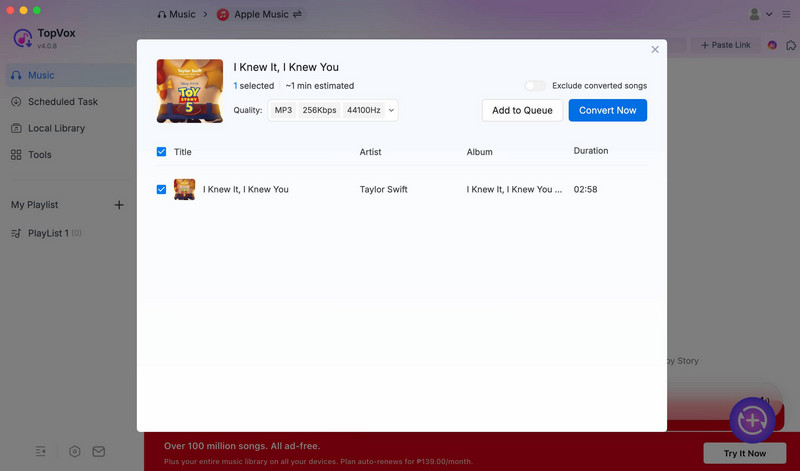
The second method is the use of TopVox All Music Converter. This tool offers a wide range of features for converting playlists and moving them with ease. One of the best features of this tool is its straightforward, fast, and highly accurate transfer. Thus, you can now move from YouTube Music to Apple Music with ease. In addition, this tool prevents unmatched tracks as much as possible by giving you alternative options for tracks. A version that is available on the target platform you have. See more of its features and the simple steps to use it below:
Features
- Full transfer of playlists, Libraries, and Tracks.
- Fast and high-accuracy output.
- Metadata supports every detail.
- It supports multiple music platforms.
- Batch transfer for wide and huge libraries.
Steps to Use TopVox All Music Converter
Step 1. Install TopVox All Music Converter for free by visiting their main website.
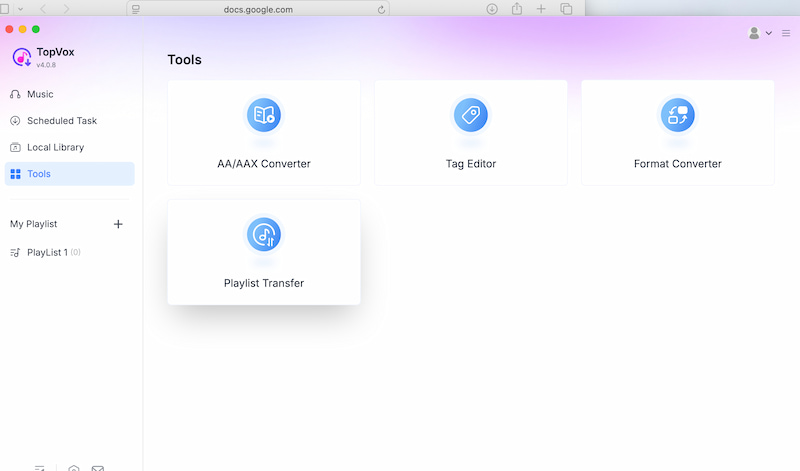
Step 2. On the interface, look at the Tools and click Playlist Transfer.
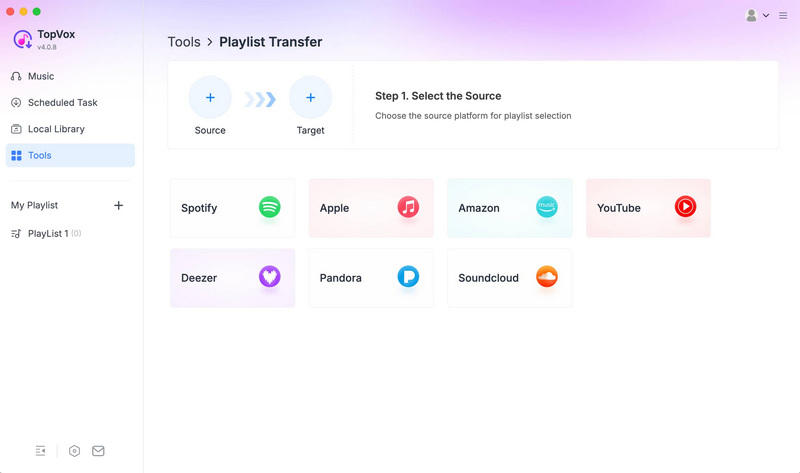
Step 3. Now, set the Source as YouTube Music and the Target as Apple Music.
Step 4. It will now show you the playlist you want to move. Please select it and click Convert. Allow the tool to process it.
Method 3. Songshift
Best for: iOS users who want a mobile-friendly transfer.
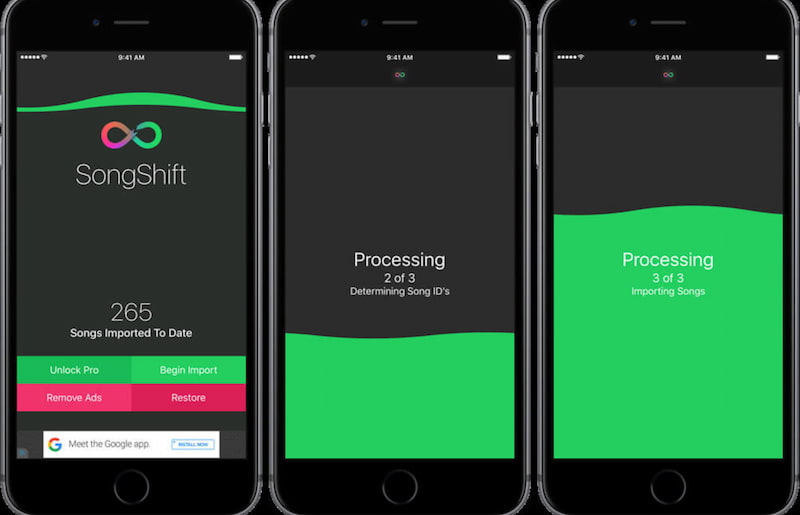
We now proceed with a method that is suitable for iOS phones. This will be possible using the SongShift application. This is a dedicated application you can use to move YouTube Music to Apple Music with ease. This app only requires minimal effort to use.
Features
- Mobile usage for iPhone and iPad.
- Direct process of linking your account.
- Fast playlist migration.
Steps for Using Songshift
Step 1. Install SongShift from the App Store.
Step 2. Now, you need to open the application and allow it to connect to your YouTube Music and Apple Music accounts.
Step 3. From its interface, select the Playlist you want to move.
Step 4. After that, please confirm the process and let the app migrate.
Method 4. Free Your Music
Best for: Cross-platform with flexible features and great control.
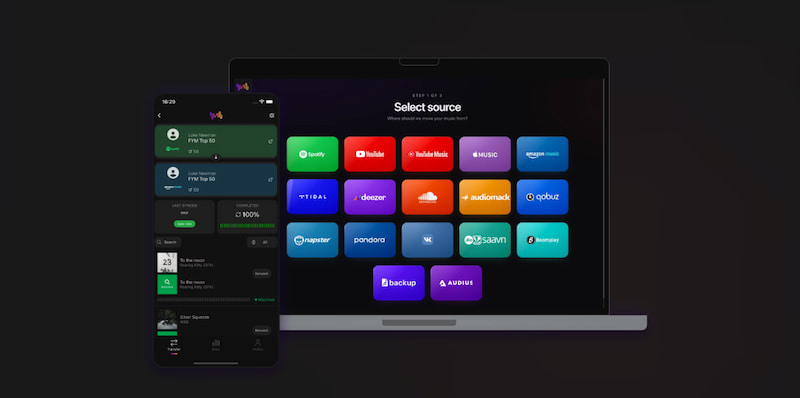
The fourth method is through the use of the Free Your Music tool. This tool is commonly known for being versatile and supports multiple operating system platforms like Windows, macOS, iOS, and Android. That means you can now transfer your YouTube Music playlist to Apple Music on whatever devices you have. In addition, this tool also offers wide options for exporting tracks for backup purposes.
Features
- Supports multiple platforms across your desktop and mobile devices.
- Compatible with different music platforms.
- Export features for backups.
Steps to Use Free Your Music
Step 1. You need to install the app from your mobile store or download the tool from its official website.
Step 2. You need to log in to your YouTube Music and Apple Music accounts on the tool.
Step 3. Please choose the playlist you want to transfer. Click the Start button and allow it to be completed.
Comparison Table
| Best For | Key Features | Platforms | Pricing |
| Official Google‑to‑Apple Transfer | Secure and free transferring process | ● Official integration.
● Full playlist migration.
● Metadata handling. | Web. | Free |
| TopVox All Music Converter | All‑in‑one solutions with fast and high accuracy. | ● Full transfer of playlists, libraries, tracks.
● Fast, accurate output.
● Metadata support.
● Multi‑platform compatibility.
● Batch transfers. | Windows and macOS. | Free trial, Paid license |
| SongShift | iOS users needing mobile‑friendly transfers. | ● Mobile app for iPhone/iPad.
● Direct account linking.
● Fast playlist migration. | iOS (App Store). | Free basic, Premium upgrade |
| Free Your Music | Cross‑platform users with flexible needs. | ● Multi‑platform support.
● Wide service compatibility.
● Export features for backups. | Windows, macOS, iOS, and Android. | Free limited, Paid plans |
FAQs about Transferring YouTube to Apple Music
Q: Can I transfer the library from YouTube Music to Apple Music?
A: Yes. This will depend on the tool you use. The official Google-to-Apple transfer and TopVox All Music Converter can do the process for you with ease.
Q: Do songs match correctly every time I’m moving from YouTube to Apple Music?
A: Not always. Unmatched songs will occur because some metadata is different from each platform, live versions, remixes, or region information. With that, unmatched songs need to be added manually to the new music platforms you are using.
Q: How long does a full transfer usually take?
A: This will always depend on the size of your playlist. A small playlist will take you minutes to finish. At the same time, larger libraries can take hours to days, depending on the tools you are using. The Official transfers send confirmation emails once complete, while apps show progress in real time.
Conclusion
We now conclude that transferring YouTube Music to Apple Music is possible with ease. We can see that the process is made easier with the methods we presented above. Good thing, many users recommend TopVox All Music because of its versatility, fast processing, and high accuracy of output. You can use it now.
Ethan Carter
Ethan Carter creates in-depth content, timely news, and practical guides on AI audio, helping readers understand AI audio tools, making them accessible to non-experts. He specializes in reviewing top AI tools, explaining the ethics of AI music, and covering regulations. He uses data-driven insights and analysis, making his work trusted.



 by
by