6 Best Ad Blockers to Block Ads on Spotify [Safe & No Premium]
 by Luna Harper | July 23, 2026 | Spotify
Takeaways
There are various ways for Spotify Free users to avoid being disrupted by ads during listening:
- Ultimate Solution (100% Safe): TopVox All Music Converter downloads Spotify tracks locally and removes Spotify audio/banner ads with stable performance.
- Mobile Approach: Spotmute and Mutify, 2 free Spotify ad blockers, enable the ad volume to be minimized rather than skipping that noise.
- Browser Workaround: Two ad-blocker extensions help you to kill those commercial sounds you don’t want to hear.
- As an alternative, you may hear foreign ad content by changing an IP address—you’re not going to understand anything.
For Spotify free-tier users, adverts appear every 30 minutes to an hour of listening, with each ad lasting approximately 30-60 seconds. If you’re one, you must also want to disable ads once and for all to improve music pleasure and save battery and data usage. So, in this guide, we'll share how to block ads on Spotify on desktop, mobile, or any device. Read on!
Comparison of 6 Ways to Block Ads on Spotify
(The methods of blocking Spotify ads using a VPN vary from person to person, so we do not discuss it here.)
| Method | Best For | Ad Block Success Rate | Listening Experience | Security | Windows 7 or later (64-bit), macOS 10.14~27 |
|---|---|---|---|---|---|
| TopVox All Music Converter | Offline local listening & permanent ad removal | ✅️100% Remove All | Original with no laggy loading | ✅️Zero Risk | Windows / macOS |
| Spotmute | Avoiding loud commercials on mobile | ❌️Lower the volume only | Weaken the voice of ads | ✅️Safe | Android 13.0 and above |
| Mutify | Android/iOS | ||||
| Web Browser Extension (Blockify & Adblock) | Quick browser-only streaming | ~85% | Stuttering or unstable audio streaming | ⚠️Prone to malfunction | Web-based |
How We Test
To provide accurate data, we tested these Spotify ad blockers on Windows 11, macOS Sonoma, Android 14, and iOS 17 using a Spotify Free account. We evaluated each tool based on ad-blocking efficiency, compatibility, and account security.
Best All-in-One Option to Block Spotify Ads on PC/Mac
If you want an easy and dependable approach to block Spotify advertisements on all devices, TopVox All Music Converter is the best alternative. It gives a double advantage for Spotify Free users—not only can you remove annoying ads, but you can also download and listen to all lossless Spotify music offline. Rather than directly interfering with Spotify's system or breaching its terms of service, TopVox converts Spotify tracks into local audio files. This lets you listen to your favorite playlists offline, without interruptions from advertisements or the requirement for a Premium subscription.
TopVox works with both Mac and Windows computers and provides high-quality audio output while preserving all ID3 tags such as title, artist, and album. After you've downloaded your music, you can transfer it to any device, such as an Android, iPhone, MP3 player, or USB drive, and listen to it whenever you want without being interrupted by advertisements.
(The program is only for personal use, not commercial distribution.)
100% Secure. No virus.
100% Secure. No virus.
What’s Cool
- Ads Removal: Block ads from Spotify, Amazon Music, and more platforms.
- Offline Listening: Downloaded tracks can be played and shared on devices anytime.
- Lossless Output: Save songs to original audio quality with full ID3 tags.
- Supported Formats: Convert Spotify to MP3, M4A, WAV, FLAC, AIFF, or ALAC.
- Batch Process: Bulk download songs, playlists, albums, and more at 35x faster speed.
Step 1. Download and install TopVox All Music Converter to your PC. Then launch it immediately to access Spotify from its platform interface.
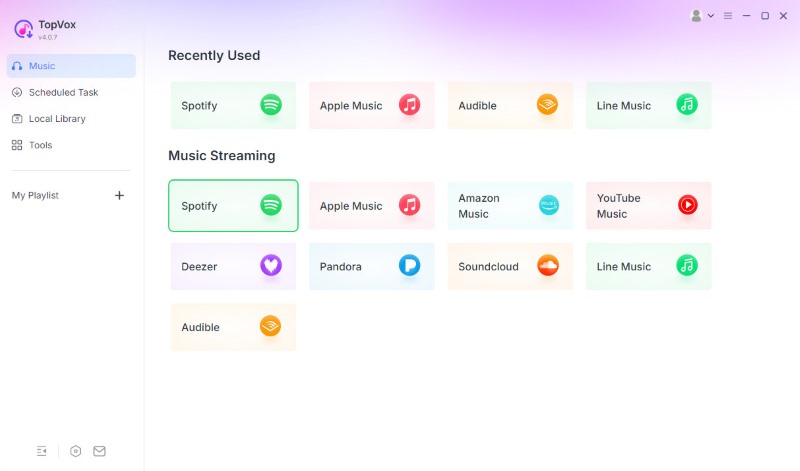
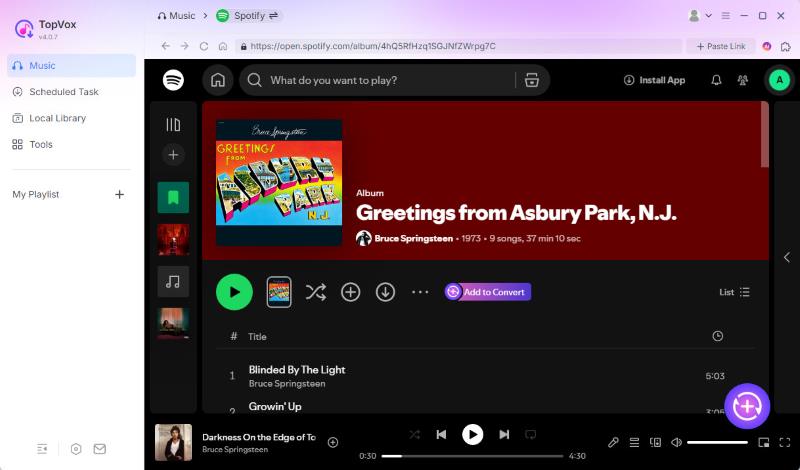
Step 2. Now, the tool will lead you to the homepage of Spotify. You can search any music you want, please click the Add to Convert button.
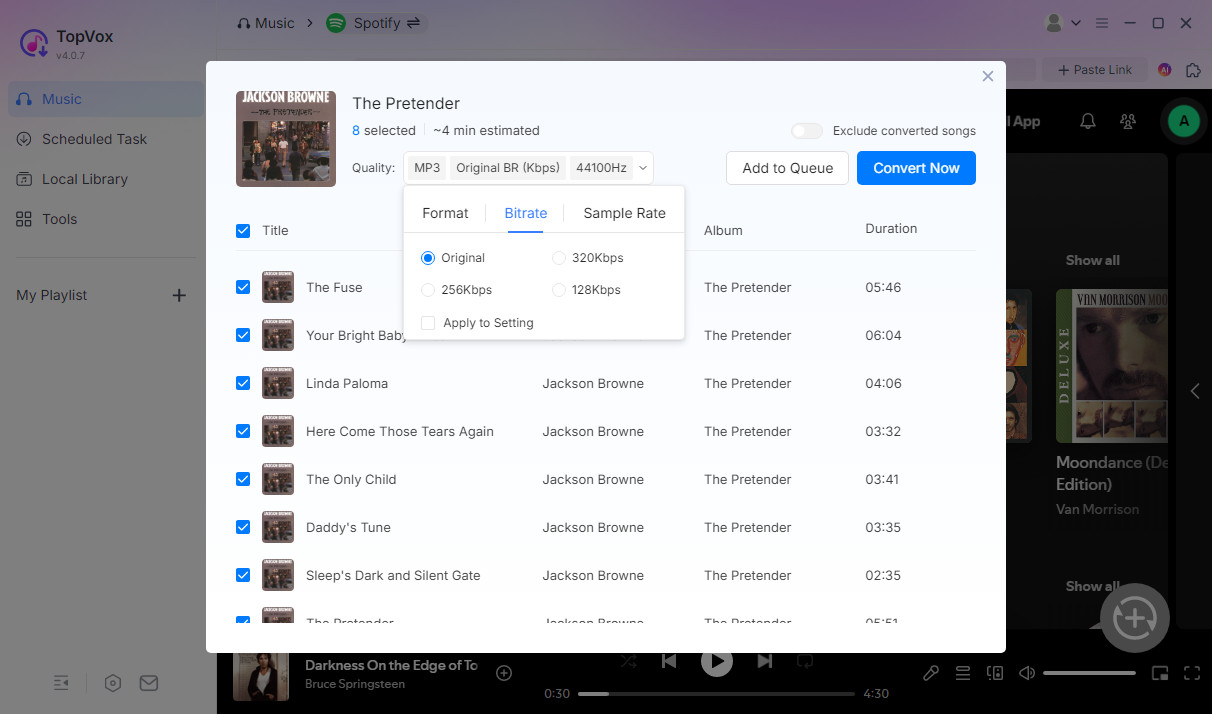
Step 3. After selecting the songs, click Add to Queue for later conversion.
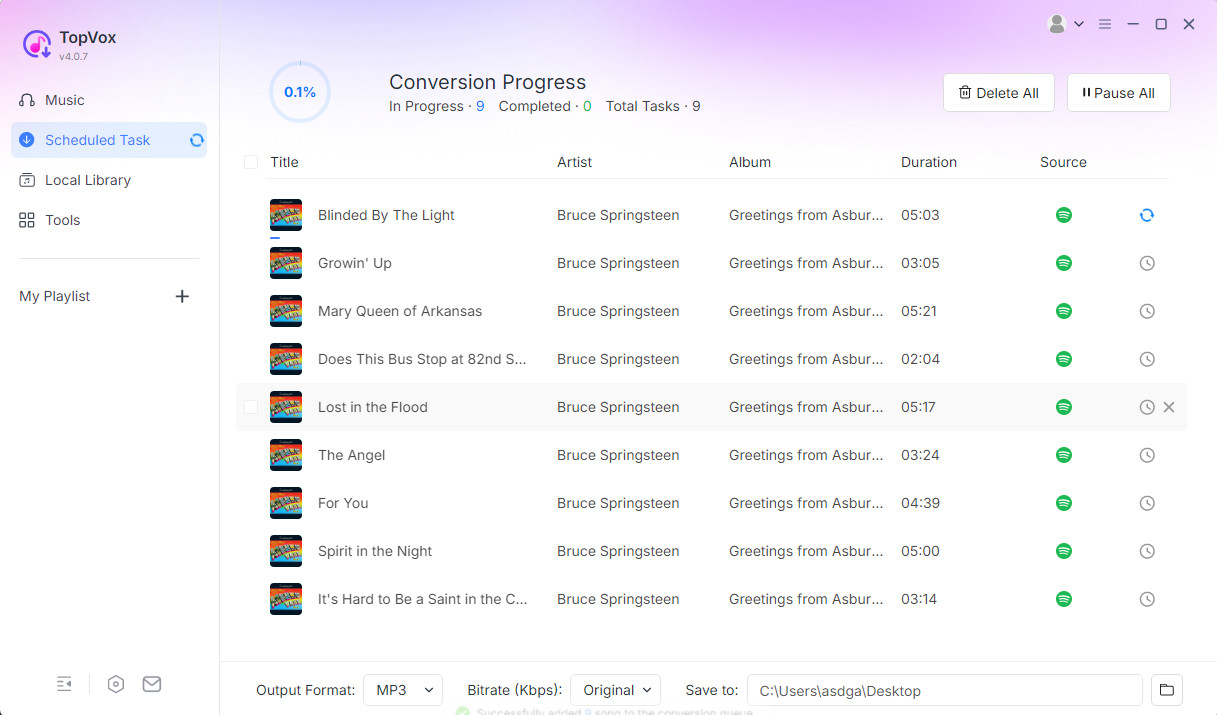
Step 4. Go to Scheduled Task to ensure the songs. Then you can click the Convert All to download music from Spotify and listen to the music for free.
Testing Experience
Rating: 4.5/5 ⭐⭐⭐⭐⭐
Andrei Verdeanu, a tech writer, reviewed, “you’ll either need to log into your account (for subscription-based services), or simply search for the desired content, and the app will basically provide a browser-based approach to that.” In my test, I logged in with a free account and tried to play songs, checking if there were any ads by default. After that, I converted several Premium songs seamlessly into MP3s. Gosh, all audio files are indeed 320kbps and ad-free! I’ve been listening to songs continuously without ads anymore. TopVox can serve as an effective Spotify ad blocker on PC!
How to Block Ads on Spotify on Mobile
Spotmute for Android
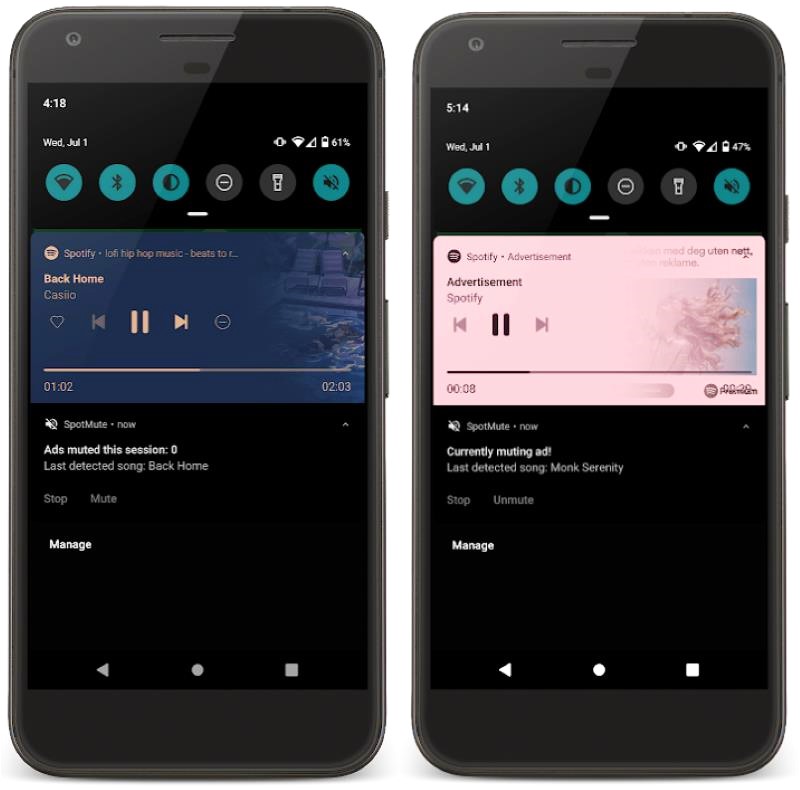
SpotMute is a free, open-source Spotify ad blocker for Android. As the name implies, if there are adverts when streaming Spotify music, it will mute the ad volume rather than skip them. When the ad concludes, SpotMute will unmute, allowing you to continue listening to Spotify music. As a result, it does not interfere with the Spotify app and does not require root permissions. However, it has certain drawbacks, such as the inability to silence commercials after you've skipped a track or before the first track is finished. Additionally, Spotify Lite is not supported. If you don't mind, here's how to block Spotify advertisements on Android.
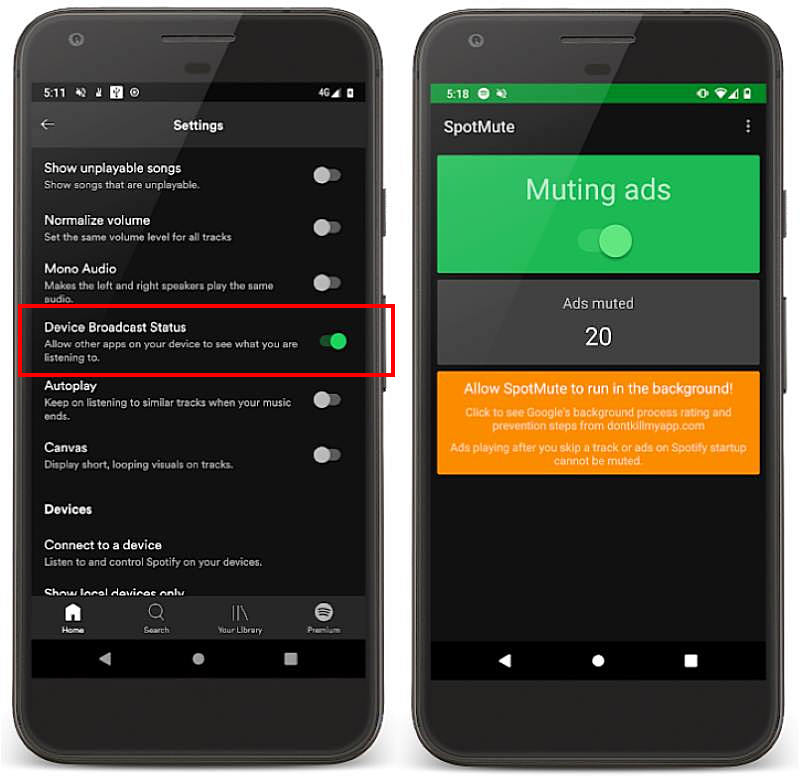
Enjoy Spotify songs without ads on Android via Spotmute:
Step 1. Launch the Google Play Store on your Android phone. Find SpotMute and download it on your device.
Step 2. Launch the Spotify application. Then click the Settings icon. Find Device Broadcast Status in the list and enable it.
Step 3. Close the Spotify app and launch SpotMute. Then turn on the huge switch. You will receive a pop-up notification. Please select the I have enabled it option. Play Spotify music, and SpotMute will remove advertising for you.
Limitation:
To be honest, it’s a free and lightweight app for Android users. Considering the security, it doesn’t require alarming permissions or even root access. However, this comes with some issues: It simply mutes ads instead of blocking them, and it can’t work well after you skip a track or before the first track has finished.
Mutify for iOS
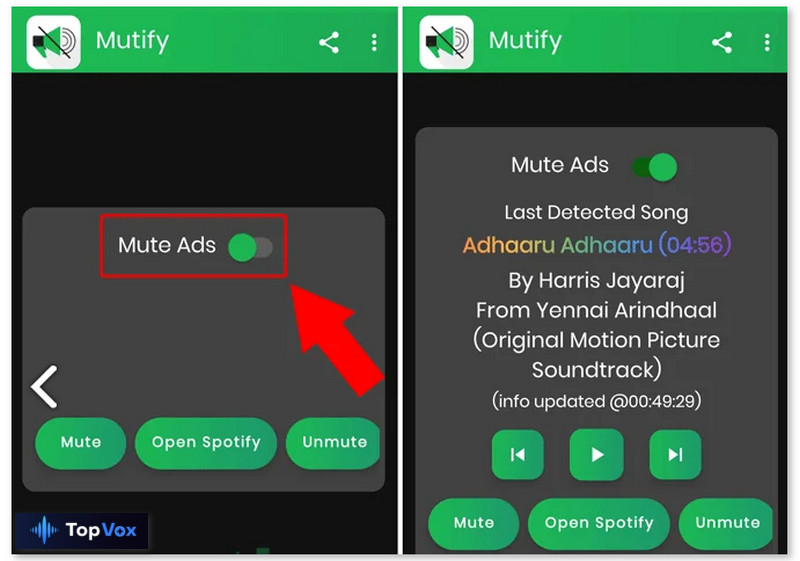
Mutify also offers a free Spotify ad blocker for mobile devices specially for iOS. It is absolutely free and operates in the background. When advertising shows when Spotify music is playing, the volume of the ads decreases. It also has controls for pausing, rewinding, skipping records, and more. Because it does not truly skip or prevent commercials, artists continue to earn ad revenue with each play, and it does not require any unnecessary permissions to function. However, Mutify, like the SpotMute Spotify ad skipper, does not support Spotify Lite. Here's how to block adverts on Spotify mobile using Mutify.
How to block Spotify ads on iPhone?
Step 1. Install Mutify on your Android device. Then start the Spotify app. In the Spotify app, navigate to the Settings section and enable Device Broadcast Status.
Step 2. Quit the Spotify app. Then, go to your phone's Settings app and find the Battery Optimization option.
Step 3. Select All Apps under the Not optimized option. Then select Mutify from the list. To disable Mutify's battery optimizations, select Don't optimize and then tap Done.
Step 4. Start the Mutify app and select the I have activated it option. Then, activate the Device Broadcast Status.
Pros
- No threat to user privacy.
- Automatically mute ads when changing tracks using in-app controls.
- Minimal battery consumption.
Cons
- You can still hear ads at lower volume.
- Spotify Lite is not supported because it lacks the 'Device Broadcast Status' feature.
User Review
“Awesome. it fixes a major problem and it's free. spotify ads have never been even the tiniest bit relevant to me.” —Umar Al-Farra, October 27, 2025
“Spotify's gotten to the point where there's an ad every two songs…This has saved me from the heart attacks of going from a calm song to a screaming ad. Doesn't block the "watch this short video" when you switch playlists but that's to be expected…The only issue is it doesn't work with one of my speakers…”—Kal “Dayton” Johnson, January 2, 2021
How to Block Ads on Spotify Web Player
Blockify
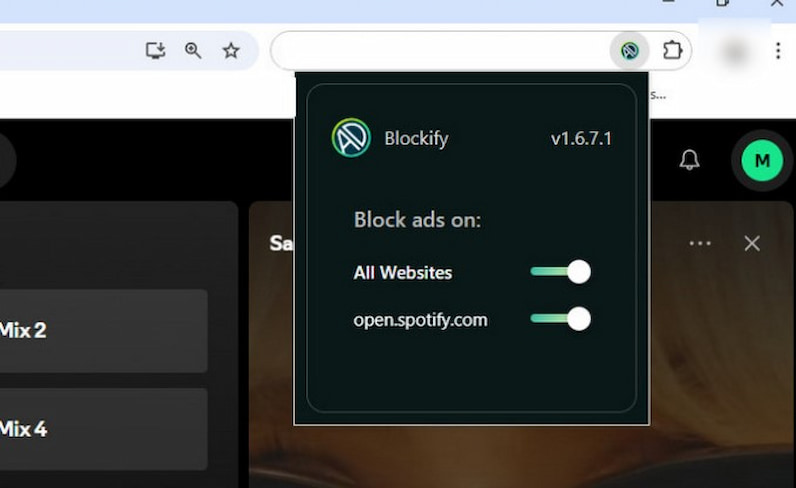
Blockify is a browser extension for Chrome, Edge, and Firefox that helps remove advertising from the Spotify web player. It's a dedicated Spotify ad remover that offers an ad-free listening experience when using Spotify on your web browser. Here, we will show you how to use it in Chrome:
Step 1. Open your browser and navigate to https://chromewebstore.google.com/.
Step 2. Type Blockify into the top search bar and click Enter to get the Chrome extension.
Step 3. To install the extension on your browser, go to its comprehensive information page and click the Add to Chrome button.
Step 4. Now, go to Spotify.com and sign in to your account. Blockify will automatically detect and skip adverts as you listen to Spotify music, delivering a flawless listening experience.
Adblock
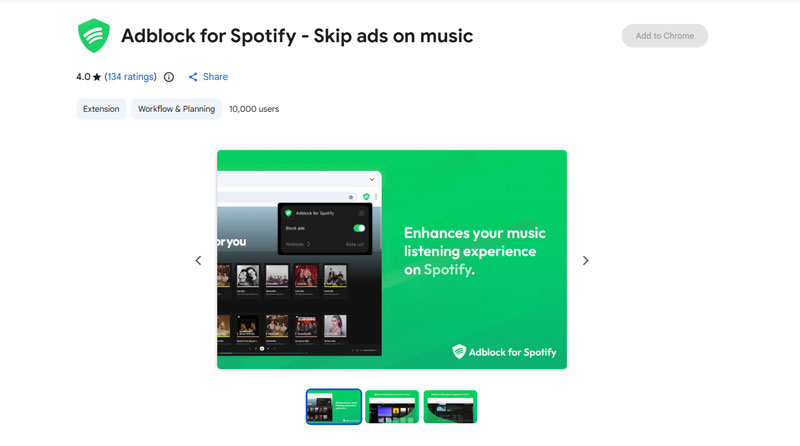
AdBlock is available for Android, iOS, and several web browsers. It is a Spotify ad blocker for iPhone/Android/Web that prevents unwanted commercials like pop-ups, video ads, and banner ads. This enhances page loading speed and memory efficiency while providing a speedier online experience. To use it, either install it on your phone or add the extension to your web browser.
Here we will demonstrate the detailed instructions on how to ban advertisements on Android:
Step 1. Open the Google Play Store app on your phone and search for AdBlock.
Step 2. Look for results that include the same logo as in the image above. Tap Install to install it on your phone.
Step 3. When you open it after installation, it will prompt you to install the Samsung internet browser; if you haven't already, follow the instructions and install it.
Step 4. Finally, go to spotiy.com and sign in to your Spotify account. AdBlock will automatically prevent advertisements while you listen to Spotify music.
Testing Experience
You should note that many Spotify ad-blocker extensions or plugins work by modifying client code. These tools may become invalid or unstable when Spotify upgrades. I found that the audio would stutter or load for a while after removing ads. The overall effect isn't quite perfect.
Block Spotify Ads via VPN
A Virtual Private Network (VPN) can alter your device's apparent location by concealing its IP address. This can have an impact on the ads you hear on Spotify, as the site normally displays adverts based on your geographic location. By utilizing a VPN, you may receive adverts in foreign languages, which may be more acceptable than ads in your local language. If you do not understand the language used in the advertisements, you may find them less obtrusive or bothersome.
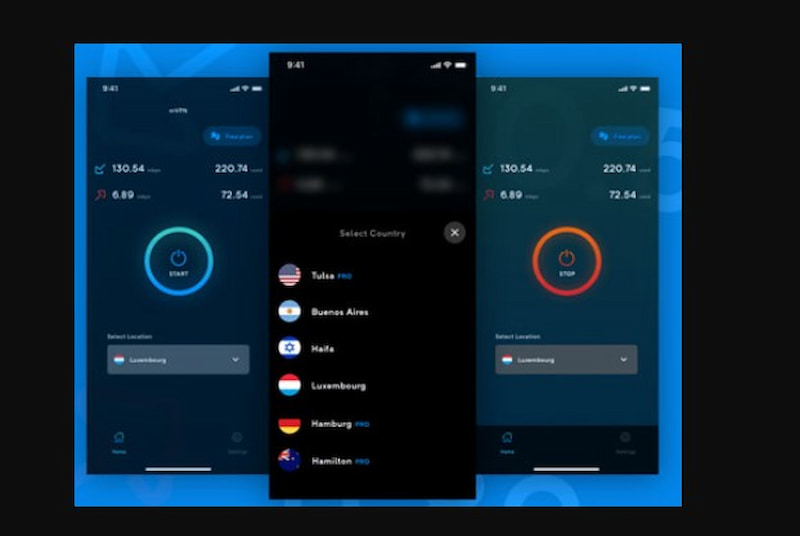
Step 1. Choose a VPN that is dependable and has ad-blocking features, such as NordVPN, Surfshark VPN, and others.
Step 2. Download and install the VPN app to your device.
Step 3. Launch the VPN app and connect to the server of your choosing.
Step 4. Once the VPN connection is established, use the Spotify app on your device and enjoy ad-free listening.
FAQs about Blocking Ads on Spotify
Why does Spotify have so many advertisements?
Spotify provides two versions of its music streaming service: a free version with commercials and a subscription version without adverts. This is a means of encouraging consumers to upgrade to premium programs. In addition, some podcast creators include sponsored commercials during their show times.
Why am I receiving ads on Spotify Premium?
In general, Spotify does not show advertising to Premium subscribers. However, when listening to podcasts on Spotify, you will see advertisements from some podcast creators.
Will I be blacklisted for using Spotify ad blockers?
Spotify may suspend or terminate accounts that employ unauthorized tools or modified app versions. It is safer to remain with legal options or to use the free plan with advertisements.
What is the difference between muting and banning Spotify advertisements?
Muting only reduces the level during ad playback, whereas blocking tries to skip or delete advertising completely. Muting is generally safer; however, banning may cause account troubles.
Do ad blockers function in the Spotify app?
Most ad blockers only function in online browsers, not the official Spotify desktop or mobile apps. Some updated apps claim to prevent adverts; however, they may violate Spotify's terms and conditions.
Conclusion
You now know how to disable adverts on Spotify using Spotify ad blockers for Android, iPhone, Mac, Windows, and Linux. Upgrading to Spotify Premium is the most straightforward option. If you do not want to pay a monthly subscription charge, you can try TopVox All Music Converter. It's the most secure and effective way to enjoy ad-free music and offline listening. Using ad blockers or unlicensed software may result in you being banned from Spotify. Changing the hosts file is complicated and necessitates adjustments whenever Spotify upgrades.
100% Secure. No virus.
100% Secure. No virus.
Luna Harper is a passionate music lover and an inspiring content sharer. She has explored most of the music converters available on the market, acquiring thorough knowledge of their features, usability, and differences. Luna enjoys using her professionalism to help fellow music lovers get superior audio quality.