Why Is Spotify not Working: Reason and Solutions For It
 by Luna Harper | April 7, 2026 | Spotify
Listening to music sets all the vibe and mood for a specific event, a simple day, or in anything that you are doing. However, Spotify having an issue playing songs sometimes occurs and we all get it if you are frustrated about it. That is why this article exists to help you solve it with ease. In this post, we will give you various guides and ways you can follow to fix Spotify not working. Learn the effective solution for it as you continue to read all of the details below.
Part 1. Quick Fix Checklist: Try These First
Method 1: Restart the App: Force Close and Relaunch
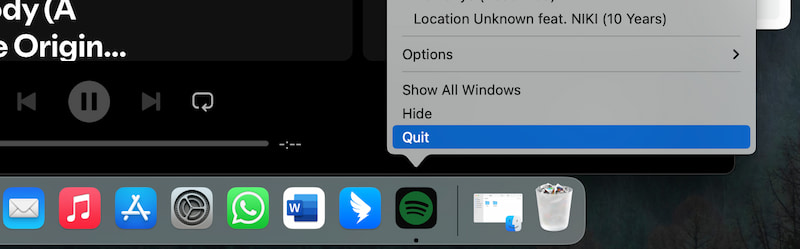
The most basic way to fix it is restart the Spotify tool on your device and reopen it.
- • For Mobile Phones: Close the app and re-open.
- • For PC or Computer: Click Control key and right click your mouse. Choose Force Quit. Then re-open Spotify.
Method 2: Toggle Airplane Mode: Reset Your Network Connection
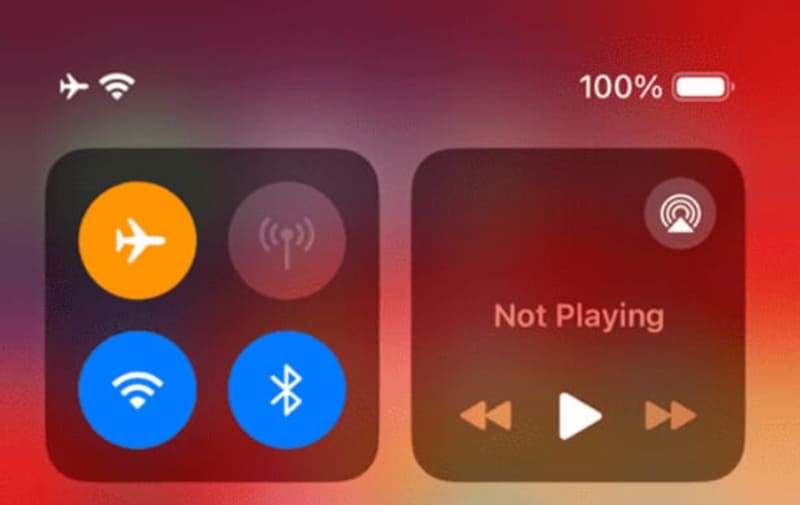
Step 1. Go to the Control Panel of your device. This is applicable for mobile phones whether an iOS or an Android.
Step 2. Click the Airplane Mode. Turn it on, and after 5 seconds, turn it off again. This will automatically restart your network connection for WiFi or data.
Step 3. Re-open Spotify, and play some music.
Method 3: Get Spotify Latest Version
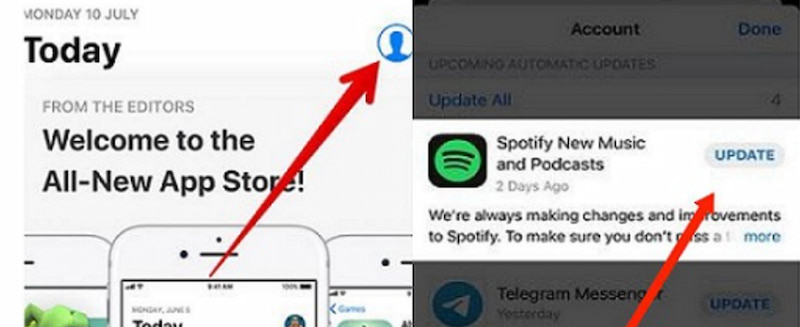
Step 1. Go to your App Store or Google Playstore.
Step 2. Search Spotify app.
Step 3. Click the Update button.
Part 2. Spotify Not Working on PC or Desktop
Issue 1: Windows Error Code 17
The reason behind the Windows Error Code 17 is usually linked to the network. There is a high chance where your firewall restrictions are blocking Spotify. To solve this problem try to follow these steps:
Step 1. You can restart your PC and router first.
Step 2. We need to check Windows Firewall and please allow Spotify through.
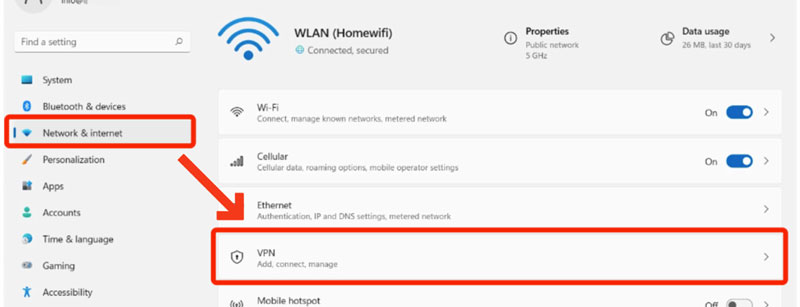
Step 3. It is also important to Disable VPN or proxy temporarily.
Note: If the issue persists, then you need to reinstall Spotify on your device.
Issue 2: Hardware Acceleration Conflicts
There is also a kind of issue where the hardware acceleration has a conflict. As we all know, Spotify uses hardware acceleration to improve performance. However it can conflict with certain graphics drivers. Here is the thing you need to do to fix it:
Step 1. Please open Spotify and select the Settings.
Step 2. From there, you can scroll to Compatibility and toggle Disable hardware acceleration.
Step 3. After that, you need to restart Spotify after changing the setting.
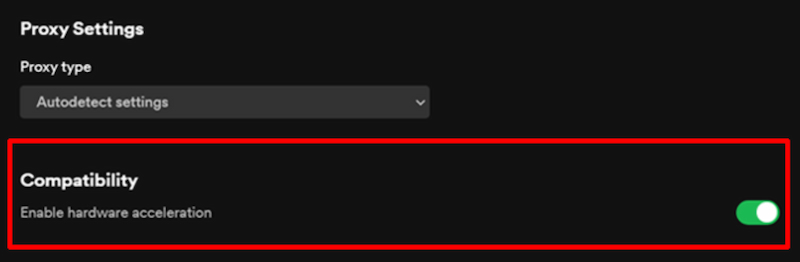
Note: It is a need to update your graphics drivers if disabling doesn’t help.
Issue 3: Outdated Operating System Software
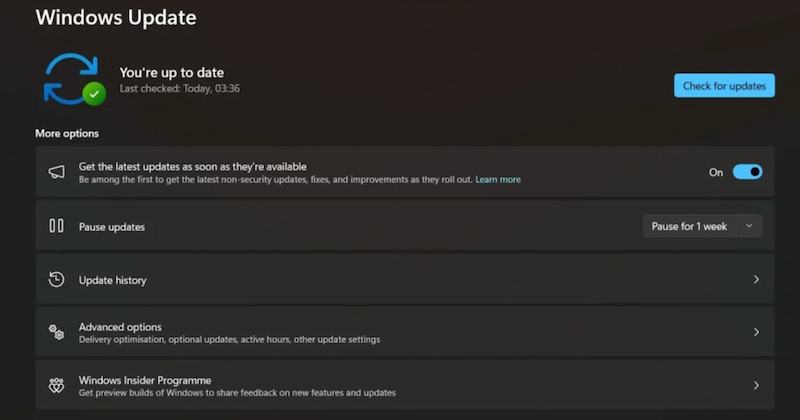
Another popular issue among Spotify users is their failure to update their application. As we all know, Spotify requires updated Windows components to run smoothly. So to ease this issue, we need following steps to get rid of it:
Step 1. First thing, we need to see Windows Update and install all pending updates.
Step 2. At this moment you need to make sure that NET Framework and Visual C++ Redistributables are all updated.
Step 3. Finally, please restart your computer after updates to apply changes.
Part 3. Songs are Greyed Out or Not Playing
Situation 1: Licensing and Region Locks
Maybe you are asking why some tracks are suddenly unavailable to play. Well, in simple explanation, greyed‑out songs usually mean that Spotify does not possess any rights to stream them in your region anymore. This issue can happen when:
- • A song’s license expires on Spotify.
- • The artist or label of the song removes the track on the platform.
- • The track is not licensed in your country.
- • Your IP address shows a different region because of VPN.

Situation 2: Offline Mode Confusion
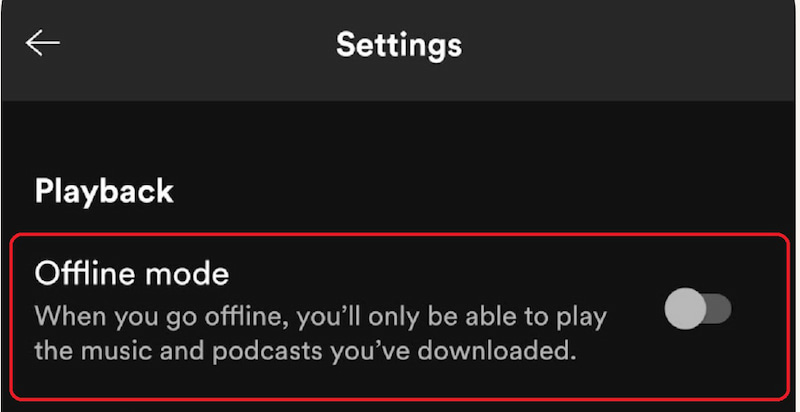
A direct explanation, we must know that if Offline Mode is enabled, all non‑downloaded songs will appear greyed out on your Spotify. Basically, if your Spotify is stuck in Offline Mode, you can only play songs that were downloaded on your device. This is how will you check it:
Step 1. Please open the Settings of your Spotify platform.
Step 2. Scroll down and see Playback among the options.
Step 3. From there, you only need to make sure that Offline Mode is turned OFF.
Situation 3: The 14-day Rule
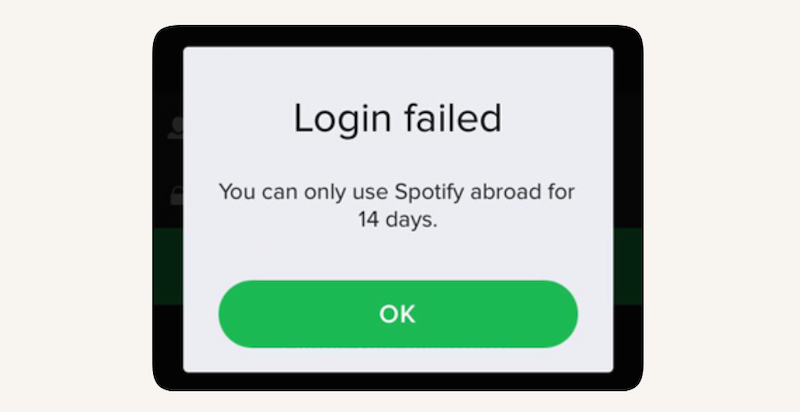
Many users are asking why songs on Spotify cannot be listened to offline if you haven't logged in to your account online for a long time. To educate you, if you do not go online at least once every 14 days, your downloaded songs stop playing. But do not worry if you are a premium user, because this is especially strict for Spotify Free users. Here’s how to fix it:
Step 1. We need to connect to the internet normally without VPN.
Step 2. Then, after that we need to open Spotify and let it sync for a few minutes.
Step 3. Log out and log back in if needed.
Part 4. Spotify Web Player Not Working
Issue 1: Browser Compatibility
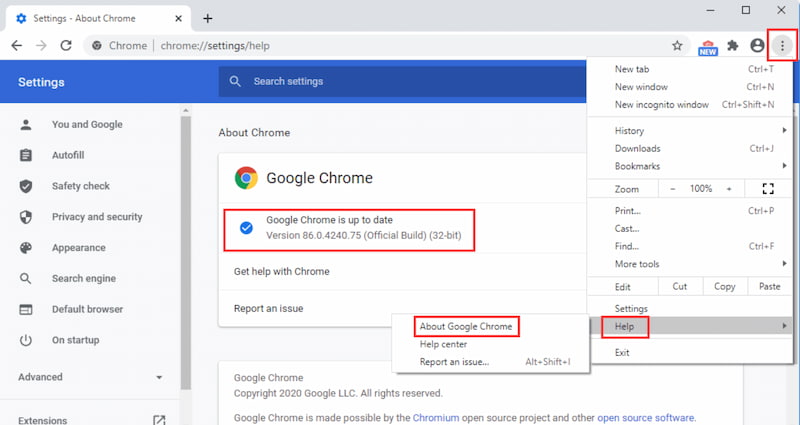
Spotify Web Player only works on supported and updated browsers. That means, if your browser is outdated or has a missing media component, then the player may refuse to load or play audio. Here how you will fix it
Step 1. You need to update your browser whether you are using Chrome, Edge, Firefox, or Safari.
Step 2. After that, please try opening Spotify in Incognito or Private Mode.
Step 3. You can also clear cache & cookies.
Issue 2: Ad-blocker Interference
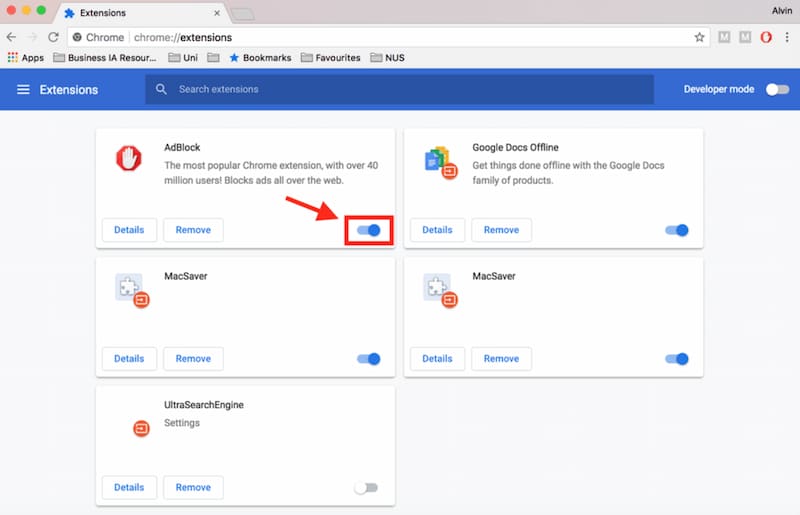
Tools you possess such as Ad‑blockers, privacy extensions, and script blockers have the capability to break Spotify Web Player by blocking scripts, cookies, or DRM modules. With that, Online Tech Tips and other experts confirm that extensions are a common cause of the web player not working. Thus, this is how to fix this problem:
Disable your ad‑blocker temporarily and privacy extensions like uBlock Origin, AdGuard, Ghostery, and Privacy Badger are a great help. After that, please restart the browser and reload Spotify.
Part 5. Premium Features Not Working
Issue 1: Subscription Sync Error
There are many users that say their Spotify does not immediately recognize your Premium subscription due to a sync issue. However, it is important to double-check if you are not accidentally logged into a free account. This is common if you have multiple emails.
Step 1. First, we need to log out of your account on all devices.
Step 2. Then, try to log back in using the correct account that has a Premium subscription.
Step 3. This refreshes your subscription status and restores Premium features. After all of that, play a song and try to see if the premium is already syncing.
Issue 2: Device Limit Reached
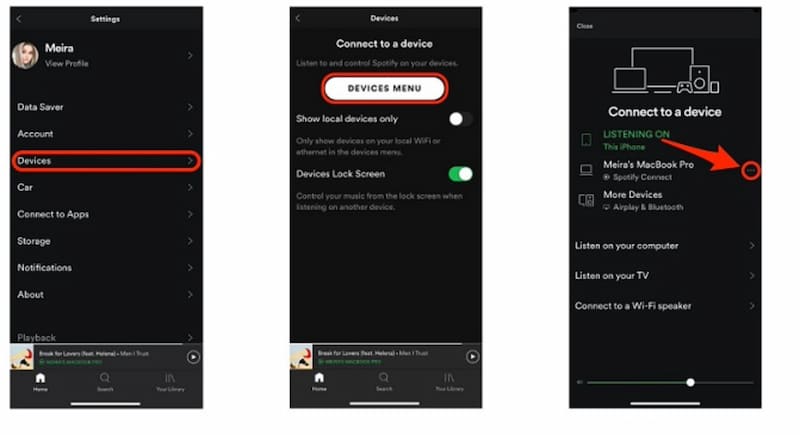
There is a rule that Spotify Premium allows offline downloads on up to 5 devices only. Therefore, if you exceed this limit the new downloads probably will not work. Just a quick tip, Removing a device frees up a slot instantly, so you can add your new phone, tablet, or computer without waiting.
Step 1. Start by going to Account Settings then find Offline Devices.
Step 2. You can now remove devices you no longer use.
Step 3. Try downloading again on your current device and play it.
Part 6. Audio Issues: No Sound or Poor Quality
Fix 1: Output Device Check
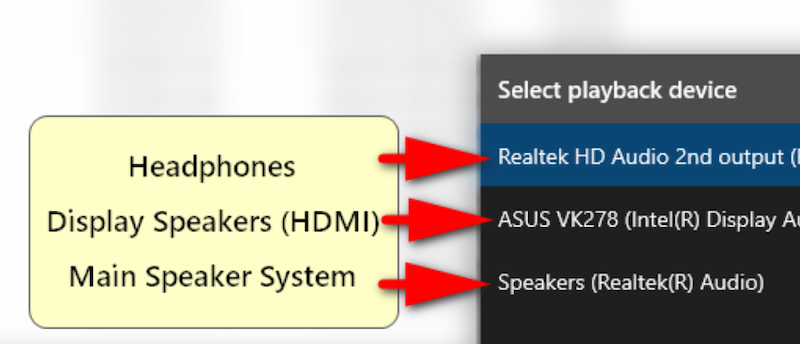
Step 1. You need to check your device’s sound output first. On Windows, you need to click the speaker icon as you choose the correct output. Then, on Mobile, make sure that Bluetooth is connected to the correct device or turn Bluetooth off to force playback through phone speakers.
Step 2. After that, you need to check Spotify’s internal output. Open Spotify Desktop and go to Advanced Settings. Under Playback, confirm the correct output device is selected.
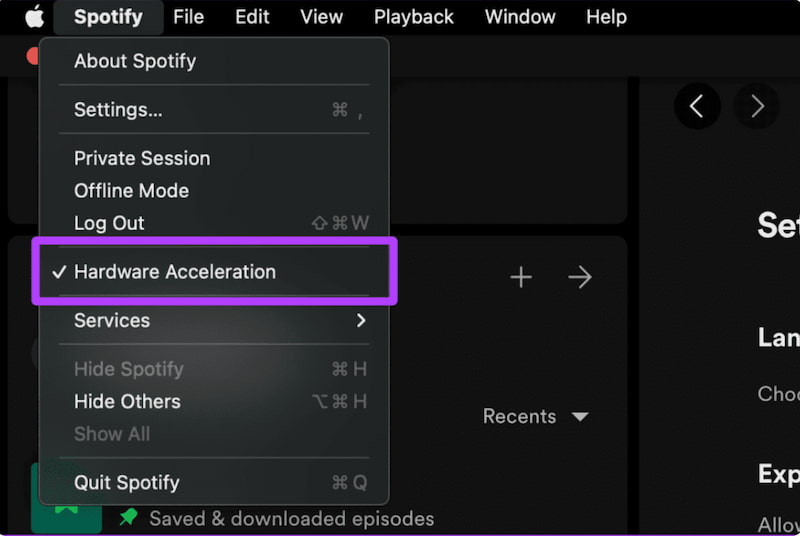
Fix 2: Hardware Acceleration
Step 1. First, open Spotify Settings. You can click your profile icon to see the Settings.
Step 2. Scroll to Compatibility as you find Hardware Acceleration
Step 3. Turn it Off. Toggle off Hardware Acceleration. Finally, restart Spotify to apply changes.
Part 7. How to Avoid Spotify not Working Issue?
At this moment, maybe you are already tired of the issue that is happening on your Spotify. This is more frustrating especially if you are paying the expensive monthly subscriptions. Therefore, having an alternative tool to use can save you from stress. Because, you can now use TopVox All Music Converter to use Spotify without ads even if you do not have a premium account. Another best thing about it is the fact that downloading music for offline listening is also possible. Take a look at the easy way to use it.
Step 1. Get the amazing TopVox All Music Converter for free and install it on your computer.
100% Secure. No virus.
100% Secure. No virus.
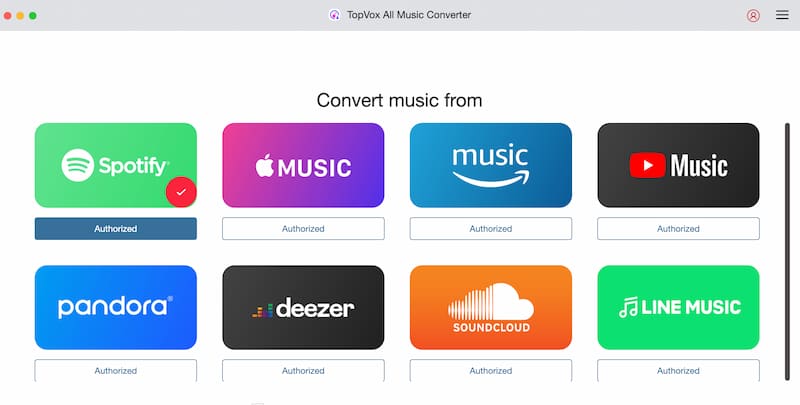
Step 2. Open the tool and see its main interface. From there, choose Spotify among the options.
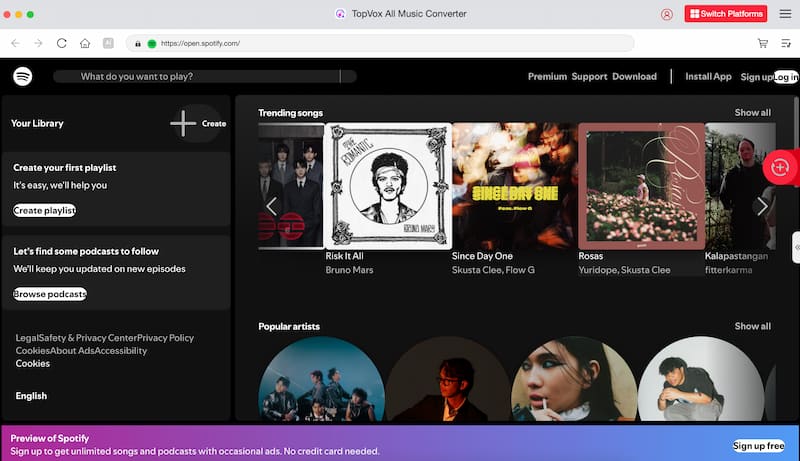
Step 3. Search and play the music you would like to listen to.
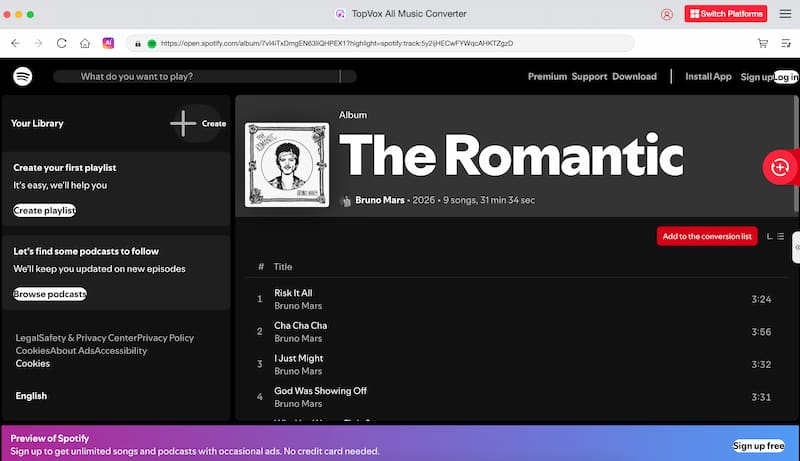
Step 4. Optional step. You can download the Spotify music you love for offline listening by locking the Add icon on the right side of the track.
FAQs on Spotify Not Working
Q: Why does my Spotify keep crashing?
A: Usually the issue of Spotify keeps on crashing is due to corrupted cache or outdated software. That is why we suggest that clearing cache or reinstalling the app can eliminate the issue.
Q: Why can’t I play songs offline?
A: It is important to know that offline playback requires Premium. If that is so, you must also download songs first when you are online.
Q: Does reinstalling delete my playlists?
A: Reinstalling Spotify will not delete your playlist. This is simple because playlists are tied to your account. Only downloaded files are removed.
Conclusion
We can now conclude that Spotify is great in giving entertainment with music. It is really an incredible way to party, jam, reflect, or anything that you are doing with music. But, sometimes it is stressful because of the issue that can occur anytime and interrupt your listening experience. That is why, we gave you solutions in this article and good thing we have TopVox All Music Converter that can be your alternative in using unlimited Spotify. Try it for free now.
100% Secure. No virus.
100% Secure. No virus.
Luna Harper is a passionate music lover and an inspiring content sharer. She has explored most of the music converters available on the market, acquiring thorough knowledge of their features, usability, and differences. Luna enjoys using her professionalism to help fellow music lovers get superior audio quality.