Block Spotify Ad: Enjoy Unlimited Music without Interruption
 by Luna Harper | May 7, 2026 | Spotify
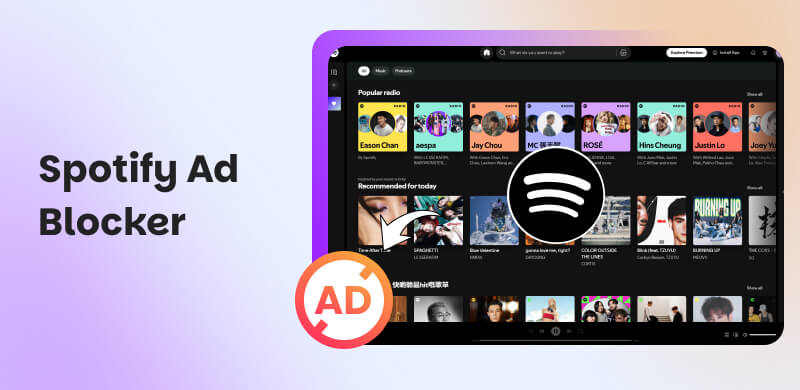
Spotify offers a wide range of options for listening to music. Whatever genre like from love songs, to pop, to jazz, and more. More than that, it is also popular for its great algorithm that adds greatness to the experience. However, that might be interrupted when you do not have a premium account. Because listening to music with a free account comes with a lot of ads. Thus, if you need a Spotify ad blocker, then this article is for you. See great tools you can use for a more amazing Spotify listening experience.
Part 1. TopVox All Music Converter: Best Free Way to Block Spotify Ads Permanently
TopVox All Music Converter
TopVox All Music Converter can make you listen to your Spotify without ads. This tool possesses features that support music sites allowing users to listen to music without ads. All you need to do is connect your spotify account to it and you are good to go. For deeper details about it, here are more features you can enjoy in this tool and the simple steps you need to take in order to maximize its features.
Features
- Ad filtering during recording.
- Uninterrupted playback.
- Offline download of music and conversion.
- Wide support for cross-platform support.
- Lifetime updates.
How to Use TopVox All Music Converter
Step 1. Get the amazing tool of TopVox All Music Converter from their official website, then immediately install it on your computer.
100% Secure. No virus.
100% Secure. No virus.
Step 2. You can now open the tool on your computer. Access its user-friendly interface, and among the options of the site choose Spotify. In this interface, you can also see more of the platform it supports.
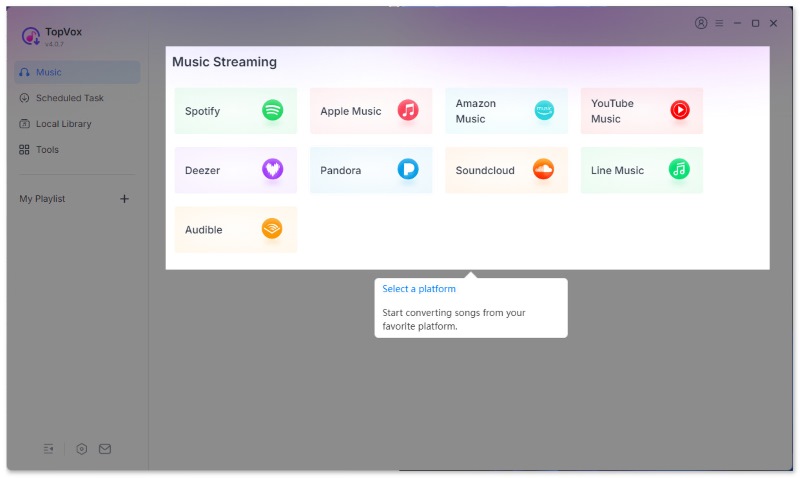
Step 3. After that, the tool will require you to login your Spotify account. It does not matter if you have a free version of it because TopVox All Music Converter will do the magic for you.
Step 4. If you successfully logged in your account, you can now search the music you love, start listening and you will notice that the ads are gone.
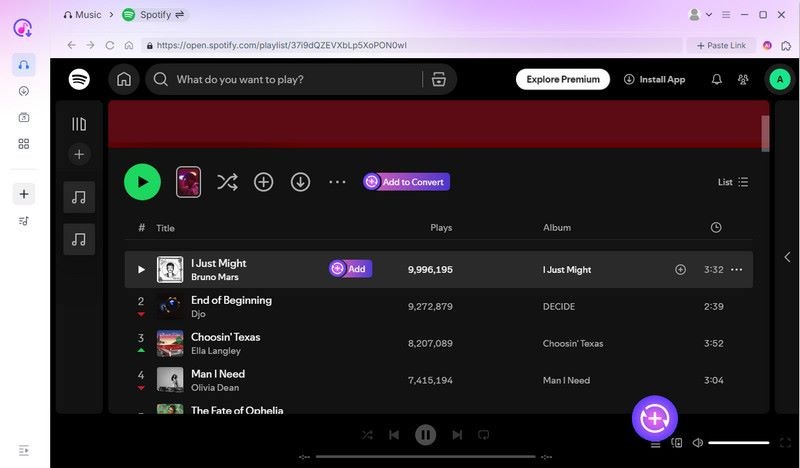
Optional Steps: You can also download the music, playlist, or album of your choice so that you can listen to it offline. You only need to click the Download icon on the right side of the music of your choice. A hundred percent sure of listening to music without ads from Spotify.
Part 2. How to Block Spotify Ads on Mobile
Tool 1: Mutify
- • Platform: Android & iOS
- • Users’ Rating: 3.5/5.0
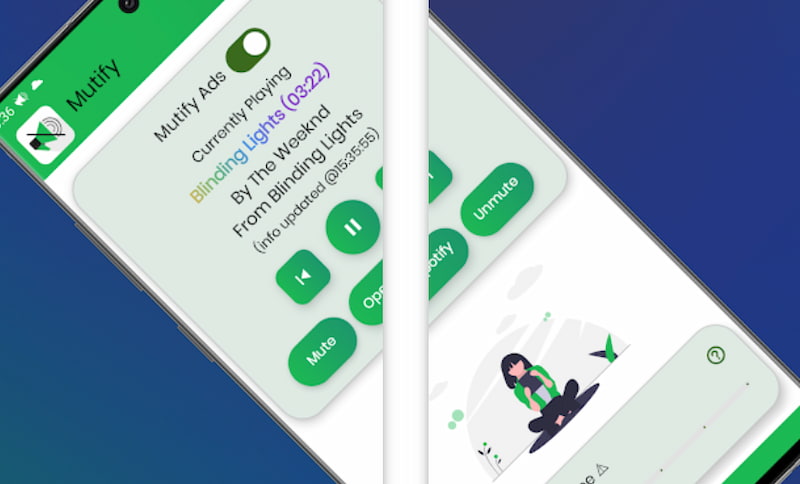
The first tool we have to get rid of the ads on Spotify is called Mutify. However, we need to understand that this mobile app does not block ads directly. Instead, the tool automatically mutes your device’s volume when Spotify plays an ad. Then it immediately restores the sound once the music resumes. Technically speaking, muting is its best ability so that you will not hear unnecessary ads especially if you are in an event with people.
How to Use Mutify
Step 1. We need to download Mutify from the Google Play Store for Android or App Store for iOS users.
Step 2. Now, please proceed with opening the app and grant the necessary permissions such as the access to notifications.
Step 3. At this moment, it is now time to launch Spotify and start playing the music you would like to hear.
Step 4. It is also important to keep Mutify running in the background. Because it will automatically mute your device when ads play as we mentioned above.
Pros
- Easy to set up and use.
- Doesn’t require rooting or jailbreaking.
- Works seamlessly in the background.
Cons
- Ads still play, you just do not hear them.
- Requires Spotify to be running in the background.
- Limited to muting without skipping or removing ads.
Tool 2: Extdns
- • Platform: Android
- • Users’ Rating: 4.0/5.0
The second application is primarily for Android users only. This is Extdns which is known to be a DNS-based ad blocker. It reroutes ad requests from Spotify’s servers so they do not load. Thus, this application possesses the features you need to block the ads that interrupt your listening experience.
How to Use Extdns
Step 1. Start by installing Extdns from a trusted source, often GitHub or third-party app repositories.
Step 2. Once you get the app, please open the app then proceed with configuring it as your device’s DNS resolver.
Step 3. Next, do not forget to enable the service. This will allow Extdns reroutes and requests.
Step 4. Finally, please launch Spotify and start listening to music. You will notice that ads will be blocked while enjoying your favorite music.
Note: If you notice connection issues, try switching DNS servers or restarting the app.
Pros
- Blocks ads at the network level.
- Can work across multiple apps, not just Spotify.
Cons
- Requires custom DNS setup, which can be tricky.
- May cause connectivity issues or slowdowns.
- Effectiveness depends on Spotify’s server updates.
Limitations: Why Mobile App Blockers Unstable
- System Restrictions. We all know that iOS especially limits background processes, this makes ad-blocking less reliable.
- Spotify Updates. Spotify frequently updates how ads are delivered.
- No Full Control. In desktop solutions you can use modified clients or extensions but in mobile apps it is sandboxed. That means blockers cannot fully remove ads.
Part 3. How to Block Spotify Ads on Desktop
As we mentioned above the desktop ad-blocking tools are generally more stable and effective if we compare them to mobile application solutions. Mainly it is because Desktop software is capable of deeper system-level integration. Plus, the extensions and modified clients can intercept Spotify’s ad requests directly. That basically means users of Spotify have more control over DNS, firewall, and system-wide filters. Here are three extensions you can use to block ads on Spotify with a general guide you can follow:
Tool 1: AdGuard: Unlock Origin
The first extension we can use for blocking ads on Spotify is called AdGuard. It is a system-wide ad blocker that filters traffic across Spotify. That is possible because it intercepts ad requests at the network level. This basically prevents ads from loading and provides smoother playback.
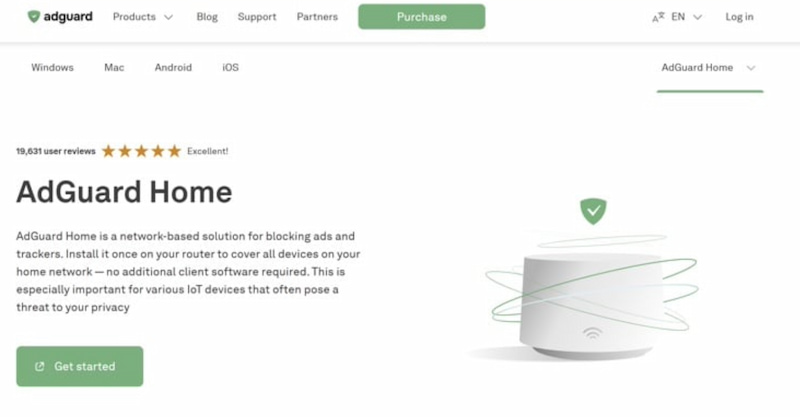
Step 1. We need to download and install AdGuard from its official website to our computer web browser.
Step 2. After that, proceed with launching AdGuard and do not forget to enable system-wide filtering.
Step 3. Now, please proceed with your settings. From there, you need to ensure HTTPS filtering is enabled. This detail will become important for Spotify traffic.
Step 4. Keep AdGuard running in the background. Spotify ads should be blocked automatically.
Pros
- Works across all apps, not just Spotify.
- Simple to use.
- Block Spotify ads effectively.
Cons
- Paid license required for full features.
Tool 2: Blockify
Blockify is a lightweight patch that you can use for Windows Spotify. This is capable of directly removing Spotify ads. It modifies the Spotify installation files so ads never play, offering a clean listening experience. However, it may need reinstallation after Spotify updates.
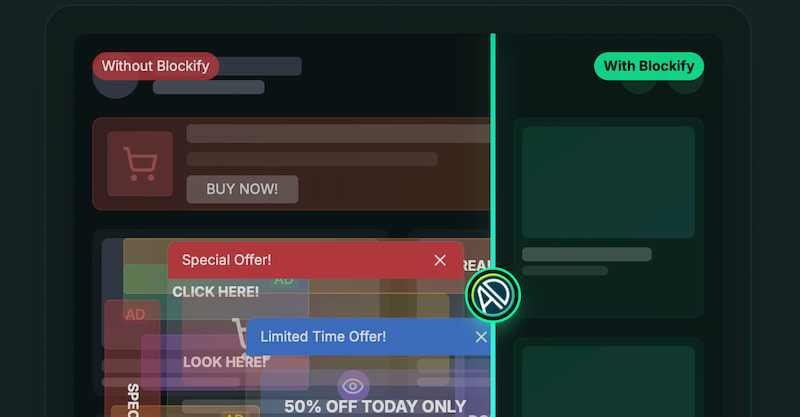
Step 1. We shall start by downloading the latest Blockify release. You will definitely get it fromGitHub.
Step 2. At this moment, it is important to close Spotify completely on your computer.
Step 3. From there, we can now extract the files and copy them into the Spotify installation folder.
Step 4. After that, restart Spotify. Then try to play a couple song and notice that ads should be gone this time.
Pros
- Direct removal of ads, no muting.
- Effective for browsers.
Cons
- It is only available for Windows.
- The tool may break after Spotify updates.
Tool 3: SpotiAds
The third tool we can use is called SpotiAds. This is a Mac utility that detects when Spotify plays an ad and automatically mutes the system volume. This is the version of Blockify for macOS users. In this tool, once the ad ends it restores sound for the music track. Many users say the tool is simple and effective. Though ads still run silently in the background.

Step 1. We need to download SpotiAds from its official site or GitHub and install it on your device. Also, please grant necessary permissions such as accessibility access.
Step 2. Launch Spotify to play and listen to your music. Then you need to keep SpotiAds running in the background so that it can manage the ads. Ads will play silently, and music resumes with sound.
Pros
- Simple and lightweight to use.
- Mutes ads effectively.
Cons
- Ads are not removed but only muted.
- Mac-focused only.
Part 4. How to Block Spotify Ads on Browser
The blocking of Spotify ads using your browser is also possible. Because we have different extension tools that can help us do it. Here are some examples:
Tool 1: uBlock Origin: Free Tool
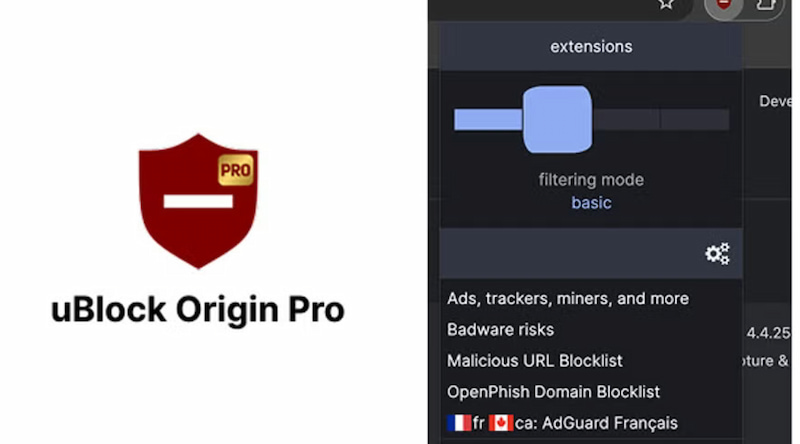
First, the tool we can use is uBlock Origin. This tool is a free ad blocker that works across major browsers like Chrome and Firefox. The tool can do the main job of blocking intrusive ads with ease.
Tool 2: Blockify: Spotify-Specific Extension
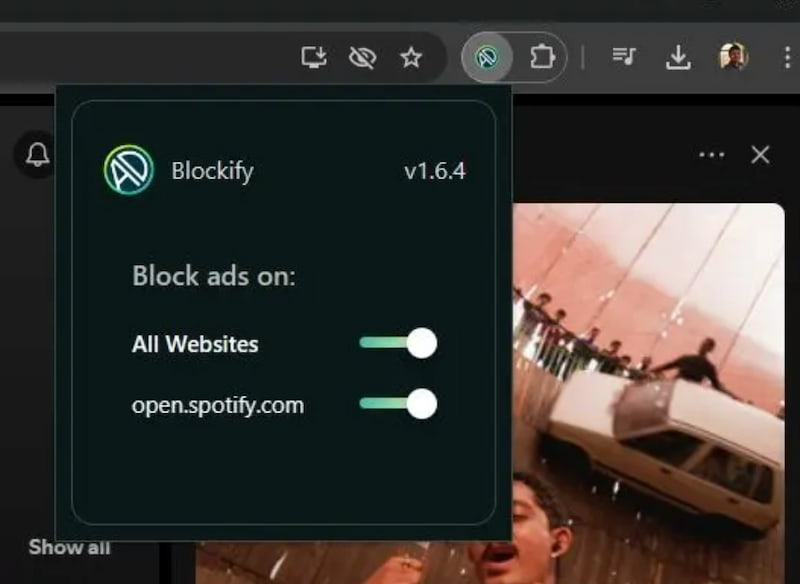
The second tool is Blockify which is specifically designed for Spotify users. This tool is targeting audio and banner ads on the Spotify platform effectively. Once an ad is detected, then the tool will now automatically mutes or skip ads while streaming.
Tool 3: SpotiAds for Chrome and Firefox Extension
Third is SpotiAds. It is known as a browser extension which is only available for Chrome and Firefox. This tool simply integrates seamlessly with your browser, blocking unwanted interruptions while you are enjoying your music.

General Guide to Block Spotify Ads on Browser
Step 1. Install an ad-blocker extension you want to use.
Step 2. Please enable the extension.
Step 3. Now, you need to log in to Spotify Web Player and enjoy ad-free streaming.
Part 5. Spotify Premium: Is it Worth it?
In reality, Spotify Premium costs more than before in 2026. Yet strong value for ad-free listening still remains. In addition, offline playback, higher audio quality, and a great algorithm is still here. The question remains too, is it worth it to get a premium account for Spotify. Here are the things that you can get once you subscribe for a premium account.
What You Will Get in Spotify Premium Account
- Ad-free listening. That means there will be no interruptions between songs.
- Offline playback. You can download tracks and playlists to enjoy without data.
- High audio quality. You can listen to music that comes with up to 320 kbps streaming.
- Social features. On Spotify, you can have real-time listening with friends, group sessions, and listening parties using the jam features.
- Cross-device access. It offers seamless playback on phones, speakers, smart TVs, and cars.
Price List of Spotify Premium
| Plan Type | Price | Key Features |
|---|---|---|
| Individual | $12.99 per month. | Full Premium access for one user. |
| Duo | $18.99 per month. | Two accounts under one plan. |
| Family | $21.99 per month. | Up to 6 accounts, parental controls. |
| Student | $6.99 per month. | Discounted Individual plan for eligible students. |
Conclusion
We can now conclude that listening to Spotify without ads is an incredible experience. Because there will be no interruption on your end. That means the party will be limitless. However, if you do not have a premium account then a Spotify ad blockers is needed like the best tools we mentioned above. You gotta choose what’s best for you. Topvox All music converter is also a good choice to download music on Spotify without premium.
Luna Harper is a passionate music lover and an inspiring content sharer. She has explored most of the music converters available on the market, acquiring thorough knowledge of their features, usability, and differences. Luna enjoys using her professionalism to help fellow music lovers get superior audio quality.