FLAC to MP3 Converter: 5 Best Tools & How to Use Them
Summary
This post compares five top-rated FLAC-to-MP3 converters, both online and offline. We will also share why we need to convert FLAC and share tips to keep high-quality MP3s.
TopVox All Music Converter is our top pick for high-quality conversion, batch processing, and music management.
CloudConvert is best for quick online conversion of a few files.
Audacity is best for those who also need audio editing.
FreeConvert is best for simple browser-based conversion with basic audio controls.
Fre:ac is best for free desktop batch conversion and large music libraries.
FLAC provides lossless audio quality but produces relatively large files. Also, these files do not open and play with every device or player. Converting FLAC to MP3 creates a smaller and more compatible format that is easier to share, transfer, FLAC-to-MP3 converters offline and online. You will learn how to choose the right tool for individual tracks or large music conversions. As a bonus, we will provide tips to help you keep the converted MP3 files in high quality.
Part 1. Why Convert FLAC to MP3?
FLAC is a lossless format that preserves the original audio information without compression. Many use it for archiving and high-quality listening, but it takes a lot of space. Meanwhile, MP3 is an audio format that uses lossy compression to create smaller files. This format is mostly used on smartphones, portable players, car stereos, sites, and apps. The main reason why we convert FLAC to MP3 is to save space and ensure the audio plays on any device.
| FLAC | versus | MP3 |
| Lossless | Compression Type | Lossy |
| A 3-minute FLAC can range from 15 to 20 MB. | File Size | A 3-minute MP3 can range from 3 to 7 MB. |
| 700 kbps to 1,411 kbps | Bitrate Range | 32 kbps to 320 kbps |
| Up to 192 kHz | Sample Rate Range | Up to 48 kHz |
| Archiving and high-quality audio listening | Common Usage | Casual listening, smartphone playback, and car stereo |
Part 2. 5 Best FLAC to MP3 Converters [Software & Online]
| OS | Max Audio Quality | Batch Download/Convert | Processing Speed | Supported Formats | Advanced Tools |
| TopVox All Music Converter | Windows and Mac | 24-bit/320 kbps/48 kHz | ✅ Unlimited | 35× | MP3, WAV, M4A (AAC), M4A (ALAC), and AIFF | Music streaming downloader and converter, AA/AAX converter, playlist transfer, and tag editor |
| CloudConvert | Web | 256 kbps/48 kHz | ✅ 5 concurrent conversions | Depends on the server | MP3, AAC, AIFF, etc. | Trim only |
| Audacity | Windows, Mac, and Linux | 32-bit/44.1 kHz | ❌ One at a time | Normal speed | MP3, WAV, AIFF, etc. | Fade-in/out, reverse, and trim |
| FreeConvert | Web | 256 kbps/44.1 kHz | ✅ 5 concurrent conversions | Depends on the server | MP3, ALAC, AMR, etc. | Spectral selection/editing, multi-clip operations and splitting, and AI-powered effects |
| fre:ac | Windows, Mac, Linux, and FreeBSD | 32-bit/320 kbps/48 kHz | ✅ | 12× | MP3, M4A (AAC), Opus, etc. | CD ripping, HDCD decoding, and hidden track ripping |
1. TopVox All Music Converter
TopVox All Music Converter’s primary function is to download and convert music from streaming services for offline listening. Due to high usage, it upgraded and expanded its service, adding a Format Converter. With it, you can convert FLAC to MP3, WAV, M4A (AAC), M4A (ALAC), and AIFF. You can process more than one file simultaneously without crashes or lag. Better yet, it uses advanced hardware acceleration media processing to achieve 35× speed.
FEATURES:
- Turn lossless FLAC to MP3, M4A (AAC), WAV, ALAC, and AIFF.
- Convert hundreds of files simultaneously without lag or crashes.
- Utilizes advanced hardware acceleration to achieve 35× conversion speed.
- Retains entire ID3 tags/metadata, including album artwork, song title, and artist name.
Step 1. Download the TopVox All Music Converter and complete the setup.
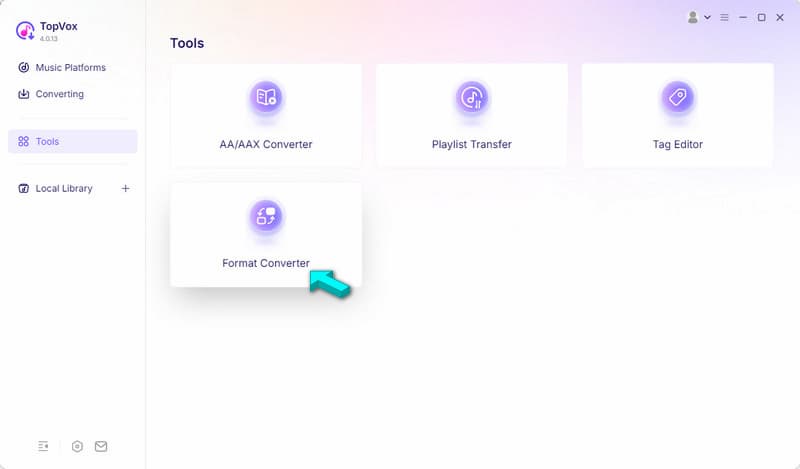
After installing TopVox, navigate to the Tools tab and select the Format Converter.
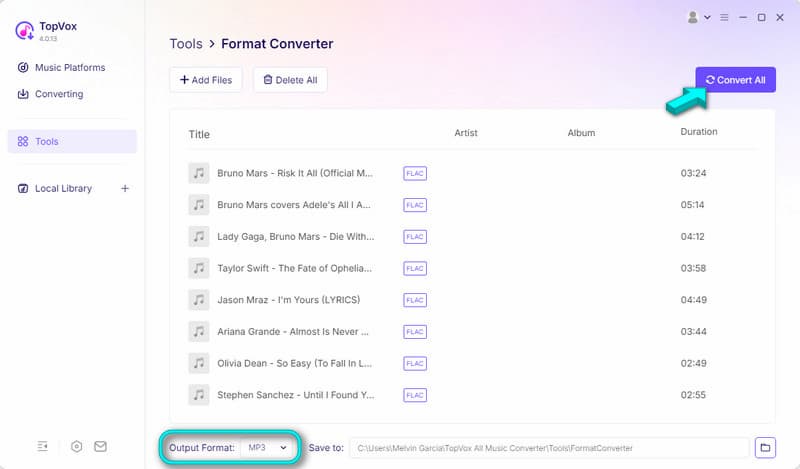
Step 2. Drop all your FLAC files or click +Add Files to import them. TopVox has no limit on the number of files or sizes you can process, meaning you can import multiple files.

Step 3. Go to the Output Format picker of the FLAC-to-MP3 converter and select MP3. Set the output destination, then click Convert All to start the conversion.
To assess TopVox’s capabilities in terms of speed, batch processing, and output quality, we put it to the test. We use 100 FLACs, totaling 2.4 GB, as our source files for MP3 conversion. In our test, TopVox took only 3 minutes and 13 seconds to complete the entire batch conversion. During the audit, we heard no distortions or muffled sounds on the final output.
2. CloudConvert
CloudConvert is an online media and file conversion service that supports 200+ formats. It can output high-quality audio files, provided you have configured the audio settings correctly. With it, you can adjust the audio codec, Qscale, bitrate, channels, and sample rate.
To convert: Open CloudConvert on a browser, then click Select File to add FLAC sources. Select MP3 as the output, then click Convert to begin the conversion. Right after the conversion, download each to save locally.
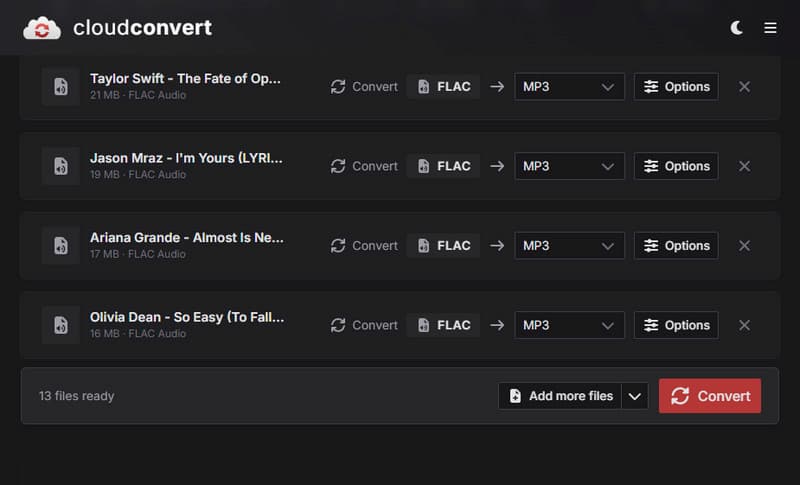
Use this online FLAC-to-MP3 converter when you need to convert only one or two files under 1 GB. However, if your files are sensitive, it is better to use offline tools such as TopVox.
3. Audacity
Audacity is an established tool known to many as an audio-only recording and editing software. Beyond these capabilities, it can change your FLAC input to MP3 format by simply exporting it. You can also use it as an MP3-to-FLAC converter if you need to do the reverse.
To convert: Import your FLAC files to Audacity, then click File, and select Export Audio. Choose where you would like to export the file: Share to audio.com or Export to computer. In the Export Audio window, click Format and select MP3 Files. Then, click Export to save.
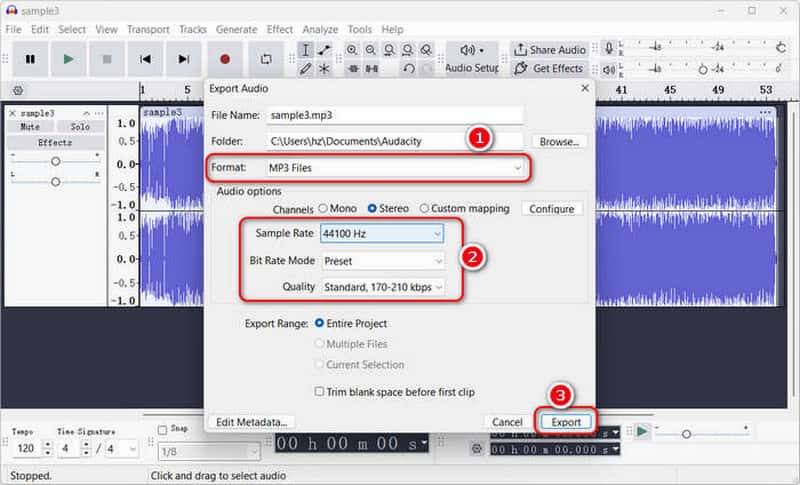
Audacity is a handy tool, especially if you want to edit FLAC files before conversion. However, it becomes tedious when converting hundreds of files because you have to repeat the process.
4. FreeConvert
FreeConvert’s audio FLAC-to-MP3 converter is a free online media and file conversion service. It supports simultaneous 5 concurrent conversions per day, perfect for occasional use. Aside from converting FLAC to MP3, you can also use it to change AAC to MP3 format.
To convert: Click Choose Files on the FreeConvert homepage to load the FLAC source. Click the Output picker and select MP3 in the Audio category. Initiate the conversion by clicking Convert, and then download each right after.
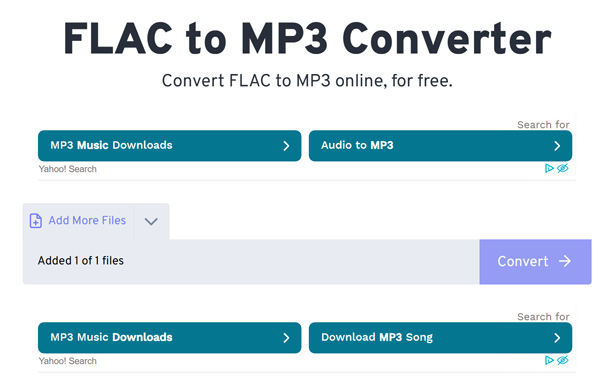
FreeConvert, though you can convert for free, has its limits. If you’re a free user, you are limited to 20 minutes of conversions per day and a 1 GB file size.
5. fre:ac
Fre:ac, short for Free Audio Converter, is an audio converter and CD ripper. It uses a multi-threaded conversion engine to process large music libraries efficiently. See the quick instruction guide below to learn how to convert FLAC to MP3:
To convert: Drag the FLAC files into the main job list window. Select LAME MP3 Encoder from the encoder list and configure other settings if needed. Click the Play button from the top menu to start encoding the FLAC files to MP3.
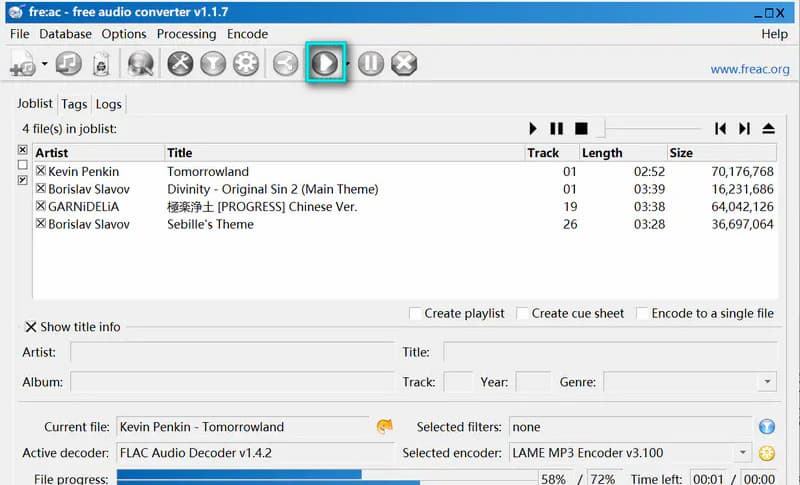
fre:ac is attractive to users seeking a free solution to convert audio files. However, it takes time to understand and master the settings, especially for non-tech-savvy users.
Pro Tips: How to Keep High-Quality MP3
When converting FLAC to MP3 on Mac/Windows, you move the lossless source to a lossy format. The goal here is not to make the MP3 sound better than FLAC, but to minimize quality loss. To keep the MP3 files in high-quality, consider these tips:
FEATURES:
- Use 256 kbps or 320 kbps for music to minimize quality loss.
- Set the sample rate to 44.1 kHz or match the source file exactly.
- Use the original FLAC files ripped from CD or high-res studio masters when converting.
- Ensure your converter is set to use ID3v2.4 tags to transfer all original metadata.
FAQs about FLAC to MP3 Converters
Can you convert FLAC to MP3 in iTunes?
No, iTunes cannot convert FLACs because it does not support FLAC as an input file type. Instead, use dedicated converters, such as TopVox All Music Converter.
How to batch convert FLAC to MP3?
You can use TopVox All Music Converter to batch convert FLAC to MP3. This tool does not limit users in the number of files or the file size they can process.
Is it safe to use an online FLAC-to-MP3 converter?
No, online converters require uploading files to a third-party service, where you don’t have control. To ensure the safety of your files, it is better to use offline tools.
Conclusion
FLAC-to-MP3 converters are helpful tools when we need to make the audio file size smaller and improve compatibility. Among the tools we introduced, TopVox All Music Converter excels in its fast processing speed, unlimited conversion, and high-quality output. For occasional and small file conversion, you can use CloudConvert and FreeConvert. If you want a free desktop solution, Audacity and fre:ac are good options.
Ethan Carter
Ethan Carter creates in-depth content, timely news, and practical guides on AI audio, helping readers understand AI audio tools, making them accessible to non-experts. He specializes in reviewing top AI tools, explaining the ethics of AI music, and covering regulations. He uses data-driven insights and analysis, making his work trusted.



 by
by