
How to Download Music from YouTube to iPhone: 6 Ways for You
 by Owen Bannett | May 19, 2026 | YouTube
We all know that the iPhone possesses a high-quality tool when it comes to playing music. Listening to your favorite music on an iPhone offers a much greater experience compared to other devices. That is why many users really love to hear music from their iPhone. Thus, that would be possible if you have a great tool such as YouTube Music. This platform always requires you to be online to listen. Not if you have a premium subscription. Thus let us now discover more ways to download music from YouTube to your iPhone. Here are six ways that you can choose what is best for you.
Can I Download Music From Youtube to iPhone
Yes. Downloading music from YouTube to your iPhone is possible. Many users are using this so that they can listen to their favorite songs even without the internet. However, downloading from the official application will require you to purchase a monthly subscription. Without a premium subscription, you are only entitled to listen and stream online. But, there is good news because users can now make it possible even without a premium account. That is through the ways you will discover the following parts.
Way 1. Download Music from YouTube to iPhone Officially
We shall start this guide by telling you the official way to do it. This is very simple as long as you have a premium subscription from YouTube Music.
Step 1. Open the YouTube application and kindly search the music you would like to download.
Step 2. From there we shall now click the Menu button that is in a three dots icon. A drop menu will appear allowing you to access the Download button among the options. Click it to proceed.

Step 3. After that, wait for a few moments and your music is now ready from the Music Library of your YouTube.
Way 2. Download Music from YouTube to iPhone with Professional Tools
We shall now help those users who cannot afford to have a premium account on YouTube. Yet, downloading music from YouTube to your iPhone is still possible. You need the help of a professional tool called TopVox All Music Converter. This tool is very capable in giving us access to wide music options online and downloading them without a premium account. The process of using it is very simple and you can do it with ease by following the steps we provided:
Features
- Easy download of music without premium subscription.
- Professional-grade tool that can give us reliable playlist downloads.
- It has a simple process with clear step-by-step usage.
- Built-in search function and play music anytime.
Steps to Use TopVox All Music Converter
Step 1. Open the incredible TopVox All Music Converter on your computer. Access the YouTube Music platform among the options.
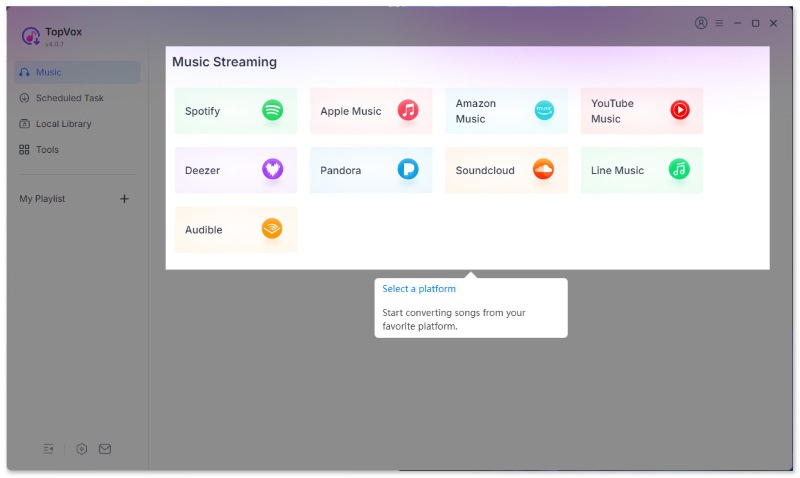
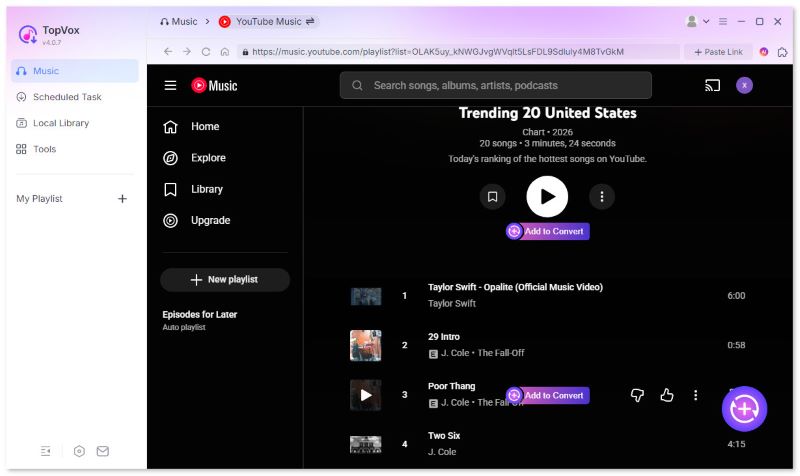
Step 2. The tool will now lead you to the interface of YouTube. Thus searching the music you would like to download must be done here.
Step 3. From the right side of the music, click the Add button and Convert Now. Then wait for a while and your music will now be downloaded.
Way 3. Download Music from YouTube to iPhone Online
More than a professional tool, downloading music from YouTube using an online tool is also possible for your iPhone. With that being said, here are the leading two online tools for downloading music with ease. Please take a look at their description and some simple ways of using them.
Tool 1: Y2Mate
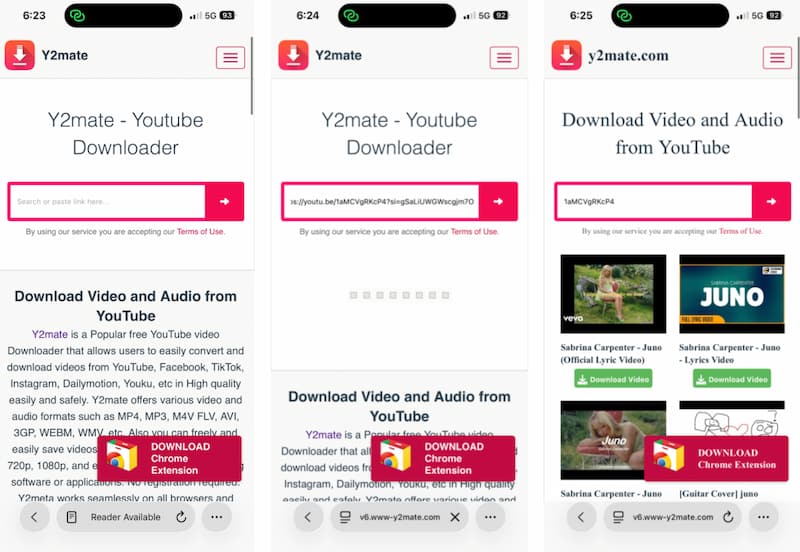
First in the line the online tool is the amazing Y2Mate. This makes downloading music from YouTube to iPhone with ease as long as you have the URL of the music you would like to listen offline. Here are the simple steps you can follow to use it with ease:
Step 1. On your iPhone’s browser, access the official website of Y2Mate.
Step 2. Go to YouTube and search the music you would like to download. Please copy the URL of the music.
Step 3. Go back to Y2Mate website and paste the URL on the bar of the tool. Then, proceed with clicking the Convert button that comes with an arrow logo. You can now click the Download button.
Tool 2: YouTube to MP3
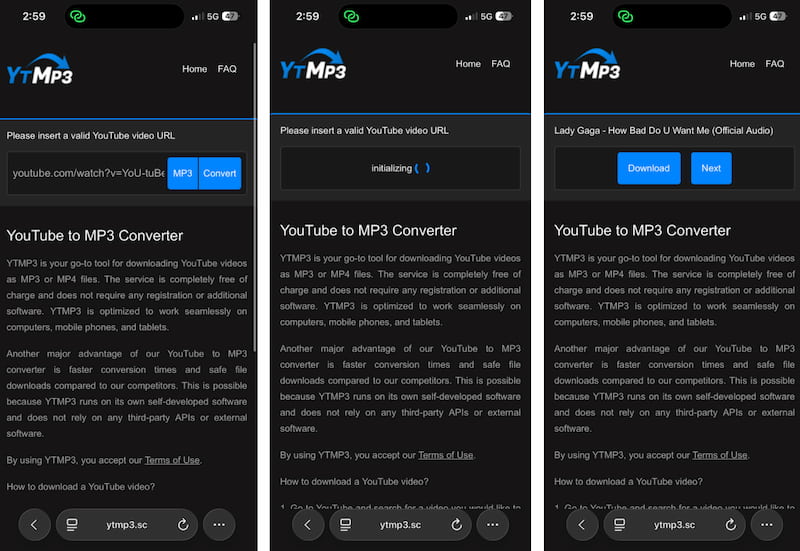
Another online tool you can use to download music from YouTube to your iPhone is a tool called YouTube to MP3. This is also a free tool that lets users copy the URL of a song and the tool will let the rest. Many users love to use it because of its straightforward process and simple interface. Take a look at the easy steps you must follow when using YouTube to MP3 tool.
Step 1. Access the official website of YouTube to MP3 using Safari or any web browser you are using on your iPhone.
Step 2. Now, go to the YouTube site and search for the music you would like to download. From there, please copy its URL.
Step 3. Go back to the YouTube to MP3 site and paste the URL on the tab After that, click the Convert button to proceed. Finally, after the tool has been processed, you can now click Download.
Way 4. Download Music from YouTube to iPhone via iTunes
As we all know, especially iPhone users, iTunes remains a reliable method for transferring music files to your iPhone. However, the tool does not have the capability to download YouTube music directly. Because in this tool, you will first need to download the YouTube audio to your computer, then sync it with your iPhone using iTunes. In line with that, here are the steps you can follow to make it possible.
Step 1. First thing we need to do is download the YouTube music to your computer using a converter tool such as TopVox All Music Converter or Y2Mate.
Step 2. Now, let us proceed to open iTunes on your computer.
Step 3. After that, we need to click File as you access the Add to Library. From there, please select the downloaded audio file.
Step 4. Now, we need to connect your iPhone to the computer via USB. Then, in iTunes, select your device and go to the Music tab.
Step 5. Check Sync Music and choose the songs you want. Finally, click Apply to transfer the music to your iPhone.
Way 5. Download Music from YouTube to iPhone via Shortcut
The fifth method is a process done with Shortcut. For the information of many users. Apple’s Shortcuts app is a great tool that allows us to automate tasks. That means, with the right shortcut, you can download YouTube audio directly to your iPhone. Here are the simple steps you can follow in doing it easily.
Step 1. As we start this process, we need to install the Shortcuts app from the App Store if not already installed.
Step 2. After that, please download a trusted YouTube-to-MP3 shortcut often shared by communities online.
Step 3. Now, we need to open YouTube and copy the link of the video you want.
Step 4. Run the shortcut from the Shortcuts app. You will notice that the shortcut will process the link and save the audio file to your iPhone usually in Files or Music depending on setup.
Way 6. Download Music from YouTube to iPhone with a Recorder
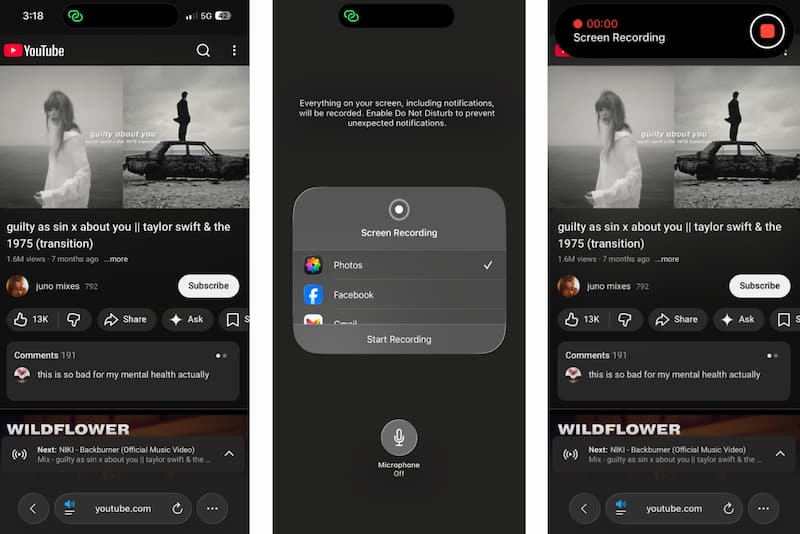
We move forward to the last way but definitely not the least. This next method is suitable if you prefer a simple and built-in method. Because in this process you can use the iPhone’s screen recording feature to capture audio while playing a YouTube video. Later, you can extract the audio from the recording. Here are the steps on how you can do it.
Step 1. We need to go to Settings and find the Control Center and add Screen Recording.
Step 2. We can now open YouTube and search the music you like to download. It is important to play the video you want to record.
Step 3. After that, please swipe down to access the Control Center and tap the Record button. Let the video play while recording.
Step 4. Finally, stop recording when done. The video will be saved in Photos.
Step 5. Use an audio extractor app to convert the recorded video into an MP3 file. Save the extracted audio to your iPhone’s music library or Files app.
Conclusion
We can now conclude that downloading music from YouTube to iPhone is now easy to do. As long as we have the proper method for us. In this article we get to see six ways for it and it is up to you what ways you will go through.
Owen Bannett is a music enthusiasm as well as a senior writer. He has paid close attention on the pros & cons of various audio formats, bitrate, sample rate and encoding methods. Always seeking the best listening experience, Owen has deep insights about lossless music and diverse music converters on the markets.