Sidify Spotify Music Converter Review & Comparison
 by Luna Harper | April 16, 2026 | Reviews/Knowledge
Quick Verdict:
After 10+ hours of hands-on testing, Sidify Spotify Music Converter remains a reliable mid-range tool for Windows and Mac users. It maintains 320kbps audio fidelity and preserves full ID3 tags. However, with a 10× conversion speed limit and occasional batch-processing errors, it is best suited for casual listeners rather than power users with massive libraries. For those seeking a better alternative, TopVox All Music Converter provides lossless audio output with super-fast 35× batch downloading speed and an advanced toolbox for advanced conversion requirements.
Sidify Spotify Music Converter offers more control over your Spotify library and a seamless experience for saving lossless music offline. But does it truly preserve audio quality as advertised? Perhaps most importantly: what are its limitations? In this Sidify Spotify Music Converter review, we explore everything from its performance, user experience and comparison, determining whether it actually fits your needs for playlist management and format conversion.

Part 1. What is Sidify Music Converter
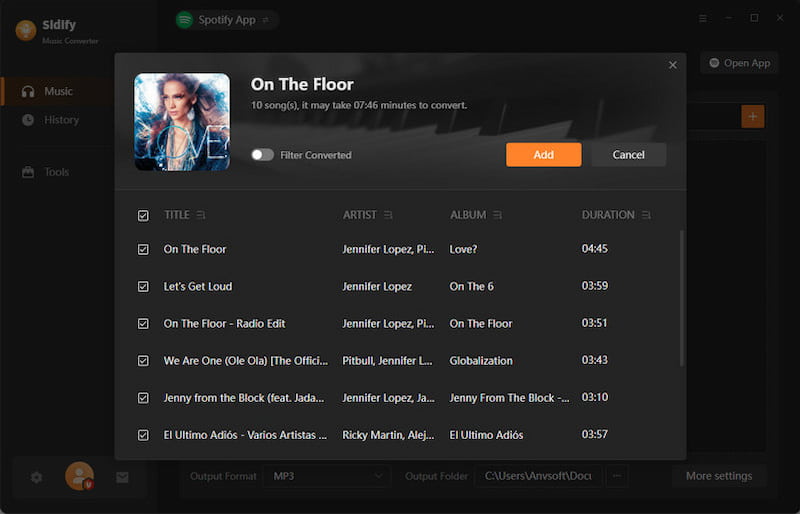
Sidify Music Converter for Spotify is part of the Sidify lineup. It is a brand that's been around since 2015, focusing on music conversion solutions. In simple terms, it lets you convert Spotify songs to MP3 and other regular audio formats while keeping lossless audio quality. What's more important, you can batch convert playlists or albums at up to 10× speed, so all your favorite music can be stored as common audio files on your device and played without the app.
Pros
- It allows true offline playback on any device.
- It works with free and premium Spotify accounts.
- It converts Spotify music to six regular audio formats.
- It supports simultaneous conversion for playlists and albums.
- It maintains high audio quality, including up to 24-bit/44.1 kHz.
Cons
- It fails to download, especially in large batches.
- It is not totally free; full features require a paid license.
- It can be affected by Spotify updates or DRM changes.
- Its speed may drop depending on system performance.
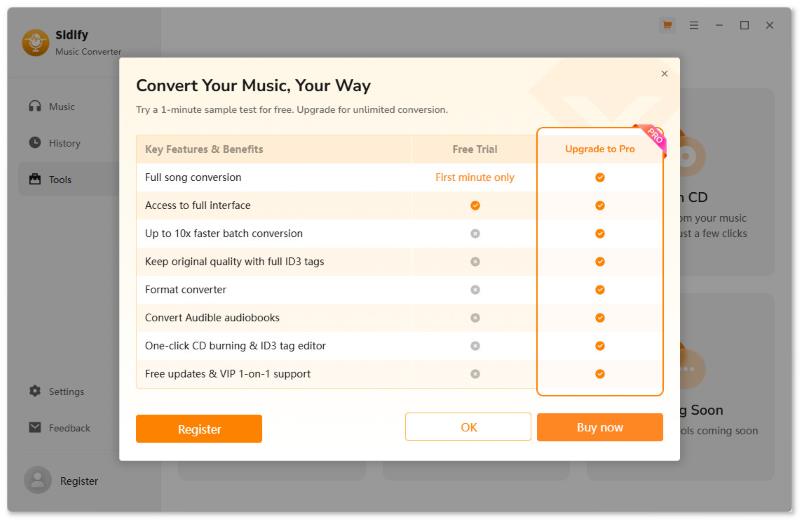
- Its trial version only converts the first minute of each track.
Part 2. User Feedback and Testing Experience of Sidify
Sidify's interface feels polished and practical. It doesn't try to impress with flashy design. Instead, it focuses on getting the job done with minimal friction, which honestly works in its favor. There are no confusing menus and no steep learning curve. Everything is where you'd expect it to be, which makes for a very smooth user experience.
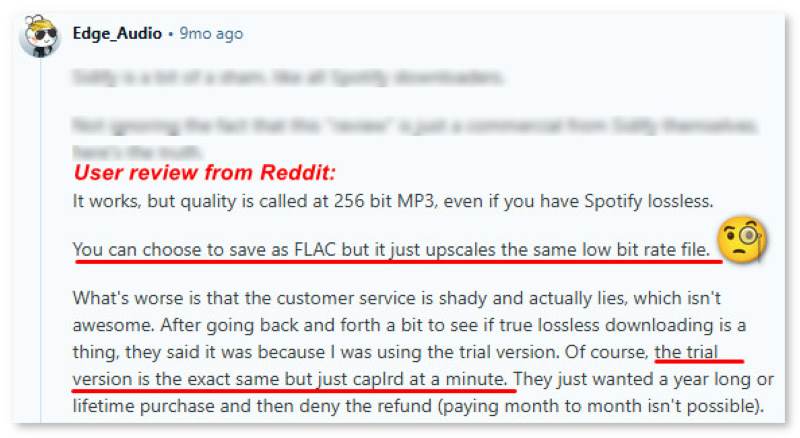
But many users have reported that the audio quality of downloads is not the same as the source file. Therefore, our team tested and verified this with the Fakin the Funk app – We viewed the spectrogram every few tracks and found that the Spotify web player of Sidify can only play 160kbps .ogg. Even the downloads show 320kbps MP3; to be honest, they are still just upscaled. If you can accept it, Sidify is also a convenient approach to get Spotify music offline. Note that if you download too much at once, like a 500-song playlist, your account may be blocked.

And before jumping into any music converter, it's worth pausing for a second: How does this tool work, and is it safe? Sidify sits in between the Spotify app and your speakers. It interrupts playback and records using your CPU, then encodes to whatever format you output. Simply, it rips files, making playback in real time, so you will have your Spotify and audio outputs blocked as long as it is recording. For more details on how different Spotify downloaders operate, refer to another article: Top 6 Methods to Convert Spotify Music to MP3 [2026 Updated].
Part 3. Best Alternative: TopVox All Music Converter
| TopVox All Music Converter | Versus | Sidify Spotify Music Converter |
|---|---|---|
 | Supported Platform(s) | Spotify |
| 🏆Up to 35× | Download Speed | Up to 10× |
| 99% | Success Rate | 97.8% |
| MP3, FLAC, M4A (ALAC/AAC), WAV, and AIFF | Output Formats | MP3, AAC, WAV, FLAC, AIFF, and ALAC |
| 320Kbps/48kHz or lossless 24-bit FLAC | Audio Quality | 24-bit/320Kbps/44.1 kHz |
| AA/AAX Converter, Format Converter, Tag Editor, Playlist Transfer | Tools | AA/AAX Converter, Format Converter, Burn CD, Audio/Tag Editor |
| 🏆3-minute per song 14-day free trial | Free Trail | 1 minute per song, no full ID3 tags, limited speed |
| 🏆Windows 7/8/8.1/10/11, macOS 10.14~27 | OS | Windows 8/10/11, macOS 11 or above |
| $35.96/Mo, 🏆149.95/Lifetime | Prcing | $44.95/yr, $89.90/Lifetime |
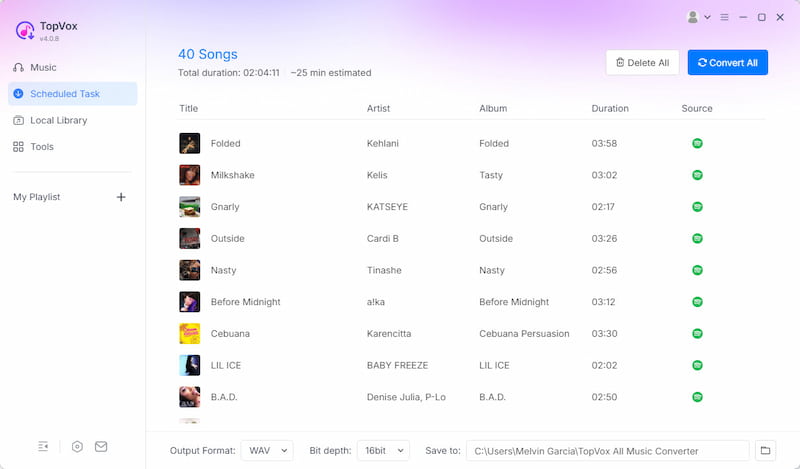
TopVox All Music Converter is worth a serious look. Unlike Sidify, it supports analyzing and downloading music directly from supported streaming platforms instead of recording. You can pull tracks directly from Spotify's database, which makes the process faster and more reliable. Notably, it's not limited to Spotify. It also supports Apple Music, Amazon Music, YouTube Music, Deezer, Pandora, SoundCloud, Line Music, and Audible.
(TopVox All Music Converter is a home edition only for personal use.)
Features
- No DRM or content restrictions on downloaded files.
- Up to 35× faster conversion speed for large libraries.
- Built-in music player with ad-free browsing and playback.
- Keeps original audio quality and preserves metadata (ID3 tags).
- Batch downloads artists, albums, playlists, singles, and podcasts at once.
Part 4. FAQs about Sidify Spotify Music Converter
Q: What are the limitations during Sidify’s trial period?
A: It only offers audio conversions for the first minute per track. Accessing full-length song downloads requires an upgrade to the Pro version. And the batch conversion speed, metadata preservation, and other advanced tools will be limited or unavailable.
Q: Can I transfer my playlist if switching to another platform?
A: No. Sidify is not equipped with a tool for seamless playlist migration. You can use other dedicated software like TopVox All Music Converter. It offers basic transfer service that connect and match playlists across major streaming services.
Q: Why does Sidify show Conversion Failed or Error 1001?
A: it usually happens if your internet connection drops or if Spotify has updated its web player. To fix this, ensure you are using the latest version of Sidify and try clearing your browser cache within the app settings. Alternatively, you can use TopVox All Music Converter.
Conclusion
After exploring this Sidify Spotify Music Converter review, it's clear that Sidify provides a straightforward way to download and convert music from Spotify. It performs well in terms of quality, speed, and ease of use, especially for users who mainly stick to Spotify. However, its limitations may feel restrictive if you want more flexibility or faster batch handling. For a more versatile and powerful experience, use TopVox All Music Converter. It offers broader platform support, faster downloads, and more control over audio settings, making it a strong alternative worth trying.
Luna Harper is a passionate music lover and an inspiring content sharer. She has explored most of the music converters available on the market, acquiring thorough knowledge of their features, usability, and differences. Luna enjoys using her professionalism to help fellow music lovers get superior audio quality.