
Easy Guide in Turning Off Text-to-Speech Features with Your Devices
 by Ethan Carter | April 10, 2026 | Text to Speech
Text-to-speech feature is now available with different devices that we are using including Android, iOS, Mac, Windows, etc. Many users find it very useful. While for a few, they do not really need it. Therefore, if you are one of the users who need to turn off text-to-speech on your devices maybe because it is accidentally turned on or you used it before. Whatever reasons you have, this guide is written for you. Learn the simple steps in doing it. Read this article now to learn.
Part 1. Understanding of Text-to-Speech
What is Text-to-Speech
Tex-to-speech or TTS is a great technology that converts written text into speech or spoken audio. This is possible because it uses AI and natural language to mimic how humans speak, following their intonation and rhythm. Most people find it very useful in assisting them comprehend details without even reading a lot of text. This technology exists mainly to assist people who have visual impairments or learning disabilities. At this point, there is already an advanced technology that utilizes modern systems that can produce a high-quality output with a highly natural human-like voice. Good thing, it is now available with almost every device we are using, from Android to iPhone and from MacBook to Windows.
Brief Definition and Key Use Cases
• Voice Assistant. It can assist with using a certain device such as a smartphone, speakers, wearables, and more.
• E-Learning Devices. Capable with converting texts, documents, educational materials, workflow materials from written texts to spoken audio. Allowing high-productivity and easy comprehension.
• Content Creations and Material. It can generate podcasts, audiobooks, and voiceover with hiring professional voice actors.
• Voice Translation. Allowing contents to be translated into a localized language.
Top Reasons to Turn Off Text-to-Speech
• Disruption. The feature may disrupt any activities that we are doing on our devices.
• Battery Drain. The feature needs power to generate, and it may cause your device to drain faster.
• Privacy Risks. There are issues in privacy when using text-to-speech because it might read some confidential details aloud.
• Performance Issues. Some text-to-speech features are not using advanced and modern systems, making them very useless most of the time.
Part 2. How to Turn Off Text to Speech on Android Devices
Here are easy methods you can follow on your Android device to turn off text-to-speech(TTS) feature:
Method 1: Two-finger Navigation
Step 1. You need to use your two fingers as you swipe and scroll.
Step 2. Then, you can now navigate to Settings as you access Accessibility.
Step 3. Check the TalkBack option then toggle TalkBack off.
Method 2: Volume Button shortcut
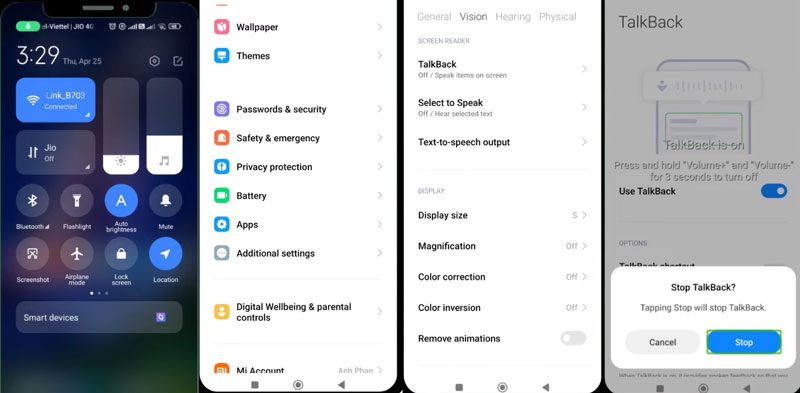
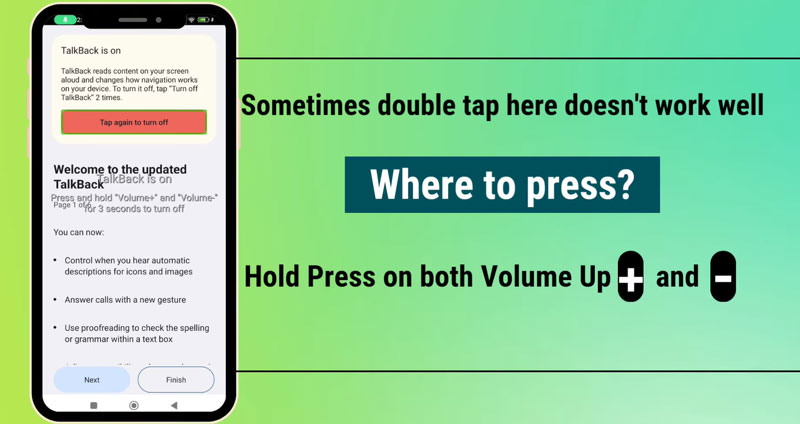
Step 1. The first thing you need to do is press and hold the volume buttons for about 3 seconds on your Android device.
Step 2. You will now see a confirmation box where it will be asking if you want to turn TalkBack off.
Step 3. Select Turn Off.
Method 3: Google Assistant
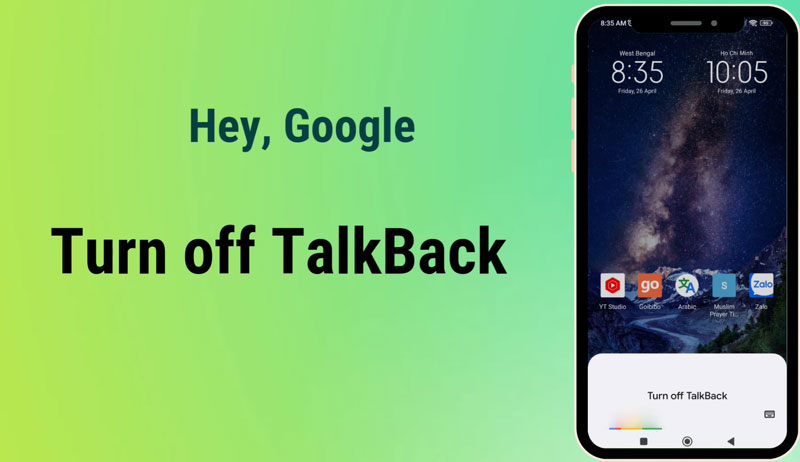
Step 1. Activate your Google Assistant by saying Hey Google, turn off TalkBack or Turn off screen reader.
Step 2. Google Assistant will disable the feature if permissions are granted.
Step 3. Try out navigating the screen and check if the feature is already disabled.
Part 3. How to Turn Off Text to Speech on iPhone & iPad
Method 1: The Siri shortcut: Fastest Way
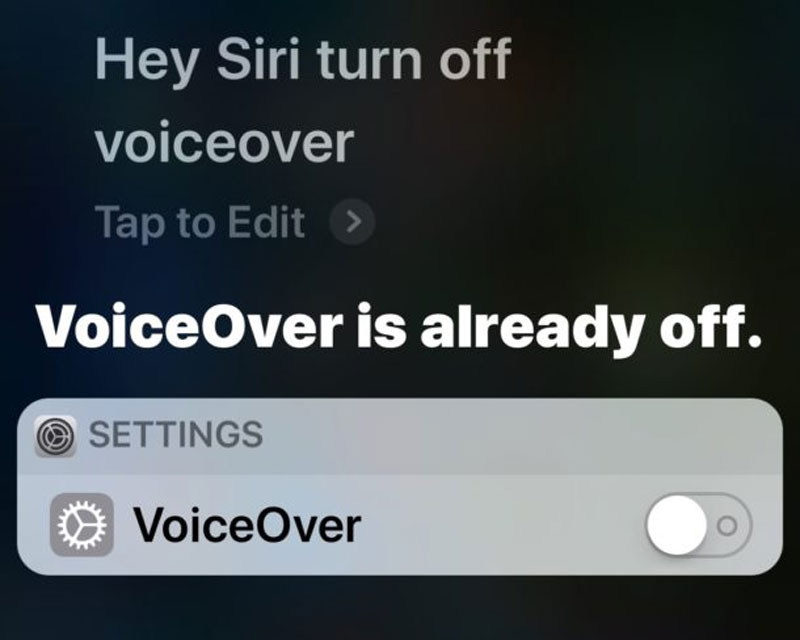
Step 1. Please activate Siri by saying Hey Siri. You can also do it by holding the Power button for two seconds.
Step 2. Once you already see Siri’s Icon, you can now say, Turn off VoiceOver or Turn off Speak Screen.
Step 3. Siri will immediately turn off the text-to-speech feature on iOS.
Method 2: Turn it Off in Settings Menu
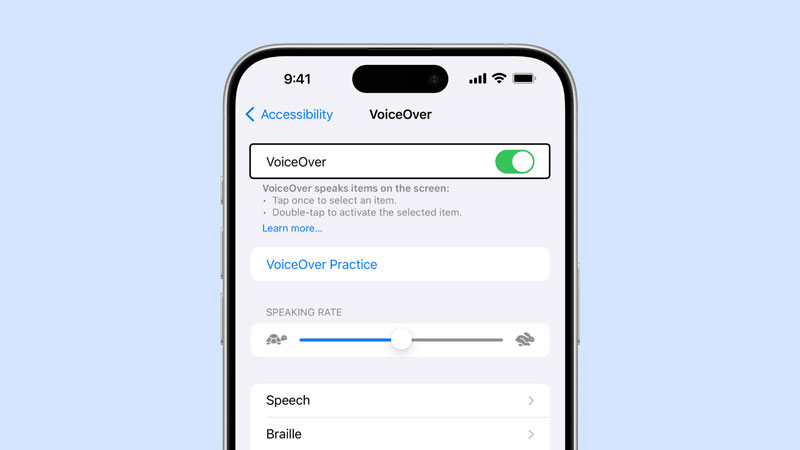
Step 1. Go to the Settings of your iPhone or iPad.
Step 2. See the Accessibility option.
Step 3. Access the Voiceover feature. Then toggle off the Voiceover tab.
Part 4. How to Turn Off Text to Speech on Windows
Method 1: Quick Shortcuts using Hotkeys
Step 1. Observe if the Narrator is currently speaking.
Step 2. On the keyboard of your computer, please press Ctrl + Windows Logo key + Enter. These hotkeys will toggle the Narrator on or off instantly.
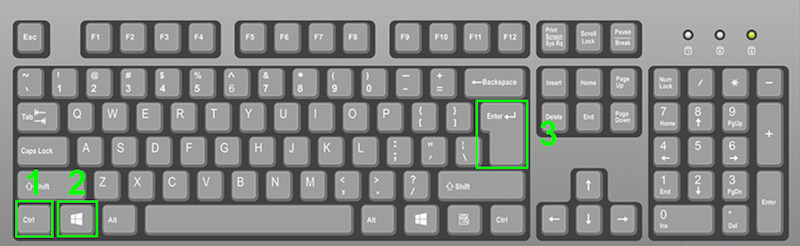
Step 3. Check again if the narrator is already turned off. The hotkey shortcut should have stopped it right away.
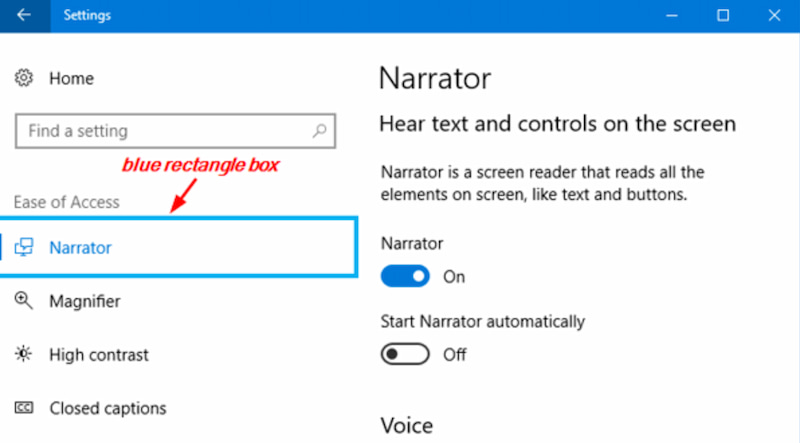
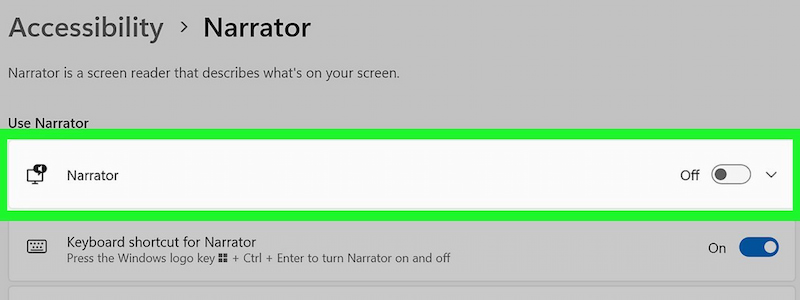
Method 2: Turning Off Narrator from the Settings
Step 1. You need to press Windows + I keys. This will allow you to open Settings.
Step 2. From there, please go to Accessibility and find the Narrator options.
Step 3. Finally, you need to toggle the Narrator switch Off and the feature will now be disabled.
Method 3: Disable Keyboard Shortcut
This method is very useful to prevent accidentally turning on the feature on your Windows computer. This is how you will do it, please follow the steps below:
Step 1. Go to your Settings and locate Accessibility. Among the options, please see the Narrator.
Step 2. After that, please scroll down to Keyboard shortcut for Narrator. From there, you need toggle off the Use the On-Screen Keyboard.
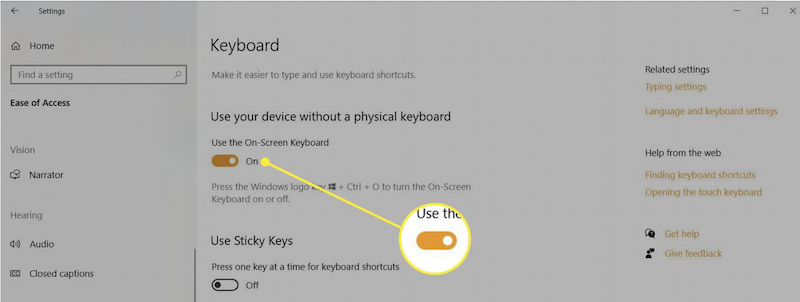
Step 3. You will now prevent accidental activation via Ctrl + Windows + Enter in the future. Try it to confirm.
Part 5. How to Turn Off Text to Speech on Mac
Method 1: Turn Off for System-level Text-to-Speech
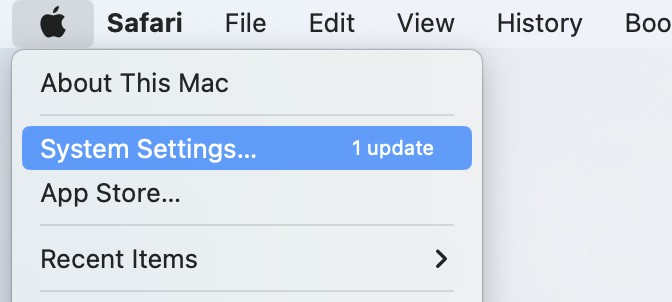
Step 1. We need to go to the Apple menu of your MacBook, then select System Settings or System Preferences on older macOS.
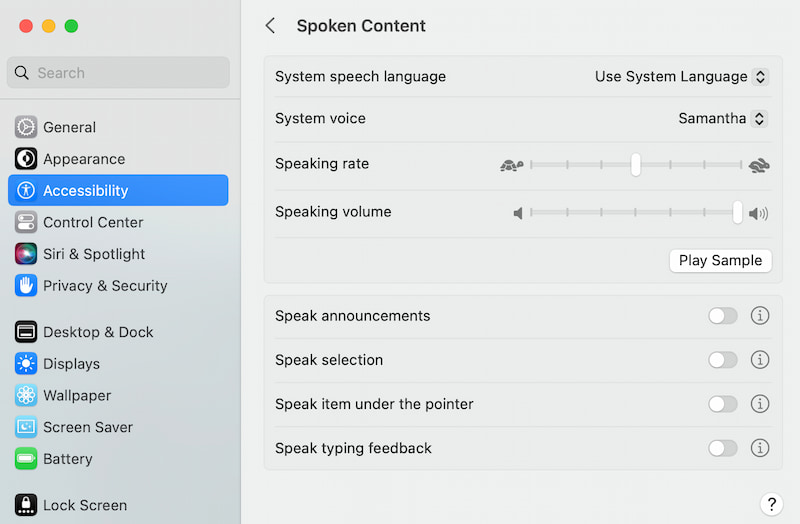
Step 2. From there, please see Accessibility. In the sidebar you will see Spoken Content.
Step 3. You can now toggle Speak selection or Speak items under the pointer off.
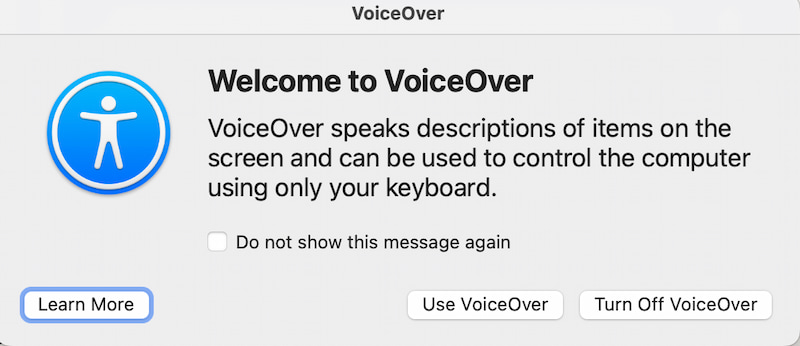
Method 2: Quick Turn Off Voiceover (Hotkeys)
Step 1. The steps in turning off the Voiceover feature on your MacBook device is simple, we only need to use the keys of Fn + Command + F5.
Step 2. A pop-up tab will show on your screen, click the Turn Off Voiceover option from it.
Part 6. How to Turn Off Text to Speech on Chromebook
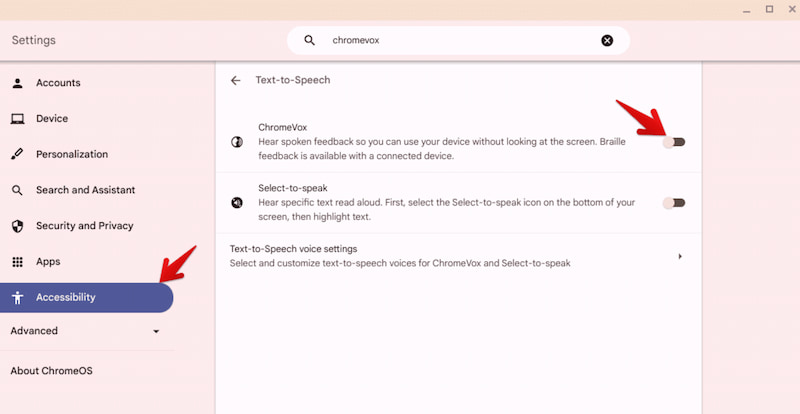
Method 1: Turn Off Chromebook: System Screen Reader
Step 1. You need to go to Select Settings.
Step 2. Go to Accessibility.
Step 3. Now, under Text-to-Speech, switch ChromeVox off.
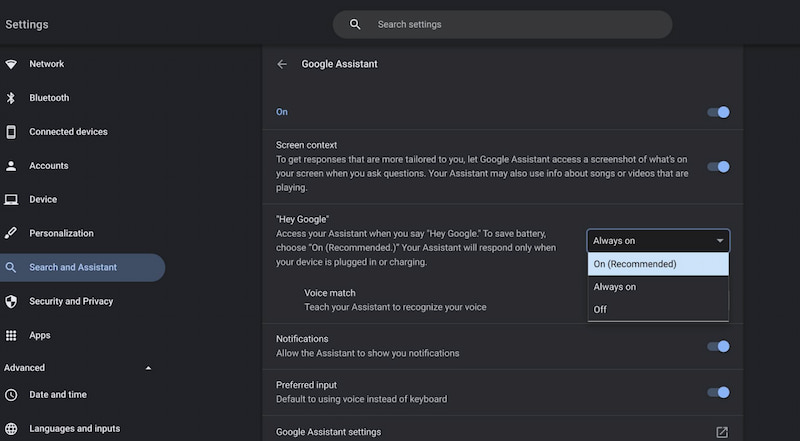
Method 2: Turn off Google Assistant
Step 1. First thing we need to do is click the Time that you can see on the bottom‑right corner.
Step 2. From there go to Settings and see Search and Assistant options.
Step 3. Finally, you can now toggle Google Assistant off.
Part 7. For Gamer: Turn Off Text to Speech Minecraft
Method 1: For Java Edition
Step 1. Start by pressing Ctrl + B to toggle the Minecraft Narrator.
Step 2. Sometimes the hotkeys do not work, so you need to go to Options.
Step 3. See the Accessibility Settings. Then finally set the text Narrator to Off.
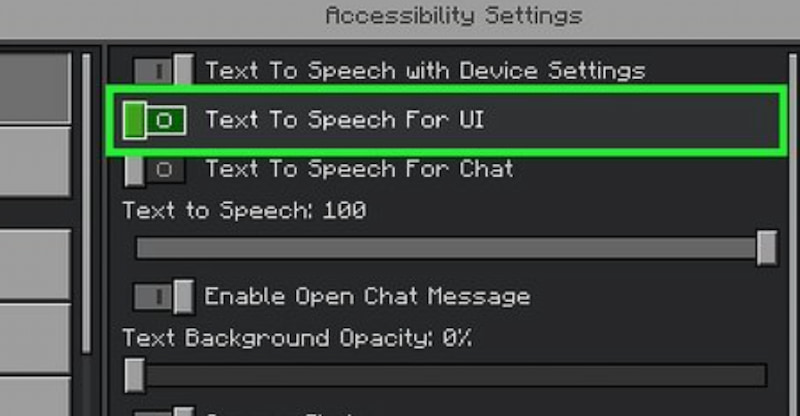
Method 2: Bedrock Edition: For Windows, Xbox, and Mobile
Step 1. First, open Settings and click Accessibility among the options.
Step 2. After that, proceed to scroll to Text to Speech foChat and UI.
Step 3. Finally, toggle both options Off.
Pro-tips for Gamers:
• Accidental Activation: Ctrl + B is easy to hit, disable it via Accessibility settings.
• Multiplayer chat still reads aloud: Double-check both Chat and UI toggles.
• Mods or resource packs may re-enable TTS, check mod configs if it reactivates.
You May Also Like:
6 Best Text-to-Speech Software in 2026 [Daily & Advanced Use]
Part 8. Troubleshooting: Text-to-Speech Won’t Turn Off or Keeps Restarting
Common Fixes for All Devices
| Issue | Fix |
|---|---|
| TTS reactivates after restart. | Disable auto-start in Accessibility settings. |
| Shortcut keeps re-enabling TTS. | Uncheck shortcut activation for Windows. |
| TTS persists in apps. | Check app-specific accessibility settings. |
| Voice packs won’t uninstall. | Use Control Panel or Safe Mode for Windows. |
Android Text-to-Speech Still Reads Texts
Step 1. We need to go to Settings and find Accessibility. Then select Text-to-Speech Output.
Step 2. From there, kindly set Preferred engine to None or disable Google TTS.
Step 3. In addition, you can check TalkBack and Select to Speak, disable both if you have to.
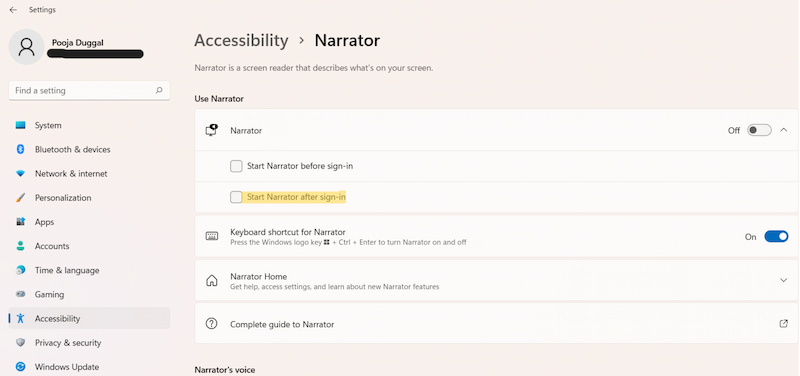
Windows Narrator Turns on at Login
Step 1. First, open Settings and see Accessibility. From there, choose the Narrator.
Step 2. After that, you may scroll to Start-up options.
Step 3. Now, proceed with unchecking the Start Narrator after sign-in and Before sign-in.
FAQs on Turn Off Text-to-Speech
Why would I want to disable text-to-speech?
The feature may disrupt tasks, compromise privacy, drain battery, or cause performance issues depending on your device’s settings. Because as we all know, this feature says everything out loud the text from the screen.
Can I turn off text-to-speech on Android quickly?
Yes, use volume button shortcut or Google Assistant voice command to instantly disable TalkBack accessibility features.
Can text-to-speech be disabled for specific apps only?
Yes, you can see on the setting of your device that many apps have individual accessibility. This will allow you to disable text-to-speech independently.
Does disabling text-to-speech improve device performance?
Yes, many users observe that disabling text-to-speech features can reduce lag or interruptions. This action is very essential especially on older devices with limited processing power.
Do updates re-enable text-to-speech automatically?
Sometimes, system updates reset accessibility settings. The act of updating the system of your device can recheck preferences after major updates. Therefore, it is better to check the setting of your device after the update.
Conclusion
Text-to-speech is a powerful accessibility tool, but not everyone needs it active all the time. Whether on Android, iOS, Windows, Mac, Chromebook, or even in games like Minecraft, disabling the feature is straightforward with shortcuts or settings adjustments. Turning it off can improve privacy, reduce battery drain, and eliminate unwanted interruptions. If the feature keeps reactivating, troubleshooting options like disabling auto-start or app-specific settings provide lasting solutions. Ultimately, knowing how to control text-to-speech empowers users to customize their devices for convenience, productivity, and comfort, ensuring technology works exactly the way they prefer.
Ethan Carter creates in-depth content, timely news, and practical guides on AI audio, helping readers understand AI audio tools, making them accessible to non-experts. He specializes in reviewing top AI tools, explaining the ethics of AI music, and covering regulations. He uses data-driven insights and analysis, making his work trusted.








