How to Convert AAX to MP3 for Universal Playback
Quick Comparison:
- Best Overall: TopVox All Music Converter (Highest speed & metadata retention)
- Best Free/Open Source: Libation (Direct Audible sync)
- Best for Simple Edits: Audacity (Manual recording method)
- Best for Small Files: Online Audio Converter (No installation)
Ever bought an audiobook only to realize it won't play on your favorite MP3 player or car stereo? That's a common frustration for Audible users. You've paid for the content, yet you're restricted to specific apps and devices to listen to it. It can be inconvenient if you prefer offline playback or use multiple gadgets in your daily routine. The reason behind this is the AAX format. It's a wrapped audio file protected by DRM. While this protects content, it also limits how and where you can enjoy your audiobooks. In 2026, you shouldn't need a specific app to listen to a book you already bought. Here are the fastest and most effective ways to convert AAX to MP3. We will help you choose the best approach so that you can enjoy your audiobook without restrictions.

How We Tested These Tools:
To provide this guide, our team tested each tool on Windows 11 and macOS Sonoma using a 10-hour Audible AAX file. We evaluated them based on conversion speed, preservation of chapter markers, and final audio bitrate.
AAX vs MP3: Why Conversion Matters
Why convert AAX to MP3? DRM protects AAX files, while MP3s offer universal compatibility and storage efficiency. By converting Audible to MP3, you aren't just changing the format; you're reclaiming ownership and ensuring total device compatibility.
Compatibility
The biggest advantage of conversion is compatibility. You can play MP3 files on SanDisk MP3 players, Garmin watches, smartphones, tablets, and even old-school iPods. Meanwhile, AAX files require specific apps, such as Audible, to play. If you switch devices often or rely on legacy gadgets, MP3 ensures your audiobooks remain accessible.
Ownership
AAX files don't truly belong to you. They're tied to your Audible account and governed by licensing restrictions. When you convert .aax to MP3, you move from limited access to actual ownership of the file. Think of MP3 conversion as securing a permanent copy of your purchase, one that isn't dependent on any service or login.
Storage
MP3 files are much easier to manage compared to AAX files. You can organize these files into folders, rename them freely, and store them on external hard drives, USBs, or cloud storage without restrictions. Additionally, backup systems support MP3 files, allowing you to create multiple copies for safety. For long-term storage and organization, MP3 is the more practical choice.
Note: Use these methods to create personal backups of audiobooks you have legally purchased. We do not condone the distribution of copyrighted material.
How to Convert AAX to MP3 on Windows/Mac
TopVox All Music Converter is a one-stop solution for downloading and converting audiobooks into DRM-free formats. It can transcode AAX files to MP3, FLAC, M4A (ALAC/AAC), WAV, and AIFF format. Additionally, you can enhance output quality by adjusting the bitrate up to 320 kbps and setting the sample rate to 48000Hz. Beyond Audible, it supports Spotify, Apple Music, Amazon Music, YouTube Music, Deezer, Pandora, SoundCloud, and Line Music. With its built-in browser and high-speed processing, you can convert audiobooks without complicated setups.
What to Look Forward to with the TopVox All Music Converter:
- Allows conversion via link using the Paste Link feature.
- Converts AAX audiobooks to MP3 and other DRM-free formats.
- Keeps chapter information intact for easier navigation in long audiobooks.
- Offers simultaneous AAX conversion with up to 35× faster conversion speed.
- Preserves metadata such as title, author, and cover art for organized libraries.
Here's how to convert AAX to MP3:
Step 1. Get started by securing a free download of TopVox All Music Converter. Install the AAX converter and complete the setup. After completing the installation process, run the software to access its main dashboard.
Step 2. As soon as it launches, it opens to the Music tab by default. Switch to the Tools section to click the AA/AAX Converter to open. Be sure to choose this instead of the standard Format Converter to ensure proper DRM handling.
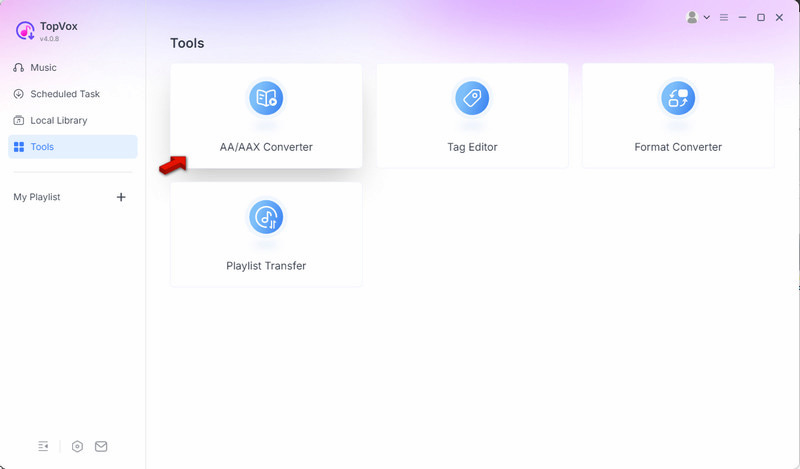
Step 3. Click + Add Files to import your Audible AAX files. You can also drag and drop files directly into the interface for faster importing, especially when handling multiple audiobooks. If needed, adjust chapter settings to maintain a structured playback experience.
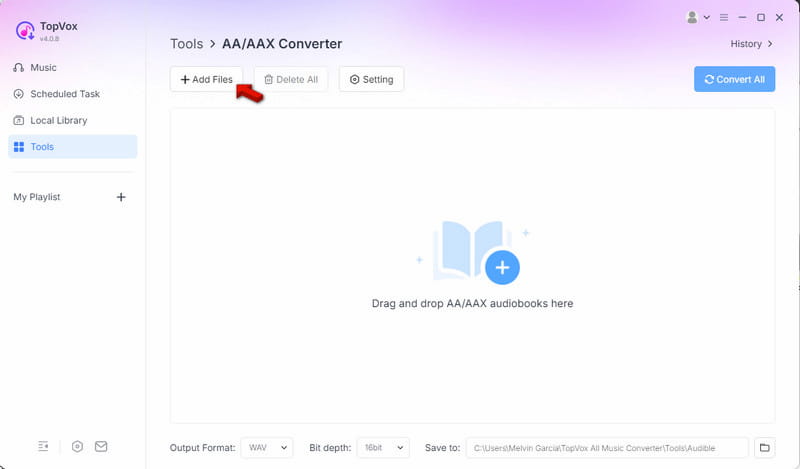
Step 4. By default, the software outputs MP3 with the original quality settings. Still, you can customize the bitrate and sample rate for better sound quality. Click Convert All to convert AAX files to DRM-free MP3 audiobooks.
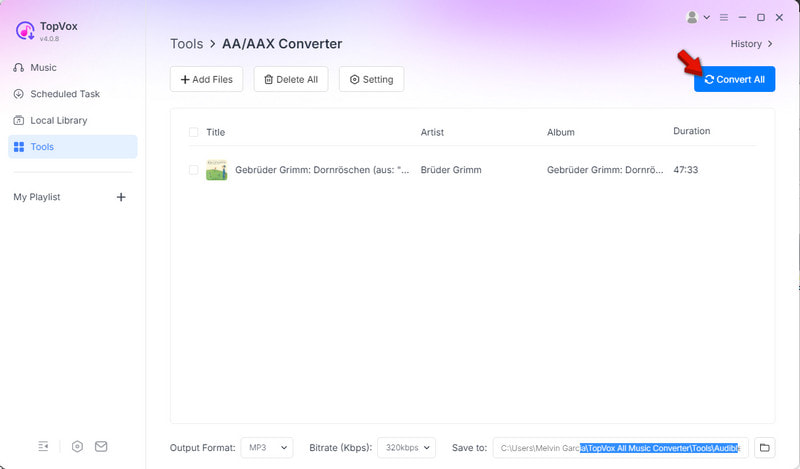
Editor's Note: TopVox All Music Converter is the most well-rounded solution for converting AAX to MP3. It combines speed, high-quality output, and ease of use. With batch conversion, you can efficiently manage large audiobook libraries.
How to Convert AAX to MP3 Online
Online Audio Converter is a no-installation tool that lets you convert AAX to MP3 online for free. It allows you to import AAX files from local drive, cloud storage, or URL. In addition to MP3, it can output WAV, iPhone ringtone, M4A, FLAC, OGG, MP2, and AMR.
Pros
- It is free to use for standard audio conversion.
- It works on any device with a modern browser.
- It allows customization of bitrate and sample rate.
Cons
- It compresses files during conversion.
- It does not support DRM-protected AAX files.
Step 1. On the Online Audio Converter page, click Open Files to upload your AAX file. You can also import files from Google Drive, Dropbox, or paste a URL.
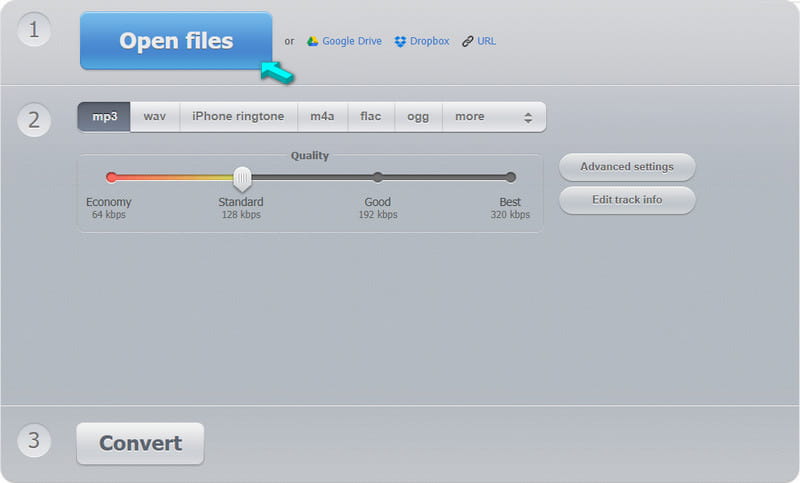
Step 2. In the number 2 section, select MP3 as your output format. Then, adjust the Quality slider to control bitrate and overall audio quality. Click Convert to begin processing your file.
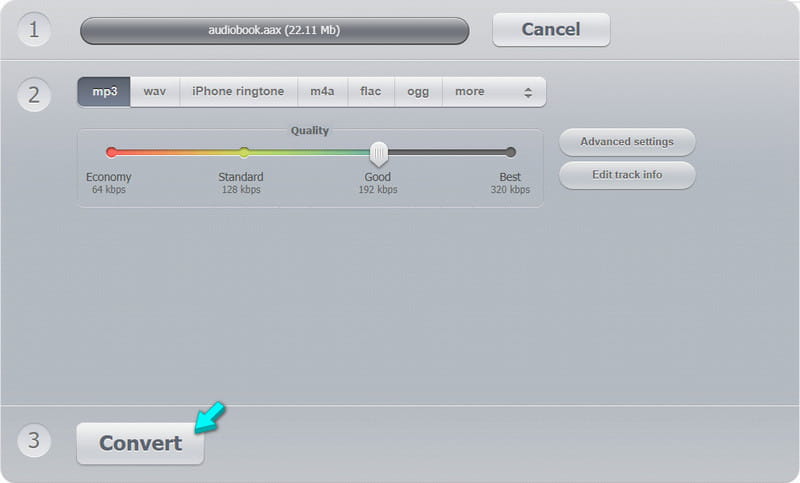
Editor's Note: Online Audio Converter is perfect for quick, hassle-free conversions without installing software. However, it does not support DRM-protected AAX files directly. Additionally, uploading files online may result in slower speeds and file-size limits.
In addition to Audible files, you can also paste a link from Amazon Music to download it in MP3.
How to Convert AAX Files to MP3 for Free
Libation
Libation is a popular AAX-to-MP3 GitHub project that allows bypassing proprietary formats and saves audiobooks as standard files. It can directly connect to your Audible account, allowing you to access and convert your library without first downloading AAX files.
Pros
- It can remove DRM from AAX files.
- It can convert multiple audiobooks simultaneously.
- It is 100% free to use with no hidden subscription fees.
Cons
- It supports only MP3 and M4B formats.
- It requires a learning curve for new users.
Step 1. Upon opening Libation, log in using your Audible account credentials. Navigate to the Import tab to scan and sync your audiobook library.
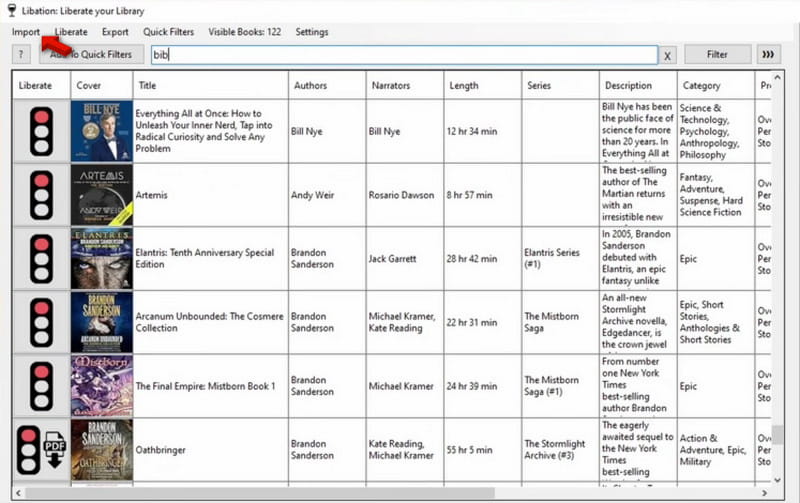
Step 2. Proceed to Audio File Options in Settings, then select MP3 as your output format. Select the titles you want to convert, and it will then download and convert them into MP3 files.
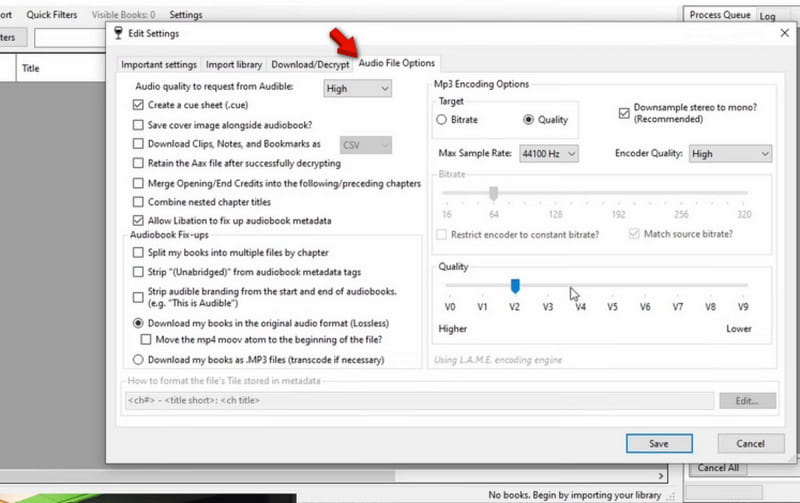
Editor's Note: For advanced users, Libation uses decryption logic similar to that of the FFmpeg libraries. It ensures that the conversion is lossless without re-encoding the audio stream. However, the interface and setup process can be complex for beginners. Also, it experiences bugs, crashes, and slower performance with large files.
Audacity
Audacity is another open-source tool that lets you change AAX to MP3. However, unlike dedicated converters, Audacity does not directly remove DRM from AAX files. Instead, it records the audio during playback and then exports it as an MP3 file.
Pros
- It is free and available on various operating systems.
- It works as a workaround by recording audio playback.
- It allows trimming, cutting, enhancing, and adjusting quality.
Cons
- It doesn't truly convert AAX files; it only captures playback.
- It may degrade the audio quality depending on recording settings.
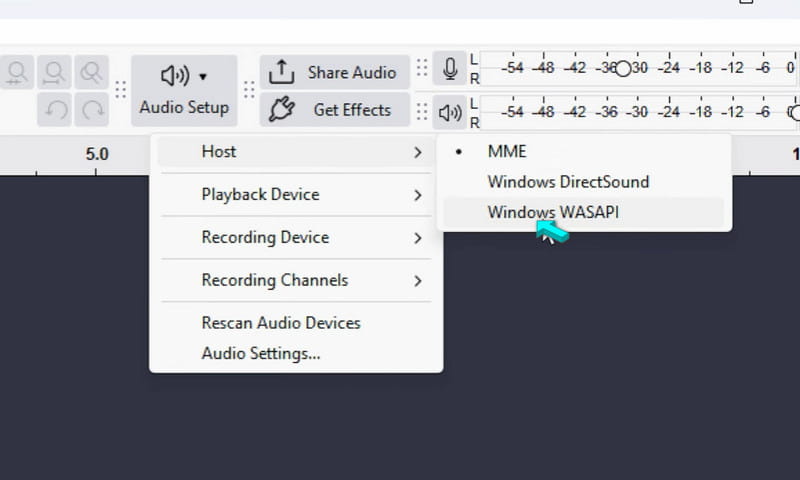
Step 1. In the Audio Setup section, click Host and select Windows WASAPI. Then, click Audio Setup again, click the Recording Device option, and choose your default device.
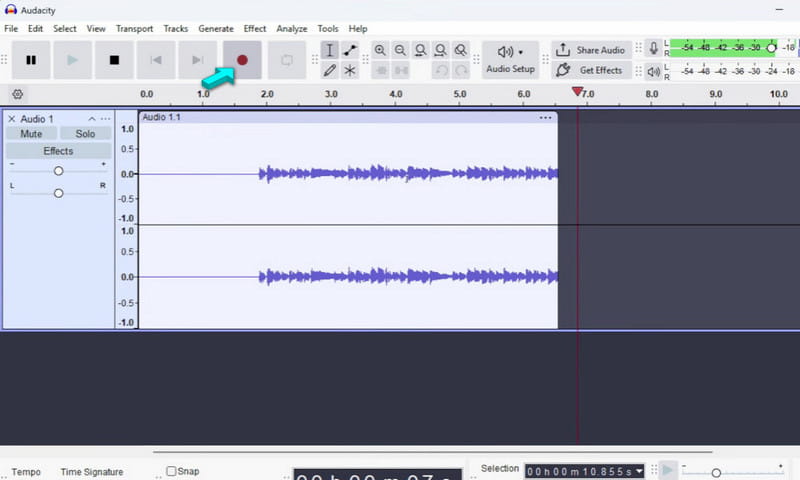
Step 2. In Audacity, click the red circle Record button. Then, switch to the Audible app/AAX player and click the Play button.
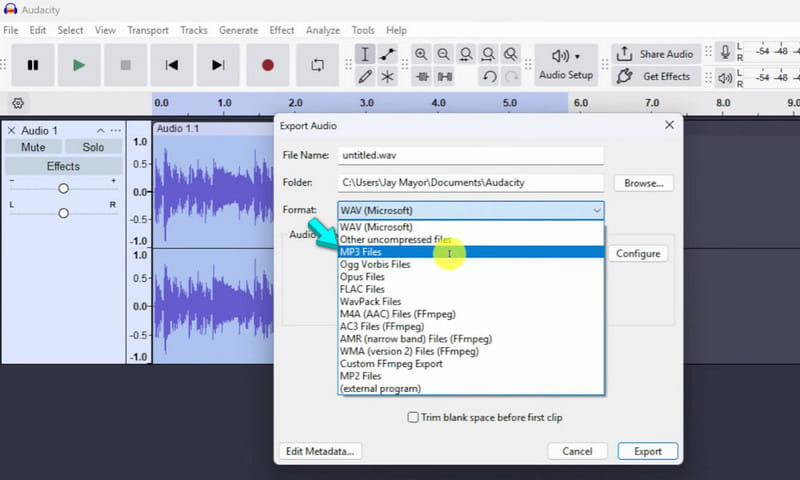
Step 3. After completing the section or book recording, click Stop in Audacity. Then, go to the File tab, click Export Audio, select Export to Computer, and then choose MP3 Files.
Editor's Note: Audacity is a flexible, free option for converting AAX to MP3 via recording. It's best suited if you're comfortable with manual processes. However, it does not preserve chapters or metadata.
Side-by-Side Comparison of AAX to MP3 Converters
| System Requirement | Output Quality | Supported Formats (Output) | Speed | Ease of Use | Batch Conversion | DRM Removal | Best For |
| TopVox All Music Converter | Windows and Mac | Up to 320 Kbps | MP3, FLAC, M4A (ALAC/AAC), WAV, and AIFF | Up to 35× faster speed | Very Easy | ✅️ | ✅️ | Converting large AAX libraries |
| Online Audio Converter | Web | Up to 320 Kbps | MP3, WAV, iPhone ringtone, M4A, FAC, OGG, MP2, and AMR | Moderate (relies on the internet) | Easy | ✅️(Limited) | ❌️ | Small AAX conversion |
| Libation | Windows, Mac, and Linux | Up to 128 Kbps | MP3 and M4B | Fast | Hard | ✅️ | ✅️ | DRM removal and batch downloads |
| Audacity | Windows, Mac, and Linux | Up to 320 Kbps | MP3, WAV, AIFF, FLAC, Ogg Vorbis, and M4A (AAC) | Very Slow (10 hours of audiobook is equivalent to 10 hours of recording) | Hard | ❌️ | ❌️(records only) | Manual conversion through recording |
FAQs on Downloading Spotify Playlists
Can I convert AAX to MP3 on Android?
Yes, but it's not the most practical method. Most Android apps cannot directly handle DRM-protected AAX files from Audible. The most reliable approach is to convert AAX to MP3 on a desktop using a dedicated tool like TopVox.
Can an MP3 player play AAX files?
No, standard MP3 players cannot play AAX files. AAX is a DRM-protected format, which requires authorized apps to decode and play it. MP3 players only support open formats such as MP3 and WAV. In other words, they won't recognize or open AAX files.
Can I download my Audible books as MP3s?
Audible doesn't provide MP3s directly. When you download their audiobooks, you receive DRM-protected AAX files. To get MP3 versions, you must use a converter to remove the DRM and transform the file.
Conclusion
Mastering how to convert AAX to MP3 lets you enjoy your audiobooks on any device without restrictions. While AAX files lock you into the Audible app, MP3s offer universal compatibility, easier storage, and long-term accessibility. Among the available methods, TopVox All Music Converter stands out for its speed, high-quality output, batch processing, and metadata preservation. Instead of dealing with complex workarounds or slow manual methods, you can convert your entire audiobook library in minutes. Get it today and experience a faster, simpler, and more flexible way to listen without limits.
Owen Bannett
Owen Bannett is a music enthusiasm as well as a senior writer. He has paid close attention on the pros & cons of various audio formats, bitrate, sample rate and encoding methods. Always seeking the best listening experience, Owen has deep insights about lossless music and diverse music converters on the markets.




 by
by