How to Download Audible Books Without App Restrictions
Quick Summary:
- Official Method: Use the Audible website (PC/Mac) or the Audible App (iOS/Android) to save books for offline listening. Please note that these files are DRM-protected AAX formats.
- Permanent Method: Use TopVox All Music Converter to convert Audible titles to MP3 for use on any device without app restrictions.
- File Locations: Usually found in /Downloads on PC or hidden system folders on Android.
Downloading audiobooks seems simple: you buy a title, hit download, and finish. But if you've ever used Audible, you know the process isn't that straightforward. Even after you pay for a book, the hunt for the actual file often confuses users. It happens because Audible locks most downloads behind Digital Rights Management (DRM). Instead of providing a typical, portable audio file, Audible ties the content to your account and restricts playback to their own supported apps and devices. In this post, we will show you how to download Audible books the official way for basic offline listening. Additionally, we will provide a pro method to download your books as permanent, usable files using TopVox All Music Converter.
| Versus | TopVox All Music Converter |
| Premium | Account Required | Free or Premium |
| Yes | Offline Playback | Yes |
| AAX and AAXC (Protected) | Format | MP3 (Universal) |
| Authorized devices only | Device Limit | Car stereo, MP3 players, USB drives, local media player software, etc. |
| Tied to Audible Account | Ownership | Permanent local file |
Part 1. How to Download Audible Books on PC/Mac (Official Way)
The easiest way to download Audible books on a desktop is straight from the official website. It doesn't require any extra software, and everything happens right from your browser. After you download the books, they are available on your device, and you can play them even without an internet connection.
Here's how to download books from the Audible website on PC/Mac:
Step 1. Using a browser, reach Audible's official website on your PC or Mac. Sign in to your Amazon or Audible account, then click Library to access all the books you have purchased. If you haven't purchased the book yet, click Add to Cart and complete the payment process.
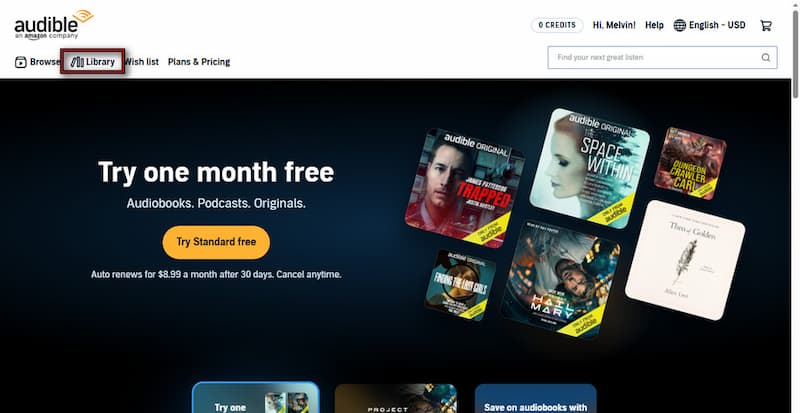
Step 2. In the Library, find the book you want, and click the Download button next to it. The download will start immediately, and once it's done, it will save the file in AAX format. Please note that these steps work the same on both PC and Mac.
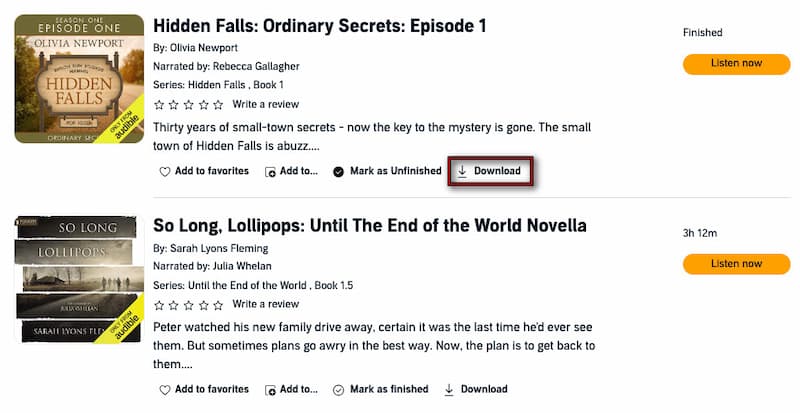
Downloading Audible books through the official website is quick, secure, and doesn't require any extra tools. There's one catch. Audible downloads come in AAX format, which means they're protected. You can only play them using authorized apps like Apple Books or iTunes.
Downloading music or audiobooks shouldn't feel complicated. Just like learning how to download Apple Music to PC, getting your titles from Audible follows a similar idea.
Part 2. How to Download Audible Books on iOS/Android (Official Way)
The Audible's official mobile application allows you to listen to your Audible books offline. After you purchase a title, you can download it directly to your device. Everything stays organized inside the app so that you can stream or play your books anytime.
Here's how to download Audible books for free on iOS/Android:
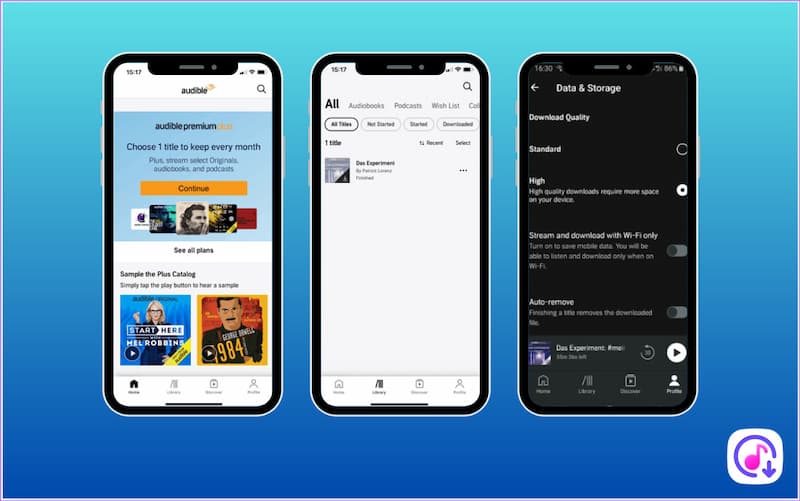
Step 1. After installing and opening the Audible app, sign in to your account. Tap Library to see all your purchased audiobooks. From there, find the book you want and tap the Download Arrow button. The download will start right away.
Step 2. Optionally, you can configure the download settings to control storage or audio quality. Navigate to Profile, select Data & Storage, then choose between Standard or High quality for your downloads. Once done, your audiobook will be available for offline listening.
Downloading Audible books through the official app is quick and hassle-free. Everything stays neatly organized, and you can start playing your audiobooks with just a tap. However, downloads are locked within the Audible app. You can't play them using other media players.
Part 3. Unlimited Way to Download Audible Books
If you've ever tried downloading Audible books the official way, you've noticed one limitation. You can't really use the files outside the app. Most people search for ways to download Audible books because they want more freedom. The official method doesn't allow that. TopVox All Music Converter solves this by converting your Audible books into standard audio files you can actually keep and use.
TopVox All Music Converter is a one-stop audiobook and music downloader for Windows and Mac. It lets you convert Audible books into DRM-free MP3, FLAC, M4A (ALAC/AAC), WAV, and AIFF formats. For better audio quality, you can adjust the bitrate to 320 kbps and set the sample rate to 48000Hz. Beyond Audible, it supports Spotify, Apple Music, Amazon Music, YouTube Music, Deezer, Pandora, SoundCloud, and Line Music.
What to Look Forward to with the TopVox All Music Converter:
- Automatically keeps important details like title, author, and cover art.
- Convert Audible books into DRM-free MP3, M4B, or WAV files permanently.
- Preserve chapter information to make it easier to navigate long audiobooks.
- Enjoy audiobooks on MP3 players, USB drives, car systems, and older iPods.
- Download multiple books simultaneously with up to 35× faster conversion speed.
Here's how to download Audible books to MP3:
Step 1. Beforehand, get the free download of TopVox All Music Converter. Install the Audible book downloader and allow the setup process to complete. After you finish the installation process, launch the software to access the main dashboard.
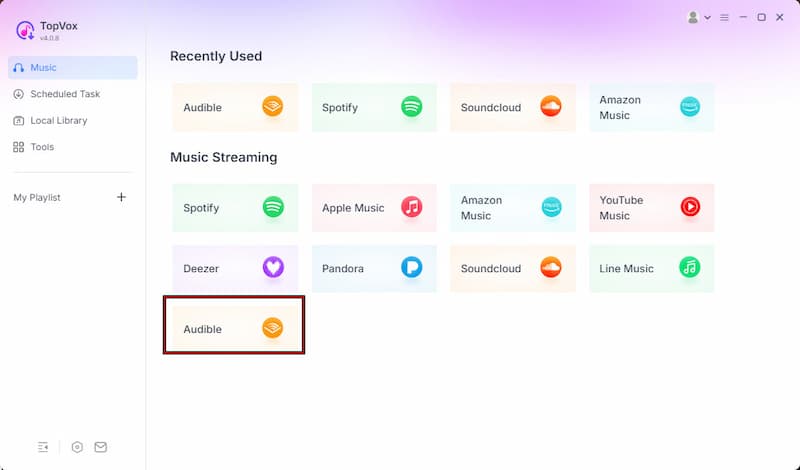
Step 2. As soon as it opens, you'll see several supported platforms. Click the Audible tile to open its built-in browser. From there, log in to your Amazon or Audible account. You can now browse or search for any audiobook you want.
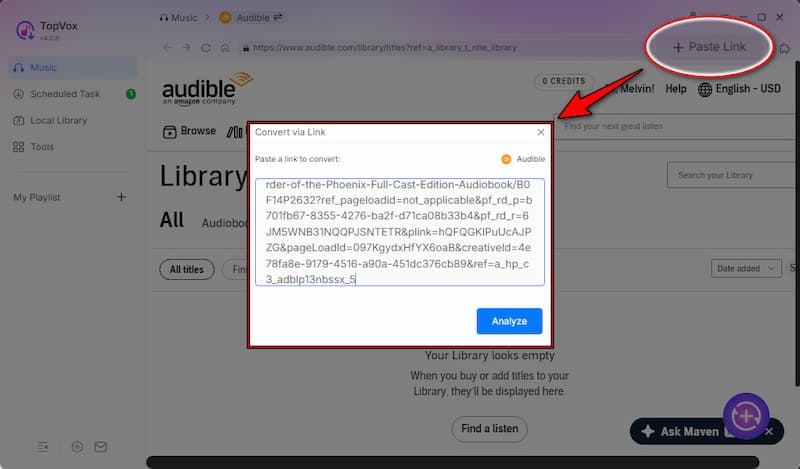
Step 3. Navigate to your Library, find the books, and click + Add to select them. If you do not want to log in to this website, you can copy the book link from the website. Then, click + Paste Link and paste the copied URL to convert the book via link.
Step 4. By default, books are saved as MP3 files with original quality. You can adjust the format, bitrate, or sample rate if needed. After you set everything, click Convert All to begin downloading your audiobooks.
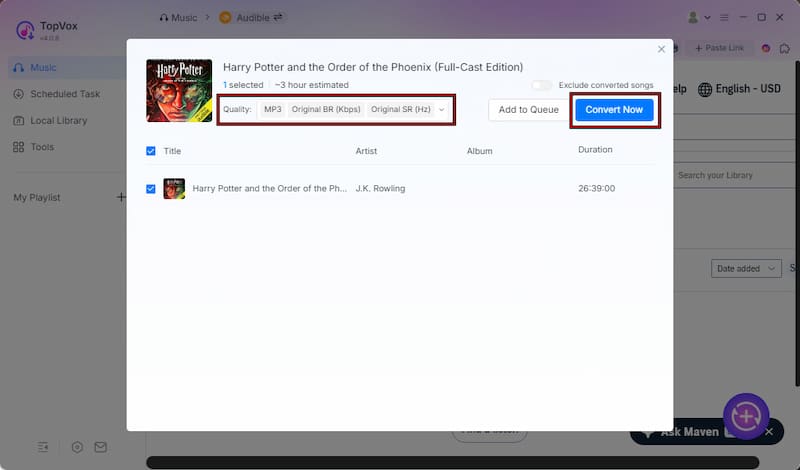
Go beyond simple offline play with TopVox All Music Converter. Convert your audiobooks into DRM-free files and enjoy your library on any device, without restrictions. If you're unsure what DRM protection is, check out our guide on DRM meaning and usage.
Editor's Note: Our team tested TopVox All Music Converter on Windows 11. We found that converting a 10-hour audiobook took less than 2 minutes using the 35× speed setting.
Part 4. Where Are Audible Books Stored?
On Windows
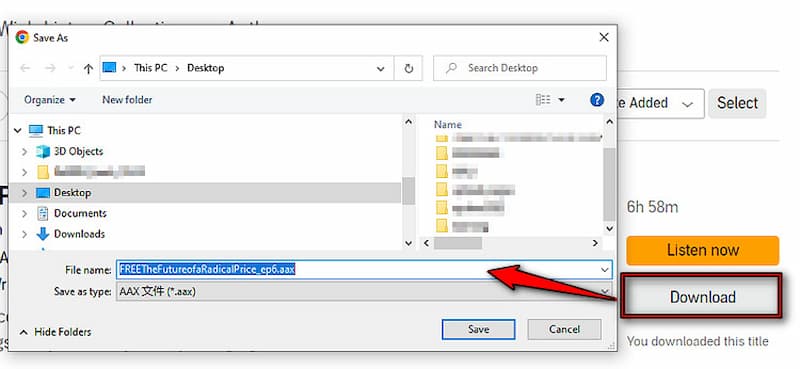
When you download Audible books from the official website, the site saves them as AAX files. You choose the save destination during the download process. If you didn't change the location, check your Downloads folder.
On Mac
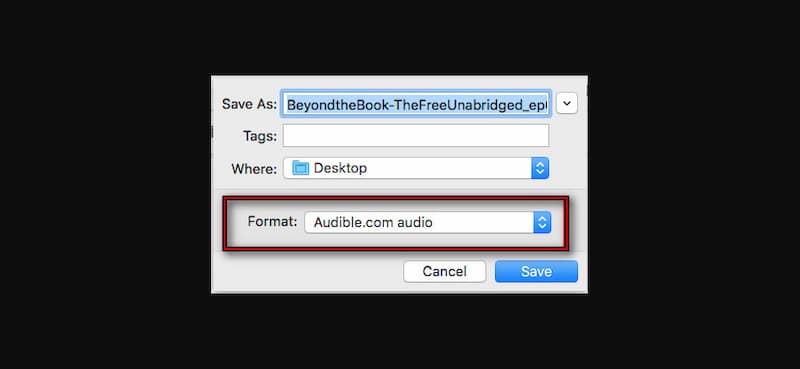
This process mirrors Windows. Audible lets you pick a save location for your files. Once you click Download, a pop-up prompts you to choose a destination, select your preferred folder, or check Downloads by default. Again, Audible saves these files in AAX format.
On Android
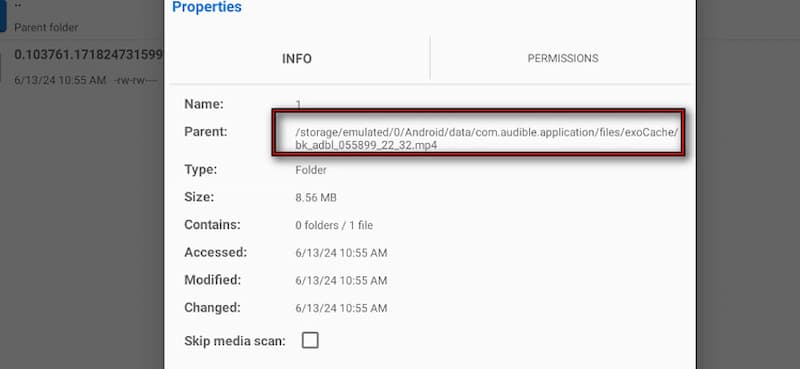
Audible files on Android are less visible and stored in system folders. You'll need a file manager or a computer to access them. Its common location is Internal Storage > Android > data > com.audible.application > files. However, in 2024, Audible updated the format and stores files as .exo. The new path is /Android/data/com.audible.application/files/exoCache.
Note: If you are using Android 14 or 15, the system hides these folders by default. You will need to use a file manager like Files by Google and enable Show Hidden Files in the settings to navigate to the /exoCache path.
On iPhone
On iOS devices, Audible files are not accessible at all. Apple restricts access to app data. It means you won't be able to browse, copy, or move downloaded Audible files. To make it simple to understand, everything stays locked inside the Audible app.
Why These Files Are Not Useful (Without a Tool):
Even if you manage to find your Audible files, there's a catch: they're DRM-protected. Digital Rights Management protects AAX, AAXC, and EXO files. You can only play them through the Audible app. You can't freely transfer them to other devices or media players. In short, locating the files doesn't mean you can actually use them the way you want.
Part 5. How to Listen Offline Without the App
If you want to listen to Audible books offline without the app, you should know one important detail upfront: Audible's official method prevents this. When you download a title, Audible saves the file in a protected format, such as AAX or AAXC. These files use Digital Rights Management (DRM) to lock the content to the Audible app. Because of this encryption:
- Standard media players cannot open the files.
- The app serves as the only authorized gateway for playback.
- The software blocks you from transferring books freely to other devices.
To truly listen offline without the Audible app, you'll need to convert your audiobooks into a standard format like MP3. This is where tools like TopVox All Music Converter come in. After you convert, the audiobooks become DRM-free files. It means you can now play them on any media player or even transfer them to MP3 players, USB drives, or car systems. Using MP3 files gives you a more distraction-free listening experience.
Part 6. FAQs about Downloading Audible Books
Q: Why can't I see my downloaded Audible books in my music folder?
A: Audible protects your downloaded books with DRM, which prevents you from seeing them like standard files. Instead of using regular audio formats, Audible saves your titles as AAX, AAXC, or EXO files. Standard music players cannot recognize these formats, and the system does not store them in your typical Music folders. The Audible app often hides these files within its own private directories or locks them entirely within the app interface.
Q: Can I download Audible books to a USB drive?
A: Yes, but not with the official method alone. Audible doesn't allow direct transfers to USB drives because of DRM restrictions. However, you can use TopVox All Music Converter to convert your books to DRM-free formats such as MP3. It allows you to easily copy and store them on a USB drive, external storage, or any other device for offline playback.
Q: How do I download Audible books to my computer? Is there a limit?
A: You can download Audible books directly from the Audible website. The files will be saved to your computer as AAX files. As for limits, there's no strict cap. It means you can download all the books you've purchased. However, they remain tied to your account and protected by DRM, which restricts how you can use them.
Q: Can I download books from the Audible Plus Catalog with TopVox?
A: Yes, you can download Plus Catalog titles for offline use. However, ensure you use the tool for personal backup purposes in compliance with local fair-use copyright guidelines.
Conclusion
Now you know how to download Audible books, both the official way and the more flexible alternative. While Audible makes it easy to download books for offline listening, those files are still locked within the app. It limits how and where you can use them. If you want full control, then using TopVox All Music Converter is the better option. It removes those limitations and turns your Audible library into something you can truly own.
Owen Bannett
Owen Bannett is a music enthusiasm as well as a senior writer. He has paid close attention on the pros & cons of various audio formats, bitrate, sample rate and encoding methods. Always seeking the best listening experience, Owen has deep insights about lossless music and diverse music converters on the markets.




 by
by