Syncing Apple Music from Mac to iPhone with Easy Steps
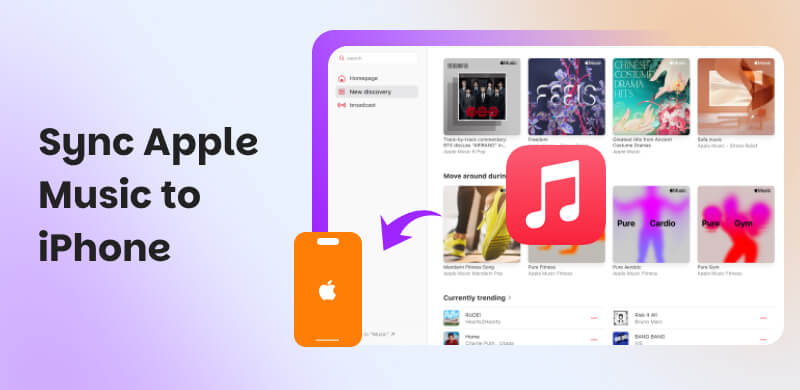
The problem of Apple Music not syncing from Mac to Apple Music is a common issue that many users are experiencing. That is why this article is here to help you get rid of the problem. We prepared five amazing tools here to help you sync Apple Music to your iPhone without complications. See their features and the steps you need to take in order to make the process possible. Start reading now as you discover the best things you need.
Part 1. How to Sync Apple Music from Mac to iPhone
The process of syncing your Apple Music from Mac to iPhone will now be easy using the amazing TopVox All Music Converter. This is a versatile tool that helps many users in managing their playlists from different music platforms that they are using. It supports Apple Music, Spotify, Amazon Music, and more platforms. The good thing about this tool is its ability to process all of the playlists and tracks faster and in real time compared with other tools that we have here. Therefore, if you need a fast solution and process with a high-accuracy rate, then TopVox All Music Converter is the one you are looking for.
Features
- Syncing Apple Music to an iPhone is a fast process.
- Support multiple music platforms.
- Metadata management with high-accuracy outcome.
- Batch conversion for huge libraries.
Steps in Using TopVox All Music Converter
Step 1. Get TopVox All Music Converter on their website for free and immediately install it on your Mac.
Step 2. Access the Apple Music platform among the options.
Step 3. From there, select the playlist you want to see on your Apple Music on your iPhone. Click Convert to continue.
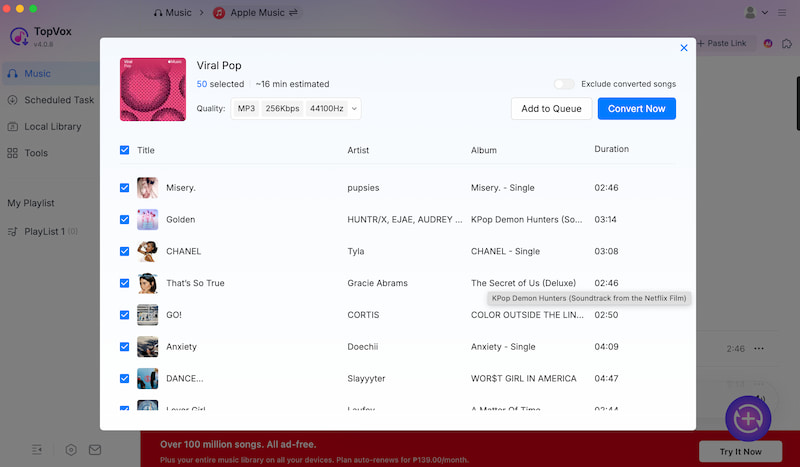
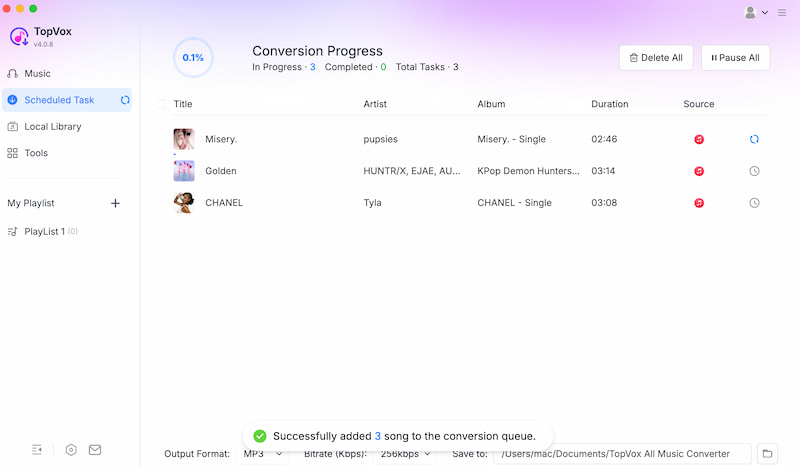
Step 4. It is now automatic that you will have the track in your Local Library.
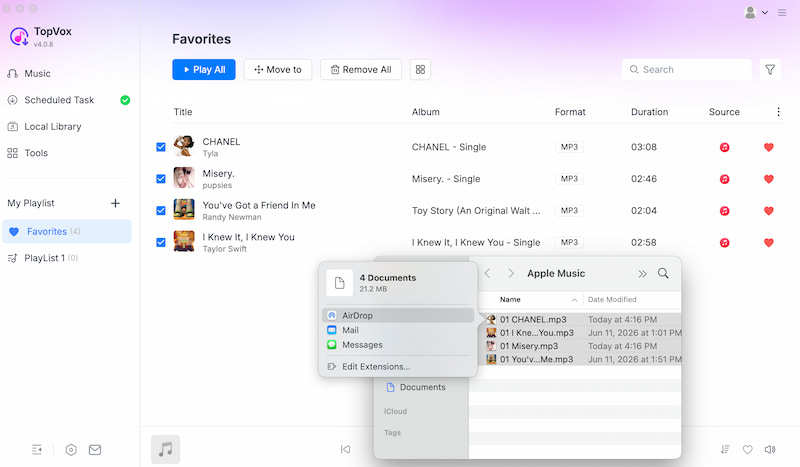
Step 5. Now, click the tracks and AirDrop them on your iPhone.
Part 2. Conventional Ways to Sync Apple Music to iPhone
Way 1: iTunes
First on the list of the conventional ways to sync Apple Music to an iPhone is using iTunes. This way stills the first thing that will come to your mind when you want to manage your entire music library from Mac to iPhone. This tool offers direct transfer of your songs.
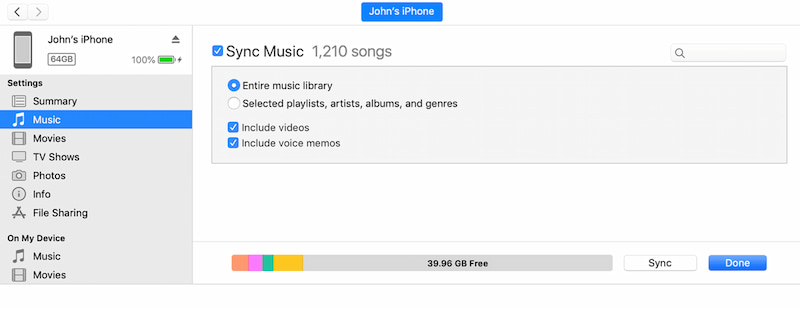
Step 1. You need to install iTunes on your Mac and ensure that it is connected to your iPhone via a USB cable.
Step 2. Now, please select the iPhone device on your iTunes.
Step 3. You need to select the Music where you will see the music you want to sync on your iPhone. Then, please click the Sync Music.
Step 4. Kindly select the Playlist or Library. Then, continue to the Apply button and allow the tool to do the syncing process.
Way 2: AirDrop
Another quick way to do the syncing process is by using the Airdrop feature of Apple products. This is a great way of syncing processes without using a wired method. All you need to do is select tracks and click a few times. Yet, this method will only be possible if the tracks are already saved to your local library. Thus, the method is a good idea when you pair it with TopVox All Music Converter, like what we discussed above. Here are deeper steps to do it, assuming that you have already used TopVox All Music Converter for making the tracks on your Local Library:
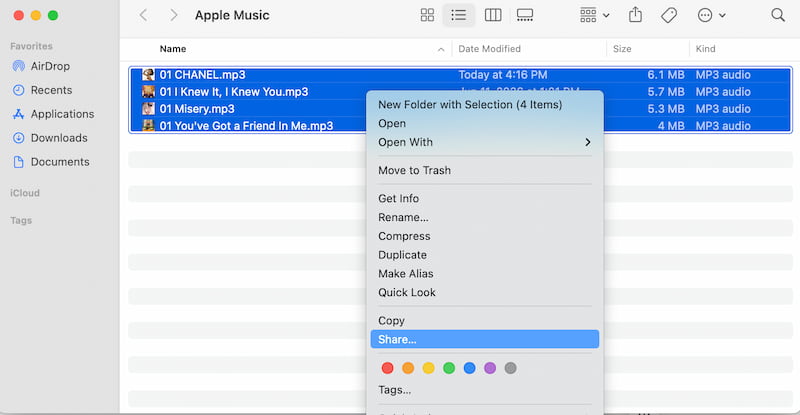
Step 1. Ensure that both Airdrop from your iPhone and Mac are enabled. Then proceed with your Library on Mac. Select the tracks.
Step 2. Now, please right-click and access the Share option.
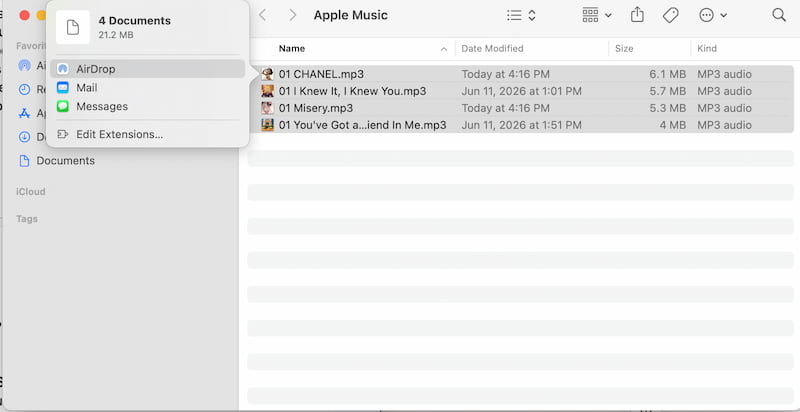
Step 3. From there, select Airdrop.
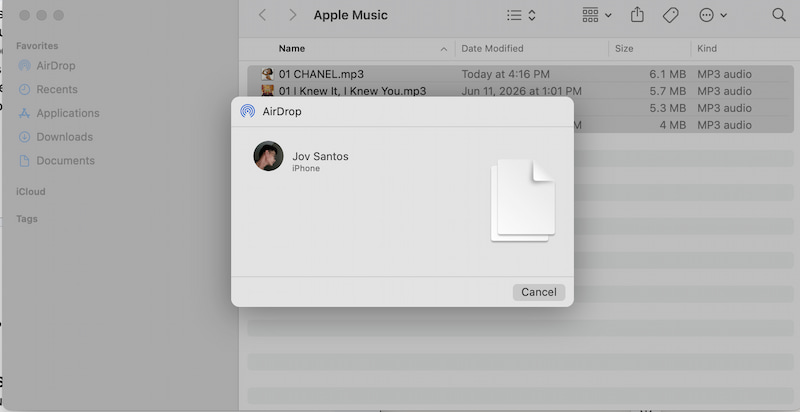
Step 4. Click the name of the iPhone where you want to sync it.
Way 3: Dropbox
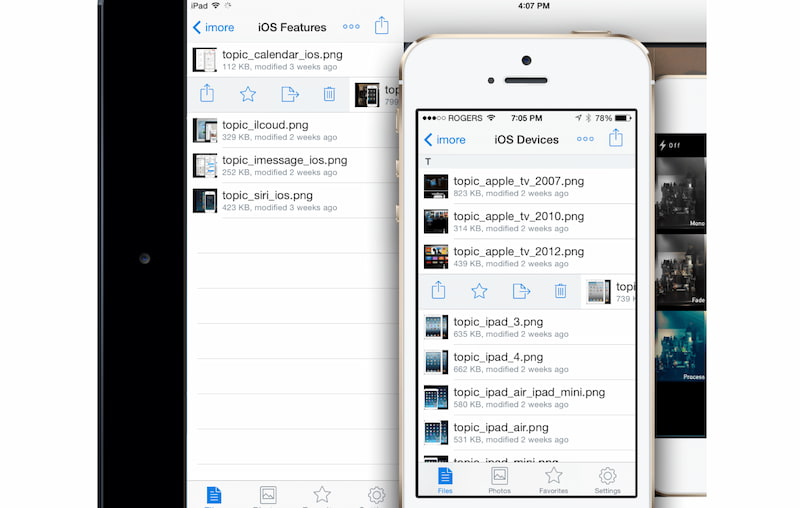
The third on the list is using our Dropbox. This is known for being a cloud-based solution for syncing Apple Music from Mac and iPhone. Here, you need to upload the music files to Dropbox so that you can access them both from a Mac or an iPhone.
Step 1. Install the Dropbox tool on Mac and iPhone devices that you have.
Step 2. Now, you need to upload the tracks you want to Dropbox.
Step 3. Open Dropbox on your iPhone, and you will now listen to the tracks from it.
Way 4: Using Finder (macOS Catalina and later)
Step 1. You need to connect your iPhone to your Mac using a USB cable.
Step 2. Now, open the Finder. From the sidebar, you should see and click the iPhone listed under Locations.
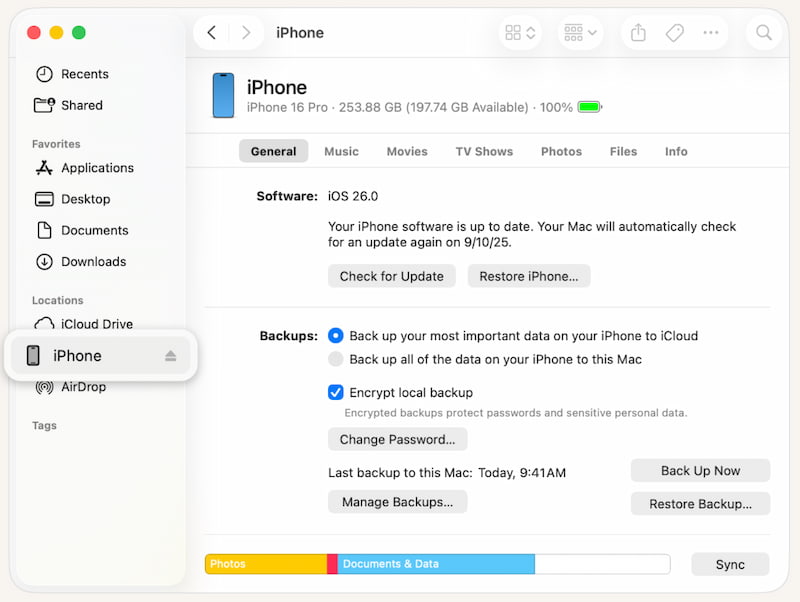
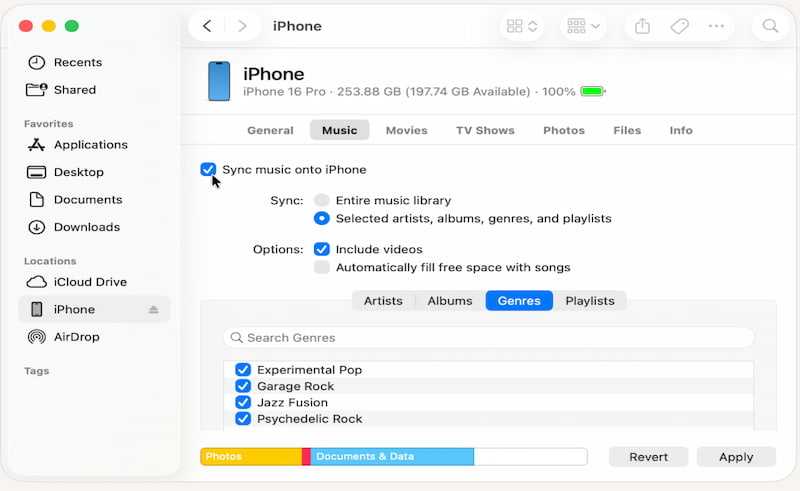
Step 3. Next, go to the Finder window and see the Music tab. From here, you have the option to choose to sync the entire music library or just select specific tracks you want.
Step 4. After that, please click Apply from the bottom corner. Then the finder will begin syncing your Apple Music.
Part 3. FAQs about Syncing Apple Music to iPhone
Q: Why is Apple Music not syncing from Mac to iPhone?
A: This issue of Apple Music not syncing with Mac to iPhone is because the Sync Library is turned off. You can solve this by going to your Settings and going to the Music option. From there, enable the Sync Library option.
Q: Can I sync selected playlists or tracks instead of my entire library?
A: Yes. You have the control to select only the playlist from your library that you want to sync. Tools like TopVox All Music Converter and iTunes can help you with this situation with ease.
Q: Can I sync Apple Music without a USB cable?
A: Yes. Syncing without a USB cable is possible as long as you are connected to the same WiFi network. Mac will somehow give you an option of Sync over WiFi, allowing syncing of music without the need to plug in a cable.
Q: Is Airdrop a good idea for a quick syncing process compared to Finder?
A: Yes. AirDrop is an option for you if you really want it to be as quick as possible. This is normally good for users who have a small playlist or random tracks only. This method is faster as long as you have your tracks already and ready to be synced. You can use TopVox All Music Converter here for a much more effective process.
Q: Do syncing problems happen when I already subscribe to Apple Music?
A: Normally, no. An active subscription to Apple Music will allow you to sync the Library automatically. As long as the Sync Library is enabled, you will not have a problem with syncing anymore. If so, contact Apple Service support.
Conclusion
In conclusion, we can see that the process of syncing Apple Music to an iPhone from a Mac is now possible and easy to deal with. We can see above that we have four methods in making it possible, one is an all-in-one solution, together with three conventional ways to do it. Among these options, many users recommend using TopVox All Music Converter because of its versatile tools, fast processing, and high-accuracy outcome. Use it now and be amazed by its capabilities.
Owen Bannett
Owen Bannett is a music enthusiasm as well as a senior writer. He has paid close attention on the pros & cons of various audio formats, bitrate, sample rate and encoding methods. Always seeking the best listening experience, Owen has deep insights about lossless music and diverse music converters on the markets.



 by
by