Download Spotify Songs to Apple Watch | Offline & No Premium
 by Luna Harper | April 16, 2026 | Spotify
Quick Summary:
To download Spotify songs to an Apple Watch officially, you need Spotify Premium and watchOS 10 or later. If you have Spotify Free, the official app only lets you download podcasts. However, you can use TopVox to convert songs to MP3 and sync them manually.
Heading out for a run or hitting the gym and don't want to carry your bulky iPhone? That's where downloading Spotify songs to your Apple Watch comes in handy. With music stored right on your wrist, you can move freely without losing access to your favorite playlists. But here's the reality: Spotify offline playback on Apple Watch comes with strict requirements. You'll need a Premium subscription, a compatible device (Series 4 or newer), and an updated watchOS. Don't worry if you don't meet those conditions. In this post, we'll show you how to download Spotify songs to an Apple Watch using the official method. Plus, we will cover a Pro workaround with TopVox All Music Converter for users without Premium or compatible devices. Our goal is simple: help you enjoy Spotify music offline on your Apple Watch, no matter your setup.

Part 1. Official Way: Only for Premium Users
If you're using Spotify on an Apple Watch, Premium is where things finally feel complete. It lets you download songs and playlists directly to your watch for offline listening. The biggest perk? No phone nearby, no internet needed after you save.
Requirements Before You Start:
- Spotify Premium subscription.
- Apple Watch Series 4 or later.
- WatchOS 10.0 or newer.
- Bluetooth headphones paired with your watch.
- Wi-Fi or cellular connection for downloading playlists.
Here's how to download Spotify songs on Apple Watch officially:
Option 1: Direct Download on Apple Watch
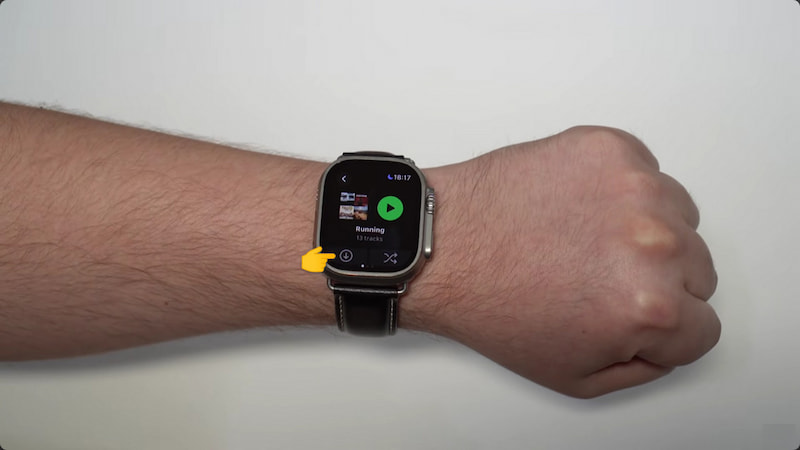
Step 1. Open Spotify on Apple Watch and select the playlist you want to download. Tap the Downward Arrow (Download) button to initiate the download.
Step 2. Wait while the download starts. You can check progress right inside the Spotify app on your watch. Once it’s finished, a Green Arrow will appear next to the playlist.
Important Note: You need an active subscription to download songs successfully. Otherwise, you need a workaround to download music on Spotify without a Premium subscription.
Option 2: Sync from iPhone
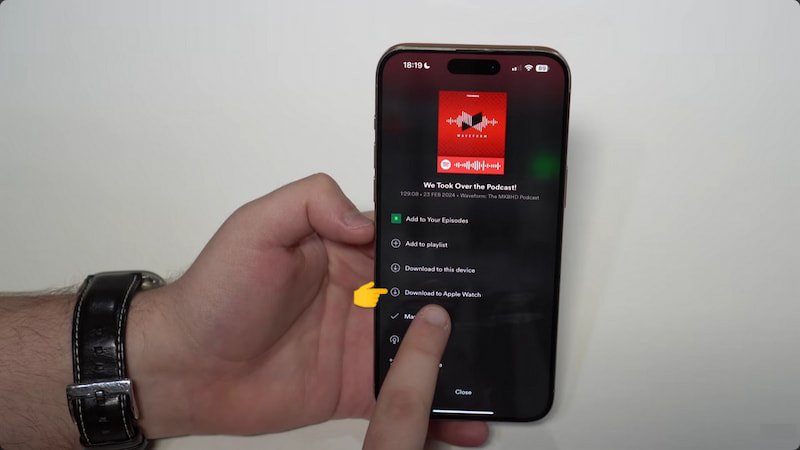
Step 1. Launch the Spotify application on your iPhone and navigate to the playlist or album. Tap the Three Dots menu next to the playlist to access the menu options. Select the Download to Apple Watch option and open Spotify on your Apple Watch.
Step 2. Check the Downloads section to track progress. Afterward, you will see a Green Arrow next to the playlist, indicating the download is complete. Now pair your Bluetooth headphones with your Apple Watch to enjoy your music offline.
Using an Apple Watch for Spotify downloads is perfect for phone-free workouts and light travel. However, there are several catches. You can only store roughly 10 hours of content on your Apple Watch. Also, there's a cap of about 100 songs per playlist download.
| Official Method | Versus | Pro Method |
|---|---|---|
| Premium | Account Required | Free or Premium |
| Yes (for initial sync) | Internet Needed | No (once files are moved) |
| 100 songs per playlist | Device Limit | Unlimited |
| Encrypted | Audio Format | MP3, FLAC, M4A (ALAC/AAC), WAV, and AIFF |
Part 2. Pro Way: TopVox All Music Converter (Best for Everyone)
TopVox All Music Converter is a converter-to-local-file-to-watch software for Windows and Mac. It lets you download songs directly from Spotify's database, with the option to control how you save them. You can grab full playlists, albums, singles, artists, and even podcasts in one go. It allows you to save music in MP3, FLAC, M4A (ALAC/AAC), WAV, and AIFF formats. Additionally, it lets you adjust the bitrate to 320Kbps and set the sample rate to 48000Hz. In addition to Spotify, it also supports Apple Music, Amazon Music, YouTube Music, Deezer, Pandora, SoundCloud, Line Music, and Audible.
What to Look Forward to with the TopVox All Music Converter:
- Bypasses DRM limitations to save music for offline playback.
- Direct access to Spotify’s built-in web player for easy downloading.
- Batch downloading of playlists, albums, artists, singles, and podcasts.
- All-in-one music downloader and converter for Spotify and 9 other music services.
- Maintains original metadata/ID3 tags, including artist, album, and track information.
Here's how to download Spotify playlist to Apple Watch (pre-processing):
Step 1. First, download the TopVox All Music Converter for free. Install the Spotify playlist downloader and complete the setup. After completing the installation, open the software to access the main dashboard.
100% Secure. No virus.
100% Secure. No virus.
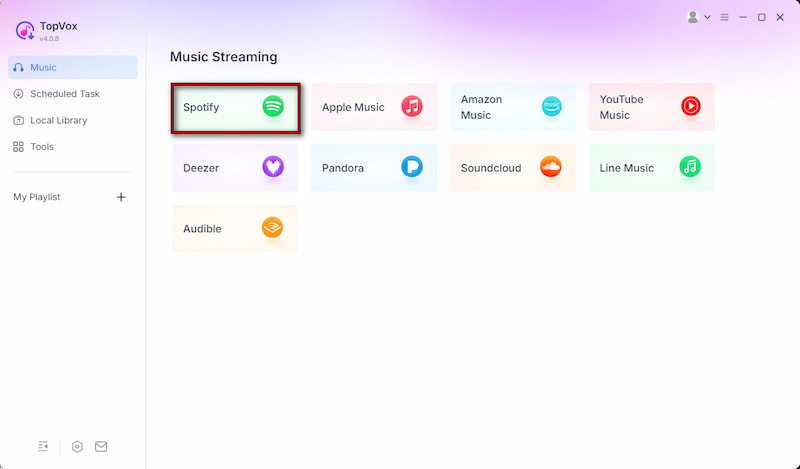
Step 2. As soon as it launches, you’ll see several supported music platforms. Click the Spotify tile to open its built-in web player. From there, log in to your account. You can now browse or search for any albums, singles, or playlists you want to download.
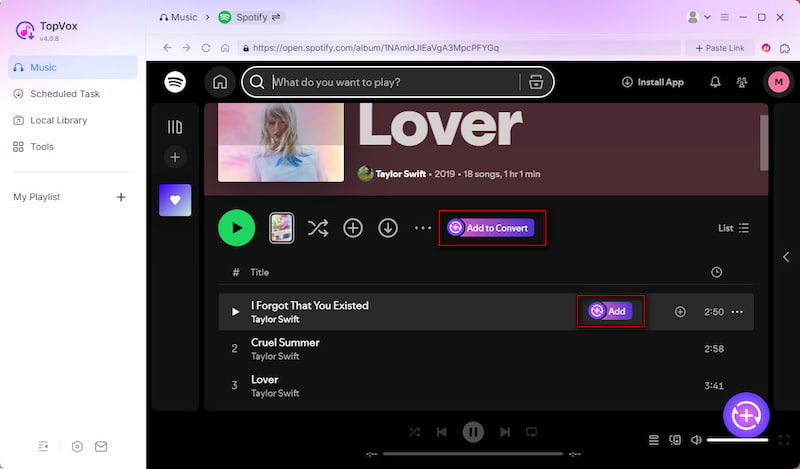
Step 3. Find your favorite tracks and start selecting them. Click + Add for individual songs, or choose + Add to Convert to grab an entire playlist. All selected music will automatically appear in the Scheduled Task (download queue) section.
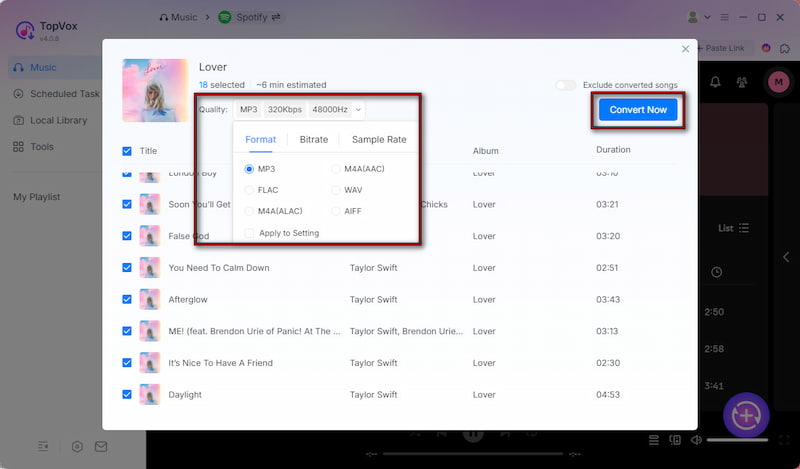
Step 4. By default, TopVox All Music Converter exports downloads in MP3 format with the original bitrate. However, you can change the format, bitrate, and sample rate depending on your preference. After everything is set, click Convert All to start downloading playlists.
TopVox All Music Converter offers a practical solution for preparing Spotify songs for offline listening on Apple Watch. It allows you to optimize files during conversion, ensuring they are in a watch-friendly format. It lets you download and convert tracks in one place, so your music is already in a watch-friendly format before syncing.
Part 3. How to Sync Downloads to Apple Watch
After downloading and converting your Spotify songs with TopVox All Music Converter, the next step is to transfer them from your computer to your Apple Watch. It may look technical at first, but once you follow these steps, it becomes pretty straightforward.
Here's how to download Spotify music to an Apple Watch:
Step 1. First, ensure the downloaded songs are added to your computer’s music library.
• Windows or older macOS (Mojave and earlier):
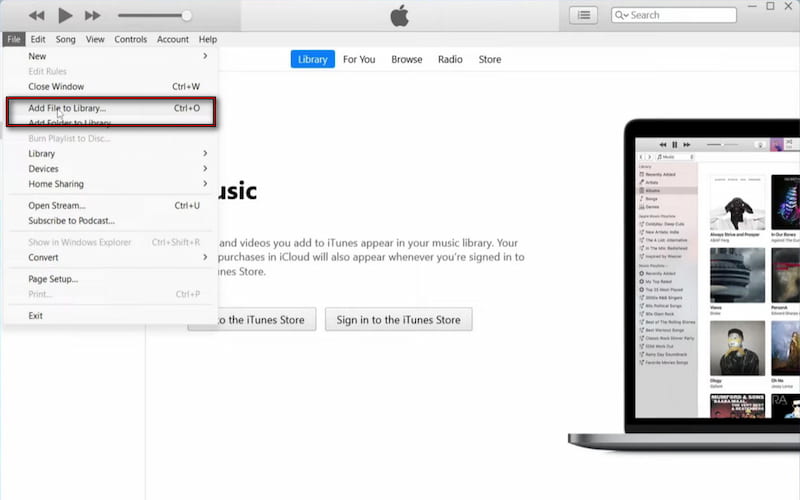
Open iTunes, click File, and select Add File to Library or Add Folder to Library. (If you also have iTunes songs, convert iTunes to MP3 for easy playback on any device.)
• macOS Catalina or later:
Open the Music app, click File, select Import, and choose your files.
Step 2. Now, connect your iPhone to your computer and open the iTunes/Music app. Select your iPhone, navigate to the Music tab, and enable Sync Music. Choose the entire library or selected playlists, then click Apply and wait for syncing to finish.
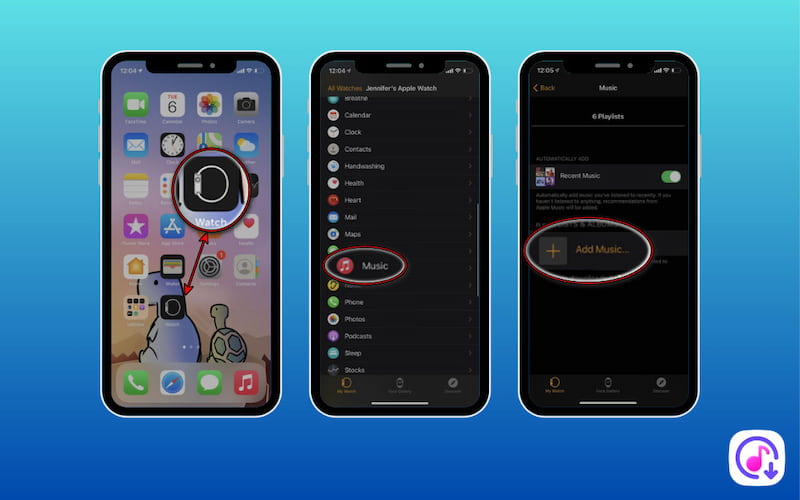
Step 3. Open the Apple Watch app on your iPhone and tap the My Watch tab. Proceed to Music, tap Add Music, and select the songs or playlists you just synced. Tap Done and let the transfer begin. Keep your Apple Watch on its charger and near your iPhone for faster syncing.
Expert Tip: During my testing, I found that syncing music from the iPhone to the Apple Watch is faster when you temporarily turn off Bluetooth on your iPhone, forcing the devices to sync over Wi-Fi. Also, ensure your Watch is charging; otherwise, the transfer may pause at 50%.
Part 4. FAQs about Downloading Spotify Songs to Apple Watch
Q: Does Spotify on Apple Watch work without a cellular plan or iPhone?
A: Yes, but only with a Spotify Premium subscription. Premium users can download both music and podcasts directly to their Apple Watch for offline listening. If you're on the free plan, downloads aren't available for songs; only podcasts are.
Q: Can you use Spotify on an Apple Watch without a phone nearby?
A: Yes, as long as you have already downloaded the music. The most flexible way to do this is by downloading tracks using TopVox All Music Converter. Then, sync those files to your Apple Watch for offline playback without depending on the phone nearby.
Q: Why won't my Spotify playlist download on Apple Watch?
A: The common reason is the connection issue. Your Apple Watch and iPhone need to be on the same Wi-Fi network during the download process. If they're not properly connected, the Spotify app may fail to sync or download playlists.
Conclusion
To download Spotify songs to an Apple Watch, you've got two methods: the official Spotify method for Premium users, and a more flexible workaround for those who want fewer limitations. While the built-in option is convenient, it comes with restrictions on device compatibility, subscriptions, and download limits. That's where TopVox All Music Converter makes a real difference. It gives you more control over your music, letting you download, convert, and transfer songs to your Apple Watch without being tied to Spotify's rules.
Luna Harper is a passionate music lover and an inspiring content sharer. She has explored most of the music converters available on the market, acquiring thorough knowledge of their features, usability, and differences. Luna enjoys using her professionalism to help fellow music lovers get superior audio quality.