Download YouTube Music to PC Without Premium: 5 Best Tools
Downloading music from YouTube to your computer allows you to enjoy your favorite tracks offline without relying on streaming services. While YouTube Music Premium provides official downloads, there are other secure and user-friendly third-party methods accessible. Whether you want to make playlists for offline listening, transfer music to your phone, or back up your favorite tracks, this article will lead you through all of the finest options step by step.
Part 1. Can I Download YouTube Music to a Computer?
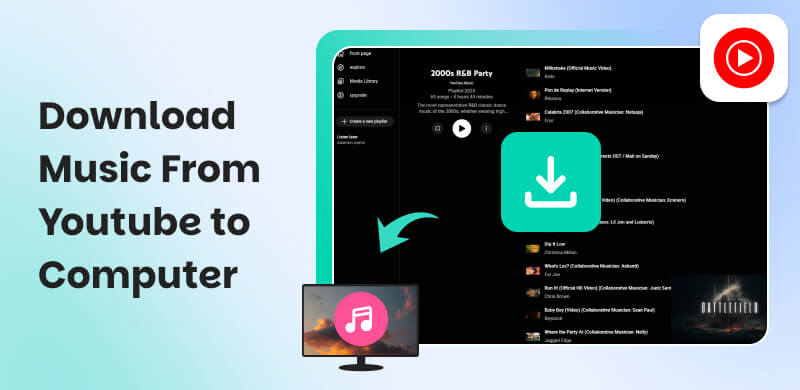
No, you cannot download YouTube music directly to your PC. Users can only access YouTube Music via the official website (web player). There is currently no YouTube Music app available for PC. While viewers can stream songs, the download feature is only available to YouTube Premium subscribers, and unfortunately, this feature is only available on mobile phones. To enjoy music offline on your device, consider subscribing to YouTube Music Premium on your phone. Otherwise, you'll have to stream your music online via the web player. Thus, an alternative way is needed if you really need to download music from YouTube to your computer.
Part 2. How to Download YouTube Music to a Computer without Premium
If you want to download YouTube Music to your computer without purchasing a premium subscription, there are numerous solutions available. Below, we'll look at one of the most popular options, TopVox All Music Converter, as well as several alternatives.
Top 1. TopVox All Music Converter
TopVox All Music Converter is a powerful tool that allows users to quickly and easily download and convert music from multiple platforms, including YouTube Music, to their PC. We all know that downloading music from YouTube is only available for mobile phones, which is why TopVox All Music Converter is here to help you with that. Many users love this tool because of its speed and non-complicated downloading process.
Features
- Supports a wide range of audio formats, including MP3, FLAC, WAV, and more.
- High-speed downloading with lossless quality.
- An easy-to-use interface appropriate for both beginners and specialists.
- Batch converting options for saving time.
Steps in Using TopVox All Music Converter
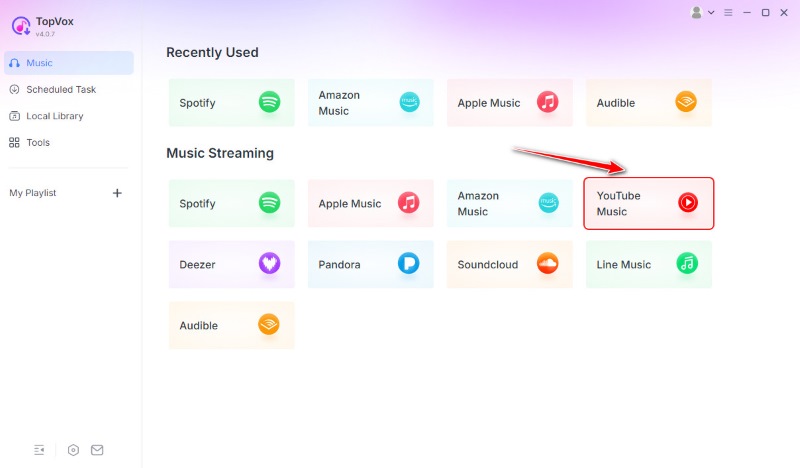
Step 1. Download and install TopVox All Music Converter, then configure it on your computer. From the main interface, get on the YouTube Music platform.
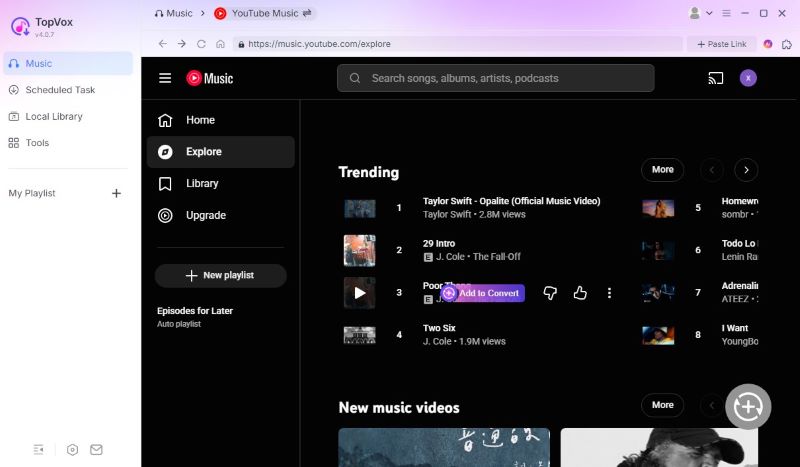
Step 2. You can now freely search for the songs you want to download. Then please click the Add to Convert button.
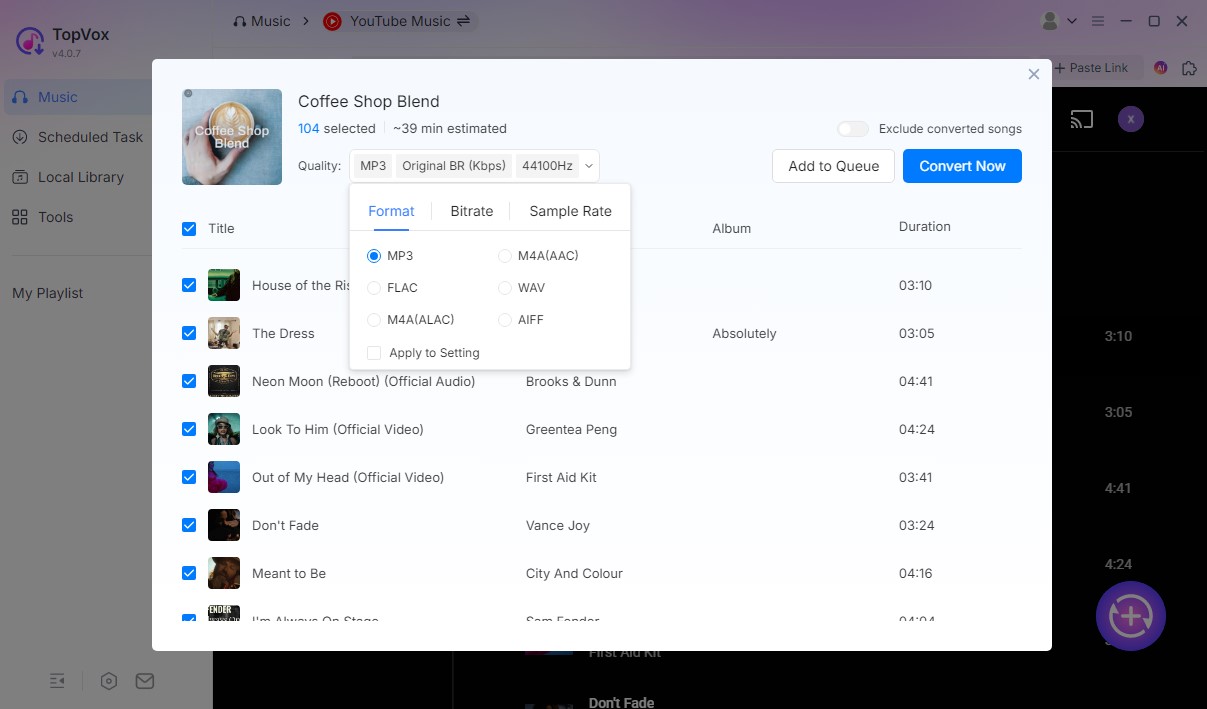
Step 3. Adjust the output format and audio quality, and click Convert Now. Wait for a moment and enjoy the YouTube music offline.
Top 2. MP3Juices
MP3Juices is one of the most widely used online applications for converting and downloading YouTube music to MP3. It is a completely free, web-based service that requires no registration or installation. MP3Juices allows you to search for your favorite tunes directly or paste a YouTube link, making it ideal for anyone looking for fast, hassle-free downloads from their browser.

Steps to Use MP3Juices
Step 1. Browse the MP3Juices website.
Step 2. Now, go to YouTube and search the song you wish to download. Please copy the link and enter the YouTube link for the song title.
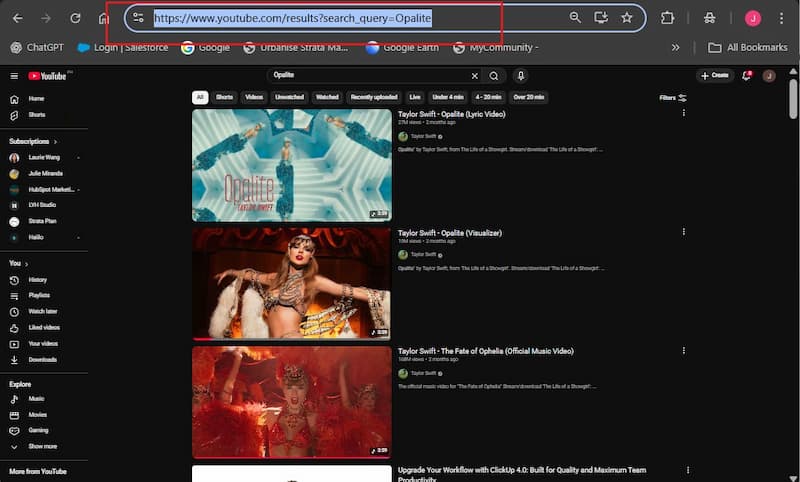
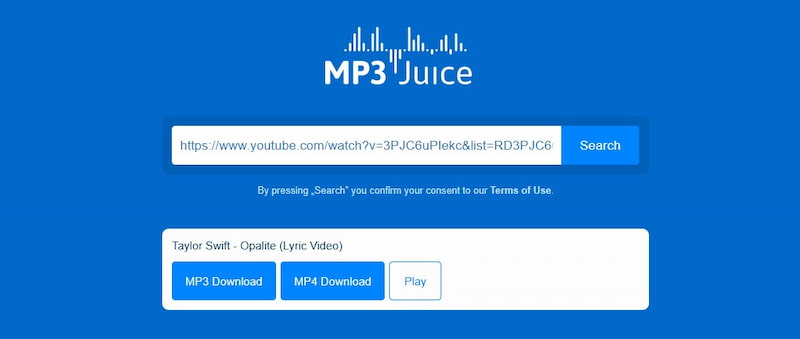
Step 3. Go back to the MP3 Juice interface and paste the YouTube link you copied a while ago.

Step 4. Click the Search button, you will see that the song you want will appear. For that, kindly click the MP3 Download button to save the MP3 file to your PC.
Pros
- Fast conversion speed.
- No software installation required.
- Simple, clutter-free interface.
- Compatible with all major browsers.
- Simple copy-paste converting technique.
Cons
- Ads and pop-ups may display while browsing the site.
- Audio quality varies depending on the source.
- Does not support playlists or bulk downloads.
Top 3. CNVMP3
CNVMP3 is a simple but powerful YouTube to MP3 converter that runs right in your browser. It's intended for those who desire a quick and lightweight way to extract audio without having to deal with superfluous features. CNVMP3 prioritizes speed and ease of use — simply copy, paste, and convert, making it an ideal choice for downloading songs from YouTube in seconds.

Steps in Using CNVMP3
Step 1. Visit the CNVMP3 website.
Step 2. Go to YouTube and search for the music you want to download. Please copy and paste the YouTube URL into the conversion box.

Step 3. Select MP3 as the output format. After that, click Convert and wait for the file to be processed.

Step 4. Download the completed MP3 to your computer.
Pros
- 100% free and web-based.
- No installation or registration is required.
- Simple and beginner-friendly UI.
- Provides simple search and direct download choices.
- Works with any browser or device.
Cons
- The output is limited to MP3.
- Conversion speeds can vary depending on server traffic.
- High-quality, high-bitrate audio and ID3 tags may not be preserved.
Top 4. EZConv
EZConv is a free, browser-based converter that lets you quickly and efficiently download YouTube videos in MP3 or MP4 format. It has a clean interface and works in all major browsers without any installation. EZConv is ideal for those who seek a simple way to download songs or music videos from YouTube without using sophisticated software or pop-ups.
Steps in Using EZConv
Step 1. Visit the EZConv website.
Step 2. Copy the desired YouTube music link.
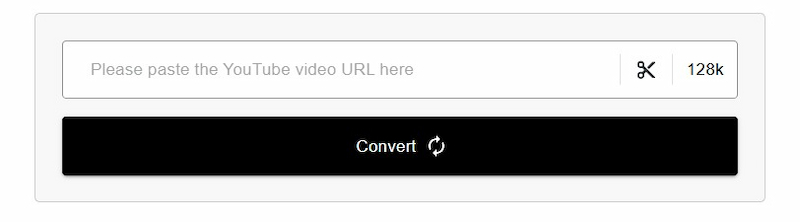
Step 3. Paste it into the conversion bar.
Step 4. Select the format (MP3 or MP4) and click Convert.
Once the file is ready, save it to your PC.
Pros
- Supports MP3 and MP4 formats.
- Works on Windows, Mac, and mobile browsers.
- Quick and simple to use
- No account registration necessary.
- The design is clean and clear.
Cons
- There are occasional pop-up advertisements.
- Does not support playlist downloads.
- The file quality may be slightly compressed.
Top 5. OnlyMP3
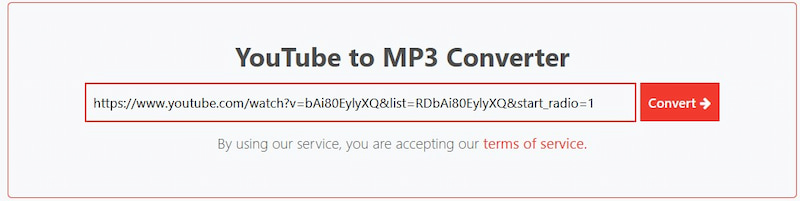
OnlyMP3 is another useful online converter for converting YouTube videos to MP3 files immediately. It has a clean, ad-free interface that works seamlessly on desktop and mobile devices. The website does not require program installation or account creation, making it an ideal tool for rapid, one-click conversions. It's ideal for casual users who desire quick and easy downloads.
Steps in Using OnlyMP3
Step 1. Browse the OnlyMP3 website.
Step 2. Copy the YouTube video link you wish to convert.
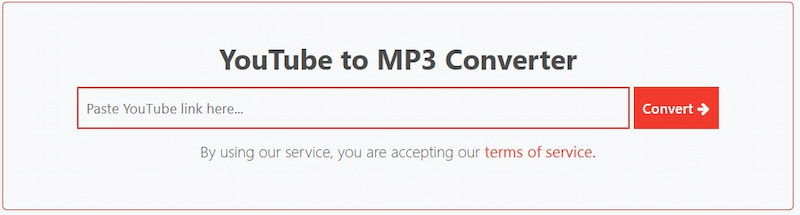
Step 3. Paste the link into the input box.
Step 4. To process the video, click the Convert button. Download the MP3 file to your PC.
Pros
- Free, browser-based
- Converts instantaneously with a single click.
- No installation or registration required.
- Supports both desktop and mobile devices.
- Clean interface with few advertisements.
Cons
- Only supports single video conversions (no playlists).
- Limited output formats (just MP3).
- Depends on the speed of the internet connection.
Part 3. How to Transfer YouTube Music to Your Phone
When it comes to moving music from a computer to an iPhone, the first thing that springs to mind is to look to iTunes for assistance. iTunes allows you to sync music, movies, TV shows, photographs, and other media from your PC or Mac to your iPhone. Here are the exact instructions.
Step 1. Use the included dock connector to connect the iPhone to your computer.
Step 2. Launch the iTunes application. Select your iPhone from the Devices area in the left window pane.At the top of iTunes' main screen, select the Music menu.
Step 3. Ensure the Sync Music option is enabled; if not, click the checkbox next to it.
Step 4. If you wish to transfer all of your music, select the radio option next to the entire music collection. Alternatively, to select songs from your iTunes library, click the radio button next to Selected playlists, artists, or albums.
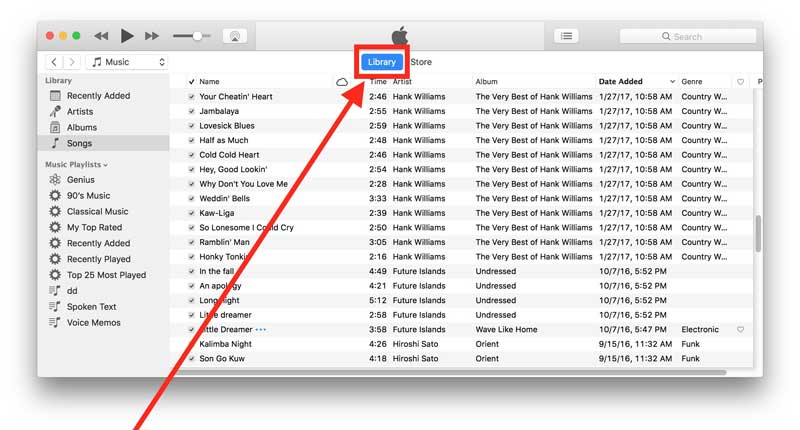
Step 5. To begin transferring music to your iPhone, click the Apply button to sync. Once the synchronization procedure is finished, disconnect your iPhone.
Tips
- If the computer is connected to the same iCloud account as your iPhone, you may also enable iCloud Music Library to sync music.
Transfer YouTube Music to Your Android Phone
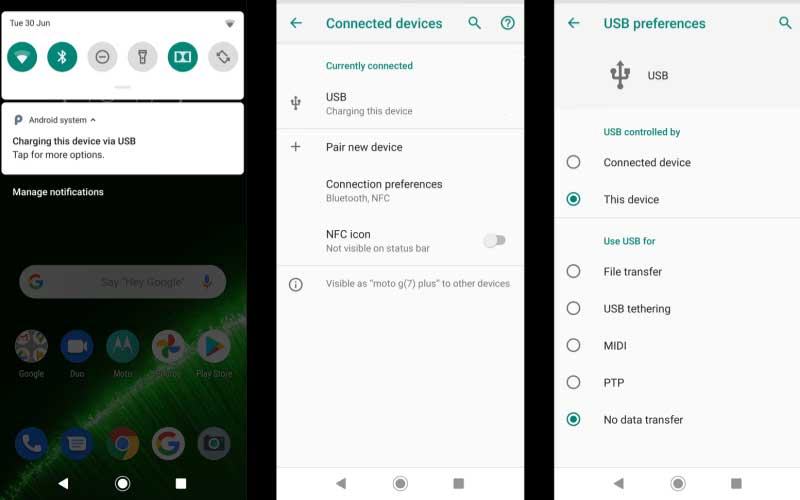
Step 1. Connect your Android phone to your PC via a USB cord.
Step 2. A notice regarding the USB connection will appear in the notification bar. Choose Transfer files mode on your Android device.
Step 3. Double-click My Computer to see your phone listed under Devices and Drivers.
Step 4. Navigate to the Music folder. Then, copy and paste or drag and drop the YouTube Music files into the media folder.
Part 4. FAQs about Downloading Music From YouTube to a Computer
Is downloading music from YouTube legal?
It is against YouTube's terms of service and copyright regulations to download music that is protected by copyright without authorization. Download music only from YouTube videos that are clearly licensed for reuse or are marked as royalty-free.
Is it possible to get music straight from YouTube?
Direct song downloads from YouTube are not possible unless you have YouTube Premium. Although they can be in violation of platform regulations, other third-party solutions convert videos into audio files.
When downloading music, what file format should I use?
The most popular music file, MP3, offers interoperability and decent quality. Although they require more storage capacity, codecs like AAC or WAV offer better quality.
Conclusion
You may create playlists, listen to music offline, and use it for personal purposes by downloading music from YouTube to your phone or computer. Although YouTube Premium offers the safest option, conversion is also made simple and effective by a number of trustworthy third-party applications. Always make sure you download royalty-free or licensed content to avoid violating copyright laws. You may safely expand your music collection and enjoy top-notch music whenever and wherever you choose with the correct strategy.
Owen Bannett
Owen Bannett is a music enthusiasm as well as a senior writer. He has paid close attention on the pros & cons of various audio formats, bitrate, sample rate and encoding methods. Always seeking the best listening experience, Owen has deep insights about lossless music and diverse music converters on the markets.




 by
by