How to Download Spotify Songs on Your Phone/Computer [New]
For many Spotify enthusiasts, being able to enjoy music offline has become a necessity, whether you're mid-flight, commuting, or on other occasions with poor internet. However, the download feature of the app comes with several limitations. In this guide, we’ll walk you through the official ways for downloading songs from Spotify on mobile and desktop, while also sharing a professional third-party tool that lets you keep your favorite playlists permanently.
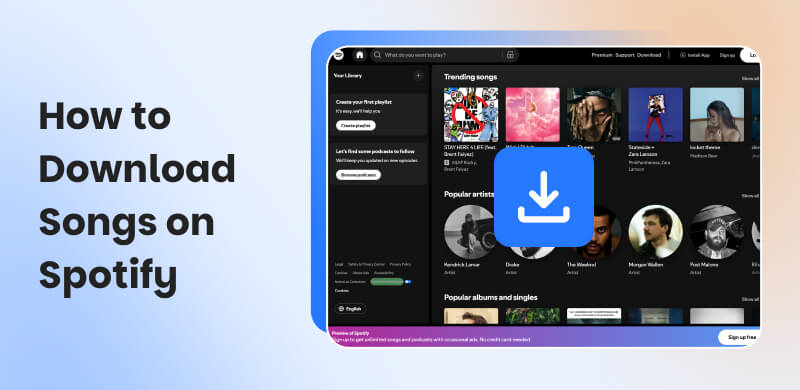
Part 1. Prerequisite: What You Need to Know First
Premium vs. Free User
A Spotify Premium account is key if you want to download songs from Spotify. For free users, you’re not allowed to download music without Premium in the app. But once you become a paid member, you can ad-free listening and download 10,000 high-quality songs, albums, and playlists on Spotify with 5 devices, which means it’s available to save up to 50,000 songs at one time.
Offline Listening: 30-Day Rule
Although you have a Premium account, you can’t listen to Spotify music offline forever due to the DRM protection. All downloaded tracks are always tightly coupled to the Spotify app, which will automatically expire in 30 days unless you have a Wi-Fi reconnection in time to verify your right to use.
Note:
If you want to save music from Spotify without a Premium subscription, a professional third-party music converter can achieve it for you. Please go to Part 4 to seek an ultimate way to download Spotify tracks on your devices.
Part 2. How to Download Songs on Spotify on Mobile? [Official]
Make sure that you have a Premium account and enough space to download songs on Spotify on your iPhone or Android phone to save your high-quality audio files first.
Step 1. Open your Spotify app on your device and log in to your account.
Step 2. Search the playlists or albums you want to download and open them.
Step 3. Click Download (a grey down arrow icon). The process completes while the arrow icon of each song turns green, or a green checkmark appears next to Download.
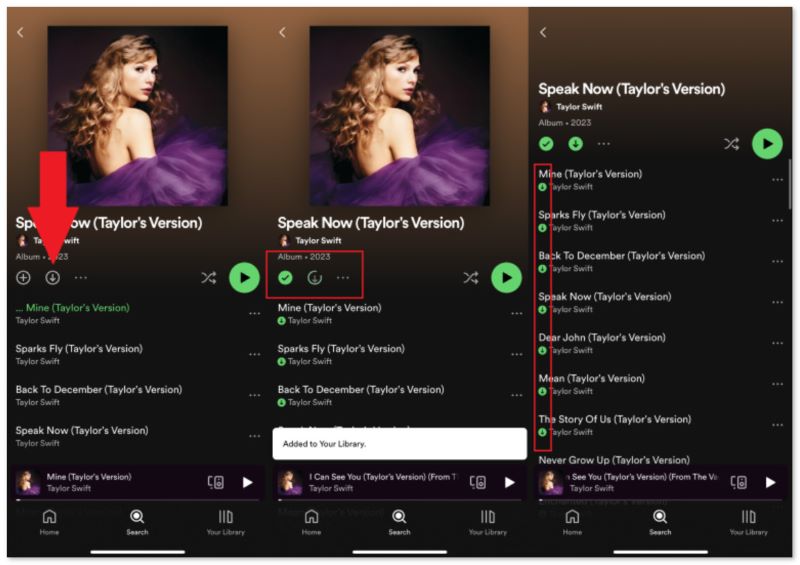
Step 4. Tab Your Library > Downloaded, you can find and listen to the files offline.
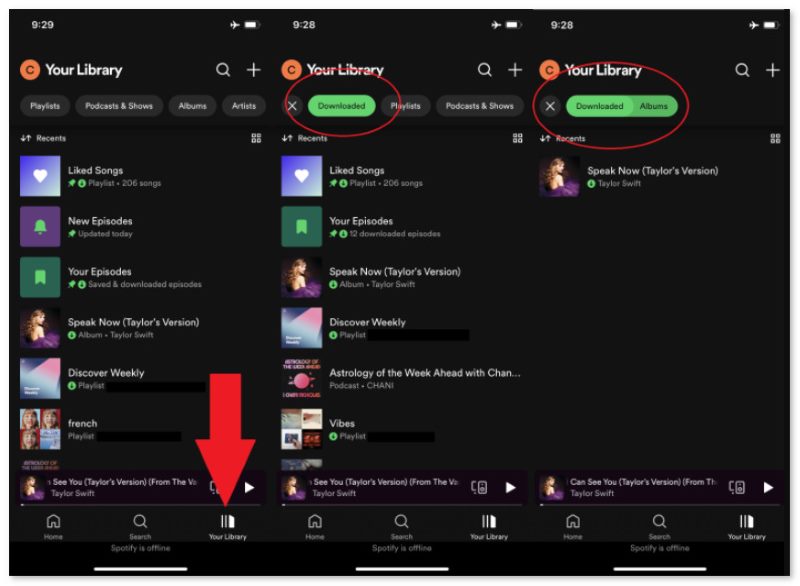
Advanced Tips:
- Note that the largest size for a single download is up to 100 MB.
- Activate Offline Mode to listen to the playable songs without the internet. Quite often, you can click Settings and privacy > Playback > Offline.
- The problem of downloading large audio files is that it takes up local storage space. One way is to clean out the cache through Settings> Storage > Clear Cache. Besides, you can routinely delete some downloaded songs that you don’t normally listen to.
Part 3. How to Download Songs on Spotify to Computers? [Official]
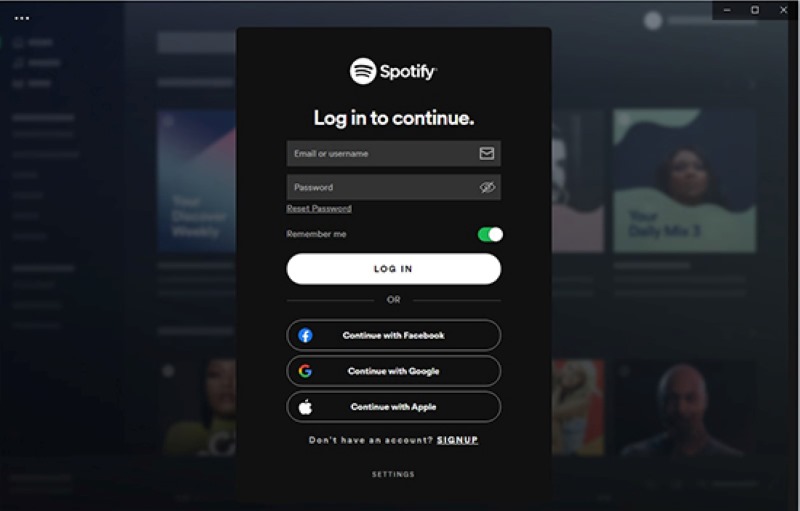
Step 1. Install the desktop software on your computer and sign in to your Premium account.
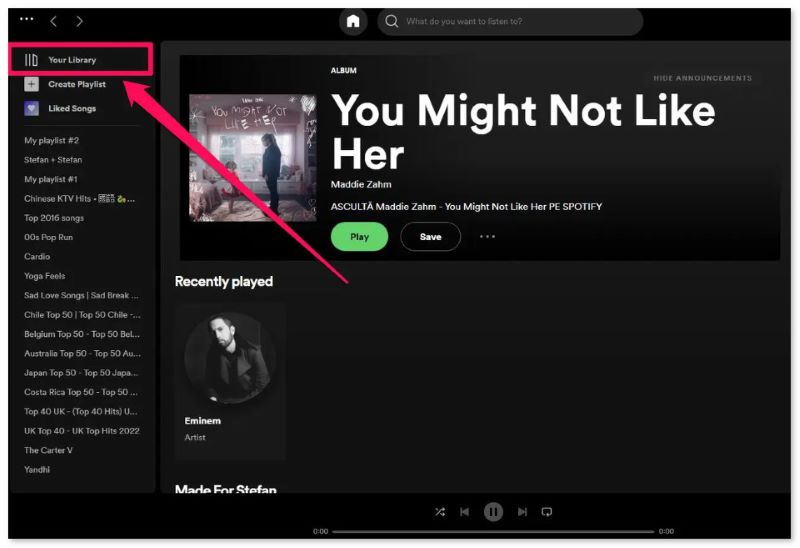
Step 2. Please remember that you can download the playlist you create yourself. So, turn to Your Library in the top left corner, create a new playlist or pick an existing one.
If you want to save an individual Spotify song or album after searching, you have to add it to your playlist first. Click the three-dot icon next to the song, and choose Add to playlist.
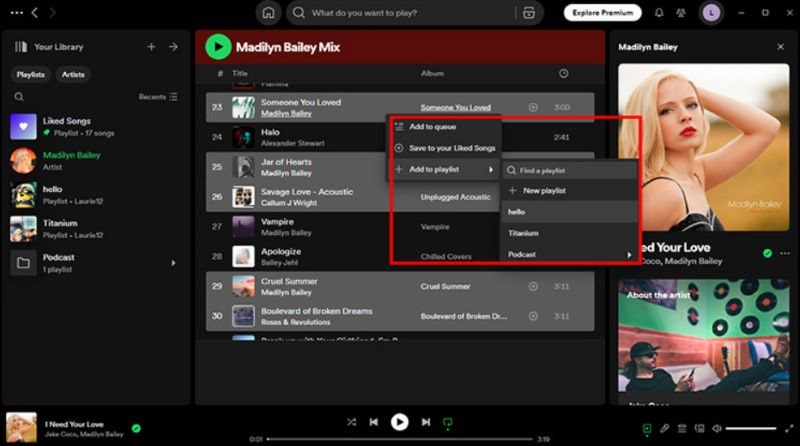
Step 3. Open a playlist and click the downward-facing arrow. You can find downloaded songs in the default folder through Settings> Show Advanced Settings > Offline Songs Storage.
Part 4. Using Third-Party Software to Download Spotify Tracks [Free]
It’s straightforward but limited to downloading Spotify music using the official way. Especially, Spotify stores songs that can be played offline in Ogg Vorbis format, which can’t be supported across various devices and platforms. For listening to and downloading Spotify songs freely, we recommend a third-party Spotify downloader: TopVox All Music Converter.
Using Topvox, every free Spotify user can directly download songs. For Premium users, it can remove DRM restrictions and transform encrypted, temporary songs from Spotify in high quality, enabling you to listen to lossless music on any device forever without being isolated in Spotify. The saved songs keep the original data and stability without comparison. You can also have full control over your music library, including choosing output formats (MP3, FLAC, WAV, etc.) or adjusting ID3 tags. Plus, its build-in web player offers a smooth workflow to search, play, and save music tracks in this one-stop software.
| Listeners who want to play their music on multiple devices. |
| Features | • Convert music to DRM-free formats like MP3.
• Supports 8+ popular streaming platforms.
• Batch download music at 35× faster speed.
• Download music at up to 320kbps and 48000Hz.
• Retain ID3 tags for better organization and identification.
• 99% success rate to transform tracks.
• Compatible with both Windows and MacOS. |
| Cons | • Convert the first 3 minutes of each song within a 14-day free trial.
• Without the mobile version. |
How to download songs from Spotify to your computer?
The easy-to-use interface will guide you to convert tracks in several steps:
Step 1. Open and sign up for the program. Choose the Spotify platform and log in to your Spotify account.
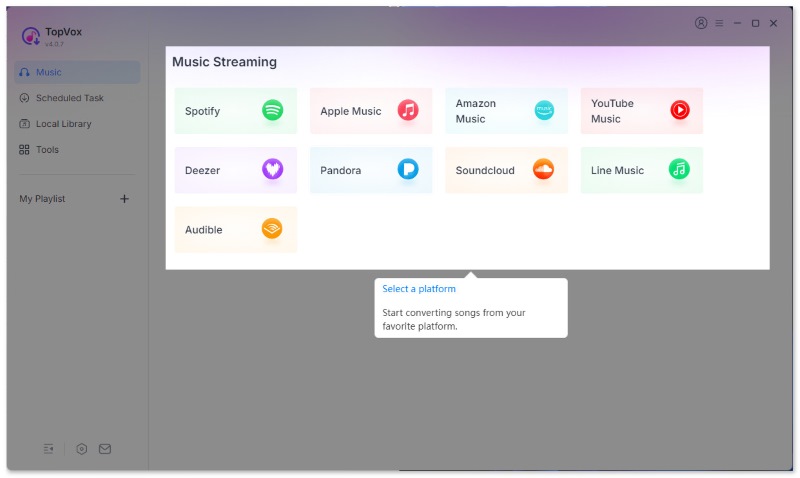
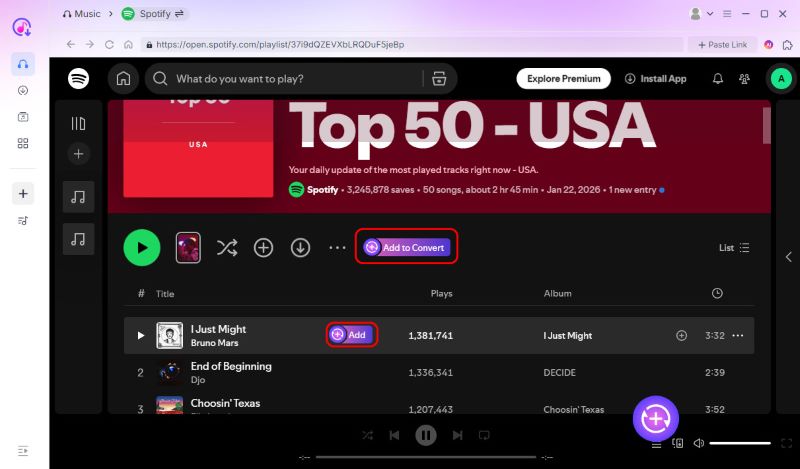
Step 2. Select the music you want to download. Choose a playlist, artist, or album and click Add to Convert, or tap the circular icon (Click to Start Analyzing) in the lower right corner. If you pick a single song, you can click Add next to the song title.
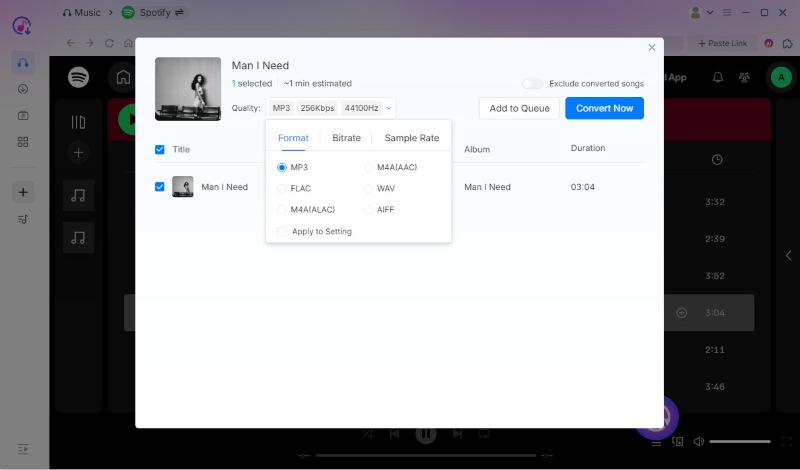
Step 3. After detecting and loading songs, a pop-up window will be displayed. You can adjust the audio quality, like output format, Bitrate, and sample rate. And then, choose Add to Queue to add music to the conversion list.
Step 4. Click the down arrow icon in the left guide bar. You can change the local storage folder through Save to. And tap the Convert All button to download Spotify tracks.
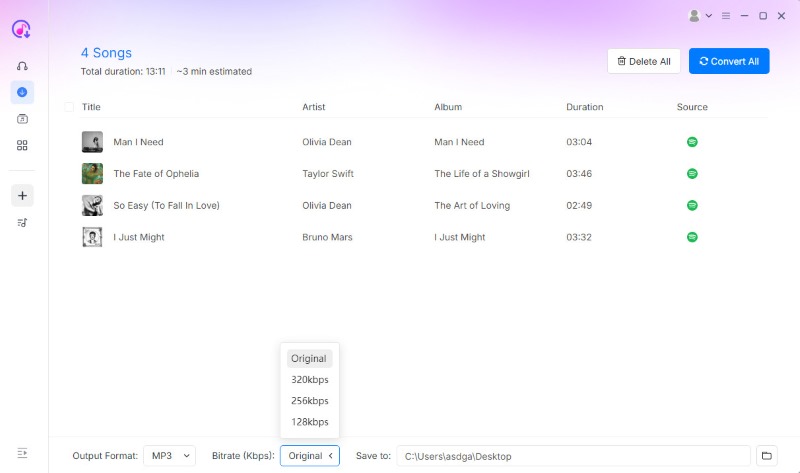
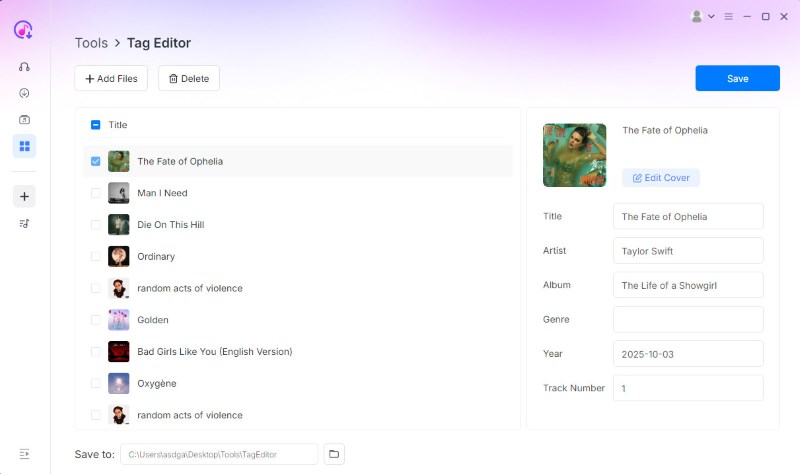
Step 5. Now you can enjoy the converted MP3 files. Plus, if you want to edit the ID3 tags of songs, go to Tools > Tag Editor.
FAQs on How to Download Songs on Spotify
Q: Can I permanently download songs from Spotify?
A: No. You can only save Spotify songs accessible within the app during your subscription. To keep downloaded songs forever, you need to use a third-party software, like TopVox All Music Converter, to transfer tracks to any device.
Q: Is it legal to convert Spotify to MP3?
A: Depends on. It is strictly illegal to distribute, sell, or publicly broadcast the converted files, which violate the Spotify Service. We recommend transforming Spotify to MP3 for personal, non-commercial use.
Conclusion
While Spotify’s official method provides basic convenience for Premium subscribers, its encrypted limitations can be restrictive. If you are looking for permanent digital enjoyment to build an offline music library, TopVox is the forward-thinking solution you need. It empowers you to convert Spotify tracks as good as original audio files in various formats. Start building your collection right now and enjoy your music on your own terms!
Luna Harper
Luna Harper is a passionate music lover and an inspiring content sharer. She has explored most of the music converters available on the market, acquiring thorough knowledge of their features, usability, and differences. Luna enjoys using her professionalism to help fellow music lovers get superior audio quality.

 by
by