Speech-to-Text Software for Windows: Speak to Text with Ease
 by Ethan Carter | July 16, 2026 | Voice to Text
Have you ever had an idea pop into your head, but did not feel like typing it out? Maybe you are rushing to finish a report, taking notes during an online meeting, or dealing with sore hands after a long day of work. That is where speech-to-text software on Windows becomes a lifesaver. With this technology, instead of typing every word, you can now simply speak and let your computer do the work.
In connection with that, this article will explore how to use Windows’ built-in speech-to-text tools, look at helpful third-party software options, and compare them so you can choose the best one for your needs. Read now to discover more of it.
Part 1. How to Use Speech-to-Text on Windows
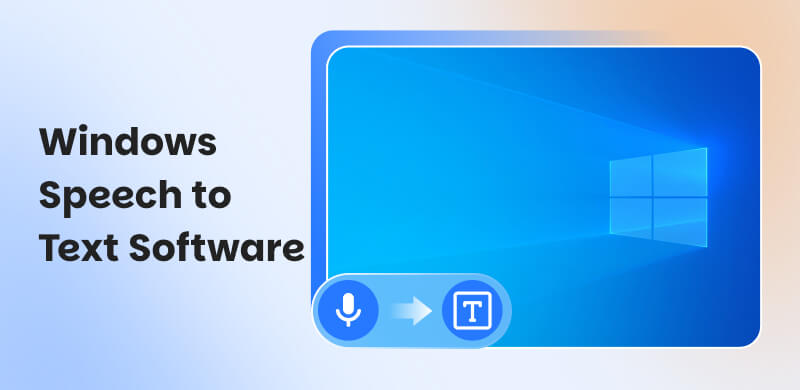
According to Microsoft Support, Voicy Speech to Text, and My Computer My Way, to use speech-to-text on Windows 10 and 11, press Windows key + H to open the voice typing toolbar, click the microphone icon to begin listening, and then speak to dictate text almost anywhere you can type, using voice commands for punctuation like period or new line and editing. Although Win+H is the more recent method, Computer Hope and PCMag recommend using the dedicated Windows Speech Recognition feature, which can be found in the Start Menu, for more sophisticated control or in older Windows versions.
Step-by-Step Using Speech-to-text on Windows
Step 1. Click in any text box, press Windows key + H.
Step 2. A Microphone icon appears on your screen. Click it or wait for the Listening... prompt to begin dictating.

Step 3. Please talk naturally, and your words will appear as text.
Step 4: Click the microphone or press Windows key + H again.
Part 2. Third-party Speech-to-Text Software for Windows
Microsoft Word
Ideal for: Accessible tools for dictation and straightforward with file.
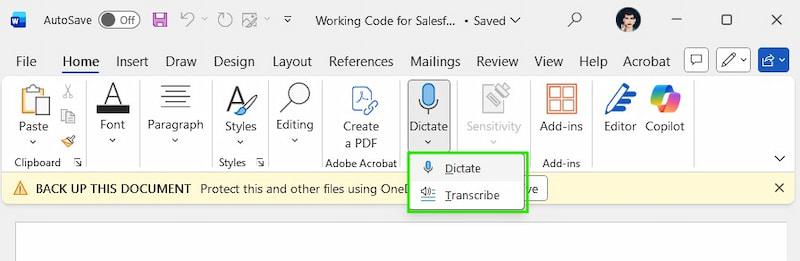
Microsoft Word includes a built-in Dictate feature that allows users to convert speech into text directly within their documents. It’s especially useful for writing reports, emails, or essays when typing feels slow or tiring. Since it’s integrated into Microsoft 365, you can start dictating with just one click, making it convenient for users already working in Word.
Pros
- Built directly into Microsoft Word.
- Supports multiple languages.
- Easy to use with minimal setup.
- Automatically adds punctuation.
Cons
- Requires an internet connection.
- Limited customization compared to advanced tools.
- Only works inside Microsoft apps.
Wispr Flow
Ideal for: Friendly process and accessible with devices.
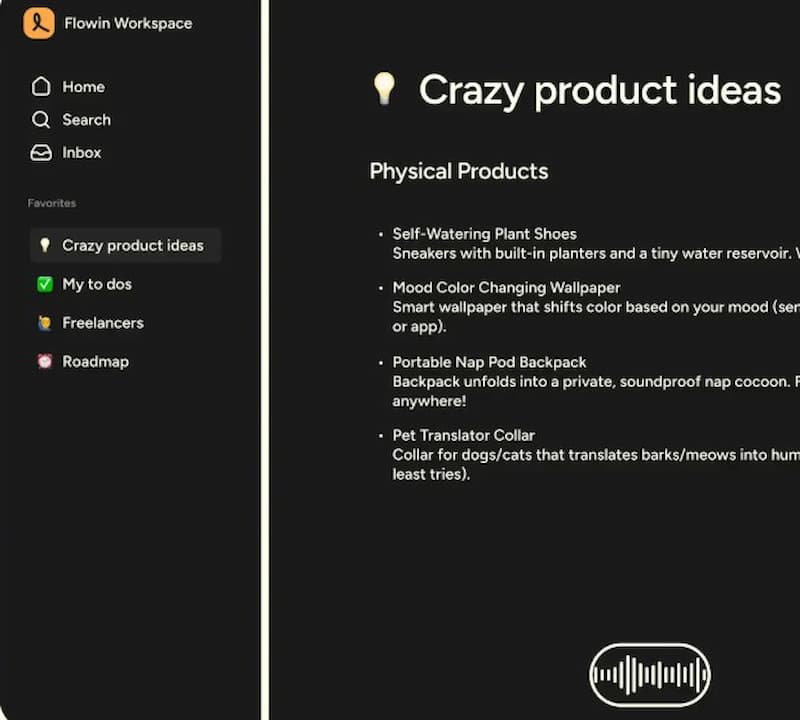
The styles are among the first things you'll set up when you launch Wispr Flow. Flow can recognize which dictation app you're using and adjust the writing to one of three styles: formal with proper punctuation, informal for more relaxed formatting, or very casual for lots of lowercase. Traditional dictation apps merely take your speech and transform it into words. Depending on the situation, you can decide which style to use for each app group, making you appear professional or personable.
Pros
- Compatible with most apps and text fields.
- Fast and accurate dictation.
- Automatic punctuation and text cleanup.
- Supports multiple languages.
- Reduces the need for manual editing.
Cons
- Requires a stable internet connection.
- Voice data is processed in the cloud.
- The free version is limited.
Voicy
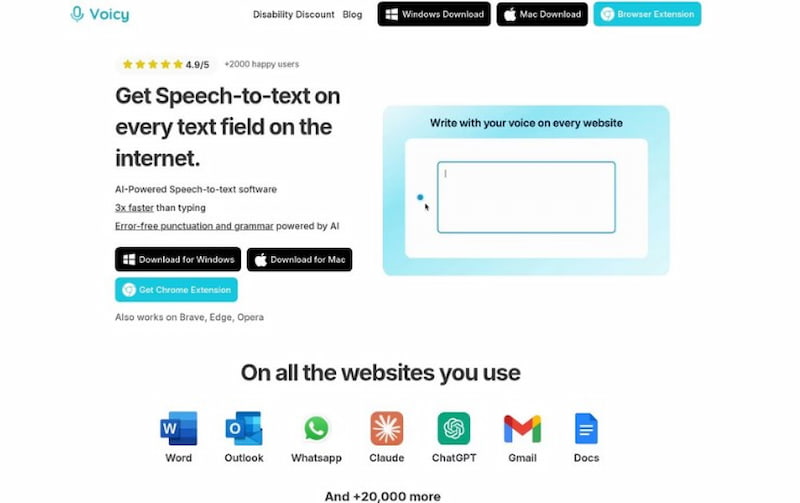
Voicy is a potent and incredibly adaptable speech-to-text for Windows solution that stands out as a top option for consumers looking for the best accuracy and smooth workflow integration.
Voicy enables you to dictate straight into the text field with a straightforward keyboard shortcut, whether you're writing an email in Outlook, working together on a report in Google Docs, or messaging on WhatsApp. This makes it unnecessary to copy and paste from a different dictation window, resulting in a smooth and effective experience.
Pros
- Compatible with all websites and apps.
- Outstanding accuracy.
- AI can instantaneously alter your writing style.
- More than fifty languages are supported.
- There's no need to copy and paste.
Cons
- Requires an internet connection to function.
- It's a premium tool, hence it costs money.
Otter
Ideal for: Automatically transcribing meetings.
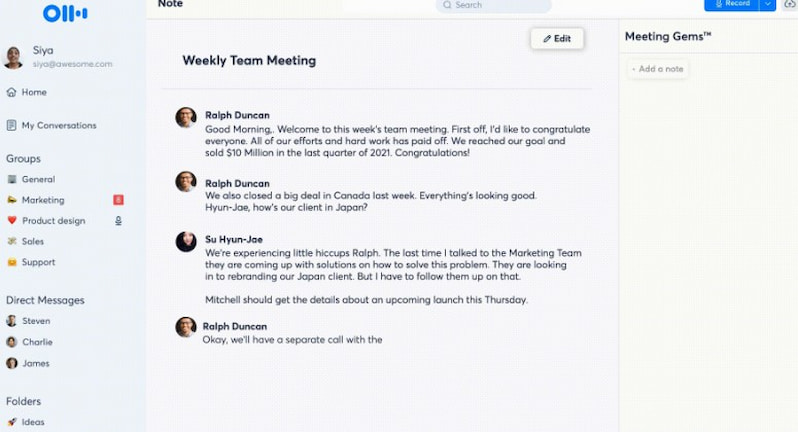
Otter.ai is an AI-driven audio-to-text converter that offers real-time, automated transcription in a matter of seconds. It is perfect for desktop and mobile users because it is the only tool on our list featuring an iOS app, Android app, and Chrome extension. Otter facilitates smooth meeting transcription by integrating with Zoom, Microsoft Teams, and Google Meet.
We discovered that it applied appropriate punctuation in accordance with the message's context and that its transcribing capabilities were fairly precise. However, it frequently leaves out filler words from the transcript, which makes it difficult to understand the speaker's feelings during calls that have been recorded.
Pros
- AI functions for questions, action items, summaries, and meeting notes.
- identifying the speaker by name.
- Notes and transcription in real time through the Otter app.
- annotation in real time (text notes, photos, comments, and highlights).
- The free plan includes exportable text, audio, and captions.Speaker tags and content are editable.
Cons
- A very restricted free plan for text transcription of audio files.
- only supports the English language.
Google Docs Voice Typing
Ideal for: Simple process and efficient features.
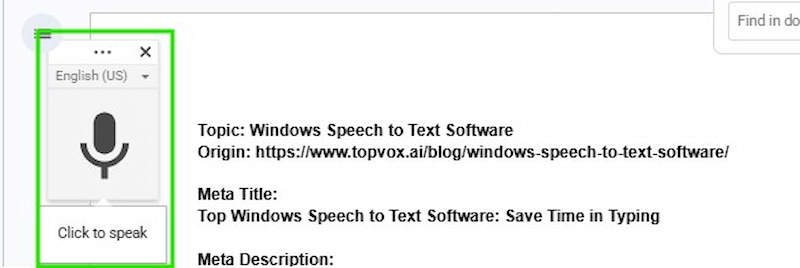
A built-in feature in Google Docs is Voice Typing, which instantly translates spoken words into text. It's an easy and free way to transcribe meetings, interviews, or dictation right into a Google Doc. It's a practical choice for Google Suite subscribers, but it needs an internet connection.
You can use our free audio-to-text converter to easily transcribe dictation, meetings, and interviews into text within the Google Docs environment.
Pros
- Immediately converts audio input into text, allowing for quick editing and feedback.
- Support in multiple languages for worldwide accessibility.
- Within Google Docs, edit and format text, including styling and punctuation.
- Use voice commands to manage formatting and editing.
Cons
- Limits offline use because it needs the internet to function.
- Background noise and accents are sensitive.
- Absence of automated speaker recognition
Speechnotes
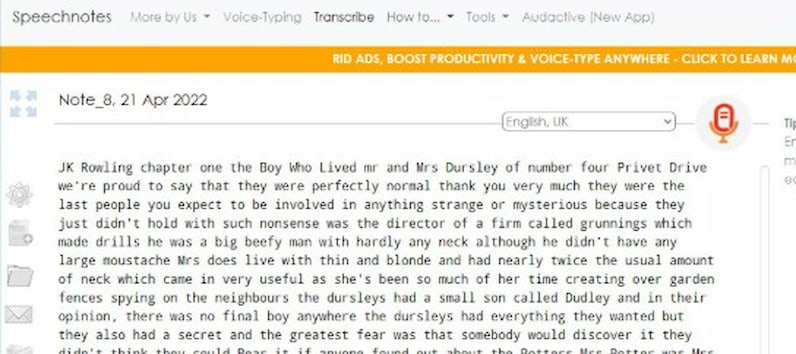
For Windows users, Speechnotes provides a quick and easy way to convert speech to text that works from within your browser.
It is ideal for rapidly recording ideas, writing emails, or taking notes without the hassle of installing software or setting up an account because of its simple interface, which is made for instantaneous, distraction-free dictation. The platform stands out for its continuous dictation mode, which lets you talk and think at your own pace and doesn't time out even during extended pauses.
Pros
- You can use it for free.
- Installing software is not required.
- compatible with all browsers.
- You don't need an account.
Cons
- Restricted ability to integrate with other apps.
- Advertisements in the free edition.
- Need a connection to the internet.
- Less sophisticated features than desktop programs.
Dictation.io
Ideal for: Quick, free dictation without installing software.
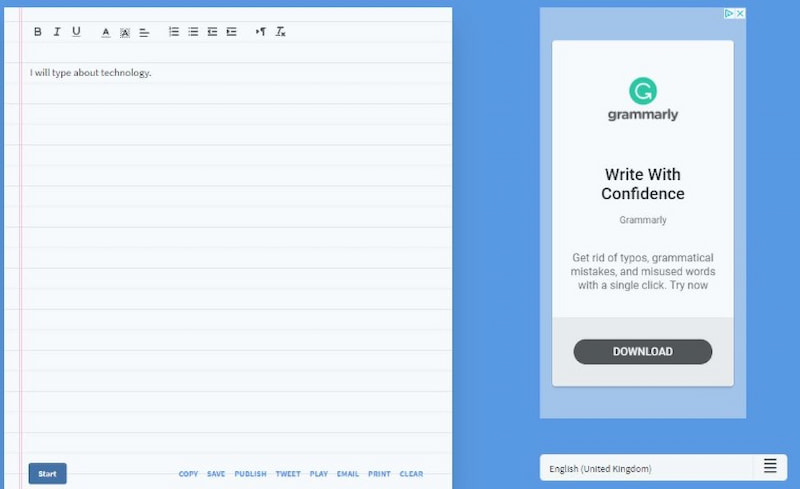
Dictation.io is a browser-based speech-to-text tool that lets you dictate text instantly without creating an account. It’s perfect for users who need a fast and simple solution for drafting notes, blog ideas, or short documents. Since it runs entirely online, you can access it from any computer with a microphone and internet connection.
Pros
- Completely free to use.
- No account or installation required.
- Supports multiple languages.
- Simple and beginner-friendly interface.
Cons
- Requires a stable internet connection.
- No direct app integration.
- Accuracy may drop with background noise.
Dragon Professional
Ideal for: Professionals, academics, and individuals with accessibility needs.
Dragon has been the industry standard for professional-grade dictation for many years, and its most recent version, Dragon Professional Individual, confirms its status as a potent speech-to-text for Windows solution.
It is unique in that it learns your unique voice and vocabulary, attaining up to 99% accuracy straight out of the box and becoming better over time. This makes it perfect for professionals who depend on industry-specific terminology in specialist disciplines like law or medicine.
Pros
- Accuracy that leads the industry.
- Learns your vocabulary and voice.
- voice-activated computer control.
Cons
- High initial cost.
- Requires the setting of vocal training.
- Advanced functionalities have a learning curve.
Lilyspeech
Ideal for: Fast dictation across multiple apps and workflows.
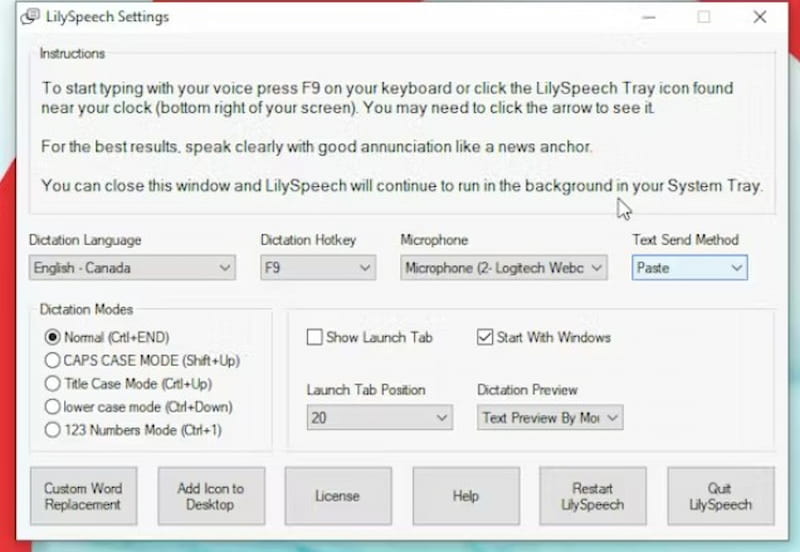
Lilyspeech is a lightweight speech-to-text tool for Windows that allows you to dictate into almost any application, including emails, browsers, and chat apps. With a simple keyboard shortcut, you can start speaking and see your words appear instantly, making it great for multitasking and productivity-focused users.
Pros
- Works across most apps and websites.
- Simple keyboard shortcut activation.
- Clean and distraction-free interface.
- Supports punctuation commands.
Cons
- Requires an internet connection.
- Fewer advanced AI features.
- Limited language support compared to premium tools.
Part 3. FAQs on Windows Speech-to-text Software
Q: Is it free to use Windows speech-to-text?
A: Windows' built-in speech-to-text function is entirely free. On the other hand, a lot of third-party applications provide premium plans with cutting-edge features like meeting transcription, AI writing styles, and increased accuracy.
Q: Does Windows' speech-to-text feature require an internet connection?
A: An internet connection is necessary for the majority of speech-to-text programs, such as Windows Voice Typing and browser-based programs. While accuracy is typically superior online, some professional tools may have limited offline performance.
Q: What is the best speech-to-text program for meetings?
A: Tools like Otter.ai are perfect if you regularly participate in online meetings. They are excellent for business and collaboration since they automatically generate summaries, identify speakers, and transcribe sessions.
Conclusion
Speech-to-text software for Windows is a powerful solution for anyone who wants to save time, reduce typing fatigue, or work more efficiently. Whether you rely on Windows’ built-in voice typing for quick tasks or prefer advanced third-party tools for professional writing and meetings, there’s an option that fits your needs. By understanding each tool’s features, pros, and limitations, you can confidently choose the best Windows speech-to-text software and turn your spoken ideas into text with ease.
Ethan Carter creates in-depth content, timely news, and practical guides on AI audio, helping readers understand AI audio tools, making them accessible to non-experts. He specializes in reviewing top AI tools, explaining the ethics of AI music, and covering regulations. He uses data-driven insights and analysis, making his work trusted.