How to Block Ads on Spotify without Premium: Best Ad Blocker
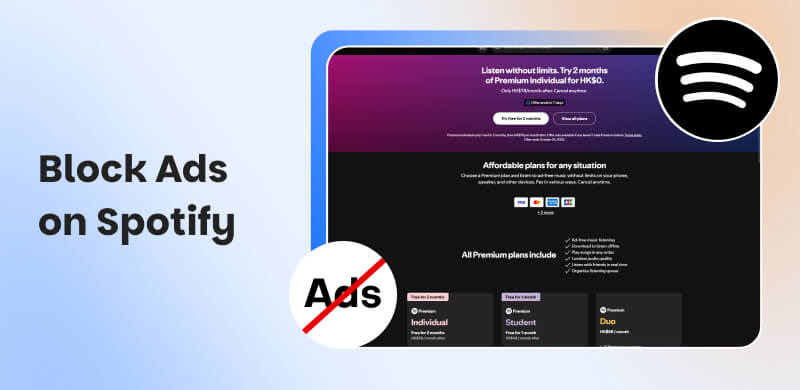
Spotify allows both free and premium music fans to browse over 100 million songs online. However, for free-tier users, adverts appear every 30 minutes to an hour of listening, with each ad lasting approximately 30-60 seconds. Ads that disrupt the listening experience can be very annoying. In this scenario, many Spotify users are looking for solutions to disable advertisements on Android, iOS, PC, and Mac.
Blocking advertisements on Spotify has several significant advantages. It allows for uninterrupted music pleasure, improves attention and productivity, extends battery life, and reduces mobile data and expenses. So, in this guide, we'll teach you how to block ads on Spotify on mobile, desktop, and online players using different Spotify ad blockers. Continue reading and seek a better listening experience!
Part 1. All-in-one Solution to Block Ads on Spotify
If you want an easy and dependable approach to block Spotify advertisements on all devices, TopVox All Music Converter is the best alternative. Rather than directly interfering with Spotify's system or breaching its terms of service, TopVox converts Spotify tracks into local audio files. This lets you listen to your favorite playlists offline, without interruptions from advertisements or the requirement for a Premium subscription.
TopVox works with both Mac and Windows computers and provides high-quality audio output while preserving all ID3 tags such as title, artist, and album. After you've downloaded your music, you can transfer it to any device, such as an Android, iPhone, MP3 player, or USB drive, and listen to it whenever you want without being interrupted by advertisements.
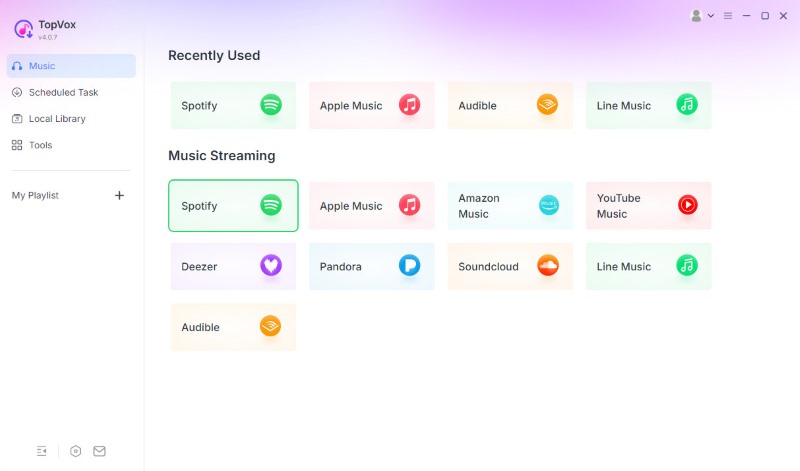
Step 1. Download and install TopVox All Music Converter to your PC. Then launch it immediately to access Spotify from its platform interface.
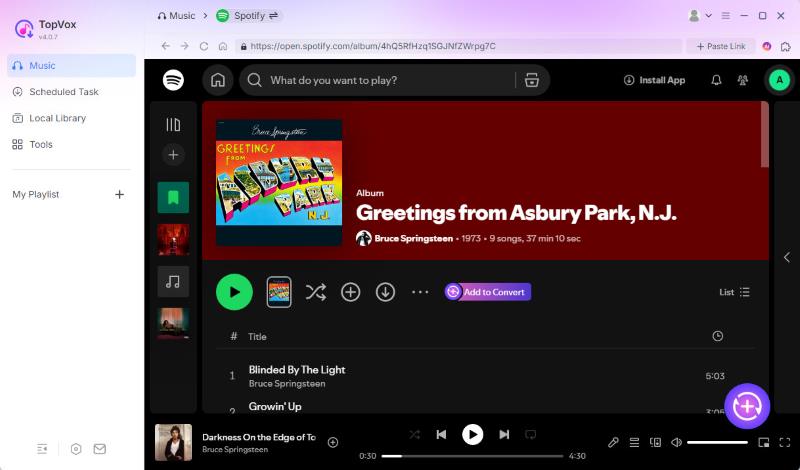
Step 2. Now, the tool will lead you to the homepage of Spotify. You can search any music you want, please click the Add to Convert button.
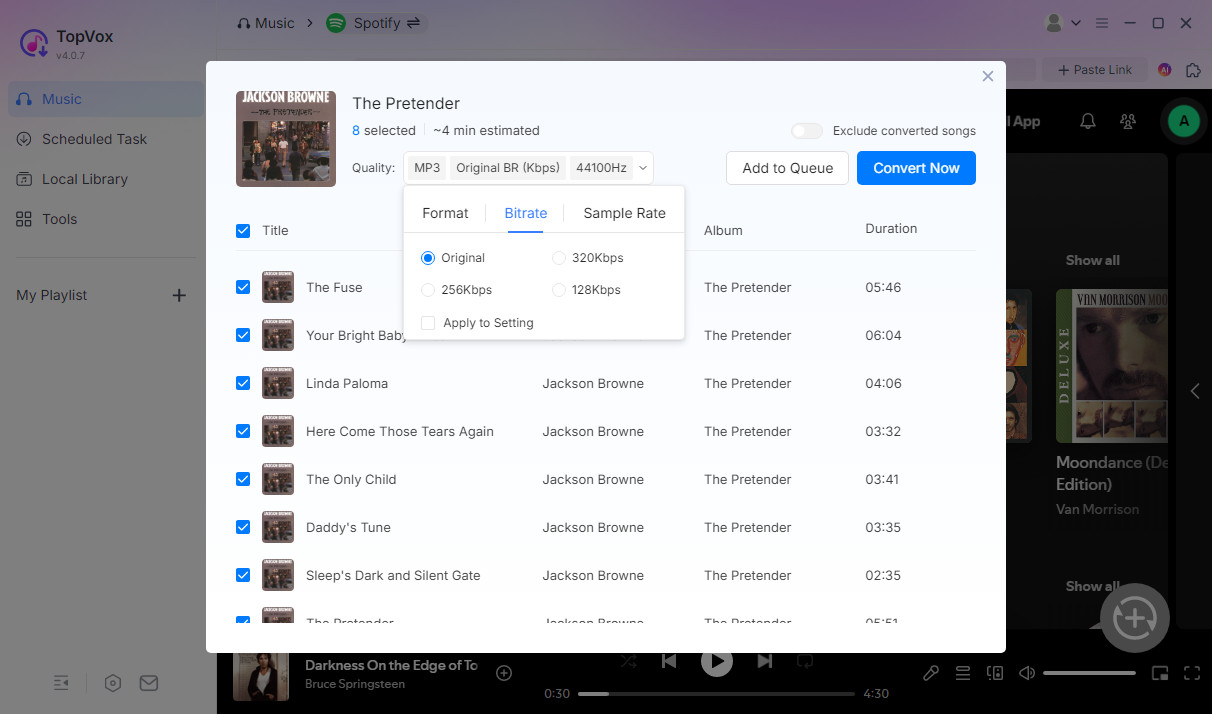
Step 3. After selecting the songs, click Add to Queue for later conversion.
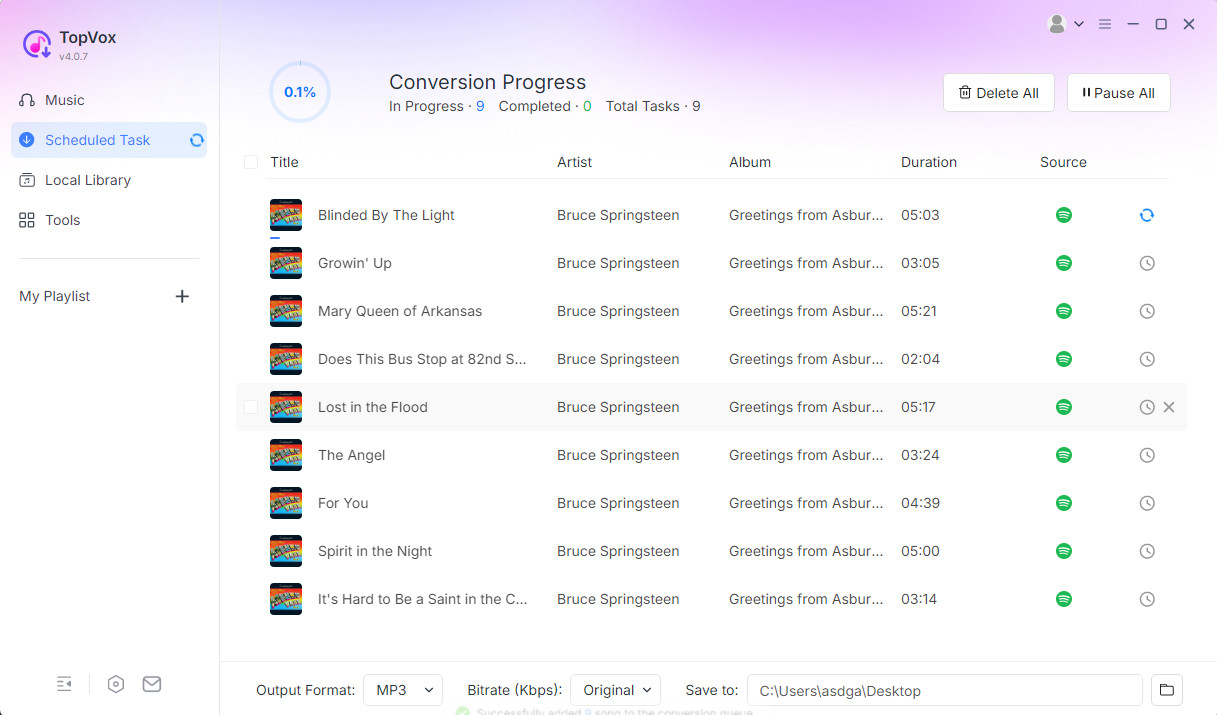
Step 4. Go to Scheduled Task to ensure the songs. Then you can click the Convert All to download music from Spotify and listen to the music for free.
Part 2. How to Block Ads on Spotify on Mobile
Spotmute for Android
SpotMute is a free, open-source Spotify ad blocker for Android. As the name implies, if there are adverts when streaming Spotify music, it will mute the ad volume rather than skip them. When the ad concludes, SpotMute will unmute, allowing you to continue listening to Spotify music. As a result, it does not interfere with the Spotify app and does not require root permissions. However, it has certain drawbacks, such as the inability to silence commercials after you've skipped a track or before the first track is finished. Additionally, Spotify Lite is not supported. If you don't mind, here's how to block Spotify advertisements on Android.
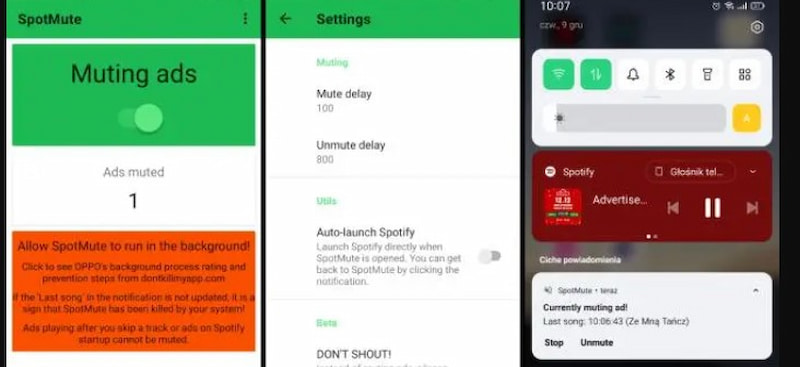
Steps in Using Spotmute
Step 1. Launch the Google Play Store on your Android phone. Find SpotMute and download it on your device.
Step 2. Launch the Spotify application. Then click the Settings icon. Find Device Broadcast Status in the list and enable it.
Step 3. Close the Spotify app and launch SpotMute. Then turn on the huge switch. You will receive a pop-up notification. Please select the I have enabled it option. Play Spotify music, and SpotMute will remove advertising for you.
Mutify for iOS
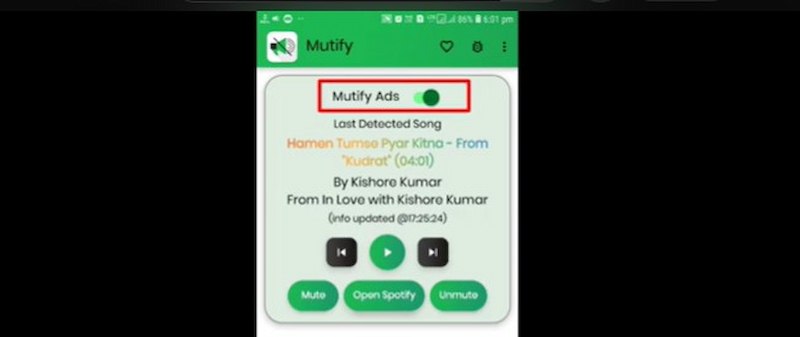
Mutify also offers a free Spotify ad blocker for mobile devices specially for iOS. It is absolutely free and operates in the background. When advertising shows when Spotify music is playing, the volume of the ads decreases. It also has controls for pausing, rewinding, skipping records, and more. Because it does not truly skip or prevent commercials, artists continue to earn ad revenue with each play, and it does not require any unnecessary permissions to function. However, Mutify, like the SpotMute Spotify ad skipper, does not support Spotify Lite. Here's how to block adverts on Spotify mobile using Mutify.
Step 1. Install Mutify on your Android device. Then start the Spotify app. In the Spotify app, navigate to the Settings section and enable Device Broadcast Status.
Step 2. Quit the Spotify app. Then, go to your phone's Settings app and find the Battery Optimization option.
Step 3. Select All Apps under the Not optimized option. Then select Mutify from the list. To disable Mutify's battery optimizations, select Don't optimize and then tap Done.
Step 4. Start the Mutify app and select the I have activated it option. Then, activate the Device Broadcast Status.
Part 3. How to Block Ads on Spotify Web Player
Blockify
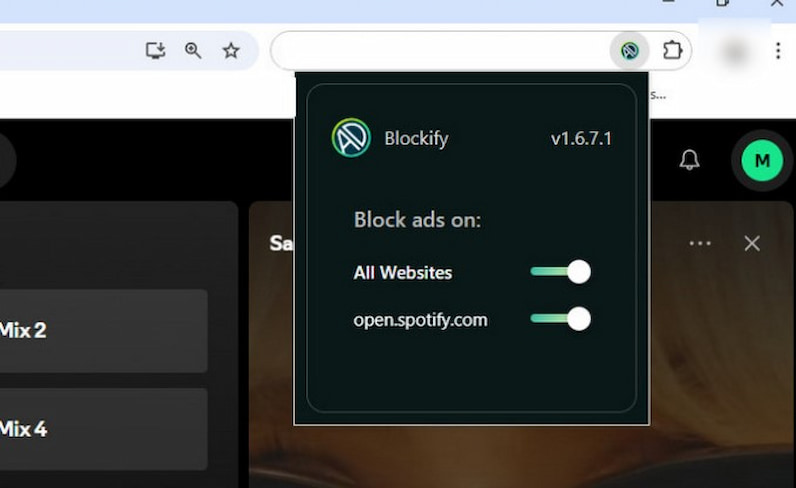
Blockify is a browser extension for Chrome, Edge, and Firefox that helps remove advertising from the Spotify web player. It's a dedicated Spotify ad remover that offers an ad-free listening experience when using Spotify on your web browser. Here, we will show you how to use it in Chrome:
Step 1. Open your browser and navigate to https://chromewebstore.google.com/.
Step 2. Type Blockify into the top search bar and click Enter to get the Chrome extension.
Step 3. To install the extension on your browser, go to its comprehensive information page and click the Add to Chrome button.
Step 4. Now, go to Spotify.com and sign in to your account. Blockify will automatically detect and skip adverts as you listen to Spotify music, delivering a flawless listening experience.
Adblock
AdBlock is available for Android, iOS, and several web browsers. It is a Spotify ad blocker for iPhone/Android/Web that prevents unwanted commercials like pop-ups, video ads, and banner ads. This enhances page loading speed and memory efficiency while providing a speedier online experience. To use it, either install it on your phone or add the extension to your web browser.
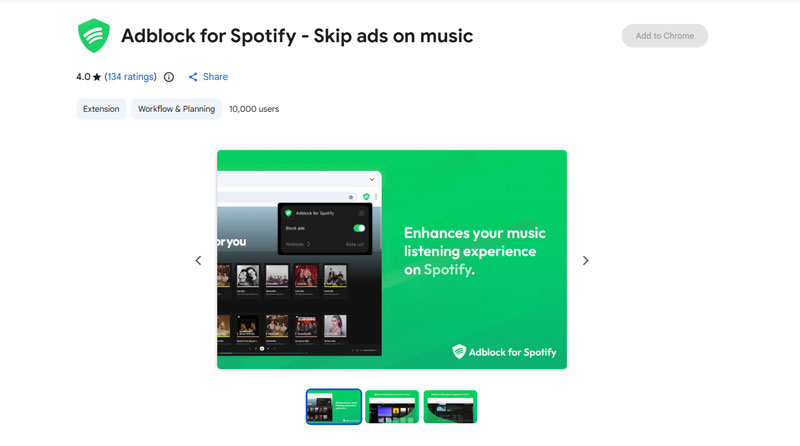
Here we will demonstrate the detailed instructions on how to ban advertisements on Android:
Step 1. Open the Google Play Store app on your phone and search for AdBlock.
Step 2. Look for results that include the same logo as in the image above. Tap Install to install it on your phone.
Step 3. When you open it after installation, it will prompt you to install the Samsung internet browser; if you haven't already, follow the instructions and install it.
Step 4. Finally, go to spotiy.com and sign in to your Spotify account. AdBlock will automatically prevent advertisements while you listen to Spotify music.
Part 4. Block Spotify Ads via VPN
A Virtual Private Network (VPN) can alter your device's apparent location by concealing its IP address. This can have an impact on the ads you hear on Spotify, as the site normally displays adverts based on your geographic location. By utilizing a VPN, you may receive adverts in foreign languages, which may be more acceptable than ads in your local language. If you do not understand the language used in the advertisements, you may find them less obtrusive or bothersome.
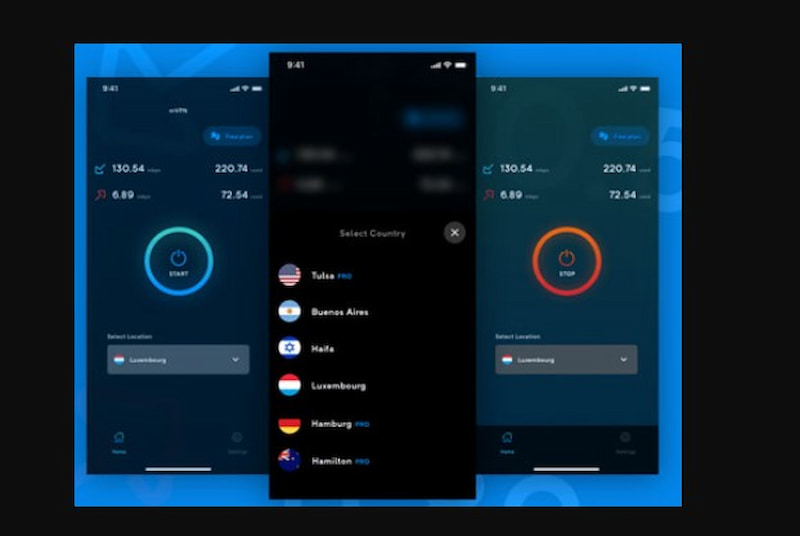
Step 1. Choose a VPN that is dependable and has ad-blocking features, such as NordVPN, Surfshark VPN, and others.
Step 2. Download and install the VPN app to your device.
Step 3. Launch the VPN app and connect to the server of your choosing.
Step 4. Once the VPN connection is established, use the Spotify app on your device and enjoy ad-free listening.
Part 5. FAQs about Block Ads on Spotify
Why does Spotify have so many advertisements?
Spotify provides two versions of its music streaming service: a free version with commercials and a subscription version without adverts. This is a means of encouraging consumers to upgrade to premium programs. In addition, some podcast creators include sponsored commercials during their show times.
Why am I receiving ads on Spotify Premium?
In general, Spotify does not show advertising to Premium subscribers. However, when listening to podcasts on Spotify, you will see advertisements from some podcast creators.
Will I be blacklisted for using Spotify ad blockers?
Spotify may suspend or terminate accounts that employ unauthorized tools or modified app versions. It is safer to remain with legal options or to use the free plan with advertisements.
What is the difference between muting and banning Spotify advertisements?
Muting only reduces the level during ad playback, whereas blocking tries to skip or delete advertising completely. Muting is generally safer; however, banning may cause account troubles.
Do ad blockers function in the Spotify app?
Most ad blockers only function in online browsers, not the official Spotify desktop or mobile apps. Some updated apps claim to prevent adverts; however, they may violate Spotify's terms and conditions.
Conclusion
You now know how to disable adverts on Spotify using Spotify ad blockers for Android, iPhone, Mac, Windows, and Linux. Upgrading to Spotify Premium is the most straightforward option. If you do not want to pay a monthly subscription charge, you can try TopVox All Music Converter. It's the most secure and effective way to enjoy ad-free music and offline listening. Using ad blockers or unlicensed software may result in you being banned from Spotify. Changing the hosts file is complicated and necessitates adjustments whenever Spotify upgrades.
Luna Harper
Luna Harper is a passionate music lover and an inspiring content sharer. She has explored most of the music converters available on the market, acquiring thorough knowledge of their features, usability, and differences. Luna enjoys using her professionalism to help fellow music lovers get superior audio quality.




 by
by