[2026 Updated] 3 Ways to Download Amazon Music to Mac
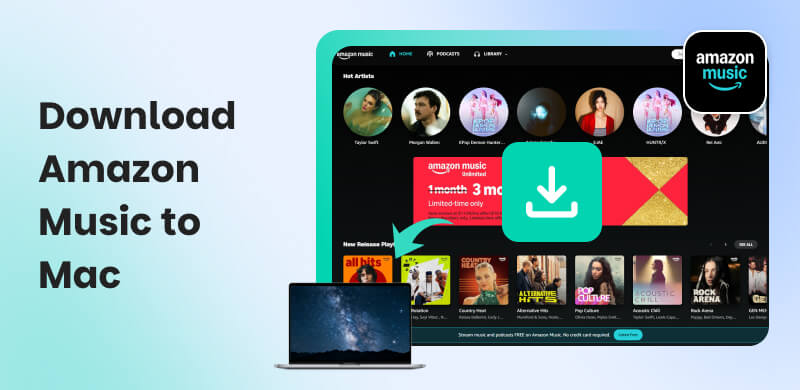
With Amazon Music, we can access an extensive music library and a large catalog of ad-free top podcasts with high audio quality. It provides flexible subscription services to heighten the experience of users, like Amazon Music Prime and Amazon Music Unlimited. Hearing enjoyable music every time, I want to download them to listen offline; I’m sure that’s happening with you! So, how to download Amazon Music to Mac? There are 3 available methods to choose from.
Part 1. Pre-Download Preparation
If you’d like to get more music resources and a better listening experience, Amazon Music offers 2 common subscription plans: Amazon Music Prime and Amazon Music Unlimited. You may be dwelling on which one to select. The table below will provide you with a simple comparison between the two.
| Feature | Amazon Music Prime | Amazon Music Unlimited |
| Offline Playback | × | Family Plan: √
Individual Plan: √
Single Device Plan: × |
| Streaming Limits | 1 device at a time | Individual Plan: 1 device at a time
Family Plan: 6 devices at a time
Single Device Plan: 1 compatible device |
| Streaming format | Shuffle play (On-demand playback is only available for All-Access Playlists.) | On-demand |
| HD/Ultra HD/ Spatial Audio support | × | √ |
| Pricing | $11.99 monthly | Individual Plan: $11.99 ($10.99 for Prime users)
Family Plan: $19.99
Single Device Plan: $5.99 |
Part 2. Quick Download Amazon Music for Subscribers
As was mentioned before, to settle for Amazon Music Prime or access to Amazon Music Unlimited, you can save and enjoy Amazon songs offline. The steps in downloading Amazon Music to Mac are shown below.
2.1 For Amazon Music Prime
If you have subscribed to Amazon Music Prime, you can only download songs from the All-Access Playlists.
Step 1. Install the Amazon Music Application on your Mac.
Step 2. Open the software and sign in to your Prime account.
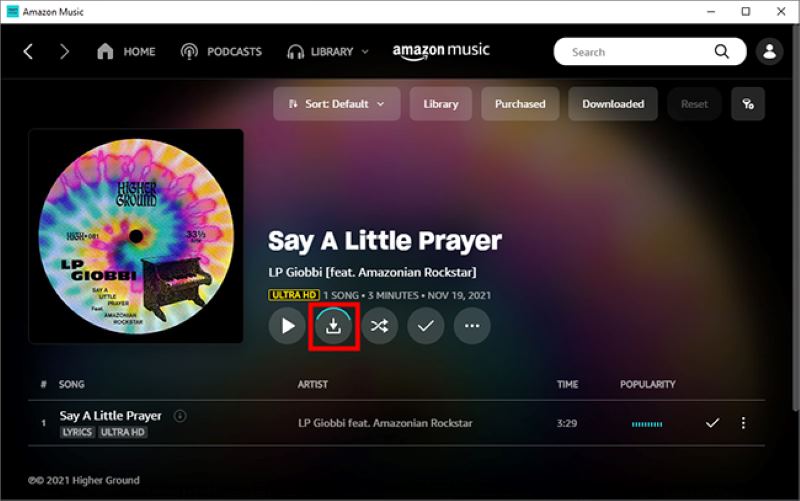
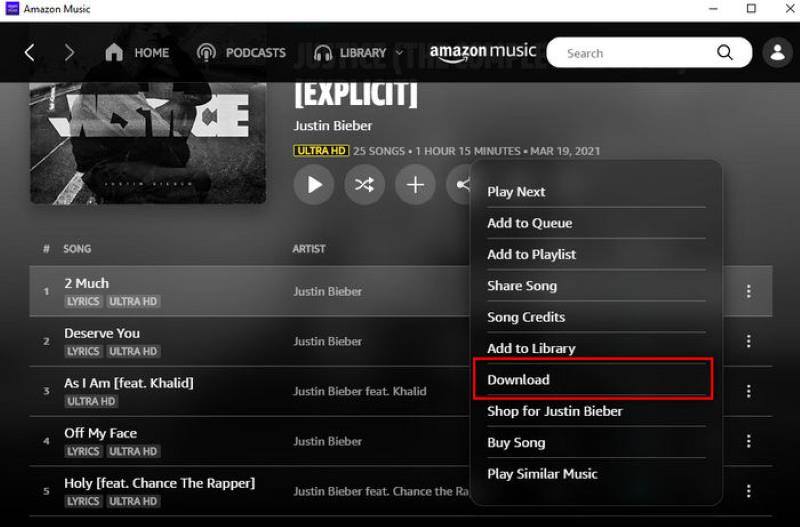
Step 3. Go to the All-Access Playlists and select the songs you what to download. For whole playlists, access to the playlist detail page to find the Download button beside the cover. For a single song, you can click More Options (three dots next to the right of the song) and tap Download.
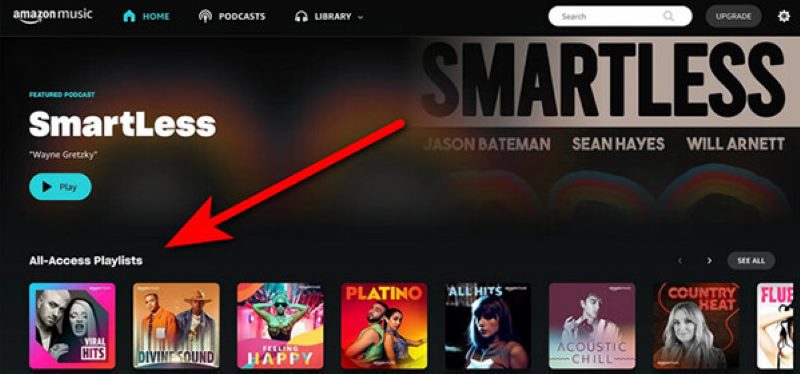
Step 4. You can find the songs from Library → Downloaded.
2.2 For Amazon Music Unlimited
Step 1. Install the Amazon Music Application on your Mac.
Step 2. Open the software and sign in to your account.
Step 3. Search or select songs in the extensive library. You can refer to Step 3 in Part 2.1 to download Amazon music to a Mac, likewise.
Step 4. After the downloading process has finished, you can check out songs through Library → Music → Songs and track the storage location on your local Mac.
One thing you need to know is that the songs downloaded this way aren’t available forever, even though you save them locally. Both Amazon Music Prime and Unlimited have subscription periods. Once out of date, Amazon Music on Mac can’t be listened to anymore. Additionally, all of them are in an encrypted format and can be played offline only using Amazon Music. That’s why we should install its app first.
Part 3. Download of Purchased Amazon Music to Mac
You may want to ask, if I don’t want to make any subscriptions, how can I listen to the songs all the time? The answer is purchasing songs online. Once done, you can save music directly via your web browser.
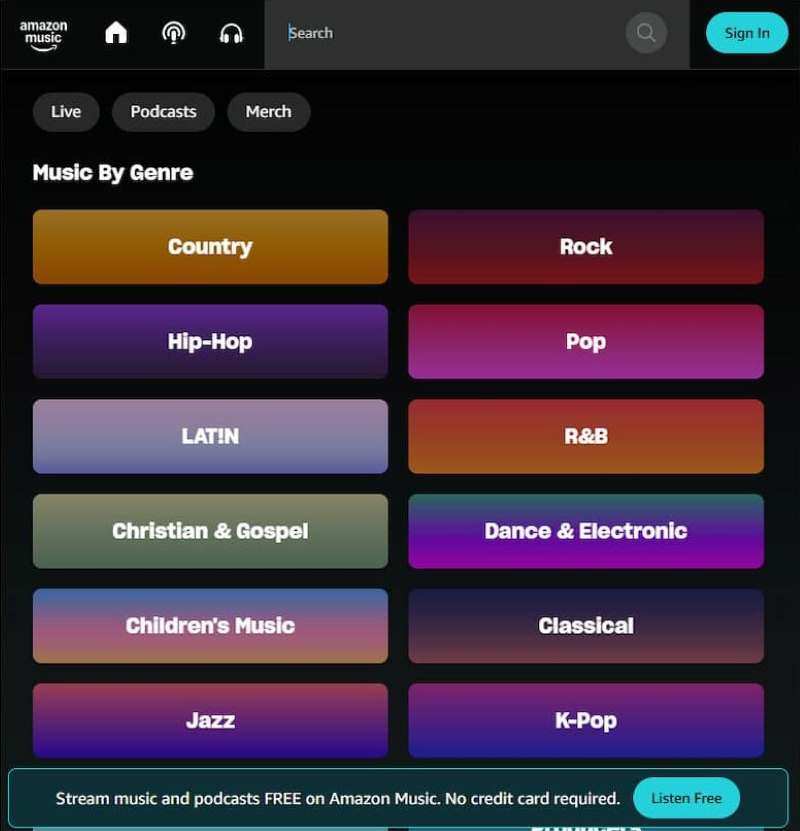
Step 1. Open your Mac browser and head over to the Amazon Music Web Player.
Step 2. Log in to your account by clicking Sign in in the top right corner.
Step 3. Jump into the Library and click on Songs. You can see all the tracks you’ve held from Purchased.
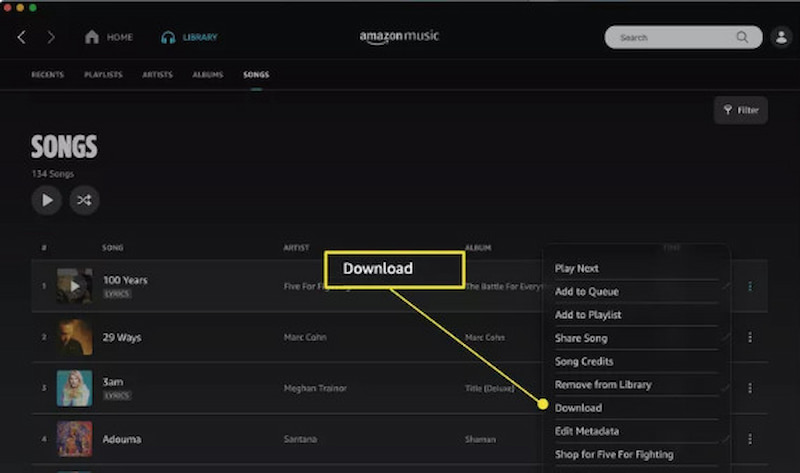
Step 4. Tap the Click button. If the installation pop-up ad appears, ignore it.
Step 5. Choose to save the files, and your Amazon songs will be stored in the Download folder of your browser.
This way is good for those who are unwilling to download new software or pay extra money. Alternatively, you can save music by Amazon Music App. The steps are the same as Part 2 after you log in and access Songs → Purchased. Here, we mainly introduce how to save Purchased Amazon Music to Mac through web player.
Part 4. Restriction-Free Download Amazon Music on Mac [Permanent Local Save]
As we said, directly downloading Amazon Music on Mac has many limitations. You can only play Amazon Music offline through its application. And the songs are only valid during your subscription. That means all of the songs aren’t truly preserved on our computer.
If you want to solve the issues, you’ll need to rely on a third-party tool to listen to music anytime and anywhere. TopVox All Music Converter, a music conversion software, is the best tool I have found for downloading Amazon Music to phone, computer, and other devices. It saves songs, playlists, or albums locally without any restrictions.
Features
- Supports Amazon Music and other mainstream streaming services.
- Enable batch downloads at 35× speed and a 99% success rate.
- Output quality up to 320kbps.
- Convert Amazon Music without DRM-limited.
- Download Deezer Music to MP3, WAV, FLAC, and various formats.
- One-in-all software to avoid app switching.
- Retain ID3 tags for easy music management.
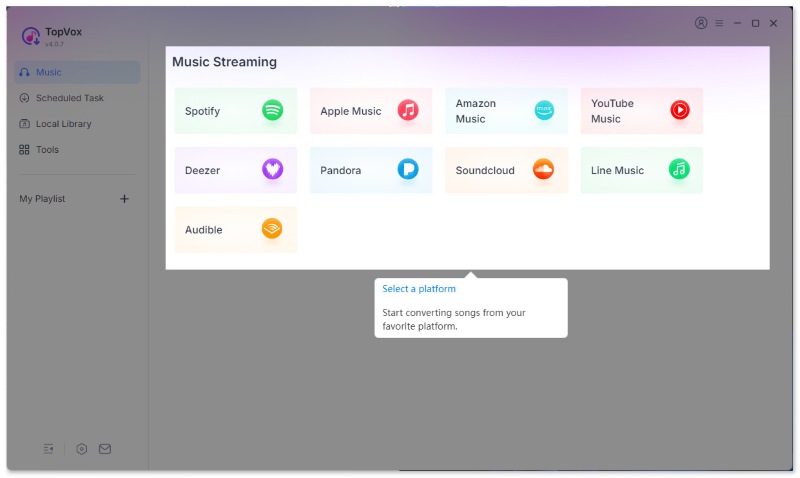
Step 1. Download and sign up for the software. Turn to the Amazon Music platform and launch your account.
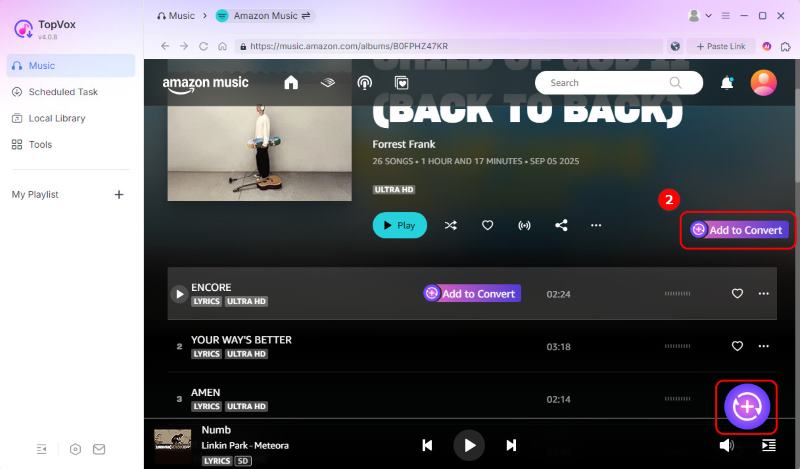
Step 2. Pick the enjoyable songs, albums, or playlists and click the Add to Convert button or the plus icon in the lower-right corner.
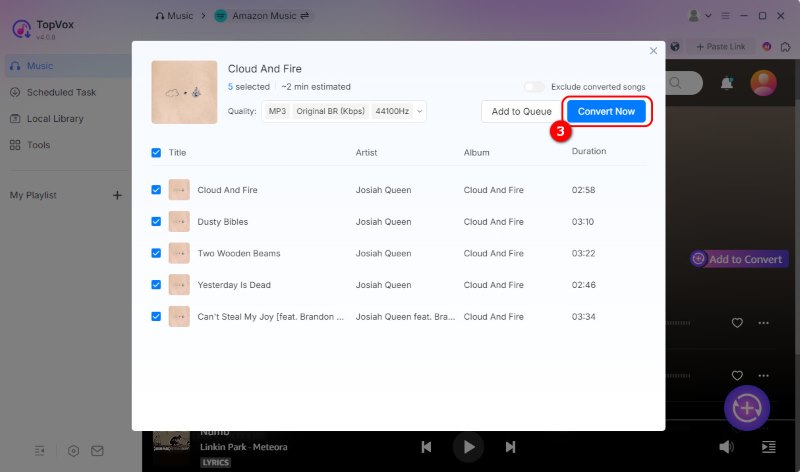
Step 3. Choose the conversion format as you like. You can adjust the output audio quality. Then click the Convert Now to download the Amazon Music to your Mac.
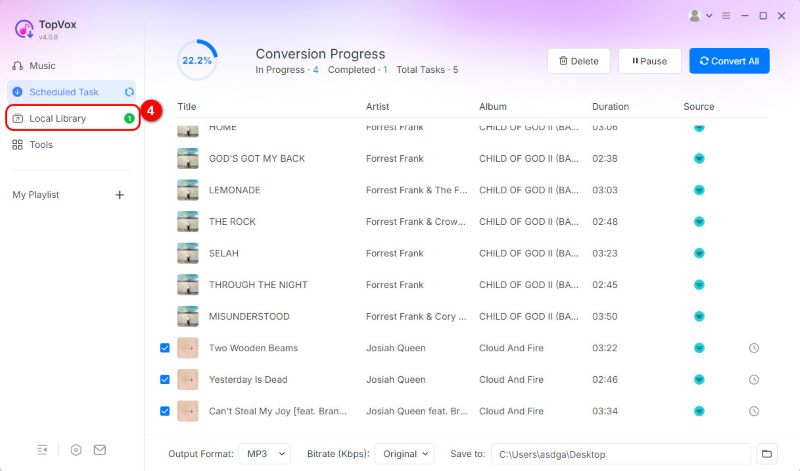
Step 4. Once the conversion is finished, find your converted songs in the Local Library.
Now you can listen to your favorite songs offline and download Amazon Music to your phone, computer, or other devices. Why I genuinely recommend TopVox All Music Converter? By contrast, its downloading rate is faster than other third-party software. Converting over 10 songs takes less than 30 seconds!
Conclusion
The approach to downloading Amazon Music on Mac varies based on your specific needs and subscription type. If you’ve purchased Amazon Music tracks, you can save songs with the Amazon Music App or its webpage for temporary needs. But if you are looking for a permanent, restriction-free way for local storage, TopVox All Music Converter stands out as the optimal choice. Among mainstream tools, it balances ease of use, fast conversion speeds, and high-quality output, making it ideal for those aiming to keep Amazon Music files accessible on Mac.
Owen Bannett
Owen Bannett is a music enthusiasm as well as a senior writer. He has paid close attention on the pros & cons of various audio formats, bitrate, sample rate and encoding methods. Always seeking the best listening experience, Owen has deep insights about lossless music and diverse music converters on the markets.




 by
by