Turn Off Speech to Text on iPhone Guide from Apple Support
Every iPhone user knows a great feature in their mobile phone, the Speech-to-text function as they should. This feature is a great help in saving time in typing so much text. Instead,However, it might be helpful with a lot, but not with everyone. Some users find it very annoying because due to dialect and pronunciation differences, the features cannot pick up some words. With that, users want to turn off the Speech-to-Text on their iPhone. Let us now see how it can be possible in this guide post.
Part 1. Why Turn Off Speech to Text on iPhone
Despite having a lot to offer, the speech-to-text feature on the iPhone has its limitations and flaws. Users of the iPhone who used it a couple of times observed that the feature has its disadvantages. With that, one of its main problems is the wrong results due to different pronunciation and diction. This difference can give us an improper result of text.
In line with that, many users are interested in turning it off because they find it very annoying and not useful. Therefore, if you are one of them, this blog post guideline is really perfect for you. Please proceed reading the next part to see the right way to do the process.
Part 2. How to Turn Off Dictation on iOS
We shall now give you the proper steps you need in disabling the dictation feature on iPhone, check these steps and follow them properly. To be specific, here are the methods for iOS 16 and later, and iOS 15 and earlier:
Method 1: For iPhone with iOS 16 and Later
If you have an updated version of iOS like 16 and later, then this method is the right one to follow.
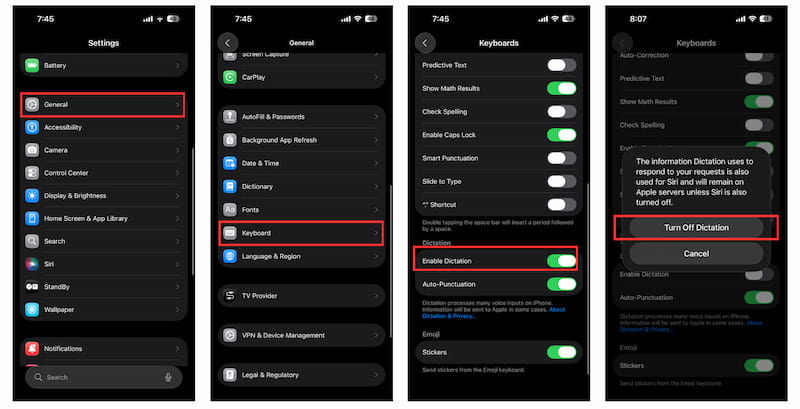
Step 1. Go to the Settings of your iPhone. This most commonly comes as a gear icon. Then, please look out for the General setting.
Step 2. Under the general setting, kindly scroll down to see the Keyboard setting.
Step 3. Kindly proceed scrolling down once again until you see the Dictation portion. You need to toggle off the Enable Diction. It will be turned off once the part becomes gray.
Step 4. Once you toggle off, your iPhone will ask you as confirmation if you really want to Turn Off Dictation. Please confirm it and you are good to go.
Method 2: For iPhone with iOS 15 and Earlier
We are also aware that earlier version of iPhone and iOS exist, so if you’re iPhone have an iOS 15 and earlier, then the process of turning of dictation will be like this:
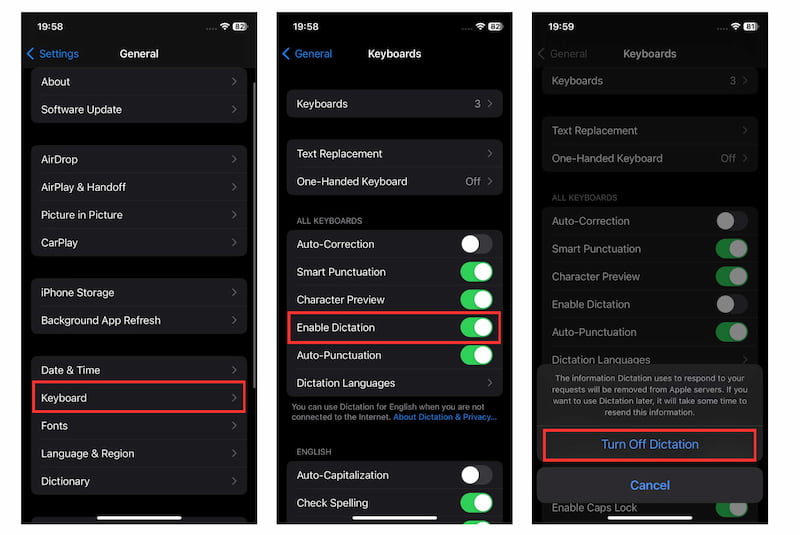
Step 1. Go to the Setting or gear icon on your iPhone. Then scroll down on the General setting. As we proceed, choose the Keyboard among the options.
Step 2. You will also notice under the All Keyboard setting where the Enable Dictation can be found Please toggle it off.
Step 3. The iPhone will now ask you if you really want to Turn Off Dictation. Just click the button and it will now finish the process.
Those are the two methods for turning off your speech-to-text feature on the iPhone. As long as you follow the steps properly, then we will not have any problem in your process. Indeed, the process becomes easy as long as you have a reliable source like this post.
Part 3. What Will Happen if you Turn Off Dictation on iPhone
Your iPhone will no longer translate spoken words into text if you turn off dictation. The way you type, use voice functions, and handle privacy will all be impacted by this change. You may determine whether dictation is essential for your everyday communication practices and overall control over the user experience by knowing what happens next. Here are the common things that will happen if you turn the feature off:
- • You won’t be able to use your voice to dictate emails, notes, or messages.
- • The functioning of Siri and voice-activated typing functions might be restricted.
- • Your spoken input is no longer processed, enhancing data control and privacy.
Part 4. Troubleshooting of Speech to Text on iPhone
Maybe the feature is not working properly on your phone? Well, if that is the case, turning off the feature is not the best option for you to follow, troubleshooting is. With that, this part exists to help you solve some issues with your dictation feature. See the reasons behind the problem and steps you should follow below:
Reasons Why iPhone Dictation is not Working
Why isn't my dictation functioning? We understand that you're curious as to why it's occurring on your iPhone; these explanations will help you identify the primary cause.
- • Glitches & Bugs. This problem may be caused by minor bugs and glitches on your iPhone; in order to use this feature again, we advise you to fix this fault.
- • Unreliable Internet Connection. Numerous problems with your iPhone, such as Siri and Dictation not functioning, might be brought on by a sluggish internet connection.
- • Outdated version of iOS. Update your iOS to the most recent version right away to fix this problem if you are using an out-of-date version, which may be the primary cause.
Fix 1: Restart your iPhone
Restarting your iPhone is the first thing you need to do if voice dictation isn't functioning. These kinds of issues are frequently resolved by simply restarting the iOS device.
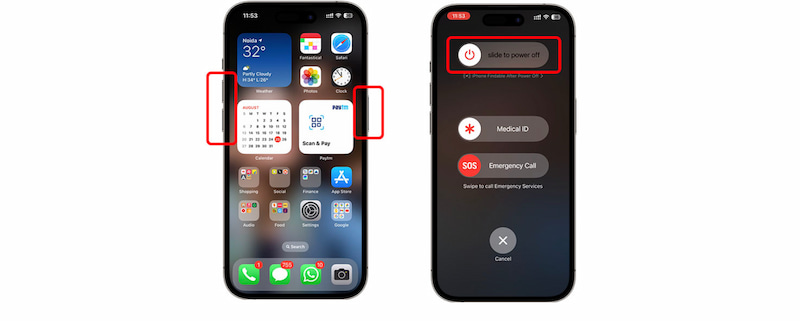
Step 1. Holding down the volume button will restart your iPhone.
Step 2. ext, press the Side button until the power slider choice appears.
Step 3. To switch off your iPhone, drag the slider to the right.
Step 4. After a few seconds, turn on the iPhone by pressing the power button.
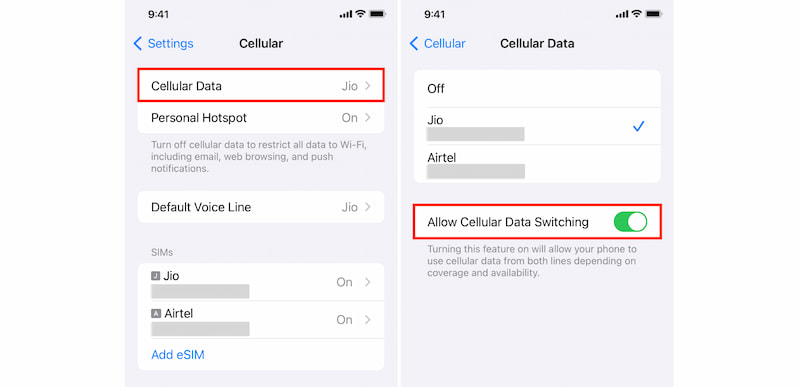
Fix 2: Switching to Cellular Data
As previously mentioned, a slow internet connection may be the cause of your iPhone Dictation not functioning.
Step 1. Select Cellular after opening the iPhone's settings.
Step 2. Next to Cellular Data, turn on the toggle.
FAQs about How to Turn Off Speech to Text on iPhone
Is it possible to disable Speech to Text without also removing Siri?
It is possible to disable Speech to Text or Dictation without deactivating Siri. Siri and dictation are two different features. Only speech typing is impacted when Dictation is turned off; Siri is still able to react to voice instructions as usual.
Will my iPhone's privacy improve if I disable Dictation?
Because your spoken words are no longer processed for text input, turning off dictation can help protect your privacy. Users now have more control over how their voice input is used because less voice data is handled during typing.
Is it possible to activate Speech to Text again at any time?
Yes, the iPhone Settings allow you to reactivate Speech to Text at any moment. If you feel that voice typing is necessary, just go back to the keyboard settings and turn on dictation once more.
Conclusion
Regaining control over typing, accuracy, and privacy on an iPhone is made easy by turning off Speech to Text. Although many people find the feature helpful, pronunciation or usability problems may prevent everyone from using it. Users can simply adjust Dictation settings and personalize their iPhone experience according to everyday communication needs and personal preferences by following the right procedures and troubleshooting when necessary.
Ethan Carter
Ethan Carter creates in-depth content, timely news, and practical guides on AI audio, helping readers understand AI audio tools, making them accessible to non-experts. He specializes in reviewing top AI tools, explaining the ethics of AI music, and covering regulations. He uses data-driven insights and analysis, making his work trusted.


 by
by