Google Text-to-Speech Review: Docs, Android & API Tested
Our Verdict: 4.5 out of 5 stars
Google TTS Top Use Case: Developer APIs and accessibility.
Pricing: Free tier available; $0.004–$0.016 per 1k characters.
As video production, e-learning, and app development scale globally, the demand for authentic, human-like digital voices has reached a fever pitch. Modern audiences quickly disengage from robotic, monotone delivery, favoring the nuance of expressive speech.
This Google Text-to-Speech review explores how Google’s advanced AI bridges that gap by converting raw text into fluid, natural-sounding audio. We will break down its core features, examine its underlying technology, and provide tutorials for integrating Google TTS into Google Docs, Android, and professional APIs. Whether you are a creator or a developer, this guide will help you determine if Google’s synthesis engine is the right tool to elevate your next project into a truly human-centric experience.
Part 1. What is Google Text-to-Speech
Google Text‑to‑Speech is a cloud‑based API service from Google that uses advanced artificial intelligence to convert written text into natural-sounding spoken audio. It synthesizes speech via neural network models that mimic human intonation and expression, powering voice interfaces, accessibility tools, audio content, and automated responses in apps and devices.
What to Expect with Google TTS:
- • Realistic, expressive speech using AI models.
- • 380+ voices across 75+ languages and variants.
- • Build a unique branded voice with minimal audio input.
- • Control pauses, pronunciation, tone, and emotion via markup.
- • Use REST or gRPC APIs in various programming environments.
- • Advanced voices with emotional range, natural pacing, and low latency.
How It Works
Similar to ChatGPT text-to-speech, it uses an AI model to convert text into human-like speech. Google Cloud Text‑to‑Speech works through an API: you send the text from your application to Google’s TTS endpoint. The API runs the input through AI models that generate natural‑sounding audio. The response includes encoded audio that your app decodes and plays back. It supports synchronous and streaming synthesis, letting you generate short or long-form speech for real‑time or batch use. Why Choose Google TTS: Extensive guides, tutorials, and community support; usable in web, mobile, and server applications; seamless integration with other Google services; handles large enterprise request volumes; continuous AI model upgrades for better quality and performance.
Part 2. How to do Text-to-Speech on Google Docs
Text-to-speech in Google Docs does not have a native button, but it supports accessibility features that let you read text aloud with built-in screen reader tools. Enabling screen reader support makes it easier to proofread, improve comprehension, or assist users with visual impairments.
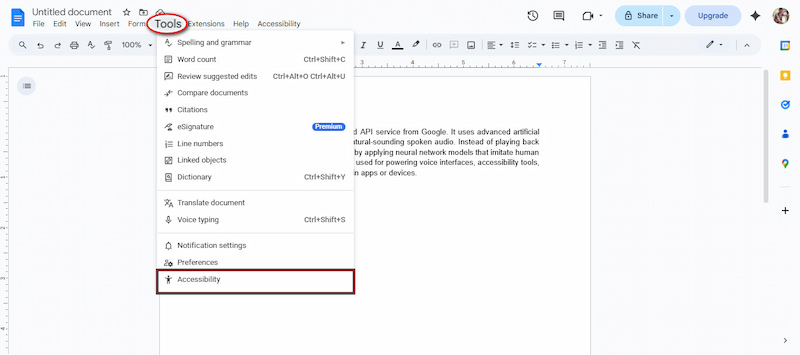
Step 1. On Google Docs, open the document you want to use text-to-speech with. Click Tools from the top menu and select Accessibility from the pulldown menu.
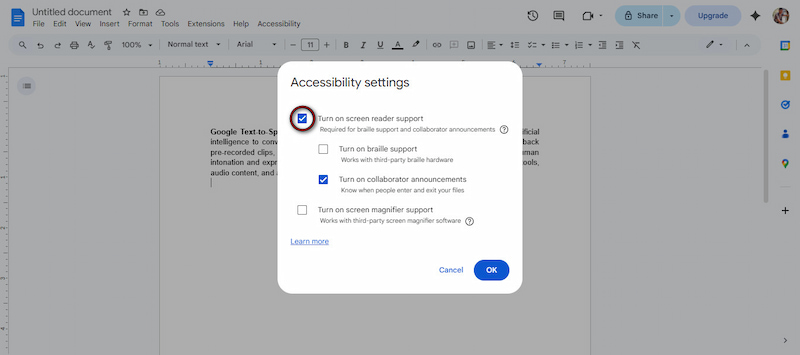
Step 2. In the Accessibility settings, activate the Turn on screen reader support toggle. This action enables Google Docs to communicate with your system’s screen reader or text-to-speech software.
Tips
- If you are using braille hardware, check the Turn on braille support option. A new accessibility menu will now appear, providing more control over text-to-speech functions.
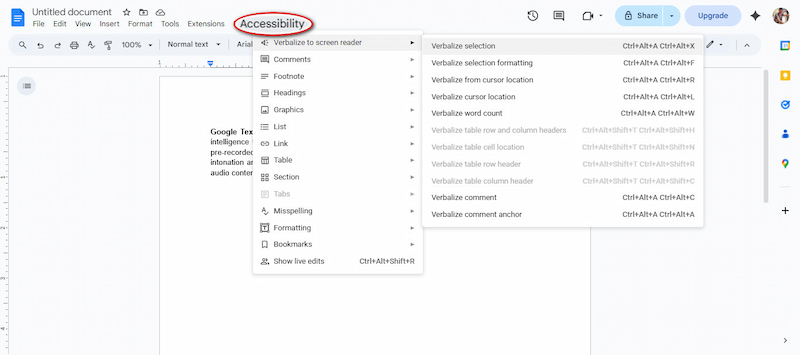
Step 3. A new menu labeled Accessibility will be visible. Click this menu to access options for verbalizing text and for document navigation. Within the Accessibility menu, you can:
- • Have any selected text read aloud.
- • Get word count or selection descriptions audibly.
- • Receive spoken feedback about formatting and cursor location.
TTS in Google Docs is a simple and effective way to improve accessibility and make document review easier. By enabling screen reader support and using compatible tools, you can have your text read aloud for better comprehension and proofreading.
Part 3. How to Use Google Text-to-Speech on Android
Google Text-to-Voice is one of the most useful accessibility features on Android devices. It is ideal for those with visual impairments or for those who prefer listening to text rather than reading it. The built-in text-to-speech feature in Android makes it easy to convert text to spoken audio.
Set Up Text-to-Speech on Android
Before using text-to-speech, you need to configure it in your device settings. Please note that menu names may vary slightly depending on your phone model. However, these steps generally apply to Android 7 and later.
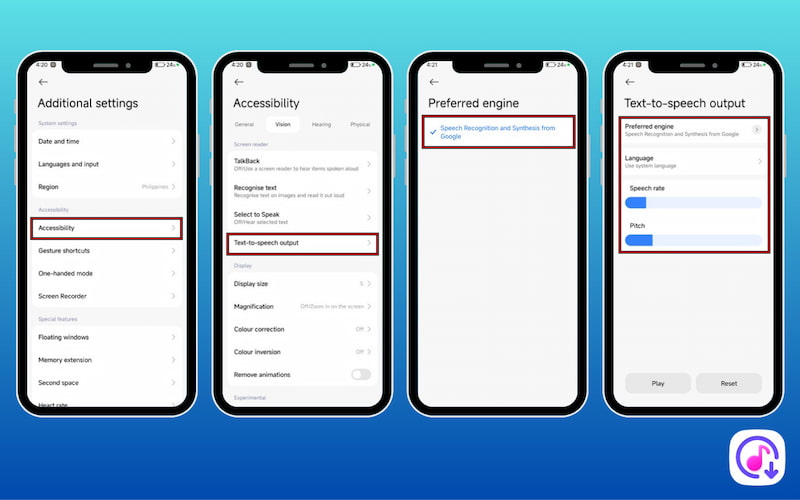
Step 1. Open the Settings app, navigate to Accessibility, and locate the Text-to-speech output option. Tap the Preferred engine and choose your default text-to-speech engine.
Note: The default text-to-speech engine is Speech Recognition and Synthesis from Google. However, other engines may appear if you’ve installed them from the Google Play Store.
Step 2. Next, tap Language to select your preferred spoken language. For better results, adjust the Speech rate and Pitch sliders to customize how fast and how deep or high the voice sounds.
Set Up the Select to Speak Shortcut
Once text-to-speech is enabled, you can activate a shortcut that allows you to listen to text on your screen anytime.
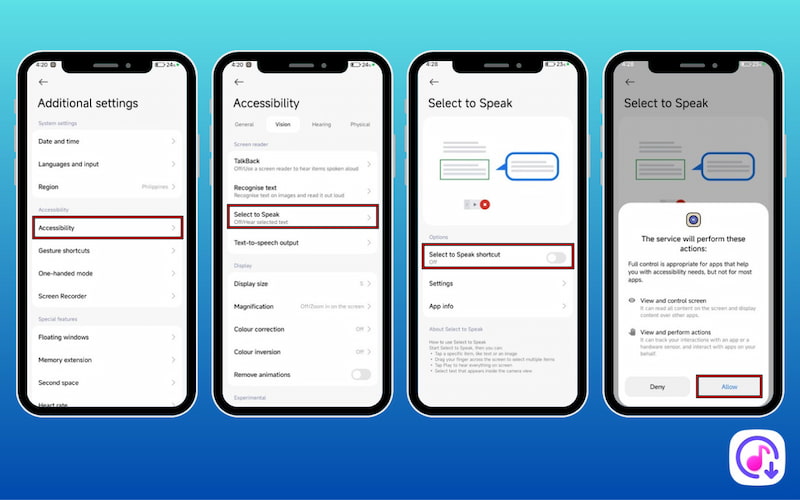
Step 1. In the Settings app, go to Accessibility, then select Select to Speak.
Step 2. Slide the Select to Speak shortcut switch to the right to turn it on.
Note: Don’t forget to tap Allow to grant the required permissions. After setup, you can use the TTS on your Android with different apps. Simply open any app, tap Select to Speak, and tap Play to hear the text read aloud instantly. You can also use the speech samples to convert text-to-speech to MP3 format.
Part 4. Developer’s Deep Dive: Google Cloud Text-to-Speech API
Google Cloud Text-to-Speech API uses Google’s advanced neural voice models to convert text into natural-sounding audio. It’s commonly used in applications that need voice output, such as virtual assistants, accessibility tools, e-learning platforms, and automated narration systems.
Important Note
Before you begin, you’ll need a Google account and Python installed on your machine. You’ll also set up a Google Cloud project, enable the required APIs, and authenticate your application so it can securely communicate with Google Cloud services.
Prerequisites and Package Installation
Make sure Python is installed on your system, then install the required libraries:
pip install google-cloud-speech requests
google-cloud-speech: Official Google Cloud client library.
requests: Used for handling HTTP requests, such as downloading remote files.
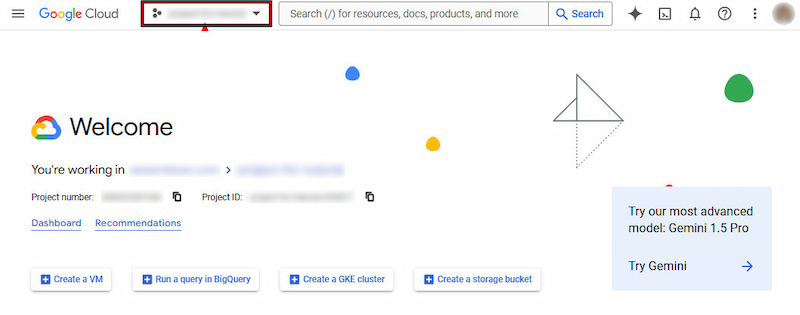
Step 1. Navigate to Google Cloud Console and click the Project dropdown at the top of the page. In the pop-up window, select New Project, enter a project name, and click Create. Once created, ensure the new project is selected from the project dropdown.
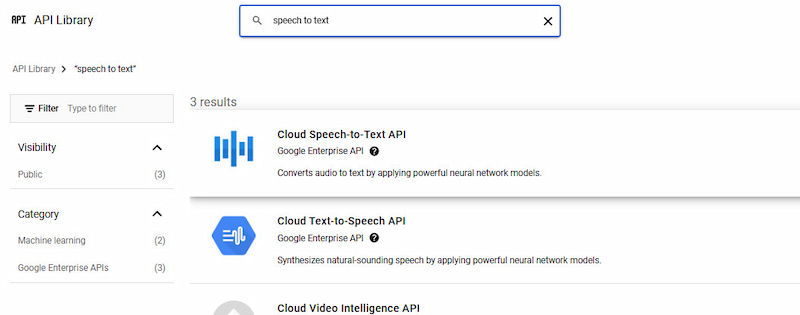
Step 2. With your project selected, go to the API Library and search for Speech-to-Text API. Click the API result and then select Enable. This activates the API for your project and allows it to accept requests.
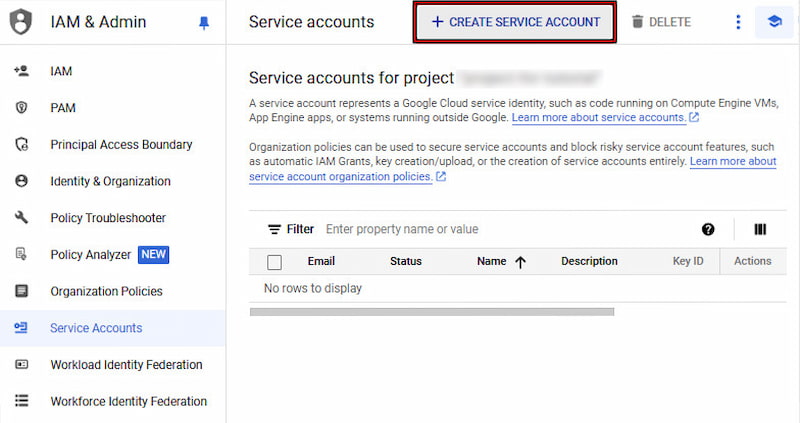
Step 3. You will need a service account to securely authenticate your application. In the Cloud Console, go to IAM & Admin and select Service Accounts. Click Create Service Account, provide a name and description, then click Create and Continue. You can skip the optional permission steps and click Done.
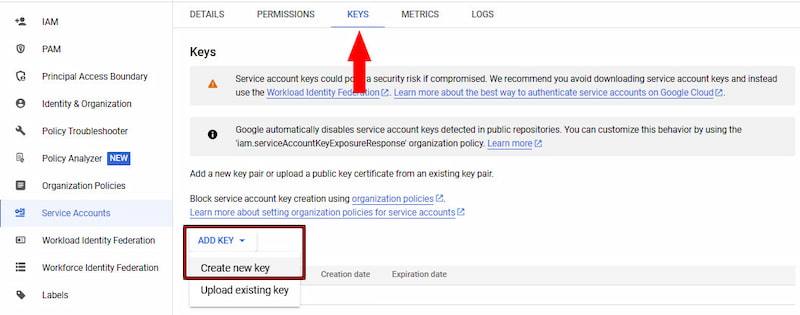
From the Service Accounts list, select the account you just created and open the Keys tab. Click Add Key, select Create new key, choose JSON, and click Create. A private key file will download to your computer. Keep this file secure and never commit it to source control.
Tips
- Add the command to your shell startup file to make this permanent.
Step 5. With authentication complete and the API enabled, you can now initialize the Google Cloud client in your Python code. At this stage, your environment is ready to send requests.
Google Cloud Platform Text-to-Speech provides developers with a powerful and scalable way to generate natural-sounding speech directly within their applications. By completing the initial setup, you establish a reliable foundation for voice-enabled features. Once configured, the API integrates smoothly into Python workflows and can be extended to support a wide range of use cases.
FAQs about Google Text-to-Speech
Is Google Text-to-Speech free?
Yes, Google provides free access to text-to-speech (TTS) through various platforms. Android’s built-in Accessibility features and Google AI Studio both offer free TTS capabilities for personal use. For developers, Google Cloud Text-to-Speech includes a generous free tier each month; charges only apply once those specific character limits are exceeded.
What should I do if the voice reader in Google Docs has no sound?
If Google Docs’ voice reader isn’t producing sound, the issue is usually related to your device. First, check that your system volume is turned up and not muted. Next, confirm that the correct audio output device is selected in your operating system’s sound settings. If the problem persists, restart your browser or computer to clear temporary audio or accessibility glitches. Also, ensure screen reader support is still enabled in Google Docs.
Can I use Google Text-to-Speech for YouTube monetization?
Yes, you can use Google Text-to-Speech or other AI-generated voices in monetized YouTube videos. However, please note that the approval is not guaranteed. YouTube does not ban AI voices outright; instead, it evaluates whether the content provides original value to viewers. Videos that rely solely on automated narration paired with repetitive or low-effort visuals may be flagged as Reused Content. Additionally, if your AI-generated audio triggers a copyright claim, you can easily fix the copyright claim on YouTube Studio.
Conclusion
In this Google Text-to-Speech review, it’s clear that Google provides a powerful and flexible text-to-speech solution. Whether used for accessibility in Google Docs, hands-free listening on Android devices, or advanced voice synthesis via its API, Google TTS consistently delivers natural, intelligible speech. With strong AI backing, broad platform support, and regular updates, Google TTS remains a dependable choice for creating realistic voice output across education, content creation, and app development.
Ethan Carter
Ethan Carter creates in-depth content, timely news, and practical guides on AI audio, helping readers understand AI audio tools, making them accessible to non-experts. He specializes in reviewing top AI tools, explaining the ethics of AI music, and covering regulations. He uses data-driven insights and analysis, making his work trusted.


 by
by