Google Live Translator: Features, Usage, and How It Works
Using global languages such as English has significantly contributed to the rise of global communication. People come to understand each other through the English language. However, it is not always the case, as live translator tools also exist nowadays that make it easier to communicate with other nations without relying on the English language.
One of the leading fields in this is Google Live Translation. Today, let's learn more about its features and usage. Check out this article and see all the details you need to know about it.
1. What is Google Live Translate and How Does t Work
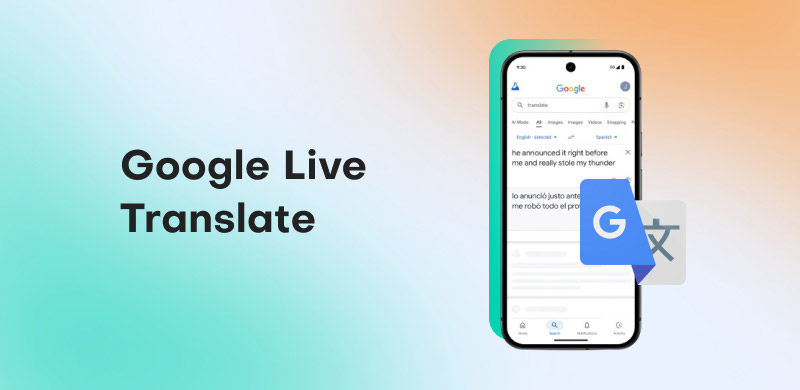
It is understandable that even if you are already a Google user, you might not understand what Live Translate entails. To gain a deeper understanding, Live Translate on Pixel smartphones refers to the real-time language translation feature. It is only available on Pixel devices because it utilizes Google's Tensor processor.
Perhaps at this moment, you are wondering how it works? It translates sounds and conversations in real-time. The newly released units of Pixel 10 and Android 16, enhances the experience of texting, calling, and viewing videos. Translations of what you hear or see are displayed. Live Translate is not flawless, just like any other translation program. But it's remarkably accurate and is certainly enough to get you through a video in another language.
2. Features of Google Live Translate
We can now say that Google Live Translate removes language barriers by enabling smooth, real-time communication across different languages. Powered by advanced AI, it helps users understand conversations naturally through voice, text, and audio translations, making everyday interactions easier, faster, and more inclusive across various situations.
Real-time Voice Conversation
Speaking in your native tongue, Google Live Translate translates and plays back the other language audibly while displaying a transcript on the screen. This allows you to have two-way discussions in real time. More than 70 languages are supported.
Natural Voice Speech-to-Speech in Pixel
Live Translate may maintain the speaker's native voice even after translation on compatible devices, such as Pixel phones, particularly during phone calls, giving interactions a more intimate and organic feel.
Translation in Real Time to Headphones
With Google's most recent update, live speech translation is now compatible with all Android headphones in beta, allowing you to hear translations straight into your earbuds without the need for specialized gear like Pixel Buds.
Intelligent Recognition and Adjustment
Without human input, the system employs sophisticated AI to recognize accents, conversational pauses, and intelligent language switching. Conversations become more natural and seamless as a result.
3. How to Active Google Live Translate
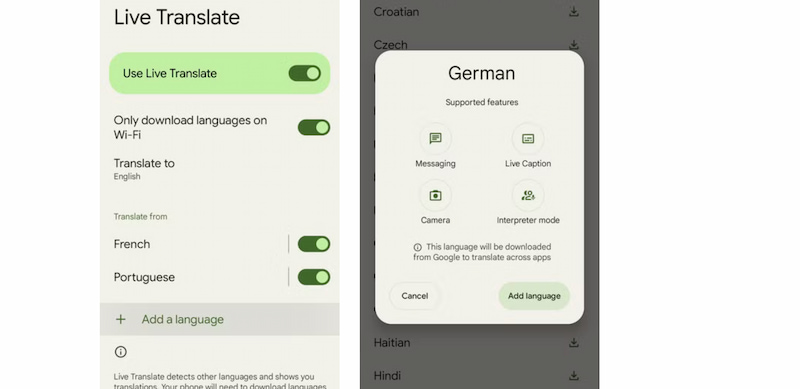
As we all know, Google Translate supports every language. It supports only a limited number of languages, including German, English, Spanish, French, Italian, and Japanese. Essentially, only these limited languages are compatible with live media. Currently, Live Translate supports over 70 languages, specifically. When you activate Live Translate, your Pixel device informs you about the features supported for that language. In line with that, here’s the process for activating Google Live Translate on your device.
Step 1. Open the Settings app on your mobile phone. Please, scroll down and tap System among the options. Under this, kindly tap Live Translate.
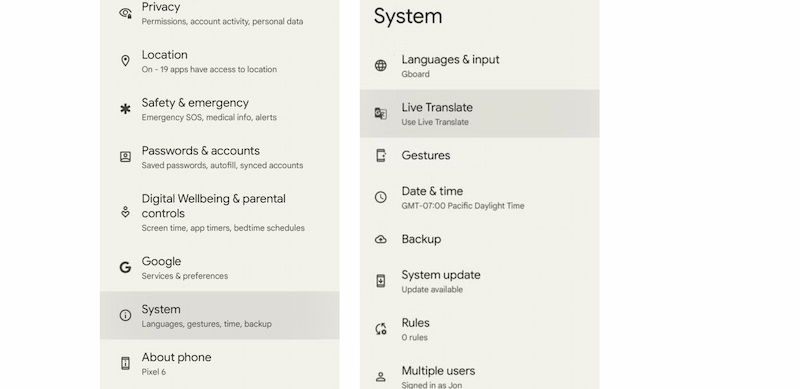
Step 2. The next thing we need to do is turn on the Live Translate switch. From there, please tap Add Language.
Step 3. At this point, you need to scroll down and select the language you want to translate, for example you want to translate Spanish to English. Then, tap Add Language on the pop-up window.
4. How to Use Google Live Translate
Google Live Translation can work for various purposes, including text conversations, audio captions, and live translation. If you're wondering how to use this feature, this section will provide the answer. However, please do remember that you'll need to download the language you want to use before you start translating. It should only take a few seconds. Then follow these steps now.
Use Google Live Translation for Texting
Step 1. A Google Translate pop-up window shows in the top-right corner of the screen when your Pixel recognizes a foreign language in a text exchange. This pop-up indicates that the message you are seeing can be translated using Live Translate.
Step 2. Copy the message text if the pop-up doesn't show up or if translation was previously disabled. To manually enable Live Translate for the discussion, hit Translate copied text in the pop-up box that appears.
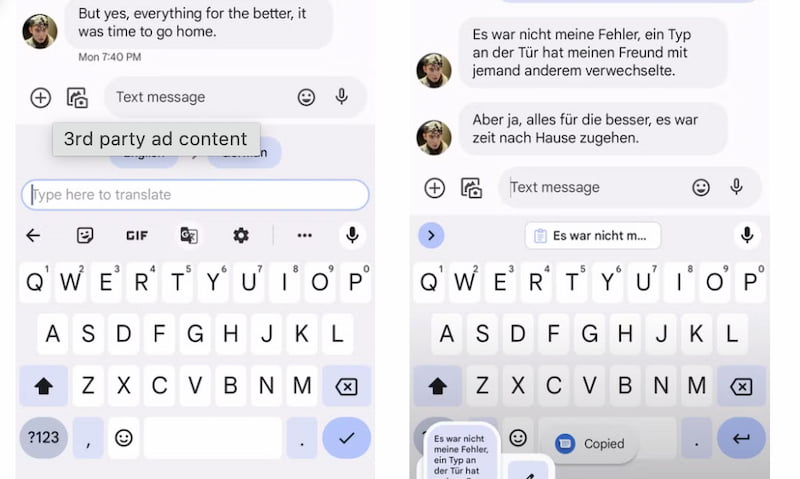
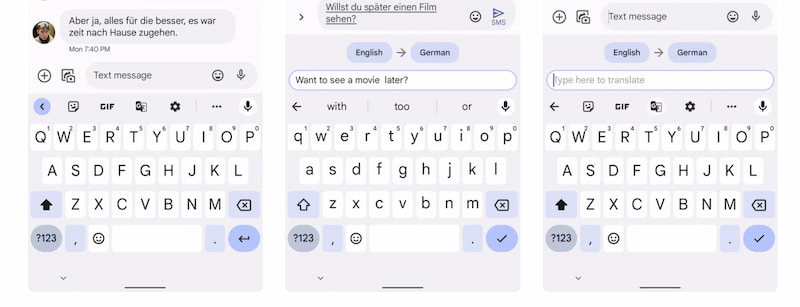
Step 3. A window opens at the top of your screen after Live Translate is turned on. After choosing the language of the communications you received, type your response. Before sending, your translated message is shown in real time above the draft.
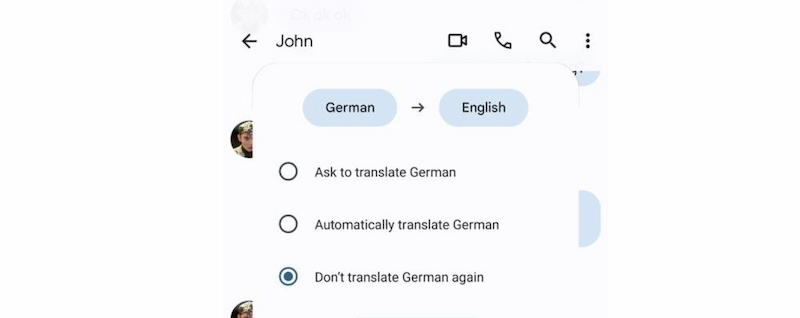
Step 4. Select Don't translate again to disable the language, Ask to translate for prompts, or Automatically translate for rapid translations. Re-enabling it is always possible via the Live Translate menu's More Settings.
Use Google Live Translate in Real Time
Thanks to Google's advancements in AI technology, Live Translate represents a significant advancement in translation technology. Although this feature is only available on Pixel 10 series and Pixel Fold devices, we anticipate that all of Google's upcoming products will include it.
5. My Experience with Google Live Translate
User experiences with Google Live Translate vary widely. While the feature shows strong potential in breaking language barriers, real-world feedback highlights both its strengths and limitations, depending on device compatibility, usage conditions, and overall system reliability.
Frustration Due to Inconsistency
Many users on Pixel devices report that Live Translate doesn’t always trigger, works randomly, or only functions occasionally, even when settings and language packs are correctly configured that causes frustration.
Initial Excitement but Bugs
Some users who tried the feature early found it promising but buggy or unreliable. For example, in some tests the live conversation feature failed to translate significant portions or didn’t launch properly, making live use difficult.
Positive Practical Help
Conversely, other users find it extremely useful for real communication, especially for chatting with friends in different languages or getting quick meanings without switching apps, describing it as a powerful language tool when it works as expected.
Conclusion
Google Live Translate proves to be a powerful tool for breaking language barriers through real-time, AI-driven translation. With features like voice conversations, smart recognition, and seamless text translation, it enhances daily communication across languages. While it still faces limitations such as device dependency and occasional inconsistencies, its practical benefits outweigh its flaws. As Google continues to refine the technology, Live Translate has strong potential to become an essential communication feature for global users.
Ethan Carter
Ethan Carter creates in-depth content, timely news, and practical guides on AI audio, helping readers understand AI audio tools, making them accessible to non-experts. He specializes in reviewing top AI tools, explaining the ethics of AI music, and covering regulations. He uses data-driven insights and analysis, making his work trusted.


 by
by