Best Way to Download MP3 from Amazon Music to Keep Songs
Quick Summary: Best Ways to Download Amazon Music
- Best Overall: TopVox Amazon Music Converter
The most reliable tool to batch-convert Amazon Music to 320kbps MP3/lossless FLAC without DRM limitations, making your songs permanently saved on any device. - For Premium Users (Official Way): Purchase & Download
The most reliable tool to batch-convert Amazon Music to 320kbps MP3/lossless FLAC without DRM limitations, making your songs permanently saved on any device. - 100% Free (Online): Amazon Music Downloader
For users on a budget, online web-based tools, like Amazon Music Downloader, allow you to download tracks for free without installing software.
Streaming services such as Amazon Music have revolutionized the way we consume music, making it easier than ever to access millions of songs with a single click. But what if your internet connection fails, or you're working on a computer or mobile phone without Wi-Fi?
Amazon Music premium members have access to a download capability, which allows them to enjoy music anywhere, at any time, even without an internet connection. If you're wondering how to download Amazon Music to your devices, this tutorial will lead you through the many options. Whether you use Amazon Music Prime, Unlimited, or want a more flexible option to permanently save your music, you'll find the solution here.
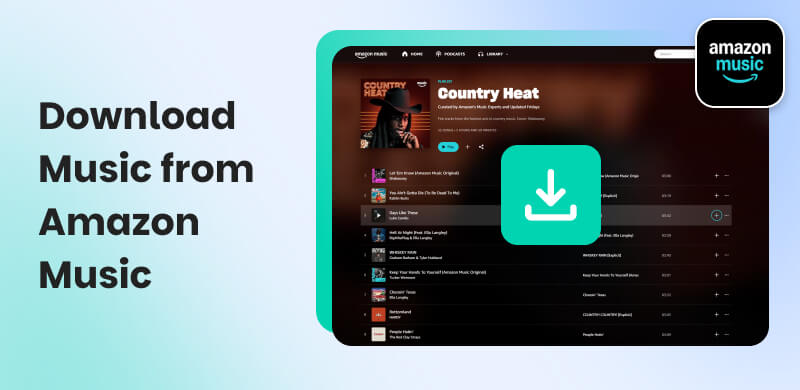
Part 1. Download Amazon Music via Official App [Computer/Mobile]
Amazon Prime/Unlimited
If you have an Amazon Music Unlimited or Prime subscription, there are official ways to download Amazon Music on your computer or mobile phone via the Amazon Music app or web player.
But note that you aren't allowed to transfer or use downloaded music from Amazon Music to other devices. What's more, these downloads are merely offline cache files rather than audio tracks you own. You can only employ the Amazon Music offline mode to save and listen to Amazon songs within the App itself. If the membership expires, your entire offline Library will be inaccessible. If you want true digital ownership, turn to Part 2. For paid users, follow the guide to download music from Amazon Music below.
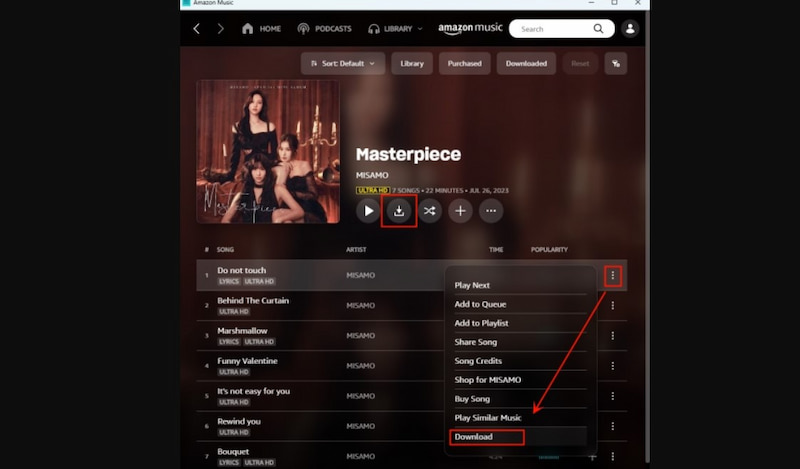
Download Amazon Music on a PC
Step 1. Launch the Amazon Music app for PC and ensure that an active account is logged in.
Step 2. From the top menu, click Home to find the tune or playlist you wish to download.
Step 3. Click on the Three Dots button next to the track or playlist.
Step 4. Select Download from the dropdown menu to add it to the download queue.
Step 5. Once downloaded, navigate to the Library, see Tracks, and select the Downloaded filter to see all downloaded tracks.
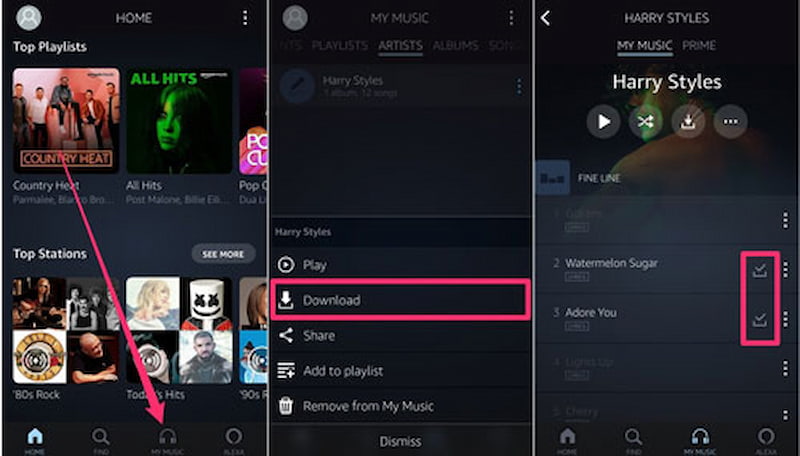
Download Amazon Music on Android
Step 1. Navigate to the Google Play Store on your Android device.
Step 2. Enter Amazon Music into the search field to locate the Android Amazon Music app.
Step 3. When you find the Amazon Music app, press it to launch the store page. Then, press the Install button.
Step 4. Wait for Amazon Music to download and install. Following that, you will download the Amazon Music to your phone.
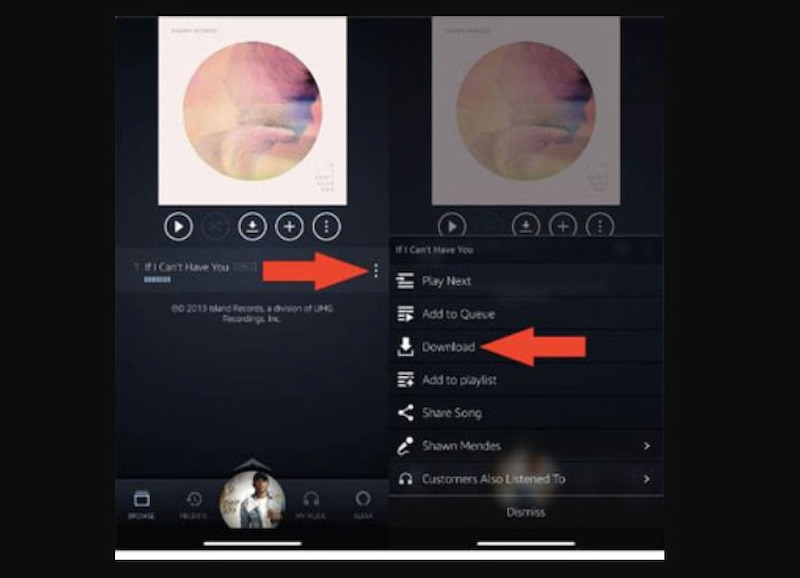
Download Music on Amazon on iPhone
Step 1. Turn on your iPhone, then locate and click the App Store icon on the screen. It's a blue icon with a white letter A.
Step 2. Tap the Search icon, magnifying glass, then type Amazon Music into the search field and press the return key.
Step 3. In the search results, seek the official Amazon Music app. To access the app's site, tap the icon.
Step 4. On the Amazon Music app page, there is a Get button. Tap it to download and install the Amazon Music app for your iPhone.
Step 5. If prompted, enter your Apple ID password and use Face ID or Touch ID to verify the download. This step ensures the security of the installation procedure. Once completed, you will see the Amazon Music app icon on your homescreen.
Pro Tip:
The downloading progress may come to a standstill if the network is unstable. In this case, we recommend that you switch your traffic network or restart the App.
Downloading Purchased Amazon Music
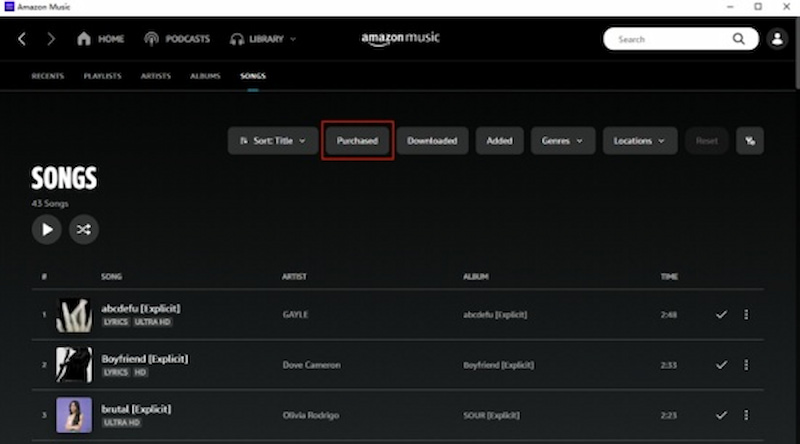
Another approach to store Amazon Music on your PC is to buy music from the Amazon Digital Music Store. Once you've purchased the digital songs, you own them and can download them as MP3s.
Here is an example of downloading Amazon Music to a PC computer.
Step 1. Open the Amazon Music web player in a browser or launch the Amazon Music PC app.
Step 2. Select the Purchased option on the Library menu, under the Songs or Albums area, to see all of the music you have purchased.
Step 3. Click on the More button next to the song or album and select Download.
Step 4. When the download is completed, the music will be saved to the My Music folder.
Part 2. Keep Music Forever: Topvox All Music Converter [Win/Mac] 🔥
System Requirements: Windows 7 or later (64-bit), macOS 10.14 or above
Having learning about the limitations of downloading music from Amazon Music, we provide you with an ultimate way to save your favorite tracks forever. TopVox All Music Converter possesses a user-friendly and satisfying experience that we all want for a music downloader. You will notice that your downloaded music still possesses high-quality audio, just like the one we stream online. This powerful application allows you to play, convert, and store Amazon Music songs, playlists, albums, podcasts, and audiobooks in its web player.
Legal Disclaimer: The software is intended strictly for personal use only. We do not encourage unauthorized distribution, public performance, or commercial exploitation of copyrighted content. Please comply with local copyright laws and the Terms of Service of the Amazon Music platform.
Features
- For Amazon Music Free, Prime, and Unlimited users.
- Bypass DRM and convert music to MP3, WAV, FLAC, AIFF, etc.
- Save music to digital formats up to 320kbps.
- Preserve music with ID3 tags.
- Supported batch downloading speed at 35× faster.
- Support 9+ popular music platforms, including Amazon Music.
- Keep with the 99% success rate for conversion.
How to Use TopVox All Music Converter
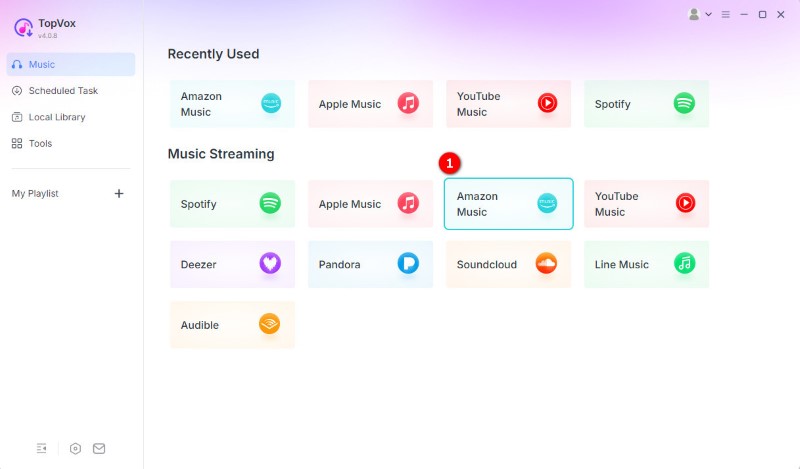
Step 1. Download and install TopVox All Music Converter to your PC. Then, launch the software. On the main interface, click the Amazon Music platform.
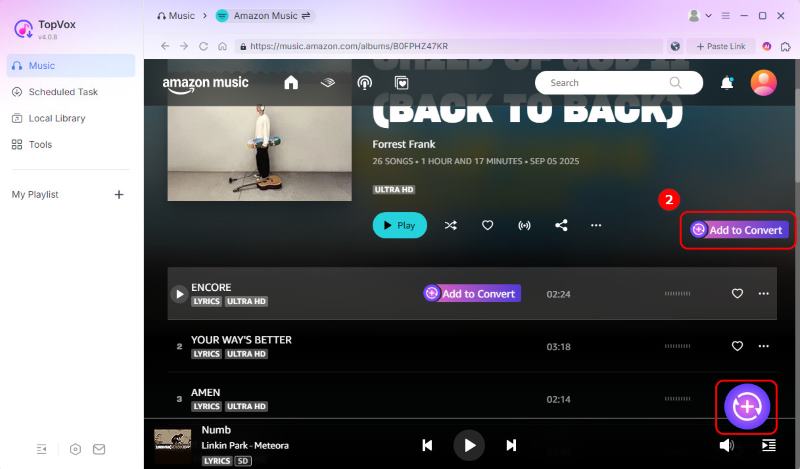
Step 2. Browse or search for the music or playlists that you wish to download from Amazon Music. To import them into the converter, simply click the Add to Convert button.
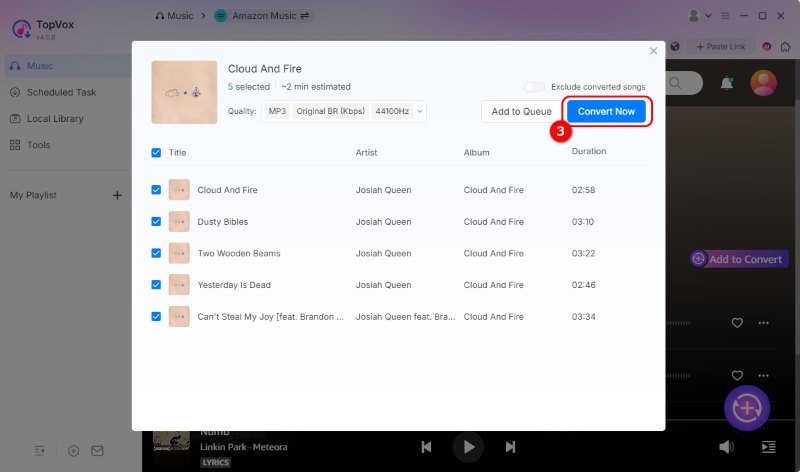
Step 3. Then you will see a pop-up window and click the Convert Now button to begin downloading.
Step 4. You can change the output settings here, such as format, audio quality, the folder where you want to save the downloaded file.
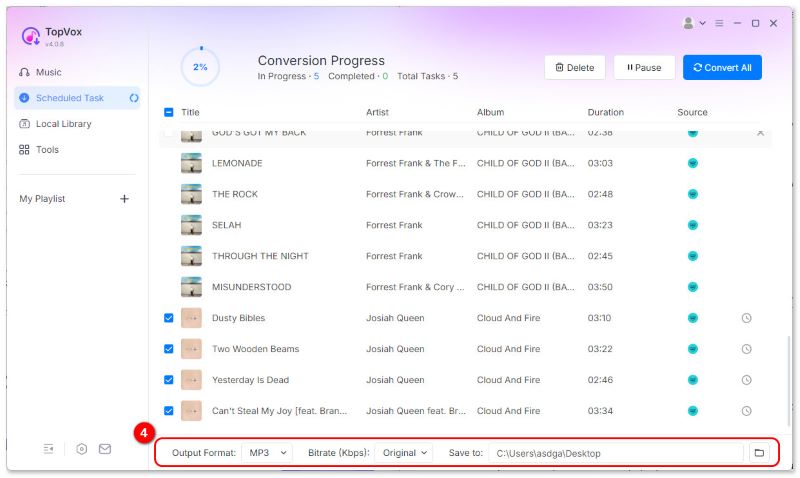
Once done, your downloaded music will be saved locally on your PC, ready to play whenever, whenever, even without the Amazon Music app.
User Review: 4.8/5⭐⭐⭐⭐⭐
Mainly thanks to the numerous on-screen features that ensure an easy process when selecting single or multiple items…I believe that the App offers decent capabilities, both in terms of available output formats, as well as different settings for controlling the quality characteristics of the converted tracks.
In my test, I used TopVox to download my favorite Amazon Music playlists - the performance surprised me. Its batch download speed was incredibly fast, saving dozens of tracks in just a few minutes without any crashes. And the converted files maintained the original sound quality!
Part 3. Download Music from Amazon Music Online
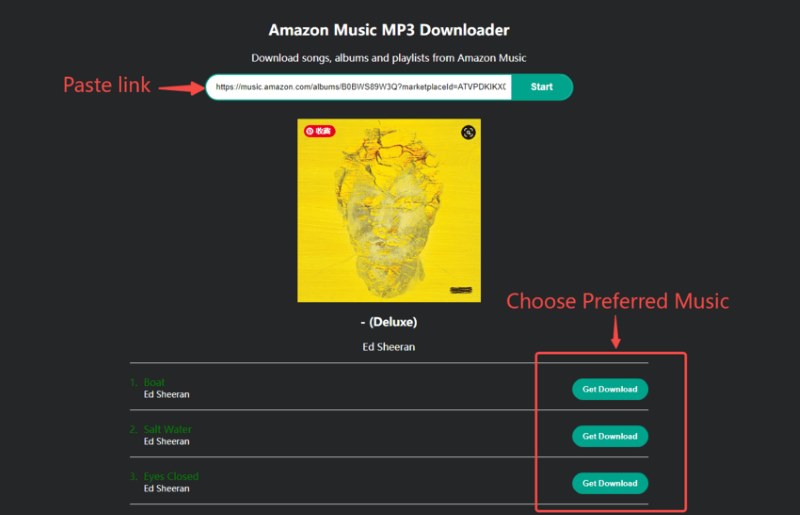
Another method to download music from Amazon Music is to use an online music converter without any third-party software. Amazon-music-downloader.com is such a tool. It allows you to turn your favorite Amazon Music tracks directly into MP3 files, making you enjoy music offline on any device or media player.
Step 1. Open your Amazon Music app or web player and target a song or playlist.
Step 2. Copy the track link and paste it into the website (https://amazon-music-downloader.com/).
Step 3. Click Start and choose a version of songs, then tap the Get Download button.
User Review: 3.8/5⭐⭐⭐
Simply pasting a link into the search bar, I can quickly possess a complete free music audio file, making it an ideal choice for those seeking a convenient way to bypass the official encryption and achieve true digital ownership of the Amazon music library. But I found that the audio quality and ID3 tags have been lost to a great extent.
FAQs on Downloading Amazon Music
Q: Where does Amazon Music download to on the PC?
A: You may verify the download location in Amazon Music Settings. If you downloaded Amazon Music using a browser, it is saved in the Downloads folder. Furthermore, if you use the Amazon Music app, the purchased digital music is saved to the My Music folder on your computer.
Q: How can I stop Amazon Music from launching automatically on my PC?
A: To access Settings, open the Amazon Music app on your PC and click your Profile in the upper-right corner. Scroll down until you see the Launch automatically on computer startup option. Turn it off by toggling it.
Q: Is there an Amazon Music download limit on Mac and PC?
A: Yes. The number of songs or albums you can download may be restricted. Furthermore, Amazon Music often limits the number of devices from which you may download and save music.
Conclusion
To summarize, downloading music from Amazon Music is simple and flexible, whether you use the official app, web player, or a third-party application. However, if you want to preserve your Amazon Music tracks permanently, TopVox All Music Converter is the ideal answer. It allows you to save your favorite tunes in high quality for offline listening at any time, from anywhere. Try TopVox All Music Converter today and enjoy your Amazon playlists without restrictions.
Owen Bannett
Owen Bannett is a music enthusiasm as well as a senior writer. He has paid close attention on the pros & cons of various audio formats, bitrate, sample rate and encoding methods. Always seeking the best listening experience, Owen has deep insights about lossless music and diverse music converters on the markets.




 by
by