How to Upload Songs to SoundCloud on Desktop & Mobile Phone
SoundCloud is among the popular music streaming platforms worldwide. It is known for its openness to independent artists, aspiring musicians, and creators. It provides a space where anyone can upload and share music with a global audience. Today, it stands as a key platform in the streaming industry, helping new talent get discovered and connect directly with listeners. If you’re someone who has a collection of drafts, finished tracks, or original songs ready to be shared, this post is for you. Here, we will guide you on how to upload songs to SoundCloud. Our aim is to help musicians confidently upload music and ensure their songs are discoverable. By the end of this guide, you’ll have all the knowledge you need to publish your music on SoundCloud and reach a wider audience.
Part 1. How to Upload Songs to SoundCloud from a Computer [Windows/Mac]
Windows and Mac’s designated browsers, like Microsoft Edge, Safari, or Google Chrome, make uploading songs to SoundCloud easier. This process can be done directly through your browser, provided you have a strong internet connection.
Here’s how to upload songs to SoundCloud from a Windows/Mac:
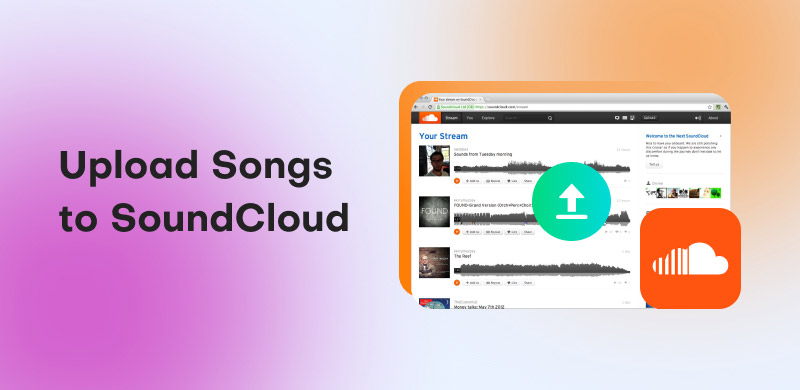
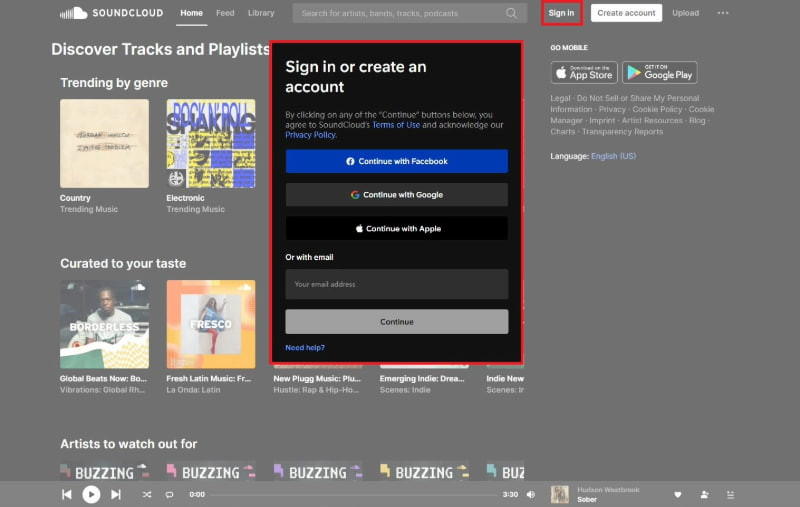
Step 1. On your browser, reach SoundCloud's official site and log in to your SoundCloud account. On the homepage, click the Upload button next to your profile.
Step 2. Click Choose Files and browse your local files. Then, give your track a complete identity. After finalizing the Track Information, click Upload to receive a shareable track link that you can post.
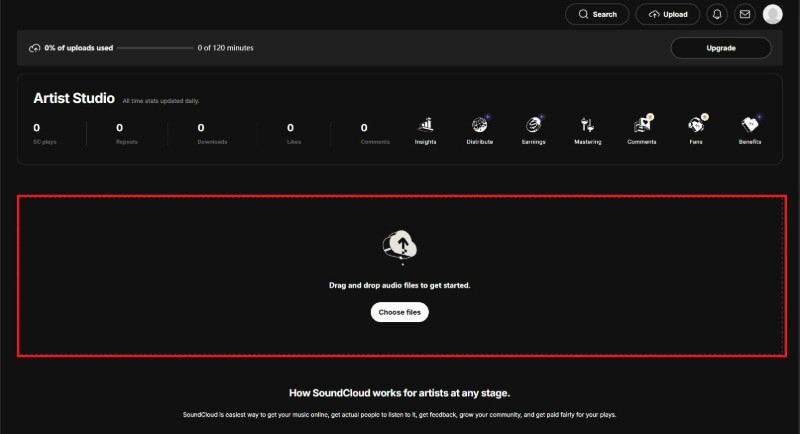
Be sure to add complete metadata and track information to improve discoverability. Most importantly, include a cover image to give your tracks a professional look. But here’s the deal: free accounts are limited to 3 hours of audio or a total of 15 track uploads.
Part 2. How to Upload Songs to SoundCloud from a Phone [Android/iPhone]
SoundCloud lets you upload tracks directly through its mobile app using your Android or iPhone. You only need to download the official SoundCloud app from your device’s store. Additionally, you can also download SoundCloud songs on your mobile device for offline listening.
Here’s how to upload a track on SoundCloud from a phone:
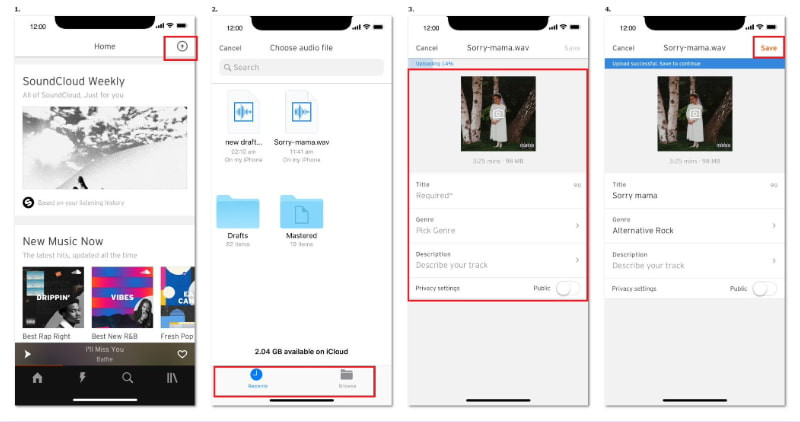
Step 1. If it hasn't been installed yet, download the SoundCloud app from your device’s designated app store. Once installed, tap the Upload button to open the file browser.
Step 2. Choose the music file you want to upload from your phone’s storage. Select the track to continue and customize your track details to help people find your music more easily.
Step 3. After editing, tap Save in the upper-right navigation of your display. Please be informed that the button will turn orange when the upload finishes.
The SoundCloud app offers a straightforward way to share your tracks anytime, anywhere. If you want to test or share the track privately first, you can use the Private mode. Now, a small heads-up: Some file types may not appear if your phone doesn’t support them.
Part 3. Key Tips Before SoundCloud Upload
Now that you have learned how do you post on SoundCloud, it is important to know the key tips before uploading your music. Following the right technical settings and preparation prevents audio quality loss, distortion, or unwanted compression after SoundCloud processes your track:
- • Choose WAV or FLAC for the best audio quality to prevent unnecessary sound degradation.
- • Stick to a 44.1 kHz Sample Rate to reduce conversion issues after SoundCloud processes the audio.
- • Pick 16-bit for standard CD-quality or 24-bit for more dynamic range, and ideal for mastered tracks.
- • Avoid mastering too loud or clipping. Overly boosted audio can sound harsh after transcoding.
- • Leave -1 dB Headroom before exporting to avoid distortion after SoundCloud converts your file.
Part 4. BONUS: How to Download SoundCloud Songs in Multiple Formats
TopVox All Music Converter is a complete music converter and downloader bundle for Windows and Mac. It lets you access your best-loved SoundCloud songs and convert them into commonly used formats. It can convert any track to MP3, M4A (AAC), WAV, FLAC, AIFF, or M4A (ALAC). Additionally, you can configure the audio quality up to 320 kbps and 48,000 Hz. beyond SoundCloud, it also supports Apple Music, Amazon Prime Music, Pandora, Deezer, Line, Music, Spotify, and YouTube Music.
What to Look Forward to with the TopVox All Music Converter:
- • Downloads any songs from SoundCloud and 8 other platforms.
- • No DRM or Content ID limitations, allowing for offline playback at any time.
- • High-quality audio output up to 320 kbps and 48,000 Hz for clean, detailed sound.
- • Batch download support for entire playlists, albums, artists, or multiple tracks at once.
Here’s how to download SoundCloud songs in multiple formats:
Step 1. Get started by securing a free download of TopVox All Music Converter. Install the SoundCloud downloader and complete the installation process. Once the setup is finished, open the software to access its main dashboard.
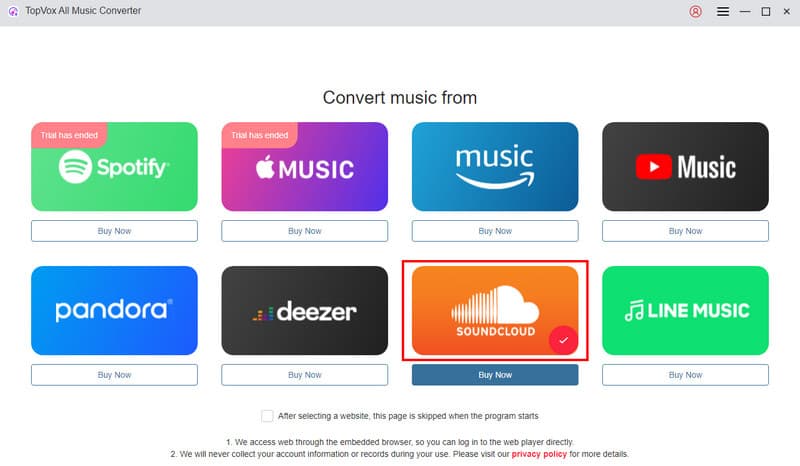
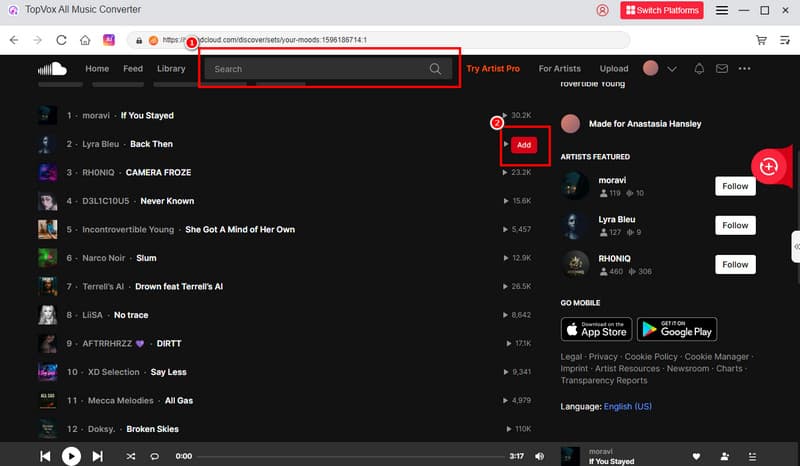
Step 2. On the TopVox’s main dashboard, you will see tiles for various music streaming services. Select the SoundCloud tile to open SoundCloud using an integrated browser. Sign in to your SoundCloud account and find the songs you want to download.
Step 3. Click the Add to Conversion List button or drag and drop the tracks into the queue. All selected tracks will be added to the batch download panel. You can add as many songs as you’d like to the batch panel and download them simultaneously.
Step 4. By default, the resulting files are set to download in MP3 format (256 kbps, 44,100 Hz. Still, you can adjust your output preferences. After adding all songs and configuring your output settings, click Convert All to download all the tracks.
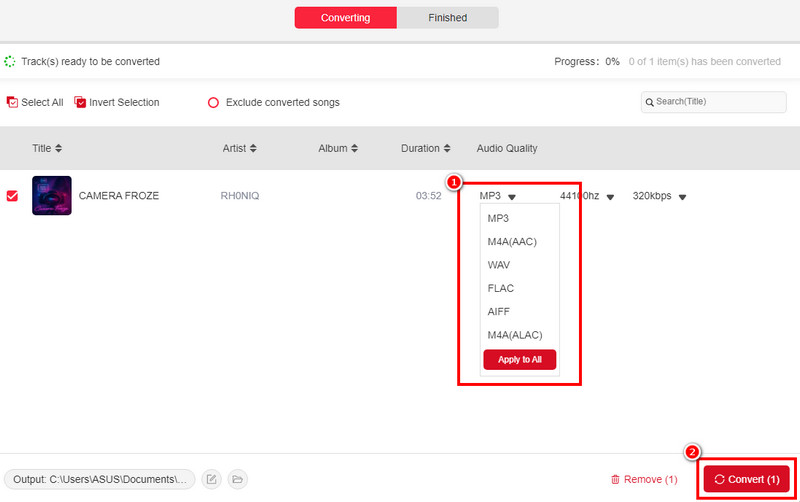
TopVox Al Music Converter is a reliable tool for converting SoundCloud tracks to MP3 and other formats. It saves any track in multiple high-quality formats and keeps your music offline without restrictions. Every time you need to download a song, TopVox provides a faster and more flexible solution.
Part 5. FAQs about Uploading Songs to SoundCloud
Q: What’s the best time to upload songs to SoundCloud?
A: The recommended best time to upload songs to SoundCloud is Sunday at around 10 AM. Many artists also see strong engagement on weekdays at 2 PM or 7 PM, which are considered the second-best upload windows.
Q: How many minutes can you upload to SoundCloud for free?
A: With a free SoundCloud account, you can upload up to three hours of total audio. Once this limit is reached, you’ll need to delete old tracks or upgrade to a paid plan for more storage.
Q: What file format should you upload to SoundCloud?
A: SoundCloud recommends uploading in a lossless format such as WAV, FLAC, AIFF, or ALAC. These formats maintain the original clarity, dynamic range, and detail of your track.
Conclusion
Mastering how to upload songs to SoundCloud is a key step for any aspiring musician or independent artist seeking to share their talent with the world. By following the right steps, you can ensure your tracks are published professionally. To make the most of your SoundCloud experience, consider using TopVox All Music Converter. This professional tool enables you to download your favorite SoundCloud songs in multiple formats. Whether you want to listen offline, organize your library, or keep a permanent copy of your best-loved songs, TopVox makes it simple and convenient.
Owen Bannett
Owen Bannett is a music enthusiasm as well as a senior writer. He has paid close attention on the pros & cons of various audio formats, bitrate, sample rate and encoding methods. Always seeking the best listening experience, Owen has deep insights about lossless music and diverse music converters on the markets.


 by
by