
2026 Beginner Guide to Convert and Burn Apple Music to CD
 by Owen Bannett | May 13, 2026 | How to
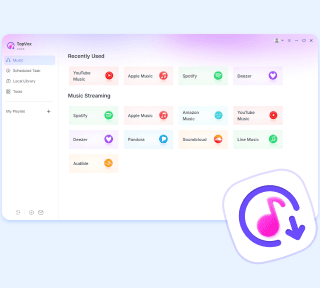
TopVox Apple Music Converter
To burn Apple Music to CD, you need to convert DRM-protected tracks into standard audio formats first using TopVox Apple Music Converter. Then, use iTunes, Windows Media Player, or VLC to create playable CDs for car stereos, DVD players, gifts, or backups with ease and high-quality output.
100% Secure. No virus.
100% Secure. No virus.
Many users want to burn Apple Music to CDs to enjoy their favorite tracks on car stereos or DVD players. This process also allows you to create personalized music gifts or maintain a physical backup of your library. However, DRM protects Apple Music songs, so you cannot directly burn them to a CD or use them outside Apple services. This restriction frustrates users who want offline, universal playback. The good news is that there is a workaround: by first converting Apple Music tracks into standard audio formats using tools like TopVox Apple Music Converter, you can unlock your music and burn it to a CD in just a few minutes using built-in or free burning software. Read on to learn step-by-step methods for using different tools.
Part 1. Convert Apple Songs With TopVox
Important Note: Before using a third-party tool, please note that you can directly download any songs you have purchased through iTunes. However, most Apple Music tracks are DRM-protected, limiting offline playback to authorized apps and devices.
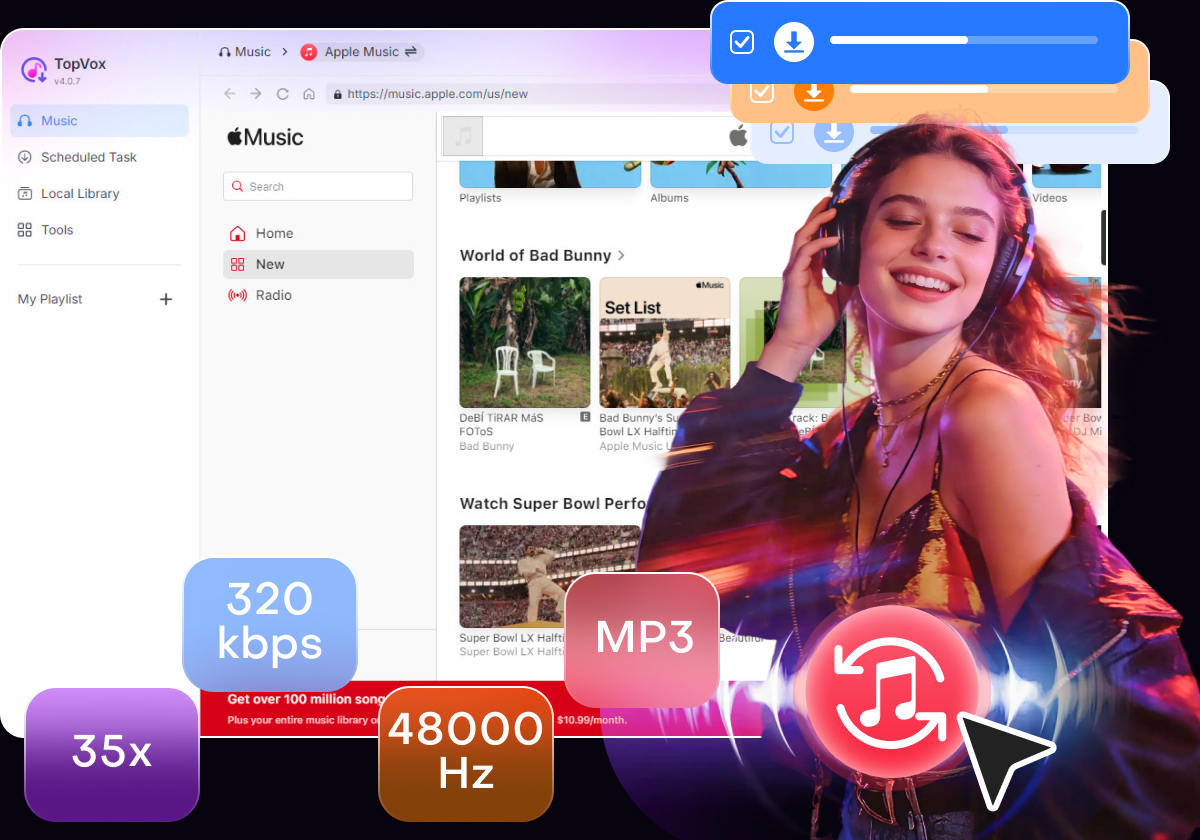
TopVox Apple Music Converter offers a workable solution for downloading and converting Apple Music songs for local use. It lets you convert Apple Music tracks into DRM-free formats, including MP3, FLAC, M4A (ALAC/AAC), WAV, and AIFF. It supports batch downloading multiple tracks, albums, and playlists at up to 35× faster speed.
100% Secure. No virus.
100% Secure. No virus.
Most importantly, it maintains high audio quality up to 24-bit/320Kbps/48000Hz. In addition, it retains original ID3 tags, making music organization much easier after conversion. Beyond Apple Music, it also supports downloading content from other major streaming platforms. It includes Amazon Music, YouTube Music, Deezer, Pandora, SoundCloud, Spotify, Line Music, and Audible.
What to Look Forward to with the TopVox Apple Music Converter:
- Supports downloading multiple songs and playlists simultaneously.
- Downloads Apple Music tracks, albums, and playlists at 35× faster speed.
- Bypasses DRM protection by converting Apple Music tracks into standard formats.
- Preserves high audio quality up to 24-bit/320Kbps/48000Hz for a better CD listening.
Step 1. Get started by downloading the TopVox Apple Music Converter for free. Install the Apple Music converter and complete the installation. After completing the setup, run the software to access its main dashboard.
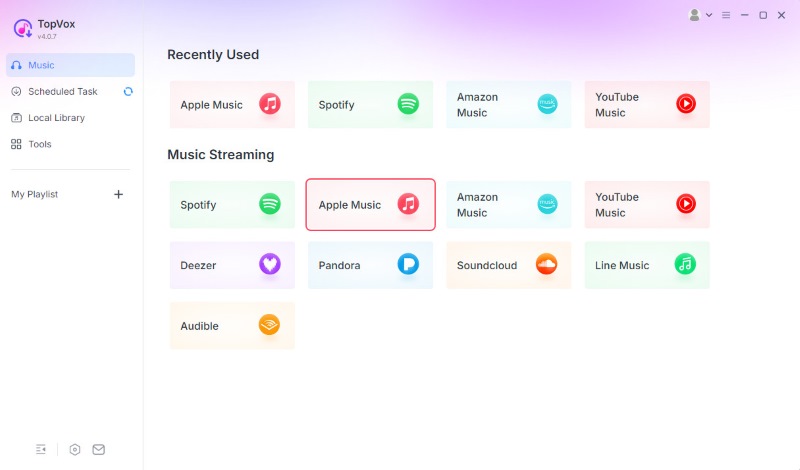
Step 2. From the Music section, choose the Apple Music tile option to open the built-in Apple Music web player. Sign in with your Apple ID account, then search for the songs, albums, or playlists you want to burn to a CD.
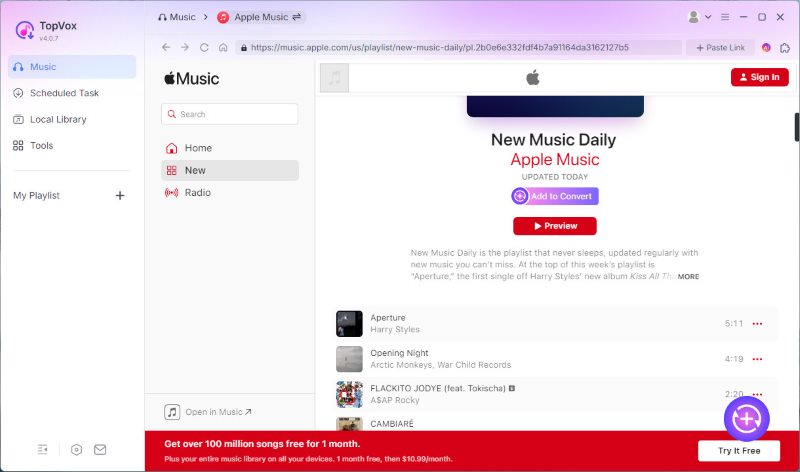
Step 3. After finding your desired music, click the + Add button to select individual tracks. If you want to download an entire playlist or album, click + Add to Convert for batch processing. All selected Apple Music tracks will then appear in the conversion queue.
Step 4. Before downloading, configure the output settings based on your needs. TopVox saves files as MP3 by default, but you can also choose other formats for better playback. Next, click Convert All to batch-download and convert Apple Music songs up to 35× faster.
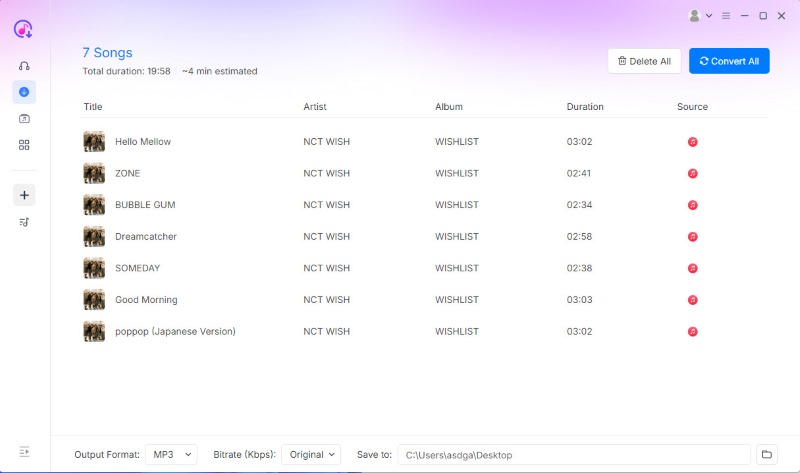
That's how to download Apple Music to PC with TopVox Apple Music Converter. With its fast batch conversion, high-quality audio output, and full ID3 tag retention, you can easily save your favorite Apple Music songs locally for CD burning.
100% Secure. No virus.
100% Secure. No virus.
Part 2. Burn Converted Apple Music to a CD (3 Easy Options)
Option A. Apple Music/iTunes (Mac & Windows)
After converting Apple Music songs into DRM-free formats, you can burn CDs from Apple Music with iTunes or the Apple Music app. Because the songs are already converted, the burning process won't be affected by DRM restrictions.
Step 1. In iTunes, click File, then choose Add File to Library to add the converted Apple Music songs to your library. Create a new playlist and drag all the songs into it for easier organization.
Step 2. Insert a blank CD, then right-click the playlist you created and select Burn Playlist to Disc. In the burn settings window, choose Audio CD as the disc format.
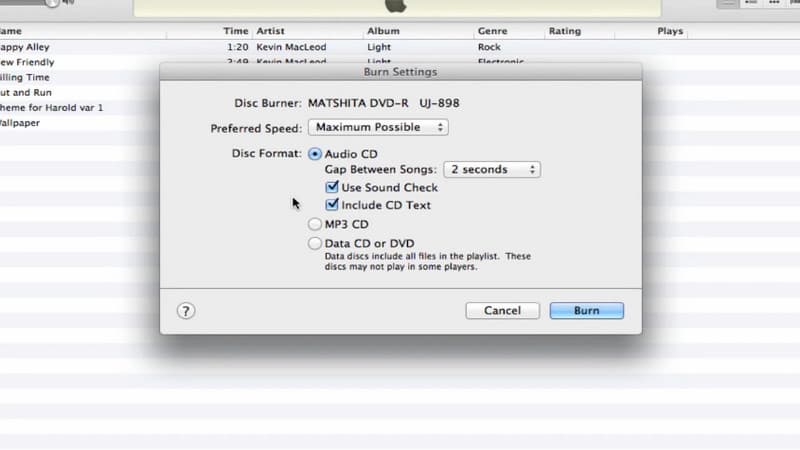
Using iTunes or the Apple Music app is one of the easiest ways to burn converted Apple Music songs to a CD. It supports creating standard Audio CDs compatible with most CD players. However, modern Macs may require an external CD/DVD drive for disc burning.
Option B. Windows Media Player (Windows)
If you use Windows, Windows Media Player offers another simple way to burn converted Apple Music songs to a CD. You can use Windows Media Player's built-in burning feature to create playable audio CDs without installing additional software.
Step 1. Insert a blank CD into your system's CD/DVD drive and open Windows Media Player. In the Burn tab, drag your converted Apple Music songs into the burn list panel.
Step 2. Click the Burn options menu to select the disc type you want to create. After confirming the settings, click Start burn to begin burning your Apple Music songs to the CD.
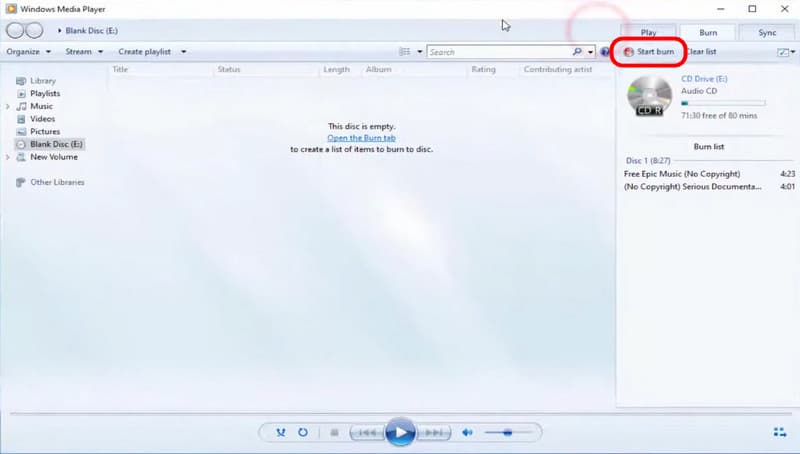
Using Windows Media Player is a convenient option for Windows users who want a free solution to burn CDs. does not require extra software and works well for basic CD creation tasks. However, it still requires DRM-free audio files beforehand.
Option C. VLC Media Player (Mac & Windows)
VLC is known for its media playback capabilities. But beyond that, it also includes media conversion features that can burn Apple Music to a CD. After converting Apple Music songs with an Apple Music Downloader, you can use it to prepare and manage audio tracks for CD-related tasks.
Step 1. Insert your blank or audio CD into the computer's disc drive and launch VLC. Click Media and select Convert/Save to open the media settings window. In the Open Media window, switch to the Disc tab, select Audio CD, and click Browse to detect the inserted disc.
Step 2. On the next screen, choose the output destination folder and enter a file name. Under the Profile section, select your preferred output format. Then, click Start to begin converting the audio CD tracks. VLC will display the progress on the main interface.
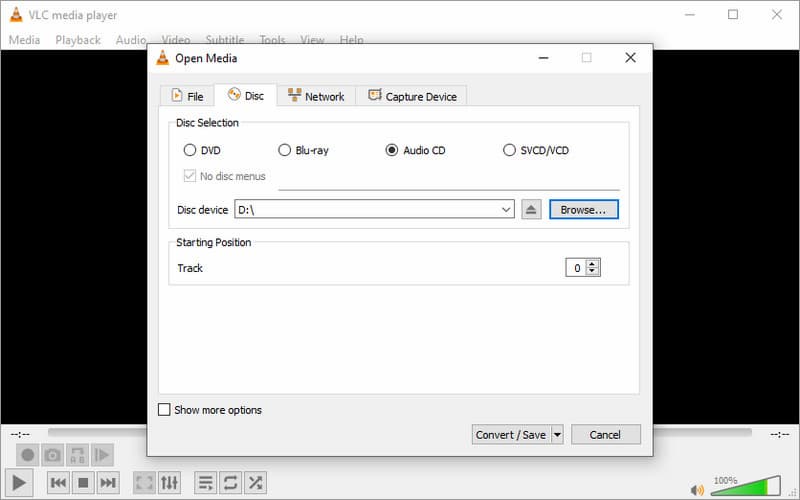
VLC Media Player is a flexible, free solution for playing audio CDs and converting music files. It supports multiple audio formats and offers more customization. However, this media player software focuses more on media conversion than CD burning.
You’d better choose a professional music converter like TopVox All Music Converter to turn Apple Music into MP3 or other formats first. It supports batch processing a large playlist in one go, with an average of 500 songs only taking half an hour.
100% Secure. No virus.
100% Secure. No virus.
Important Note: All three methods support standard CD-R discs. For best compatibility with car stereos and home CD players, always select the Audio CD format when burning your converted Apple Music tracks.
FAQs on Burning Apple Music to CD
Q1: What format should I convert Apple Music to before burning?
A: You can choose MP3 or WAV format. MP3 is compatible with most devices like CD players and car stereos, while WAV preserves uncompressed PCM audio quality for standard Audio CDs without further lossy re-encoding.
Q2: Why is "burn playlist to disc" grayed out or failing in iTunes?
A: Make sure that you have inserted a blank disc and don’t burn any protected Apple Music songs or intelligent dynamic Smart Playlists. iTunes only permits burning purchased tracks or personal imported audio files.
Q3: What is the difference between burning an Audio CD and an MP3 CD in Apple Music?
A: When you turn Apple Music tracks into an Audio CD, these songs will be converted into standard Red Book audio format without quality loss, but it is limited to roughly 80 minutes of music. An MP3 CD saves compressed MP3 files directly to the disc, holding over 100 tracks, but it requires devices that are capable of reading MP3 files.
Conclusion
To burn Apple Music to a CD, you need to understand that DRM protects Apple Music tracks. It means it prevents direct burning to discs. This is why conversion is a necessary first step before creating a playable audio CD. By using a tool like TopVox Apple Music Converter, you can quickly convert Apple Music songs into standard DRM-free formats. By then, you can burn them using iTunes, Windows Media Player, or VLC.
TopVox Apple Music Converter
Rated on Trustpilot >  4.8/5
4.8/5
- Download and convert Apple Music songs, albums, playlists, etc., with a success rate of up to 99%.
- Keep original quality, retain ID3 tags, offer lightning-fast speed and lifetime updates.
100% Secure. No virus.
100% Secure. No virus.