10 Proven Ways to Fix iPhone Voice to Text Not Working
Voice-to-text (Dictation) is one of the most convenient iPhone features. It allows you to type messages, notes, and emails just by speaking. However, if Dictation suddenly stops working, it can be frustrating. In this post, we will provide effective solutions to fix voice-to-text not working on iPhone. Each solution is explained in detail with step-by-step instructions, allowing you to identify the cause and restore Dictation functionality quickly. Our aim is to help you troubleshoot and resolve Dictation problems, ensuring voice typing works smoothly again.
Part 1. Make Sure Dictation is Turned On
Dictation relies on several system components, including keyboard settings, microphone permission, and Apple’s speech recognition services. If Dictation is disabled, the voice-to-text function will not work at all. Turning it off and then back on forces iOS to reload Dictation services.
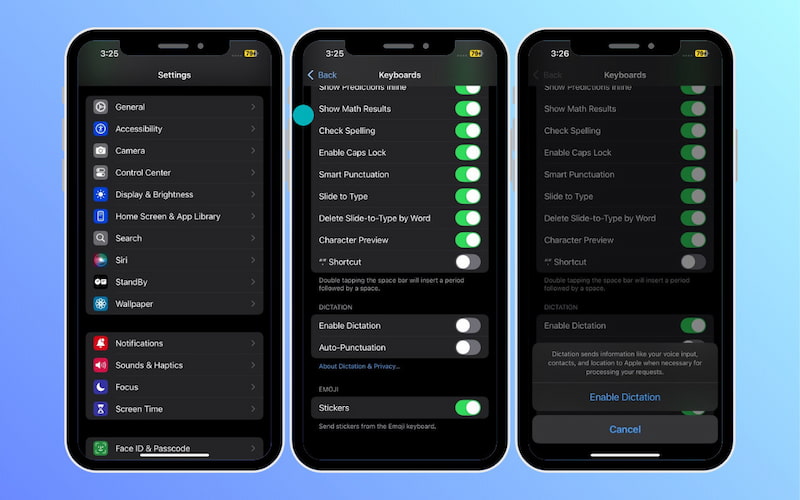
Step 1. On the Settings app, scroll down and tap General. Inside General, tap Keyboard and scroll down until you see Enable Dictation.
Step 2. If Dictation is disabled, toggle the switch to the ON position next to Enable Dictation. When prompted, tap Enable Dictation to use speech recognition and access Apple’s Dictation services.
This method is often the first and most effective fix for iPhone Dictation not working. Disabling and re-enabling Dictation refreshes the feature and restarts background services.
Part 2. Check Your Microphone
The iPhone features multiple microphones used for making phone calls, recording video, and processing voice commands. If the microphone responsible for dictation isn’t picking up sound, voice-to-text will fail. Testing helps you determine whether the issue is hardware-related or software-related.
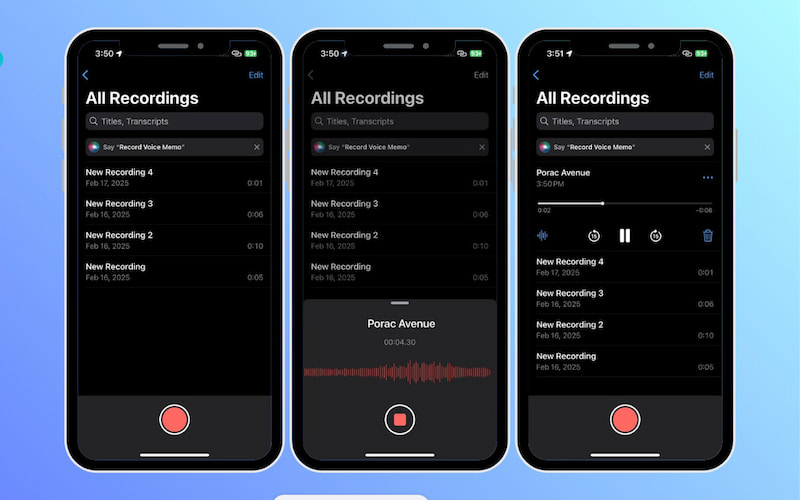
Step 1. Locate and open the Voice Memos app. Tap the red Record button and speak clearly for a few seconds. This action verifies whether the microphone can accurately capture audio input.
Step 2. Tap Stop to end the recording, play the recorded clip, and listen carefully. If you hear your voice clearly, your microphone is working. This means iPhone voice-to-text not working is likely caused by iOS-related bugs.
Important Note: If you don’t hear anything or the audio is very faint, your microphone may be blocked, malfunctioning, or damaged.
Part 3. Update Your iOS Version
Apple regularly releases iOS updates to enhance features like Dictation and speech recognition. When your iPhone runs on an older version of iOS, compatibility issues or unresolved software bugs can interfere with voice-to-text functionality.
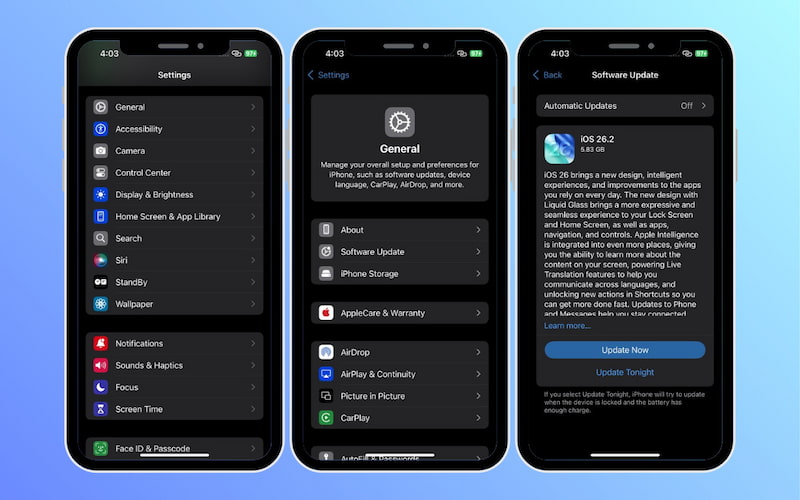
Step 1. Open the Settings app and navigate to the General section. In the General menu, tap Software Update to check for available updates.
Step 2. If any update is available, tap Update Now and enter your passcode if prompted. Agree to the terms and wait for the update to download and install.
Installing the latest update ensures your device has the recent bug fixes, security patches, and performance enhancements. This can directly resolve the issue of voice text not working on iPhone.
Part 4. Refresh Siri Settings and Dictation
Refreshing the Siri settings and then re-enabling Dictation forces iOS to restart these background services. This method has worked for many users on iPhone 11 and newer models. Please note that it’s a safe and effective troubleshooting step to try.
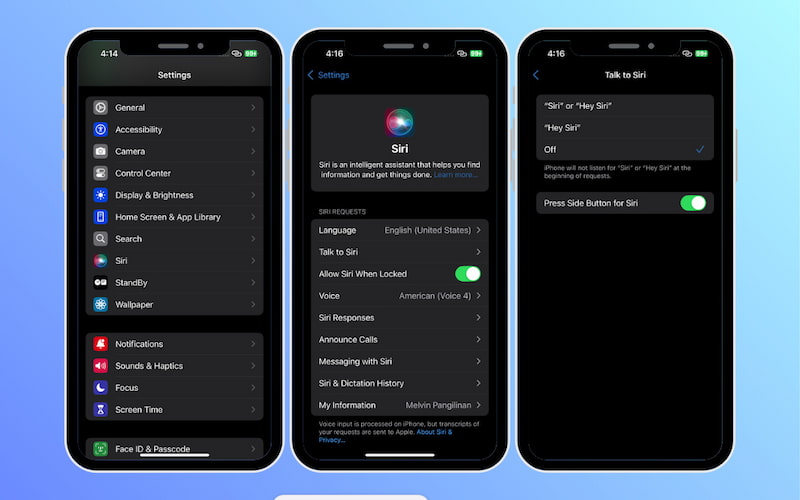
Step 1. On the Settings app, scroll down and tap Siri. Inside Siri, tap Talk to Siri and toggle the Press Side Button for Siri switch to OFF.
Step 2. Leave both Siri or Hey Siri and Hey Siri options turned off for a few minutes. Afterward, Toggle the Press Side Button for Siri ON and select the Siri or Hey Siri option.
Step 3. Proceed to the General section, tap Keyboard, and scroll down to Enable Dictation. Toggle it off, then confirm Turn Off Dictation. Wait a few seconds, then toggle it ON again.
Turning Siri off and back on resets its configuration, while refreshing Dictation reloads the voice typing service. Together, these actions often resolve issues with Talk to Text not working on iPhone.
Part 5. Restart Your iPhone
Over time, background processes, system services, or minor software glitches can cause voice recognition to stop responding. Restarting your iPhone refreshes the entire system and often restores voice-to-text functionality instantly.
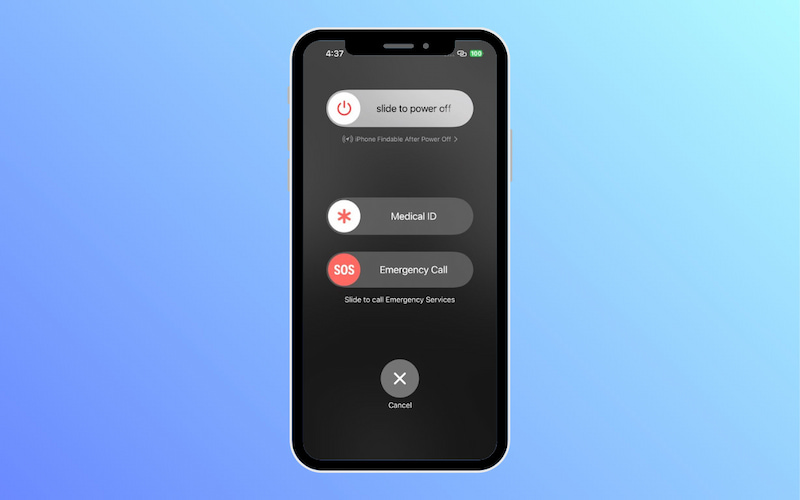
Step 1. For iPhone X and later models, press and hold the Side button and the Volume Up or Down button simultaneously. Keep holding until the Power Off slider appears.
Step 2. Drag the slider to turn off the iPhone. Wait about 30 seconds for the device to fully power down. Then, press and hold the Side button again until the Apple logo appears.
This process completely shuts down iOS and restarts all system services related to Dictation and voice recognition. For iPhone 8 and earlier models, simply press and hold the Side button.
Part 6. Change Dictation Language
If your iPhone is set to a different Dictation language, it may fail to recognize your speech or speak to text not working together on iPhone. Changing/switching the Dictation language refreshes the speech recognition engine. It ensures your spoken language aligns with the system settings.
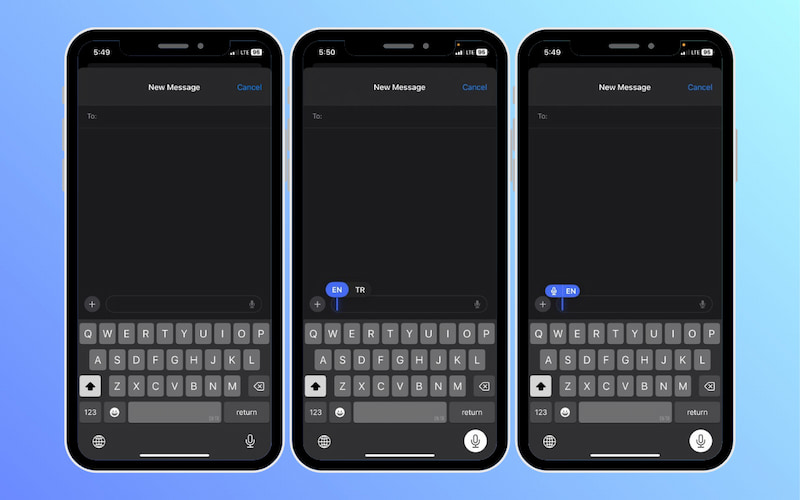
Step 1. Open any app where the keyboard appears, such as Messages, Notes, or Mail. Tap a text field to bring up the Apple Keyboard.
Step 2. Locate the Microphone button on the text field. Tap and hold the Microphone button until the language selection menu appears.
Step 3. From the list, tap the language you want to use for Dictation. For example, EN (English). Release the Microphone button and tap it once. Speak clearly in the selected language.
Changing the Dictation language is a simple but often overlooked fix for voice-to-text not working. If your spoken language doesn’t match the selected language, voice typing may fail.
Part 7. Check if Siri & Dictation are Restricted
Even when Dictation is enabled in keyboard settings, restrictions for Siri and Dictation can silently block the feature. This makes speech-to-text on iPhone not working. This happens when Screen Time controls were set earlier, and Siri & Dictation were accidentally restricted.
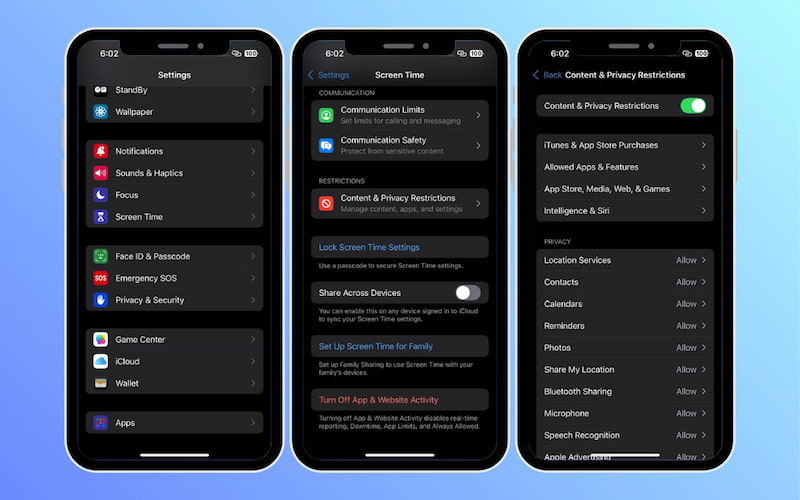
Step 1. Open the Settings app, scroll down, and tap Screen Time. Locate the Content & Privacy Restrictions option and tap it.
Step 2. Inside Content & Privacy Restrictions, tap Allowed Apps. Find Siri & Dictation in the list and toggle the switch ON.
When the Dictation microphone button is missing, Screen Time restrictions are one of the most overlooked causes. Allowing Siri & Dictation immediately restores voice-to-text in most cases.
Part 8. Disable Low Power Mode
Why is my voice-to-text not working on my iPhone? When Low Power Mode is enabled, iOS reduces performance and restricts certain features. This can prevent voice-to-text from functioning properly. Disabling it often restores Dictation immediately.
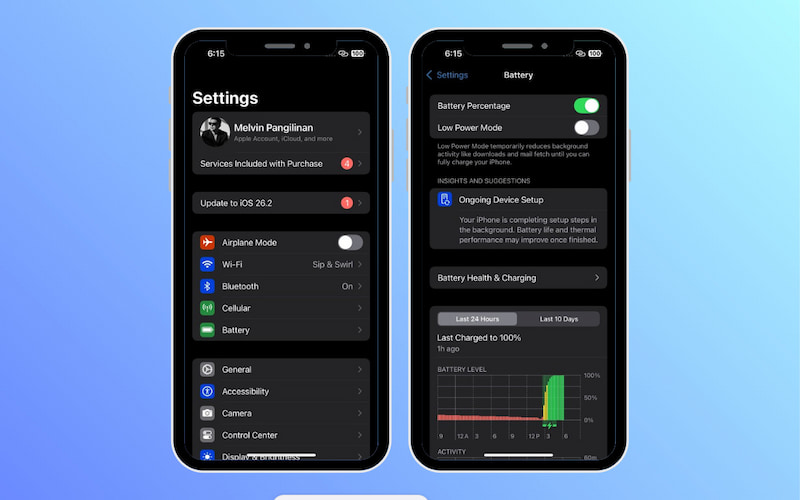
Step 1. On the Settings app, scroll down and tap Battery. Locate Low Power Mode and toggle the switch to the OFF position (the switch will no longer be yellow).
Step 2. Open an app such as Messages or Notes and tap the Microphone button on the keyboard. Speak and check if your words are converted into text.
Low Power Mode is great for saving battery, but it can interfere with voice-to-text that requires real-time processing. Turning it off is a quick and easy fix that often restores Dictation instantly.
Part 9. Reset Network Settings
If your network settings are corrupted or misconfigured, Dictation may fail even when Wi-Fi or mobile data appears to be working. Resetting your network settings can fix hidden connectivity issues and restore proper communication between your iPhone and Apple’s Dictation services.
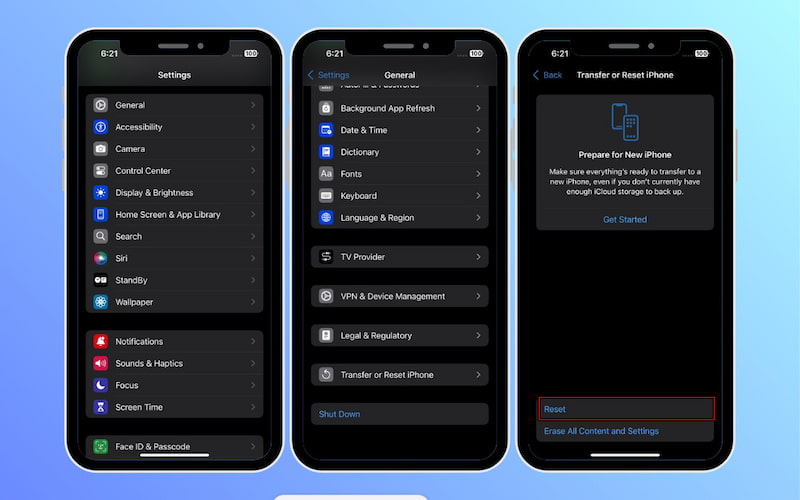
Step 1. Open the Settings app, tap General, scroll down, and tap Transfer or Reset iPhone.
Step 2. Tap Reset and choose which settings to reset. From the list, tap Reset Network Settings.
Important Note: This will erase saved Wi-Fi passwords and VPN settings. Your personal data and apps will not be deleted. If this method didn’t work, you can try the reverse by using CapCut’s text-to-speech feature.
Part 10. Perform a Factory Reset
A factory reset is effective because it removes deep system errors and corrupted settings. Additionally, it can resolve software conflicts that may permanently disrupt Dictation and Siri services. If you rely heavily on voice typing and nothing else has worked, this step can restore full functionality.
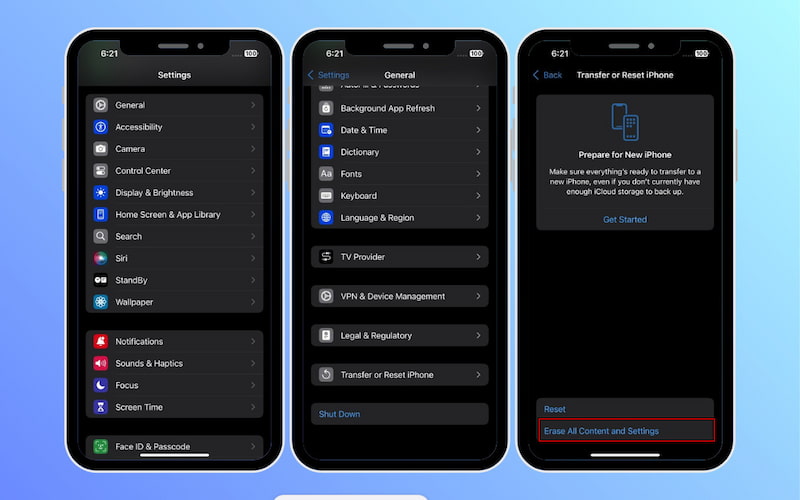
Step 1. Open the Settings app, tap General, scroll down, and select Transfer or Reset iPhone.
Step 2. Tap Erase All Contents & Settings to completely remove all data and system settings.
A factory reset completely removes all system and user data. This gives your iPhone a fresh start, eliminating any hidden issues that prevent iPhone 16 voice-to-text not working.
Part 11. FAQs about Voice to Text Not Working on iPhone
Q: How to adjust the volume for dictation?
A: The volume for dictation on an iPhone is controlled through the device’s overall system volume. Please note that Dictation doesn’t have its own independent volume setting.
Q: How to fix iPhone dictation not working in the car?
A: Ensure your iPhone is connected via Bluetooth and set as the primary audio source. Test Dictation with the car’s microphone by speaking clearly and check if the iPhone’s microphone is not blocked.
Q: Can I dictate offline?
A: Yes, iPhone Dictation can work offline, but there are some limitations. Offline Dictation supports fewer languages and may be less accurate than when connected to the internet.
Conclusion
Voice-to-text is a powerful feature that enables faster, easier, and more accessible typing. When voice-to-text not working on iPhone, it can disrupt your workflow and daily tasks. However, in most cases, the problem can be resolved with the right troubleshooting steps. There isn’t a one-size-fits-all solution, so it’s important to explore various solutions until the issue is fully resolved. By carefully following these steps, you can restore your iPhone’s voice-to-text functionality and continue enjoying the convenience of hands-free typing.
Ethan Carter
Ethan Carter creates in-depth content, timely news, and practical guides on AI audio, helping readers understand AI audio tools, making them accessible to non-experts. He specializes in reviewing top AI tools, explaining the ethics of AI music, and covering regulations. He uses data-driven insights and analysis, making his work trusted.


 by
by