Best Ways to Turn Off Live Caption on Android Devices
Live Captions on Android is among the most helpful accessibility features. However, not everyone wants them enabled at all times. This feature can automatically generate captions, subtitles, or text for podcasts, audio content, and videos, which might be distracting to some people. Well, turning them off is simple, depending on your device. So, do you want to turn off live captions on Android? You are in the right place. This simple tutorial will guide you through easily and effectively disabling the feature. With that, read everything here and find out the best solution.
Part 1. What is Live Caption on Android
Live Caption is an accessibility feature available on Android 10 and above. This feature can create real-time subtitles for audio playing on your mobile phone. It makes spoken information more accessible by working with podcasts, videos, audio messages, and even phone calls on compatible devices. Once the language pack is installed, captions appear on-screen instantly, without an internet connection, ensuring inclusivity and ease. Those in noisy situations or with hearing difficulties will find this function extremely helpful.
Purpose of Live Caption on Android
The primary purpose of live caption on Android is to make spoken content more accessible by automatically generating real-time subtitles for video and audio. This useful feature helps people with hearing impairments. They can follow along with calls, media, and conversations without relying on external apps. The live caption feature is also helpful in noisy environments or situations where you can't play the audio out loud.
How Live Caption Works and Which Phones Have This Feature?
Android Live Caption rapidly translates speech into text that appears on the screen by processing audio locally on your device. Once the language pack is downloaded, an internet connection is no longer required, making it reliable even when offline. Using the volume control menu or accessibility settings, you can enable or disable the feature. Pixel phones and many Android devices running Android 10 or later support live captioning.
Reasons to Turn Off Live Caption on Android
There are several reasons some users prefer to disable the live caption feature. Some reasons are:
- • The caption might be annoying and distracting when appearing unexpectedly.
- • It can also drain the phone battery slightly due to audio processing.
- • When listening privately, the caption is unnecessary.
- • Some users prefer uncluttered screens without text overlays.
Part 2. Instant Ways to Turn Off Live Caption on Android Temporarily
Want to learn how to turn off live captioning temporarily? In that case, you can use the best methods in this section.
Method 1. Turn Off Live Caption on Android Using Volume Shortcut
One of the most effective ways to turn off the live caption is by pressing the Volume shortcut. To learn the process, see the steps below.
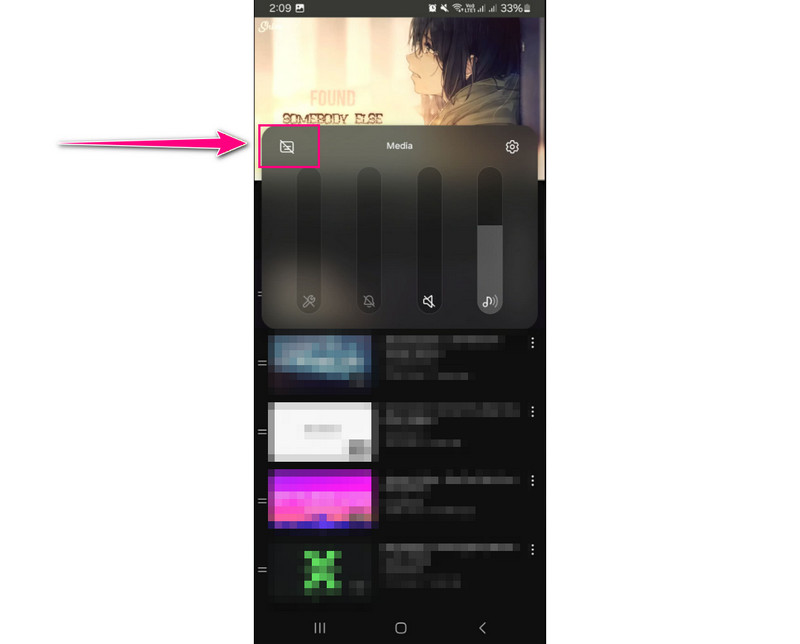
Step 1. Press the Volume button on your Android. After that, click the three dots button.
Step 2. Then, you will see the Live Caption on the upper part of the Volume section. Press it to turn it off. Once done, the live caption won't show up on your screen.
Method 2. Turn Off Live Caption on Android Using the Pause/Close Function
When Live Caption is running, you can close it by clicking the pause or close option. To learn how to remove the live caption, see the steps below.
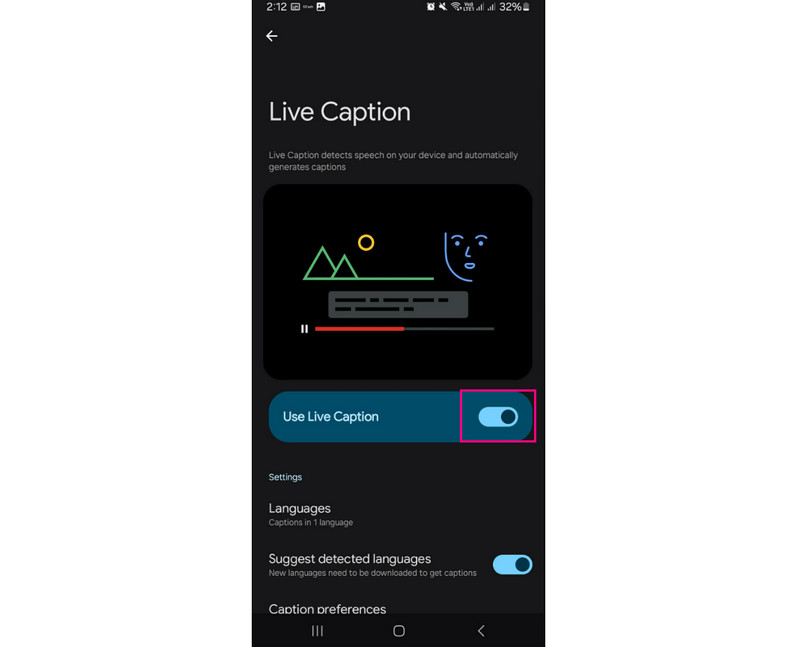
Step 1. From the live caption box on your screen, press it to open the Settings section.
Step 2. Navigate to the Use Live Caption option and start turning it off. Once done, the live caption box will disappear from your phone screen.
Simple Troubleshooting
There are times when you encounter some problems with the live caption. See the simple details below to learn how to deal with some issues.
Live Caption Turns Back On Automatically
To deal with this issue, all you need to do is:
- • Toggle off the Always show captions option under the Accessibility Settings > Live Caption settings.
- • Disable the caption in the Volume control menu.
- • When using Pixel devices, ensure that the Live Caption in Calls is turned off.
- • Restart your mobile phone after confirming the changes.
Live Caption Icon Missing from Volume Slider
In this problem, the best solution is:
- • Open the Settings app and proceed to the Accessibility > Live Caption. Then, ensure that the feature is enabled.
- • Update your phone’s system to the latest version to get the caption icon.
- • If the caption icon is still missing, clear the Device Settings cache or restart your phone.
Part 3. How to Turn Off Live Caption on Android Permanently
How to turn off live caption on Android permanently? To get the best solutions, check all the methods in this section.
Method 1. Turn Off Live Caption via Settings
One of the most effective ways to turn off Live Caption is to disable it in your Settings app. To do that, see the instructions below.
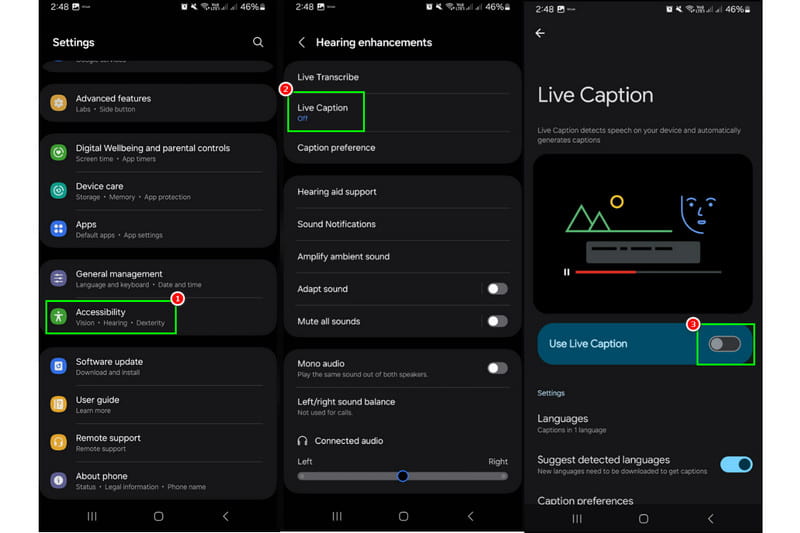
Step 1. Open your Android and launch the Settings application. After that, scroll down and tap Accessibility.
Step 2. Then, proceed to the Live Caption section and start turning it off.
Step 3. Once done, you can now play your video or audio without any disturbance.
Method 2. Disable Live Caption During Phone Calls
If you are using Pixel, captions sometimes appear, especially during phone calls. With that, if you want to learn how to get rid of live caption on Android, see the steps below.
Step 1. On a Pixel device, open the Settings application. Then navigate to Accessibility > Live Captions in Calls.
Step 2. Now, you can toggle it off. With that, there will be no captions during phone calls.
Note: This is only applicable to selected mobile phones.
Method 3. Turn Off Live Caption in Android Apps
When playing videos or audio in apps like YouTube, Instagram, or TikTok, the live caption may still appear, especially when it's enabled globally. Well, disabling the live caption is simple. To learn the procedure, refer to the steps below.
Step 1. The only thing you need to do is press the Volume button/function on your mobile phone.
Step 2. After that, tap the three-dot option to see all the options on your screen.
Step 3. Finally, press the Live Caption feature to turn it off permanently.
Part 4. FAQs about Turn Off Live Caption Android
Q. Can I turn off live caption only for calls?
A. Definitely, yes. If you are operating a Pixel phone, you can turn off the live caption for calls. This way, you can still access live captions when watching and listening to certain content.
Q. Is live caption available on all Android versions?
A. Unfortunately, no. The live caption feature is only available on Android 10 or above. Thus, ensure that your device has the latest system.
Q. Does turning off live caption save battery?
A. Absolutely, yes. If you turn off the live caption, you can save battery on your phone because it doesn't need to process audio while watching and listening.
Conclusion
To turn off live captions on Android, this tutorial offers the best solutions you can check and follow. You even learned about the feature's purpose, how it works, and which phones support it. Therefore, if you want to learn more about the discussion, read the information in this article.
Ethan Carter
Ethan Carter creates in-depth content, timely news, and practical guides on AI audio, helping readers understand AI audio tools, making them accessible to non-experts. He specializes in reviewing top AI tools, explaining the ethics of AI music, and covering regulations. He uses data-driven insights and analysis, making his work trusted.


 by
by