Writing at the Speed of Thought: Mac Speech-to-Text Review
In our tests, Mac Dictation achieved 97% accuracy in quiet environments, making it a reliable tool for emails and notes.
Writing at the speed of thought is no longer a futuristic concept; it’s something your Mac can do today. macOS includes a built-in tool called Dictation that lets you create text by speaking. With this feature, you can transform your voice into written notes, emails, or documents. If you feel typing slows you down or interrupts your workflow, Dictation offers a seamless alternative to quickly and efficiently get your ideas down.
This Speech-to-Text on Mac review will take a close look at what Dictation is, its key features, and the benefits it offers. We’ll guide you through setting it up, provide expert tips for using it effectively, and cover common troubleshooting strategies. This way, we can help you understand how to use it, maximize productivity, and choose the right tools for your workflow.
Part 1. What is Speech-to-Text on Mac?
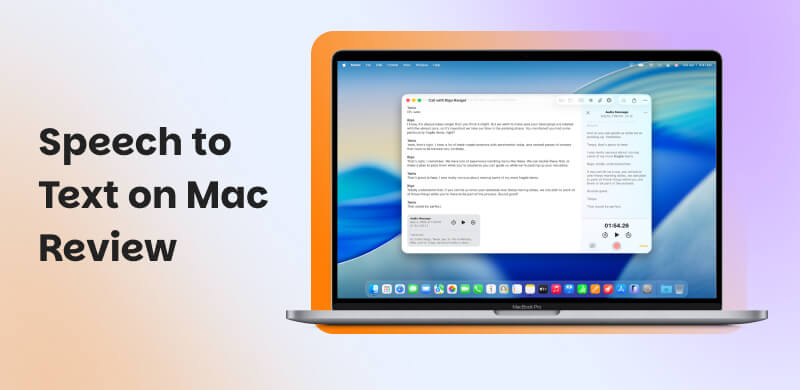
Speech-to-Text on Mac is a built-in macOS feature that converts your spoken words into written text. Instead of typing, you can speak naturally, and your Mac will transcribe your voice into emails, documents, notes, and other text fields. It’s designed to make writing faster, more accessible, and less physically demanding.
Features
- Converts spoken words into text instantly across most apps.
- Allows voice commands for punctuation, formatting, and editing.
- Supports multiple languages and dialects for accurate transcription.
- Improves accuracy over time by adapting to your voice and speech patterns.
- Automatically adds commas, periods, and question marks for natural text flow.
Benefits:
- • Enables faster content creation compared to typing.
- • Helps prevent wrist fatigue and repetitive stress injuries.
- • Learn your speech patterns for more precise transcription.
- • Captures ideas instantly without breaking your train of thought.
- • Supports users with mobility challenges or learning differences.
Part 2. How to Enable Mac Speech-to-Text?
Settings
Mac Speech-to-Text, also known as Dictation, allows you to convert spoken words into text. This built-in feature is useful for anyone who wants to save time typing emails, documents, or notes.
Step 1. Click the Apple menu, select System Settings, scroll down and click Keyboard. Locate Dictation, toggle the switch on, then click Enable to allow macOS to process your voice input.
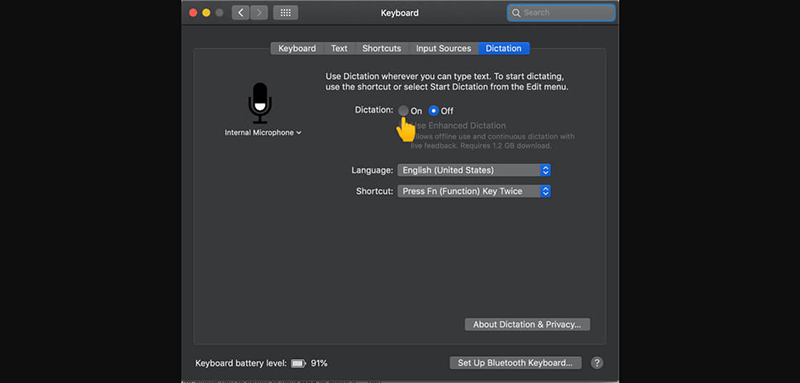
Step 2. After enabling Dictation, you’ll be given two options: Share Audio Recordings and Not Now. Choose Share Audio Recordings to allow Apple to use voice samples or select Not Now to skip audio sharing.
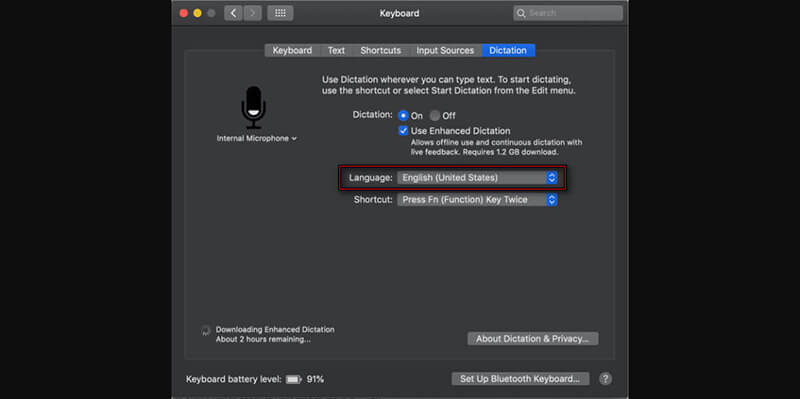
Step 3. To dictate in a specific language or accent, click the Edit button next to Languages. Select your desired language and dialect, then confirm your selection.
Tips
- For additional control, go back to System Settings and select Privacy & Security. Scroll down to Analytics & Improvements, then locate Improve Siri & Dictation.
Did you know? iPhones also offer built-in voice-to-text features. Check out how to use it on iOS here.
Set Keyboard Shortcut
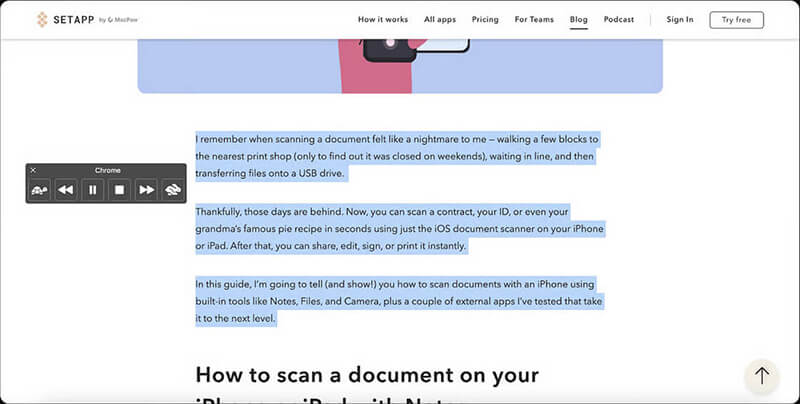
Speech-to-text on Mac using shortcuts allows you to quickly turn highlighted text into speech. This feature is helpful for multitasking, proofreading, accessibility needs, and hands-free content consumption.
Step 1. In the upper-left navigation of your screen, click the Apple menu and select System Settings. Inside System Settings, click Accessibility, and select Spoken Content.
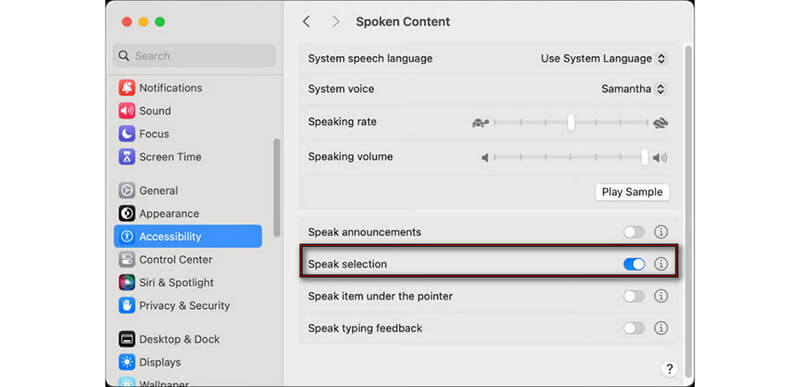
Step 2. Toggle Speak Selection on to enable the Mac to read aloud any text. Click Options next to Speak Selection, look for the Shortcut field, and assign a key combination, such as Option + Esc.
Tips
- You can further customize voice, speaking rate, and language within Spoken Content settings for a more natural listening experience.
Turn Off Dictation on Mac
Though Mac’s voice-to-text is a powerful tool for converting speech into text and boosting productivity, there are times when you may want to disable it. Whether you’re concerned about privacy or simply prefer typing manually, turning it off is quick and easy.
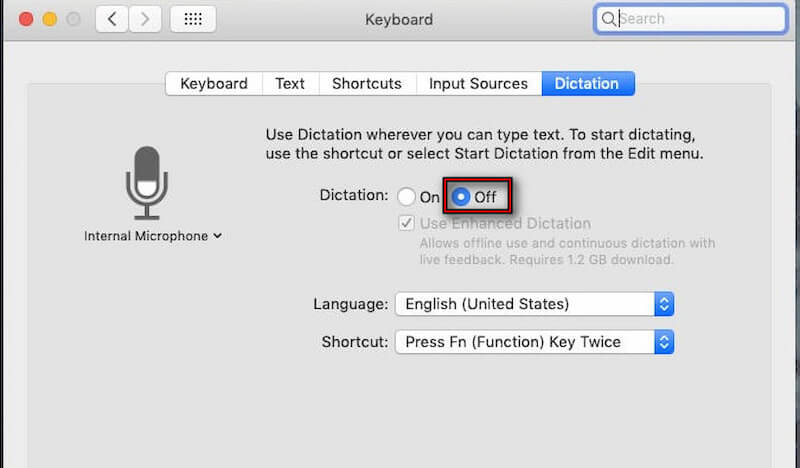
Step 1. Select System Settings from the Apple menu, then locate Keyboard in the sidebar. In the right-hand navigation of Keyboard settings, find Dictation.
Step 2. Toggle the Dictation switch to Off to disable speech-to-text on your Mac. Once turned off, your Mac will no longer convert spoken words into text until Dictation is re-enabled.
Tips
- If you want to further manage voice-related features, you can also review Privacy & Security settings to control Siri and Dictation data sharing.
Part 3. How to Dictate on Mac?
Dictation on Mac makes it easy to turn your voice into text, helping you work faster without having to constantly type. This feature lets your Mac listen, understand, and type your words in real time. It works in most apps that support text input and becomes accurate the more you use it.
Here’s how to dictate on Mac:
Step 1. Press the Fn key (default Dictation shortcut) twice or turn on Enable the dictation keyword phrase next to the Dictation Commands button. Once enabled, speak the keyword phrase to tell your Mac that the next words you say should be dictated.
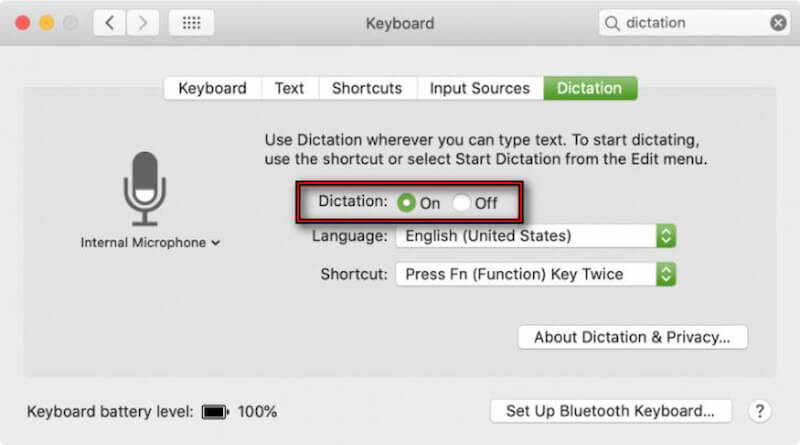
Step 2. After the dictation starts, speak normally to enter text. You can also say Show commands to open a window displaying all available Dictation commands. Open any document, email, or text field where you want to add text.
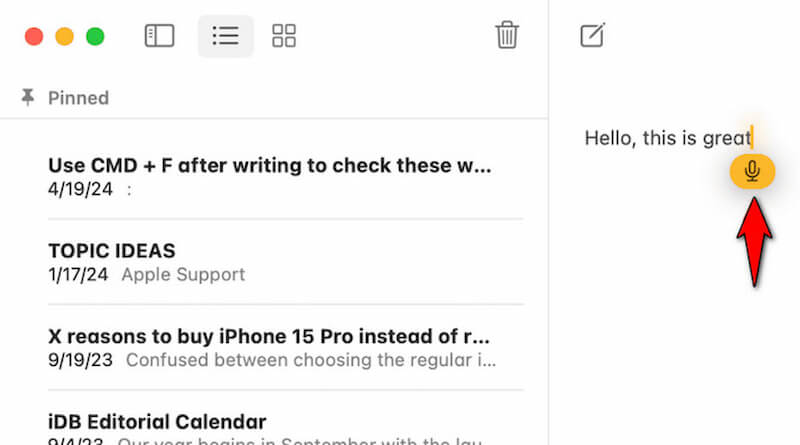
Step 3. Press the Fn key twice again. Your Mac is actively listening when a microphone appears near the insertion point or on the screen. Say the words you want your Mac to type. When you’re finished, click Done below the microphone or press the Fn key once.
Tips
- For best results, use Dictation in a quiet environment and speak at a natural pace. You can also customize language, microphone source, and commands in System Settings.
Part 4. Essential Mac Voice-to-Text Tips: Master the Commands
Using voice-to-text on Mac isn’t just about speaking words; it’s about knowing the right commands. When you master dictation commands for punctuation, formatting, editing, and auto-punctuation, you can dictate faster, cleaner, and with far less manual correction.
Punctuation Commands:
- • Period: adds a full stop.
- • Comma: inserts a comma.
- • Question mark: adds a question mark:
- • Colon/Semicolon: inserts advanced punctuation.
- • New line: moves the cursor to the next line.
Formatting:
- • Capitalize: capitalizes the next word.
- • All caps/All caps off: toggles uppercase mode.
- • No space: removes spacing between words or characters.
- • Bold that: bolds the last phrase (in supported apps).
- • Underline that: underlines selected text.
Editing:
- • Delete that: removes the last word or phrase.
- • Delete the last sentence: remove the previous sentence.
- • Replace [word] with [word]: swaps incorrect words.
- • Select [word/phrase]: highlights specific text.
- • Undo that: reverses the last action.
Part 5. Troubleshooting: Fixing Common Issues
While Mac Dictation is designed to work seamlessly, you may encounter issues that affect accuracy or functionality. Below are the common problems users face when using speech-to-text on Mac, along with clear explanations to help you understand and fix them.
Dictation Is Not Working:
Sometimes, Dictation is not responding after pressing the shortcut or selecting Start Dictation. This happens when macOS doesn’t have permission to access your microphone. To fix this, check the Microphone in the System Settings and confirm that the app you’re using is allowed to access the microphone.
Also voice-to-text on iPhone not working? Check out these quick fixes.
Poor Accuracy or Incorrect Words:
If your Mac frequently mishears words or produces inaccurate text, the issue is often related to language settings. Dictation works best in a quiet environment with clear speech. Make sure the correct language and dialect are selected in Dictation on System Settings.
Dictation Stops Suddenly:
Another common problem is Dictation stopping unexpectedly. This can occur due to unstable internet connections, system resource limitations, or switching between apps while dictating. When Dictation stops, you can restart it by pressing the Dictation shortcut again or selecting Edit and clicking Start Dictation.
Part 6. Local AI Transcription: A New Standard of Mac Speech-to-Text
Apple’s built-in Dictation is convenient, but it struggles with heavy accents, mixed languages, and technical vocabulary. This gap has fueled the rise of MacWhisper and Superwhisper, which run OpenAI’s Whisper model locally on your Mac. Local AI transcription tools solve three major pain points of native Mac Dictation: accuracy, privacy, and flexibility.
MacWhisper: Best for File Transcription
MacWhisper is a go-to app for transcribing pre-recorded audio and video files. It is built around OpenAI’s Whisper model, which excels at handling long recordings, multiple languages, and noisy audio. You can import podcasts, interviews, lectures, or meeting recordings and receive highly accurate transcripts in minutes.
Otter.ai: Best for Real-Time Collaborative Meetings
Otter.ai is designed for meetings, interviews, and team discussions. It provides real-time speech-to-text, speaker identification, searchable transcripts, and collaboration features. This tool lets teams highlight, comment, and share notes instantly. However, please be informed that it relies on cloud processing rather than local AI.
Descript: Best for Creators Editing Audio via Text
Descript takes speech-to-text a step further by letting creators edit audio and video directly from the transcript. Delete a sentence in text, and the audio is removed automatically. In addition to transcription, it offers screen recording, overdub voice features, and multi-track editing. This makes it a favorite among editors who want a faster editing workflow.
Part 7. FAQs on Speech-to-Text on Mac
Q: How accurate is Apple’s voice-to-text?
A: Apple claims that its voice-to-text achieves near-perfect accuracy under ideal conditions. In practice, testing shows that in a quiet environment with clear speech, Dictation can reach up to 97% accuracy.
Q: What is the purpose of Dictation?
A: Dictation is an assistive technology tool designed to help users convert spoken words into written text. Its primary purpose is to make writing more accessible for individuals who struggle with typing.
Q: How do you do speech-to-text on Mac Pages?
A: To use speech-to-text in the Pages app, first open the document where you want to dictate. Place the insertion point where the text should appear, or select existing text you want to replace. Then go to the Edit menu at the top of your screen and choose Start Dictation.
Conclusion
This Speech-to-Text on Mac review highlights how macOS Dictation transforms the way we write. It offers a fast, hands-free method to turn speech into text. From its intuitive setup and versatile features to the productivity and accessibility benefits it provides, Dictation is a powerful tool for anyone. For those seeking even greater accuracy, privacy, and support for complex transcription, local AI transcription tools are setting a new standard for Mac speech-to-text.
Ethan Carter
Ethan Carter creates in-depth content, timely news, and practical guides on AI audio, helping readers understand AI audio tools, making them accessible to non-experts. He specializes in reviewing top AI tools, explaining the ethics of AI music, and covering regulations. He uses data-driven insights and analysis, making his work trusted.


 by
by