Speech-to-Text Google Docs Review: Does It Save Time?
Review Verdict:
- Accuracy: 92% (Quiet room) | 78% (Background noise)
- Best For: Fast drafting, hands-free brainstorming, and accessibility.
- Drawback: Cannot transcribe uploaded audio files directly.
- Overall Score: 4.5 out of 5 Stars
We’re all looking for ways to work smarter, not harder. For many of us, that work happens in Google Docs. While typing is the standard, Google’s built-in speech-to-text feature offers a faster, hands-free way to capture ideas on the fly. In this Speech-to-Text Google Docs review, we’ll explore how this feature works and highlight its benefits. Additionally, we will share essential tips for maintaining high accuracy without the keyboard.
Part 1. Understanding of Google Docs Voice Typing
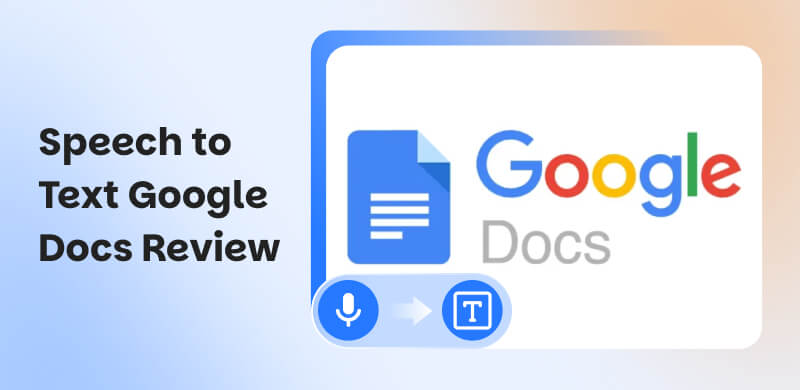
Google Docs Voice Typing is a built-in speech-to-text (dictation) feature in Google Docs. It lets you speak into your microphone and have your words automatically transcribed into a document. It uses automatic speech recognition (ASR) to interpret your speech and transcribe it directly into Google Docs.
Key Point About How it Works:
Activate it through the Tools tab and selecting Voice Typing menu in Google Docs.
Once the microphone is enabled, it listens to your speech and types it for you in real time.
It also recognizes voice commands for simple formatting, such as creating lists, bolding texts, and inserting links.
Benefits of Using Voice Typing:
- • Speeds Up Writing: Speaking (120-150 WPM) outpaces typing (40-60 WPM), enabling faster long-form drafts.
- • Reduces Strain: Hands-free dictation helps prevent RSI and eases tension in hands, wrists, and shoulders.
- • Improves Accessibility: Supports users with mobility challenges, visual impairments, or temporary injuries.
- • Boosts Focus & Creativity: Speaking ideas aloud promotes a natural flow and conversational tone, enhancing creativity.
- • Real-Time Collaboration: Native integration with Google Docs allows simultaneous editing and commenting by teammates.
Part 2. How to Enable Speech-to-Text in Google Docs
Speech-to-text on Google Docs is a powerful platform for collaborative writing. Though it doesn’t have a built-in text-to-speech feature, you can still have documents read aloud using screen readers, add-ons, extensions, or mobile apps.
Requirements:
- • Microphone or audio output for speech interaction.
- • Optional: Chrome browser for extensions and add-ons.
- • Ensure your device, system, and settings are compatible.
- • Accessibility features are enabled for screen readers or Android TTS.
Screen Reader
Google Docs supports accessibility tools, including screen readers, which allow text-to-speech functionality. It is intended for users who prefer listening to content rather than reading it. Screen readers are helpful for individuals who want to review documents hands-free.
Here’s how to do speech-to-text on Google Docs using a screen reader:
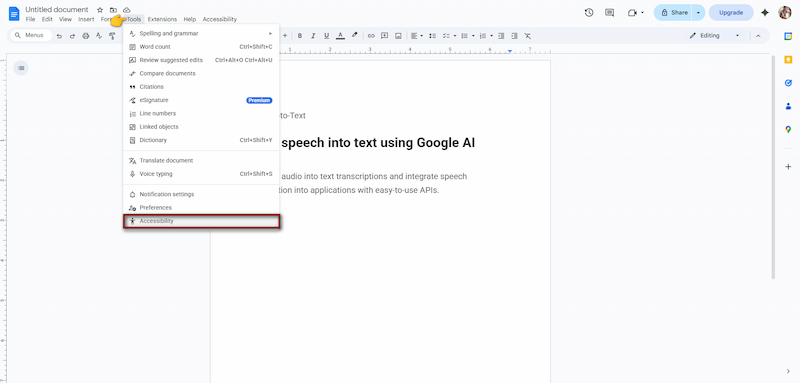
Step 1. Open the Google Docs document you want to work with. Click Tools in the toolbar, then select Accessibility to open Accessibility Settings.
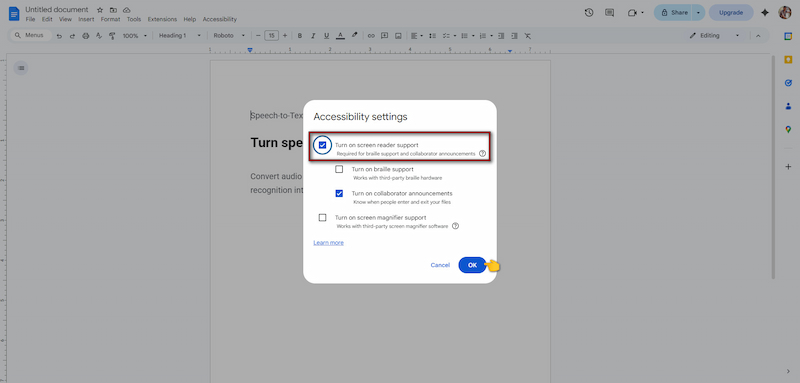
Step 2. Check the box labeled Turn on screen reader support, then click OK to save changes. This will enable Google Docs to communicate with your system’s screen reader.
Note
Enabling support alone does not automatically read text aloud. You must select a compatible screen reader depending on your device or operating system. Once configured, your screen reader will read the document aloud and allow navigation using keyboard shortcuts.
Add-Ons
If you prefer an alternative to screen readers, Google Docs Add-ons can provide text-to-speech functionality. Add-ons allow you to select text and have it read aloud with customizable voices. This makes it an easy solution for accessibility, proofreading, or multitasking.
Here’s how to read aloud Google Docs using add-ons:
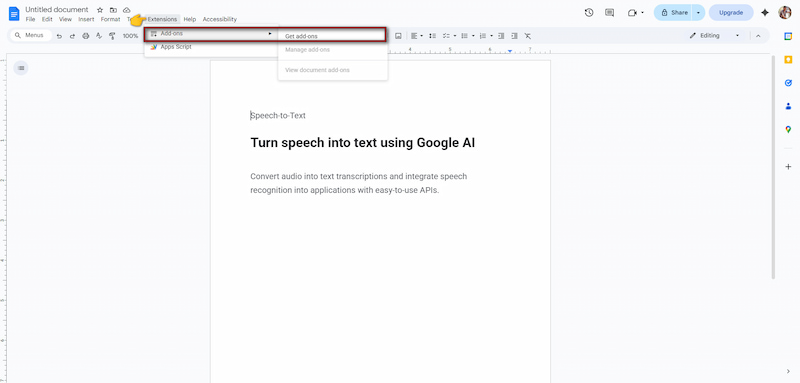
Step 1. Launch your document in Google Chrome for full add-on compatibility. Navigate to the Extensions tab, select Add-ons, and click Get Add-ons.
Step 2. In the search bar, type Text-to-Speech and browse the available options. Select your preferred add-on and follow the prompts to install it.
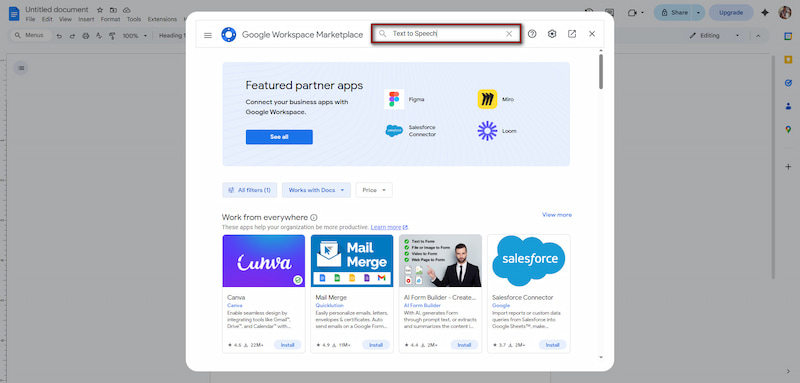
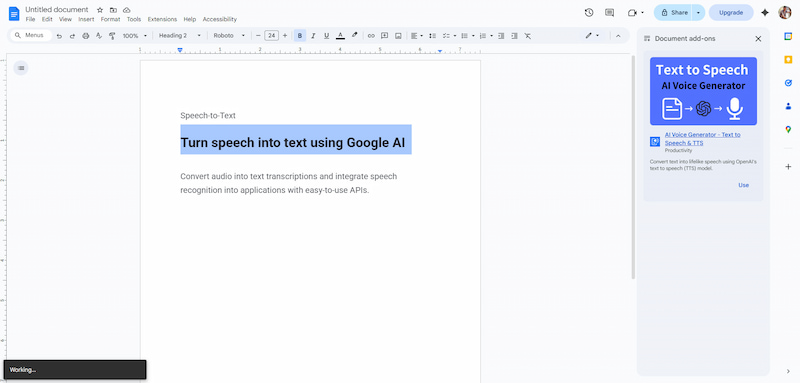
Step 3. Switch back to your document and highlight the portion of text you want to hear. Click Add-ons again, choose your installed text-to-speech add-on, and start playback.
Tips
- Add-ons are convenient because they integrate directly into Google Docs. It allows you to read selected text without leaving the platform or using external software.
Extension
For the simplest, most natural text-to-speech experience, Chrome extensions offer realistic voices and easy playback directly in Google Docs. Extensions are especially useful if you want hands-free listening with minimal setup.
Here’s how to get Google Docs to read to you:
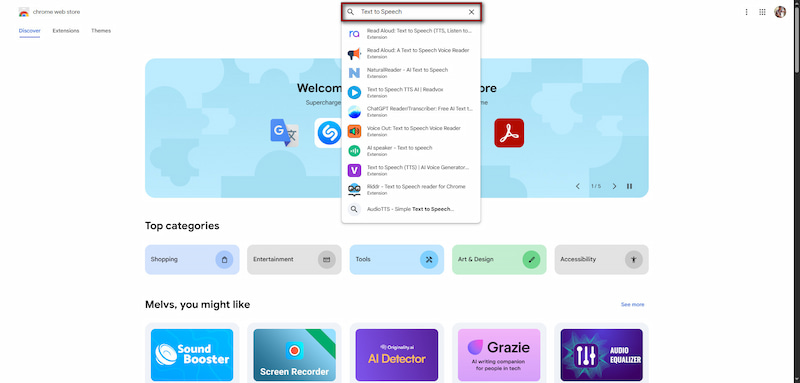
Step 1. Navigate to the Chrome Web Store and type Text to Speech in the search bar. Click Add to Chrome, then grant the necessary permissions to complete installation.
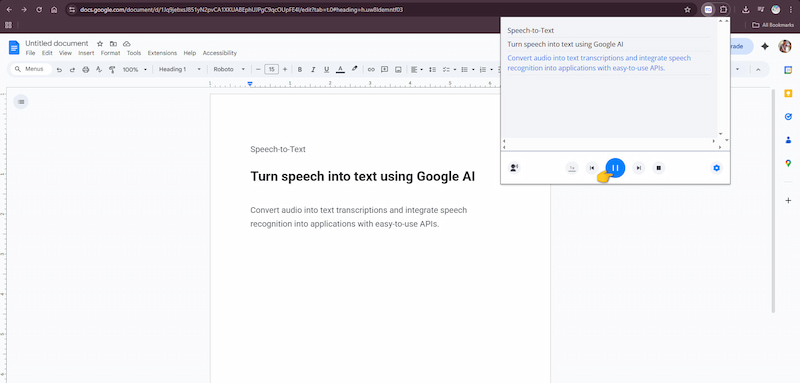
Step 2. Go to the document you want to read aloud and activate the download extension. The extension widget will open. Click Play to let the extension read the text aloud.
Tips
- Chrome extensions work across all Google Docs documents. Most extensions offer realistic, high-quality voices that can improve comprehension and productivity.
App
If you want to listen to Google Docs on the go, mobile apps offer a convenient, flexible text-to-speech solution. These apps allow you to access documents, customize voices, and adjust reading speed for a personalized listening experience.
Here’s how to speak into Google Docs using an app:
Step 1. Get a text-to-speech app from your device’s designated store (Google Play Store or App Store). Once installed, launch the app and sign in to your account.
Step 2. Tap + on the home screen, then paste text directly into the app or upload files. Alternatively, import images or scanned documents, which the app reads using OCR.
Step 3. Tap Voice to select your preferred language and AI voice. Optionally, adjust reading speed, pitch, and volume. After setting up, click Play to begin text-to-speech playback.
Mobile apps make it easy to listen to documents anywhere, turning Google Docs into a portable, hands-free learning or productivity tool. If you’re an Apple device user, you can use the built-in voice-to-text on iPhone to convert text to voice.
In our testing, we dictated a 500-word blog post. Typing took 12 minutes; Voice Typing took 4 minutes, including a 2-minute cleanup phase to fix punctuation.
Part 3. Advanced Voice Commands: Write Without Your Keyboard
Beyond basic dictation, Google Docs Voice-to-Text supports powerful voice commands. It lets you add punctuation, edit text, apply formatting, and even manage tables. This makes document creation faster, more accessible, and surprisingly precise.
| Voice Command | What it Does |
| Punctuation | Period, comma, exclamation point, etc. | Inserts a period, inserts a period, exclamation point, etc. |
| Navigation & Editing | New paragraph, insert horizontal line, select paragraph, etc. | Starts a new paragraph, adds a horizontal line, selects the current paragraph, etc. |
| Formatting | Apply heading [1-6], bold, text color [color], etc. | Applies heading styles, toggles bold formatting, changes text color, etc. |
| Tables | Insert table, insert row, delete column, etc. | Adds a table, inserts a row, deletes a column, etc. |
Important Note: As of August 2025, voice commands are supported only in English. To use this feature, ensure both your Google account and document languages are set to English.
Part 4. Tips for Using Speech-to-Text in Google Docs
Using Google Docs' audio-to-text can speed up writing. However, achieving accurate and efficient results takes patience and practice. You can follow the tips below to reduce errors, improve accuracy, and make your dictation experience smoother and more productive.
- • Regular use of voice commands improves accuracy and overall efficiency.
- • Pausing between sessions prevents vocal strain and maintains clear dictation.
- • Reviewing text while dictating helps catch mistakes early and saves time later.
- • Expect occasional transcription errors and don’t let them interrupt your workflow.
- • Carefully review words that sound alike but have different meanings, such as there, their, and they’re.
Part 5. Troubleshooting: Common Voice Typing Errors
Although Google Docs Voice Typing is powerful, you may occasionally encounter issues that affect performance or prevent the feature from working. Below are common voice typing problems, along with quick fixes for each.
Microphone is Greyed Out:
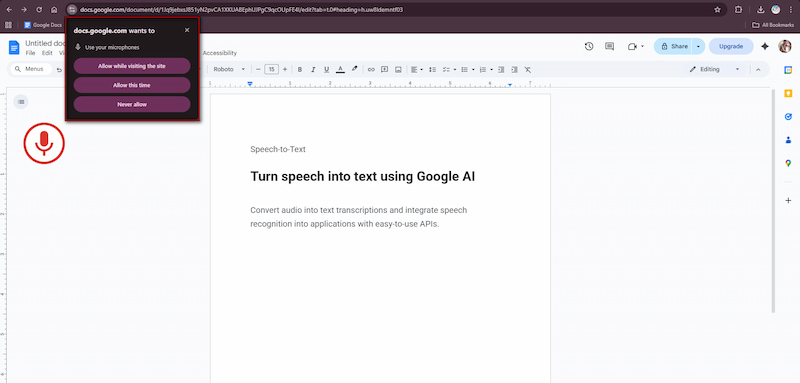
When the microphone icon appears greyed out, it usually means Google Docs cannot access your microphone. This may be caused by blocked microphone permissions at the browser or operating system level, or by a missing microphone. To fix this, allow microphone access and confirm the correct microphone is selected in your system settings.
Low Accuracy or Frequent Transcription Errors:
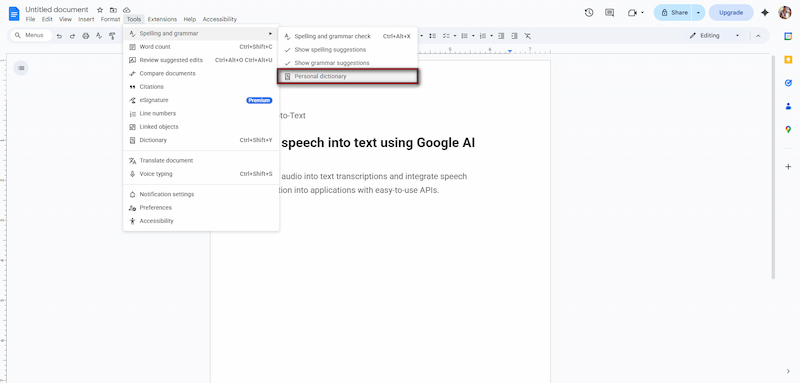
Low accuracy occurs when speech is unclear, too fast, or too soft. Accents, homophones, and technical vocabulary can confuse Google Docs’ transcription engine. To improve accuracy, go to Tools, select Spelling and grammar, and add your specialized terms to the Personal dictionary. Editing as you dictate with Google Docs also helps catch errors early and prevent revision later.
Voice Commands Not Working:
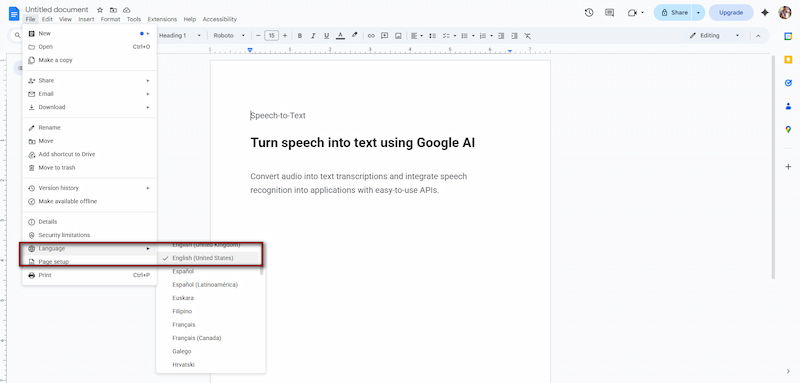
Voice commands may fail if the document and account language are not set to English. Commands can also be missed if they are spoken too quickly or blended into normal dictation. To fix this, set both your Google account and the language of your documents to English. Pause briefly before and after issuing commands to help Google Docs distinguish them from regular speech.
Voice-to-text on iPhone stops working? Get it working again with these easy fixes.
Part 6. FAQs about Google Docs Voice-to-Text
Q: Is there a time limit on voice typing in Google Docs?
A: There is no official word or time limit for voice typing in Google Docs. However, voice typing may stop automatically if there is a long period of silence, as the system assumes dictation has ended.
Q: How good is Google Docs' voice typing?
A: Google Docs voice typing is generally accurate for everyday writing, especially in quiet environments with clear speech. It performs well with common vocabulary, basic punctuation, and standard accents.
Q: Can Google Docs transcribe my voice?
A: Yes, Google Docs can transcribe your voice through its built-in Voice Typing feature. When enabled, it converts spoken words into editable text directly in your document. This allows you to dictate content hands-free and then review or edit it as needed.
Conclusion
Throughout this Speech-to-Text Google Docs review, we have explored how Google Docs’ speech-to-text functionality serves as a seamless alternative to traditional word processing. It effectively boosts output while minimizing the repetitive strain of keyboard use. From drafting emails to capturing complex ideas, it is a versatile solution for professionals and students. If efficiency is your priority, integrating this voice-typing capability into your daily routine is a clear win.
Ethan Carter
Ethan Carter creates in-depth content, timely news, and practical guides on AI audio, helping readers understand AI audio tools, making them accessible to non-experts. He specializes in reviewing top AI tools, explaining the ethics of AI music, and covering regulations. He uses data-driven insights and analysis, making his work trusted.


 by
by