Samsung Speech-to-Text Review: Hands-Free Typing Solution
Quick Summary:
- Accuracy Rating: 92% (Optimal in quiet environments).
- Best For: Samsung users, note-takers, and hands-free messaging.
- Top Advantage: Deep integration with Galaxy AI (Note Assist & Transcribe Assist).
- Primary Drawback: Punctuation accuracy lags behind Google Gboard in noisy settings.
- Offline Mode: upported (requires language pack download).
Typing on a smartphone isn’t always convenient, especially when you’re in a hurry or multitasking. Samsung offers a convenient solution by allowing you to dictate your messages, emails, or notes, which the device then converts into accurate, readable text. This feature lets you communicate naturally without relying on the keyboard. In this post, we will take an in-depth Samsung Speech-to-Text review and how it can improve your everyday typing experience. By the end of this post, you’ll have a comprehensive understanding of Samsung STT, how to use it effectively, and how it can simplify typing across apps and tasks.
Part 1. What is Samsung Speech-to-Text?
Samsung Speech-to-Text is a built-in feature on most Samsung devices. It allows users to convert spoken words into written text. Instead of typing manually, users can dictate messages, notes, emails, or documents, and the system transcribes their speech using advanced voice recognition technology. It is designed to improve speed, accessibility, and convenience, reducing the effort of typing on mobile devices.
Features
- Ability to dictate punctuation and formatting.
- Support for multiple languages and accents.
- Real-time transcription of spoken words into text.
- Works across apps, messages, emails, and documents.
- Option to use Samsung Voice Input or Google Voice Typing.
Supported Samsung Devices:
| Galaxy AI Transcribe Assist (Voice Recorder App) | Samsung Keyboard Voice Input | Note Assist (Samsung Notes) |
| Galaxy S24 Series, S23 Series, S23 FE, Z Fold6/Flip6, Z Fold5/Flip5, Z Fold4/Flip4, Tab S9 Series, and Tab S8 Series. | Almost all Samsung Galaxy devices running Android 10 or later through the Samsung Keyboard. | S24, S23, Fold5/4, etc. |
Benefits of Using Samsung STT:
- • Reduced strain on fingers and hands.
- • Faster input compared to manual typing.
- • Hands-free operation, ideal while multitasking.
- • Increased productivity for writing messages, notes, and emails.
- • Improved accessibility for users with mobility or vision challenges.
Common Use Cases:
- • Drafting emails quickly.
- • Hands-free typing while on the move.
- • Writing social media posts or captions.
- • Sending text messages and chat replies.
- • Taking notes during meetings or lectures.
Part 2. How to Turn On Samsung Voice-to-Text?
Samsung smartphones come with a built-in voice-to-text feature that lets you type using your voice instead of the keyboard. This is useful for faster typing, hands-free use, and accessibility. Samsung devices support two voice typing options: Samsung Voice Input and Google Voice Typing, both of which can be enabled through the device settings.
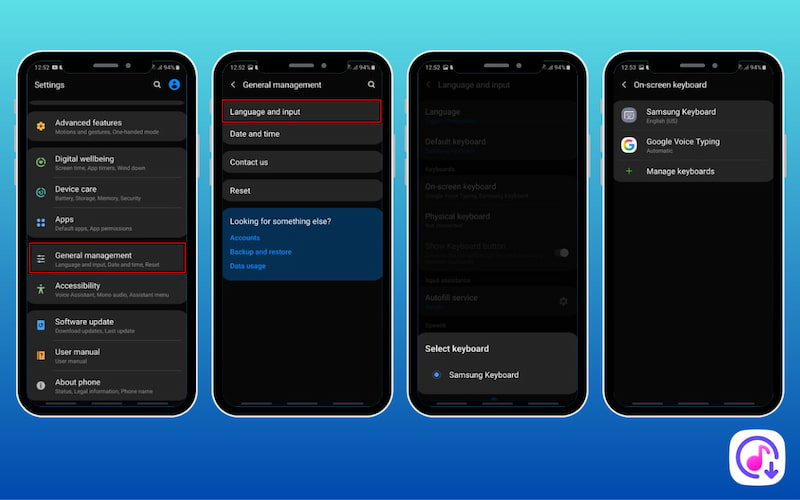
Step 1. Open the Settings app, tap General Management, and select Language and input. Tap On-screen keyboard to access the list of installed keyboards and voice typing services.
Step 2. Make sure Samsung Keyboard and Google Voice Typing are available. If both are listed, your device supports voice-to-text input.
Step 3. Next, return to General management, then tap Keyboard list and default. Ensure Google Voice Typing is enabled. If you experience issues with Samsung Voice Input, you can disable it and use Google Voice Typing instead.
Turning on Samsung voice typing only takes a few steps. This feature can improve speed, convenience, and hands-free usability.
Part 3. How to Use Speech-to-Text on Samsung
Chatting
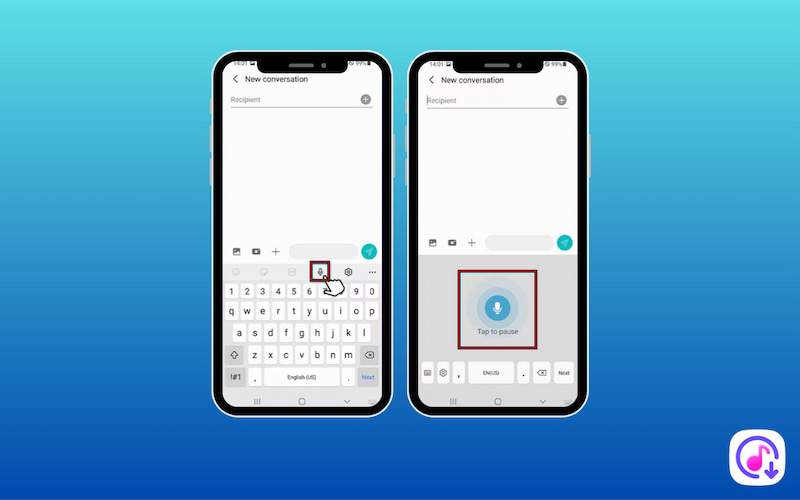
Samsung Speech-to-Text makes chatting faster by letting you dictate messages instead of typing. This feature works with most chat and social messaging platforms, including Samsung messages, WhatsApp, Telegram, and FaceBook Messenger.
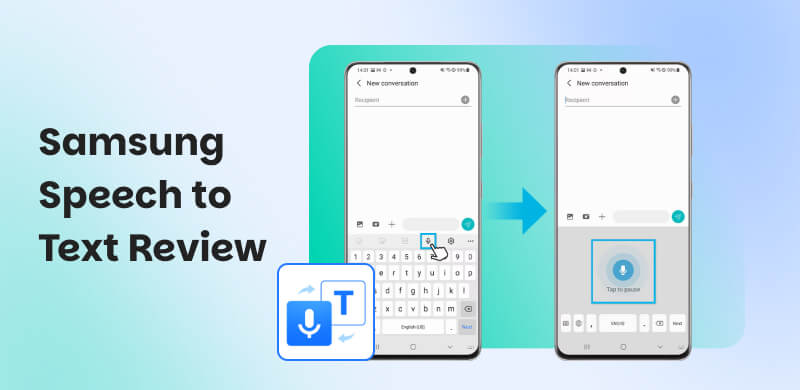
Step 1. Open your preferred messaging app and tap the message box to bring up the Samsung keyboard. On the keyboard, tap the Microphone to activate the voice input feature.
Step 2. Speak naturally and clearly. As you talk, Samsung will convert your speech into text in real time. Once you’re satisfied with the message, tap the Send button.
Samsung’s STT makes chatting faster, easier, and more convenient. It's a powerful tool for hands-free communication across popular messaging apps.
Not only do Android devices like Samsung have this feature, but Apple also offers iPhone voice-to-text functionality.
Email
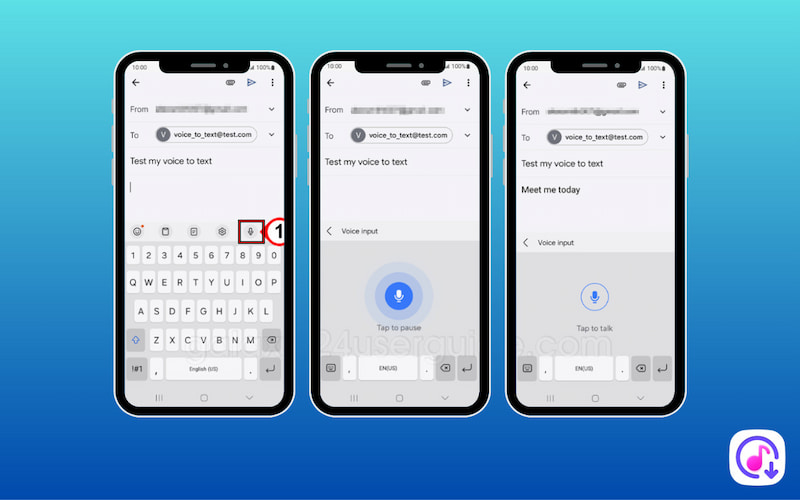
Writing emails on a smartphone can be time-consuming, especially when composing long messages. Samsung Voice-to-Text lets you dictate emails instead of typing them manually. This feature converts your spoken words into text in real time, helping you reduce typing effort.
Step 1. Launch your preferred email client, such as Gmail or Samsung Email. Tap Compose to create a new email message. Tap inside the email body to bring up the Samsung keyboard.
Step 2. Tap the Microphone on the keyboard to activate the voice-to-text feature. Start speaking naturally and clearly. You can dictate punctuation by saying comma, period, or new paragraph.
Using STT on Samsung for emails is a practical way to boost productivity and simplify mobile communication. This makes it an excellent tool for anyone who writes emails on their phone.
Social Media
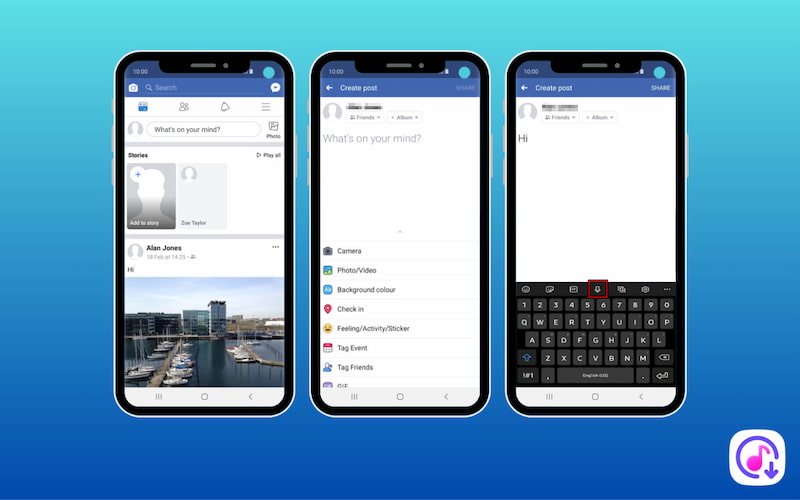
Creating social media posts on a smartphone can be slow when you have a lot to say. With Speech-to-Text on Samsung, you can create posts, captions, and updates hands-free by simply speaking. This feature is useful for quick status updates, captions, and comments.
Step 1. Open the social media platform where you want to post, such as Facebook, X, or Instagram. Tap on Create Post, What’s on your mind?, or Tweet, depending on the app.
Step 2. Tap the text box where you would normally type your status or caption. The Samsung keyboard will appear. Tap the Microphone on the keyboard to enable speech-to-text feature.
Step 3. Your spoken words will instantly appear as text on the screen. You can manually correct any errors and add emojis, hashtags, or tags as needed.
Samsung’s voice input feature is a fast and convenient way to stay connected and creative. It helps you share your thoughts effortlessly, whether it is a quick update or longer caption.
Taking Notes
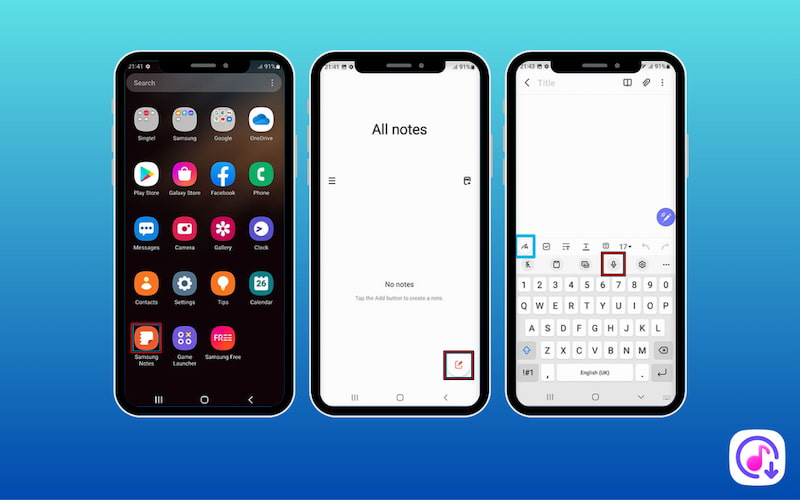
Taking notes by typing on a smartphone isn’t always practical, especially during meetings, lectures. With Samsung Talk-to-Text, you can quickly capture ideas, reminders, and even full paragraphs. This voice-to-text feature makes note-taking faster and more convenient.
Step 1. Launch the note or document app you want to use, such as Samsung Notes or Google Keep. Tap New Note, Add, or Create, depending on the app.
Step 2. Tap inside the note or document so the Samsung keyboard appears. Tap the Microphone to activate the voice input feature,
Step 3. As you dictate, your Samsung device will instantly convert your speech into text. Read through the transcribed text and make any necessary edits for accuracy.
Samsung's STT is an efficient way to capture ideas without breaking your focus. This feature helps you stay productive and organized; anytime inspiration strikes.
Reading E-Books or Browsing the Web
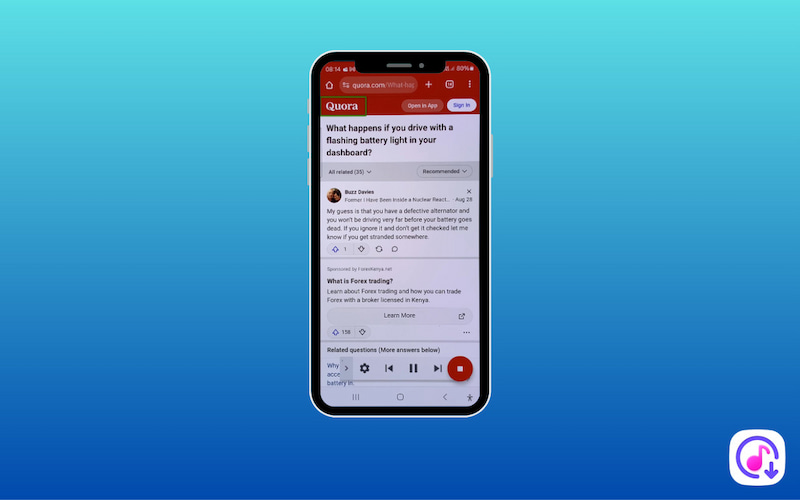
Consuming long articles, web pages, or e-books by reading on a small screen can be tiring. Fortunately, Samsung devices offer a built-in Text-to-Speech that allows written content to be read aloud. This makes it easier to absorb information hands-free.
Step 1. Launch a browser or e-book reader on your Samsung. Scroll to the article, webpage, or e-book section you want to listen to.
Step 2. Tap and hold on the text until the context menu appears. You can adjust the selection handles to highlight more text if needed.
Step 3. From the menu, tap Read aloud or Text to Speech. The Samsung Text-to-Speech engine will begin reading the selected text aloud.
While Speech-to-Text focuses on converting voice into written text, Text-to-Speech like ElevenLabs does the opposite. Such tools turn on-screen text into spoken audio in real-time.
Part 4. How to Edit and Save the Text?
After using Samsung Galaxy Speech-to-Text feature, reviewing and saving your transcribed text is an important final step. Though voice typing is highly convenient, minor recognition errors can still occur. Fortunately, Samsung allows you to easily edit and keep your text without extra steps.
Edit Text
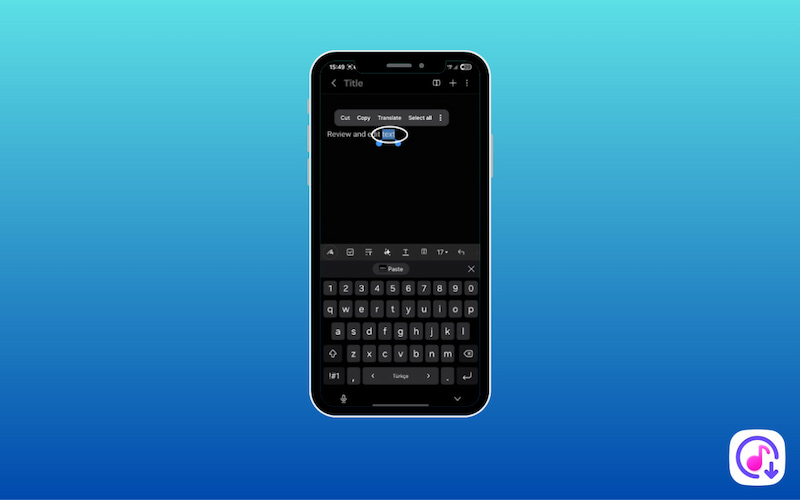
Once your speech has been converted into text, it appears instantly in the text field where you dictated it. You can revise the content just like any manually typed text.
- • Read through the transcript carefully.
- • Correct misspelled words or misinterpreted phrases.
- • Adjust grammar, punctuation, and sentence structure.
- • Ensure the text accurately reflects your original message.
Save Text
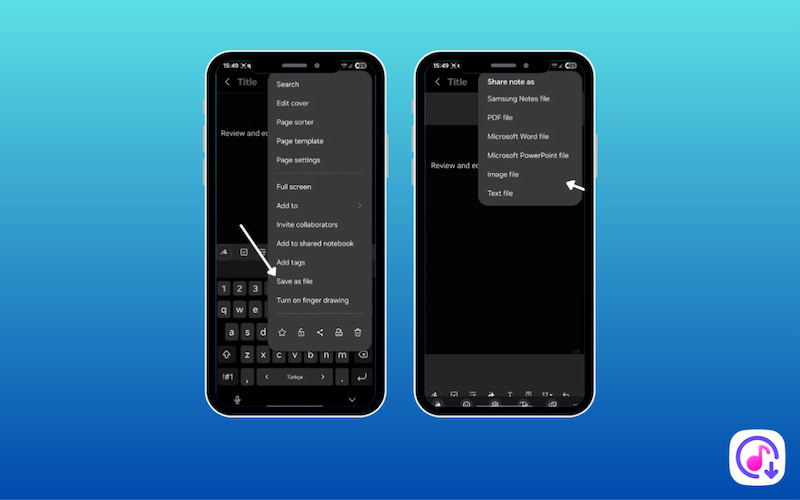
As long as you don’t close the app or discard the draft, your transcribed text stays available and fully editable.
Part 5. Tips for Better Samsung Voice-to-Text
How to use speech-to-text on Samsung efficiently? Samsung’s STT or Voice-to-Text works best when your speech is clear and your environment supports accurate voice recognition. Following these simple tips can improve transcription quality and reduce manual editing:
Speak Clearly:
Pronounce words clearly and avoid speaking too fast. Talking at a steady, conversational speed helps the system recognize each word correctly and reduces misinterpretation.
Avoid Background Noise:
Background sounds can interfere with voice recognition. For best results, use voice typing in a quiet environment so the microphone can focus on your voice without distractions.
Use a Quality Headset or Microphone:
Using a wired or Bluetooth headset with a built-in microphone can improve accuracy. Meanwhile, quality microphones capture clearer audio and reduce echo and ambient noise.
Part 6. Why is Samsung Talk-to-Text Not Working
Speech-to-text on Samsung is usually reliable, but certain settings, permissions, or system issues can prevent it from working properly. If dictation isn’t responding or the microphone icon is missing, one of the issues below is likely the cause:
Missing Microphone Icon:
If the microphone icon doesn’t appear on the Samsung keyboard, voice typing may be disabled in settings or the wrong keyboard is selected.
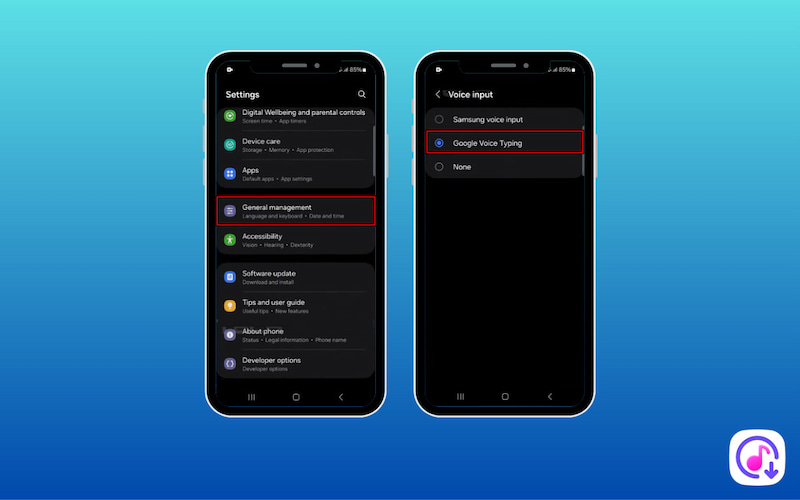
Step 1. Go to Settings, tap General management, and select Keyboard list and default.
Step 2. Enable Google Voice Typing, and ensure Samsung Keyboard is selected
Incorrect Language Recognition:
Samsung voice typing may type the wrong words or language if the voice input language doesn’t match what you’re speaking.
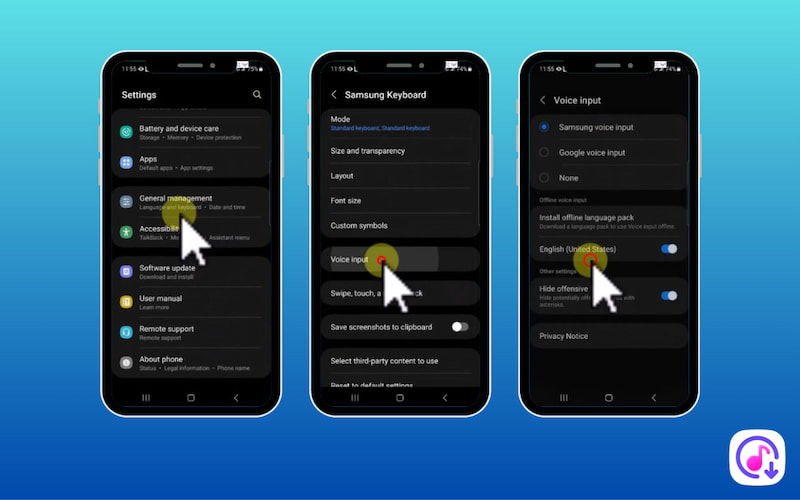
Step 1. Check Settings, tap General management, and select Language and input.
Step 2. Tap Voice input and select the correct language and remove unused ones.
Server Error:
A server-related error may appear when the device can’t connect to the voice recognition service. To fix it, switch to a stable Wi-Fi or mobile data connection, then try again. Restarting the device often resolves temporary server issues.
Part 7. FAQs on Samsung Speech-to-Text
Q: Is Samsung Voice-to-Text accurate?
A: The accuracy of Samsung’s voice-to-text feature depends on the clarity of your speech, background noise, and microphone quality.
Q: Can I Use Talk-to-Text offline?
A: Yes, some Samsung models, including the Samsung Galaxy S24 series, support offline speech-to-text functionality. This requires pre-downloaded language packs.
Q: Can I customize Samsung TTS settings?
A: Yes, you can customize Samsung TTS settings. On Samsung devices, you can choose between Samsung’s built-in speech engine or Google’s Text-to-Speech engine.
Conclusion
This Samsung Speech-to-Text review highlights how the feature makes typing faster, easier, and more convenient. By dictating text naturally, Samsung STT reduces manual effort while improving productivity and accessibility. Although accuracy can vary depending on speech clarity, background noise, and settings, the system remains reliable for everyday tasks.
Ethan Carter
Ethan Carter creates in-depth content, timely news, and practical guides on AI audio, helping readers understand AI audio tools, making them accessible to non-experts. He specializes in reviewing top AI tools, explaining the ethics of AI music, and covering regulations. He uses data-driven insights and analysis, making his work trusted.


 by
by